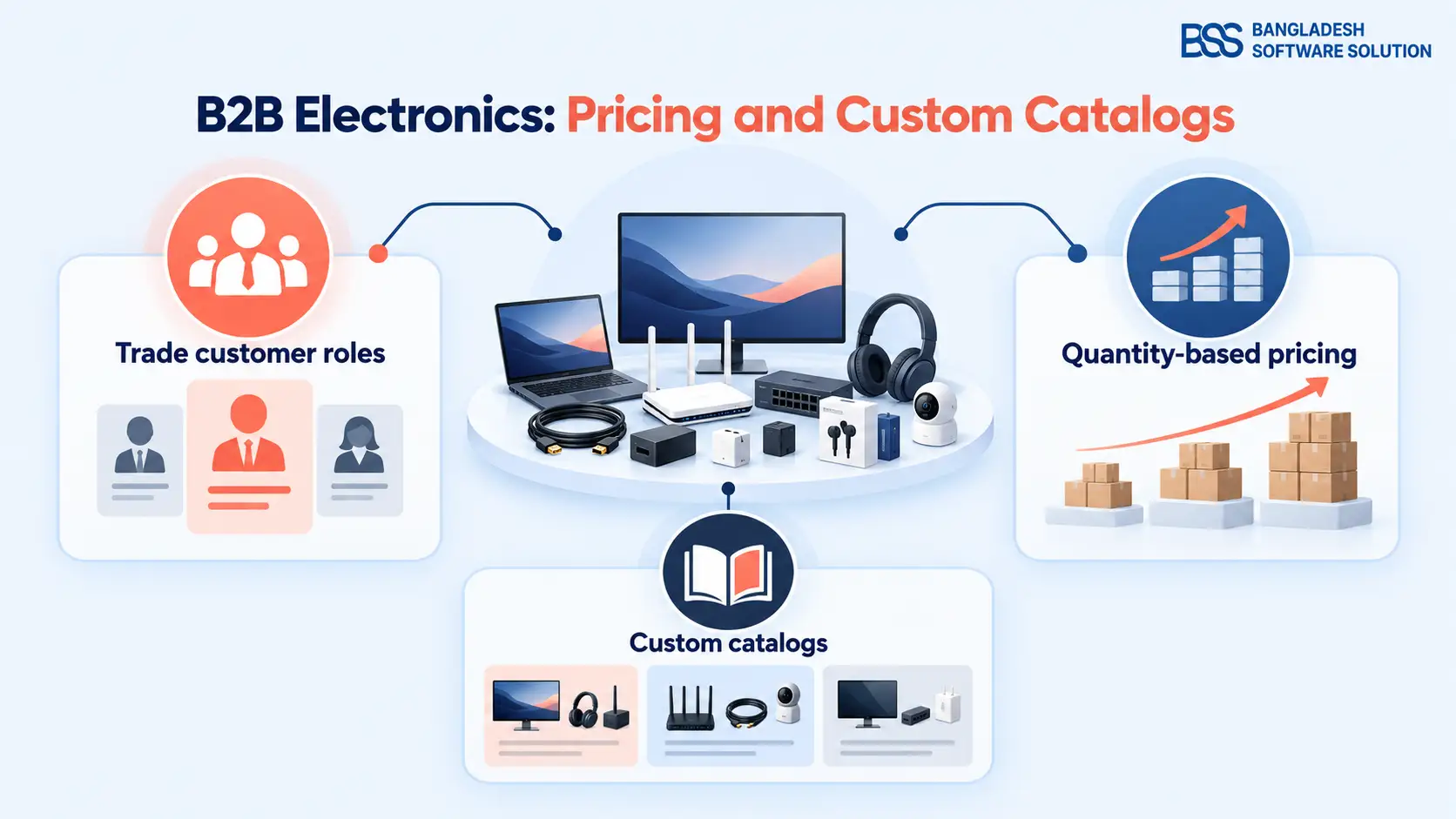
When you set up B2B electronics distribution on nopCommerce, two decisions deserve separate attention: which products a trade buyer can access, and what that buyer should pay at a given order quantity. A wholesale price alone does not define a private catalog.
This guide explains the native customer-role, tier-price and catalog restriction controls, then shows how to organize and test them. The setup recommendations are a planning framework, not a claim about an existing distributor or a promise that every B2B requirement is built in.
Start with buyer rules before editing products
Decide what makes an account eligible for trade access before you configure a price. If approval means checking a business account against your own criteria, make that review an explicit operational step.
Write down the groups you actually need. Possible labels include approved reseller and systems integrator; these are suggested role names, not predefined nopCommerce roles. Create separate groups only when their prices or product access differ.
Keep an owner for approving accounts, another for maintaining commercial terms, and a record of changes. One person may fill both roles, but the responsibilities should still be clear.
If you are adapting an existing retail store, the B2C-to-B2B setup guide provides the broader configuration context. Use this article to work through the electronics catalog and pricing details.
Create and assign trade customer roles
Create an active group under Customers → Customer roles → Add new. In Customers → Customers, edit the buyer’s record to assign or remove roles; the Managing customers documentation confirms that an account can have multiple roles and should retain Registered when it needs to log in.
As a setup recommendation, assign your trade role only after your account review. Registration and commercial approval should be separate decisions in your process.
Use a small test group before changing all accounts. Record the buyer’s intended catalog and price group alongside the account so the next administrator can understand the assignment.
Review overlapping memberships
A buyer may belong to several roles. Do not assume that the role you consider most important automatically wins a pricing conflict. Avoid unnecessary overlap and verify the resulting price in your installed version.
Keep customer segmentation separate from staff permissions. nopCommerce’s Access control list documentation describes role-based permissions under Configuration → Access control list. Grant trade buyers only the storefront permissions they need; review administrative access independently.
Configure nopCommerce tiered pricing by quantity and role
In order to set up tier prices, navigate to Catalog → Products, open the desired product, and locate the Tier prices panel. Add a new record, specify the quantity and price, select the applicable customer role and store, and optionally set start and end dates for time-limited offers.
The cart price changes when the customer adds the qualifying quantity. Use approved commercial terms for the values; this article deliberately does not invent wholesale prices or margins.
| Decision | What to record before setup | What to verify |
|---|---|---|
| Buyer group | The role eligible for the offer | An approved and an unapproved account |
| Quantity break | The agreed threshold for that product | Below, at and above the threshold |
| Unit price | The approved selling price | The unit price and line total in the cart |
| Scope and dates | The intended storefront and validity period | The offer in each store and outside its dates |
For a straightforward pilot, choose one product with a single selling unit and no competing promotions. Once that behaves correctly, expand testing to products with options and any discounts you intend to combine.
Treat quantity breaks as product-specific offers. Do not present a tier as a discount earned by an unrelated mixed basket or by a buyer’s annual spend without verifying a separate implementation for that rule.
A discounted quantity and a permitted quantity are different commercial decisions. Use Minimum cart qty, Maximum cart qty and Allowed quantities to define which quantities customers can order. Use those controls where the product must be ordered in an approved quantity; the allowed-values list becomes a dropdown.
For electronics, document whether your selling unit is one device, one accessory or one packaged set. Align the product description, quantity controls and commercial schedule so buyers can interpret the offer consistently.
Verify the final order value
Test the actual configuration you will sell through, including options, promotions, taxes and shipping. A correct tier-price record is only one part of a correct order total; never approve the setup from the product page alone.
Build custom catalogs with product and category restrictions
Here, a custom catalog means an assortment selected by customer role. It does not imply a built-in company contract portal, a private price-list upload or a procurement approval system.
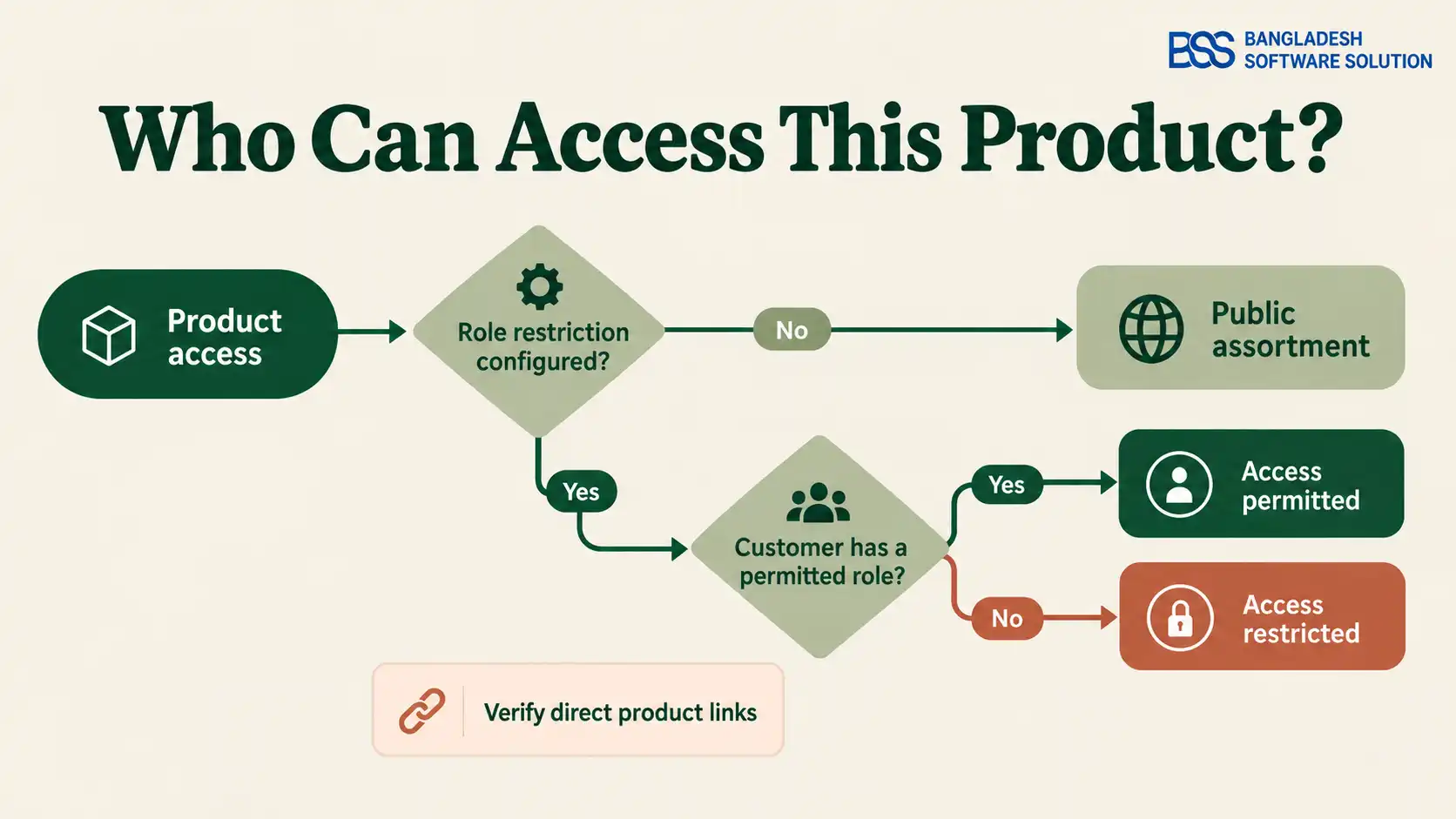
Use the Customer roles field to control product visibility and Limited to customer roles in category mappings to control category visibility. Leaving either role restriction empty makes that product or category visible to everyone.
Before using these controls, open Configuration → Settings → Catalog settings and disable Ignore ACL rules (sitewide). When enabled, this setting bypasses the catalog access restrictions you have configured.
Start with the product as the unit of access. Then organize the permitted products into categories that make sense for the buyer. If a product itself must be private, restrict the product itself and verify access beyond its category listing.
Plan the shared assortment deliberately: public products can support discovery, while trade-only items belong in the restricted group. Avoid duplicating a product just to change its visibility until you have assessed the extra maintenance that separate records would create.
Use ordinary buyer accounts for testing. An administrator’s view is not sufficient evidence of what an approved reseller, an unrelated registered customer or a guest can access.
Check direct product links, search, category navigation, comparison, quick view and any custom widgets. These are recommended acceptance checks for your installed theme and plugins; this guide does not assume that third-party components enforce restrictions correctly.
If you need distinct retail and wholesale storefronts, nopCommerce supports multiple storefronts sharing one installation and administration panel. Store scope and buyer scope remain separate planning decisions. The multi-store setup guide explains the storefront configuration in more depth.
Make the electronics assortment easy to evaluate
Once access is correct, focus on the information buyers need to choose the right model. Establish a consistent product data checklist for identifiers, technical specifications, included components and any relevant compatibility limitations. Populate it from verified manufacturer material for the exact item you sell.
Use the same terms and units across comparable products. A comparison is less useful when one model describes a connection in the title, another buries it in prose and a third omits it entirely.
Specification attributes describe product features and can support category filtering; product attributes represent selectable options. Choose the structure that matches the buying decision, and configure inventory tracking for the product combinations you sell.
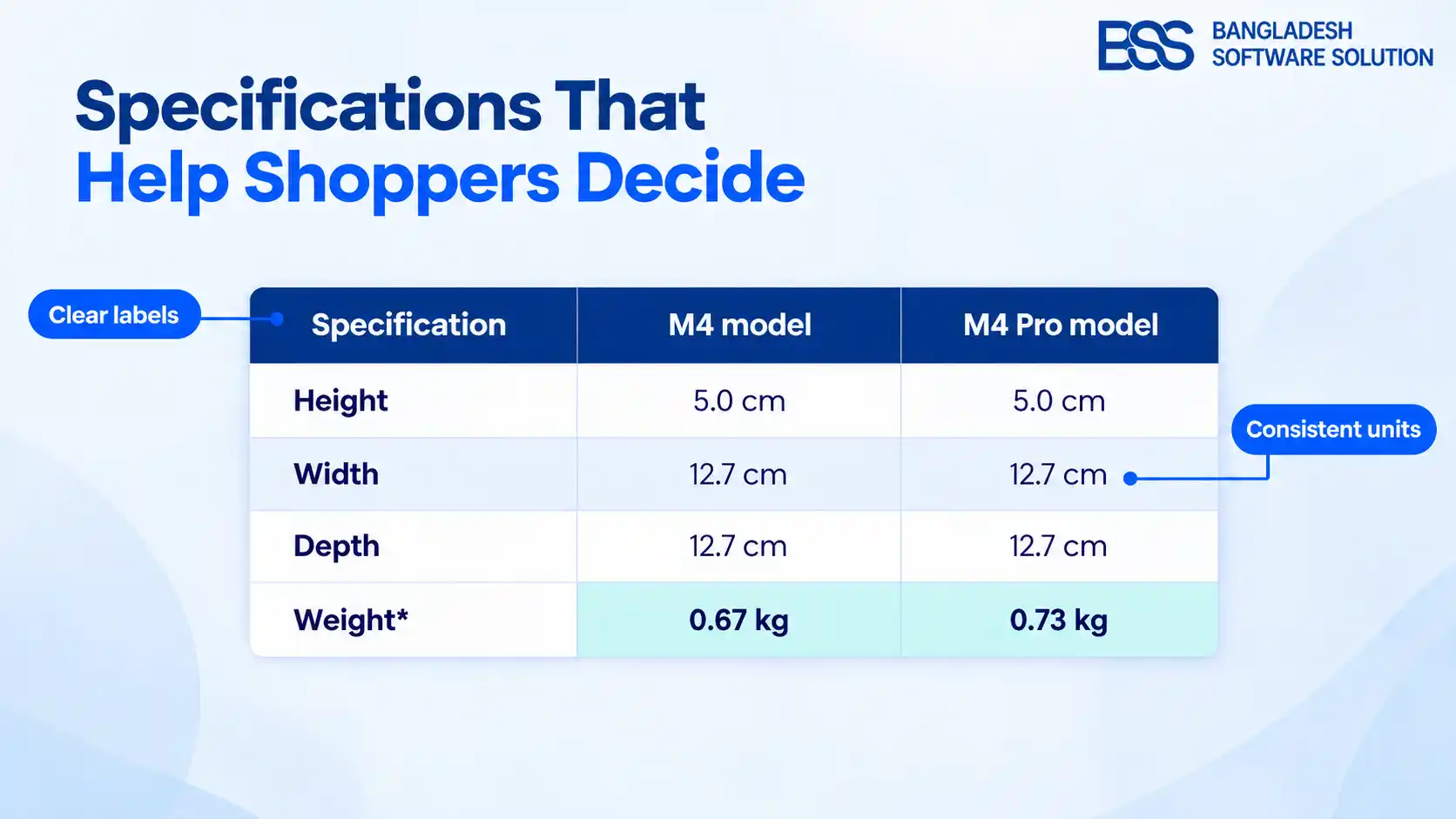
Do not fill missing warranty, certification or compatibility information with a plausible value. Confirm it with the supplier or leave the claim out until it is verified. For a repeatable way to organize this information, see our guide to useful product specification tables.
That consistent data also gives you a foundation for the storefront design. Our NopGadget theme is designed for electronics and gadget stores. We include Advanced Product Compare, QuickView and Picture Gallery in the bundle, alongside configurable responsive grids.
Those features are relevant when a buyer needs to inspect and compare models within the permitted assortment. Keep the pricing and access rules in their verified configuration, and test how the theme and plugins present them on staging before launch. Evaluate the theme for that browsing experience rather than treating its product listing as evidence of company contract pricing or purchasing approval capabilities.
Test the complete trade buying journey
Use one approved account, one unrelated registered account and a guest session. Write the expected result for each before testing, so a successful checkout cannot hide a visibility or price mistake.
B2B electronics launch checklist
- Confirm the approved account has the intended roles and can log in.
- Check permitted and restricted products through navigation, search and direct URLs.
- Verify price and cart totals below, at and above every quantity break.
- Test permitted quantities and any product options used in real orders.
- Repeat the checks with discounts, different stores and dated offers where configured.
- Confirm the order details match the commercial terms approved by your team.
- Remove trade access from a test account and check the resulting storefront behavior.
Record the installed nopCommerce version, theme, plugins and test outcome. Repeat the relevant checks when any of those components changes or when you revise account rules.
If you need ERP-sourced prices, company purchasing approvals, credit limits or a managed quotation process, document each requirement separately. Assess the plugin or custom integration needed for each workflow, and verify how it works with your pricing and catalog rules before offering it to buyers.
Need Help Configuring Your B2B Electronics Store?
Bring your buyer groups, pricing terms and catalog requirements to our team. We can help you scope the nopCommerce configuration and any custom integrations your distribution workflow needs.
Frequently asked questions
Final Thoughts
Begin with a small assortment and a clearly defined trade group. Approve the accounts, enter the agreed price breaks, apply the product restrictions and verify the complete buying journey before extending the setup.
The objective is straightforward: each approved buyer should find the intended electronics assortment, understand its specifications and place an order at the agreed terms. Keep ownership of those rules clear, and make every catalog or pricing change reviewable.