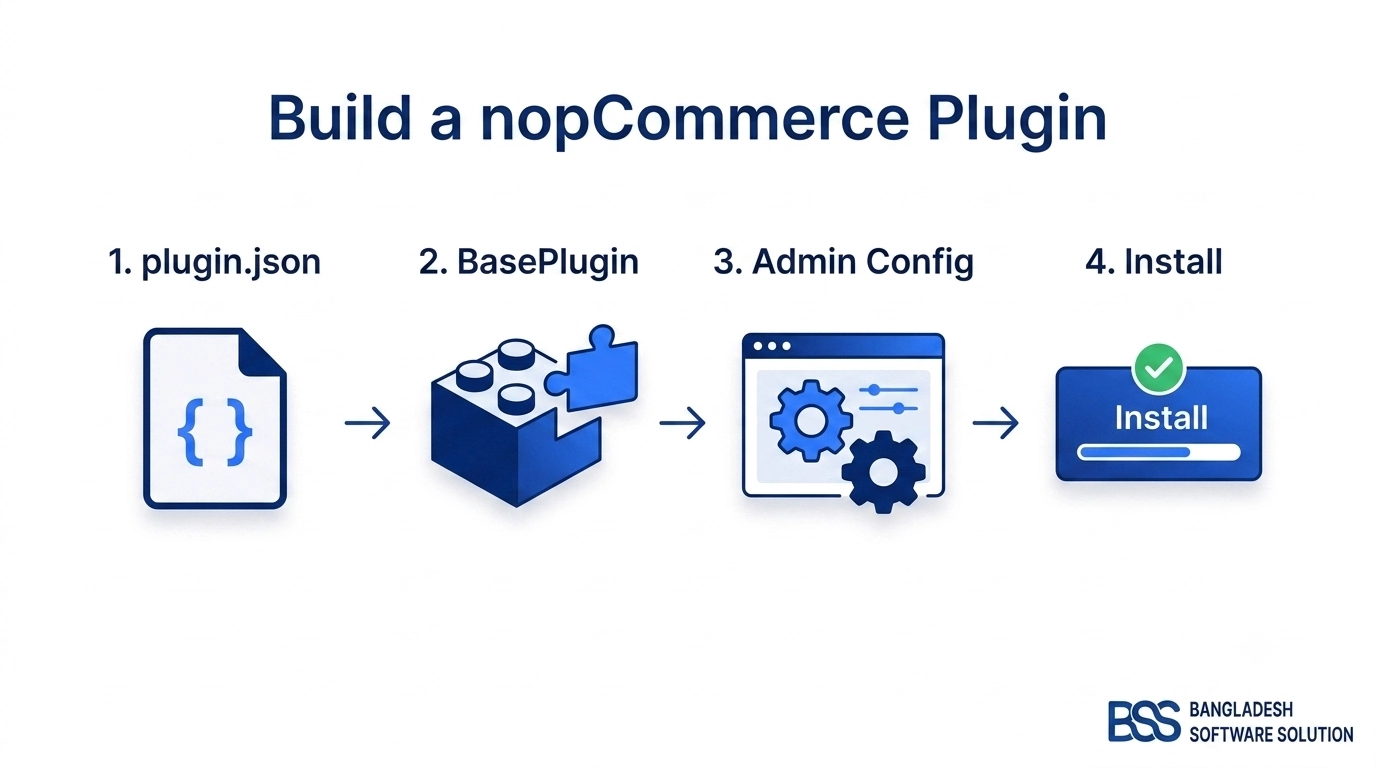
You've built a nopCommerce plugin, installed it, and it shows up correctly under Local Plugins in the admin — but the actual thing the brief called for, a banner on the homepage, a callout on the product page, a note in the checkout footer, is nowhere on the storefront itself. That's the gap widget zones close: a plugin's IPlugin lifecycle gets it installed and configured, but rendering it into a real page takes a second, narrower interface — IWidgetPlugin — plus the exact name of the zone you want to land in.
This guide picks up where plugin creation leaves off: implementing IWidgetPlugin, choosing the right zone out of the 231 available on a live nopCommerce 4.80 storefront, building the view component that actually renders, and registering it correctly in the admin — plus the failure modes that usually cost a developer an afternoon.
What Is a Widget Zone, Exactly?
A widget zone is a named slot a Razor view exposes at render time. The view itself doesn't know or care which plugin fills it — it just asks nopCommerce's own widget-rendering component for whatever is active in that zone, and moves on. Your plugin doesn't touch a single core view to appear on a page; it just tells nopCommerce which zone names it wants, and the framework does the rest.
Key fact: A widget zone is just a string constant — there's no registry to update and no core file to touch. Your plugin declares the zone names it wants, and nopCommerce's rendering pipeline matches them up automatically.
On this store alone there are 231 of them, spanning nearly every template in the storefront. They fall into a few natural groups.
Where Zones Actually Live
Pulling the live zone list straight from a running 4.80 storefront (rather than trusting an old forum thread) turns up three broad categories worth knowing before you pick one:
home_page_before_products, categorydetails_top, productdetails_before_pictures.checkout_confirm_top, checkout_payment_method_bottom, order_summary_totals.header_after, footer, body_start_html_tag_after.
The IWidgetPlugin Interface
Every widget in nopCommerce — from a PayPal checkout tab to a homepage promo banner — is a plugin that implements one interface: IWidgetPlugin. It extends the base IPlugin contract with three members, and once those are in place, enabling, disabling, and store-scoping are all handled by nopCommerce's own admin and rendering pipeline — nothing left for you to wire up by hand.
The Three Members
A minimal widget plugin looks like this — no base plugin, no controller, just the three members IWidgetPlugin asks for:
public class WidgetZoneDemoPlugin : BasePlugin, IWidgetPlugin
{
    // Keep it out of Content Management -> Widgets when the plugin already
    // has its own configuration surface (a payment or shipping method, say).
    public bool HideInWidgetList => false;

    public Task<IList<string>> GetWidgetZonesAsync()
    {
        return Task.FromResult<IList<string>>(new List<string>
        {
            "productdetails_before_pictures",
            "checkout_confirm_top"
        });
    }

    public Type GetWidgetViewComponent(string widgetZone)
    {
        return typeof(WidgetZoneDemoViewComponent);
    }
}
GetWidgetZonesAsync returns a list, not a single string, so one plugin can render into more than one zone. GetWidgetViewComponent gets called once per zone as nopCommerce renders each page region, with the zone name passed in — so the same plugin can point different zones at different view components, or branch inside a single one.
A real example, hiding in plain sight
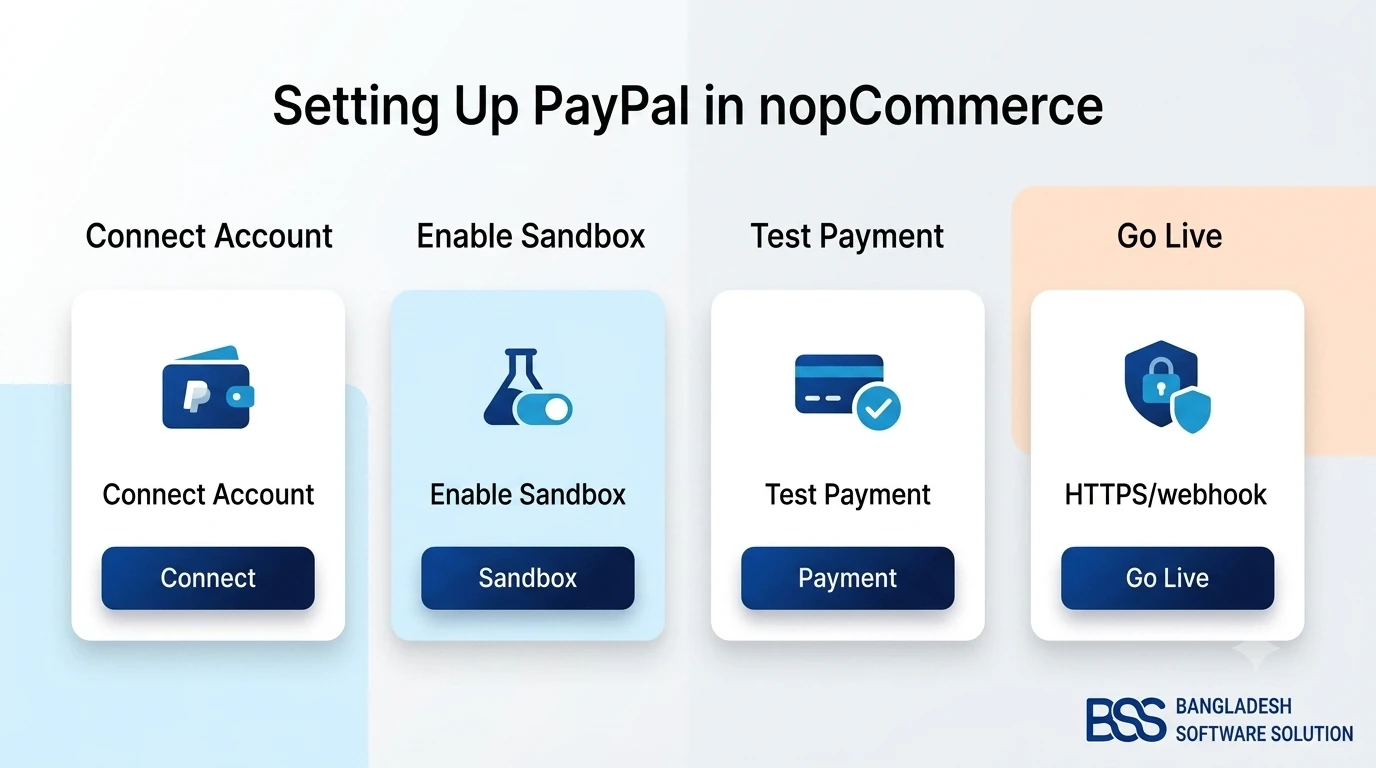
Our own PayPal setup guide walks through configuring PayPal Commerce as a payment method — but under the hood, PayPal Commerce is also a widget. It implements IWidgetPlugin to inject its checkout-tab UI, and sets HideInWidgetList to true so it never clutters Content Management → Widgets: store owners configure it from Payment Methods instead, where it actually belongs.
Building the Widget: View Component and View
GetWidgetViewComponent has to return a real MVC view component type — a class deriving from nopCommerce's NopViewComponent, not a plain controller action or a bare Razor view. That component is what actually renders when the zone fires.
public class WidgetZoneDemoViewComponent : NopViewComponent
{
    public IViewComponentResult Invoke(string widgetZone, object additionalData)
    {
        var model = new WidgetZoneDemoModel
        {
            WidgetZone = widgetZone
        };

        return View("~/Plugins/Widgets.WidgetZoneDemo/Views/PublicInfo.cshtml", model);
    }
}
Two parameters land in Invoke for free, and both are worth using:
- widgetZone — the exact string the calling page passed in, useful when one component covers more than one zone and needs to render differently per zone.
- additionalData — whatever model the host page already had in scope (a Product on a product page, an Order on the order-details page, or null where there isn't one) — cast it back if the widget needs that context.
Widget plugin build checklist
-
Confirm the target zone name against this store's live list, not an old forum thread.
-
Implement IWidgetPlugin on your plugin class, including HideInWidgetList.
-
Return your zone name(s) from GetWidgetZonesAsync — it's a list, so one plugin can cover more than one.
-
Point GetWidgetViewComponent at a NopViewComponent subclass, not a plain MVC view.
-
Build the Invoke(string widgetZone, object additionalData) method and its Razor view.
-
Install the plugin, then enable it under Content Management → Widgets.
-
Re-check the storefront in a private window — cached layouts can hide a fresh widget.
Choosing (and Verifying) the Right Zone
Getting the widget itself right doesn't help if GetWidgetZonesAsync returns a zone that's misspelled, renamed, or simply doesn't exist on the version you're targeting — nopCommerce won't throw an exception, it will just never call your component. There are a few ways to be sure you've got the right string before you ship.
| Approach | What it actually involves | Trade-off |
|---|---|---|
| Manual research (DIY) | Searching forum threads or old GitHub tags for a zone name you half-remember. | Fast to start, but zone names get renamed or removed between versions — you can build against one that no longer exists. |
| Build your own zone logger | A throwaway diagnostic widget that logs every zone name it renders into as you browse the storefront. | Accurate for your exact version, but it's a half-day detour before you've written the widget you actually wanted. |
| BSS turnkey plugin development | Our engineers already maintain a verified widget-zone map and working scaffolding for 4.80. | No detour — the zone is confirmed and the plugin ships tested, not guessed at. |
A widget zone isn't a feature you switch on. It's a rendering contract — you give nopCommerce a zone name, and it hands your view component a place to draw.
BSS Engineering
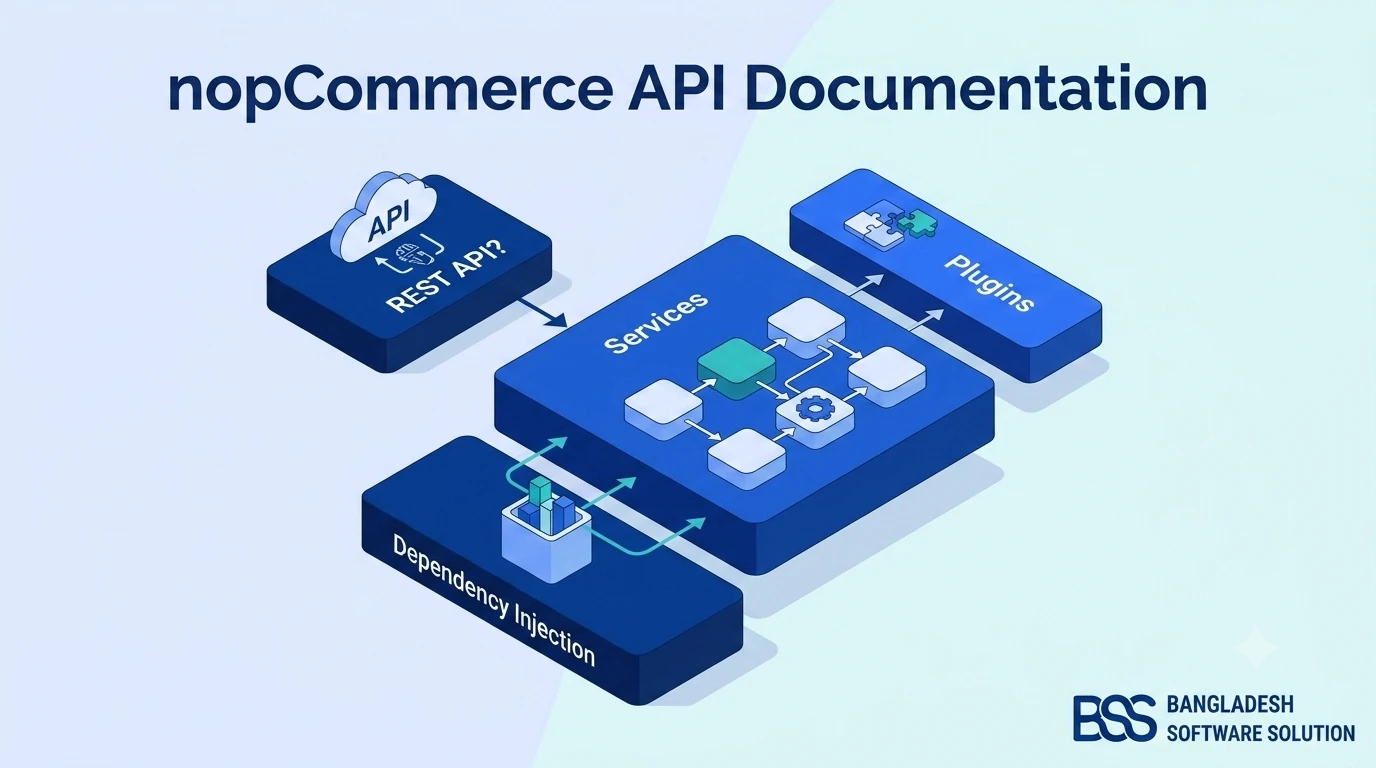
If you want to see how far the platform's own extensibility surface goes beyond widgets, our walkthrough of nopCommerce's developer documentation maps the wider plugin and service architecture that widget zones sit inside.
Registering the Widget in the Admin
A widget that compiles and installs still won't render until the admin knows to activate it — and, unlike a lot of nopCommerce configuration, there's less to click through here than you'd expect.
- Content Management → Widgets — find the plugin by its friendly name and install it if it isn't already.
- Toggle it Active for the stores it should render on — a multi-store install scopes widgets per store, so a widget active on the default store won't automatically show on a second one.
- There's no separate zone picker to fill in here — the zones it renders into come entirely from what your plugin's own
GetWidgetZonesAsyncreturns, not from an admin selection. - Save, then load the exact page and zone in a private/incognito window so cached output can't hide a change either way.
Common Pitfalls and Gotchas
Most "the widget isn't showing up" tickets trace back to one of four causes, and all four are quick to check once you know to look for them.
Need a nopCommerce Developer? Hire the BSS Team
From custom plugins and theme work to full-store builds and performance tuning, our dedicated nopCommerce engineers ship production-grade code. Tell us what you need and we'll match you with the right developer.
Frequently Asked Questions
Final Thoughts
A missing widget almost never means nopCommerce is broken — it means one of a handful of well-known links in the chain got skipped: the interface, the zone string, the view component, or the admin toggle. Once you've implemented IWidgetPlugin once, adding the next widget to the next plugin is a matter of picking the right zone from the 231 on offer and repeating the same four steps.
If you'd rather hand the whole chain to someone who's already mapped it, that's exactly the kind of work our nopCommerce engineers ship every week — see the plugin development services below, or keep building with the full plugin-creation guide if this was your first stop.