Setting up PayPal in nopCommerce should be one of the fastest parts of launching a store — pick a plugin, drop in your credentials, take a test payment. In practice it's the step where store owners get stuck most often, and not because it's technically hard. It's because nopCommerce currently ships two different official PayPal integrations, they share half a name, and most of the tutorials and forum threads floating around still describe the older one.
This guide walks through picking the right plugin for a new setup, connecting your PayPal account, testing safely in sandbox mode before any real money moves, and fixing the handful of errors that account for nearly every support thread about this integration.
PayPal Commerce vs. PayPal Standard: Which One Should You Use?
nopCommerce has shipped a PayPal integration since its earliest versions, and that history is exactly why the choice is confusing today. As of nopCommerce 4.80, two payment plugins have "PayPal" in the name: Payments.PayPalStandard and Payments.PayPalCommerce. They are not interchangeable, and they are not two flavors of the same thing.
Key Fact: For a new setup, use PayPal Commerce. It's the actively maintained plugin, bundled with nopCommerce by default since version 4.80, and it's the integration PayPal itself points merchants toward.
PayPal Standard is still installable, but it depends on a full-page redirect to PayPal.com and on IPN (Instant Payment Notification) to confirm payments — both patterns PayPal has been steadily retiring in favor of embedded checkout and webhooks.
What Actually Changed
PayPal Standard sends the customer away from your store to complete payment on PayPal.com, then relies on an IPN callback to tell nopCommerce the order was paid. There's no way to accept a card without the customer either having a PayPal account or being routed through PayPal's own guest-checkout page, and there's no Pay Later or Venmo support built in.
PayPal Commerce embeds the checkout directly in your store instead: PayPal buttons and hosted card fields sit on your own checkout page, so a customer without a PayPal account can pay by card without ever leaving your site. Per PayPal's own listing for the plugin, PayPal Commerce supports over 130 currencies across 200-plus markets, and it adds Venmo, Pay Later messaging, and saved-payment-method support (vaulting) for returning customers — none of which PayPal Standard offers.
| Feature | PayPal Commerce | PayPal Standard |
|---|---|---|
| Checkout experience | Embedded buttons + hosted card fields, no full-page redirect | Redirects the customer to PayPal.com to pay |
| Payment methods | PayPal wallet, Venmo, Pay Later, major debit/credit cards, plus Apple Pay and Google Pay | PayPal wallet balance and linked cards only |
| Order confirmation | Webhooks — real-time, server-to-server | IPN — the legacy notification method PayPal is retiring |
| Status in nopCommerce 4.80 | Actively maintained, bundled by default | Legacy — kept for existing setups only |
If You're Still Running PayPal Standard
PayPal has published a retirement timeline for Website Payments Standard, the underlying PayPal product that PayPal Standard is built on: deprecation from January 2026, with full end-of-life in January 2027. If your store still relies on it, migrating to PayPal Commerce isn't optional — it's a question of when payments stop working, not if.
Before You Start: What You'll Need
PayPal Commerce can be up and running in under fifteen minutes, but only if three things are already in place before you open the plugin's settings.
If you're not certain your current host has SSL sorted, our nopCommerce hosting guide covers what to look for before you go any further.
Step-by-Step: Installing and Configuring PayPal Commerce
PayPal Commerce ships as a standard nopCommerce plugin, installed and updated the same way as any other extension. If you've ever wondered what actually happens when a plugin gets installed under the hood, our guide on how to create a plugin in nopCommerce 4.80 walks through the same mechanism from the developer's side.
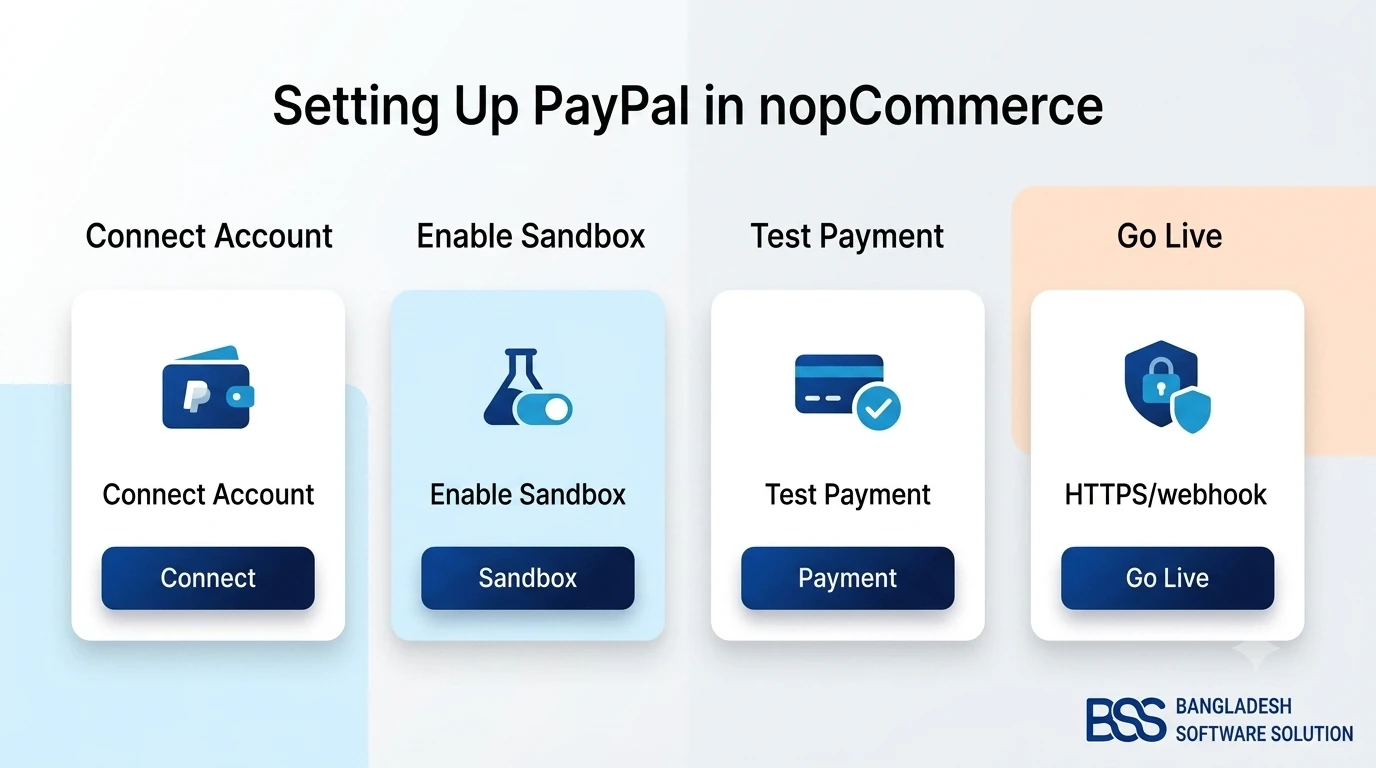
Step 1: Open the Plugin's Settings
In the admin, go to Configuration → Payment Methods and find PayPal Commerce in the list. Since it's bundled with nopCommerce 4.80, it usually just needs a one-click Install rather than an upload. Once installed, click its Configure link.
Step 2: Choose Sandbox or Production
The first real decision on the configuration page is Use sandbox. Leave it checked while you're setting up — this points the plugin at PayPal's sandbox environment so you can run complete test transactions with fake money before a single real charge touches your store.
Step 3: Connect Your PayPal Account
There are two ways to connect an account:
- Sign up for PayPal — opens a popup where you log in (or create a sandbox or production Business account) and complete the connection for you. This is the right choice for almost everyone.
- Specify API credentials manually — if you already manage a REST API app in your PayPal developer account, check this option and paste in your Client ID and Secret instead of using the popup.
Key Fact: Most stores should use Sign up for PayPal. Manual credentials exist for merchants who already run a REST API app for other integrations and want PayPal Commerce to share it — for a first-time setup, the guided popup is faster and harder to get wrong.
Step 4: Save — and Let nopCommerce Create the Webhook
When you save the settings, nopCommerce automatically registers a webhook with PayPal, pointed at your store's URL. In version 4.80, that webhook is what actually tells your store a payment succeeded — it isn't optional. This step also fails if the store URL under Configuration → Stores doesn't use https:
Configuration → Stores → Your store
Store URL: https://yourstore.com/     ✓ webhook registers
Store URL: http://yourstore.com/      ✗ "Not a valid webhook URL"
Check System → Log Right After Saving
The configuration page shows a status summary once you connect, but account-level issues — an incomplete business profile, an unconfirmed email, missing payout details — don't always surface clearly there. If something looks off, check System → Log for the specific warning before assuming the plugin itself is broken.
Need a nopCommerce Developer? Hire the BSS Team
From custom plugins and theme work to full-store builds and performance tuning, our dedicated nopCommerce engineers ship production-grade code. Tell us what you need and we'll match you with the right developer.
Testing With PayPal Sandbox Before You Go Live
Never flip Use sandbox off without running at least one full test order first. Sandbox mode uses two separate PayPal accounts, and it's worth knowing what each one is for.
Before You Flip Sandbox Off
-
✓Place a full test order using the sandbox buyer login and confirm it lands in nopCommerce with the correct payment status.
-
✓Confirm the webhook actually fired — the order should update on its own, not require a manual refresh or re-save.
-
✓Issue a partial or full refund from the nopCommerce admin and confirm it shows up correctly in the sandbox PayPal account.
-
✓Trigger a declined sandbox card and confirm the customer sees a clear error instead of a blank page or stuck checkout.
-
✓Double-check your store's checkout currency is one PayPal Commerce actually supports for your account's country.
Common Errors and How to Fix Them
Most support threads about this plugin trace back to one of four causes.
| Symptom | Likely Cause | Fix |
|---|---|---|
| "Not a valid webhook URL" when saving | Store URL under Configuration → Stores uses http, not https | Switch the store to a valid HTTPS URL, save, then reconfigure the plugin |
| Payment succeeds in PayPal but the order never updates | The webhook wasn't created, or a firewall/CDN is blocking PayPal's callback | Re-save the plugin settings to recreate the webhook; whitelist PayPal's callback in any WAF or reverse proxy |
| Old IPN warnings on PayPal Standard | PayPal is actively winding down Website Payments Standard and IPN | Migrate to PayPal Commerce — see the comparison earlier in this guide |
| Customer's currency isn't accepted | Your checkout currency isn't in PayPal Commerce's supported list for your account's country | Confirm supported currencies in your PayPal business account settings, or offer an alternate payment method for that currency |
Check SSL Before You Debug the Plugin
The HTTPS requirement on your store URL is, by a wide margin, the most common cause of PayPal Commerce setup failures reported in the nopCommerce community. If configuration is throwing an error, rule this out before you assume anything is wrong with the plugin itself.
Frequently Asked Questions
Final Thoughts
PayPal Commerce is, in effect, what PayPal Standard used to be — rebuilt for how people actually pay today: embedded buttons, saved cards, Pay Later, and no forced trip to PayPal.com. For a new nopCommerce store, it's the only sensible choice; for a store still running Standard, migrating is now a matter of timing, not preference, given PayPal's own retirement schedule for the technology Standard depends on.
If you're newer to the platform overall, our beginner's guide, What Is nopCommerce?, is a good next stop. And if you'd rather have someone else handle the setup end-to-end — credentials, webhook, sandbox testing, and all — BSS's nopCommerce services team configures and tests payment integrations as part of routine store builds.