Picture an operations lead at a growing nopCommerce store. Orders land in the admin, and every afternoon a packer copies each customer's address into the Sendcloud panel, picks a carrier, prints a label, then pastes the tracking number back into the order. It works until the day a house number lands in the wrong field and a parcel goes to the wrong door.
The BSS Sendcloud Shipping plugin is built to remove that loop: live Sendcloud rates at checkout, labels created from the order page, and tracking that updates itself. The install takes minutes. What decides whether it works on Monday morning is the setup, which comes down to five things that have to be right and in the right order.
This guide walks through them in the order that avoids rework: the install order for BSS Core and the Sendcloud plugin, your API keys, the sender address, the webhook credentials, and the default package size and weight. Every field name below comes from the plugin's own configuration page and documentation.
What to Have Ready Before You Open the Admin
Setup goes quickly when the pieces are on the desk first, and slowly when you stop halfway to hunt for a download or a certificate. Three things are worth gathering now.
Key fact: the product page lists nopCommerce 4.80 and 4.90 as the supported versions. Check which one you run before you upload anything.
The plugin also asks for its license string the first time you open its configuration page, so keep that to hand as well.
Install BSS Core First, Then the Sendcloud Plugin
The Sendcloud plugin does not work on its own. The documentation lists BSS Core as a pre-requisite, which is why the order matters and why the download bundle ships both together. If you have installed a plugin before, the motions will feel familiar, and our nopCommerce 4.80 plugin install guide covers the general version of them.
Install order, start to finish
-
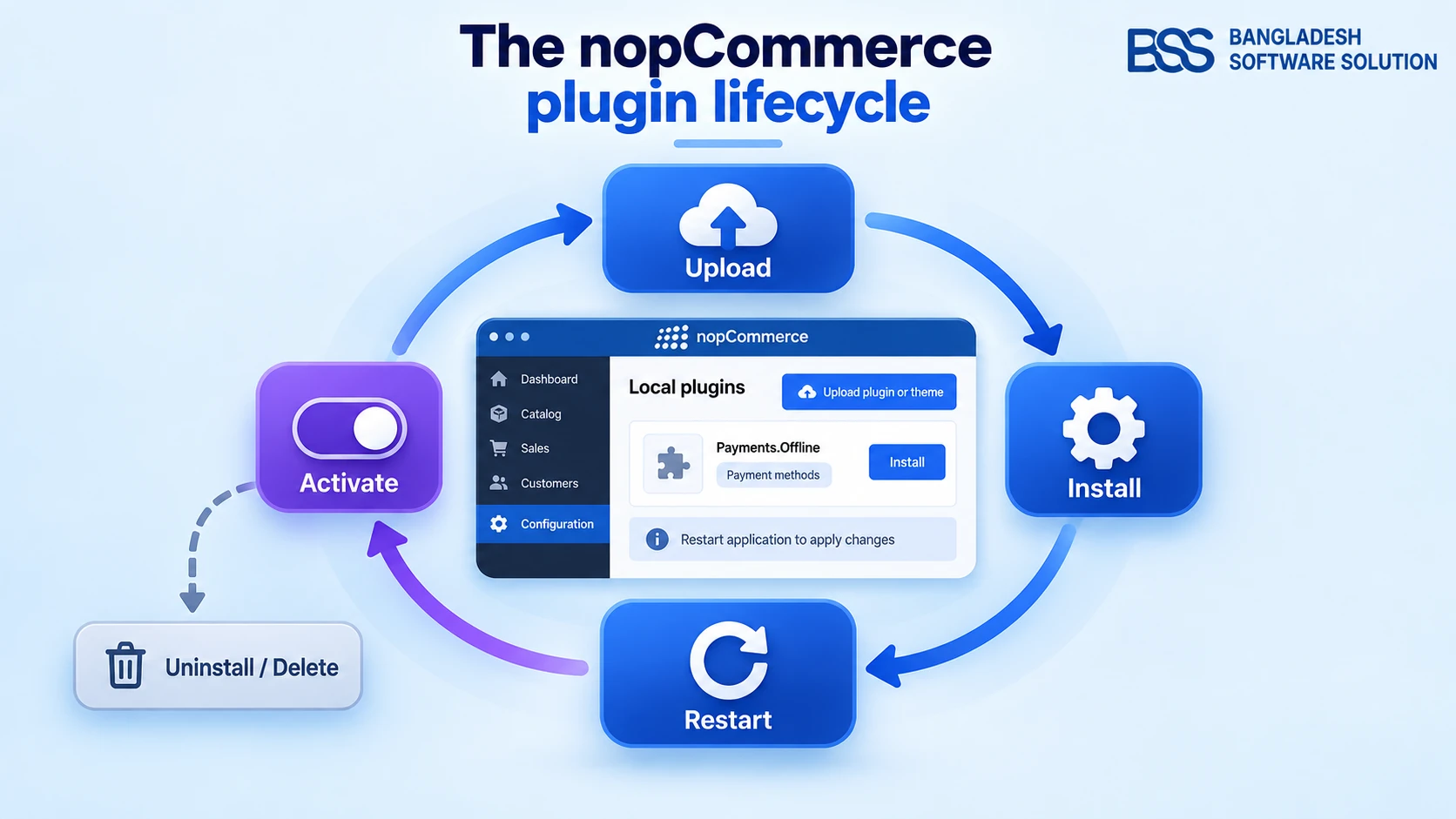
1Download the bundle. Open your order, go to the Order Details page and download the plugin package. Inside you get BSS.Core alongside the Sendcloud files.
-
2Open Local plugins. In the admin, go to Administration → Configuration → Local plugins.
-
3Upload every zip. Use the Upload plugin or theme button once for each zip in the bundle.
-
4Install BSS Core. Find BSS Core in the list and install it before anything else.
-
5Install BSS Sendcloud Shipping. With Core in place, install the Sendcloud plugin second.
-
6Restart the application. The documentation says the plugins only become functional after a restart.
-
7Switch off bundling. The documentation recommends opening App Settings and, if JavaScript bundling and minification and CSS bundling and minification are checked, unchecking and disabling both. It gives no reason, so treat it as a compatibility precaution.
Easy to miss
Installed is not the same as offered at checkout. Because this is a shipping rate computation method, also confirm it is switched on under Configuration → Shipping → Shipping providers. That second switch is easy to miss, and our plugin install guide walks through it.
Enter the license string
Go to Admin → BSS → Plugins → Sendcloud → Configuration, enter the license string and save. Then clear the cache and open the same page again. That second visit is where the configuration happens, and it covers the next four steps.
Step 1: Create the API Keys in Sendcloud
The first connection runs from your store out to Sendcloud, and API keys are what authorise it. Sendcloud issues the keys and your store keeps them, so the work starts in the Sendcloud panel and finishes on the plugin's configuration page.
From the Sendcloud panel to nopCommerce
-
1Log in to Sendcloud. Sign in to your Sendcloud panel at
panel.sendcloud.sc. -
2Open Integrations. Go to Settings → Integrations.
-
3Connect Sendcloud API. Find Sendcloud API in the list and click Connect, or open your existing API integration.
-
4Name it and save. Give the integration a name such as nopCommerce and save. Sendcloud then shows a Public key and a Secret key.
-
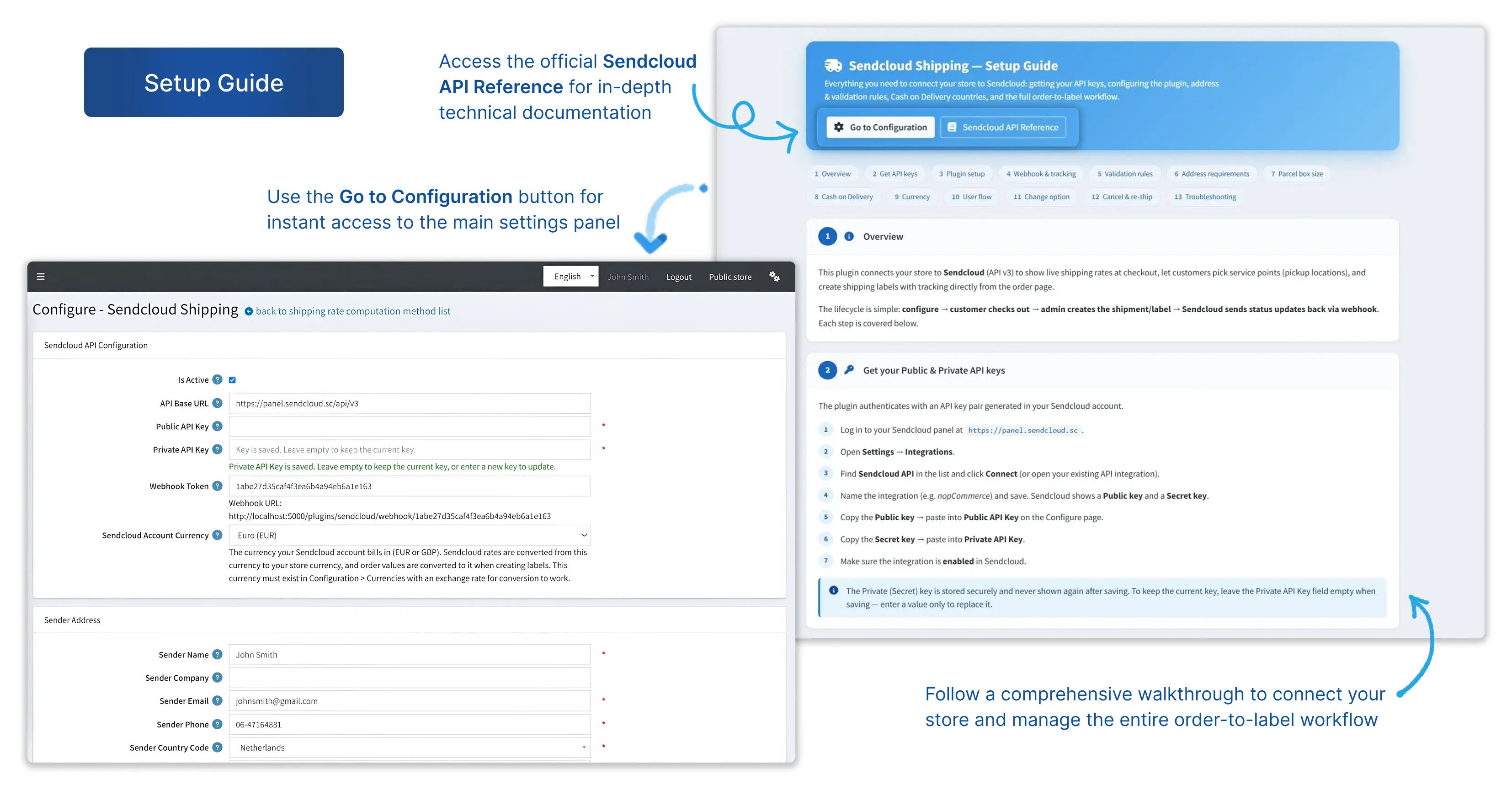
5Paste both keys. In nopCommerce, open BSS → Plugins → Sendcloud → Configuration. Put the Public key in Public API Key and the Secret key in Private API Key.
-
6Activate and save. Tick Is Active, leave API Base URL as it arrives (
https://panel.sendcloud.sc/api/v3on the reference install) and save. -
7Enable it in Sendcloud. Back in Sendcloud, make sure the integration itself is enabled.
After you save, the Private API Key field reads Key is saved. Leave empty to keep the current key. That is deliberate: the secret is stored securely and never displayed again. Leave the field empty on later saves and type a value only when you are replacing the key.
Two settings that sit outside the key fields
- Sendcloud Account Currency. Choose the currency your Sendcloud account bills in. Rates are converted from it to your store currency, so that currency must also exist under Configuration → Currencies with an exchange rate, or the conversion cannot work.
- Service Point Delivery. For pickup points at checkout, open the integration in Sendcloud (Settings → Integrations → API → Edit) and tick it. Leave it off and you will meet the error Service point delivery is not enabled for this integration.
The plugin also has its own Setup Guide page at Admin → BSS → Plugins → Sendcloud → Setup Guide that repeats these steps, and the full field reference lives in the Sendcloud plugin documentation.
Step 2: Fill In the Sender Address
The keys let the store talk to Sendcloud. The sender address tells Sendcloud where every parcel starts: it is the from address on each shipment the plugin announces, so one wrong value here repeats on every order.
Enter the address the parcels actually leave from. If your warehouse is not your registered office, use the warehouse. The documentation describes the postal code and street as those of the shipping warehouse or office that dispatches the packages.
| Field | What goes in | Good to know |
|---|---|---|
| Sender Name | The full name of the sender. | Marked required on the form. |
| Sender Company | The official company name, if you ship on behalf of a business. | Optional. |
| Sender Email | A contact email address. | Used for shipment notifications and customs documents. Marked required. |
| Sender Phone | A valid phone number. | Carriers use it as the delivery contact. Marked required. |
| Sender Country Code | The origin country, from the dropdown. | Sets the primary shipping location. Marked required. |
| Sender Postal Code | The postal code of your warehouse or office. | Match it to the street address below. |
| Sender City | Type the city, or pick it from the list that fills in once you choose a country. | Pick the country first. |
| Sender Address | The main street address. | Street only, without the number. |
| Sender House Number | The house number on its own. | Has a field of its own on purpose. |
Common slip
The street goes in Sender Address and the number in Sender House Number. Sendcloud's shipment data carries them as separate keys (the API log shown later in this guide has address_line_1 and house_number for the recipient), so keep them apart here too.
Step 3: Set the Webhook Credentials
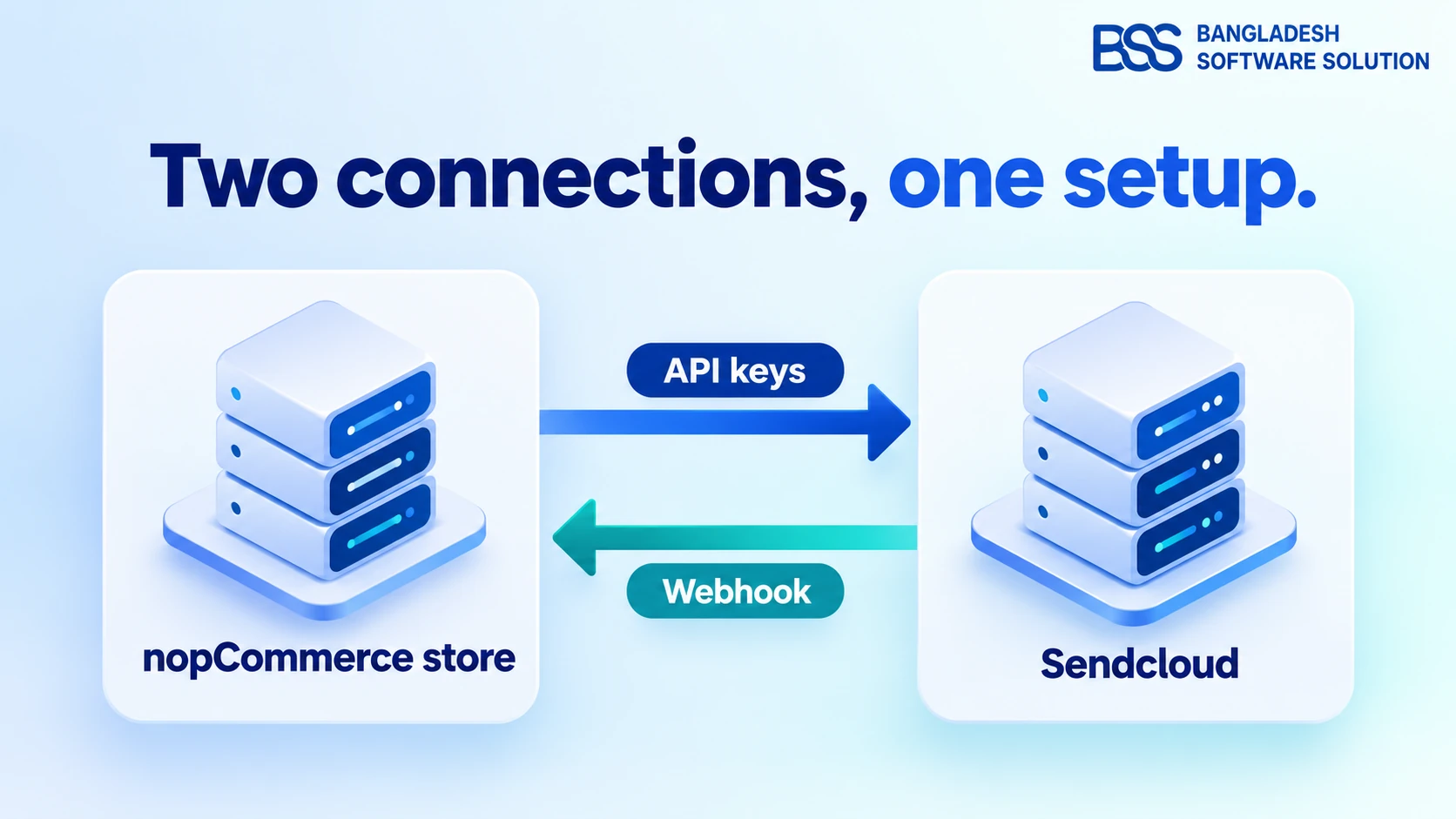
The keys carry requests out. Tracking has to come back, and that is the webhook's job: when a parcel moves, Sendcloud calls a URL on your store and the plugin updates the shipment. Skip this step and your store only learns about delivery when someone presses Sync Tracking.
Webhook setup, in order
-
1Set the Webhook Token. In the plugin configuration, define a Webhook Token. It is the identifier that authenticates status updates arriving from Sendcloud. The reference install arrives with a long value already filled in, and you can replace it with your own.
-
2Save the configuration. Save before you copy anything, so what you copy is what the store is using.
-
3Copy the Webhook URL. The Webhook URL sits under the token and is read-only. On the reference install it ends in
/plugins/sendcloud/webhook/followed by the token, which makes a quick check that the two match. -
4Give it to Sendcloud. Open your API integration in Sendcloud (Settings → Integrations → API → Edit), enable Webhook Feedback and enter the URL.
-
5Check the store is reachable. Sendcloud has to reach the URL over public HTTPS with a valid certificate, and your hosting firewall must not block incoming calls from Sendcloud.
Local testing trap
A webhook URL that starts with localhost, as it does on a developer machine, can never be reached by Sendcloud. Test the webhook on a public HTTPS staging site, and if the certificate is what is holding you back, our nopCommerce HTTPS setup guide covers it.
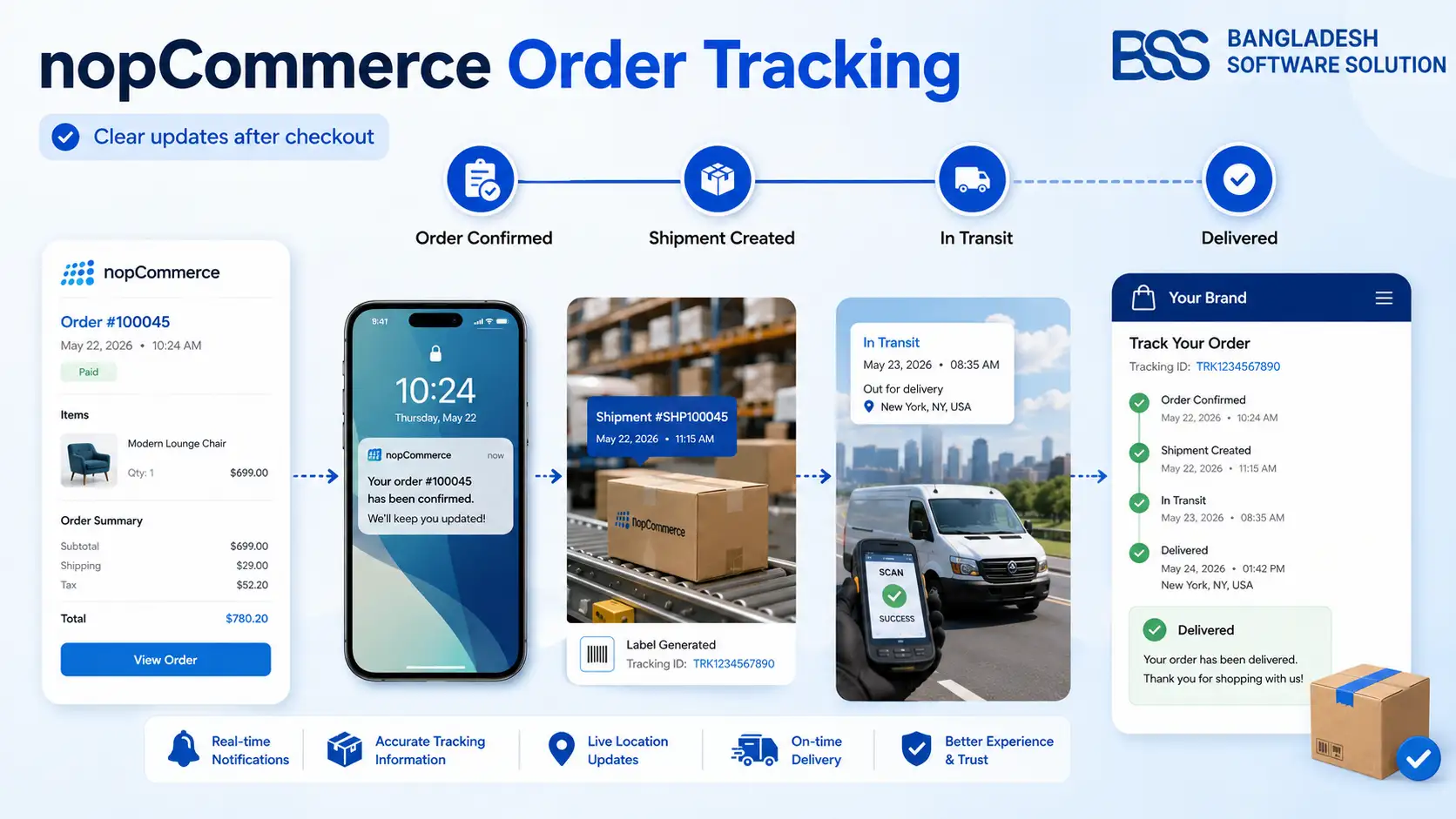
Once the first shipment exists, open Admin → BSS → Plugins → Sendcloud → Webhook Logs. It records incoming events, parcel IDs, tracking numbers, timestamps and any processing errors. The payoff reaches the customer through the tracking links on their order, and our guide to the nopCommerce order tracking plugin explains why that part of the experience matters after checkout.
Step 4: Set the Default Package Size and Weight
The last setting is the quietest and the one that quietly skews prices. To quote a rate, Sendcloud needs a weight and dimensions. When a product has them, the plugin uses them. When it does not, the plugin falls back on the defaults you set here.
Treat the defaults as a safety net
A default parcel that is too light quotes a cheap rate that the final label then contradicts. The shipment view makes the gap visible, because it flags any price difference between the customer's checkout selection and the final shipped cost. The goal is to make that gap rare.
Use the weight and box size of the parcel you ship most often, not the smallest or the largest. Then fix the products that matter most by entering real weights and dimensions in the catalog, so the default is needed less and less.
Test the numbers in the calculator
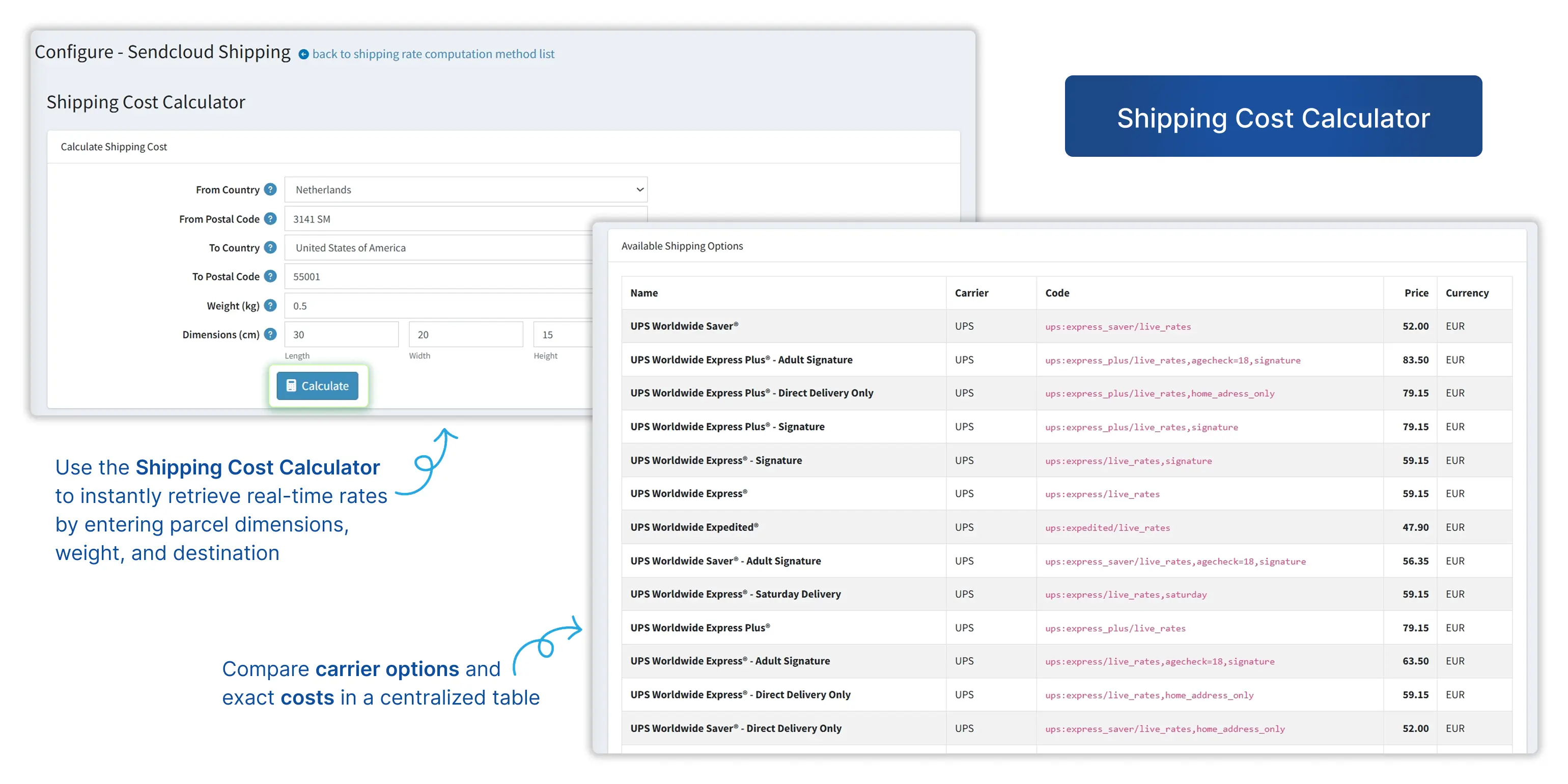
Open Admin → BSS → Plugins → Sendcloud → Pricing. The Shipping Cost Calculator takes a from country and postal code, a to country and postal code, the weight in kg and the dimensions in cm. Click Calculate and it lists every available option with its name, carrier, code, price and currency. Run it once with your default parcel on your busiest route. The example below uses a 0.5 kg parcel measuring 30 × 20 × 15 cm from the Netherlands to the United States, so swap in your own figures.
Other defaults on the same panel
- Test Mode switches on a sandbox so you can try the integration without creating live, billable shipments. Test Shipping Option Code is the method code used while it is on.
- Shipping Option Code sets the default shipping method code for your shipments.
- Contract ID takes your Sendcloud contract identifier. Leave it empty to use standard Sendcloud rates.
- Label MIME Type and Label DPI set the label file format and print resolution, so labels suit your thermal or laser printer.
- Allow changing the shipping option on orders gives admins a panel on the order page to change the customer's chosen method or the declared value before the label is created.
If you change the defaults and checkout still shows the old prices, check Rate Cache Minutes first, since rates are stored locally for that long.
Prove It Works Before Your Customers Do
Back to the operations lead: Monday morning should not be the first test. Switch on Test Mode and walk one order through the whole loop, from rate to tracking.
One order, end to end
-
1Run the calculator. Under Pricing, a route you ship should return carrier options with prices.
-
2Check checkout. Shoppers should see carriers and service levels with Home or Pickup options and live "from" prices. With Service Point Delivery on, a map and list of collection points appear too.
-
3Create the shipment. From the order page, use the Sendcloud buttons to create the shipment, download or print the label, sync tracking or void the shipment.
-
4Open the Shipments list. Under Sendcloud → Shipments, the order should appear with its Sendcloud ID, tracking ID, status and created date.
-
5Confirm the webhook. Look for the event under Webhook Logs. If nothing arrived, press Sync Tracking on the shipment and revisit Step 3.
-
6Read the API Logs. When anything fails, API Logs shows the endpoint, method, status, success flag and error, and View opens the raw JSON request and response.
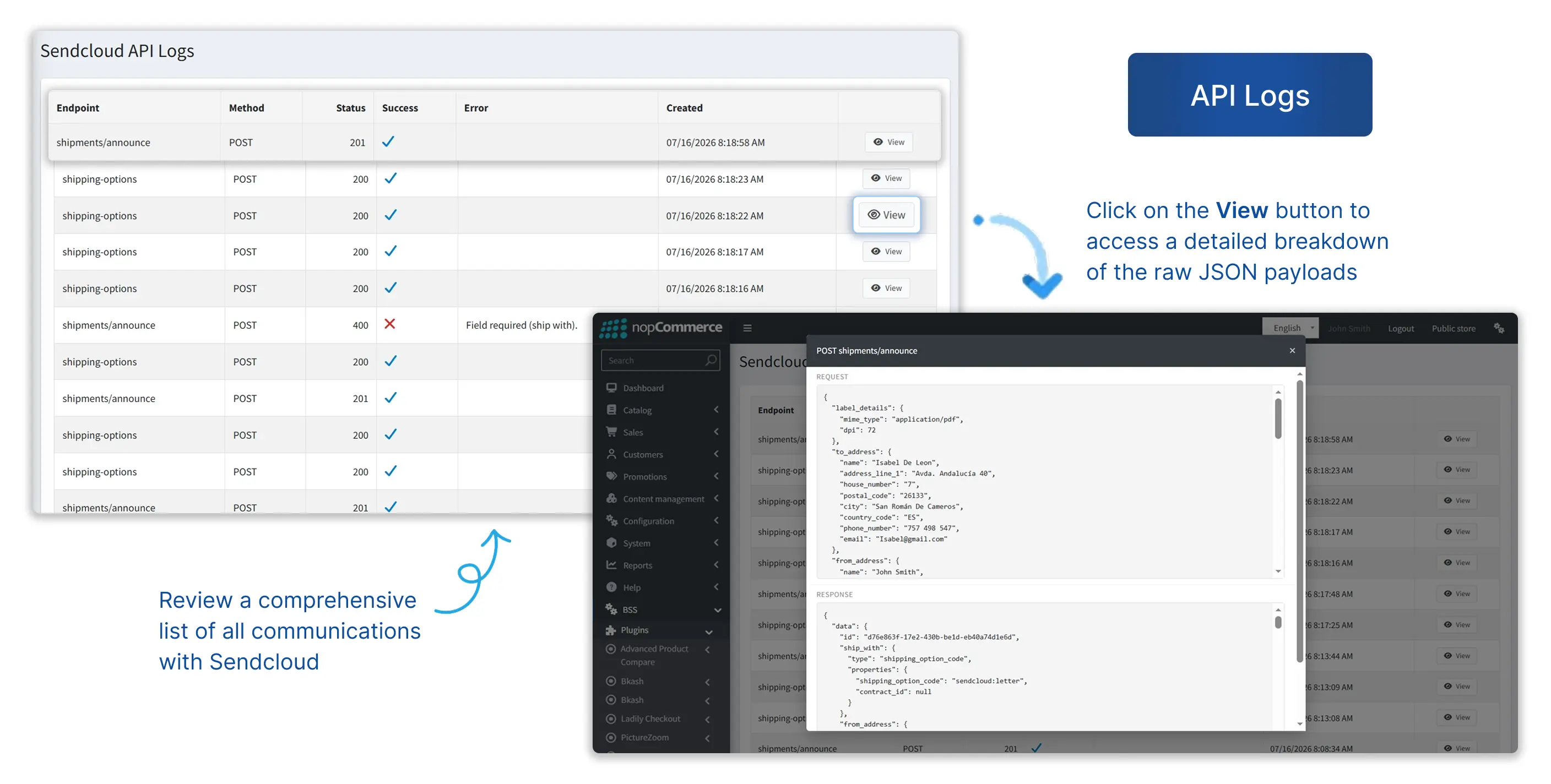
The log above shows the pattern to look for: shipping-options calls returning 200, a shipments/announce returning 201, and one shipments/announce returning 400 with the error Field required (ship with). A failed call and its reason sit in one row, so you rarely need to guess.
Keys prove the store can talk to Sendcloud. The webhook proves Sendcloud can talk back.
BSS Engineering
If something is off, check these first
| Symptom | Usual cause | Where to fix it |
|---|---|---|
| Statuses stay stale after a label is made | Webhook Feedback is off in Sendcloud, the store is not on public HTTPS, or a firewall blocks Sendcloud. | Sendcloud integration settings, hosting firewall, Webhook Logs. |
| Service point delivery is not enabled | Service Point Delivery is off in the Sendcloud integration. | Sendcloud Settings → Integrations → API → Edit, then clear the app cache. |
| Rates look wrong or will not convert | Sendcloud Account Currency does not match your billing currency, or has no exchange rate. | Plugin configuration and Configuration → Currencies. |
| No Sendcloud rates at checkout | Is Active is unticked, or the plugin is not enabled as a shipping provider. | Plugin configuration and Configuration → Shipping → Shipping providers. |
Ship From the nopCommerce Order Page, Not a Second Tab
BSS Sendcloud Shipping shows live Sendcloud rates and pickup points at checkout, and lets your team create, download and void labels and sync tracking from the order page. It needs BSS Core, which ships in the same download bundle.
Frequently Asked Questions
Final Thoughts
Back at the store where this started, the loop that needed a packer, a browser tab and a paste is gone: an order comes in, the label is created from the order page, and the tracking updates itself. Getting there took five decisions made in the right order: BSS Core before Sendcloud, keys from Sendcloud, an honest sender address, a webhook that Sendcloud can reach, and defaults that match a typical parcel.
If you are still weighing this plugin against the alternatives, our roundup of the best nopCommerce shipping plugins sets the options side by side. When you are ready, the BSS Sendcloud Shipping plugin and its documentation have everything above in one place, and the BSS team is on hand through our contact page if you would rather have an engineer do the wiring.