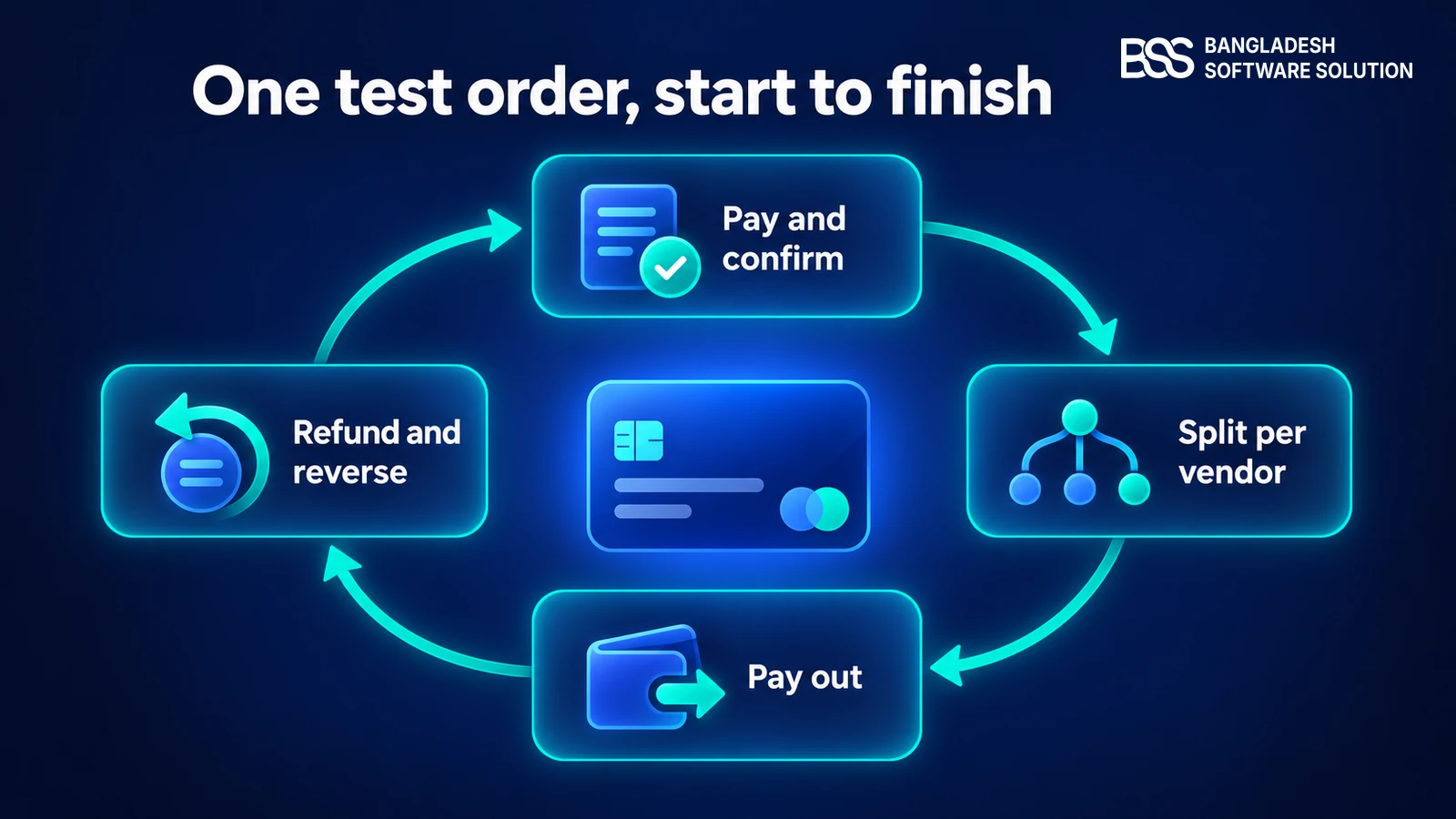
Your sandbox marketplace works. Test vendors get paid, the commission lands where it should and a test refund reverses cleanly. Then you switch Stripe to Live, paste in a new key, and the dashboard stops you with one sentence: you must complete your platform profile to use Connect and create live connected accounts.
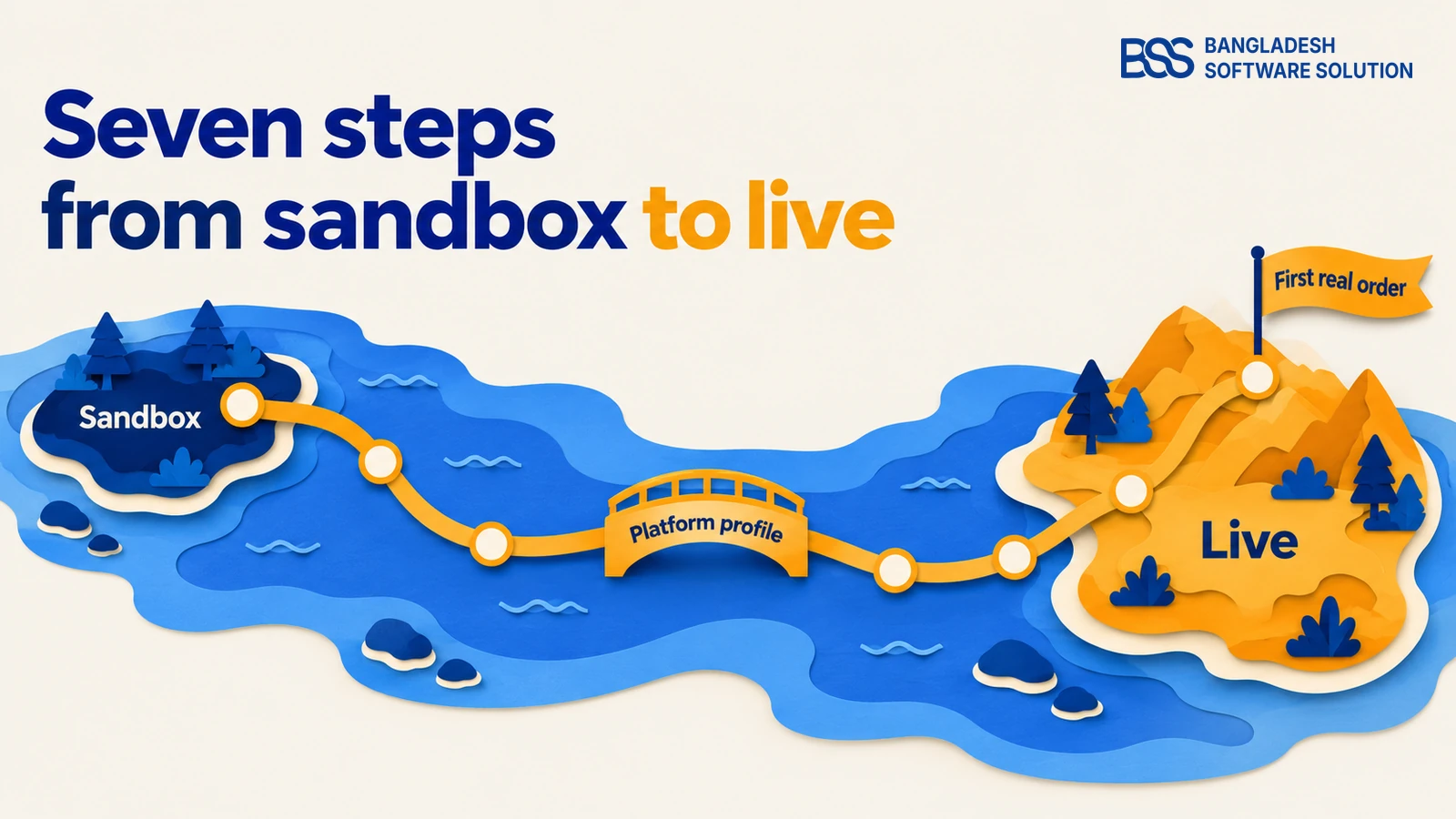
The plugin documentation calls that message the number one reason live onboarding fails, because the step behind it does not exist in sandbox. When we write go-live notes, we treat the switch as a short project with seven steps and not a settings change, since every charge, payout and refund afterwards moves real money.
This is the main walkthrough for all seven steps, in the order Stripe and the plugin need them. If you have not seen the plugin at work yet, read how it splits payments across vendors first, and rehearse the whole flow with the test-mode walkthrough.
What Changes When the Money Is Real
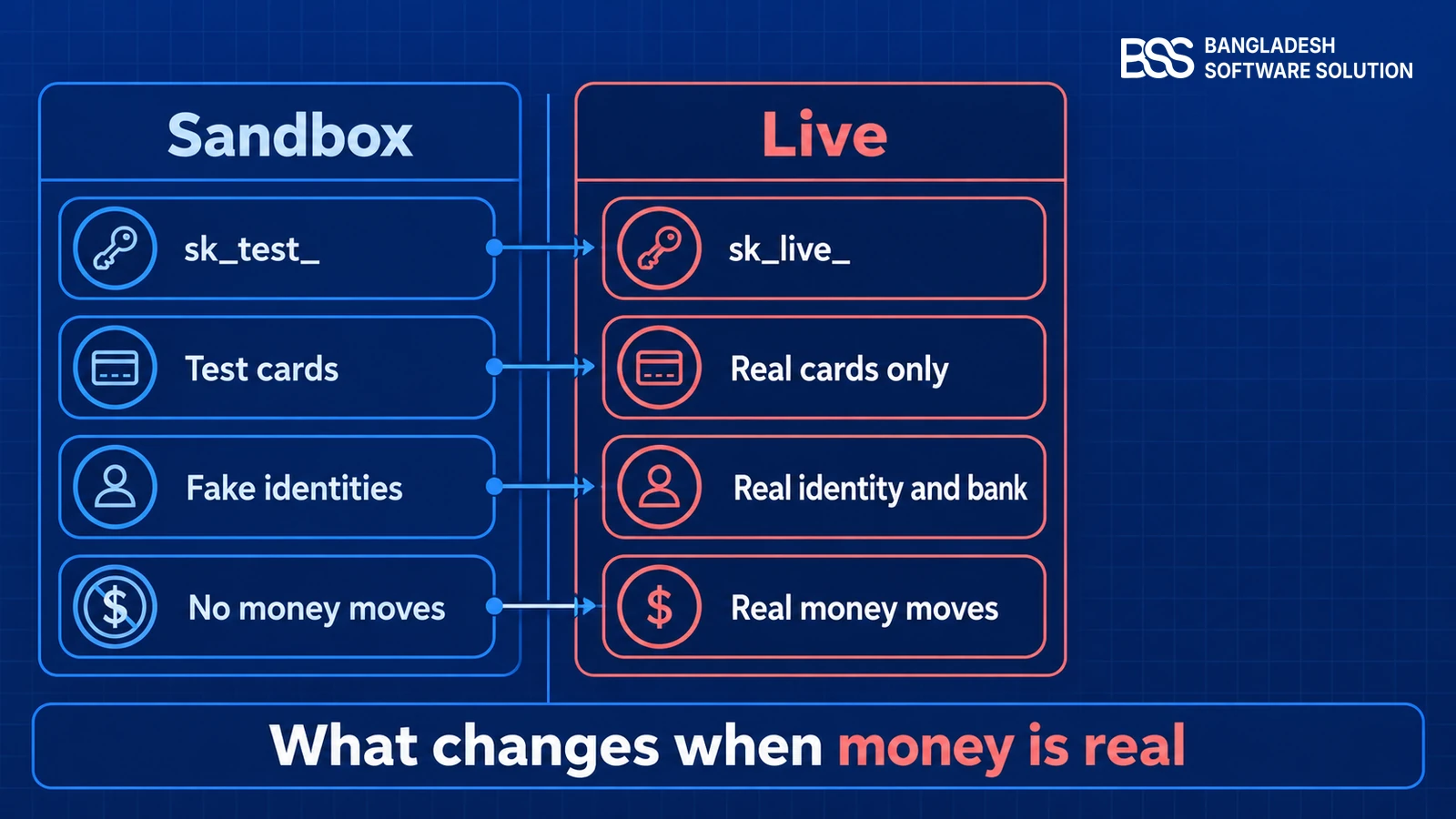
Live mode mirrors the sandbox setup you already did, plus the extra requirements Stripe applies before a marketplace may move real funds. Six things differ, and the table below is worth keeping open while you work.
A clean sandbox run proves the plugin works. It does not prove Stripe has approved your business, that your webhook can be reached from the internet, or that a real vendor can finish onboarding, and those are the three places a live launch actually stalls.
| What | Sandbox | Live |
|---|---|---|
| Secret key | sk_test_ |
sk_live_ |
| Platform profile | Not required | Required (Step 2) |
| Webhook | Test-mode endpoint, often via the Stripe CLI to localhost | Live-mode endpoint on your public HTTPS domain |
| Vendors | Fake test identities | Real identity and real bank |
| Cards | Test cards such as 4242 4242 4242 4242 | Real cards only |
| Money | None | Real funds move |
Live mode moves real money
Every card charge, vendor payout and refund in the steps below is real. Run one final order with a real card, and refund it, before you announce go-live.
Before you start
-
nopCommerce 4.90 with Vendors enabled under Admin → Configuration → Settings → Vendor settings.
-
BSS Core and BSS Stripe Connect installed and licensed, the same plugins as in sandbox with a valid license.
-
A public HTTPS URL with a valid certificate. Live webhooks will not deliver to localhost or a self-signed certificate.
-
At least one real vendor ready to onboard, with a real legal identity and a real bank account.
Want this done for you? Our integration service connects payment gateways, shipping and ERP to nopCommerce stores, so the go-live checklist can be ours.
Talk to a nopCommerce expertSteps 1 and 2: Activate Stripe and Finish the Connect Profile
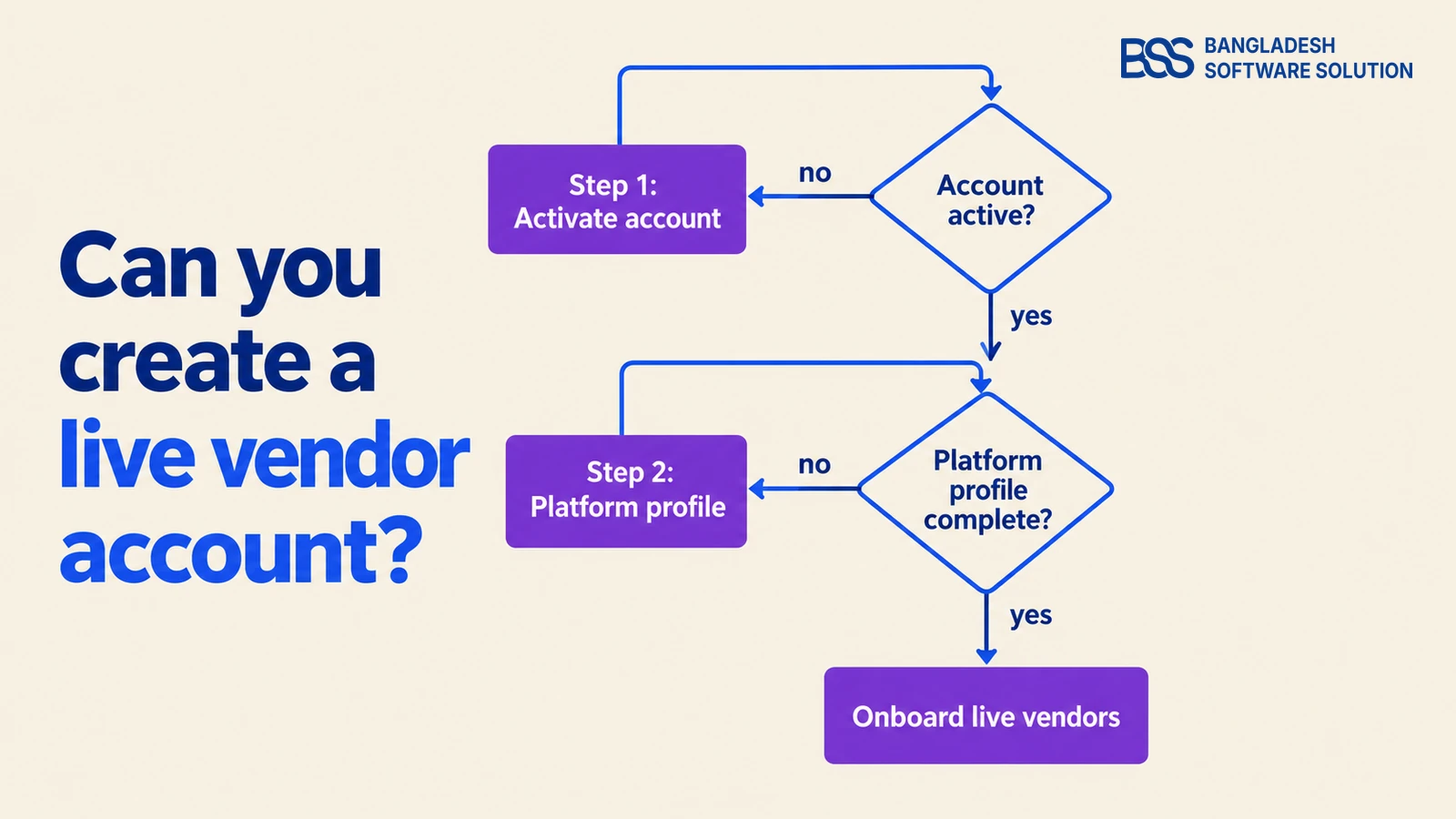
Stripe puts live vendor accounts behind two separate approvals, and the second one is the one that catches people. Do them in this order.
Step 1: Activate your account for live payments
- In the Stripe Dashboard, switch the top-right toggle from Test mode to Live mode.
- Complete Activate your account: business type, business details, the platform's own bank account and identity verification.
- Wait until the dashboard shows the account as active with payments enabled.
The bank account here is the platform's own, and it is where your commission settles. You cannot create live connected accounts until activation finishes.
Activation needs business and identity details that usually sit with a founder or a finance lead, not a developer. Ask for them early, because Stripe's review is the one part of this guide you cannot speed up from your side.
Step 2: Complete the Connect platform profile
This is the live-only step. Open dashboard.stripe.com/connect in Live mode and answer the Connect questionnaire.
Key fact: Stripe also asks the platform to accept liability for refunds, disputes or chargebacks, and negative balances on connected accounts.
You must accept to create live vendor accounts, so have whoever owns that risk in your business read it before you click.
Optionally, set your Connect branding under Settings → Connect → Branding (business name, icon, brand color), which vendors see on Stripe's onboarding screens. Once the profile shows complete, you may onboard real vendors.
This is the point where many owners hand the checklist to a developer. You can hire a .NET developer from BSS for the plugin and server side while your finance lead handles the Stripe forms.
Steps 3 to 5: The Live Key, the Live Webhook and the Plugin Settings
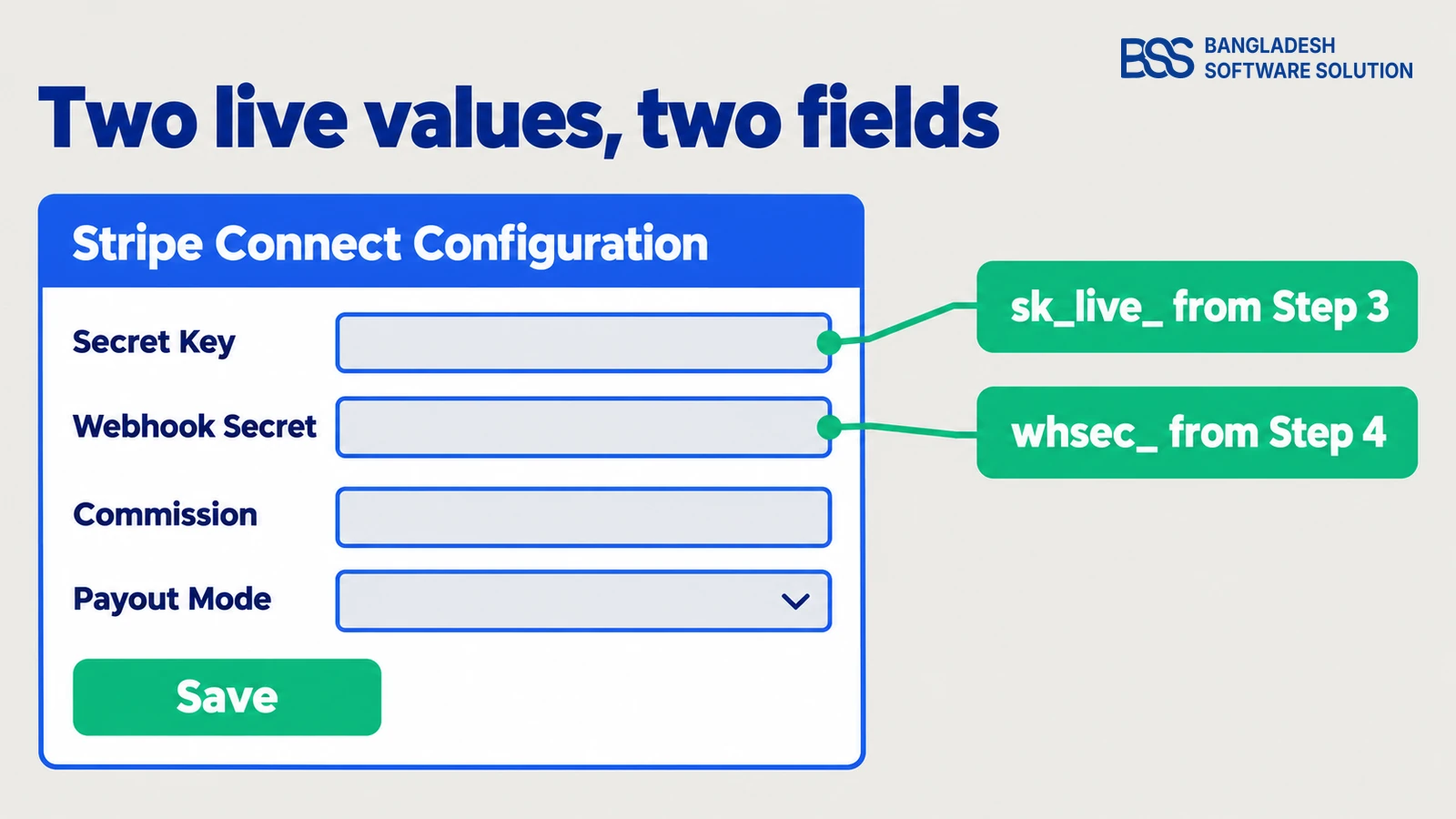
Two values move from Stripe into nopCommerce, and both must come from Live mode. One leftover test value is how a half-live setup happens.
Step 3: Copy your live secret key
In Live mode, open Developers → API keys and copy the Secret key. It starts with sk_live_, where sandbox used sk_test_. Keep it secret: you paste it into the plugin in Step 5.
Step 4: Create the webhook endpoint in Live mode
Live and test webhooks are separate, so a sandbox webhook never fires for live payments. In Live mode, open Developers → Webhooks → Add endpoint (or Add destination) and select exactly these four events:
checkout.session.completedcheckout.session.expiredaccount.updatedcharge.refunded
The first two events follow a customer's payment, charge.refunded follows a refund, and account.updated tells the plugin when a vendor becomes payouts-enabled. Leave one out and that part of the marketplace goes quiet.
The account's default API version is fine, because the plugin tolerates version differences. Set the endpoint URL to your real HTTPS domain plus the plugin's webhook path:
https://YOUR-LIVE-STORE-DOMAIN/StripeConnectWebhook/HandleWebhookSave, then click Reveal on the Signing secret, which starts with whsec_. No Stripe CLI is needed here: it only forwarded events to localhost in sandbox, and a live store receives webhooks directly at its public URL.
Step 5: Configure the plugin with live values
In the nopCommerce admin, open Admin → Stripe Connect → Configuration and set four things, then Save:
- Secret Key — your
sk_live_key from Step 3. - Webhook Secret — your
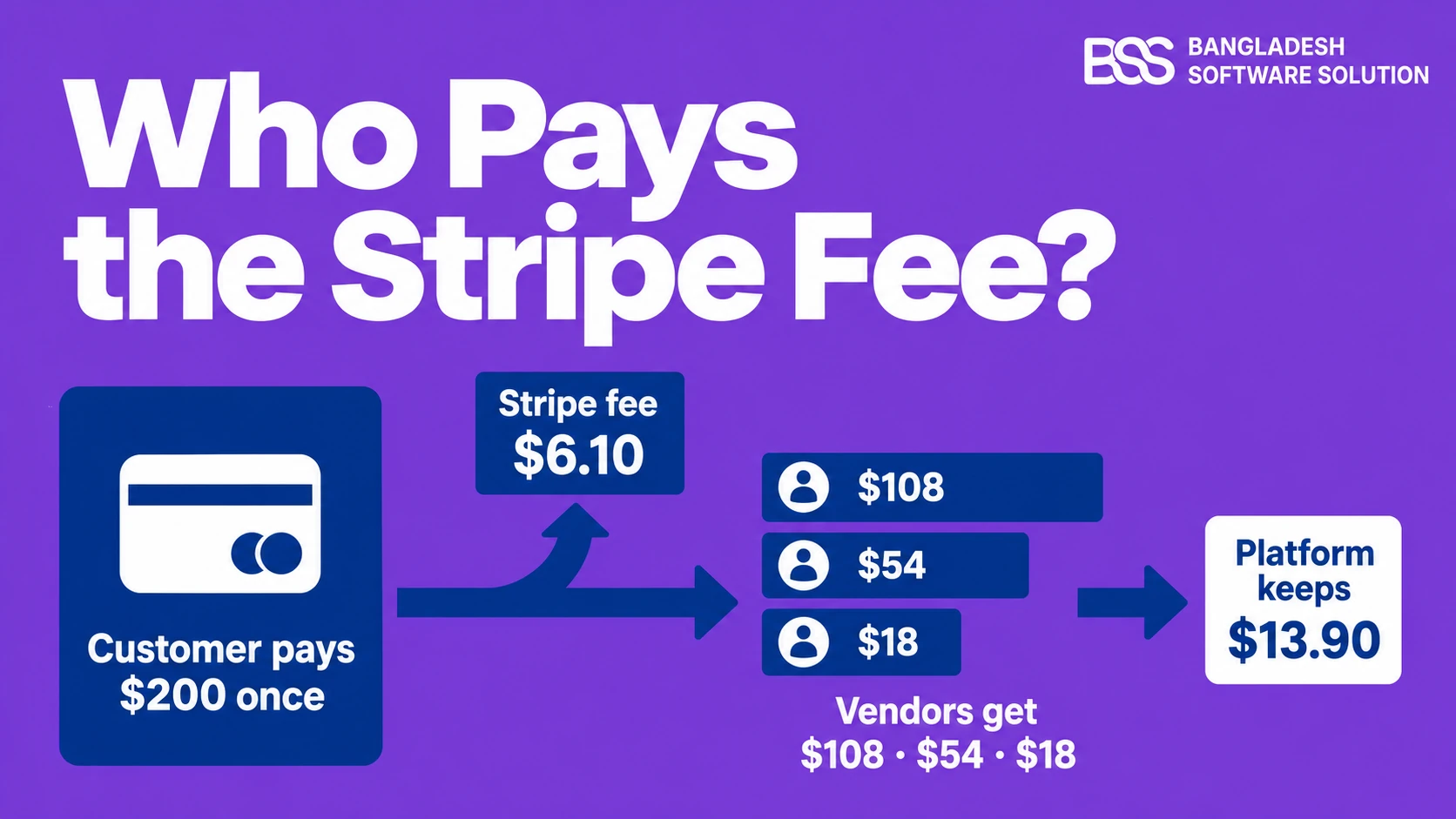
whsec_secret from Step 4. - Commission — your platform's cut. Not sure what rate survives Stripe's fees? Work it out in who pays the Stripe fee.
- Payout mode — instant, automatic after a delay, or manual, plus any minimum payout amount.
The plugin this guide configures: one customer payment split across vendors, with your commission, payouts and refunds handled for you.
View the plugin
When a payment plugin misbehaves after go-live, the first thing we check is a key from one mode sitting beside a secret from the other. Both sit on the plugin's configuration screen, so read them side by side before you save.
Step 6: Onboard Your Real Vendors
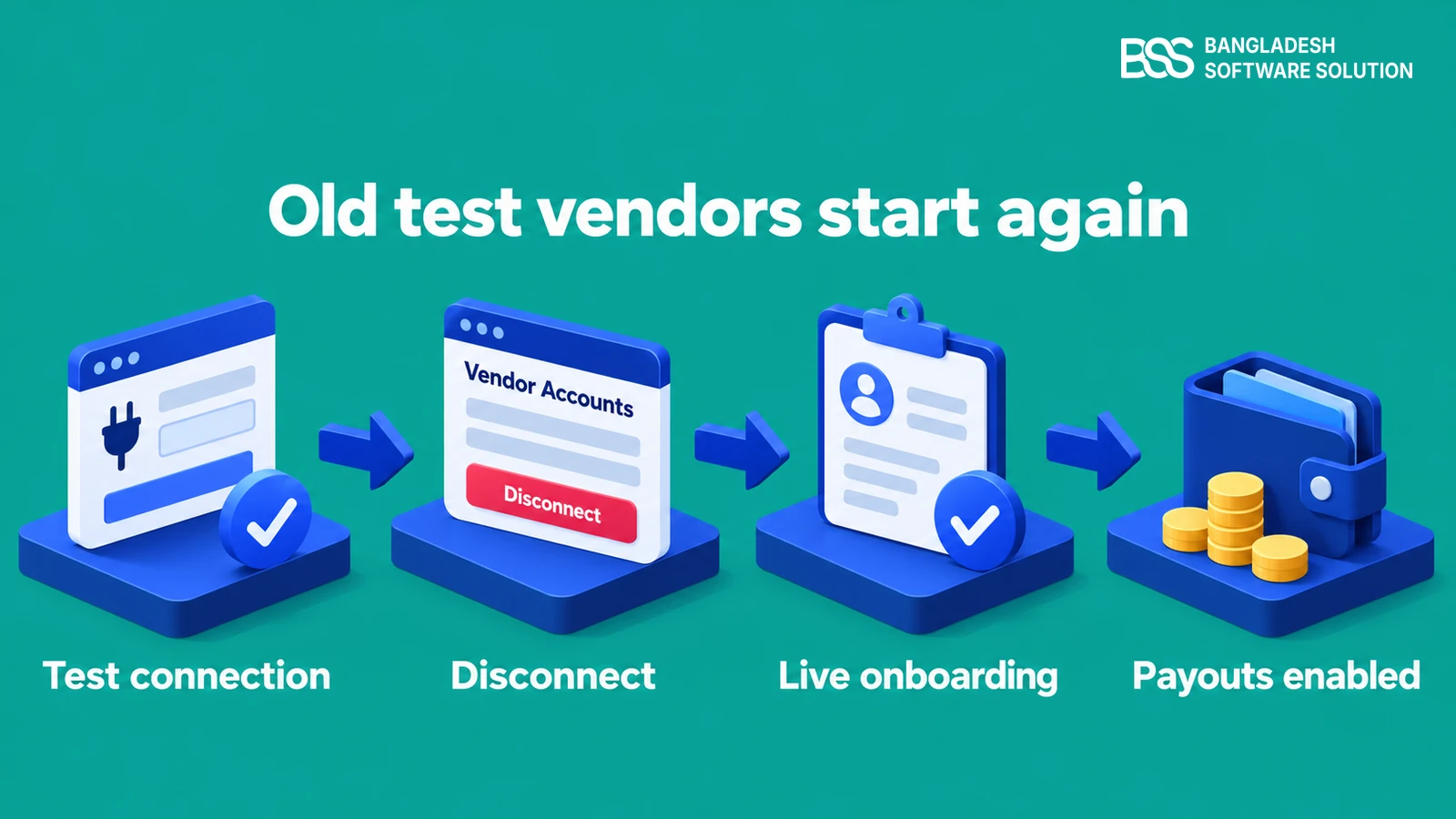
Now the people who get paid arrive. Each vendor needs a real legal identity and a real bank account, so this step belongs to them and not to you. Start with one vendor, so you can watch a single onboarding end to end before you invite the rest.
- Each vendor opens their Stripe Connect onboarding link from the store and completes it with real details.
- A vendor is ready only when their Stripe account is payouts-enabled. The plugin shows this once Stripe sends the
account.updatedevent.
Until a vendor is payouts-enabled, there is nothing to pay out to them. Check the status in the admin before you tell anyone their shop is ready to sell.
If a vendor's status does not change after onboarding, the test-mode walkthrough explains how Stripe event scopes affect account.updated.
Test vendors don't carry over
A vendor onboarded in sandbox cannot be used with your live key. In Admin → Stripe Connect → Vendor Accounts, use Disconnect on the old test connection, then have the vendor onboard again in live mode.
Step 7: Prove It With One Real Order
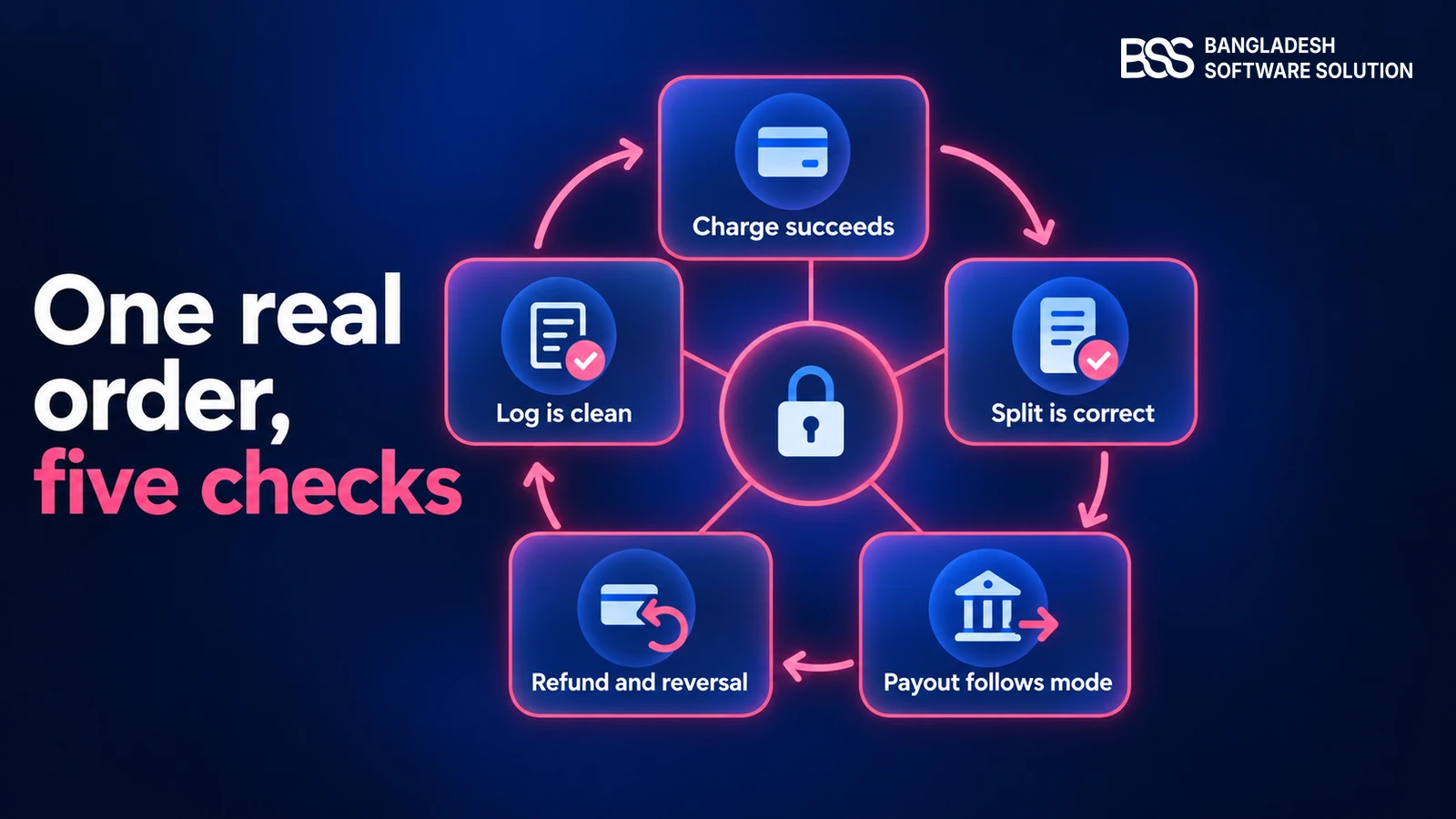
Do not announce anything until one small real order has gone all the way through. Test cards such as 4242 4242 4242 4242 are rejected in live mode, so use a real card on a real vendor's product. Keep the amount small, because you will refund it, and pick a vendor you know so you can confirm the payout together.
The five go-live checks
-
Charge. Place one small order and confirm the payment succeeds.
-
Split. Confirm the amount divides correctly between your commission and the vendor's share.
-
Payout. Confirm the payout to the vendor behaves according to your payout mode.
-
Refund. Refund the order from admin and confirm the refund and any transfer reversal complete.
-
Log. Watch Admin → System → Log for errors during all of the above.
Each check covers a different hand-off: the card, the split, the vendor's bank, the reversal and the server. A pass on all five means money can enter, divide, leave and come back, which is everything a marketplace promises its sellers.
If all five pass, you're live.
BSS Engineering
When we build payment plugins at BSS, the refund path is the part we test hardest, which is why check four is a real refund of a real order. It is also why the test-mode refund run is worth repeating before launch day.
When Live Mode Says No: Three Fixes
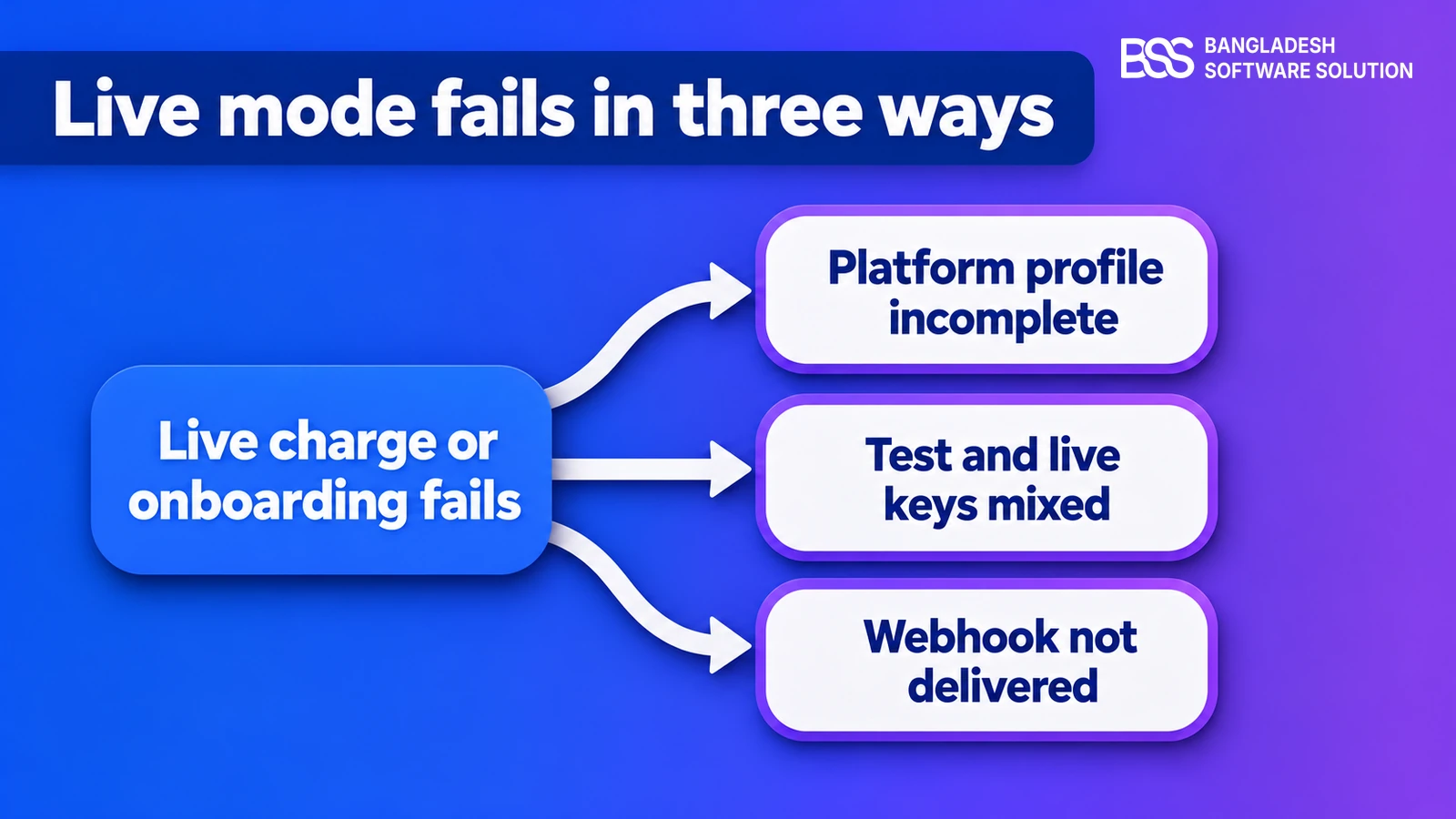
Three failures account for most live-mode surprises, and each traces back to a step above. Match the message you see to the card below before you change anything, because the fix is almost always one setting and not a code change.
Need a nopCommerce Developer? Hire the BSS Team
From payment plugins and marketplace builds to integrations and performance tuning, our dedicated nopCommerce engineers ship production-grade code. Tell us what you need and we'll match you with the right developer.
Frequently Asked Questions
Final Thoughts
Go back to the message that stopped you at the start. With the platform profile complete, a live key and webhook secret in the plugin, real vendors payouts-enabled and one real order charged, split, paid out and refunded, that sentence no longer applies to you.
None of the seven steps is hard on its own. The risk is skipping the one that only exists in live mode, so keep this list next to the Stripe Dashboard the first time, and next to the next marketplace you launch.
The marketplace you tested in sandbox is now the one taking real payments. Announce it, and keep the commission math from the Stripe fee guide close for your first month of live orders.
We build the plugin and run nopCommerce payment integrations. Tell us where your marketplace is today and we will help you get it to its first real order.
Book a free consultation