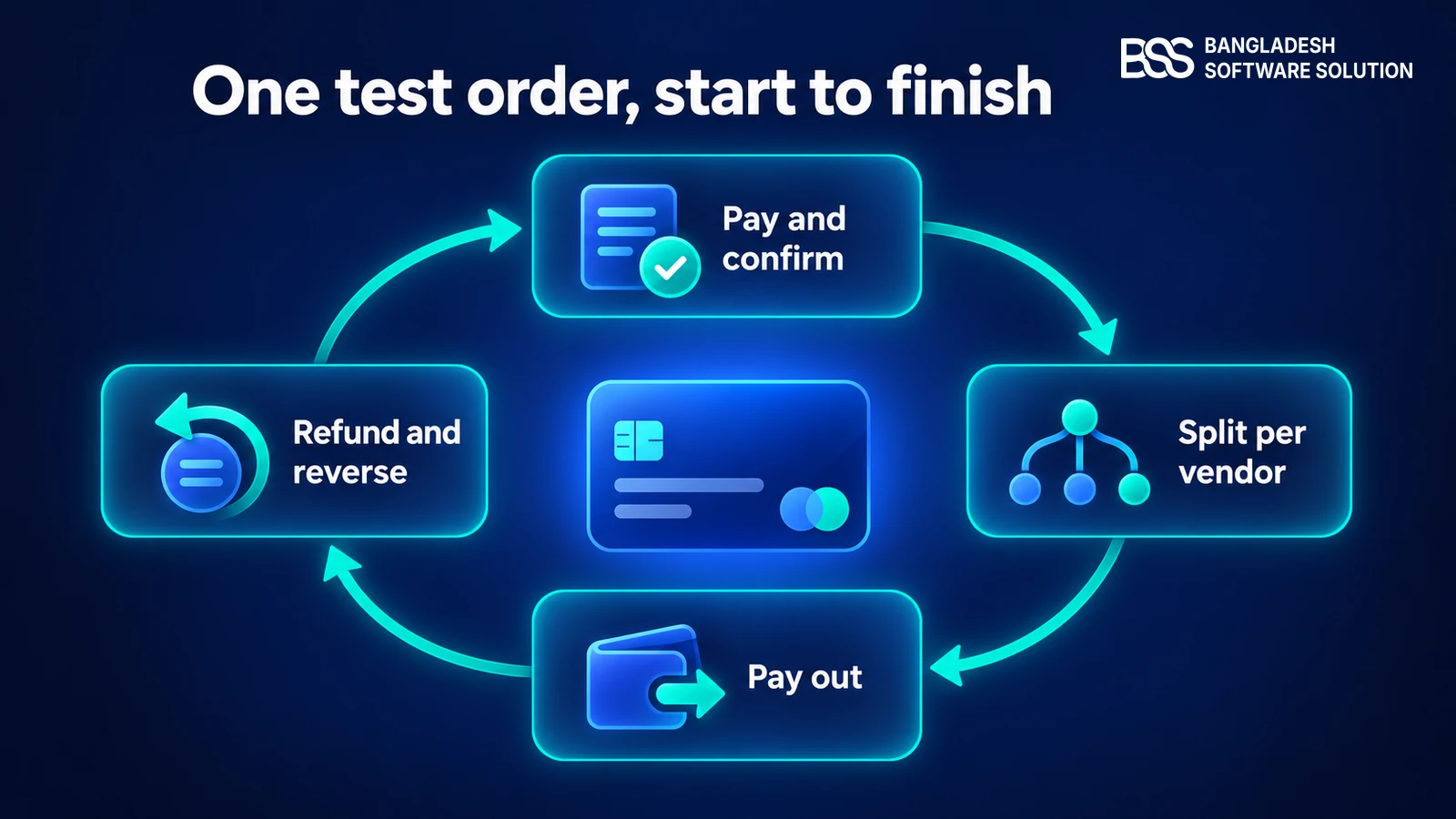
A marketplace payment has more places to fail than a normal store payment. One customer charge becomes several vendor shares, a commission, a delayed payout and, sooner or later, a refund that has to pull money back from the right vendor. When we build payment plugins at BSS, the refund path is the part we test hardest.
Stripe's test environment lets you run all of it without moving real money, and BSS Stripe Connect is built for that: put a test key in the configuration and checkout, onboarding, payouts and refunds all run on test data. This walkthrough takes one working session and covers six checks, from the webhook to a refund.
New to the plugin? Start with how BSS Stripe Connect splits payments across vendors, then come back here. Everything below assumes it is installed and asks one question: does the money go where it should?
Switch the plugin to test mode and connect the webhook
You need nopCommerce 4.90 with the built-in vendor feature in use, the BSS Core plugin and Stripe Connect installed (Core first, then a restart), and a Stripe account with Connect enabled. Stripe describes its test environment as a sandbox; the plugin documentation calls the same thing test mode. Use test API keys for everything that follows.
Configure the plugin
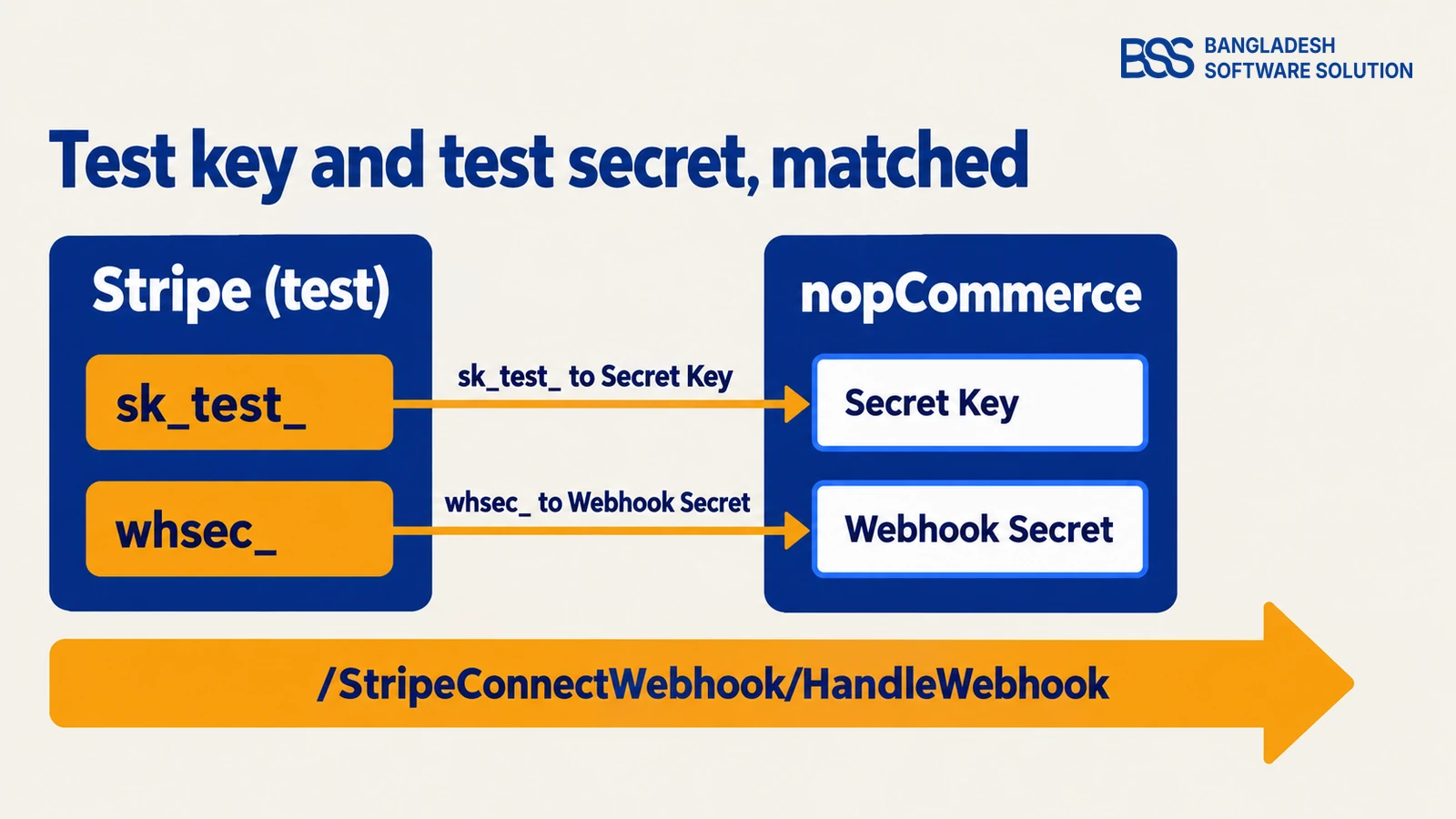
Open Admin → BSS → Plugins → Stripe Connect → Configuration, enter the license string, save and clear the cache. Then paste your sk_test_ key from the Stripe Dashboard (Developers → API keys) into Secret Key. With the key empty the payment method vanishes from checkout, which makes a free first test: confirm it disappears, then returns.
- Commission Type and Value — Percentage, 10.
- Payout Mode — Manual, so earnings wait as Pending until you release them.
- Minimum Payout Amount — low enough that both test vendors clear it. You raise it in the payouts check.
Register the webhook
Stripe delivers only to a publicly reachable HTTPS address, and sandbox endpoints are separate from live ones. On a staging site, create the destination in the Stripe Dashboard (Workbench → Webhooks; the plugin documentation calls it Developers → Webhooks → Add endpoint).
Point it at https://<your-test-store>/StripeConnectWebhook/HandleWebhook, subscribe it to the four events below and copy its whsec_ signing secret into Webhook Secret.
checkout.session.completed
checkout.session.expired
account.updated
charge.refunded
On a laptop with no public address, forward events with the Stripe CLI instead. It prints a signing secret when it starts, and the secret stays the same between restarts. Swap in your own site's address; --skip-verify is for a self-signed local certificate.
stripe login
stripe listen \
  --forward-to 'https://localhost:5001/StripeConnectWebhook/HandleWebhook' \
  --forward-connect-to 'https://localhost:5001/StripeConnectWebhook/HandleWebhook' \
  --skip-verify
Watch the scope
Stripe sorts webhook events by scope. Checkout and refund events for your own account arrive on a destination for Your account; onboarding updates for vendor accounts (account.updated) arrive on one for Connected accounts.
The documentation asks for a single endpoint, and the CLI command above forwards both scopes to it with one secret. If a vendor's status does not change after onboarding, click Refresh status, then open the endpoint's Event deliveries in Stripe to see whether account.updated arrived.
The plugin verifies every signature, so a Failed delivery in Stripe usually means the secret belongs to a different endpoint. Prove the guard works by sending an unsigned request. It should be refused, not answered with a 200.
curl -i -X POST 'https://<your-test-store>/StripeConnectWebhook/HandleWebhook' -d '{}'
One Stripe Checkout payment for several vendors, with commission, payouts and refund recovery handled for you, and a test mode to prove it all first.
View the pluginWant this done for you? BSS connects payment gateways, shipping and ERP to nopCommerce stores as an integration service, so the test pass can be someone else's afternoon.
Talk to a nopCommerce expertCreate test vendors and connect them to Stripe
You need two vendors to see a split, and they should not behave alike. Vendor A finishes onboarding; Vendor B stops halfway. That gives you a connected vendor, a skipped payout and a late connection to test from a single order.
Create the vendors
Add Vendor A and Vendor B under Admin → Customers → Vendors, and set each vendor's address country first: the plugin derives the Stripe account country from it.
Give each vendor a login (a customer assigned to that vendor, in the Vendors role) and one product, $100 for Vendor A and $50 for Vendor B, with shipping and tax off so the maths stays readable.
Onboard Vendor A
Log in as Vendor A, open Stripe Connect → Vendor Dashboard and click Connect with Stripe. Stripe's hosted pages take over. Use the same email as the vendor account, as the plugin documentation advises, and these test values from Stripe's Connect testing guide:
| Stripe asks for | Test value |
|---|---|
| SMS code | 000-000 |
| ID number (US) | 000000000, or 0000 for the last four |
| Date of birth | 1901-01-01 |
| Address line 1 | address_full_match, with a real city, state and postal code |
| Bank account (US) | Routing 110000000, account 000123456789 (test payouts succeed) |
Leave Vendor B halfway
Start Vendor B's onboarding and close the tab before the end. The Vendor Dashboard should now read Onboarding incomplete, with a Continue button. Vendor B can still sell; per the plugin documentation, their earnings wait as Pending until they connect.
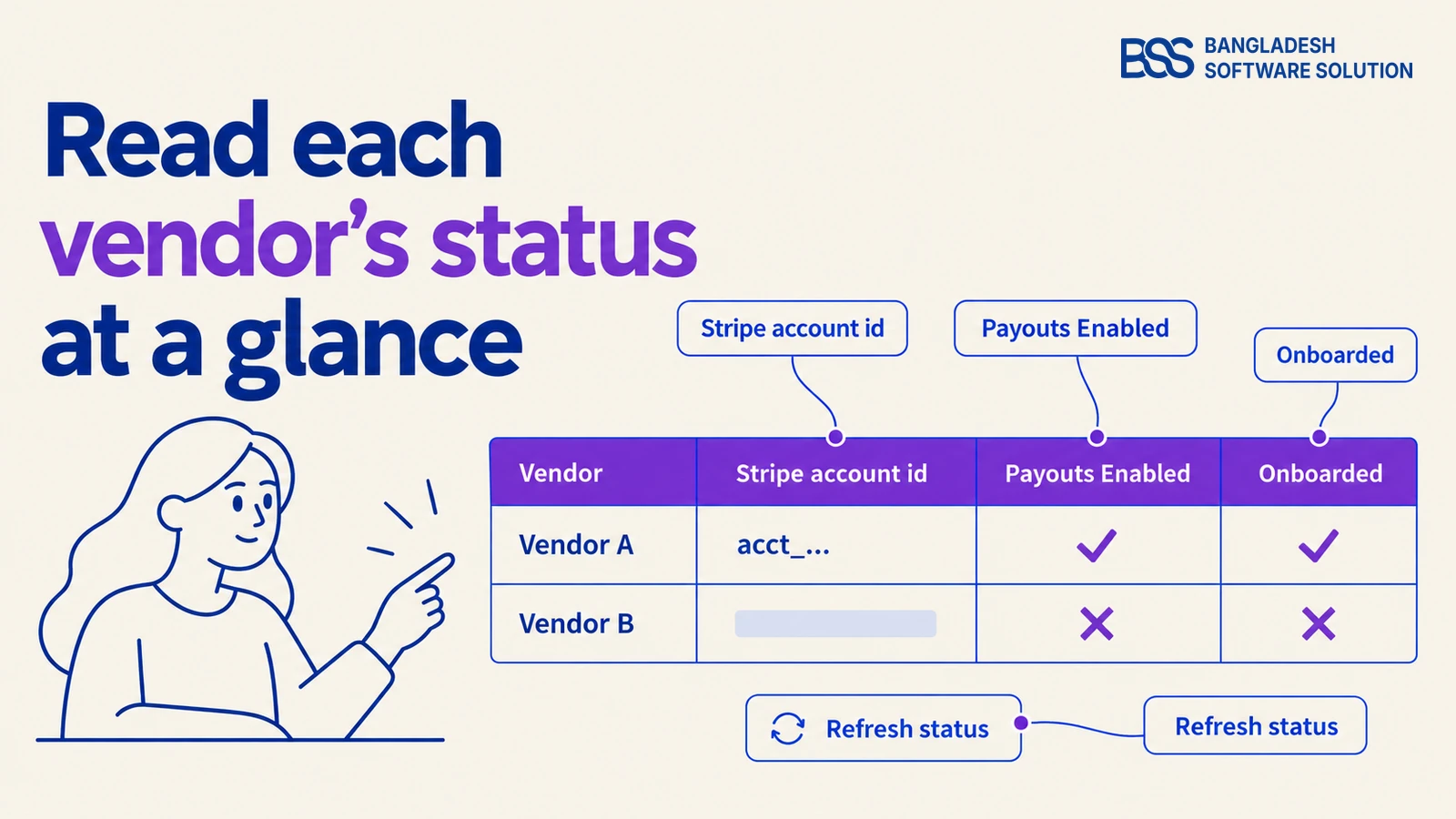
Then check the admin side. Stripe Connect → Vendor Accounts lists every vendor with a Stripe account id, Payouts Enabled and Onboarded, and Vendor A should read as onboarded with payouts enabled. If a row is stale, click Refresh status to re-sync it from Stripe.

We build the first test run around a vendor who stops halfway through onboarding, because that vendor exists on every live marketplace. The statuses and the Continue button are described in the plugin documentation.
Pay with a test card and read the split
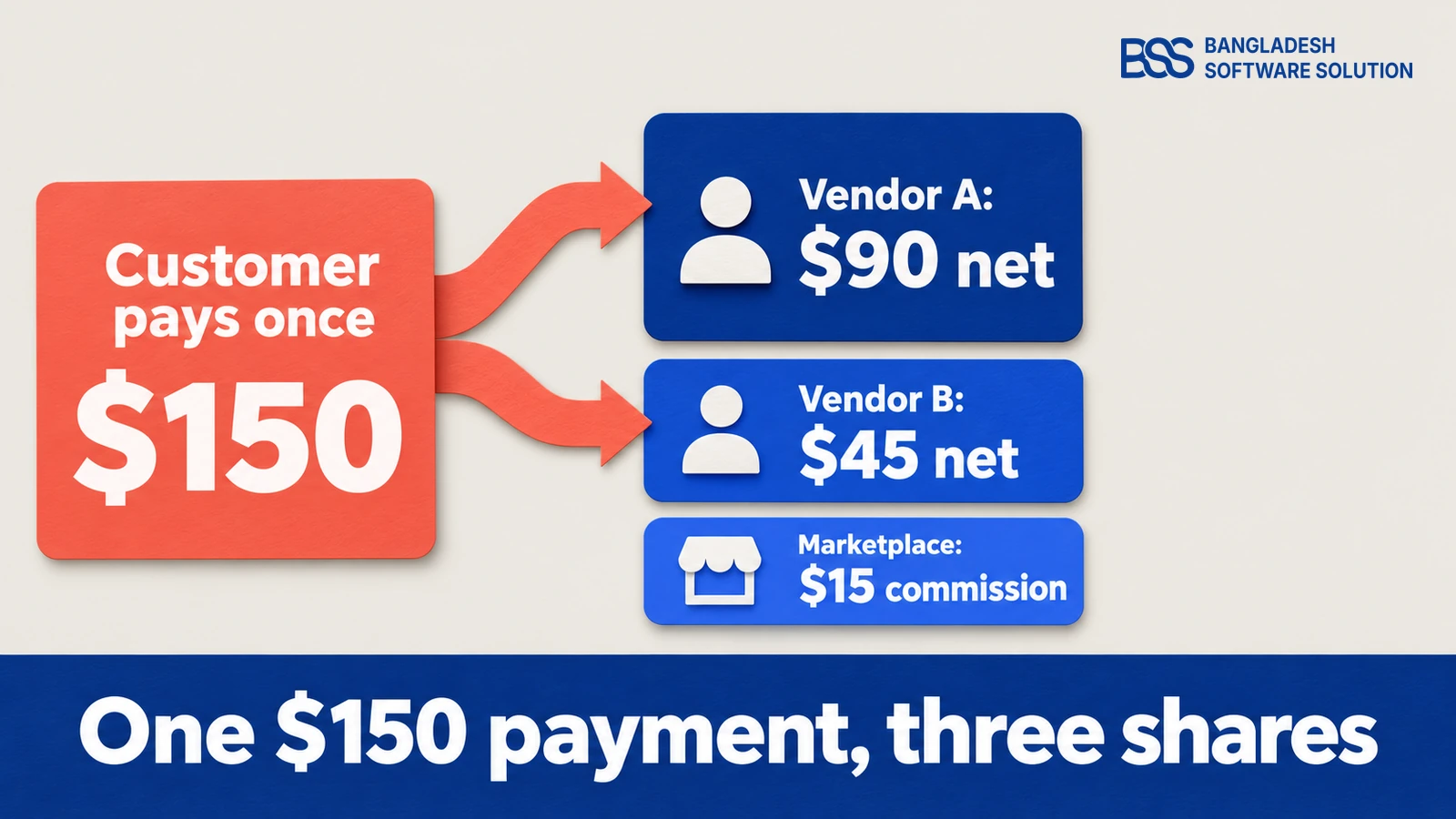
As a shopper, add both vendors' products, choose Stripe Connect at checkout and pay on Stripe's hosted page. The customer pays once, however many vendors are in the cart. Use these cards from Stripe's testing guide, with any future expiry date and any three-digit CVC:
| Card number | What it simulates | What you should see |
|---|---|---|
4242 4242 4242 4242 |
A successful payment | Order paid, one payout row per vendor |
4000 0000 0000 0002 |
A generic decline | Stripe refuses the card; no paid order, no payout rows |
4000 0000 0000 3220 |
3D Secure required | Payment completes only after the authentication step |
4000 0000 0000 0077 |
Success, funds available at once | Use it for any order you plan to pay out |
Now the maths, before you look. With a 10% commission, Vendor A's $100 becomes $10 commission and $90 net, and Vendor B's $50 becomes $5 commission and $45 net. The marketplace keeps $15 of the $150.
Open Admin → Sales → Orders to confirm the order is paid, then Stripe Connect → Vendor Payouts. The history grid should show one row per vendor with gross, commission and net, both Pending. If the amounts differ from your sums, fix the commission settings before testing anything else.
Key fact: the plugin protects payment confirmation with both the browser return and the signed webhook, so test each path on its own.
Stop the CLI listener, place one more order and watch what happens when you return from Stripe's page. Then abandon a checkout on Stripe's page on purpose: the order should stay unpaid and no payout rows should appear.
Release the payouts and test the gates
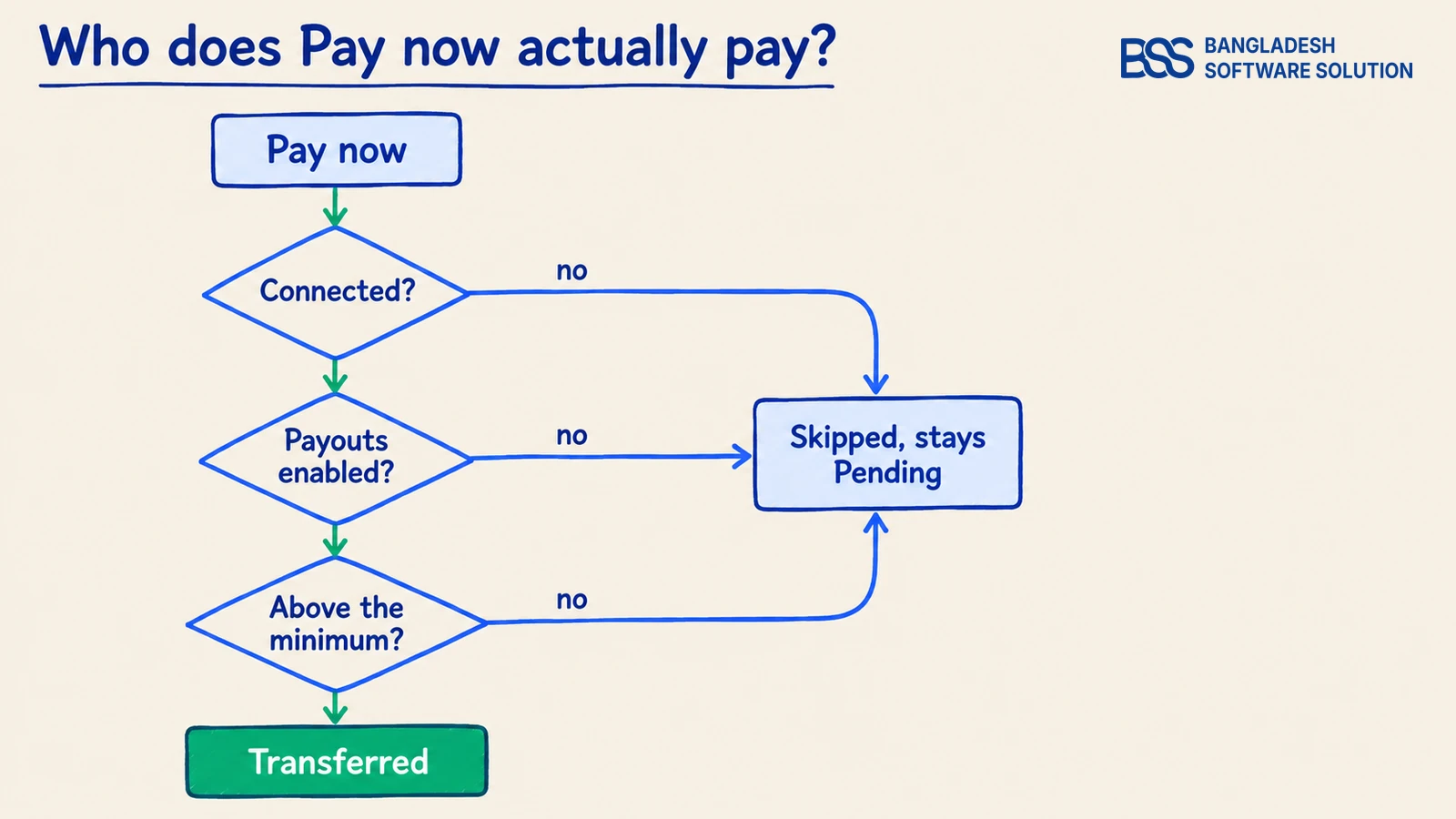
Payouts move money out of your platform balance, so this check has the most ways to surprise you. Keep Payout Mode on Manual for the first run, and know what the other two modes ask of you:
In Vendor Payouts, use the Make payment card: choose All vendors, check the total it shows, then click Pay now. On your first order you should see one payout transferred and one skipped. Vendor A is paid $90, and Vendor B, who is not connected, stays Pending.
Now finish Vendor B's onboarding with Continue and click Pay now again; the skipped $45 should go out. Then raise Minimum Payout Amount to $50 and place another order. Vendor B's $45 is held over until you use the per-row Pay now button, which ignores the minimum.
If Pay now fails on funds
Pay now moves money from your platform's Stripe balance, and a normal test charge reaches that balance as pending. If Stripe refuses a transfer for insufficient funds, pay the order with 4000 0000 0000 0077 instead: Stripe documents it as adding funds straight to the available balance.
Simulate the refund
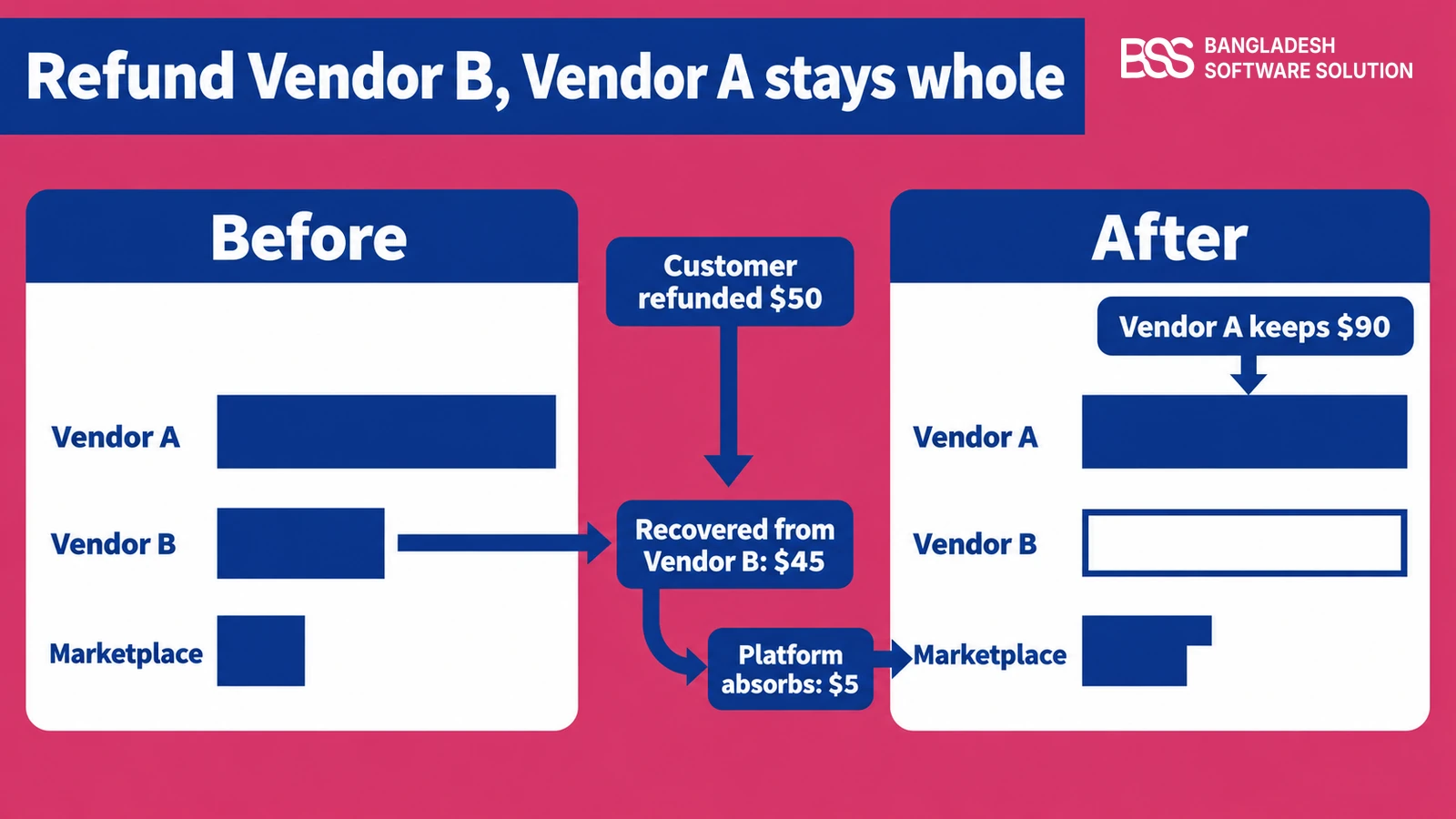
This is the check that earns the session. A refund returns money to the customer at once, then recovers each vendor's share.
What it recovers depends on whether the vendor has been paid: per the plugin documentation, paid transfers are reversed proportionally on Stripe and unpaid payouts are reduced or cancelled locally. Test both timings, with a fresh $150 order for each row.
| Test | Where | What to expect |
|---|---|---|
| Full refund, nothing paid out yet | Admin → Sales → Orders → Refund | Customer refunded $150; both Pending payouts cancelled or reduced |
| Partial refund after the payout | Orders → Partial refund of $30 | Split in proportion: $18 recovered from Vendor A, $9 from Vendor B, $3 absorbed by the platform |
| One faulty item | Stripe Connect → Vendor Refunds: enter the Order ID, Load order, tick Vendor B's product, Refund selected | The live breakdown reads: customer refunded 50.00, recovered from Vendor B 45.00, platform absorbs (commission) 5.00. Vendor A is untouched |
| Refund started in Stripe | Stripe Dashboard → the payment → Refund | The charge.refunded webhook syncs it back: order status and vendor payouts follow |
Write the expected numbers down before each click, because the comparison is the test. Then check three places: the order status in Orders, the Reversed amount in the payout history grid, and the vendor's connected account in Stripe, where a reversal appears against the original transfer.
We would add one more case before you trust it: a second partial refund on the same order, after the payout. The documentation says repeated partial refunds accumulate correctly, and we would still rather see that in your own grid. Every refund rule is on the plugin documentation page.
The fee does not come back
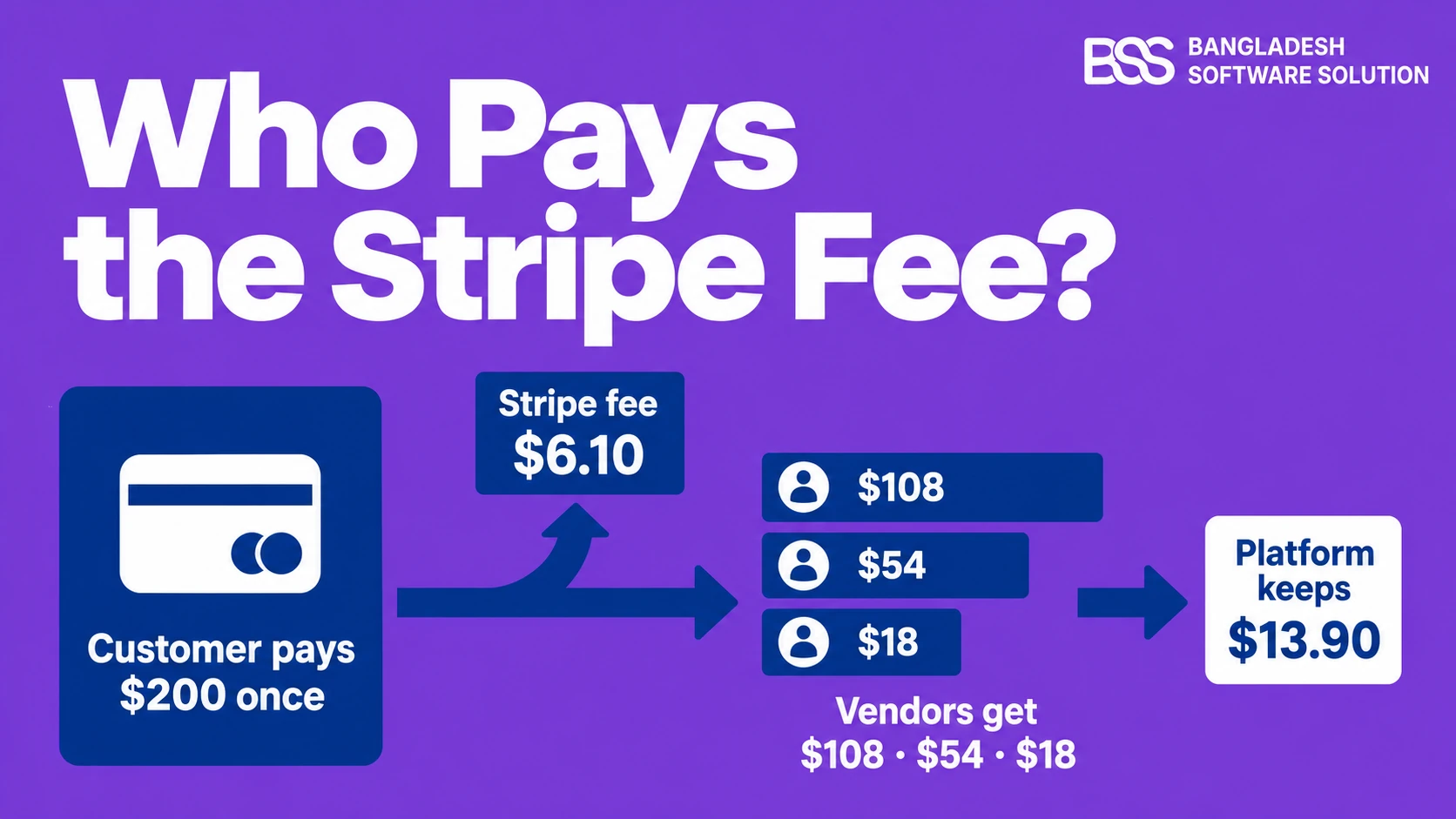
Stripe keeps its processing fee on a refunded payment, so a refund costs the platform more than the commission it gives up. Our guide to who pays the Stripe fee on a marketplace order works through the numbers.
Fix the usual failures, then go live
Most first-run problems trace back to a short list of causes. Match the symptom, not the plugin:
| Symptom | Likely cause | Fix |
|---|---|---|
| Stripe Connect missing at checkout | Secret Key is empty | Paste the sk_test_ key, save, clear the cache |
| Deliveries show Failed in Stripe | Webhook Secret belongs to another endpoint (CLI or Dashboard, test or live) | Copy the secret of the endpoint that is receiving events |
| Vendor stuck on Onboarding incomplete | Vendor stopped early, or the status has not synced | Continue on the Vendor Dashboard, then Refresh status |
| A payout was skipped | Vendor not connected, payouts not enabled, or below the minimum | Connect the vendor, or use the per-row Pay now |
| Pay now fails for funds | The test charge is still in the pending balance | Pay with 4000 0000 0000 0077 |
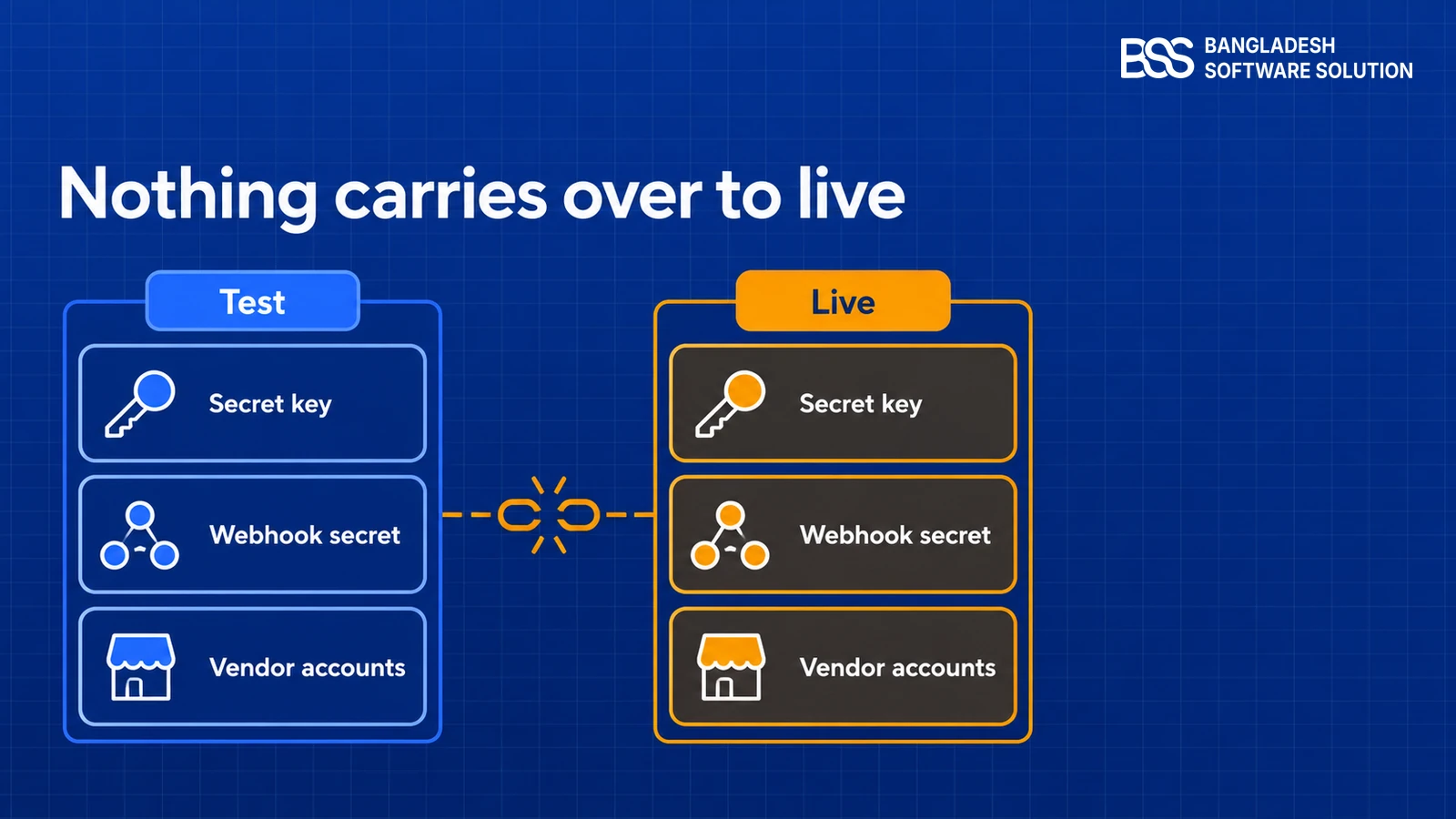
Going live is a rebuild, not a switch. Test keys, endpoints, signing secrets, vendor accounts and cards all belong to the test environment, and none carries over. Stripe also issues a different signing secret per endpoint, so the live endpoint needs its own.
Before you switch to live
-
Replace the
sk_test_key with your live secret key in Secret Key. -
Create a live webhook endpoint with the same URL and the four events, and paste its own signing secret into Webhook Secret.
-
Ask every vendor to connect again with their real Stripe details.
-
Choose the Payout Mode and delay you will run with. Automatic plus a few days' delay suits most marketplaces, because most refunds arrive before the vendor is paid.
-
Switch on the vendor emails you want, confirm their templates are active and an email account is set up in nopCommerce.
-
Place one low-value real order yourself, then refund it.
Taking Stripe Connect Live? Hire the BSS Team
From plugin setup and test runs to custom vendor flows and integrations, our dedicated nopCommerce engineers ship production-grade work. Tell us what your marketplace needs and we'll match you with the right developer.
Frequently Asked Questions
Final Thoughts
At the end of one session you have seen a vendor connect, a $150 order split into $90, $45 and $15, a payout released and skipped for the right reasons, and refunds recovered from the right vendors. None of it cost a cent, and each check is a conversation you will not have with a real vendor later.
Keep the test vendors and rerun the refund table whenever you change the commission, the payout mode or the plugin version. If you are writing your own gateway integration instead, our guide to building a payment plugin in nopCommerce 4.80 covers PCI-safe testing.
The BSS team builds the plugin and the nopCommerce stores around it. Tell us about your marketplace and we will help you test, tune and launch it.
Book a free consultation