
BSS Stripe Connect
Created on: Jul 28, 2026

PREREQUISITES
- nopCommerce 4.90 with the built-in Multi-vendor feature (Vendors) in use.
- BSS Core plugin installed and licensed.
- A Stripe account for your marketplace (sign up free at stripe.com) with Connect enabled.
- Your Stripe Secret Key and a Webhook Signing Secret (both explained below).
INSTALLATION
- Go to the Order Details Page and Download plugin package.
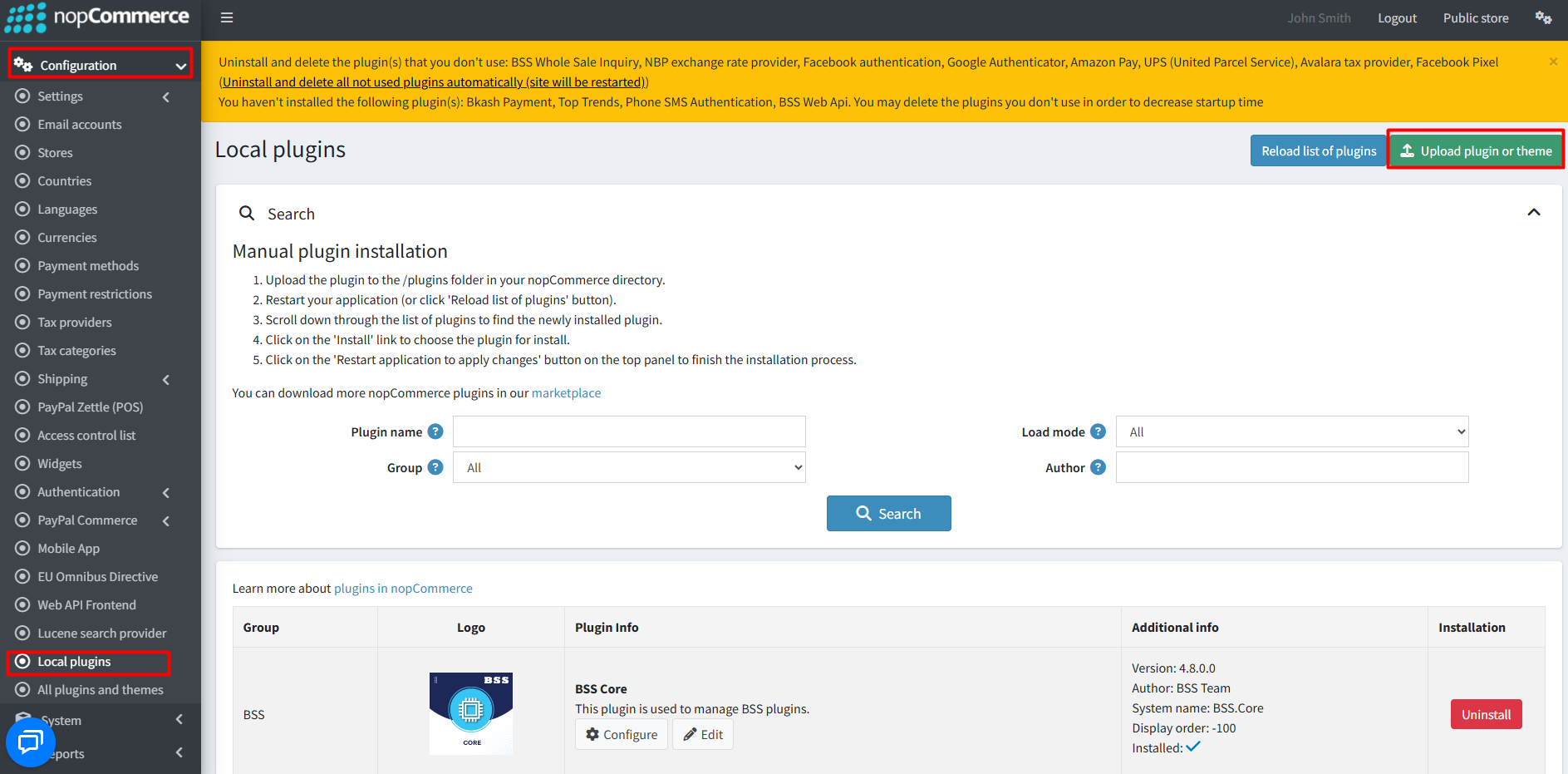
- Go to Admin → Configuration → Local plugins.
- Within the bundle, you get all the required files, including BSS.Core.
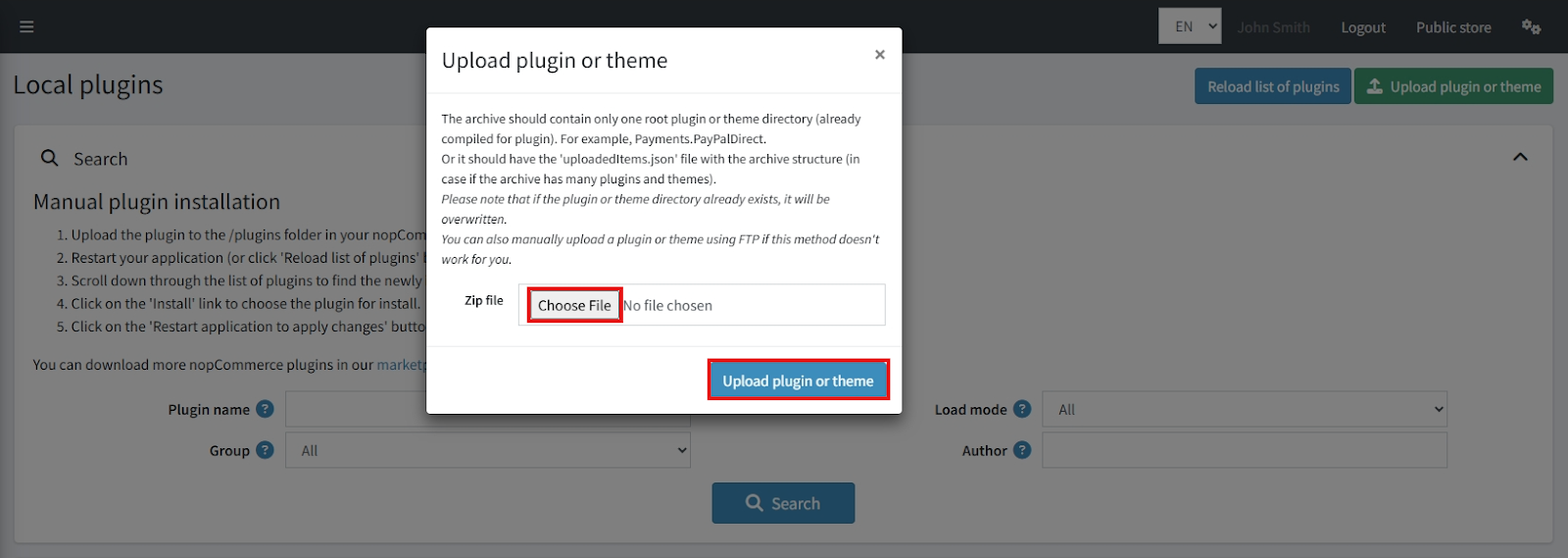
- Upload the zip files using the 'Upload plugin or theme' button.
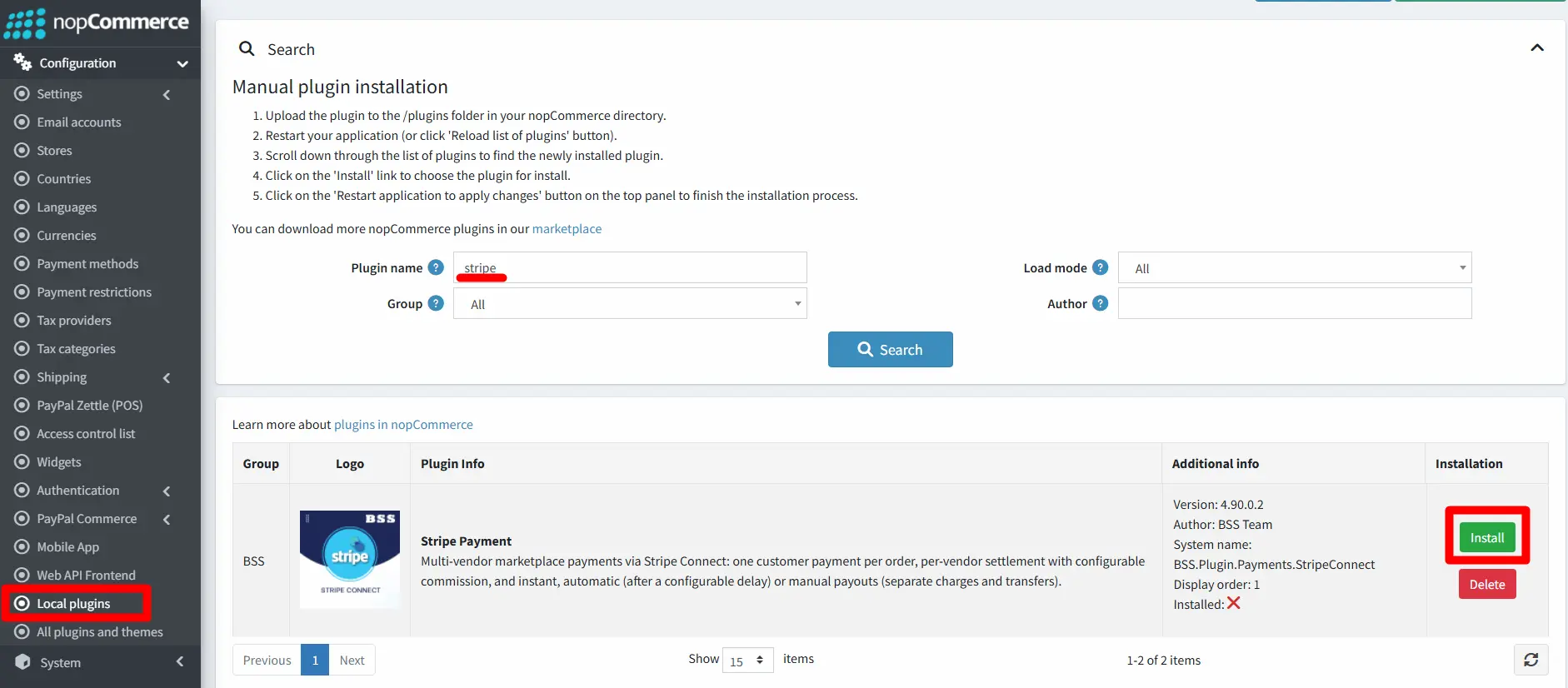
- Reload the plugin list and install ‘BSS Core’ first, then install ‘BSS Stripe Connect’.
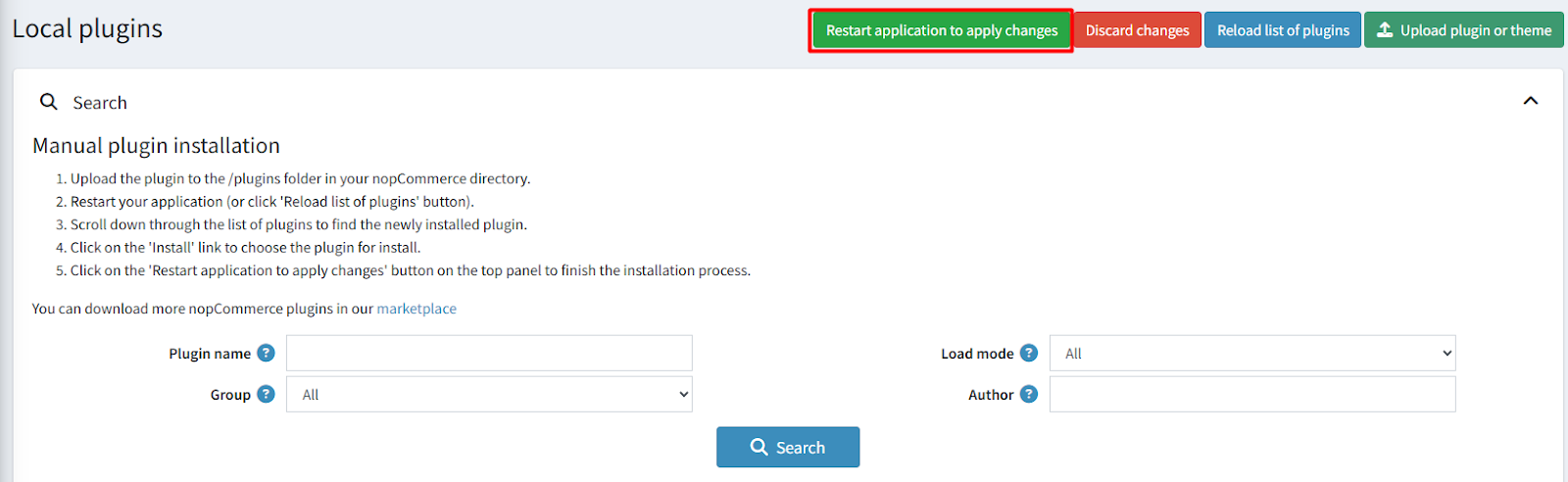
- Restart the application to activate the plugins.
- The plugin installs its database tables, seeds default settings and auto-enables itself as a payment method.
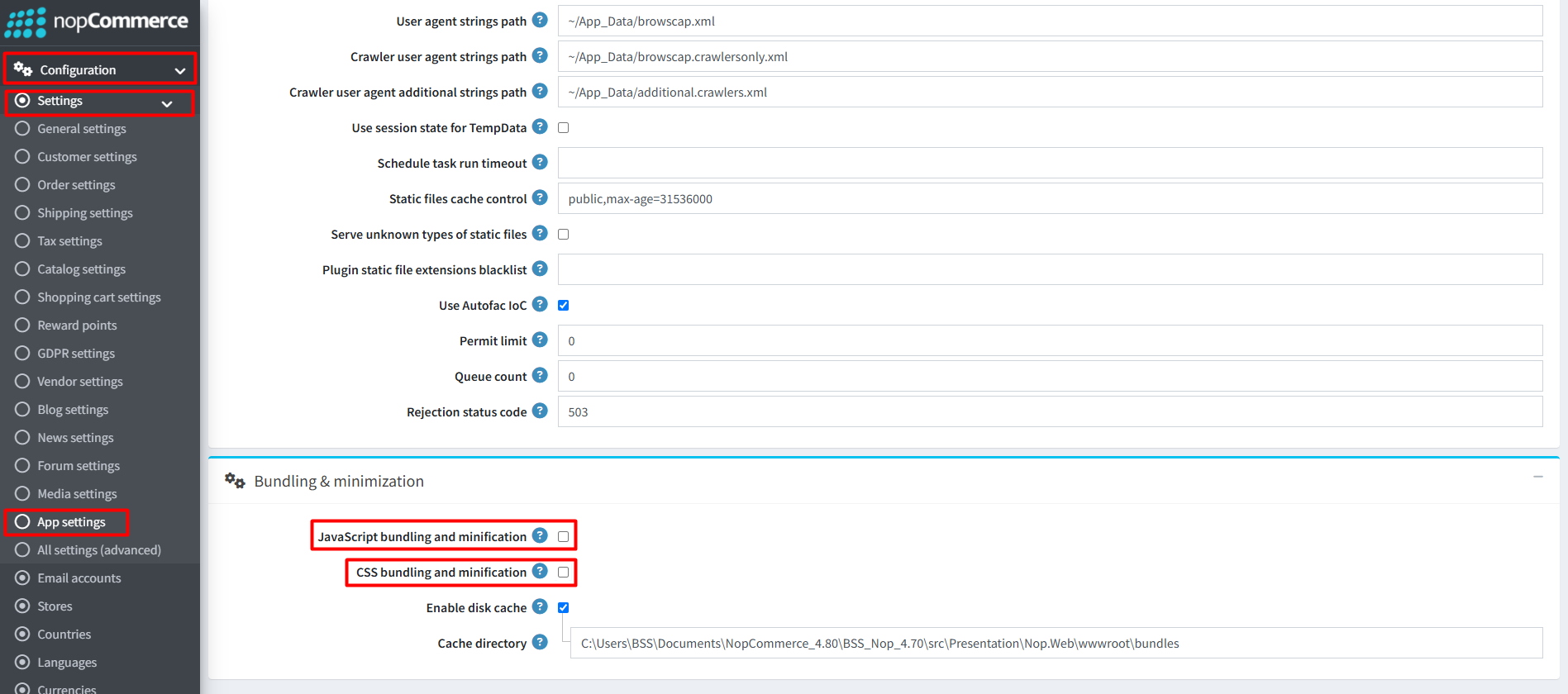
Recommendation: Go to > App Settings. If you find JavaScript bundling and minification, CSS bundling and minification are checked, then uncheck these two options and disable them.
CONFIGURATION
- Go to Admin → BSS → Plugins → Stripe Connect → Configuration.
- Enter the License string and click Save. Then clear cache.

- Revisit the Configuration page adjust settings.
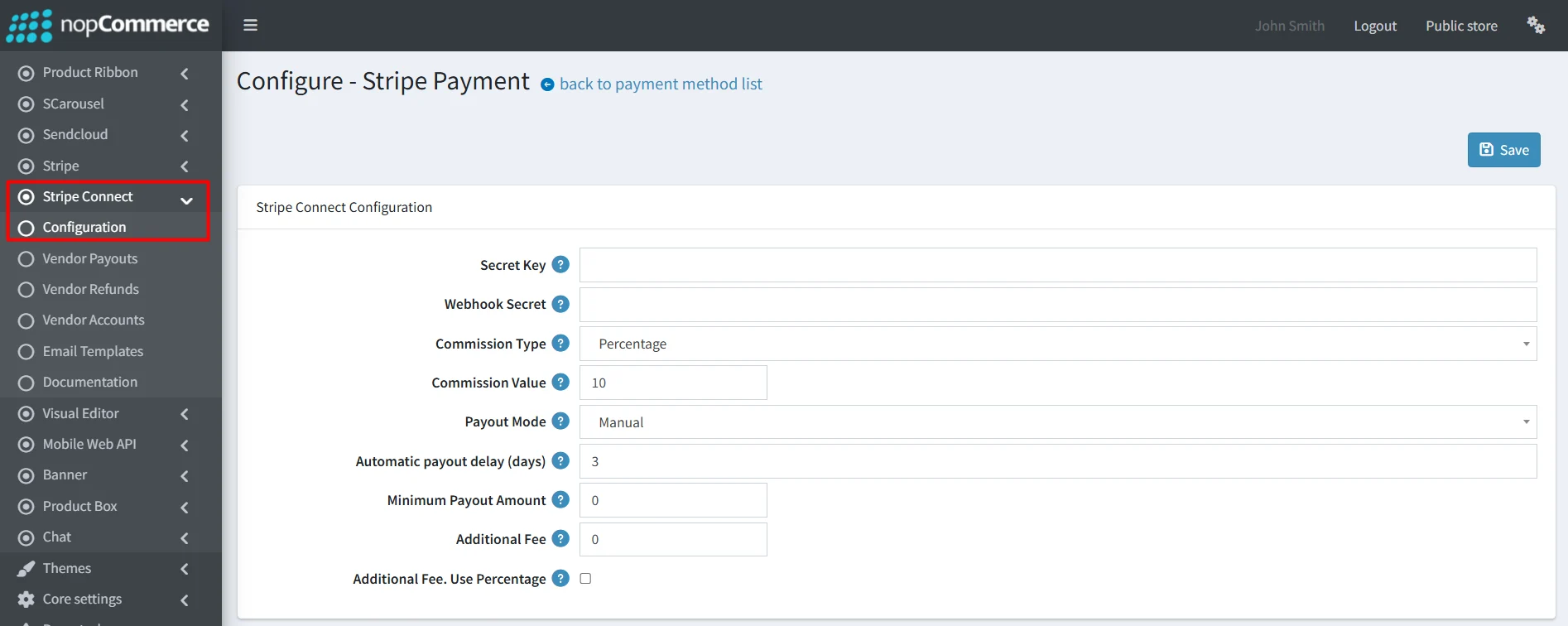
- Secret Key: Your Stripe secret API key (sk_live_…, or sk_test_… for testing). Found in the Stripe Dashboard under Developers → API keys. If left empty, the payment method is automatically hidden at checkout.
- Webhook Secret: The signing secret (whsec_…) of your webhook endpoint (setup below). Required for reliable payment confirmation, vendor account status sync and refund sync.
Setting up the Stripe webhook
- In the Stripe Dashboard go to Developers → Webhooks → Add endpoint.
- Endpoint URL: https://<your-store>/StripeConnectWebhook/HandleWebhook
- Select these events: checkout.session.completed, checkout.session.expired, account.updated, charge.refunded
- Copy the endpoint's Signing secret (whsec_…) into the plugin's Webhook Secret field.
Note: Every webhook call is signature-verified; unsigned or tampered calls are rejected.
- Commission Type: Choose Percentage (a % of each vendor's sales) or Fixed (a fixed amount per vendor per order).
- Commission Value: The percentage (0–100) or fixed amount your marketplace keeps from each vendor's gross.
- Payout Mode: When vendors receive their money:
- Instant: Each vendor's net share is transferred automatically the moment the customer's payment is confirmed.
- Manual: Vendor earnings accumulate as Pending and you release them from the Vendor Payouts dashboard whenever you choose.
- Automatic (Hands-free): Each vendor's share is transferred automatically a set number of days after the customer's payment. You choose the delay (3 days, 5 days, whatever fits your store) and the plugin's built-in scheduler does the rest, no clicks needed.
- Automatic payout delay (days): When you select Payout Mode as Automatic, you can set the delay days - how many days after purchase the vendor payout will be released.
- Minimum Payout Amount: Vendors whose accumulated pending total is below this amount are held over to the next payout run (applies to payment-card runs; the per-row Pay now button can always override).
- Additional Fee: Optional checkout surcharge for this payment
method (leave 0 for none).
- Additional Fee - Use Percentage: check this box to treat the additional fee as a percentage of the order total.
Note: Use this additional fee field to cover the platform fee charged by Stripe. Setting an additional fee helps ensure the store receives the expected product amount after Stripe’s charges. If the order is refunded, this fee will not be refunded to the customer.
EMAIL NOTIFICATIONS
- Email vendor when paid: When this option is active, the vendor will receive an email whenever their payout transfers to their Stripe account.
- Email vendor on refund: The vendor will receive an email when a refund is deducted from their payout. If the refund is larger than the payout, their account balance may become negative.
- Email vendor when account is ready: Sends the vendor an email once their Stripe account is fully set up and ready to receive payouts.
- Email store on reversal failure: Sends an email to the store's default address when a payout reversal cannot be completed, so it can be retried or handled manually.
Each one is controlled by its own toggle under Configuration → Email notifications and is off by default enable only what you want. (An email account must also be configured in nopCommerce for any email to actually send.)

EMAIL TEMPLATES
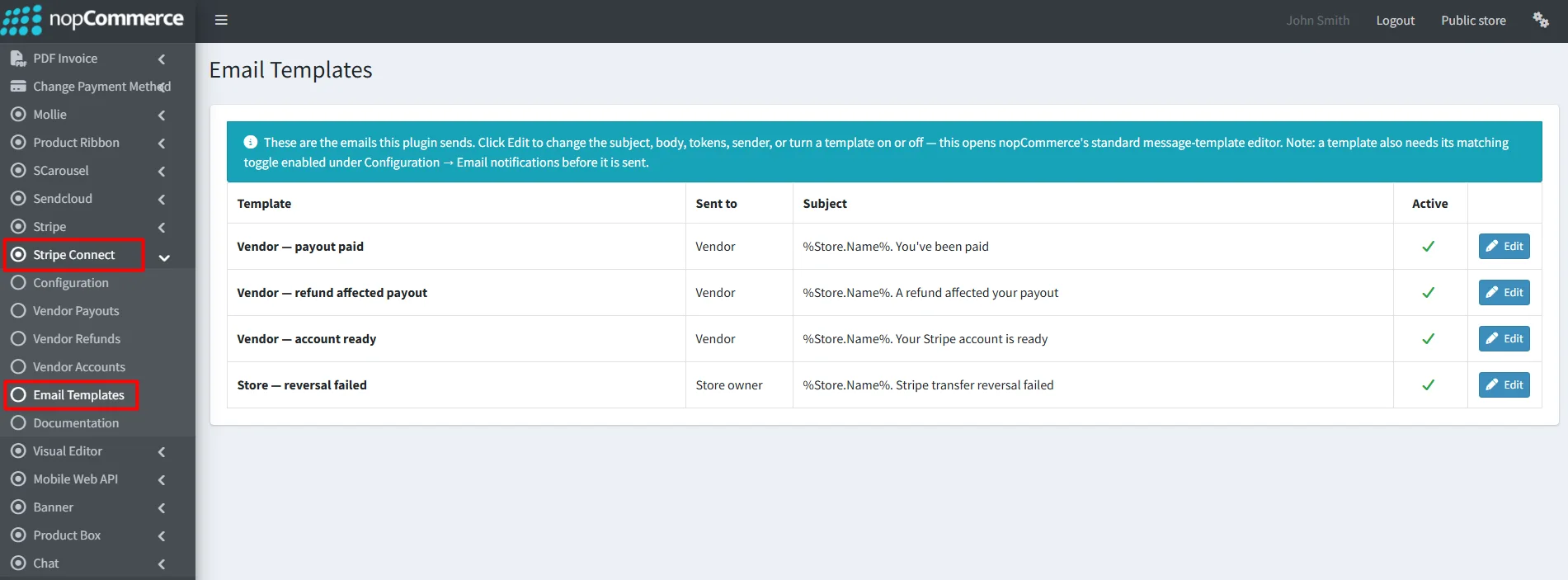
- Open Admin → BSS → Plugins → Stripe Connect → Email Templates.
- This page lists only this plugin's emails, so you don't have to search through nopCommerce's full template list.
- Each row shows a friendly name, who it's sent to the subject and whether it's active.
- Click Edit to change the subject, body, sender, tokens, or turn it on/off. This opens nopCommerce's standard message-template editor, so you keep every feature (rich HTML body, token list, test-send).
- Handy tokens: The standard %Store.Name% and %Vendor.Name%, plus plugin tokens %StripeConnect.Amount% and %StripeConnect.OrderId%.
Two switches per email: a notification is sent only when both its Configuration → Email notifications toggle is on and the template itself is active (in the editor). This gives you an on/off at both the feature level and the template level.
VENDOR ONBOARDING: Connect vendors to Stripe in minutes
Each vendor connects their own Stripe Express account through Stripe's hosted onboarding, no forms to build, no sensitive data on your server.
Vendor self-service
- A vendor logs into the admin area and opens BSS → Plugins → Stripe Connect → Vendor Dashboard.
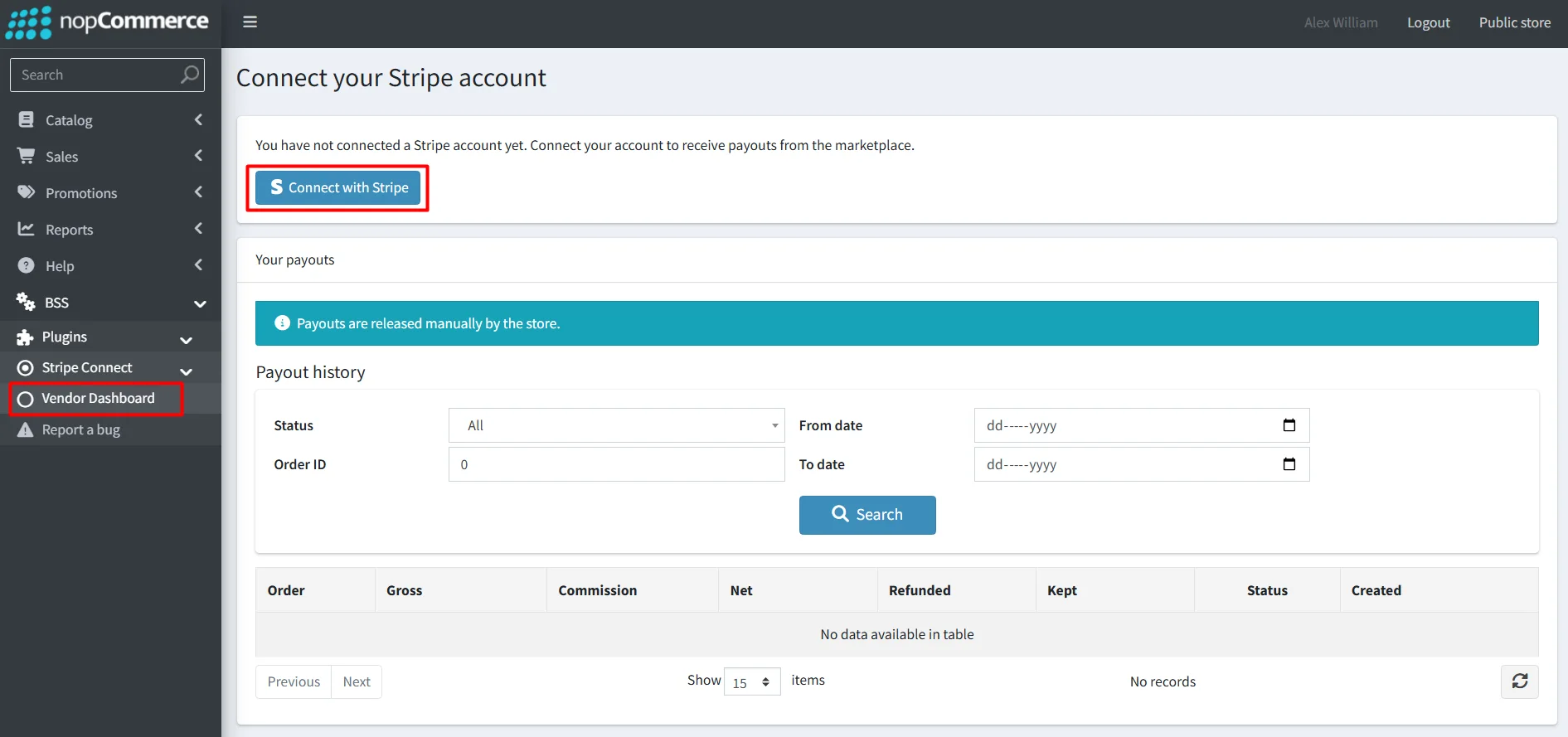
- Click Connect with Stripe: The vendor is taken to Stripe's
secure hosted onboarding.
- Already using Stripe? With Stripe's networked onboarding, the vendor simply signs in and reuses their already-verified business details; typically done in about a minute. Try to keep the Stripe account email and vendor account email the same.
- New to Stripe? Stripe guides them through identity, business and bank details step by step, localized to their country.
- The plugin automatically derives each vendor's account country from their vendor address; set the vendor's address country in nopCommerce before their first connection.
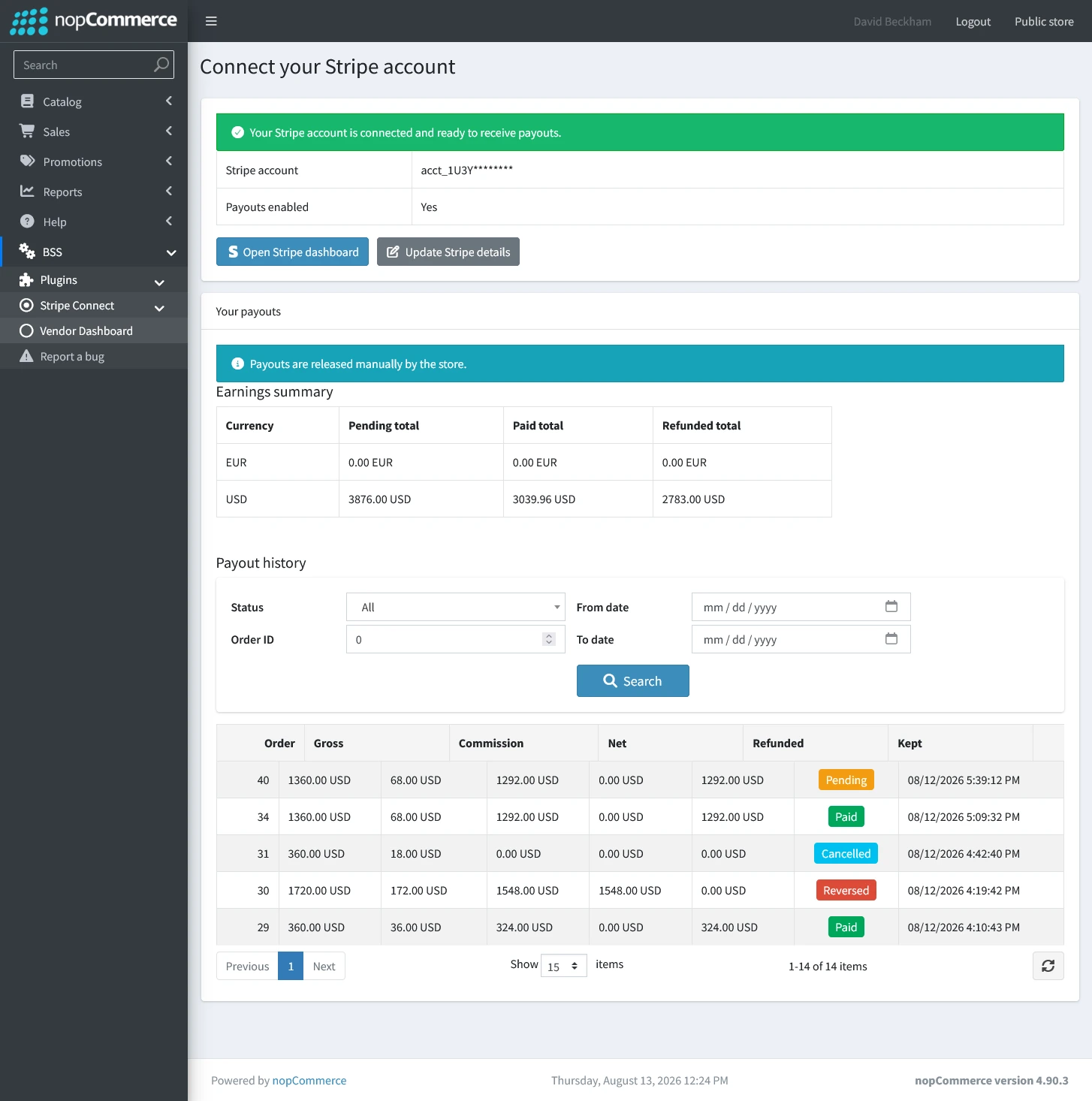
- After onboarding, the page shows live status: Connected & ready or Onboarding incomplete with a Continue button to pick up where they left off.
- The same page shows the vendor their own earnings: Per-currency pending and paid totals, plus their full payout history (gross, commission, net, status, date).
- Vendors can start selling immediately, even before connecting their earnings safely accumulate as Pending and become payable the moment onboarding completes.
Admin monitoring
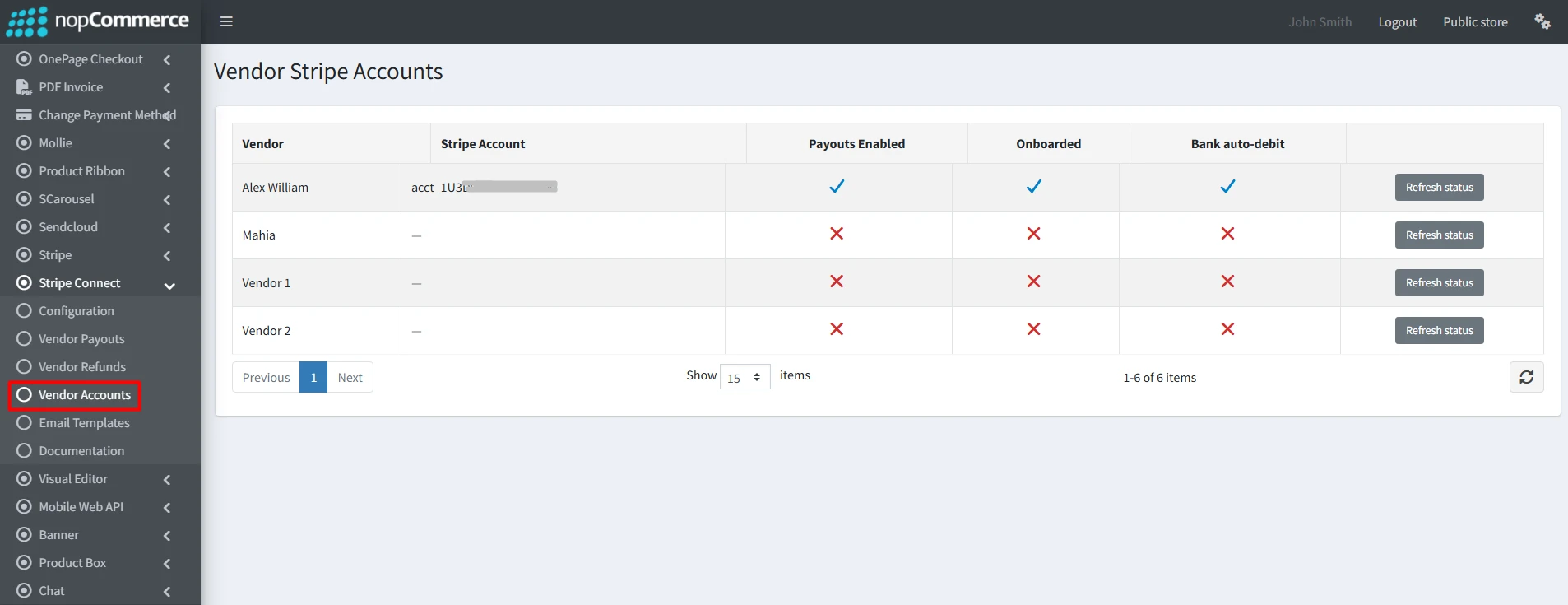
- Admin → BSS → Plugins → Stripe Connect → Vendor Accounts lists every vendor with their Stripe account id, Payouts Enabled and Onboarded status at a glance, plus a Refresh status action to re-sync any vendor from Stripe on demand.Statuses also stay current automatically via the account.updated webhook.
HOW CUSTOMERS PAY
- At checkout, the customer selects Stripe Connect and is redirected to Stripe's hosted payment page.
- The customer pays once for the entire order, no matter how many vendors are in the cart.
- Card data is entered only on Stripe, your store stays fully PCI-compliant with zero card storage.
- Payment confirmation is double-safe: Both the browser return and the signed Stripe webhook confirm the order, whichever arrives first (never double-processed).
- On confirmation, the plugin automatically splits the order per vendor: Gross per vendor → minus your commission → net payable, recorded per order per vendor with a full audit trail.
VENDOR PAYOUTS
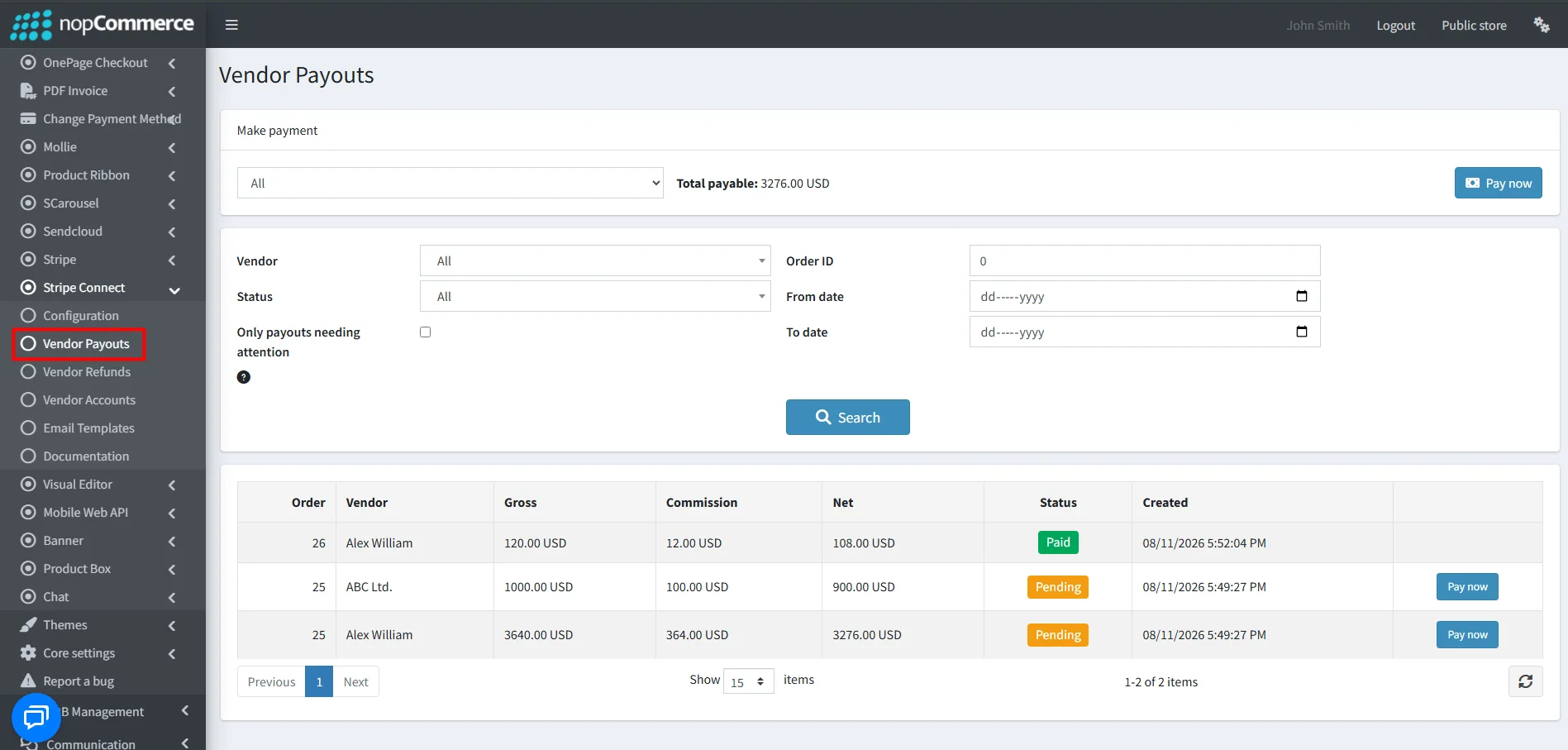
- Admin → BSS → Plugins → Stripe Connect → Vendor Payouts
Make payment card
- Pick All vendors or a specific vendor: The card instantly shows the total payable for your selection (per currency, updated live).
- Click Pay now to transfer: Funds move from your platform's Stripe balance straight to each vendor's Stripe account.
- Vendors below the Minimum Payout Amount, not yet connected, or not payout-enabled are safely skipped and clearly reported: "4 payout(s) transferred" / "2 payout(s) were skipped…". Skipped earnings simply remain pending — nothing is ever lost.
Payout history grid
- Filter by vendor, status, order ID, date range (from/to), and "Only payouts needing attention" (items with a recorded problem waiting for your action).
- Every row shows gross, commission, net, color-coded status: Pending, Paid, Failed, Reversed, Cancelled and creation date.
- A per-row Pay now button releases a single payout on demand (deliberately ignores the minimum — the admin override).
REFUNDS - fully automated
Refund exactly like any nopCommerce order, the plugin handles the marketplace complexity for you.
- Open the order in Admin → Sales → Orders and use the standard Refund or Partial refund buttons.
- The customer is refunded immediately from your platform balance.
- Each vendor's share is recovered automatically: already-paid transfers are reversed proportionally on Stripe; not-yet-paid payouts are reduced or cancelled locally.
- Partial refunds are split proportionally across all vendors in the order and repeated partial refunds accumulate correctly.
- Refunds issued directly in the Stripe Dashboard sync back into nopCommerce automatically via webhook — order status and vendor payouts included.
- Every recovered amount is tracked per payout (Reversed amount) for a complete audit trail.
Two ways to refund
The plugin gives you two refund tools — both keep vendor money perfectly in sync:
- Standard order refund: Admin → Sales → Orders → Refund / Partial refund.
- You can refund a customer full-order amount or partial amount of his/her total order amount. In this regard, refunded amount automatically deducted from the respective vendor’s payout based on the refunded product.
- Vendor Refunds: A dedicated page for refunding specific products from specific vendors, recovering money only from those vendors. Best for "just this one item was faulty."
Vendor Refunds — refund a single product or vendor
Open Admin → BSS → Plugins → Stripe Connect → Vendor Refunds.
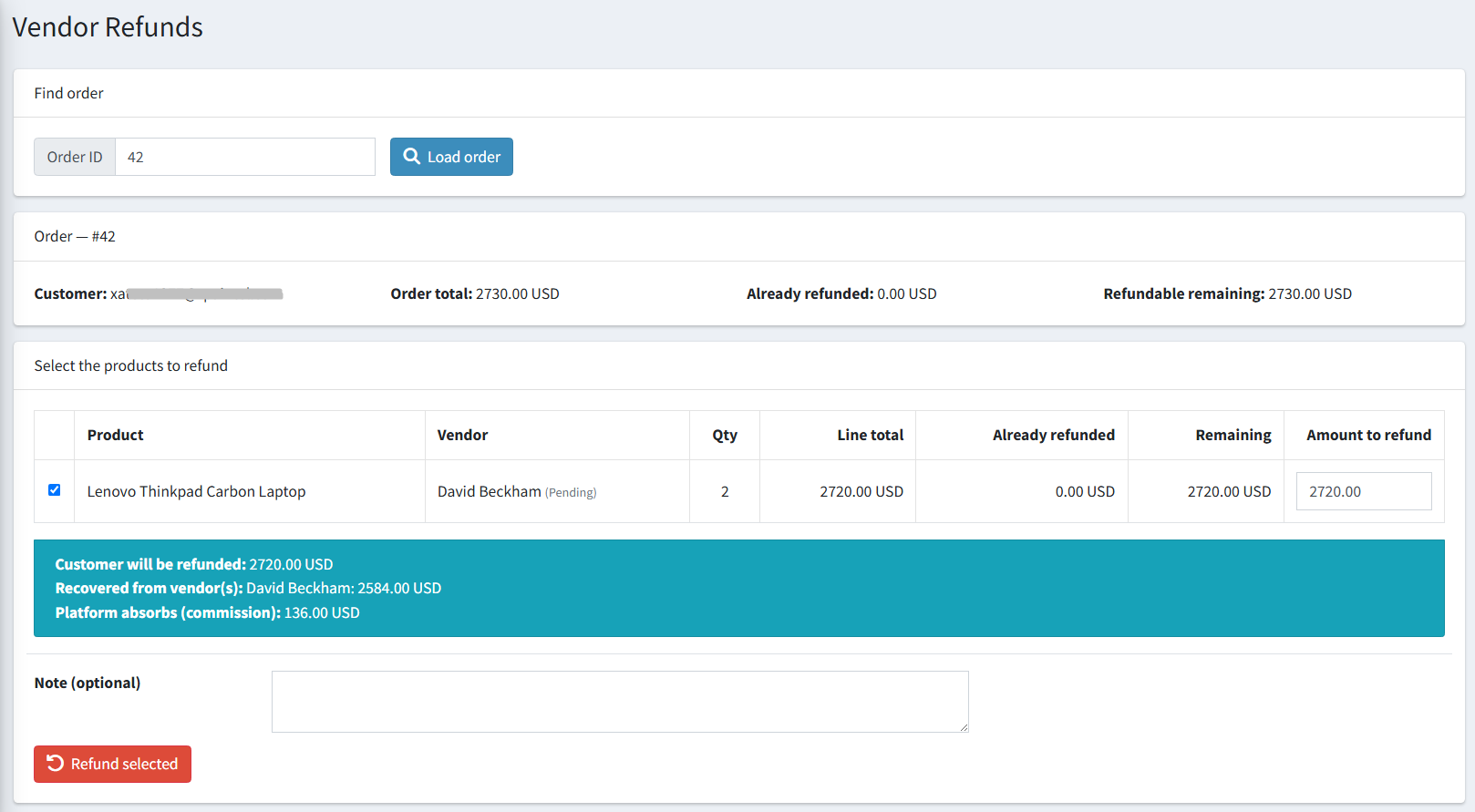
- Find the order: Type the Order ID and click Load order.
- The order's products load grouped by vendor, each line showing its total, how much has already been refunded, and how much is still refundable.
- Tick the product(s) to refund and set the amount — it defaults to the full remaining, and you can refund part of a line.
- A live breakdown shows exactly what will happen before you confirm, e.g. "Customer refunded 40.00 · Recovered from Vendor B 36.00 · Platform absorbs (commission) 4.00."
- Click Refund selected: The customer is refunded and money is recovered only from the vendor(s) whose products you refunded. Untouched vendors are never affected.
A real-world scenario: refunding an order with two vendors
- The customer gets their $100 back immediately from your marketplace's Stripe balance. This always happens first, no matter what state your vendors are in. Your customer never waits.
- Vendor A has money in their Stripe account → their share is pulled back automatically. Their payout row switches to Reversed.
- Vendor B's Stripe account is empty (they already moved everything to their bank) → their share can't be pulled back right now. Nothing breaks: their payout row stays Paid but gets a red warning icon — hover over it to see exactly why it failed and a yellow Retry reversal button appears on that row.
- Important: Vendor B's situation never delays the customer's refund and never affects Vendor A. Every vendor is handled independently — one vendor's empty account can't block anyone else.
So how do you get Vendor B's share back?
- Open Vendor Payouts and filter: Status = Paid with "Only payouts needing attention" ticked. This is your to-do list of every amount still waiting to be recovered, across all orders.
- Wait until Vendor B has money in their Stripe account again; usually this happens naturally the next time they sell something in your marketplace.
- Click Retry reversal on the row. The plugin knows exactly how much is still outstanding and takes back only that amount. The row switches to Reversed and the warning disappears.
- If their balance is still too low, you'll see a clear message and can simply try again later. Clicking retry is always safe, even after it has already succeeded.
One tip: Recover these amounts through the Retry reversal button, not by reversing the transfer inside the Stripe Dashboard. The plugin keeps its own records and the button keeps everything in sync automatically.
Your best protection: with Manual payout mode, vendor money stays with the marketplace until you release it — refunds that arrive before payout day are simply deducted from what's pending, and this whole scenario never comes up at all.
FEATURES AT A GLANCE
- One customer payment, many vendors, single Stripe Checkout charge per order, split per vendor automatically.
- Configurable platform commission - percentage or fixed, per store.
- Instant, Automatic (pay N days after purchase) or Manual payout modes with a minimum-payout threshold.
- Make payment card - see total payable (all vendors or one) and pay in one click.
- Per-row payout controlwith full status lifecycle and error transparency.
- Stripe-hosted vendor onboarding(Express accounts) with one-click networked onboarding for existing Stripe users.
- Vendor self-service portal; connect, track status, and view earnings and payout history.
- Vendor account monitoring for admins with on-demand and automatic status sync.
- Full and partial refunds with automatic proportional transfer reversals.
- Stripe Dashboard refund sync via signed webhooks.
- Country-aware account creation from the vendor's nopCommerce address.
- Multi-store support with per-store setting overrides.
- Secure by design - signature-verified webhooks, antiforgery-protected money actions, vendor-scoped data isolation, no card or KYC data on your server.
- Test mode support, develop and demo the full flow end-to-end with Stripe's test sandbox before going live.


