
NopFashion Theme + 15 Plugin Bundle for NopCommerce
NopBeauty Theme + 12 Plugin Bundle for NopCommerce
NopNoor Theme + 16 Plugin Bundle for NopCommerce
NopGadget Theme + 18 Plugin Bundle for NopCommerce
NopEthnic Theme + 17 Plugin Bundle for NopCommerce
NopFurniture Theme + 19 Plugin Bundle for NopCommerce
NopPharma Theme + 16 Plugin Bundle for NopCommerce
NopVogue Theme + 17 Plugin Bundle for NopCommerce
NopGadence Theme + 18 Plugin Bundle for NopCommerce
BSS SSLCommerz Payment
Created on: Mar 02, 2026
BSS’s SSLCommerz Payment Plugin enables seamless integration of SSLCommerz with your nopCommerce store, allowing you to accept secure online payments with ease. SSLCommerz is one of Bangladesh’s leading payment gateways, supporting transactions via credit cards, debit cards, mobile banking, and direct bank transfers.
With quick installation and simple configuration, store owners can activate SSLCommerz payment options directly from the nopCommerce admin panel. The plugin ensures smooth transaction processing, reliable payment verification, and helping you deliver a secure and convenient checkout experience for customers across Bangladesh.
PRE-REQUISITES
- The plugin requires you to install the BSS Core plugin first.
INSTALLATION
- Go to the Order Details Page and Download plugin package
- Go to Administration → Configuration → Local plugins
- Within the bundle, you get all the required files, including BSS.Core
- Upload the zip files using the ‘Upload plugin or theme’ button
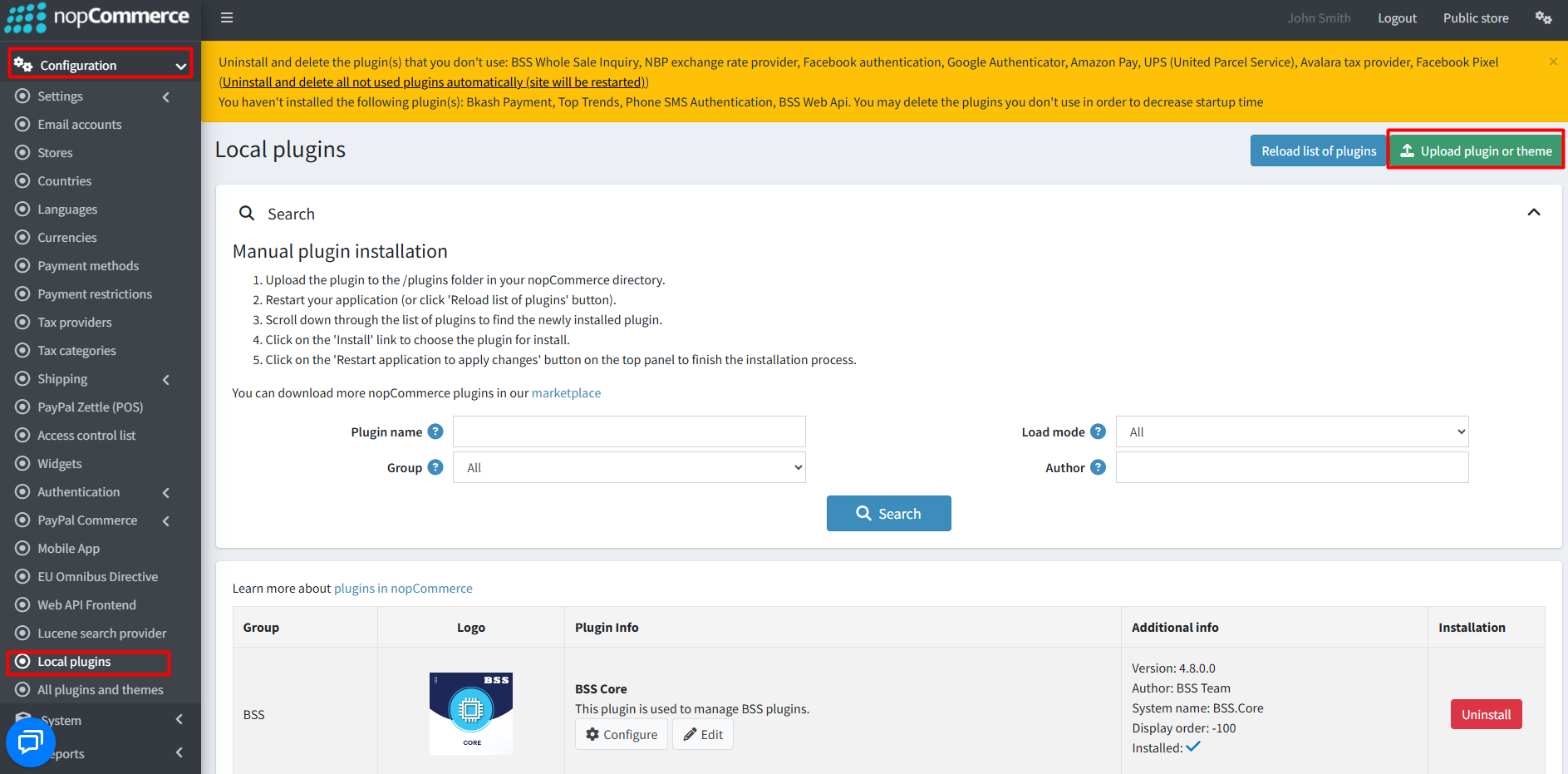
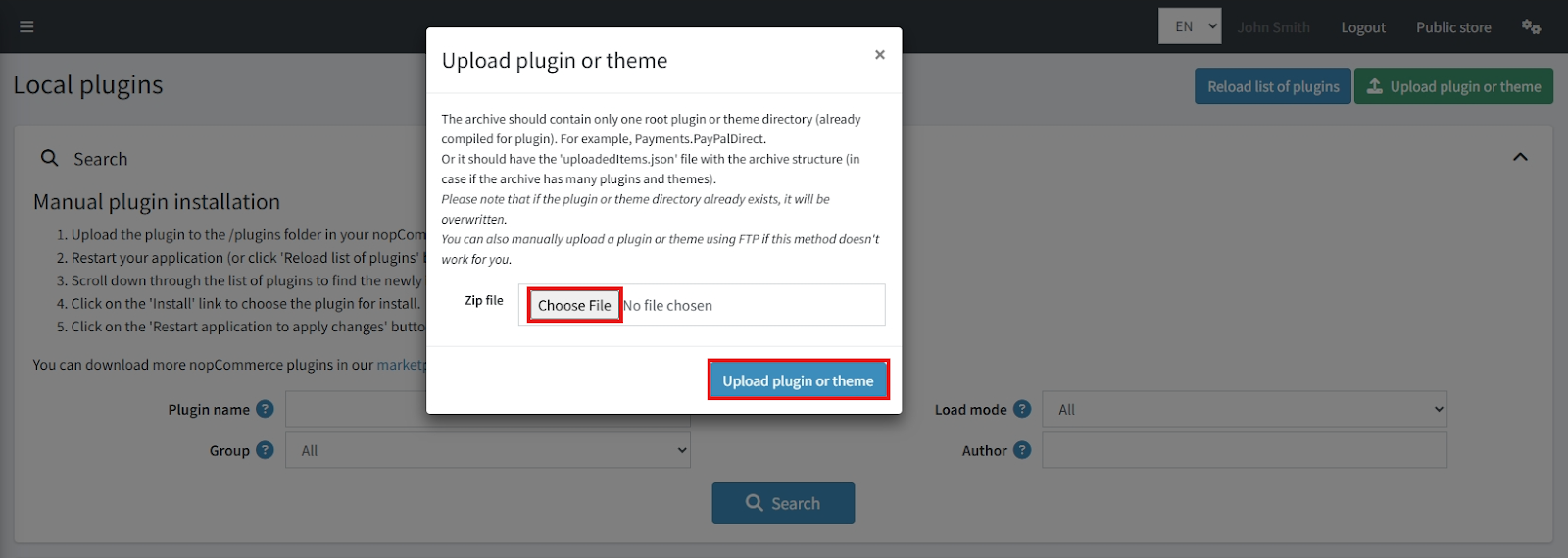
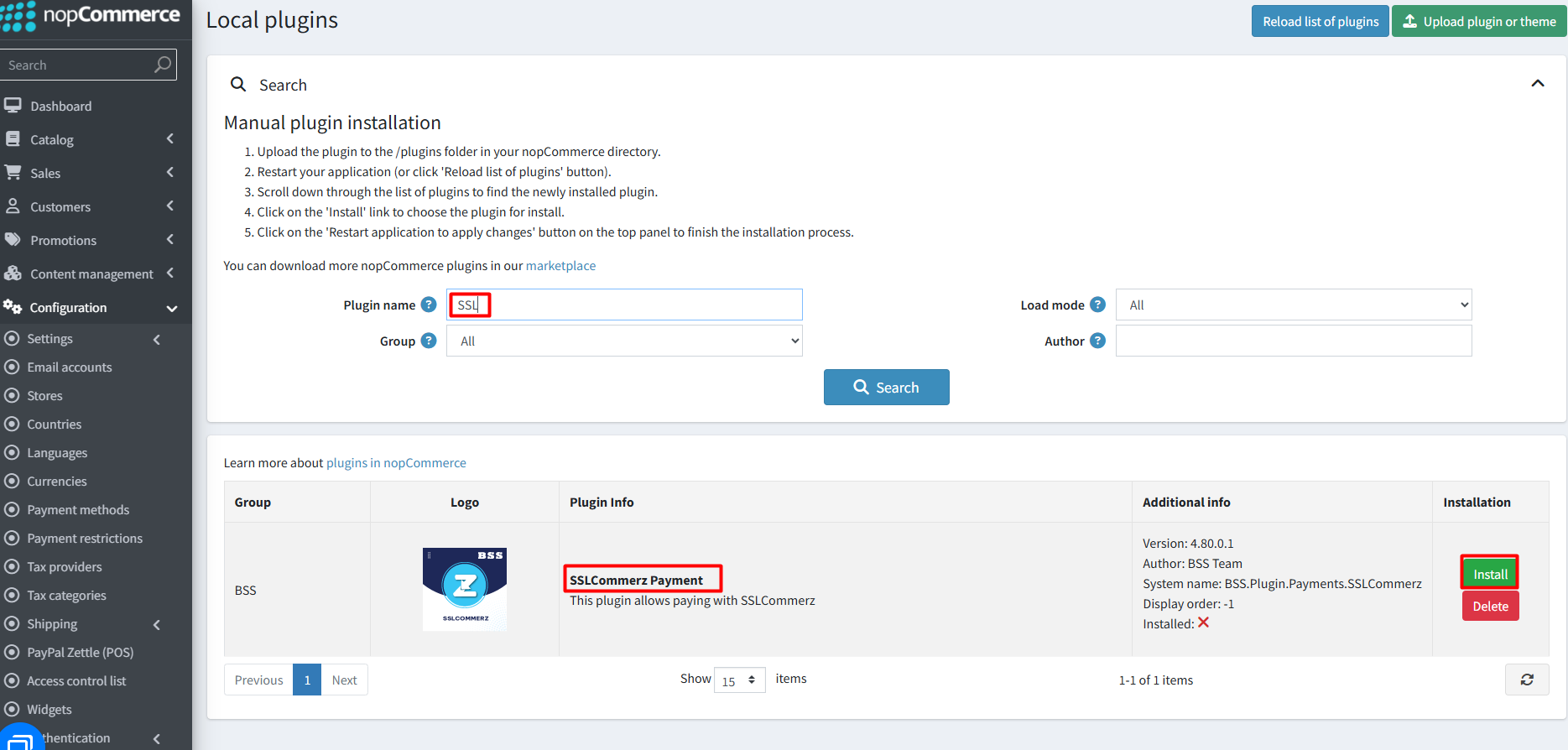
- After uploading, reload the ‘list of plugins’ and install the ‘BSS Core’ Plugin first. Scroll down or write the name of the plugin in the search bar, then install ‘SSLCommerz Payment.’
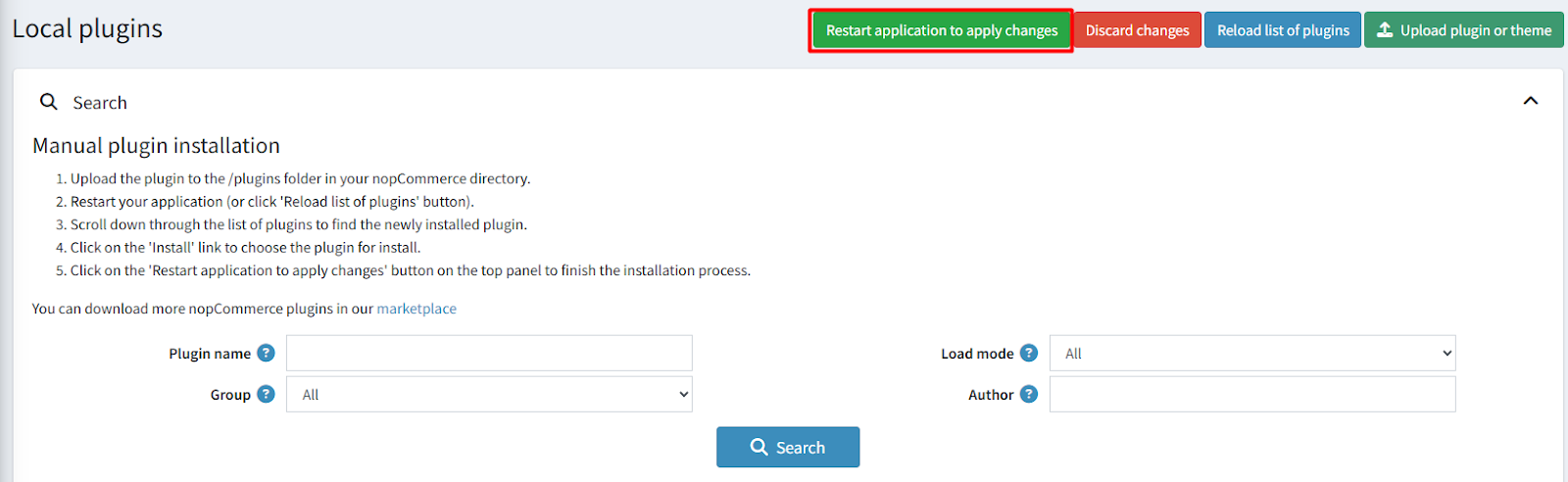
- To make the plugins functional, restart the application
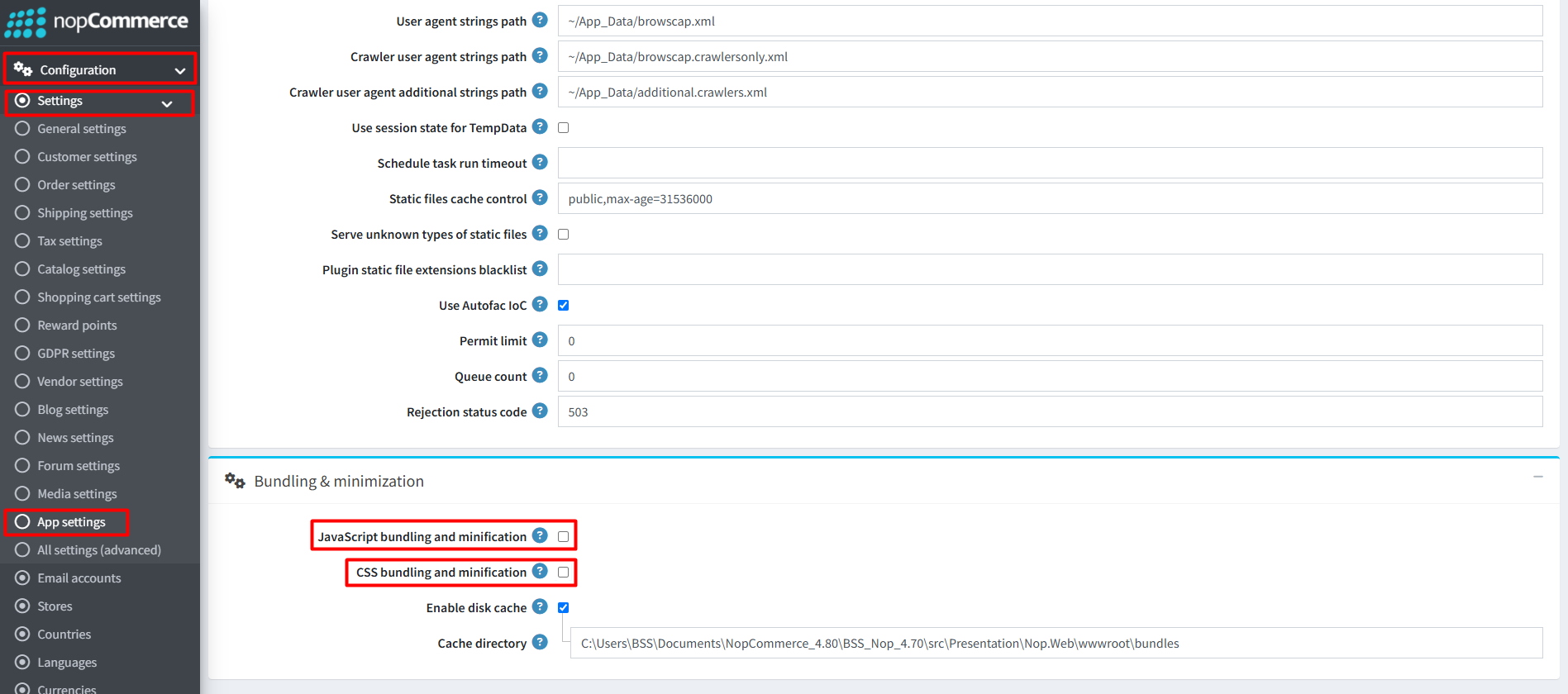
Recommendation: Go to > App Settings. If you find JavaScript bundling and minification, CSS bundling and minification are checked, then uncheck these two options and disable them.
CONFIGURATION
- Go to Admin → BSS → Plugins → SSLCommerz Payment → Configuration. Then enter the License string, then save it. Then clear cache.

- Return to Configuration to set your gateway credentials.
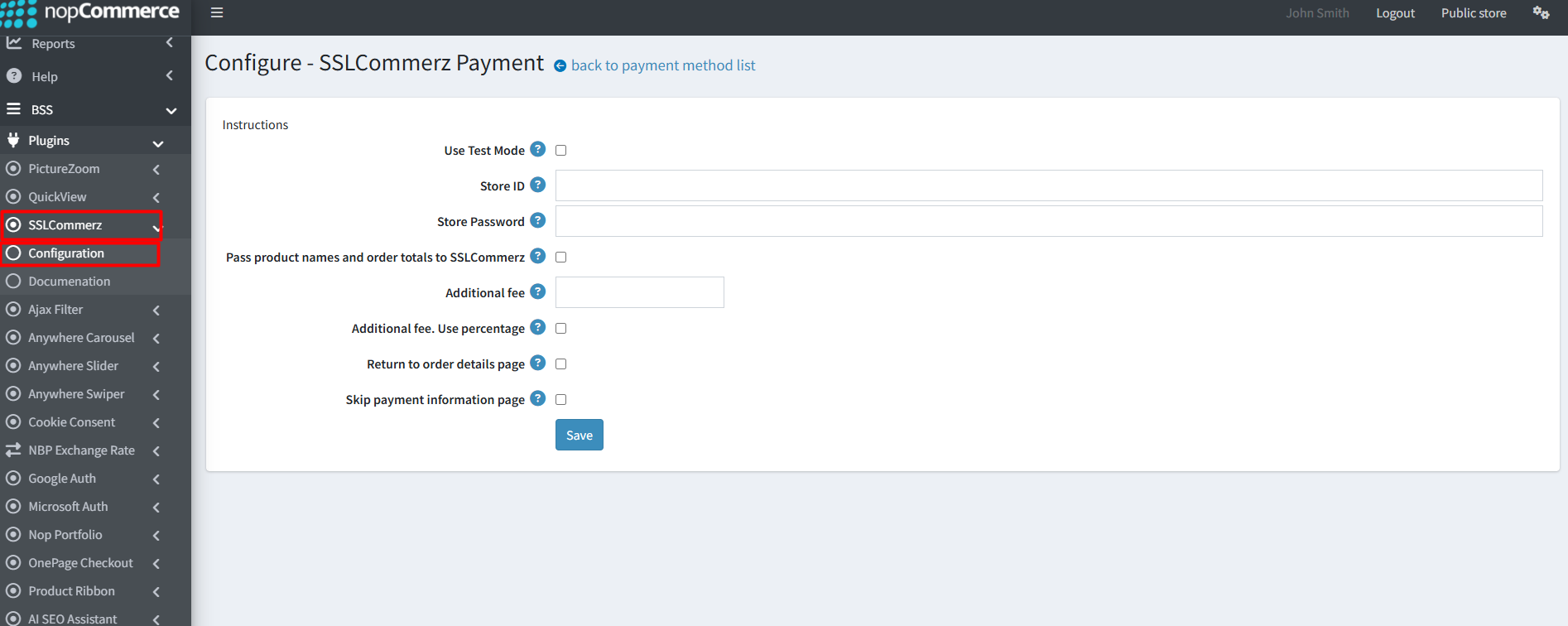
- Store ID: Enter your SSLCommerz Store ID from your merchant dashboard. Leave it empty to hide this payment method at checkout. Use your sandbox Store ID for testing and your live Store ID when going live.
- Store Password: Enter your SSLCommerz Store Password (API key) that matches your current Store ID environment (sandbox password with sandbox ID, live with live). This credential authenticates all background communication—including session creation, order validation, and refunds—so a mismatch will cause "invalid transaction" errors at checkout even if the payment appears to go through on the customer's side.
- Description: Enter the text or HTML snippet to show customers in the SSLCommerz section after they select it at checkout. Leave it blank to use the built-in default message. This supports basic formatting/links and is separate from the short, one-line payment method label).
- Use sandbox (test): Enable this to switch to the SSLCommerz sandbox environment (
sandbox.sslcommerz.com) for testing with test cards without moving real money. Turn it off to route payments through the live gateway (securepay.sslcommerz.com). Always remember to swap your Store ID and Password to the matching environment when toggling this setting. - Pass product names and totals: Choose how much order detail is shared with SSLCommerz. Enable this to send specific product names and item counts so they appear in your SSLCommerz dashboard and reports for easier reconciliation and support. Turn it off (default) to send a generic "Order {number}" label, keeping specific purchase details private. This only changes descriptive fields; the total amount charged remains exactly the same.
- Enable EMI (installments): Enable this to display monthly installment options on the SSLCommerz gateway for your customers. Please note that turning this on alone isn't enough — EMI must be explicitly activated on your SSLCommerz merchant account. This feature only appears for eligible credit cards from participating banks (typically above a minimum order value), shoppers who are not eligible will automatically pay in full, meaning this setting never blocks your checkout process. Additionally, using EMI does not reduce or delay your payout - the customer's bank handles the monthly installments, while you still receive the full payment up front.
- Max EMI tenure (months): Set the maximum number of monthly installments to display to customers (e.g., 3, 6, 9, or 12). Leave this at 0 to automatically use your default SSLCommerz account configuration. This field only appears when EMI is enabled, and the final available tenures a customer sees are ultimately determined by their card's issuing bank.
- Additional Fee: Set an optional surcharge to be added to the order total when a customer chooses to pay using SSLCommerz. Set this to 0 if you do not want to apply any extra charge.
- Additional Fee. Use Percentage: Choose how the additional fee is calculated. Enable this to treat the fee as a percentage of the total order value. Turn it off to apply the fee as a flat, fixed monetary amount in your store's primary currency.
- Click Save to save the configuration.
PUBLIC VIEW

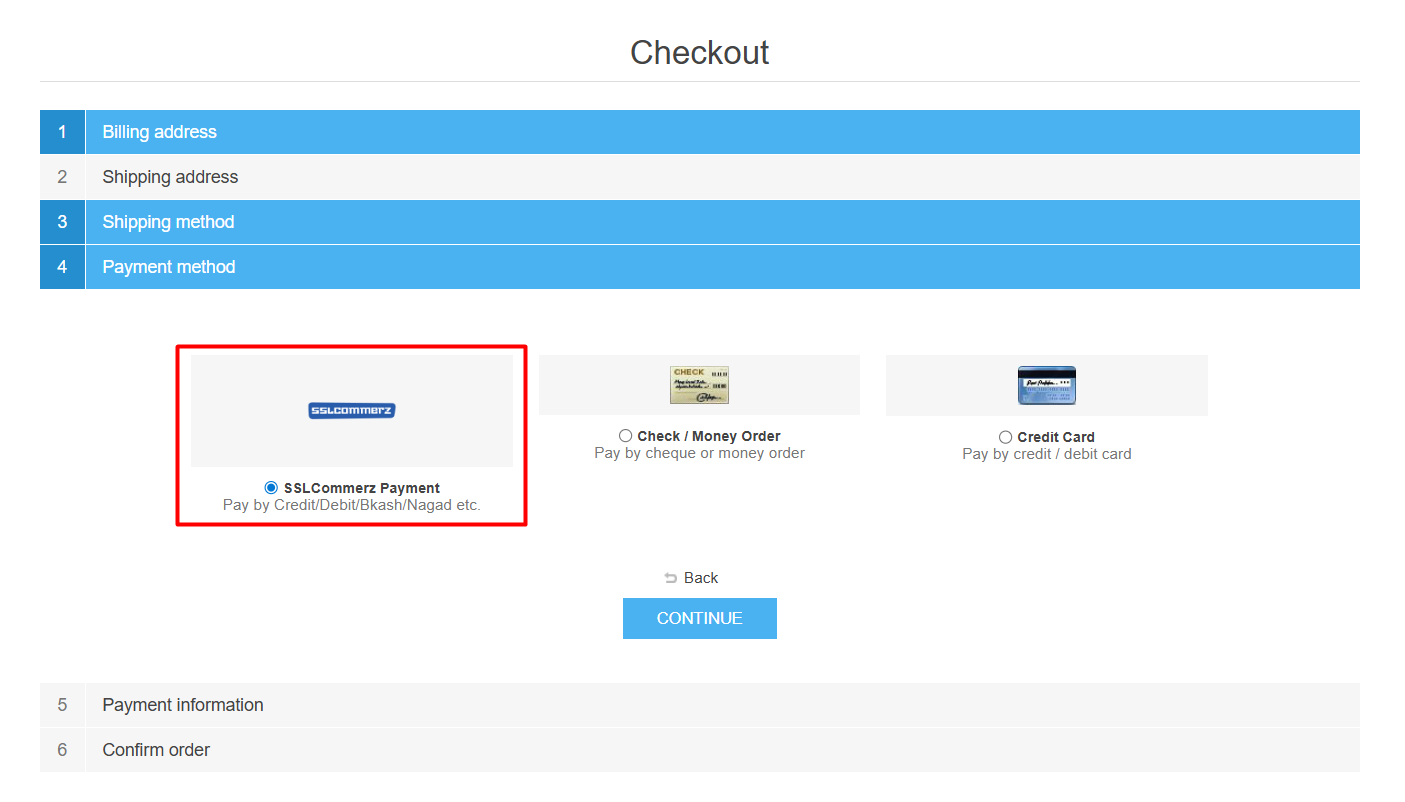
Features :
- Sandbox / Test Mode support
- Connects your store to customers’ banks directly, allowing quick and safe transactions without requiring them to register separately.
- Accept payments via credit cards, debit cards, and bank accounts
- Real-time payment confirmation
- Multi-store compatibility
- Simple installation and configuration
- Stable and secure transaction processing
Documentation Menu
NopFashion Theme + 15 Plugin Bundle for NopCommerce
NopBeauty Theme + 12 Plugin Bundle for NopCommerce
NopNoor Theme + 16 Plugin Bundle for NopCommerce
NopGadget Theme + 18 Plugin Bundle for NopCommerce
NopEthnic Theme + 17 Plugin Bundle for NopCommerce
NopFurniture Theme + 19 Plugin Bundle for NopCommerce
NopPharma Theme + 16 Plugin Bundle for NopCommerce
NopVogue Theme + 17 Plugin Bundle for NopCommerce
NopGadence Theme + 18 Plugin Bundle for NopCommerce


