
Sendcloud
Created on: Jul 16, 2026

PRE-REQUISITES
-
The plugin requires you to install the BSS Core plugin first.
INSTALLATION
- Go to the Order Details Page and Download plugin package
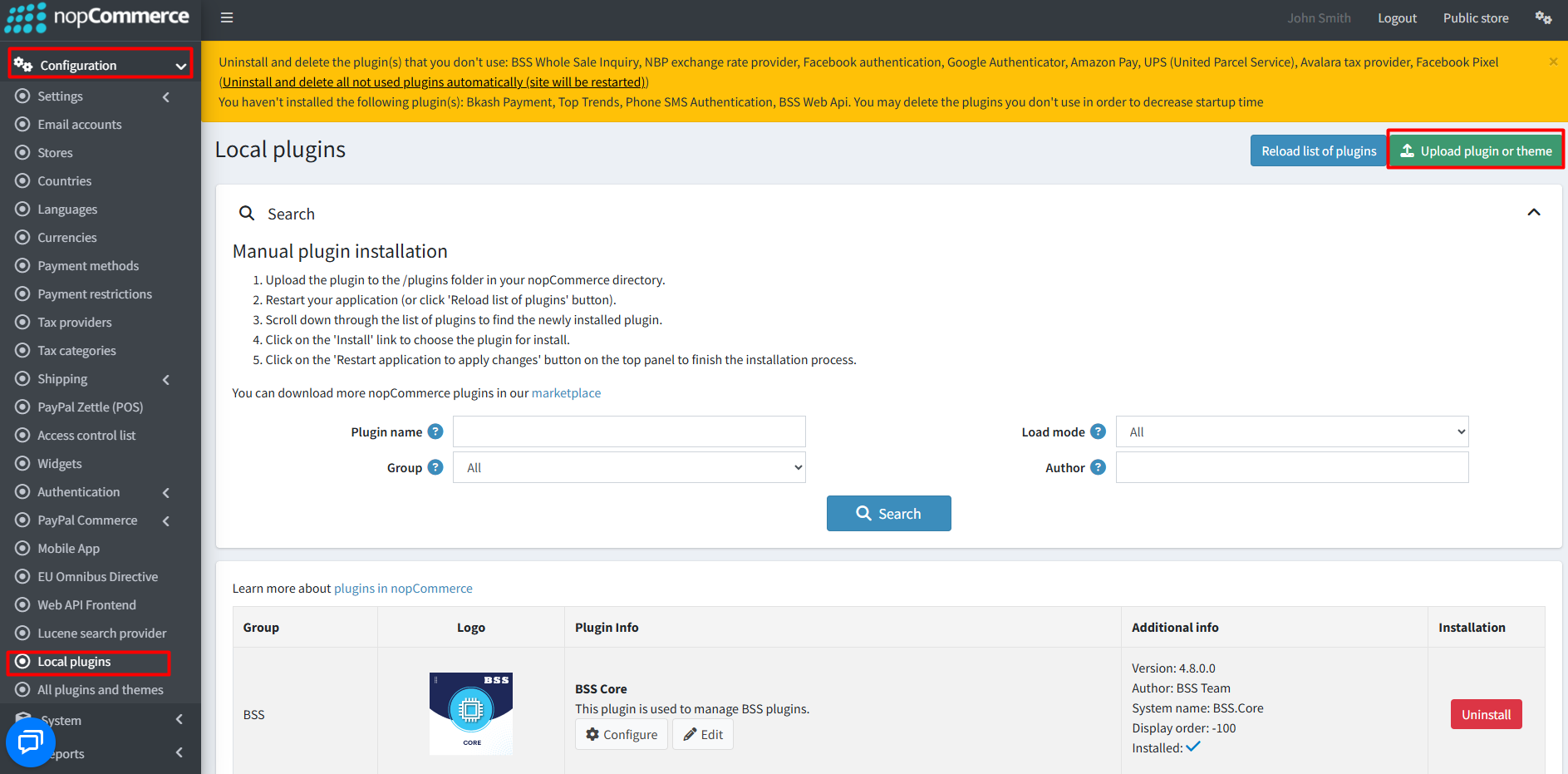
- Go to Administration → Configuration → Local plugins
- Within the bundle, you get all the required files, including BSS.Core
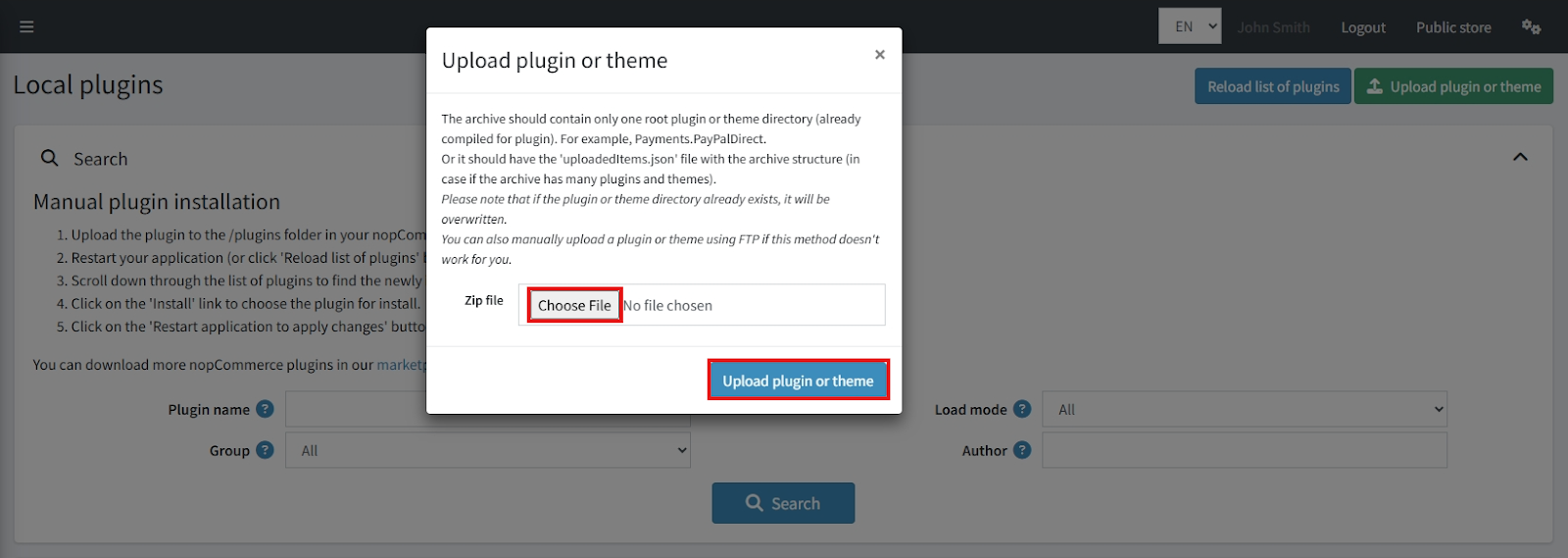
- Upload the zip files using the 'Upload plugin or theme' button
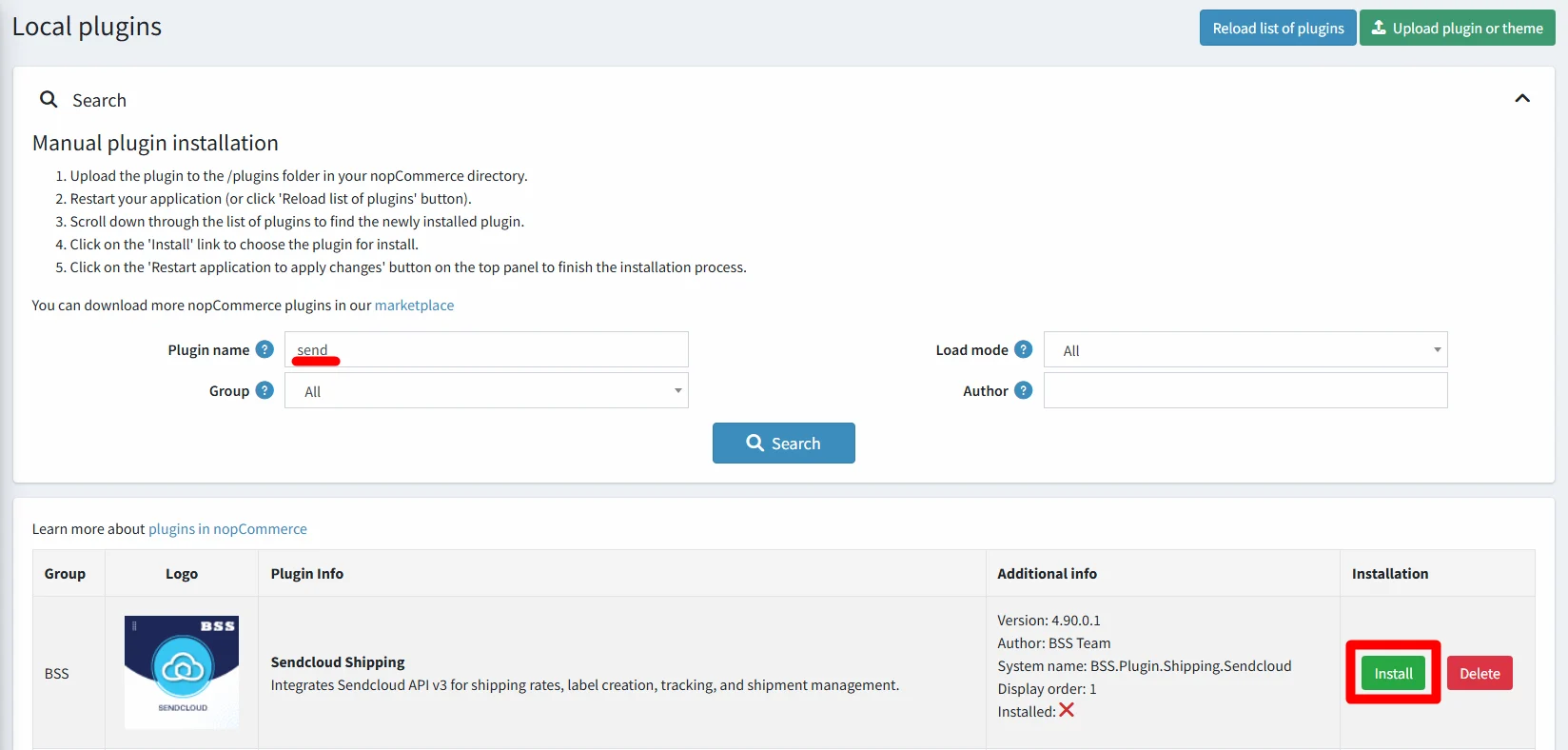
- After uploading, install the ‘BSS Core’ Plugin first. Then install ‘BSS Sendcloud Shipping’.
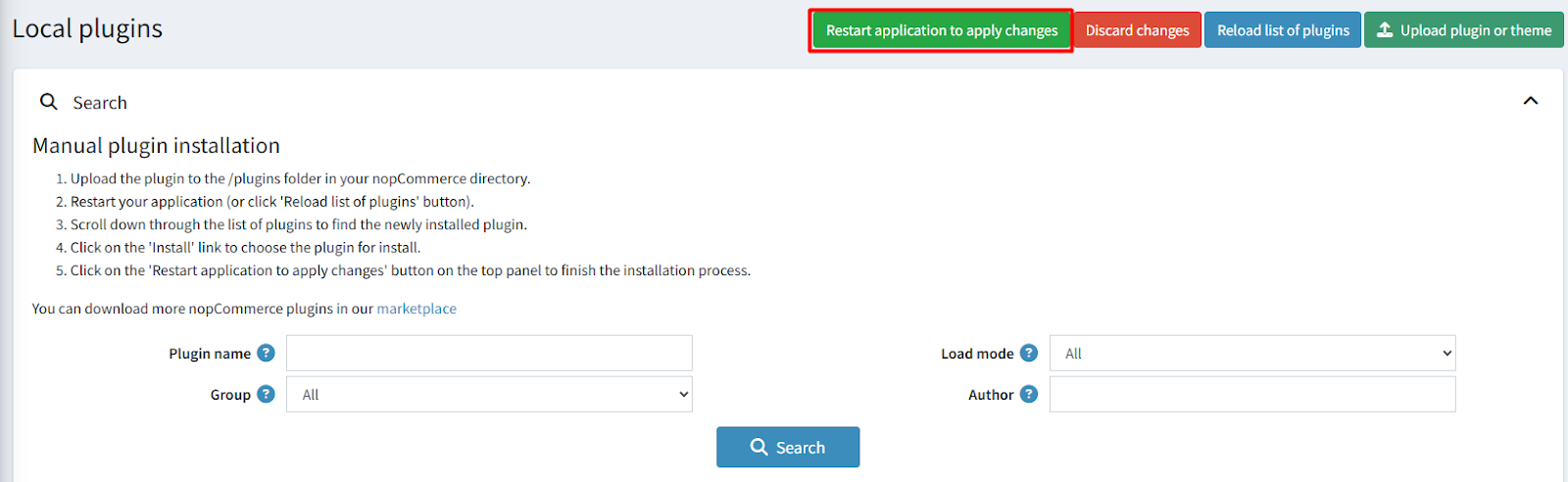
- To make the plugins functional, restart the application.
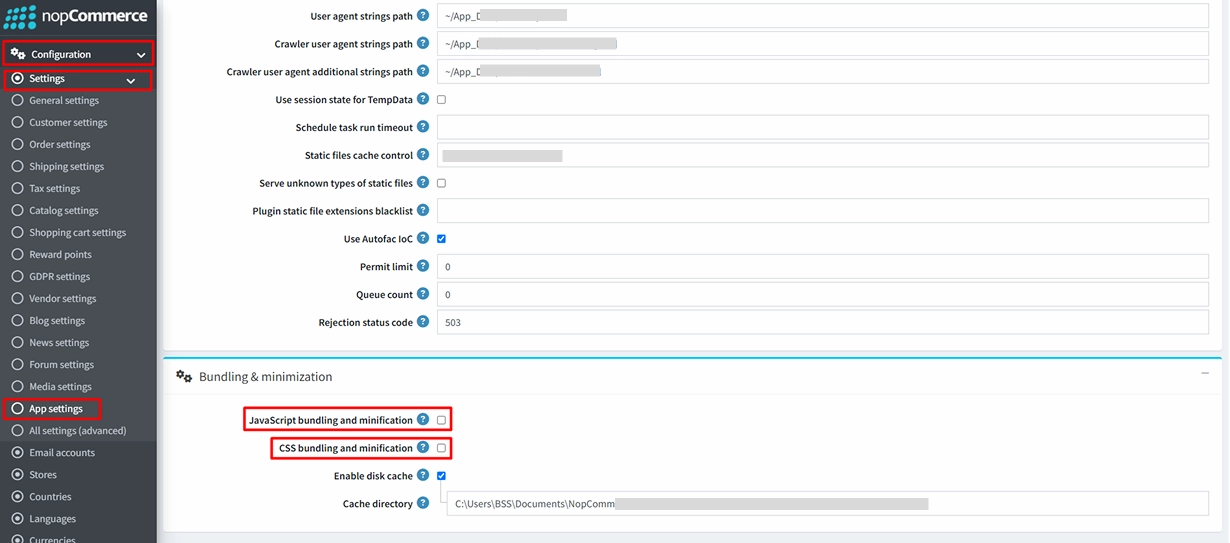
Recommendation: Go to > App Settings. If you find JavaScript bundling and minification, CSS bundling and minification are checked, then uncheck these two options and disable them.
CONFIGURE
-
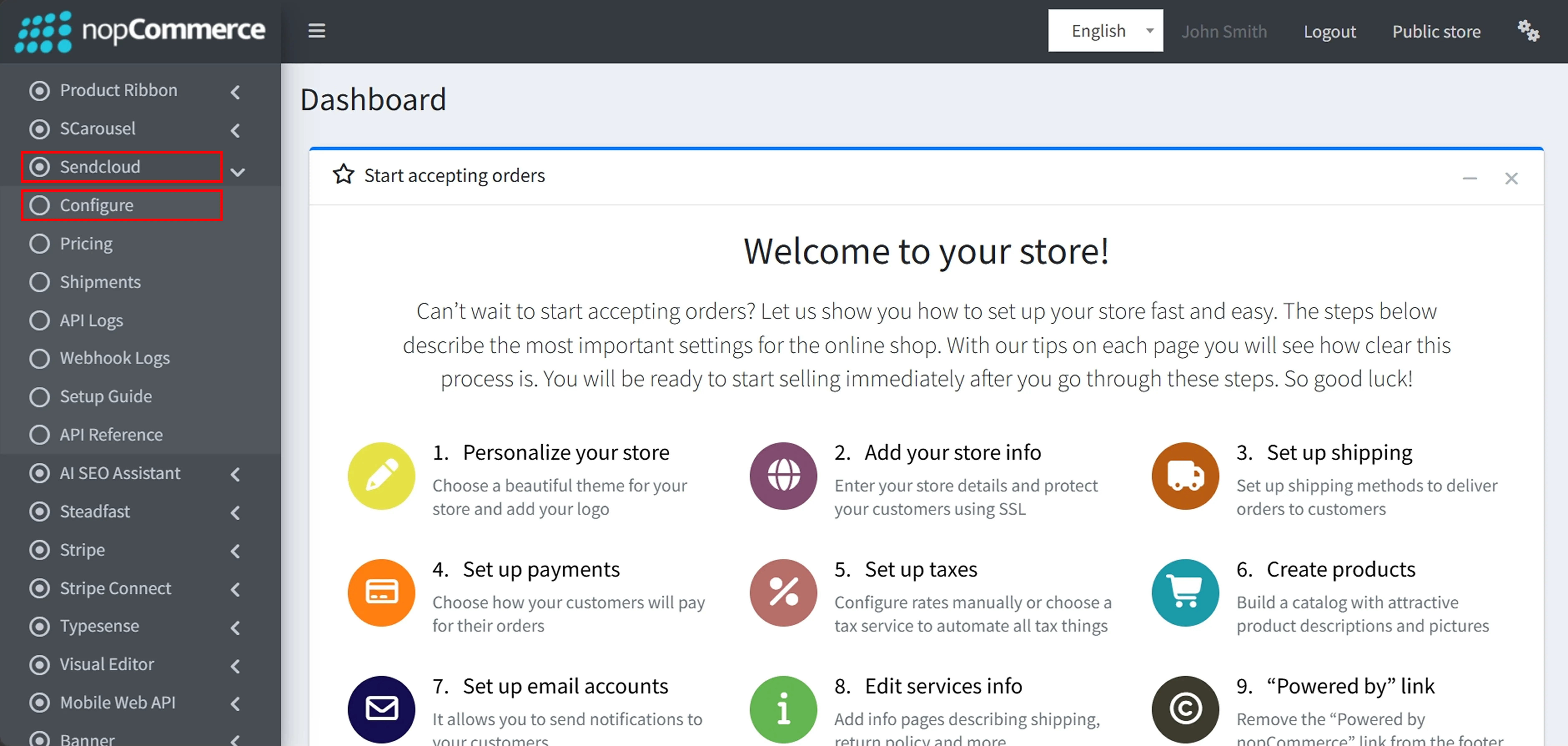
Go to Admin → BSS → Plugins → Sendcloud → Configuration
-
Enter the License string and save it. Then clear cache

-
Then again go to BSS → Plugins → Sendcloud → Configuration to set the configuration.
API CONFIGURATION
-
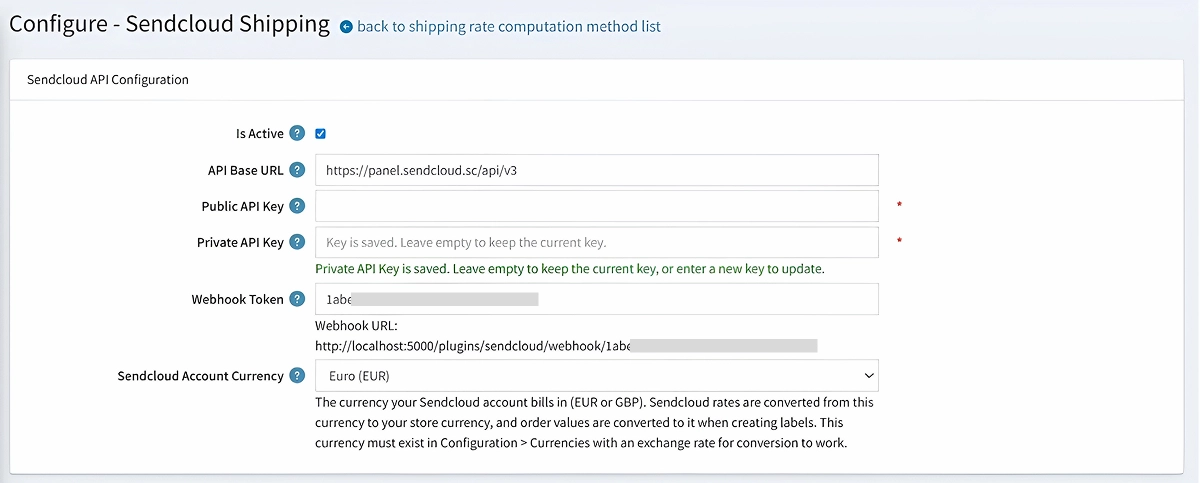
Is Active: Toggle this checkbox to globally enable or disable the Sendcloud API connection for your storefront.
-
API Base URL: Enter the specific endpoint URL required for your store to communicate with the Sendcloud service.
-
Public API Key: Input the public authentication key generated in your Sendcloud account panel to verify your store's integration.
-
Private API Key: Enter your secure secret key; this field is kept hidden after saving for security and only needs to be updated if your key changes.
-
Webhook Token: Define the unique identifier used to authenticate automated shipment status updates sent from Sendcloud back to your store.
-
Webhook URL: Copy this read-only URL into your Sendcloud panel to ensure real-time tracking and label updates are processed correctly.
-
Sendcloud Account Currency: Select the currency used by your Sendcloud account for billing to ensure shipping rates are accurately converted to your store’s currency at checkout.
SENDER ADDRESS
-
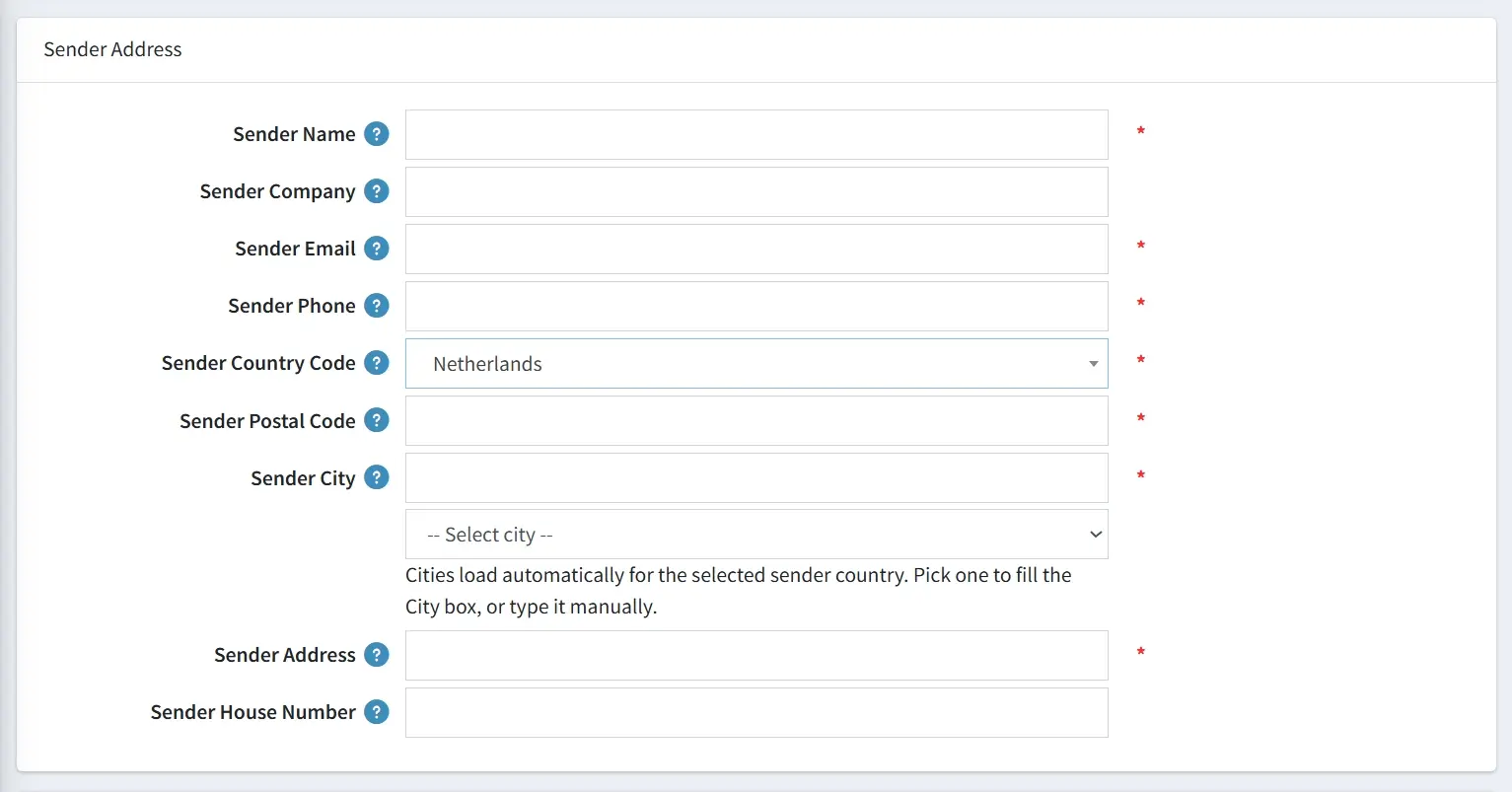
Sender Name: Enter the full name of the sender.
-
Sender Company: Provide the official company name if you are shipping on behalf of a business entity.
-
Sender Email: Input the sender's contact email address to get shipment notification and customs documents.
-
Sender Phone: Enter a valid phone number for the sender so that carriers can use for delivery contact.
-
Sender Country Code: Select the origin country from the dropdown menu to establish the primary shipping location.
-
Sender Postal Code: Input the specific postal code associated with your shipping warehouse or office.
-
Sender City: Type the name of the city manually or select one from the list that automatically populates based on your chosen country.
-
Sender Address: Provide the main street address from which your packages will be dispatched.
-
Sender House Number: Enter the specific house number to complete the origin address details.
SHIPPING DEFAULTS
-
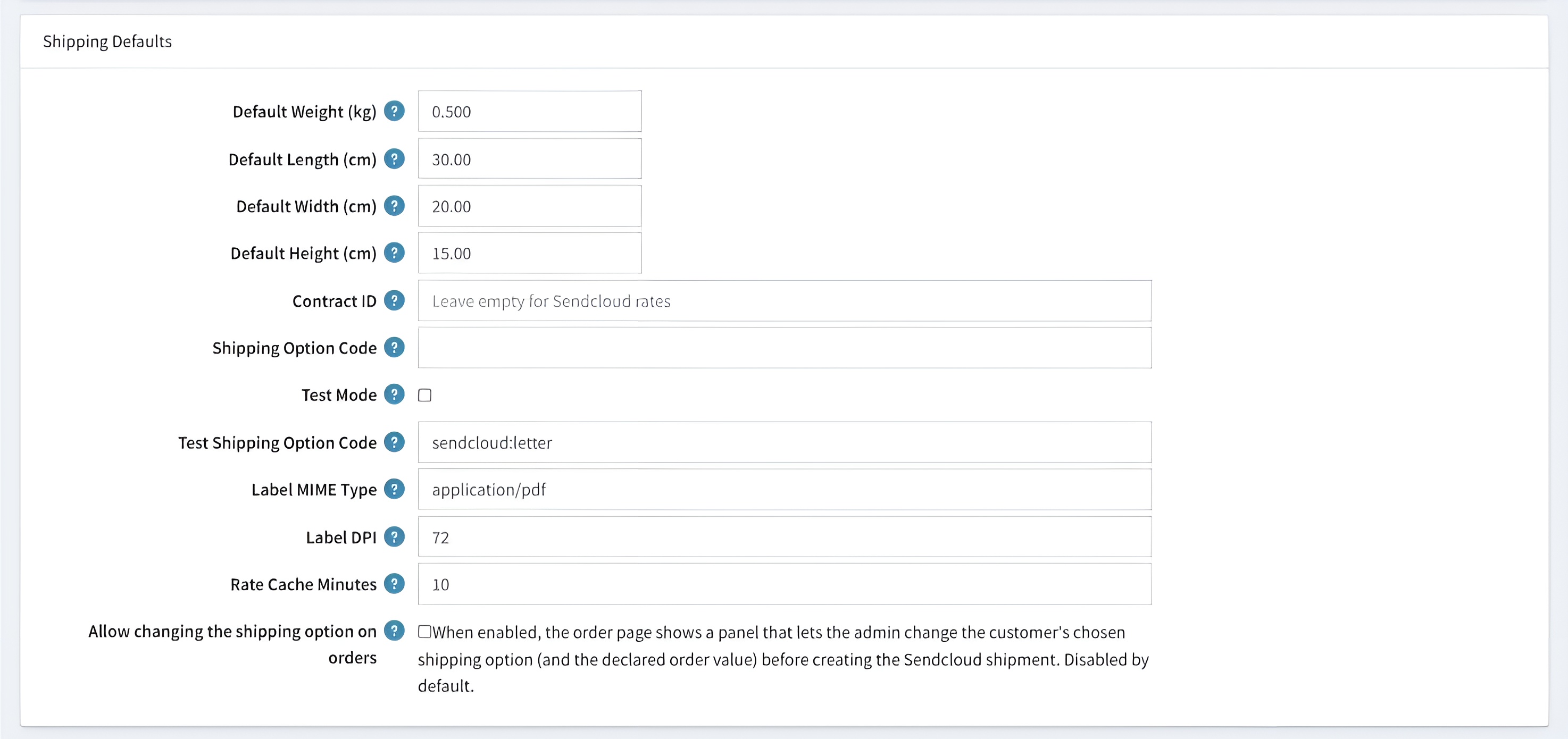
Default Weight (kg): Enter the standard weight to be used for shipping calculations if a product's specific weight is not available.
-
Default Dimensions (Length/Width/Height): Set the baseline package size (in cm) used for rate estimates when individual product dimensions are missing.
-
Contract ID: Input your unique Sendcloud contract identifier here, or leave the field empty to utilize standard Sendcloud rates.
-
Shipping Option Code: Define a specific shipping method code to serve as the default for your store's shipments.
-
Test Mode: Toggle this checkbox to enable a sandbox environment, allowing you to test the integration without creating live, billable shipments.
-
Test Shipping Option Code: Specify the shipping method code to be used specifically during test mode.
-
Label MIME Type: Set the preferred file format for your generated shipping labels.
-
Label DPI: Define the resolution quality (Dots Per Inch) for shipping labels to ensure they are compatible with your thermal or laser printer.
-
Rate Cache Minutes: Specify the duration for which shipping rates should be stored locally to improve checkout performance and reduce API calls.
-
Allow changing the shipping option on orders: Enable this setting to provide administrators with a panel on the order page for modifying the customer's chosen shipping method or declared value before creating the final label.
CASH ON DELIVERY (COD)
-
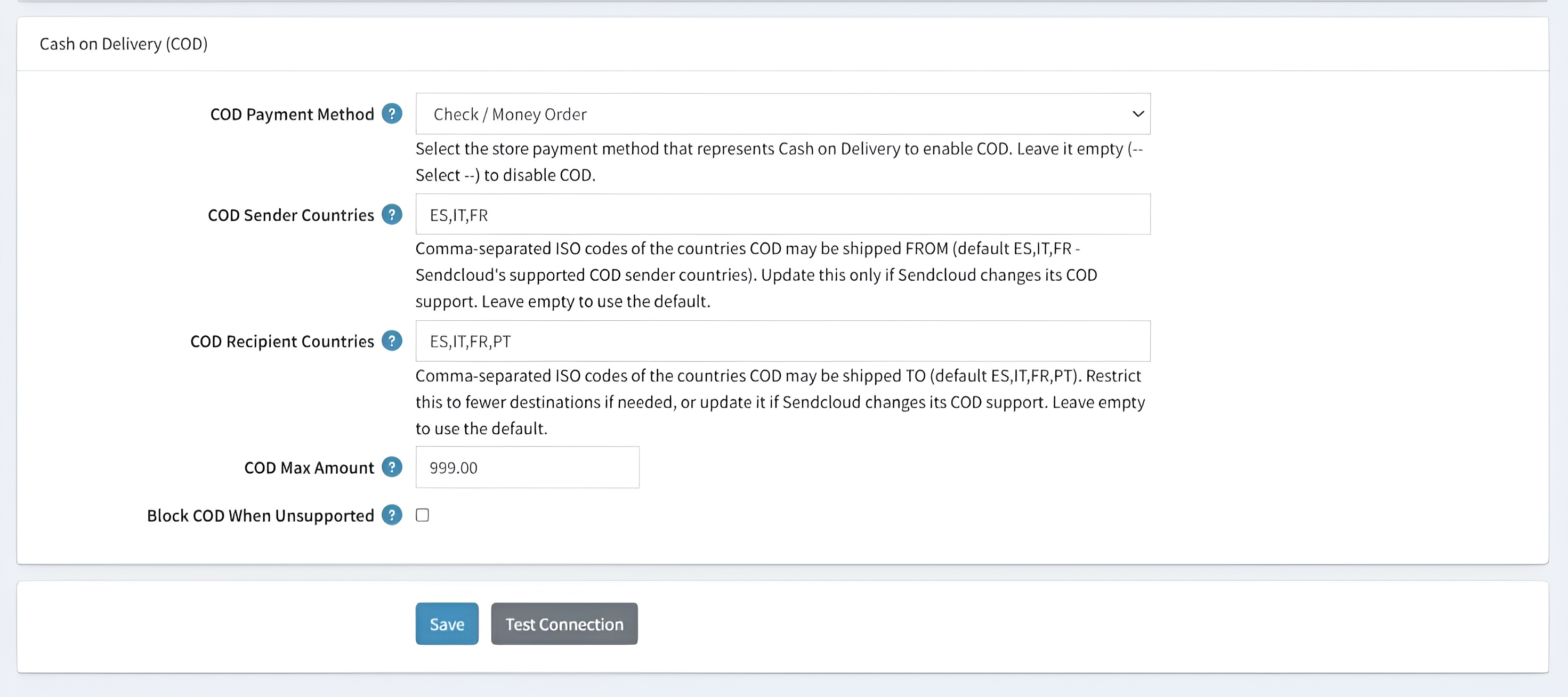
COD Payment Method: Select the specific store payment method.
-
COD Sender Countries: Input the comma-separated ISO codes for countries where COD shipments can originate; leave this field empty to use the default supported list (ES, IT, FR).
-
COD Recipient Countries: Specify the ISO codes for countries where COD deliveries are allowed to restrict destinations or update regions if Sendcloud changes its support.
-
COD Max Amount: Define the maximum order value permitted for Cash on Delivery transactions to manage financial risk.
-
Block COD When Unsupported: Check this box to automatically prevent the Cash on Delivery option from appearing if the specific shipment criteria do not meet Sendcloud’s current support requirements.
PRICING
- Go to Admin → BSS → Plugins → Sendcloud → Pricing
SHIPPING COST CALCULATOR
-
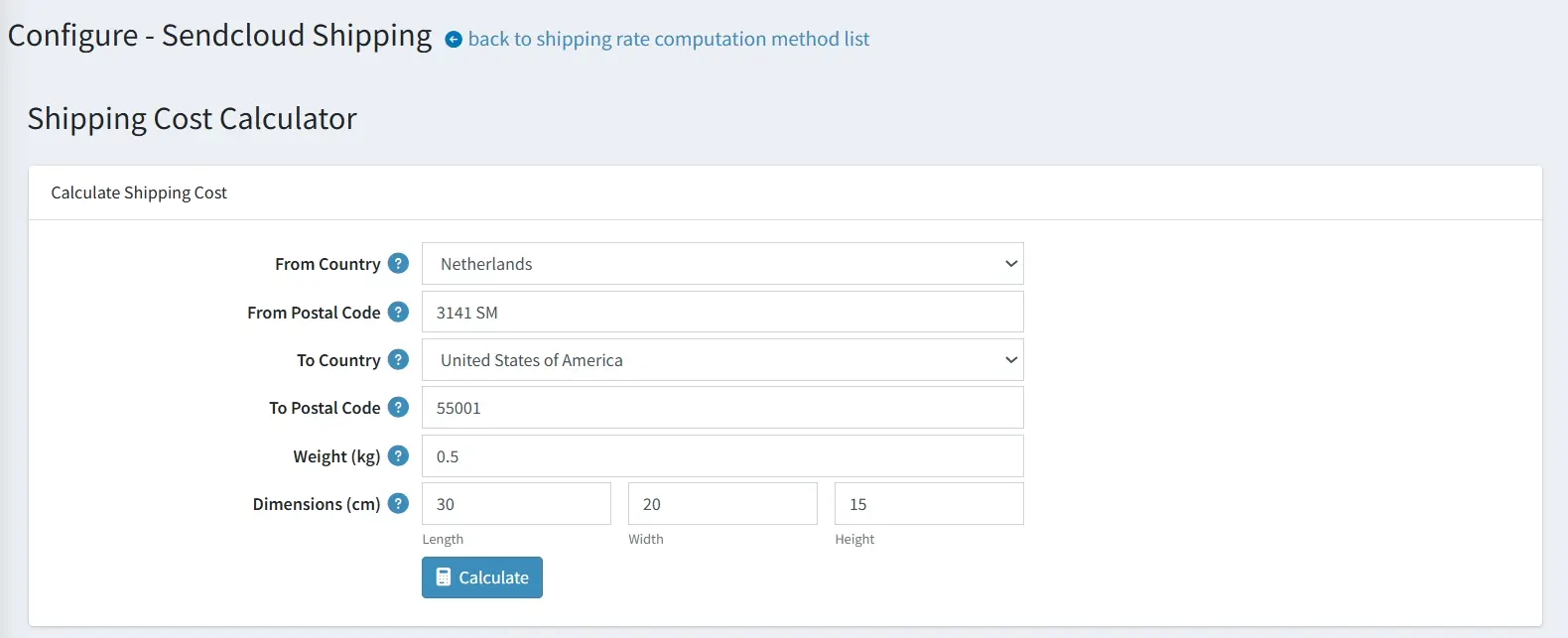
From Country & Postal Code: Select the origin country and enter the specific postal code to establish the starting point for the shipping estimate.
-
To Country & Postal Code: Define the destination country and recipient's postal code to determine the shipping zone and applicable routes.
-
Weight (kg): Input the total weight of the package in kilograms to ensure accurate carrier rate calculations.
-
Dimensions (cm): Provide the length, width, and height of the parcel to account for volumetric weight requirements.
-
Calculate: Click this button to retrieve a real-time list of all available shipping methods and their associated costs from Sendcloud.
-
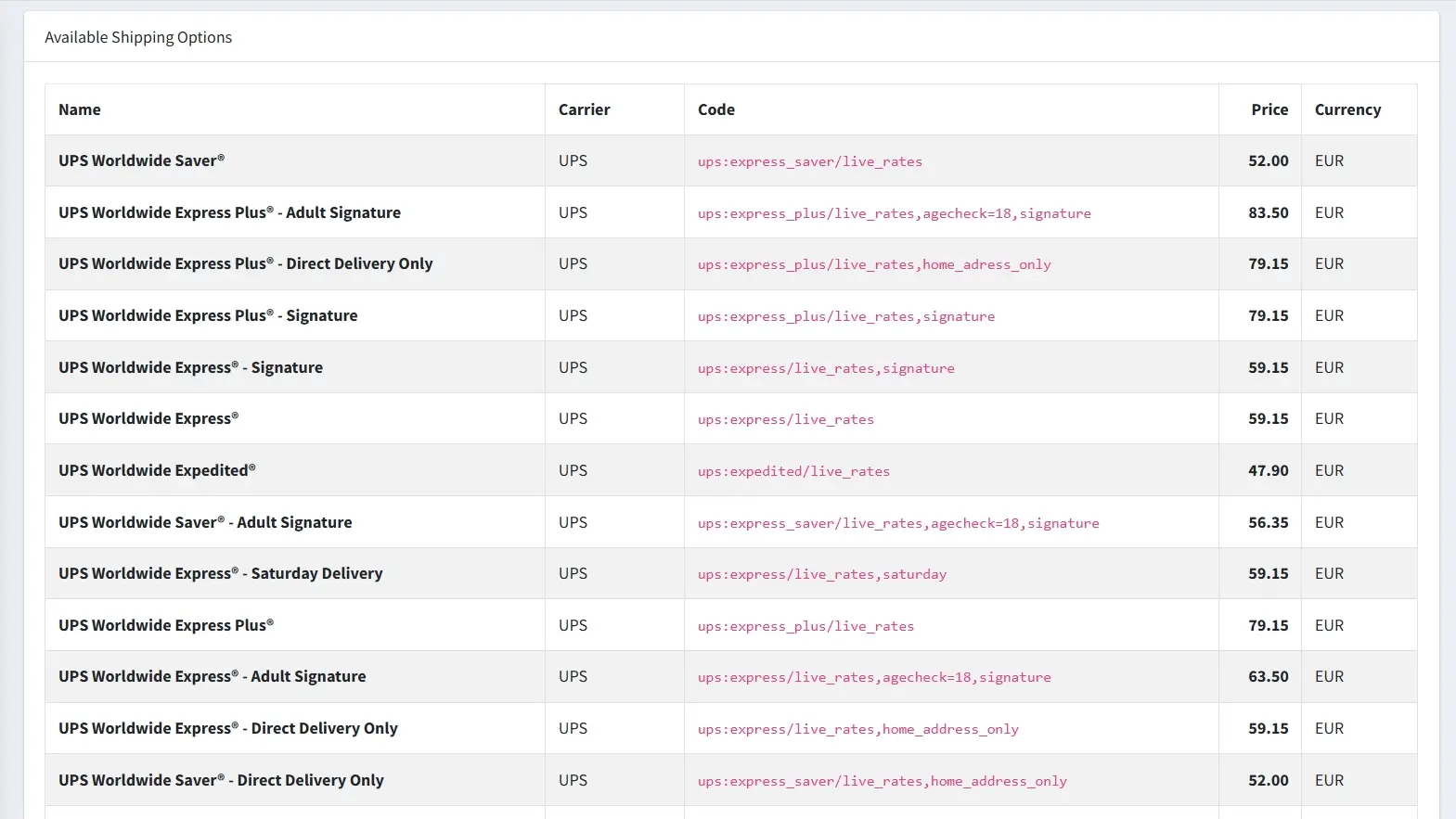
Available Shipping Options: Review a real-time breakdown of carrier service names, unique system codes, and exact costs in your selected account currency to compare different delivery methods and service levels.
SHIPMENTS
- Go to Admin → BSS → Plugins → Sendcloud → Shipments to view a comprehensive list of all Sendcloud shipments
SHIPPIMENTS LIST
-
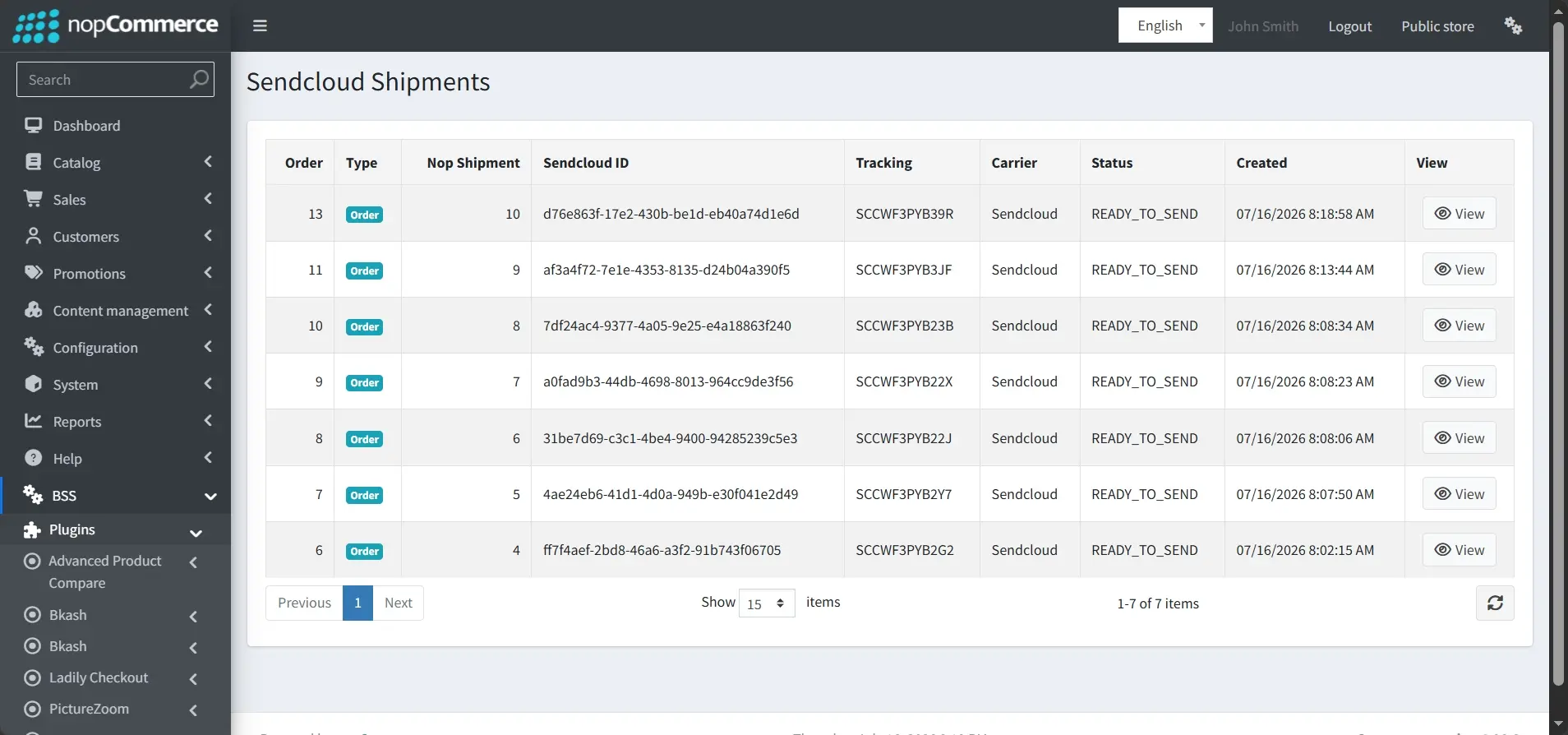
Shipments List: Access a centralized table tracking all order IDs, Sendcloud IDs, tracking IDs, Statuses and Created dates to monitor your store's shipping activity at a glance.
-
Detailed Entry Access: Click the View button for any specific record to open a comprehensive breakdown of that shipment's data and management tools.
DETAILED SHIPPIMENT VIEW
-
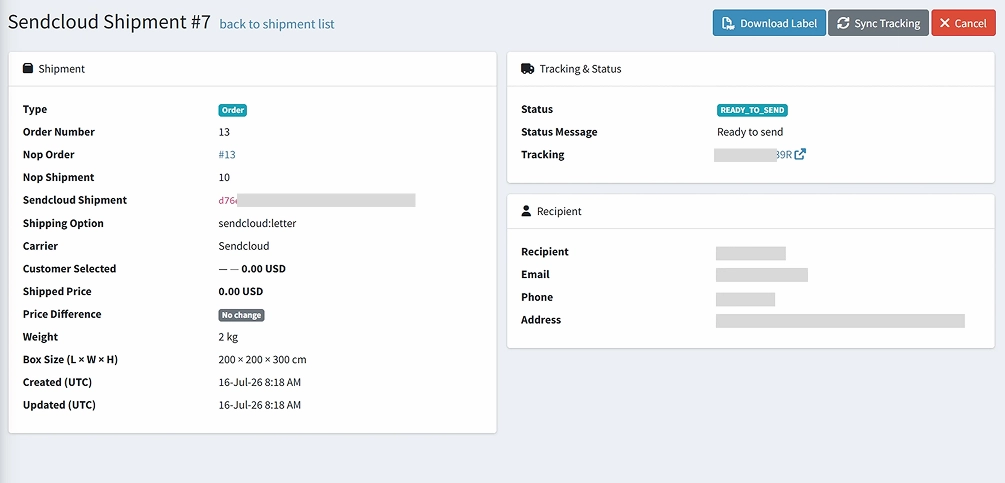
Shipment Data Verification: Review comprehensive parcel details including weight and box dimensions while monitoring any price differences between the customer's checkout selection and the final shipped cost to ensure fulfillment accuracy.
-
Label & Lifecycle Management: Use the Download Label button to retrieve the ready-to-print shipping file or use the Cancel button to void the shipment if needed.
-
Real-Time Synchronization: Click the Sync Tracking button to manually refresh the shipment's status and tracking information directly from Sendcloud’s servers.
-
Direct Tracking Access: Access the clickable Tracking link within the Tracking & Status panel to view the external carrier tracking page for real-time delivery updates.
-
Recipient Data Verification: Confirm the recipient’s full contact details, including their phone number, email, and destination address, before the parcel is dispatched.
-
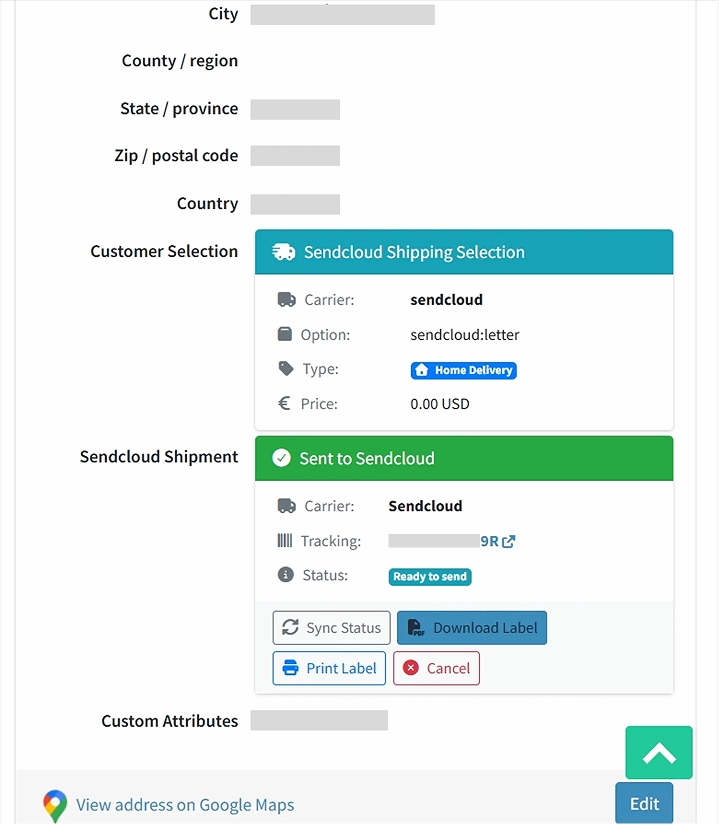
Integrated Shipment Management: Use dedicated on-page buttons to instantly sync tracking data, download or print ready-to-use shipping labels, and void shipments directly from the order details.
API LOGS
- Go to Admin → BSS → Plugins → Sendcloud → API Logs to view a centralized record of all API communications with Sendcloud
-
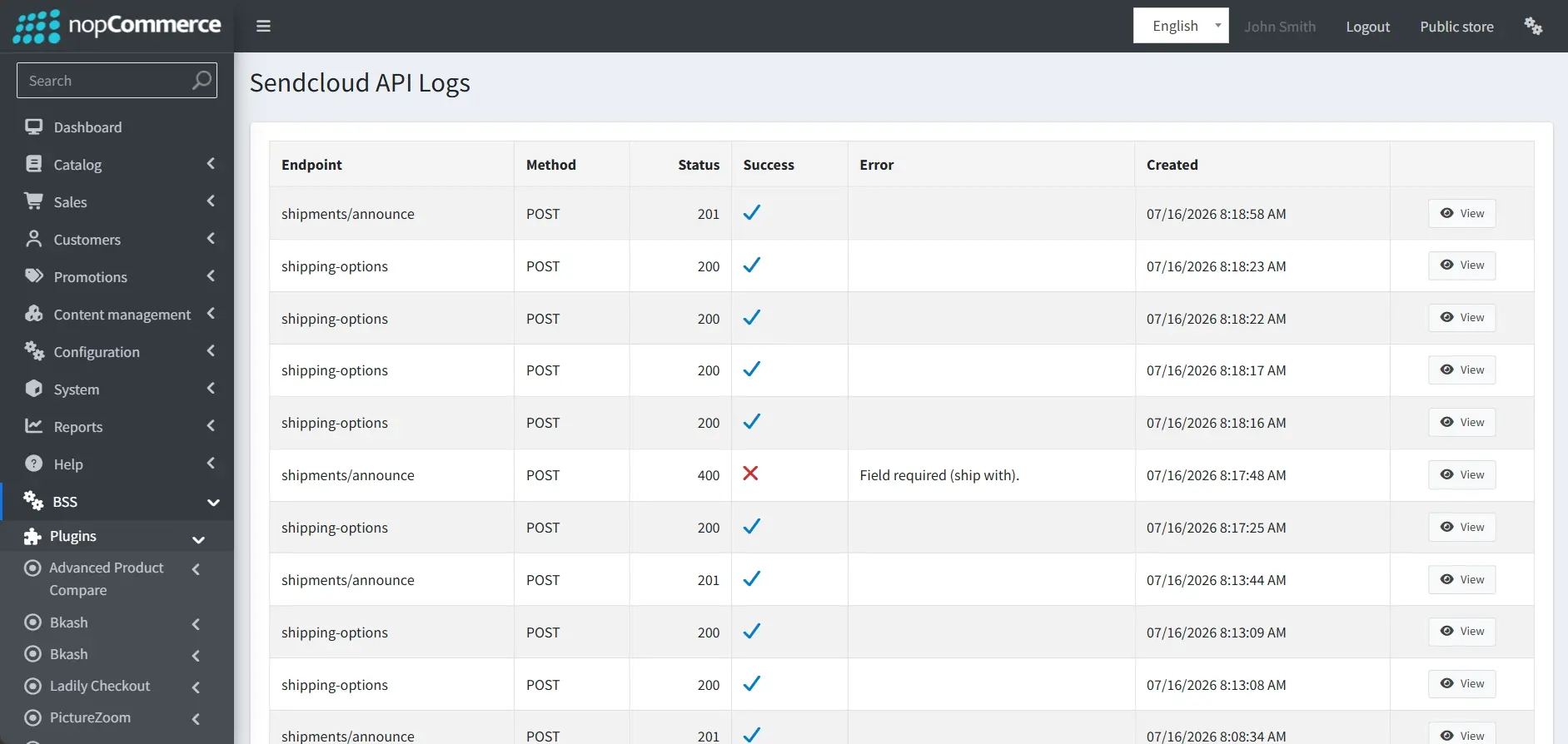
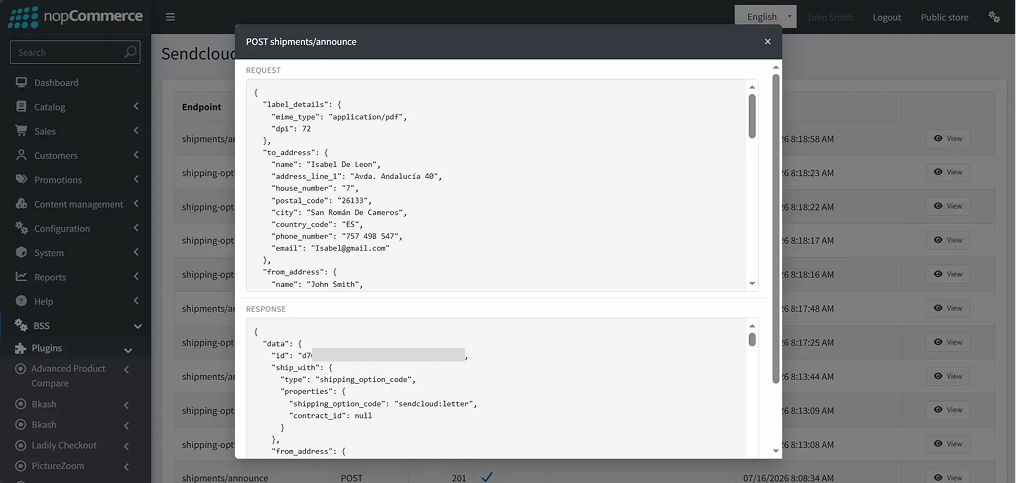
API Traffic Monitoring: Review a comprehensive list of all communications with Sendcloud, tracking specific endpoints, HTTP methods, and real-time success statuses to ensure seamless integration.
-
Request & Response Inspection: Click the View button to access a detailed breakdown of the raw JSON payloads sent and received, enabling granular debugging of shipment announcements and label requests.
WEBHOOK LOGS
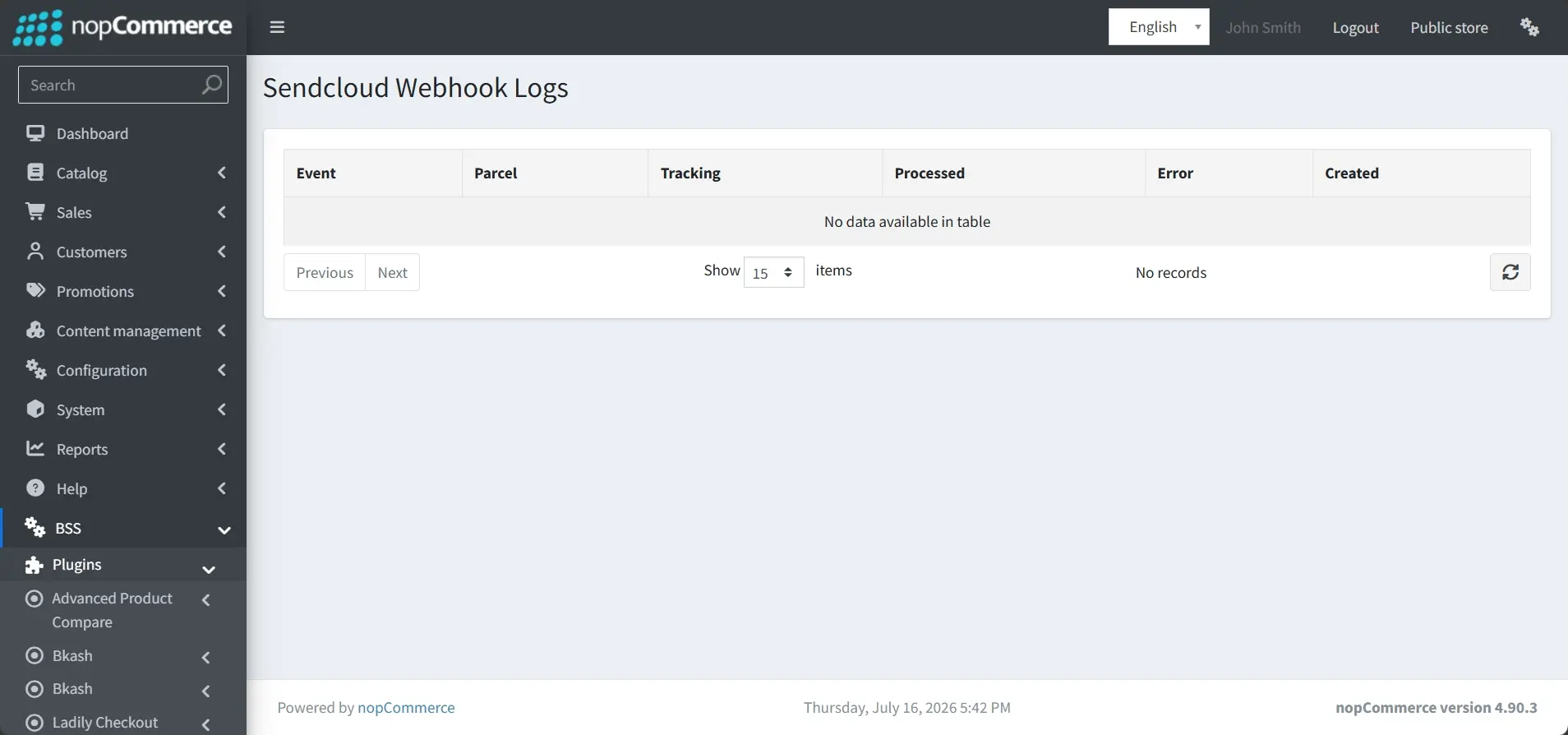
- Go to Admin → BSS → Plugins → Sendcloud → Webhook Logs
-
Webhook Activity Monitoring: Track real-time status updates from Sendcloud by reviewing a centralized record of incoming events, parcel IDs, and tracking numbers, including detailed timestamps and any encountered processing errors.
SETUP GUIDE
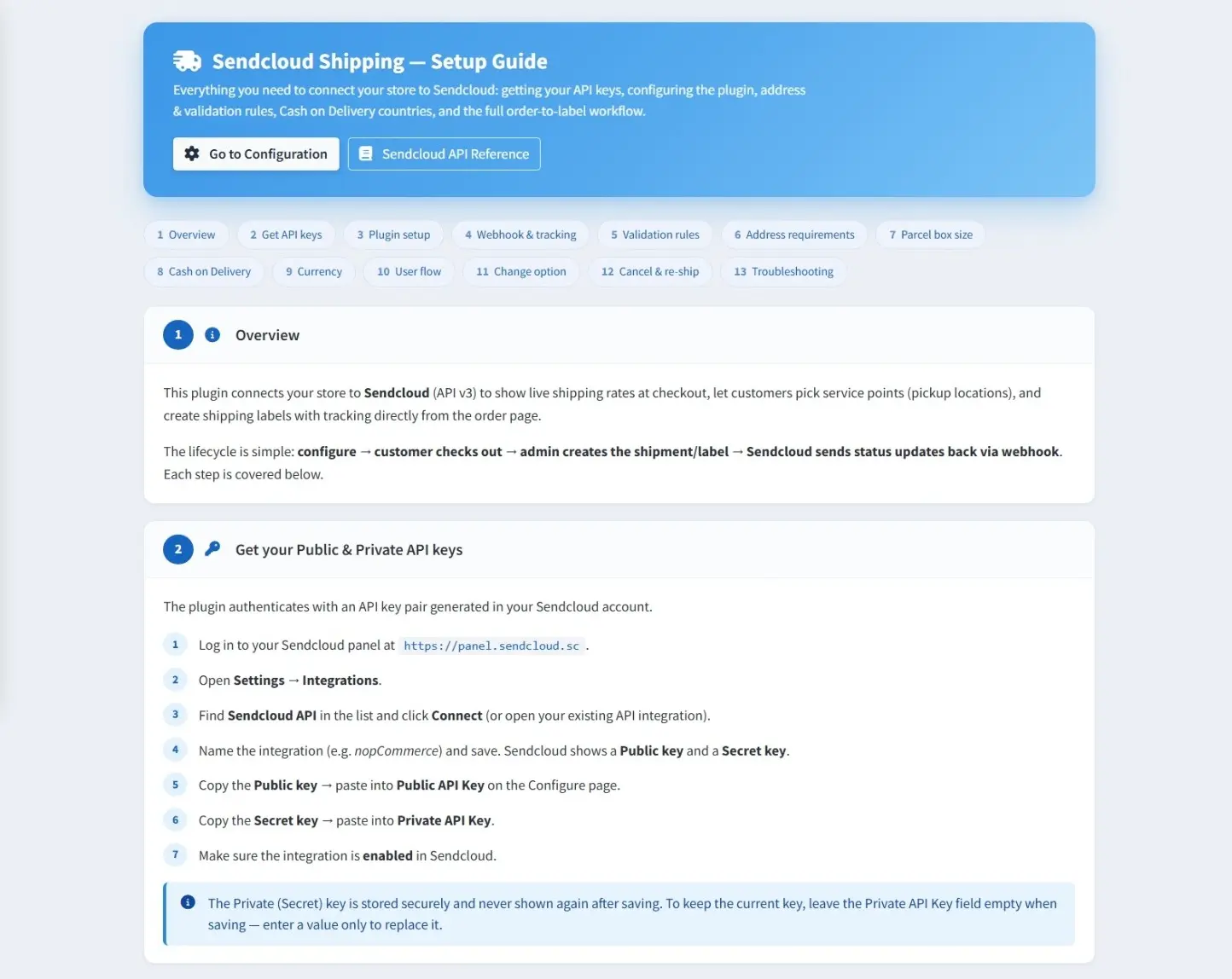
- Go to Admin → BSS → Plugins → Sendcloud → Setup Guide to access a complete walkthrough for connecting your store, configuring shipping rules, and managing the entire order-to-label workflow.
-
Go to Configuration: Click this button to be instantly redirected to the main settings panel where you can manage your API credentials, sender addresses, and shipping defaults.
-
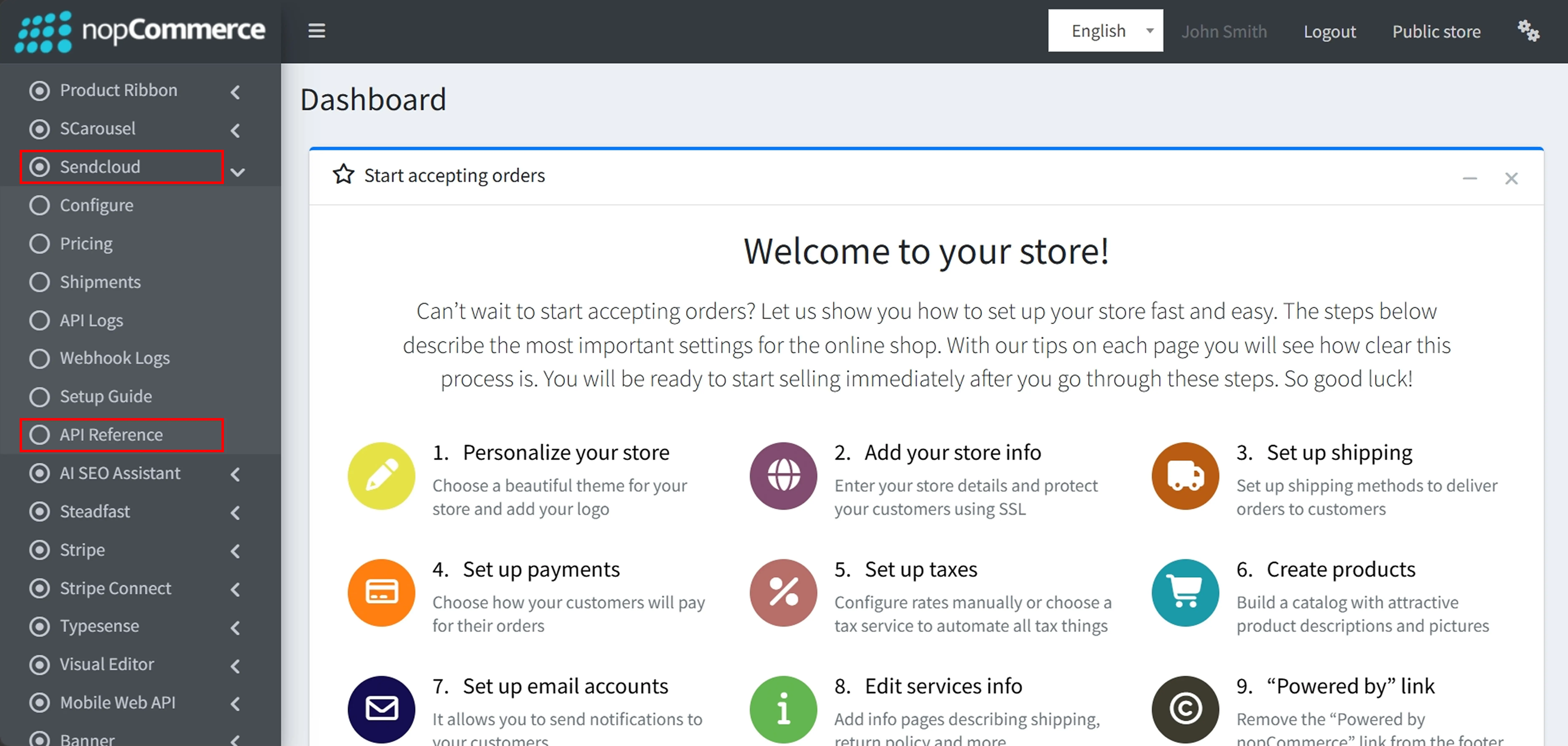
Sendcloud API Reference: Use this link to access the official external Sendcloud technical documentation for in-depth information regarding API endpoints and integration capabilities. Alternately, navigate to Admin → BSS → Plugins → Sendcloud → API reference to access the official documentation directly from your administrative menu.
PUBLIC VIEW
-
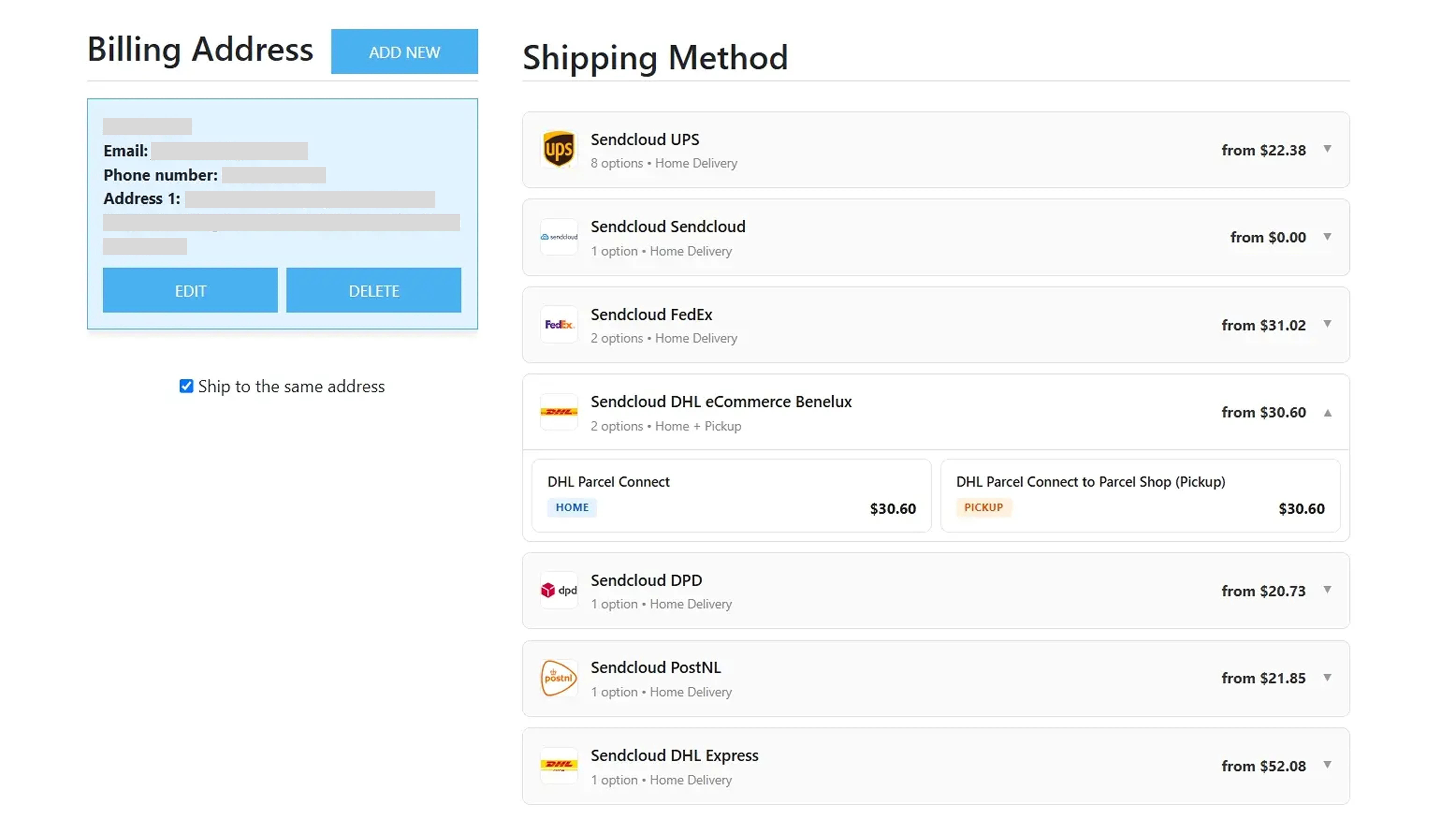
Shipping Method Selection: Choose from multiple carriers and service levels, selecting between "Home" delivery or "Pickup" options to view real-time "from" pricing calculated for your specific address.
-
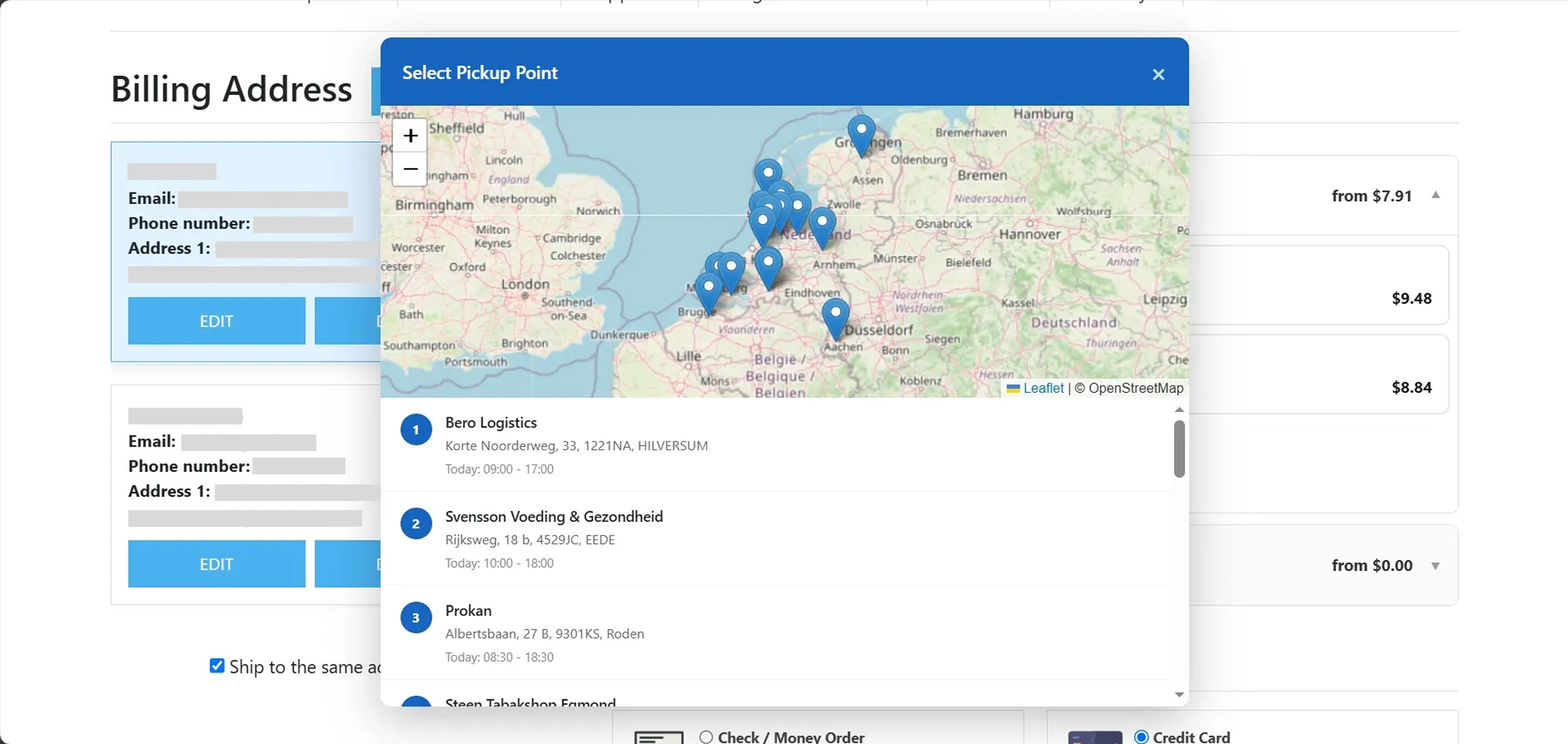
Interactive Pickup Point Selection: Use the integrated map and location list to find nearby collection points and view their location details and daily hours to select the most convenient pickup site.
FEATURES
-
Seamless Integration: Connects your store to Sendcloud to synchronize your fulfillment lifecycle, from configuration to automated status updates.
-
Dynamic Checkout Options: Displays real-time carrier rates and provides an interactive map for customers to select convenient pickup locations.
-
Integrated Label Management: Allows administrators to generate, download, or print shipping labels and void shipments directly from the order details page.
-
Live Tracking Synchronization: Automatically syncs shipment statuses and provides clickable carrier tracking links for real-time delivery monitoring.
-
Shipping Cost Calculator: Includes a dedicated tool to compare available shipping methods and rates based on parcel weight and dimensions.
-
Logistics Customization: Supports specialized configurations such as Cash on Delivery (COD) for specific regions and the ability to set default package weights and dimensions.
-
Diagnostic Monitoring: Features centralized dashboards for reviewing API and Webhook logs, including deep inspection of raw JSON payloads for troubleshooting.
-
Administrative Support: Provides a comprehensive on-page Setup Guide and direct links to official technical documentation for easy configuration.


