BSS Anywhere Carousels
Created on: Mar 02, 2026
PRE-REQUISITES
-
The plugin requires you to install the BSS Core plugin first.
INSTALLATION
-
Go to the Order Details Page and Download plugin package
-
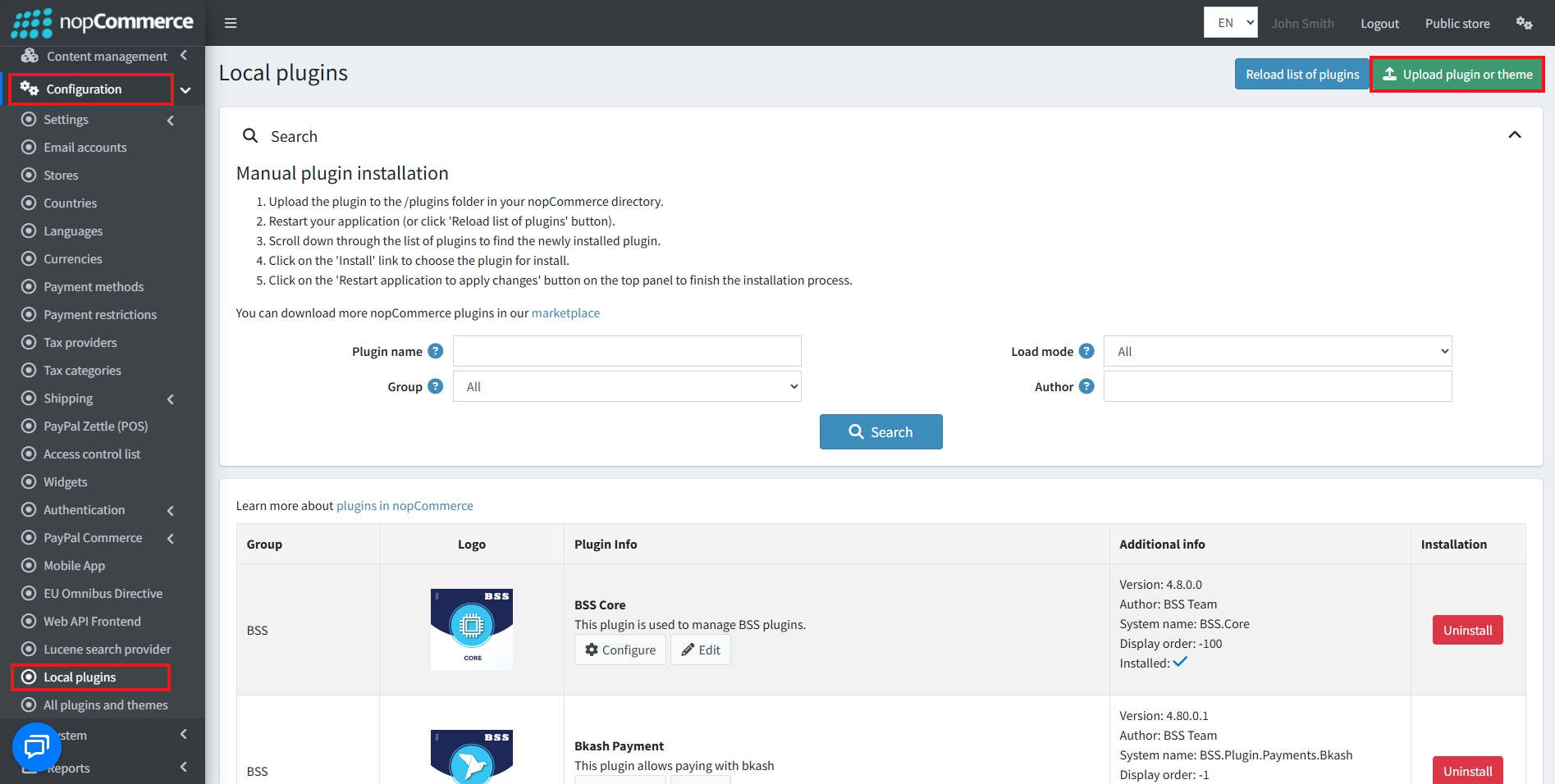
Go to Administration → Configuration → Local plugins
-
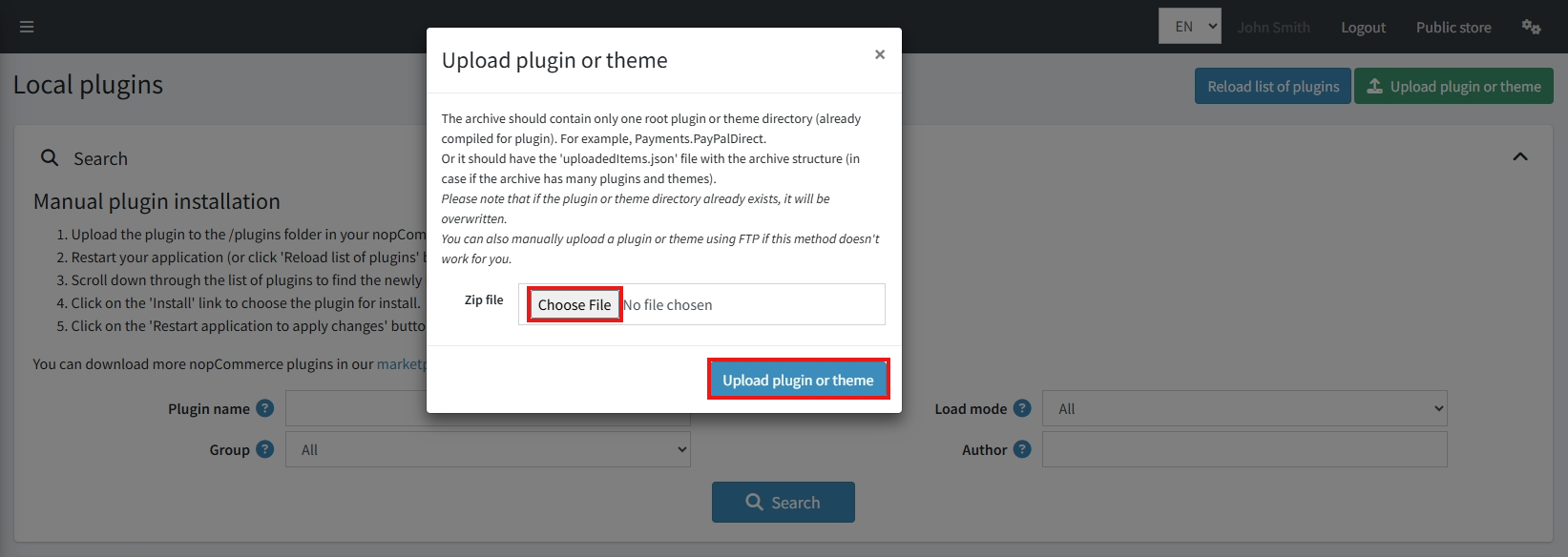
Within the bundle, you get all the required files, including BSS.Core
-
Upload the zip files using the 'Upload plugin or theme' button
-
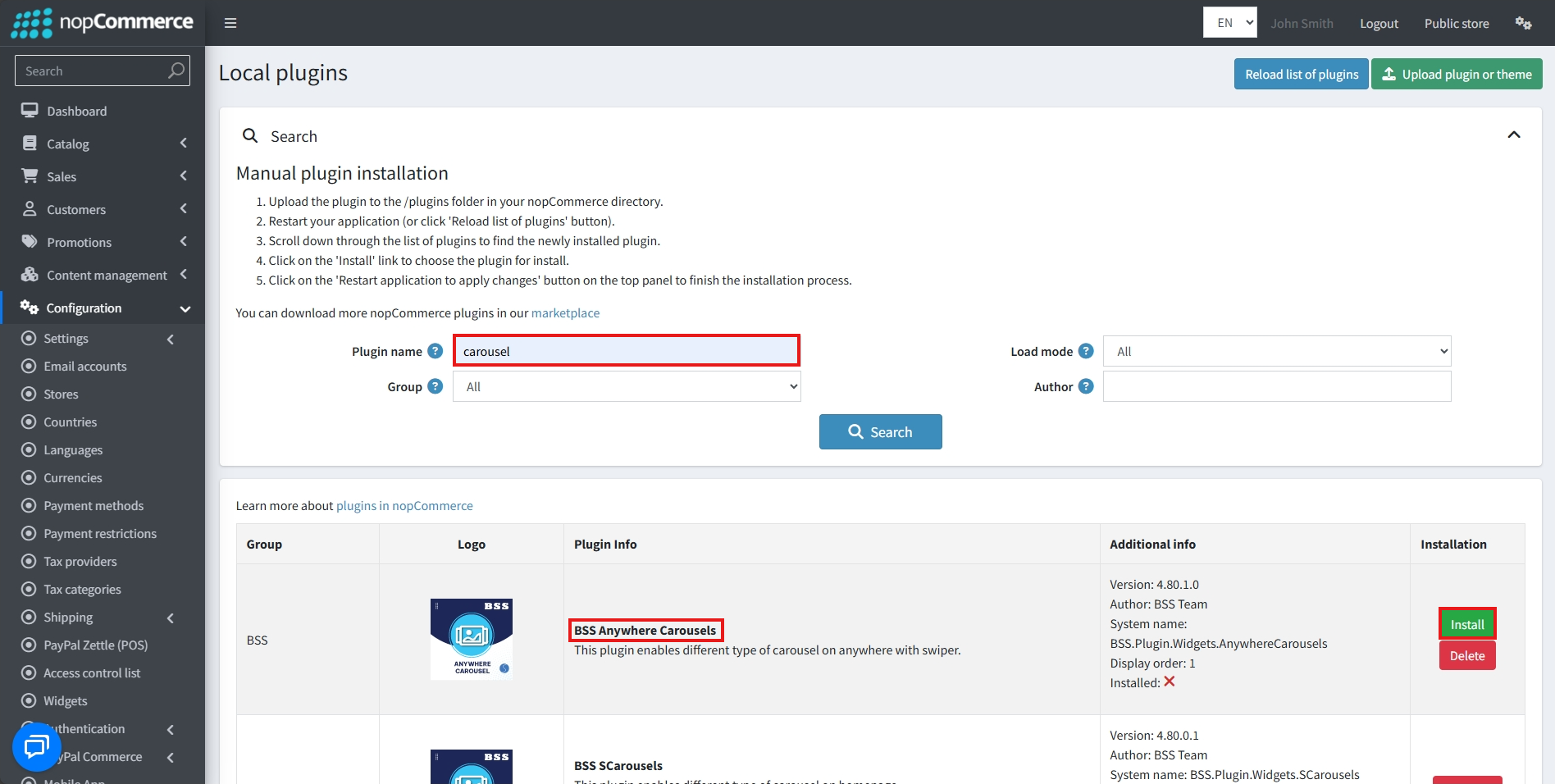
After uploading, install the 'BSS Core' Plugin first.
-
Then scroll down or write the name of the plugin in the search bar, and install 'BSS Anywhere Carousels'
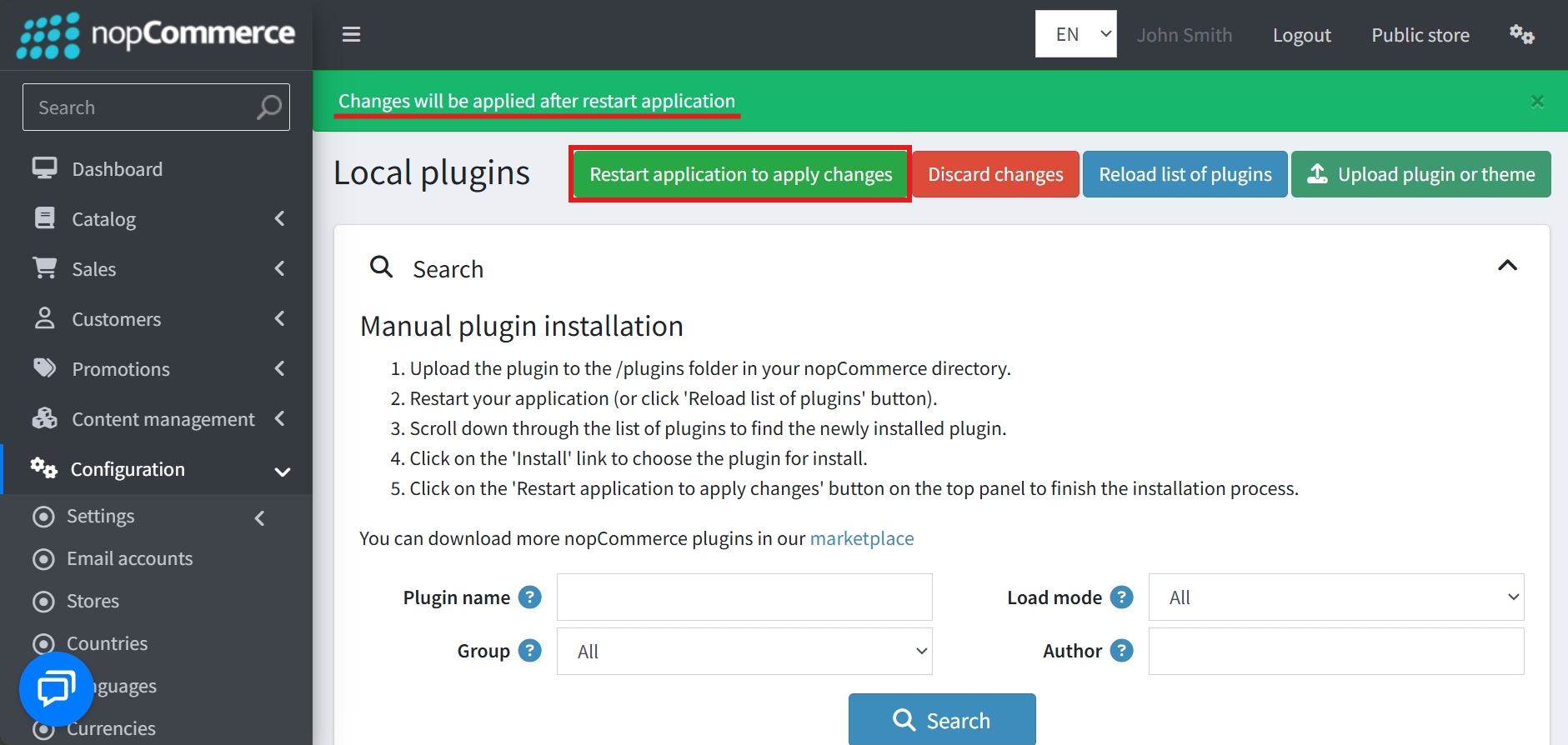
- To make the plugins functional, restart the application
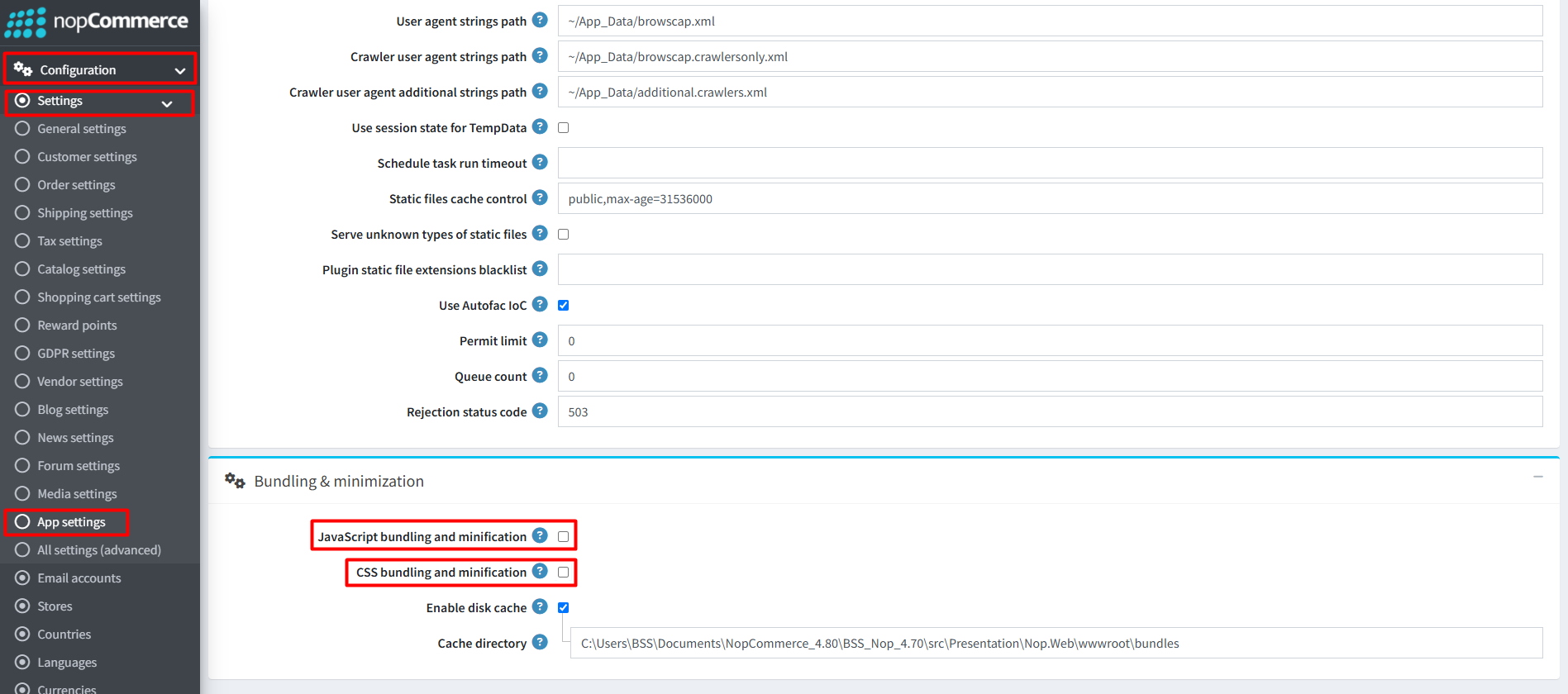
Recommendation: Go to > App Settings. If you find JavaScript bundling and minification, CSS bundling and minification are checked, then uncheck these two options and disable them.
CONFIGURE
-
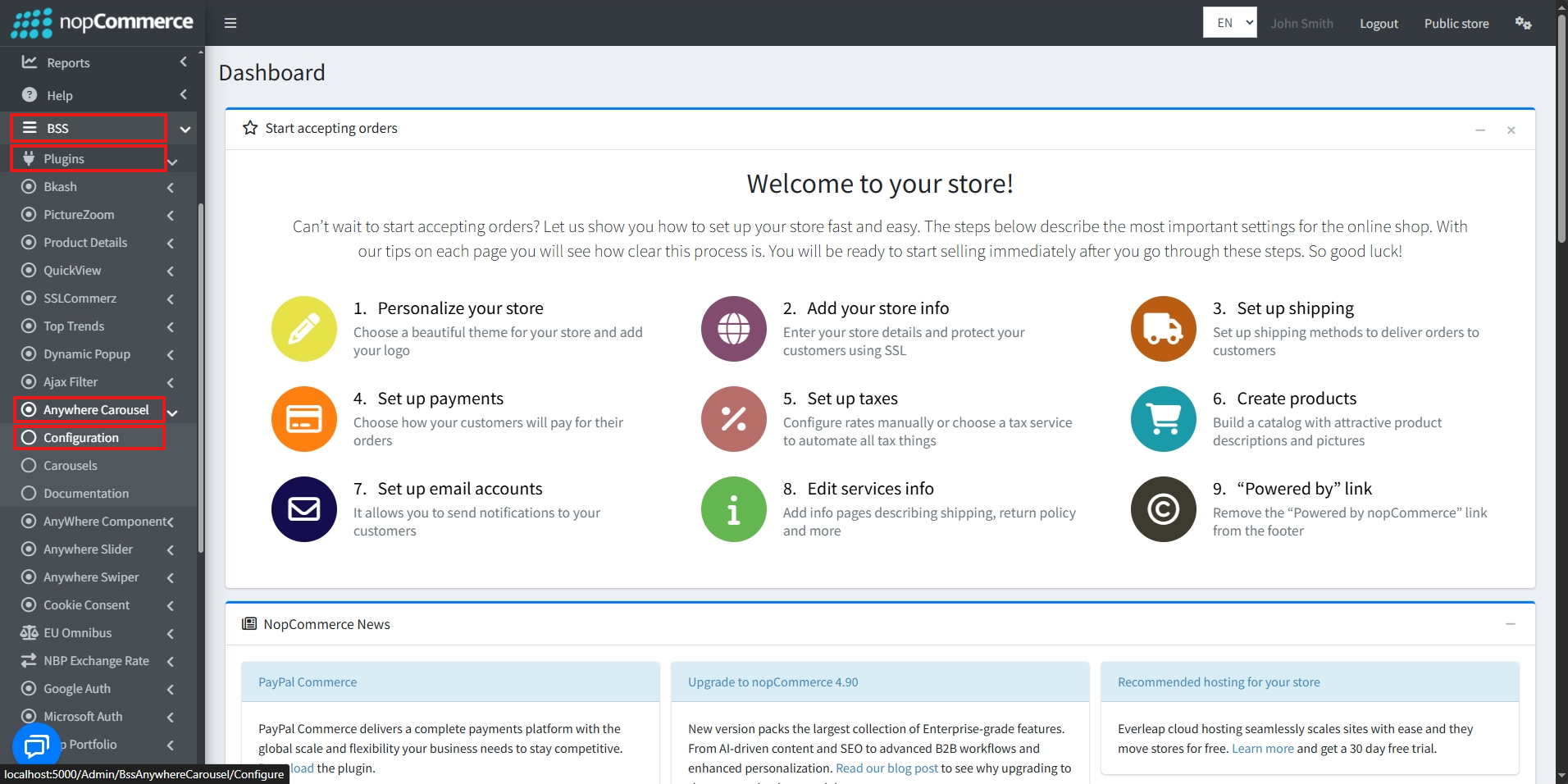
Go to Admin → BSS → Plugins → Anywhere Carousels → Configuration
-
Enter the License string and save it. Then clear cache.

-
Then again go to BSS → Plugins → Anywhere Carousels → Configuration to set the configuration.
-
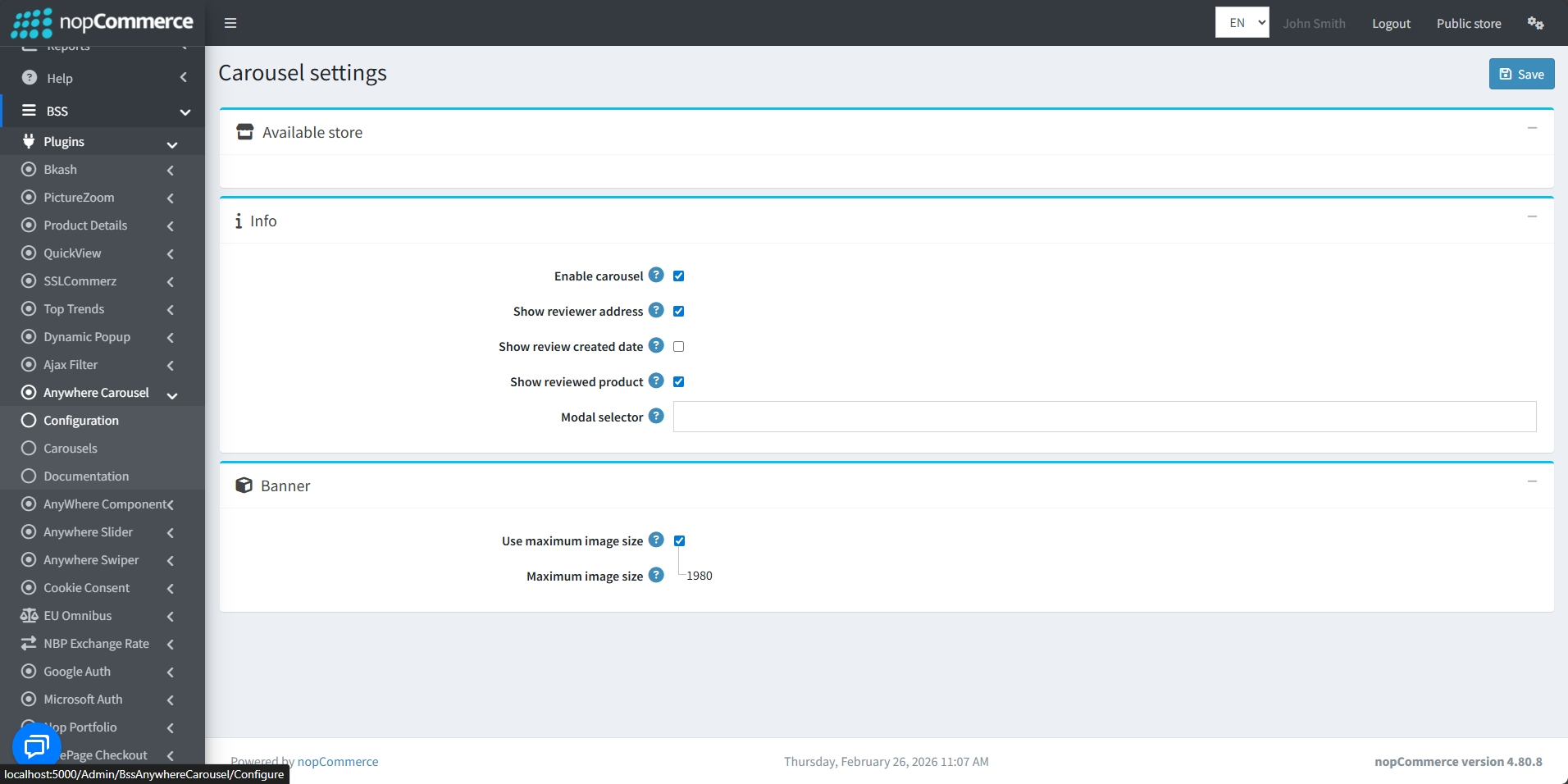
Check the Enable carousel box to enable carousels
-
Enable Show reviewer address to display the address of the reviewer
-
Enable Show review created date to display the date the review was created on
-
Enable Show reviewed product to display the reviewed product
-
Check Use maximum image size box to set the maximum size of image uploads to 1980. Uncheck this box to set different image sizes for Desktop and Mobile view
-
Finally, click the Save button after setting all the conditions
CAROUSELS
-
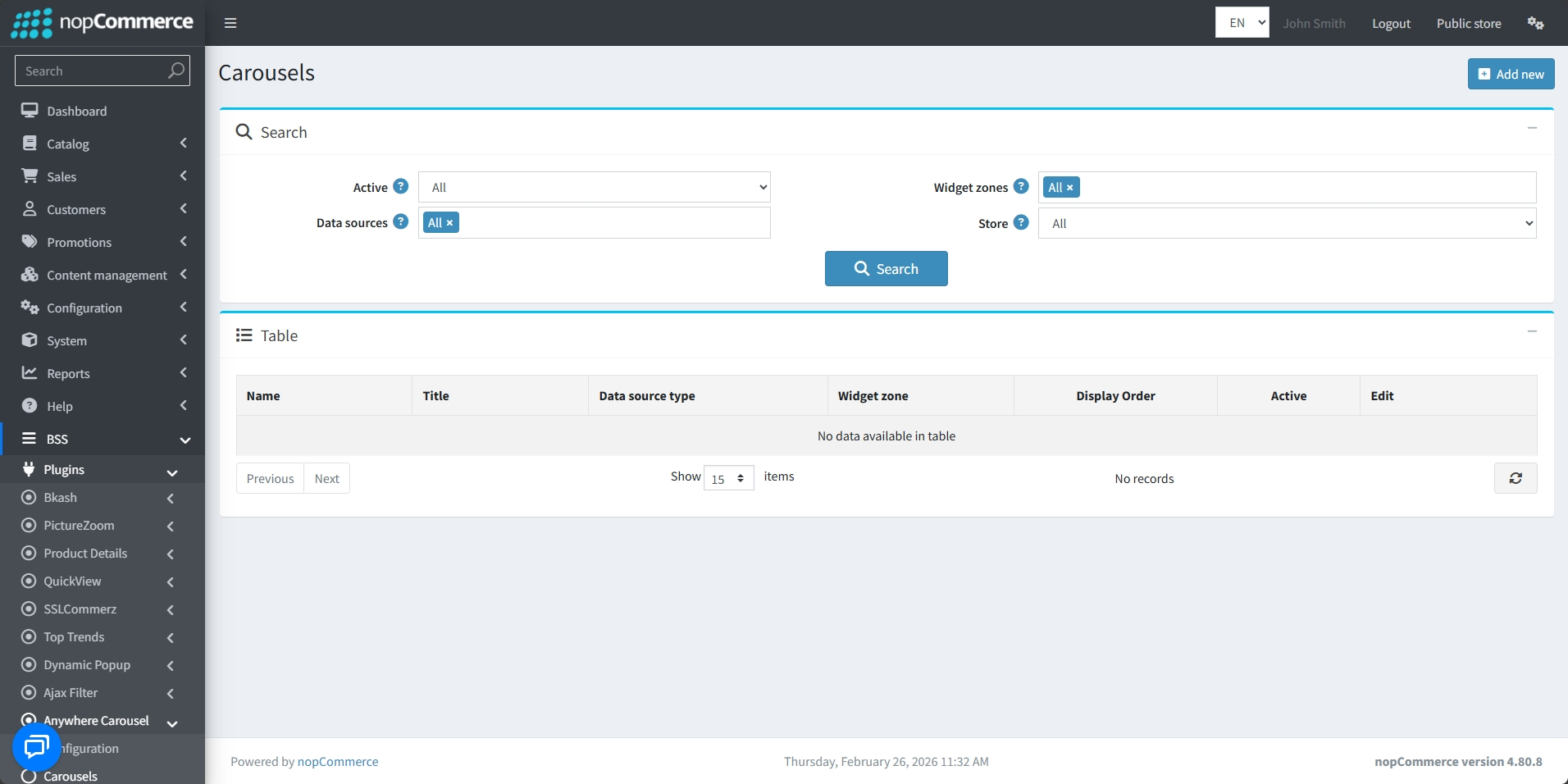
Go to BSS → Plugins → Anywhere Carousels → Carousels
-
The list of existing carousels and their details will be displayed
-
Carousels can be edited by clicking on the Edit button
-
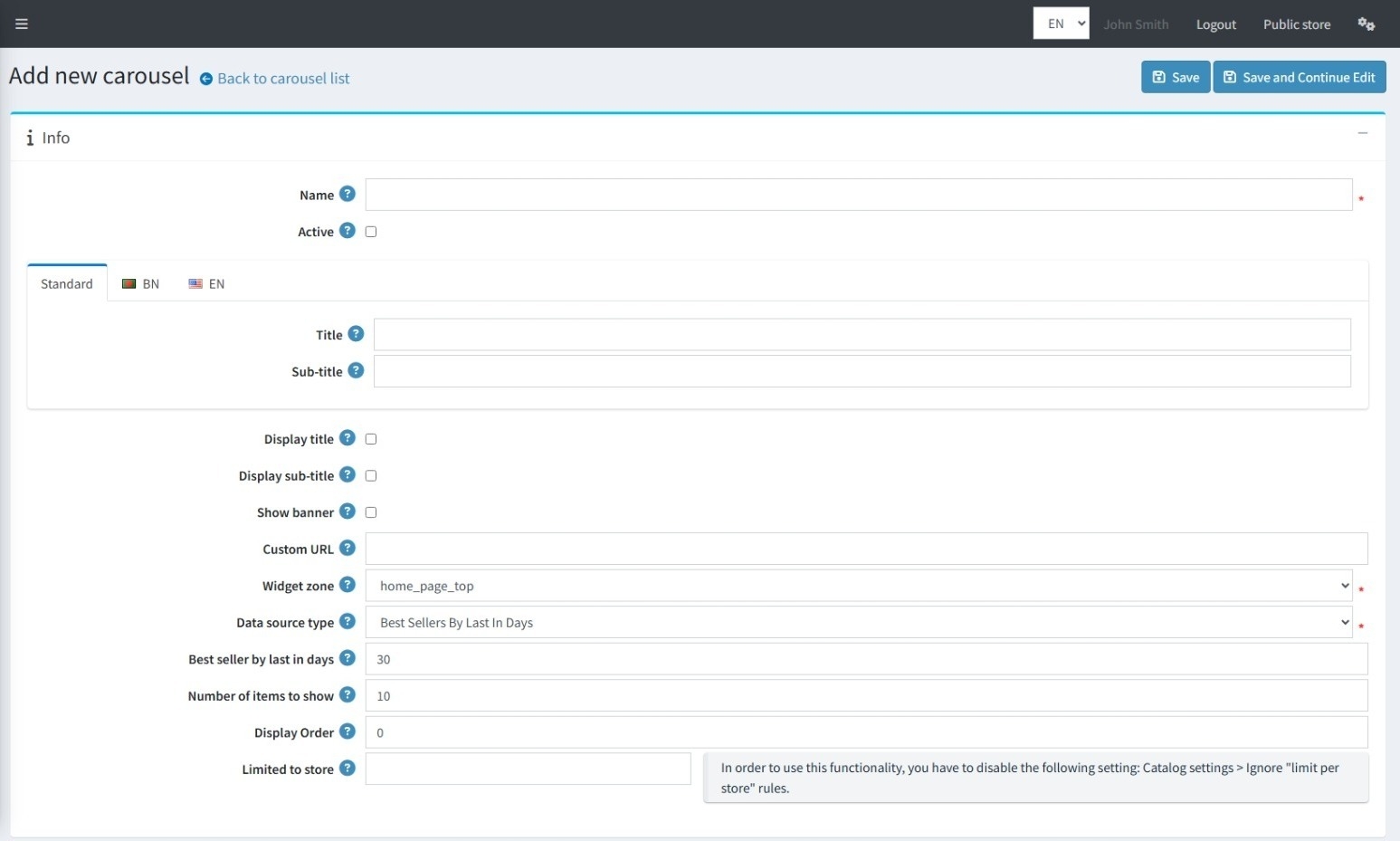
Click on Add new to create a new Carousel
Info
-
Set the Name of the carousel.
-
Check the Active box to display the carousel.
-
Set the Title of the carousel.
-
Checking Display title will display the carousel's title on the public site.
-
A Custom URL may be provided to redirect users if they click on it.
-
Setting the WidgetZone will determine the position of the carousel on the website. The carousel can be hooked to predefined areas of the site, such as ‘home_page_top,’ ‘home_page_bottom,’ ‘productdetails_bottom,’ etc.
-
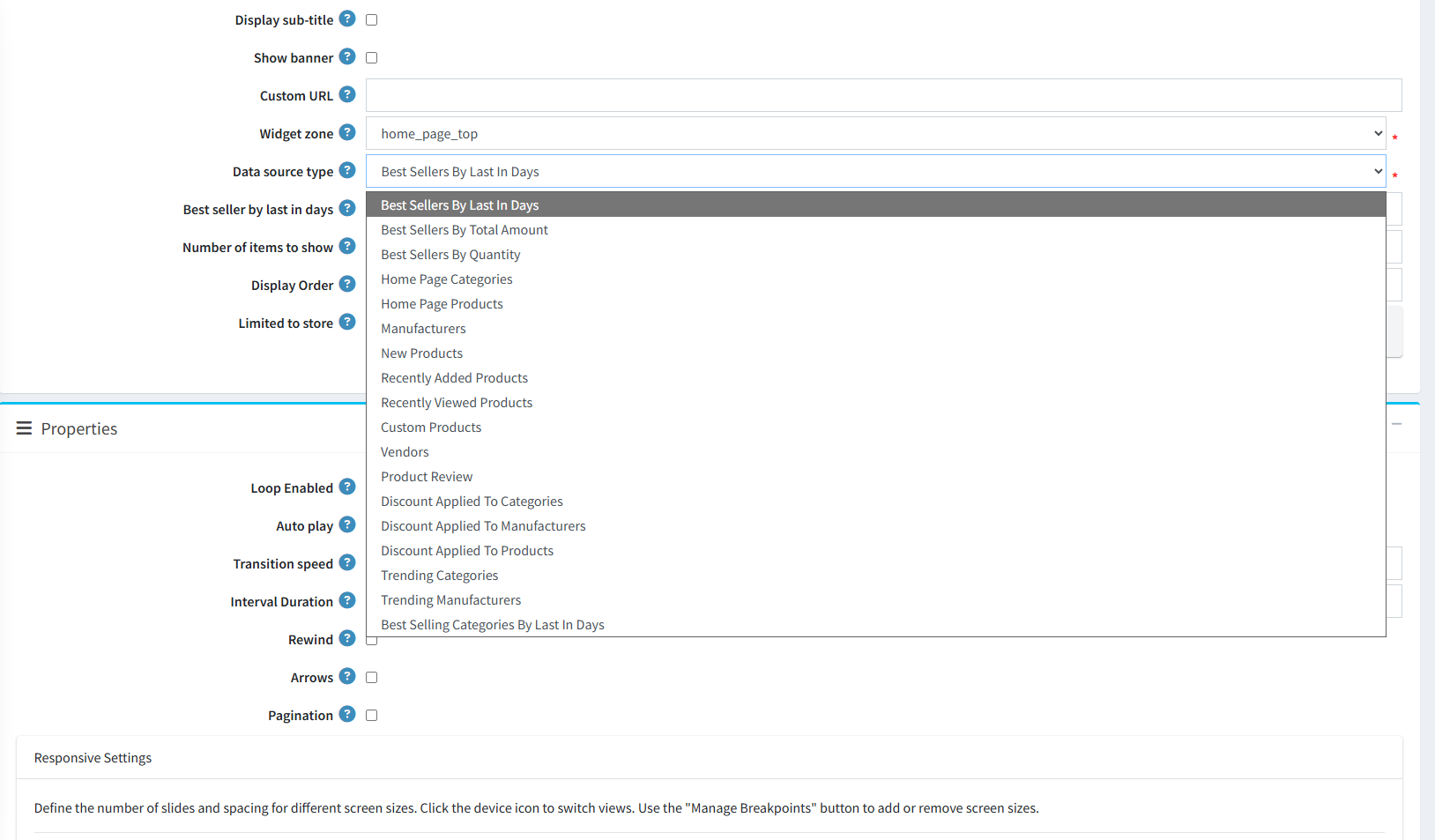
Selecting the Data source type will define what contents the carousel will display:
-
Discount Applied To Categories: Showcases products that have active discounts applied at the category level.
-
Discount Applied To Products: Directly displays individual products that have specific discounts or price reductions.
-
Trending Categories: Automatically populates the carousel with categories that have been designated as trending in the system.
-
Trending Manufacturers: Highlights specific brands or manufacturers that are currently marked as trending.
-
Best Selling Categories By Last In Days: Displays top-performing categories based on their sales volume within a specific period. When this is selected, you can use the Best seller by last in days field to set the timeframe (e.g., 30 days) used to calculate these results.
-
Sales & Home Page Highlights: Showcase Best Sellers (by timeframe, amount, or quantity) and specific items or categories designated for the Home Page.
-
Catalog & Brand Showcases: Highlight New and Recently Added Products or feature your store's Manufacturers and Vendors.
-
Engagement & Manual Control: Enhance customer engagement with Recently Viewed Products and Product Reviews, or gain full control by manually selecting Custom Products.
-
-
Number of items to show determines the number of items in the carousel.
-
Display Order determines the sequence of a particular carousel if multiple carousels are assigned to the same widget zone.
-
Limited to store restricts the visibility of the carousel to specific stores in a multi-store setup.
Properties
-
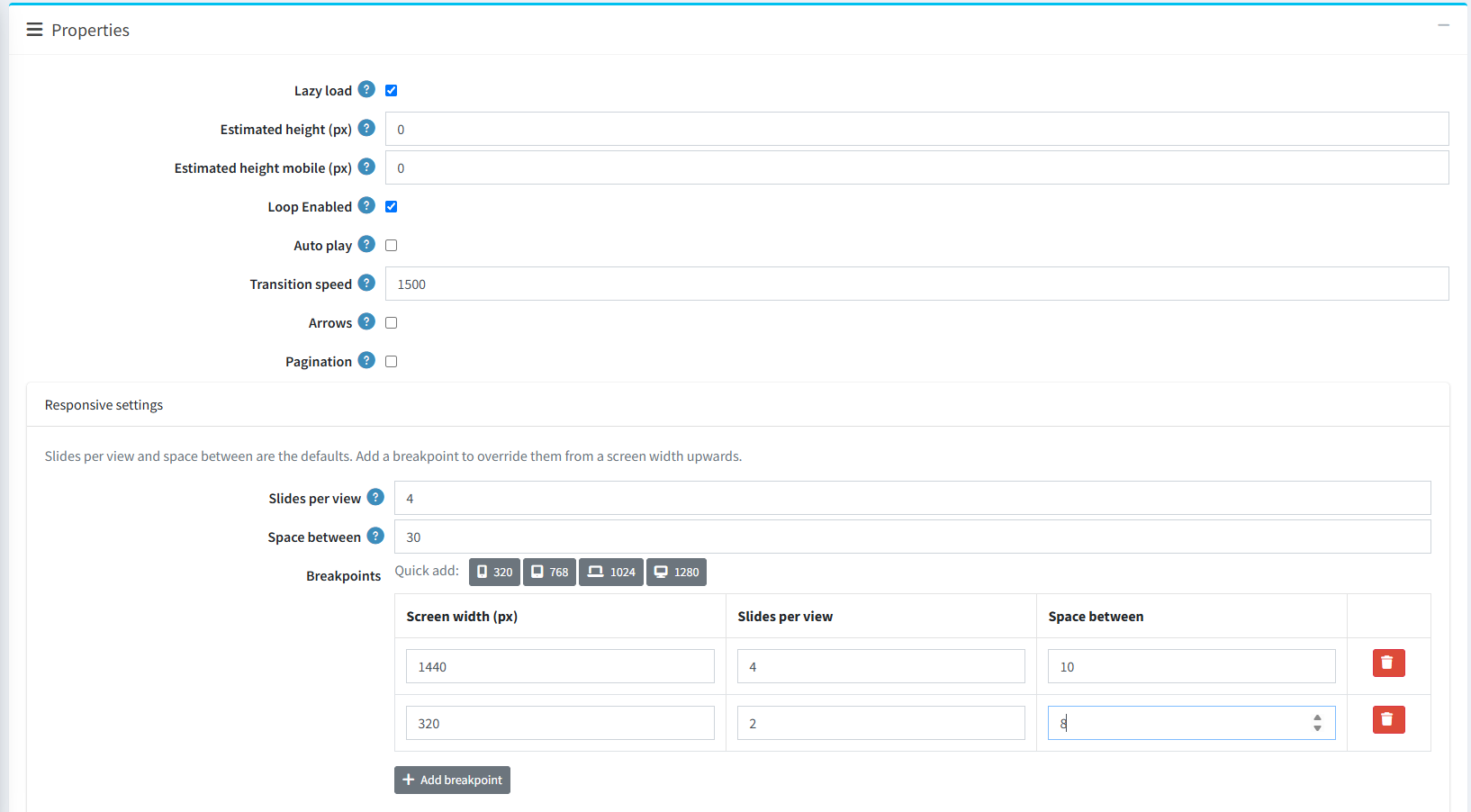
Lazy load: Enable this to defer loading the carousel via AJAX until it scrolls into view, which boosts performance for below-the-fold content while avoiding Core Web Vitals issues like CLS (Cumulative Layout Shift) and LCP (Largest Contentful Paint) on top sections.
-
Estimated height (px): Set a specific placeholder height in pixels to fix layout shifts if Lighthouse flags any errors, or leave it at 0 to let the system calculate it automatically.
-
Estimated height mobile (px): Set a custom placeholder height specifically for mobile screens, or leave it at 0 to fall back on your desktop estimated height.
-
Animation and Interaction: Control how the carousel behaves by checking Loop Enabled for continuous scrolling and Auto play for automatic slide transitions. Refine carousel movement by configuring the Transition speed (e.g., 1500ms).
-
Navigation Elements: Enhance user control by checking Arrows to display navigation arrows on either side and Pagination to show bullet indicators at the bottom.
-
Responsive settings: Configure standard viewports and responsive overrides for various screen sizes:
-
Set the default Slides per view and Space between items (applied as baseline defaults).
-
Breakpoints: Override default settings from a specific screen width upwards. Use the Quick add buttons (320, 768, 1024, 1280) to insert standard screen widths instantly, or click the + Add breakpoint button to add a custom breakpoint.
-
In each row, specify the Screen width (px), Slides per view, and Space between.
-
Click the red Delete (trash) button next to any breakpoint row to remove it.
-
STEP-BY-STEP SETUP GUIDES
1. How to Configure a Discount Carousel
Setting up a discount carousel requires two main steps: first creating the discount promotion, and then configuring the carousel to display those discounted items.
Step 1: Create and Apply the Discount
-
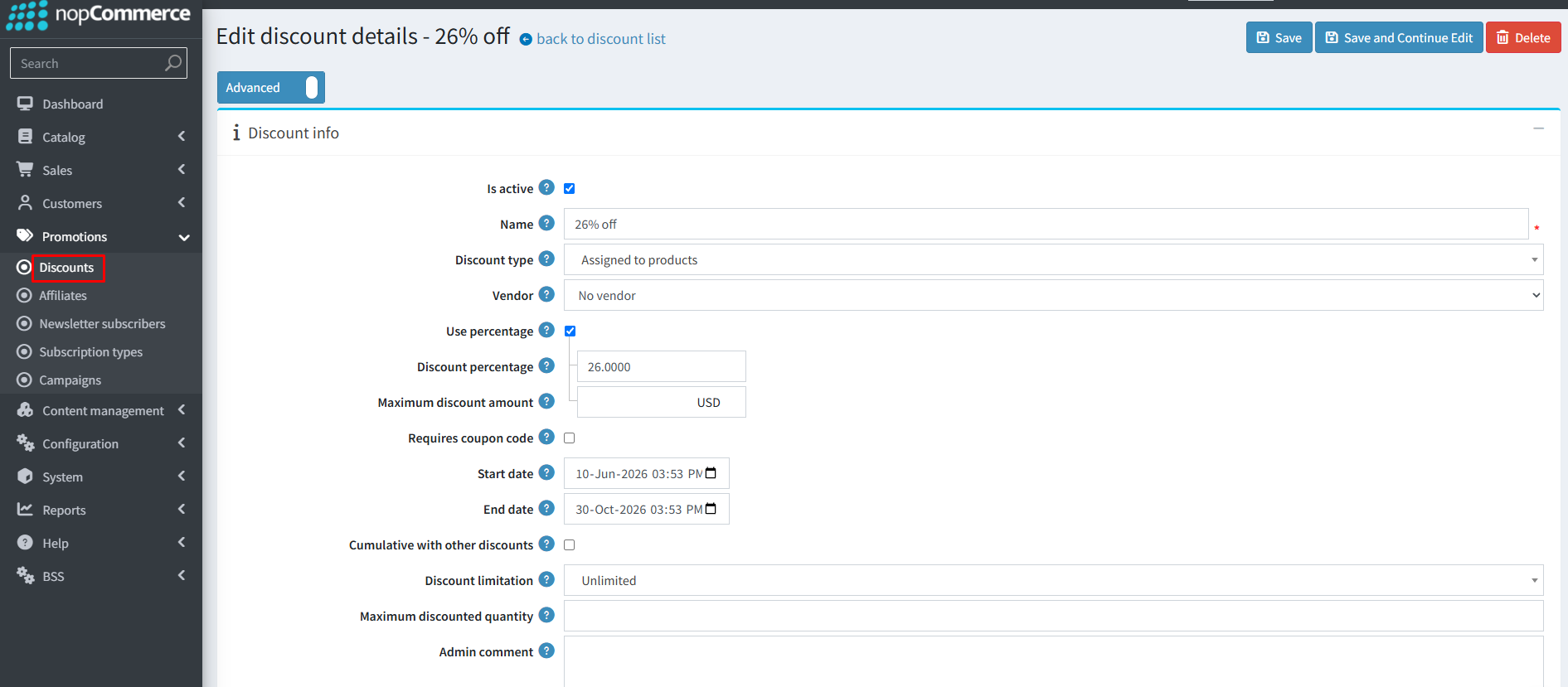
Navigate to Promotions → Discounts → Add New.
-
Configure the discount details:
-
Is Active: Ensure this box is checked to enable the discount.
-
Name: Enter a clear title for internal tracking (e.g., Wellness Deals).
-
Discount Type: Select how the discount applies (e.g., Assigned to products, Assigned to categories, or Assigned to manufacturers).
-
Vendor / Use Percentage / Discount Percentage / Max Discount Amount: Configure your pricing parameters as needed.
-
Requires Coupon Code / Cumulative / Limitations: Adjust these settings according to your promotion strategy.
-
Start & End Date: Set active dates. Important: Choose current or future dates for the start date—selecting past dates will prevent the discount from showing. If no end date is set, the discount remains active indefinitely.
-
-
Click Save and Continue Edit.
-
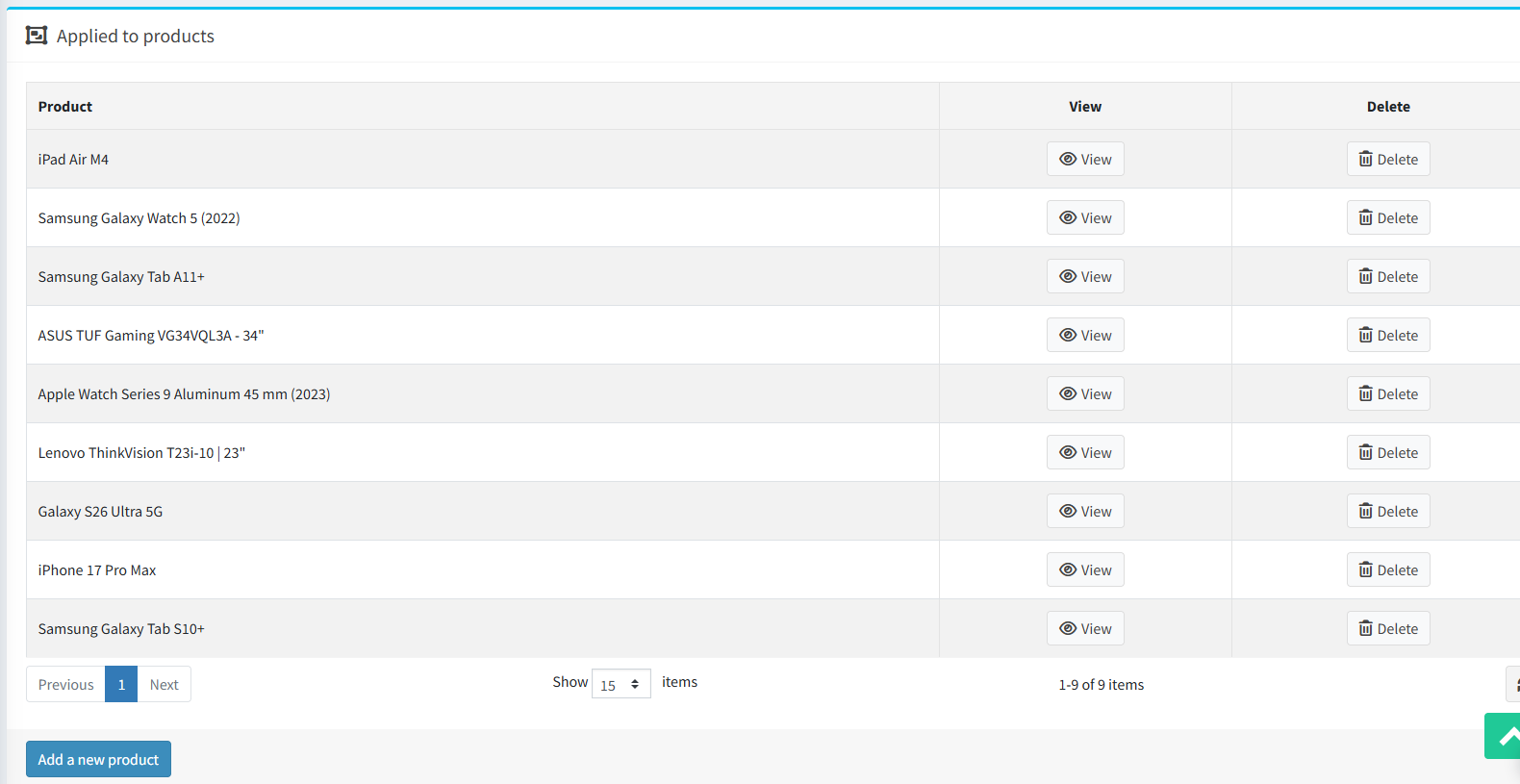
Scroll down to the Applied to products (or categories/manufacturers) tab, search for your target items, and assign them to the discount.
Step 2: Set Up the Discount Carousel
-
Navigate to Anywhere Carousel → Carousels → Add New.
-
Fill in the basic required information, general properties, and Responsive Settings.
-
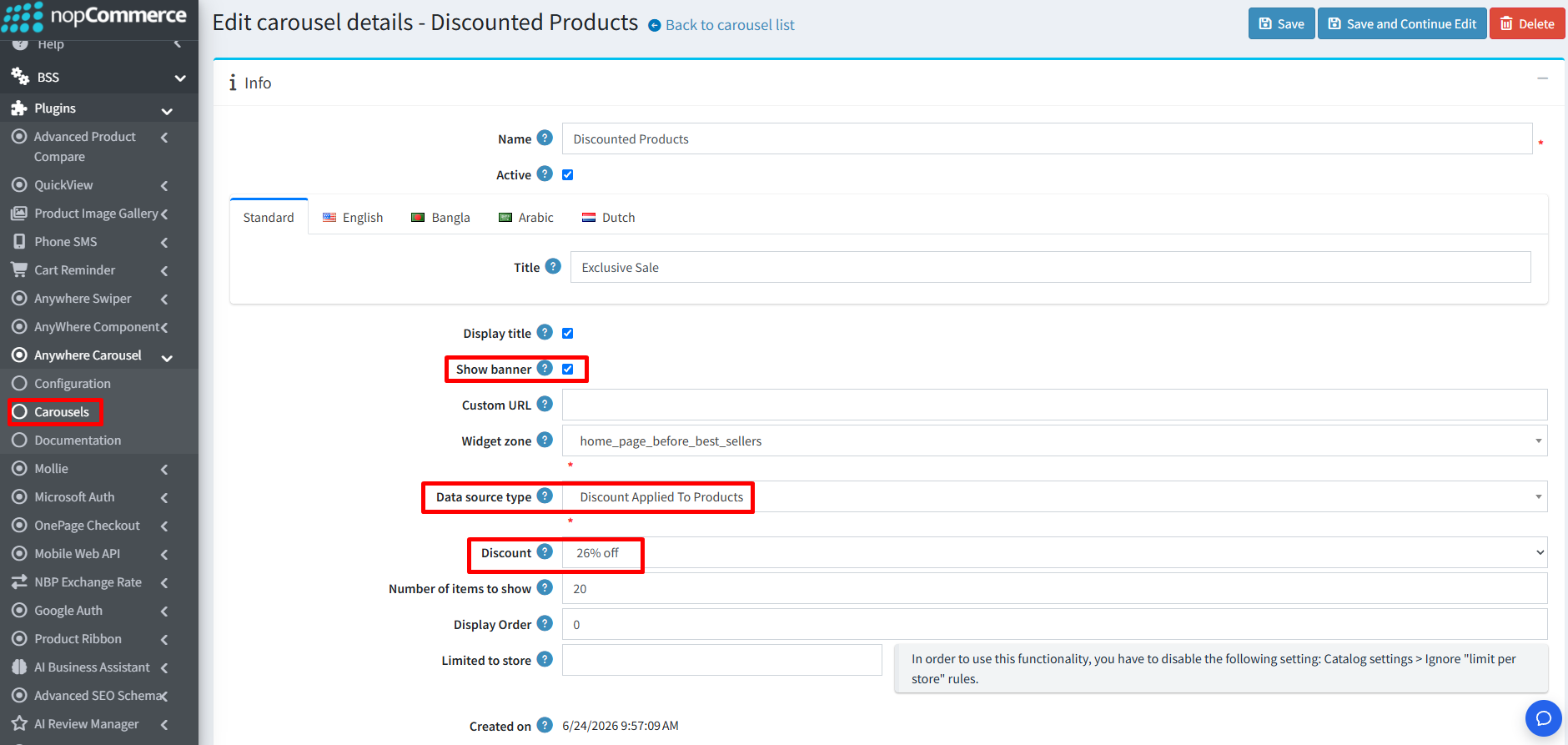
Select Widget Zone: Pick where to showcase your sale items (e.g., home_page_before_products or a dedicated offer page).
-
Set Data Source Type: Choose the appropriate source option based on your discount setup:
-
Discount Applied to Products
-
Discount Applied to Categories
-
Discount Applied to Manufacturers
-
-
Select Discount: Pick your created promotion from the Discount dropdown list. (Note: If your discount was not created in Step 1, it will not appear in this dropdown).
-
Configure Item Limit: Specify the maximum number of items to display in the Number of items to show field.
-
Save Changes: Click Save to publish your discount carousel live.
-
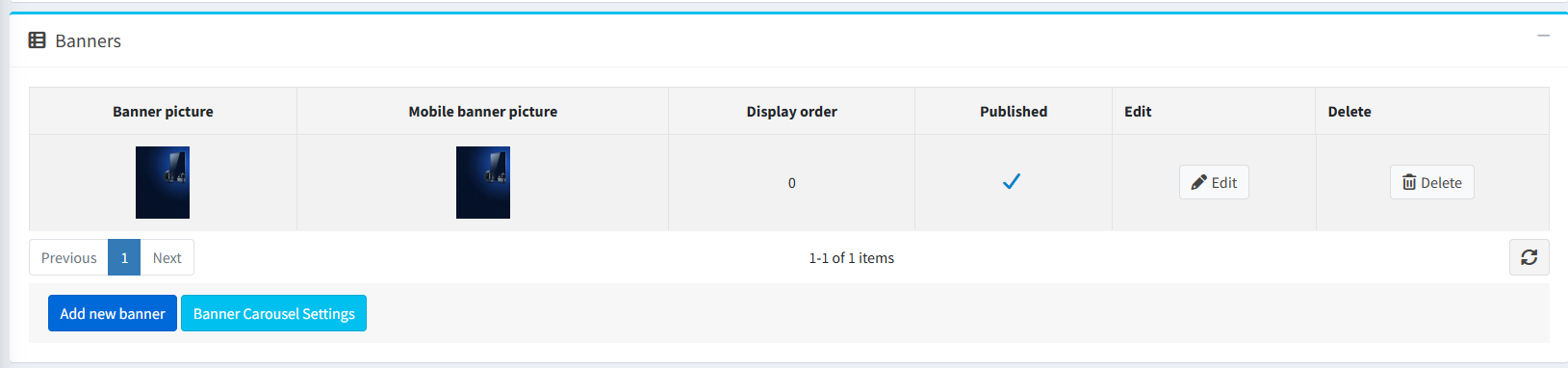
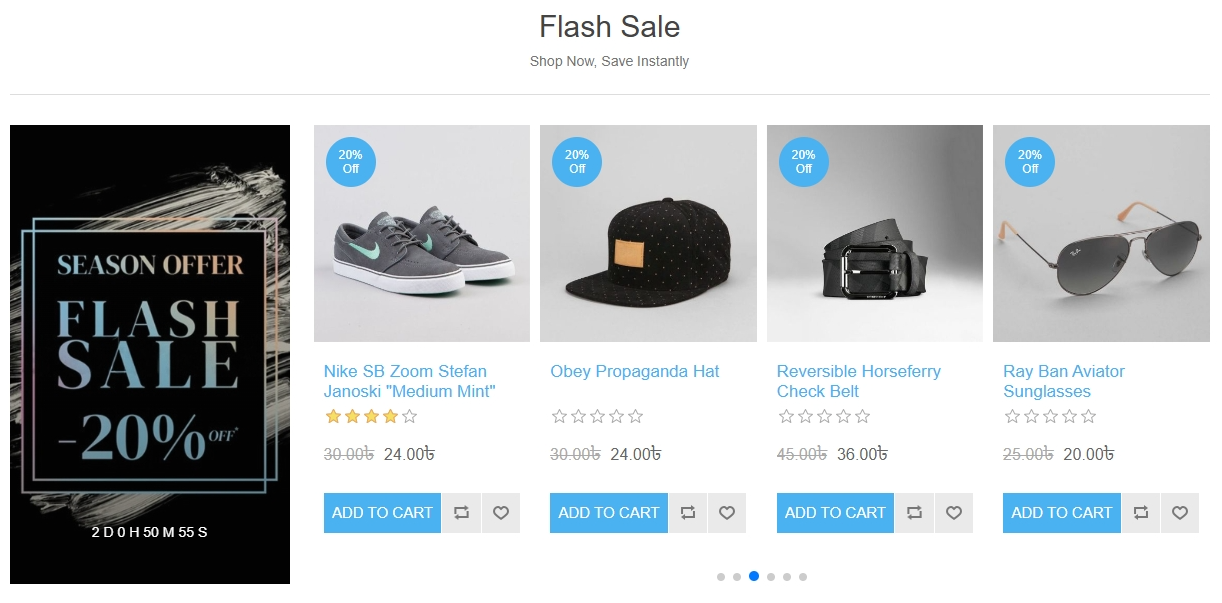
Upload Banner Image (Countdown Timer): After saving the carousel, a Banner section will appear below. Upload a banner image here to display the discount countdown timer over the banner image.
PUBLIC VIEW
2. How to Configure a Review Carousel
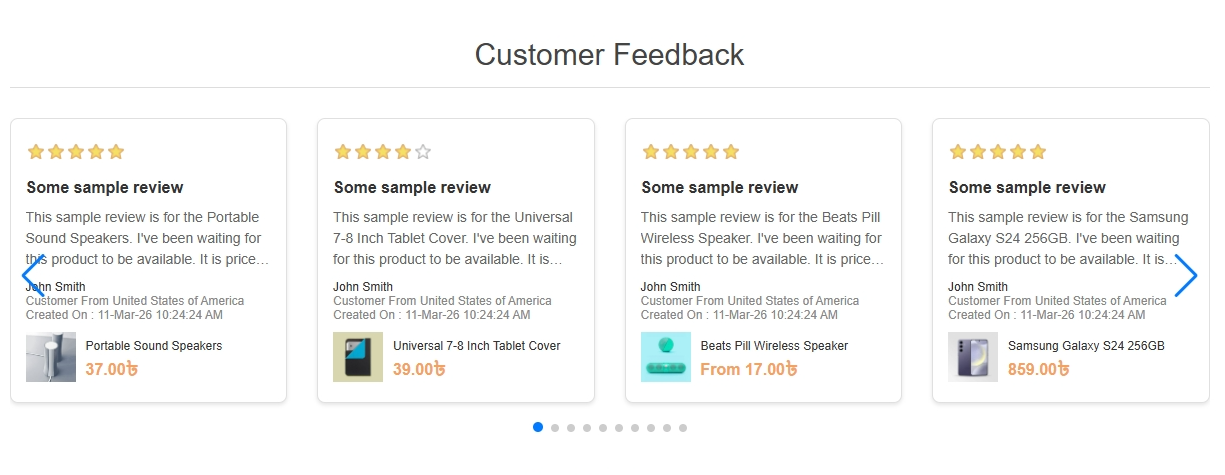
Display top-rated products or customer feedback across your store to build trust and social proof.
-
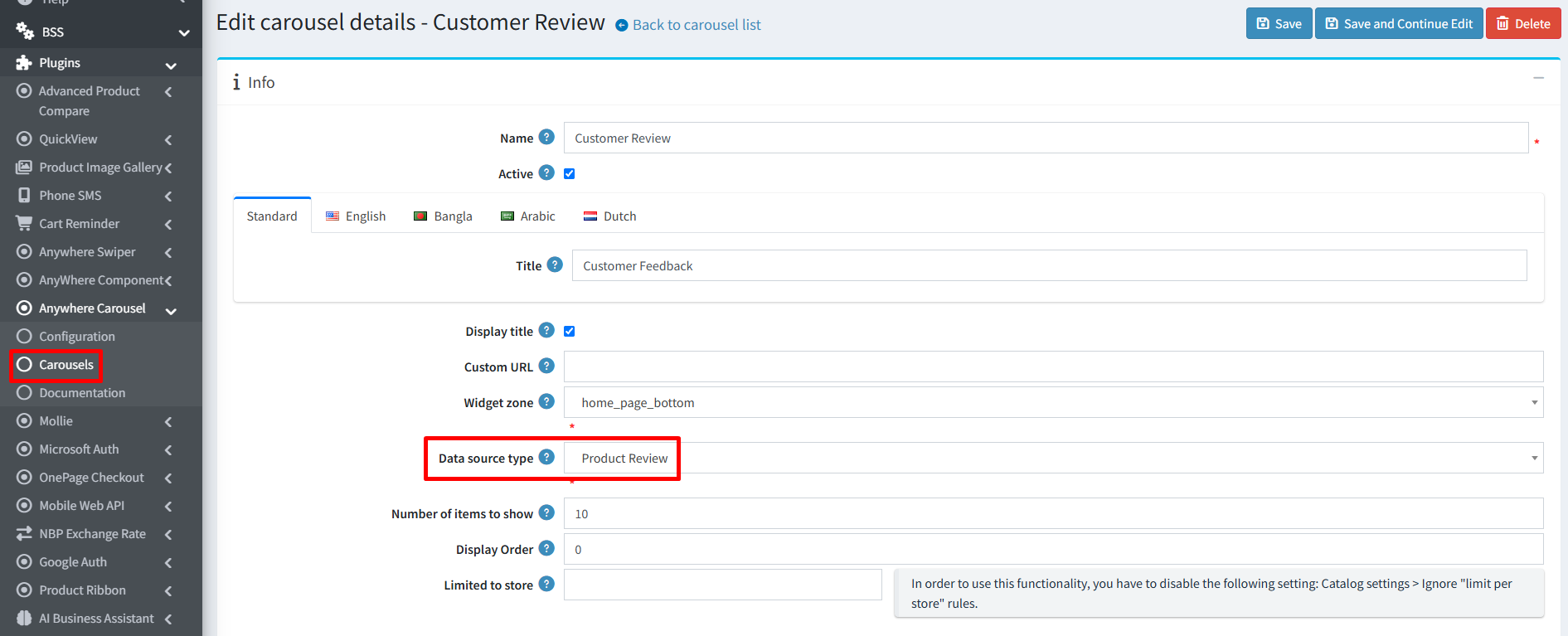
Create a New Carousel: Navigate to Anywhere Carousel → Carousels → Add New.
-
Set General Info: Fill in the basic required details, properties, and Responsive Settings.
-
Select Widget Zone: Choose where you want to display your reviews (e.g., home_page_top or home_page_before_products).
-
Set Data Source Type: Select Product Reviews (or Best Rated Products) from the dropdown menu to fetch customer ratings and feedback.
-
Configure Item Limit: Specify the maximum number of items to display in the Number of items to show field.
-
Save Changes: Click Save and continue to finish the setup of review carousel.
-
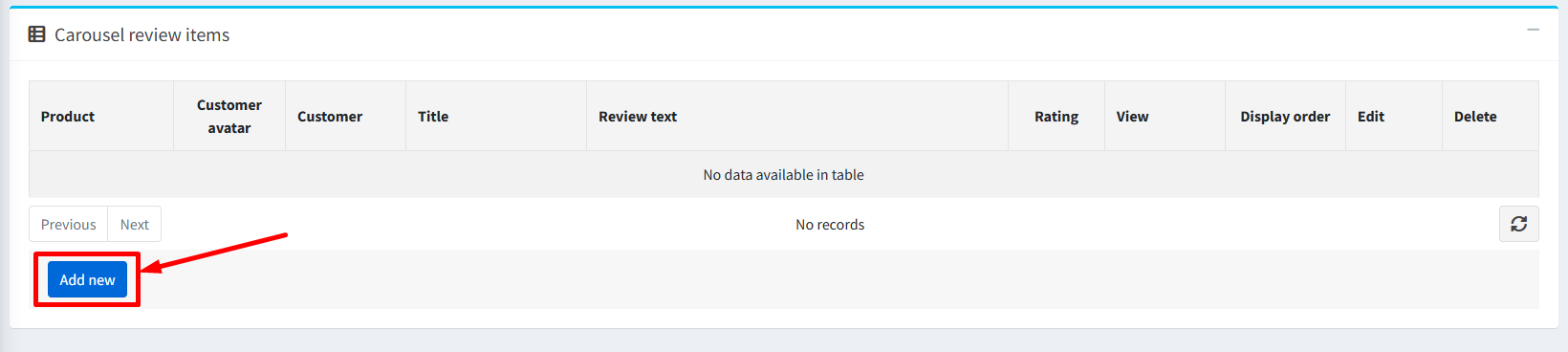
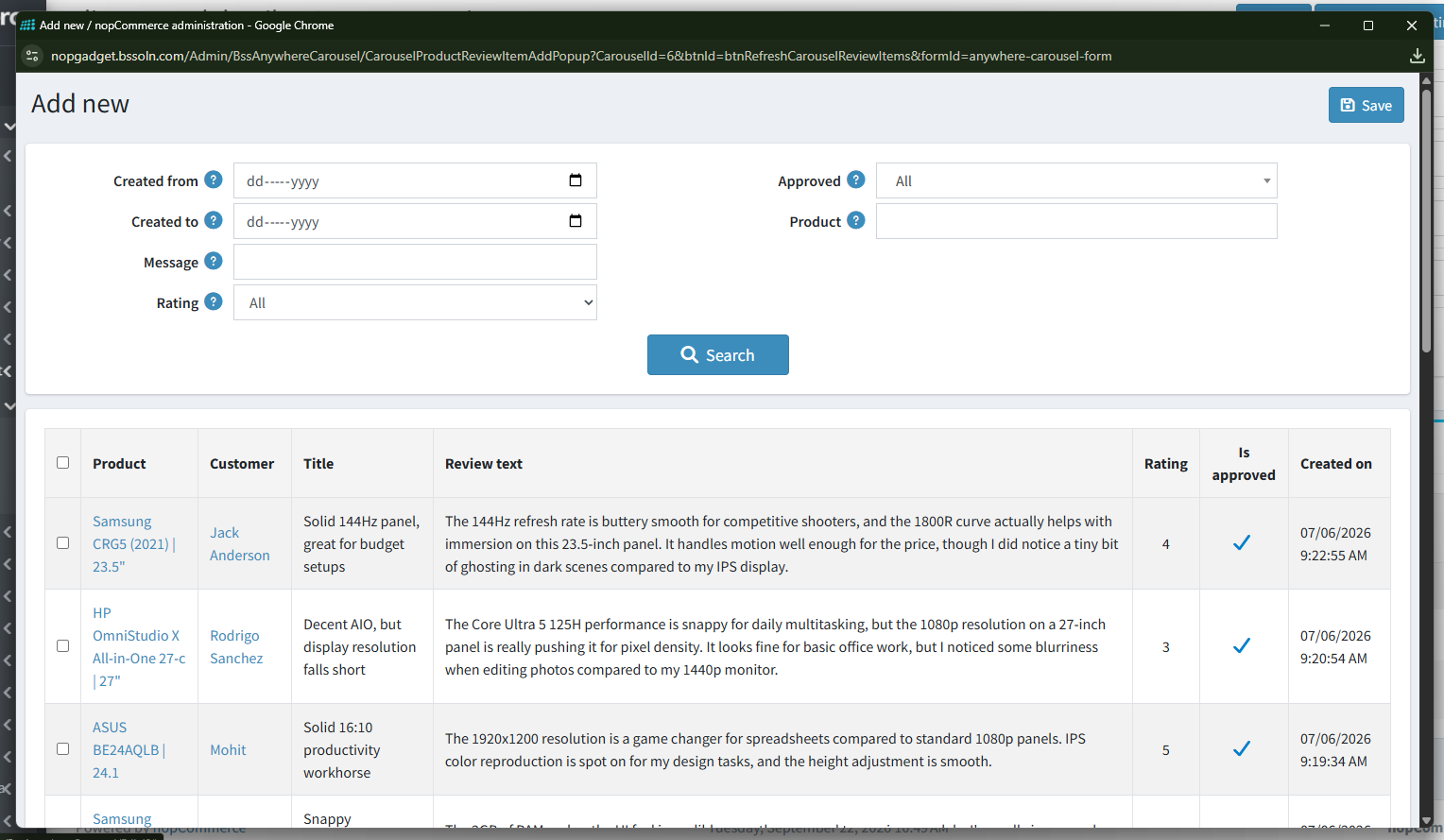
Add Review Items: After saving, scroll down to the Carousel review items section and click the Add new button. A popup window will appear where you can search and select the customer reviews you want to showcase, then click Save to attach them to the carousel.
PUBLIC VIEW
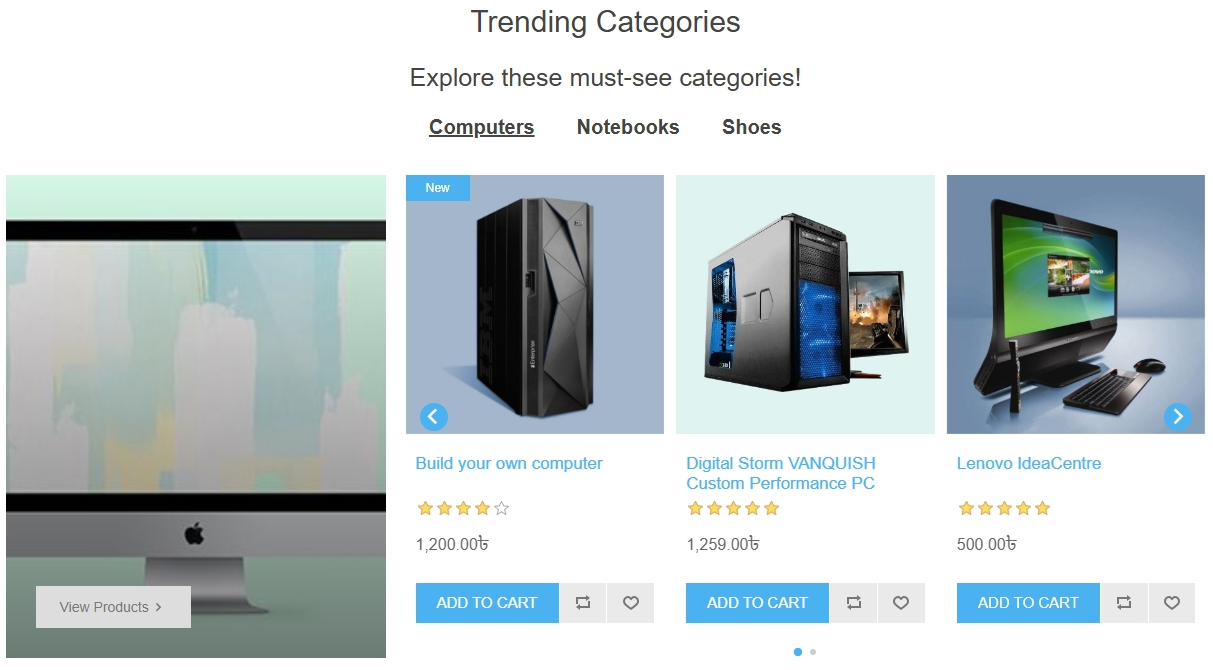
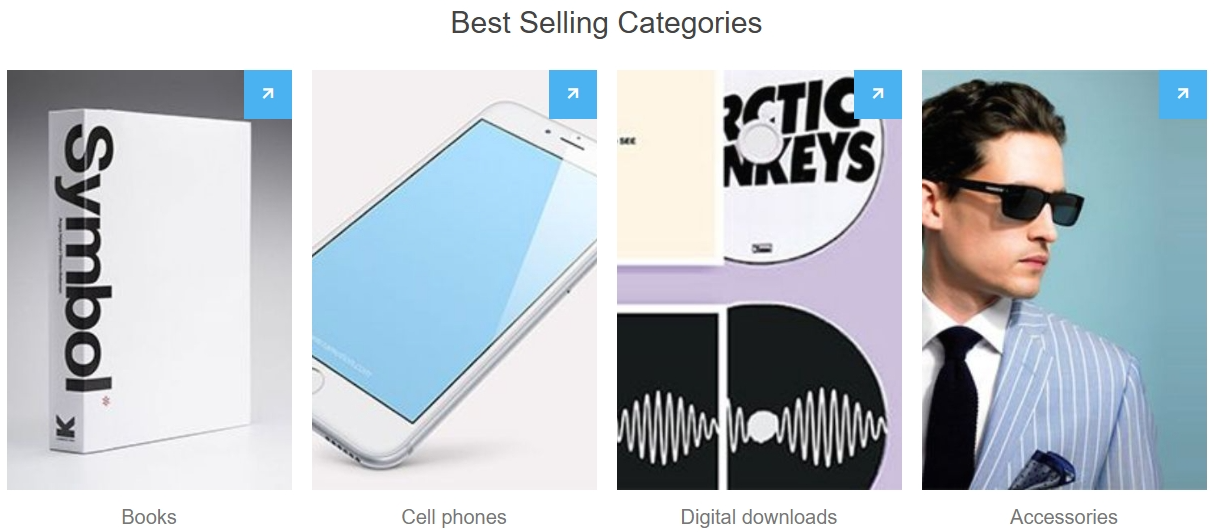
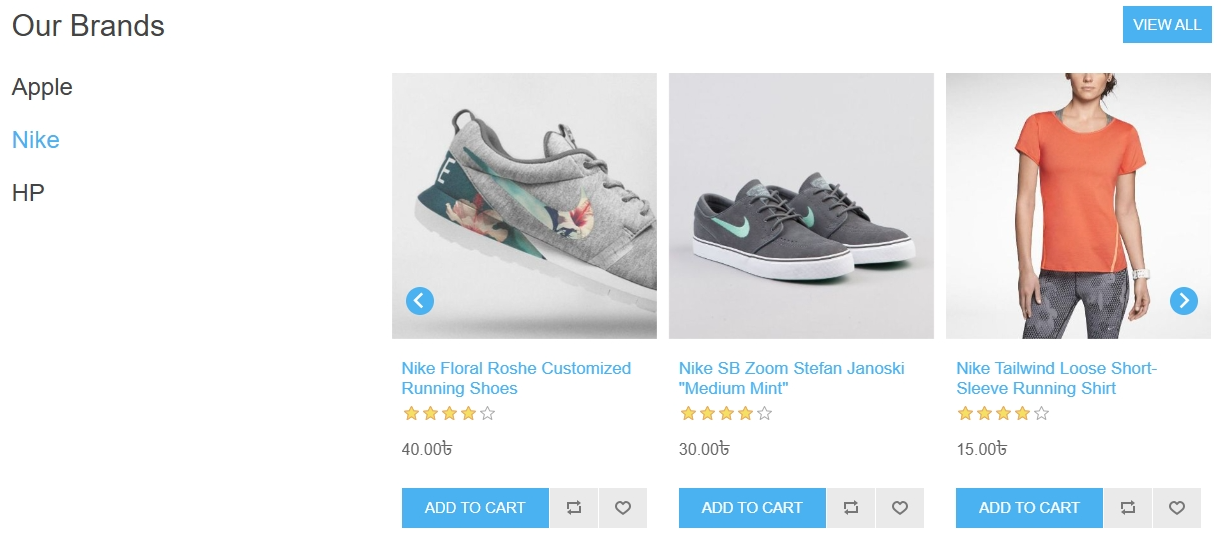
3. How to Configure a Trending Carousel
Highlight popular items based on recent sales performance, category activity, or customer engagement to drive conversions.
-
Create a New Carousel: Navigate to Anywhere Carousel → Carousels → Add New.
-
Set General Info: Fill in the basic required details:
-
Enter the Name and Title (e.g., Trending Categories).
-
Check Active to enable the carousel.
-
Check Display title to show the heading on the public storefront.
-
-
Select Widget Zone: Choose a high-visibility zone (e.g., home_page_before_products or home_page_top).
-
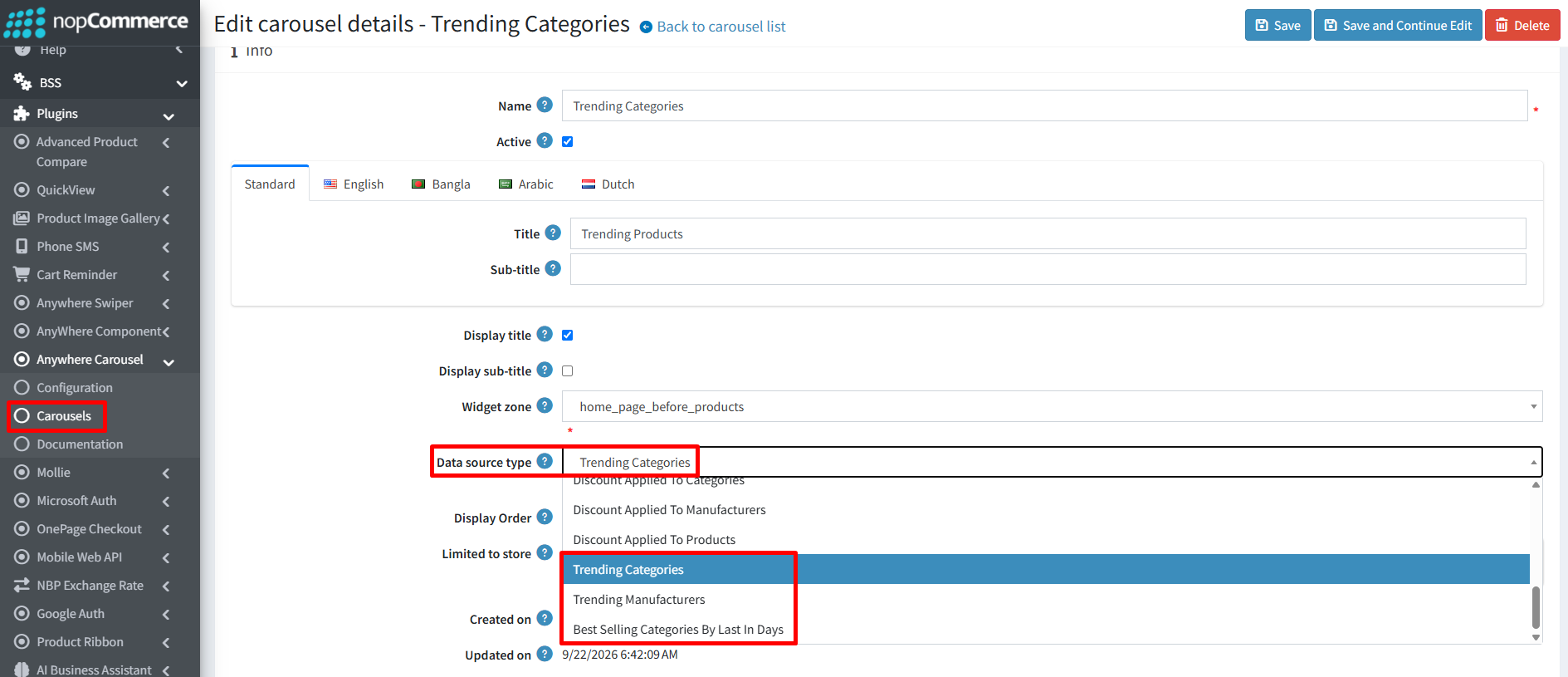
Set Data Source Type: Select your preferred trending source from the dropdown menu:
-
Trending Categories
-
Trending Manufacturers
-
Best Selling Categories By Last In Days
-
-
Configure Carousel Properties: Fine-tune responsive settings (such as Slides per view, Space between), animation loops, and autoplay transitions.
-
Save Initial Details: Click Save and Continue Edit at the top right to create the carousel and unlock the category setup section.
-
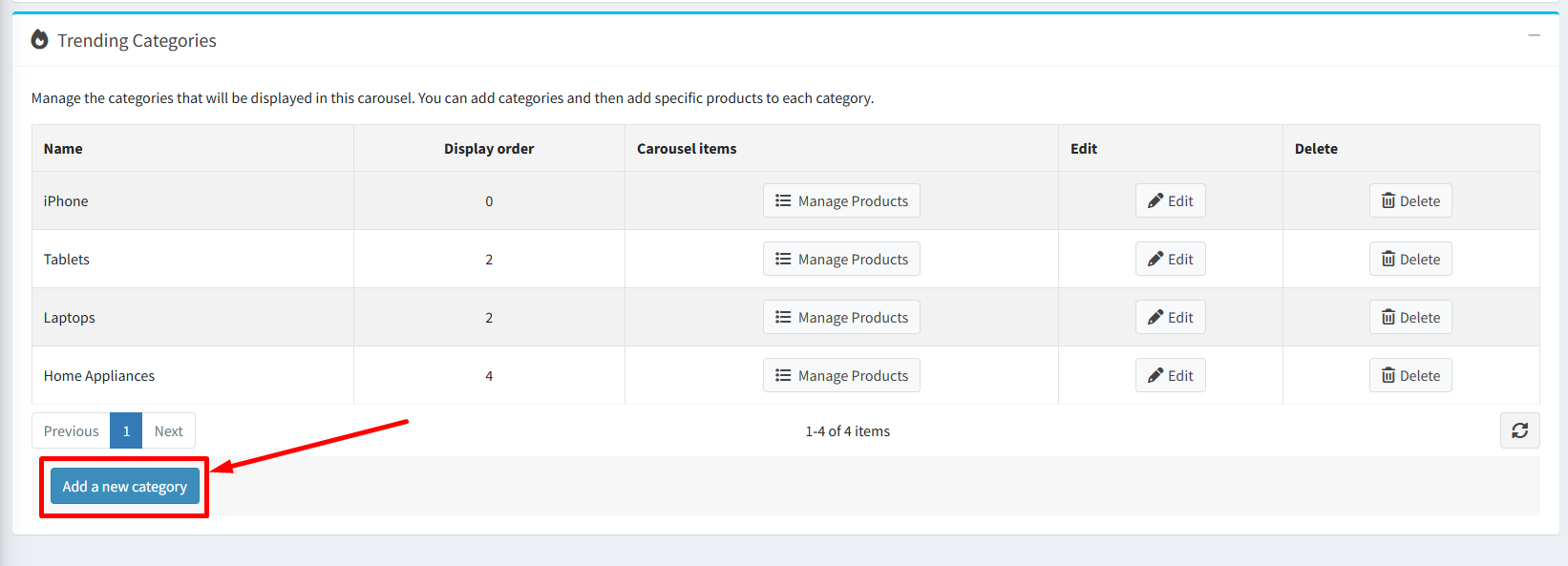
Add Categories: Scroll down to the Trending Categories section and click the Add a new category button. In the popup window, check the categories you want to feature (e.g., Tablets, Computers) and click Save.
-
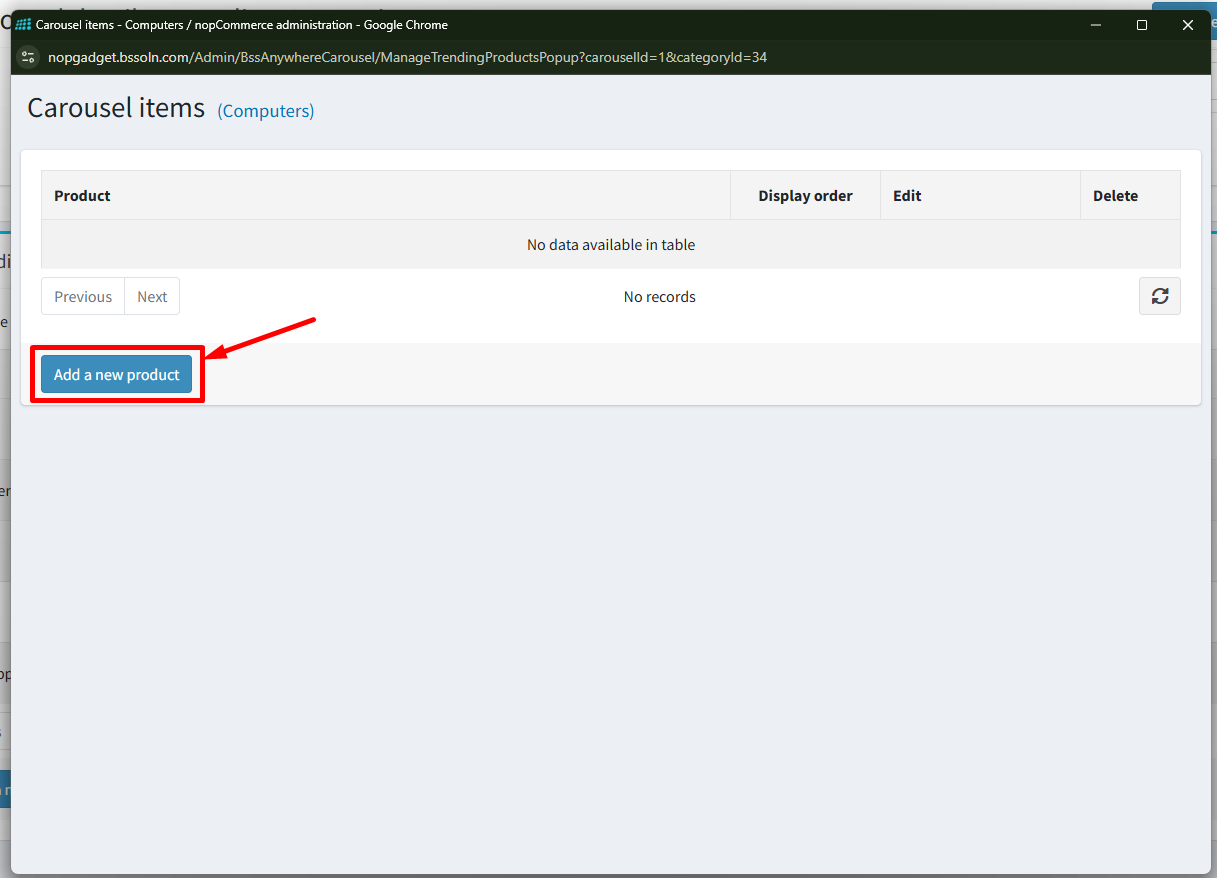
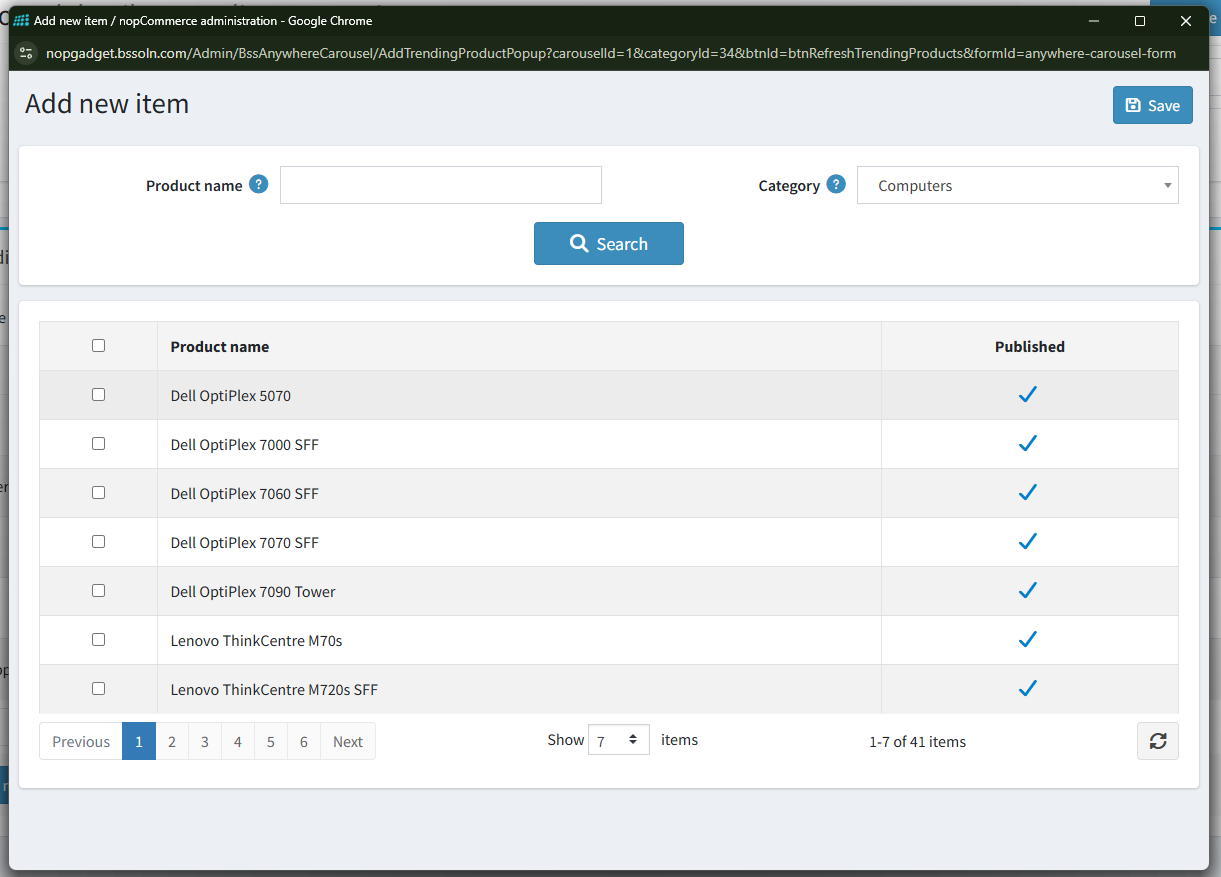
Assign Products to Categories (Manage Products): In the category list, click the Manage Products button under the Carousel Items column next to each category. In the modal, click Add a new product, select the target items with checkboxes, and click Save. Repeat this for each category to define which products appear under each category tab.
-
Save Changes: Click Save to publish your trending carousel live on the site.
PUBLIC VIEW
4. How to Configure a Custom Product Carousel
Hand-pick specific items for targeted marketing campaigns, seasonal promotions, or curated collections.
-
Create a New Carousel: Navigate to BSS → Plugins → Anywhere Carousel → Carousels and click Add new.
-
Set General Info: Fill in the basic configuration:
-
Enter the Name and Title (e.g., Custom Carousel 1).
-
Check Active to enable the carousel.
-
Check Display title to display the carousel title on the storefront.
-
-
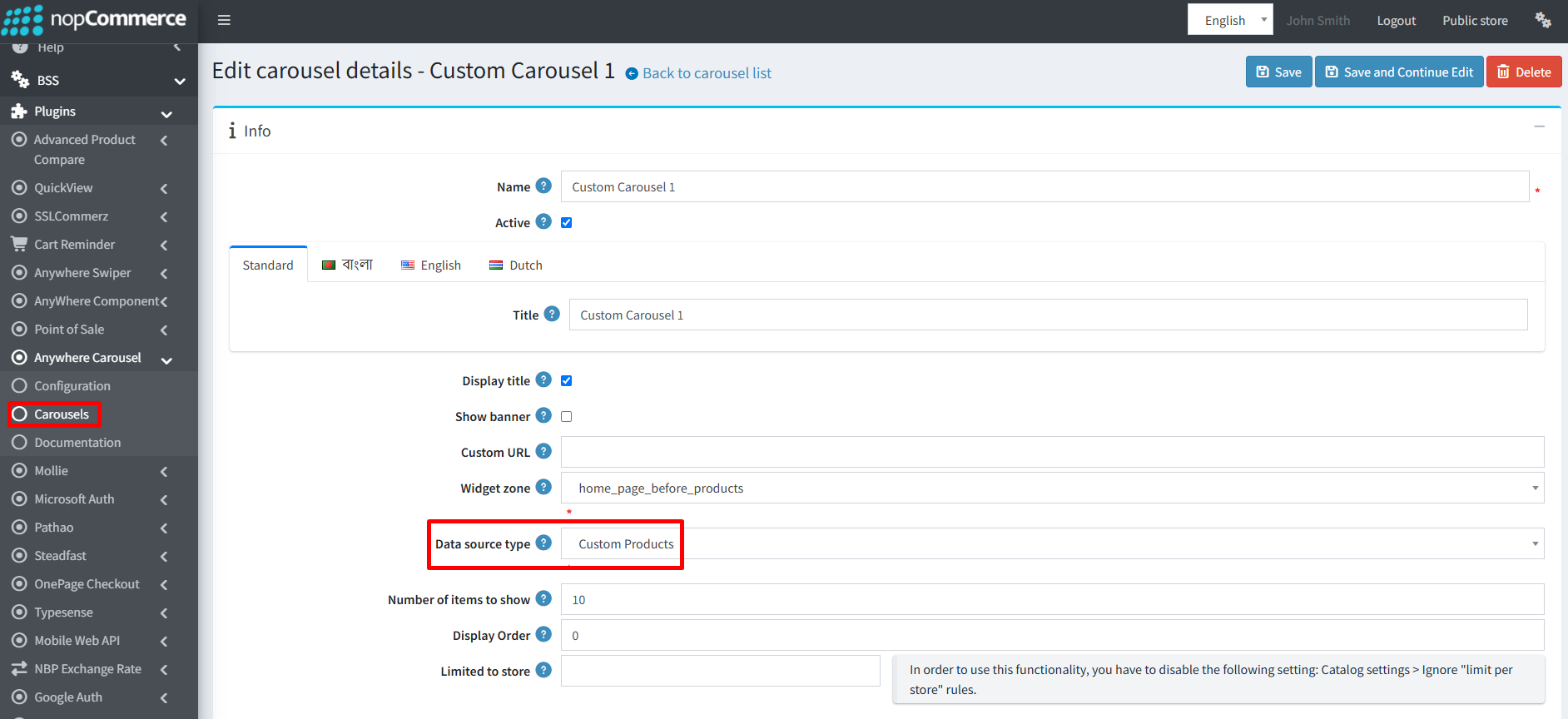
Select Widget Zone: Choose where you want to display the carousel on the website (e.g., home_page_before_products).
-
Set Data Source Type: Select Custom Products from the dropdown menu.
-
Configure Item Limit: Specify the maximum number of items to display in the Number of items to show field.
-
Save Initial Details: Click Save and Continue Edit at the top right to save settings and unlock the Carousel items section below.
-
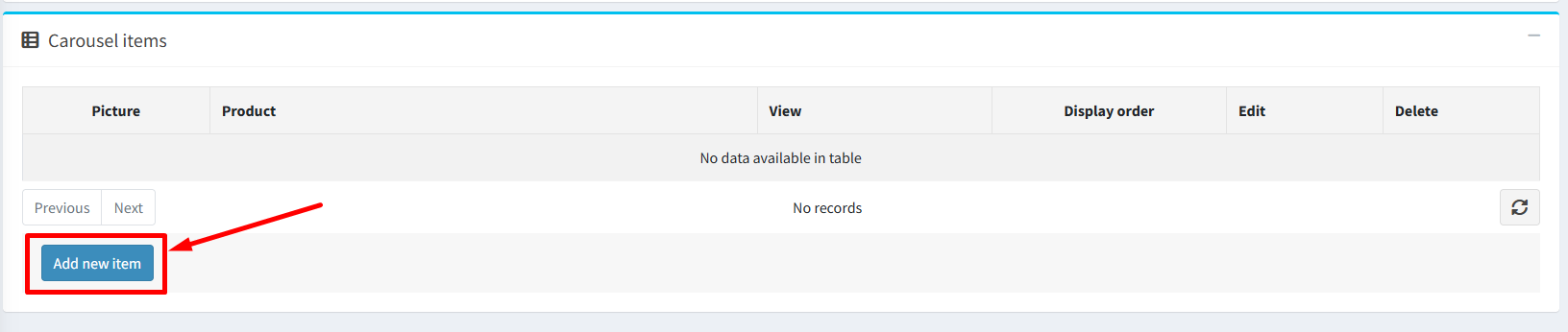
Add Carousel Items: Scroll down to the Carousel items panel and click the Add new item button.
-
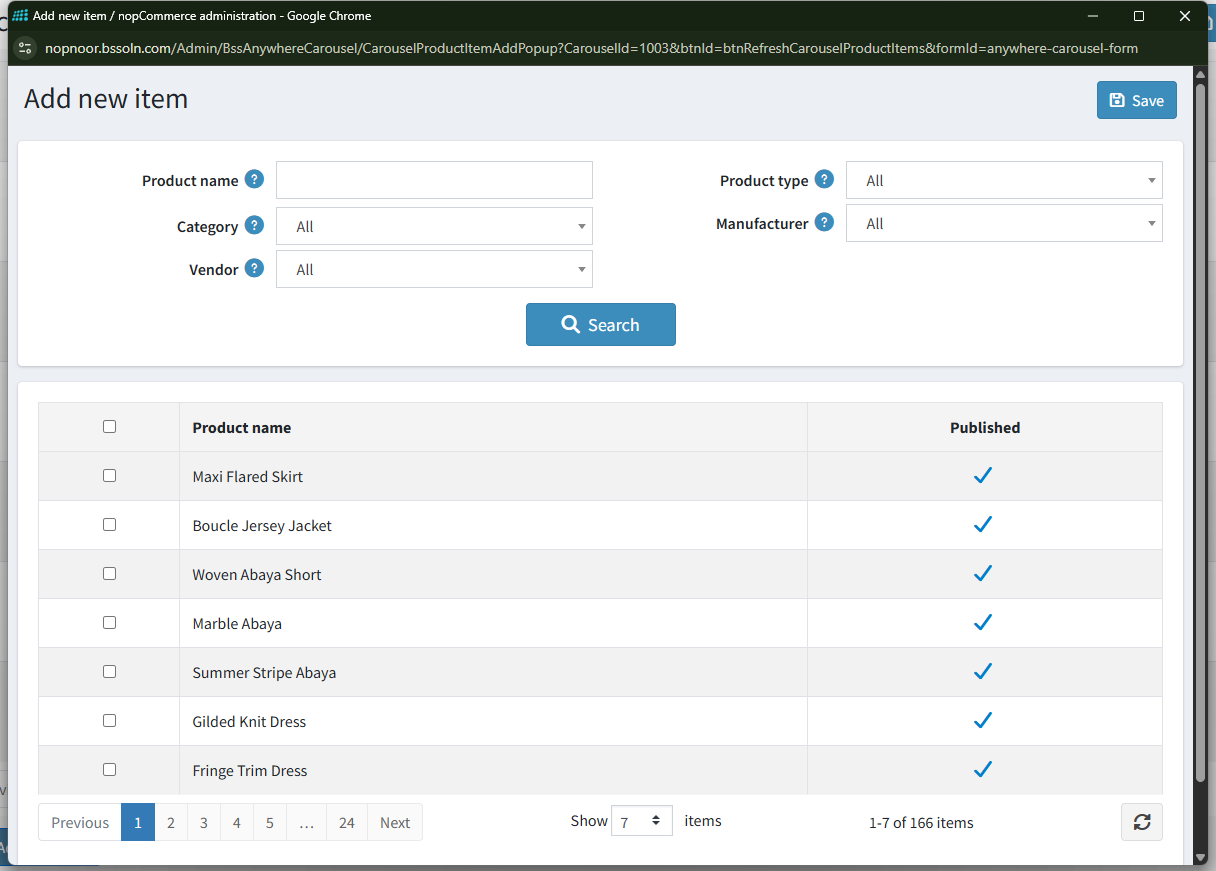
Search and Select Products: In the Add new item popup window, search or filter products by name, category, manufacturer, or vendor. Check the boxes next to your target items and click Save to attach them to the carousel.
-
Order Items & Finalize: Back in the Carousel items table, preview your added products, adjust the Display order for each item as desired, and click Save to publish your custom product carousel live.
FEATURES
-
It is easy to install and configure from the admin interface.
-
It supports multi-store visibility, allowing you to restrict carousels to specific store instances.
-
Utilizes Lazy Loading and a Dynamic Skeleton Loader to optimize image delivery for faster page loads, reduce CLS (Cumulative Layout Shift), and maintain a smooth, visually stable browsing experience.
-
Supports an extensive range of dynamic data sources, including Best Sellers (by sold in days), Trending Categories, Trending Manufacturers, Recently Viewed items, Product Reviews, and various Discount-based collections.
-
Allows for flexible placement across the website using a variety of predefined widget zones.
-
Provides advanced animation and behavior settings such as Loop Enabled, Auto play, Rewind, and customizable Transition speeds.
-
Includes configurable navigation elements, allowing you to enable or disable Arrows and Pagination.
-
Allows for Custom URLs to redirect users to specific pages when they click on the carousel.
-
Includes a Manage Breakpoints feature to add or remove custom screen sizes for precise layout control across all devices.