NopFashion Theme + 15 Plugin Bundle for NopCommerce
NopBeauty Theme + 12 Plugin Bundle for NopCommerce
NopNoor Theme + 16 Plugin Bundle for NopCommerce
NopGadget Theme + 18 Plugin Bundle for NopCommerce
NopEthnic Theme + 17 Plugin Bundle for NopCommerce
NopFurniture Theme + 19 Plugin Bundle for NopCommerce
NopPharma Theme + 16 Plugin Bundle for NopCommerce
NopVogue Theme + 17 Plugin Bundle for NopCommerce
NopGadence Theme + 18 Plugin Bundle for NopCommerce
BSS Nop Flutter Mobile App + REST API
Created on: Mar 30, 2026
BSS delivers a powerful REST API‑based Flutter Mobile App for nopCommerce stores. This ready‑to‑use solution lets you publish iOS and Android apps directly to the App Store and Play Store, giving your customers a seamless shopping experience anytime, anywhere. Showcase your products beautifully on smartphones and tablets without the extra cost of custom development — a fast, secure, and integrated way to take your nopCommerce store mobile.
PRE-REQUISITES
- The plugin requires the installation of the BSS Core plugin first.
INSTALLATION
- Go to the Order Details Page and Download plugin package
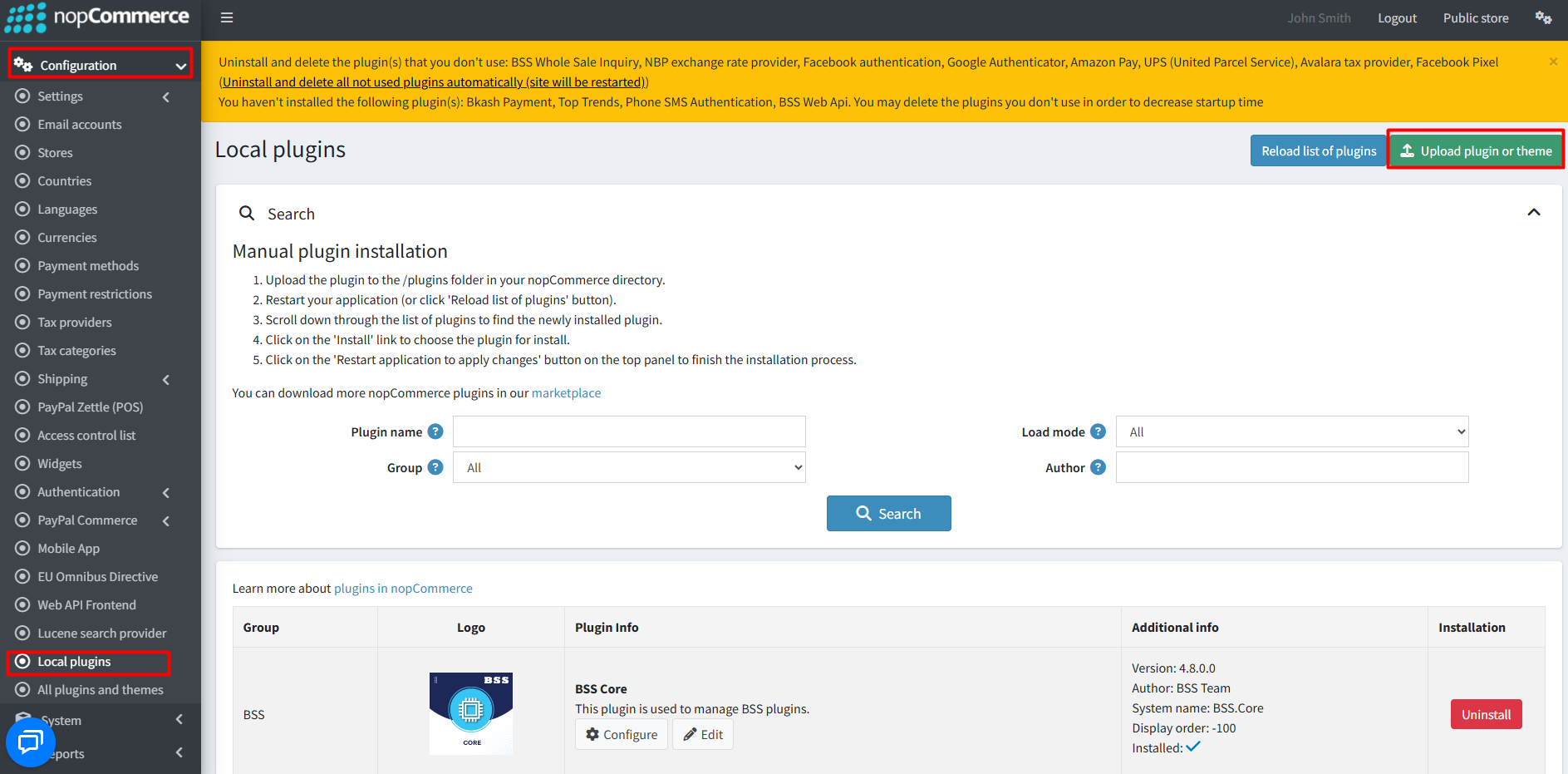
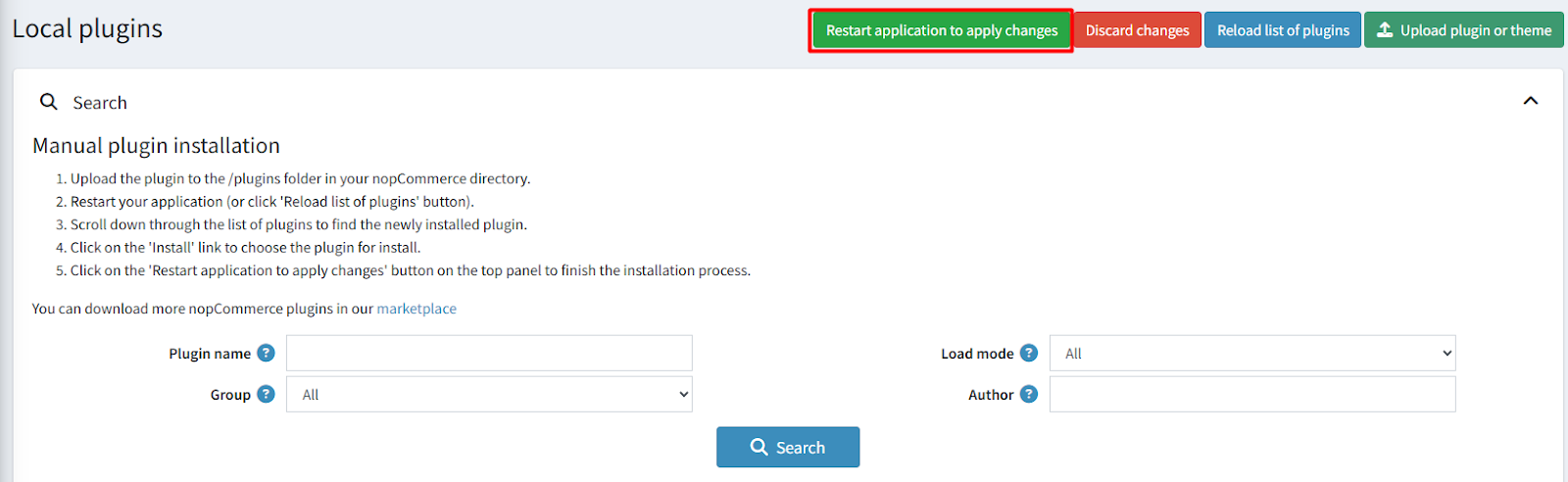
- Go to Administration → Configuration → Local plugins
- Within the bundle, you get all the required files, including BSS.Core
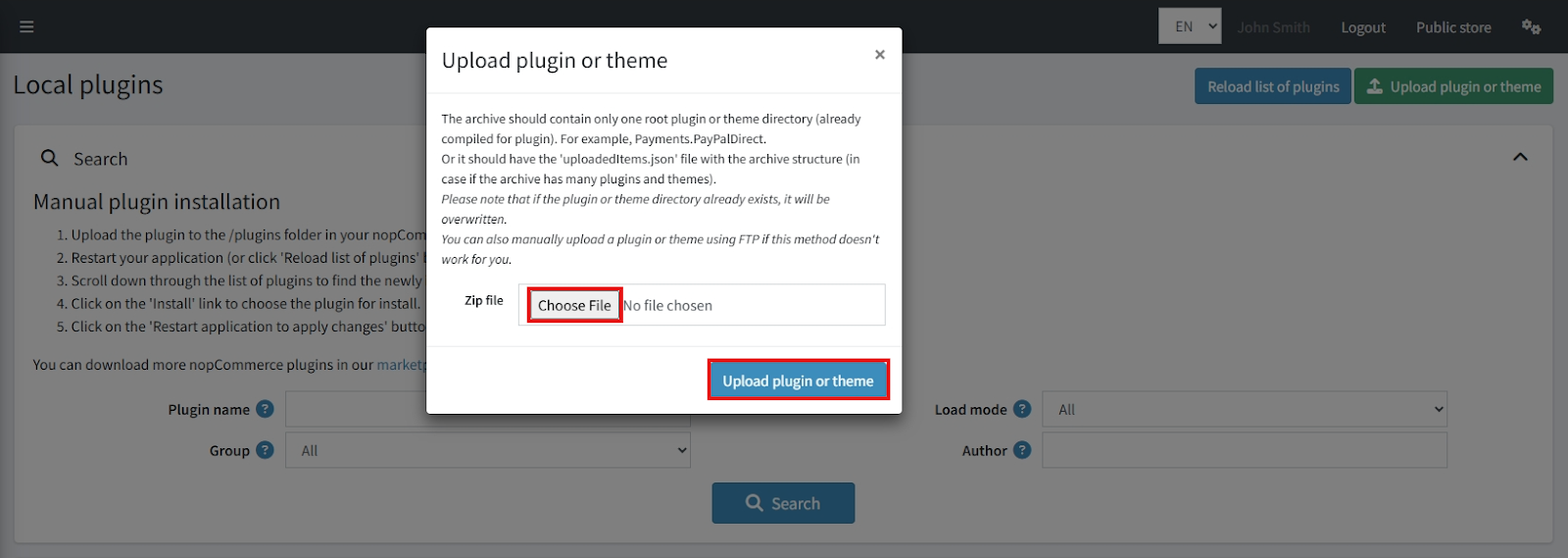
- Upload the zip files using the ‘Upload plugin or theme’ button
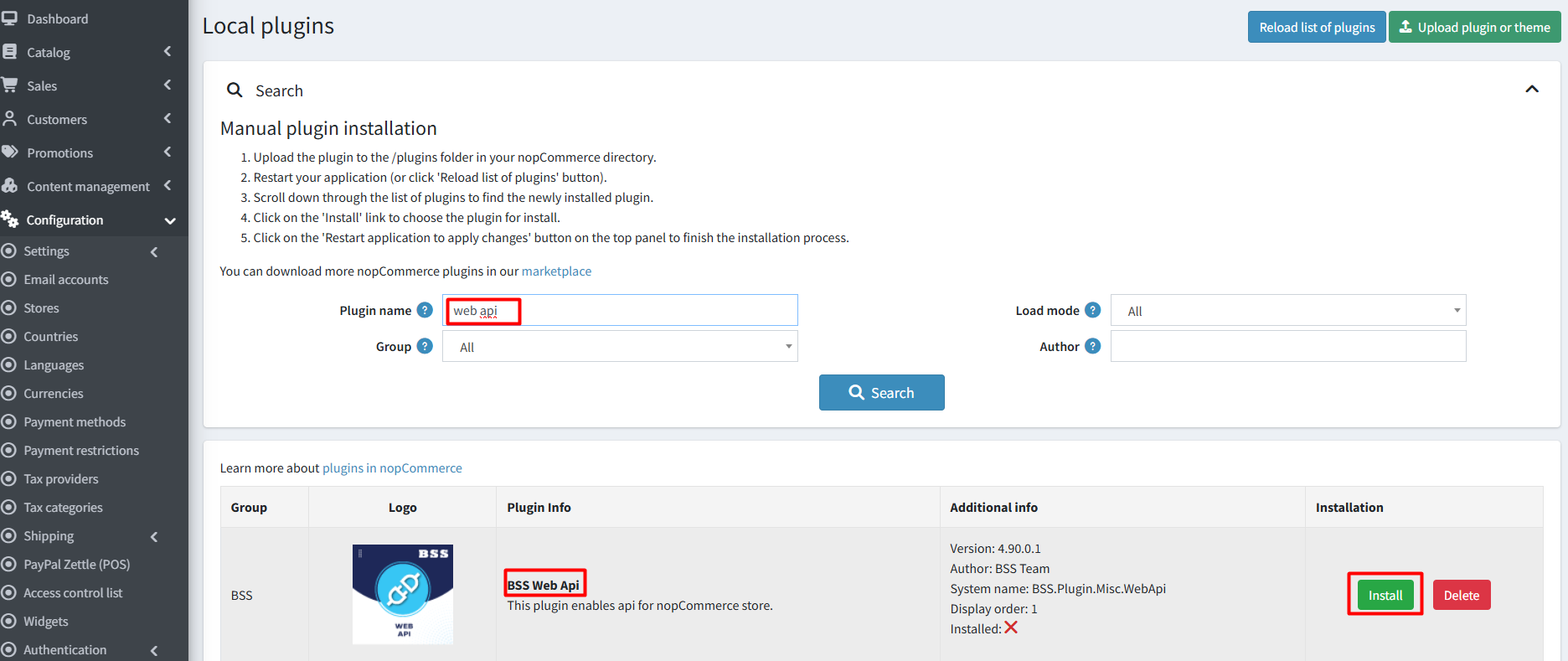
- Reload the plugin list and install ‘BSS Core’ first, then install ‘BSS WebApi’
- Restart the application to activate the plugins
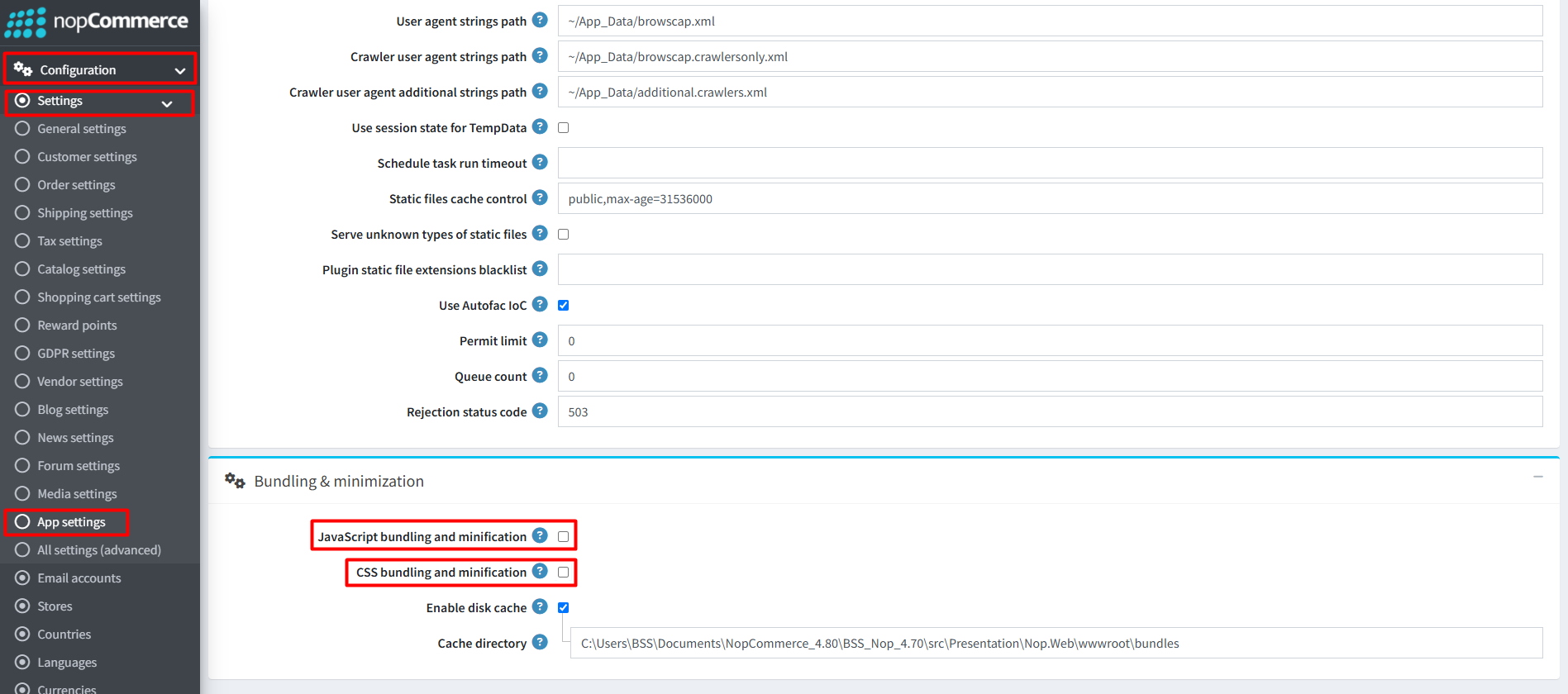
Recommendation: Go to > App Settings. If you find JavaScript bundling and minification, CSS bundling and minification are checked, then uncheck these two options and disable them.
CONFIGURATION
- Go to Admin → BSS → Plugins → WebApi → Configuration
- Enter the License string and click Save. Then clear cache.

- Revisit the Configuration page to adjust settings
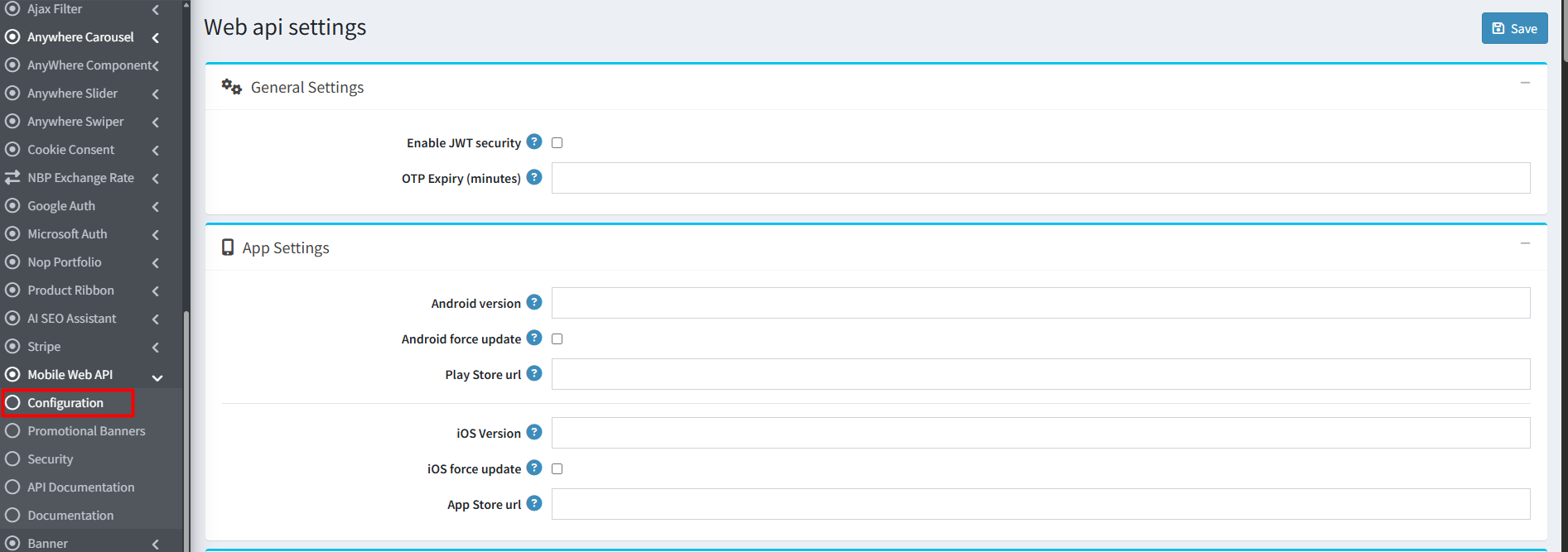
General Settings
- Enable JWT Security: Activates JWT authentication and requires an ‘NST’ header for API requests
- OTP Expiry (minutes): Define how long a One-Time Password remains valid
App Settings
- Android Version: Set current Android app version
- Android Force Update: Require users to update outdated versions
- Play Store URL: Provide Google Play Store link
- iOS Version: Set current iOS app version
- iOS Force Update: Enforce updates for outdated versions
- App Store URL: Provide Apple App Store link
Light Theme Settings
- Theme Name
- Upload Logo for Light Theme
- Primary & On Primary Colors
- Primary Container
- Secondary & On Secondary Colors
- Error & On Error Colors
- Background & On Background Colors
- Surface & On Surface Colors
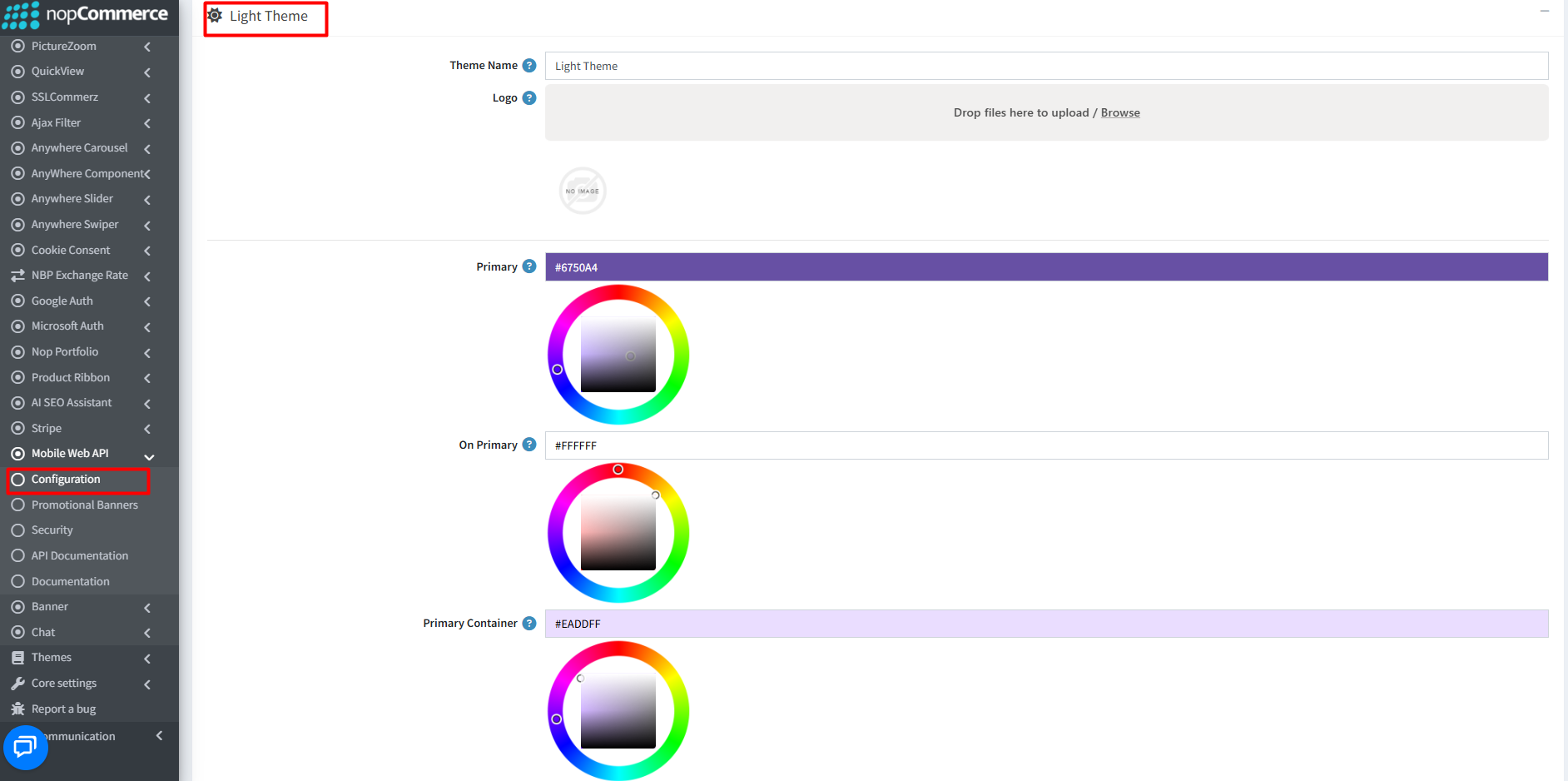
You can follow similar steps to configure the Dark Theme.
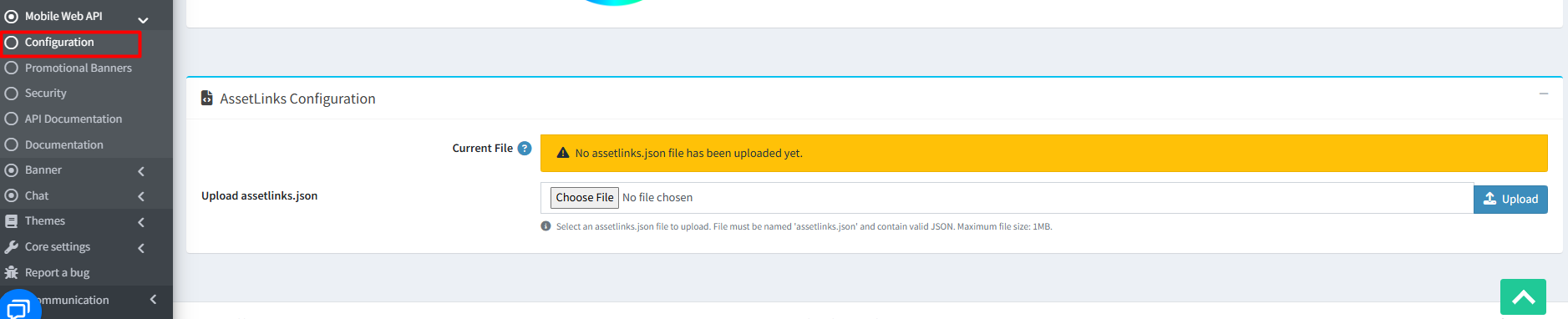
- AssetLinks Configuration: Upload a valid assetlinks.json file (max 1MB) to verify Android app association with your domain
CREATE / EDIT BANNER
- Go to Admin → BSS → Plugins → Mobile Web API → Promotional Banners
- Click Add new to create a banner
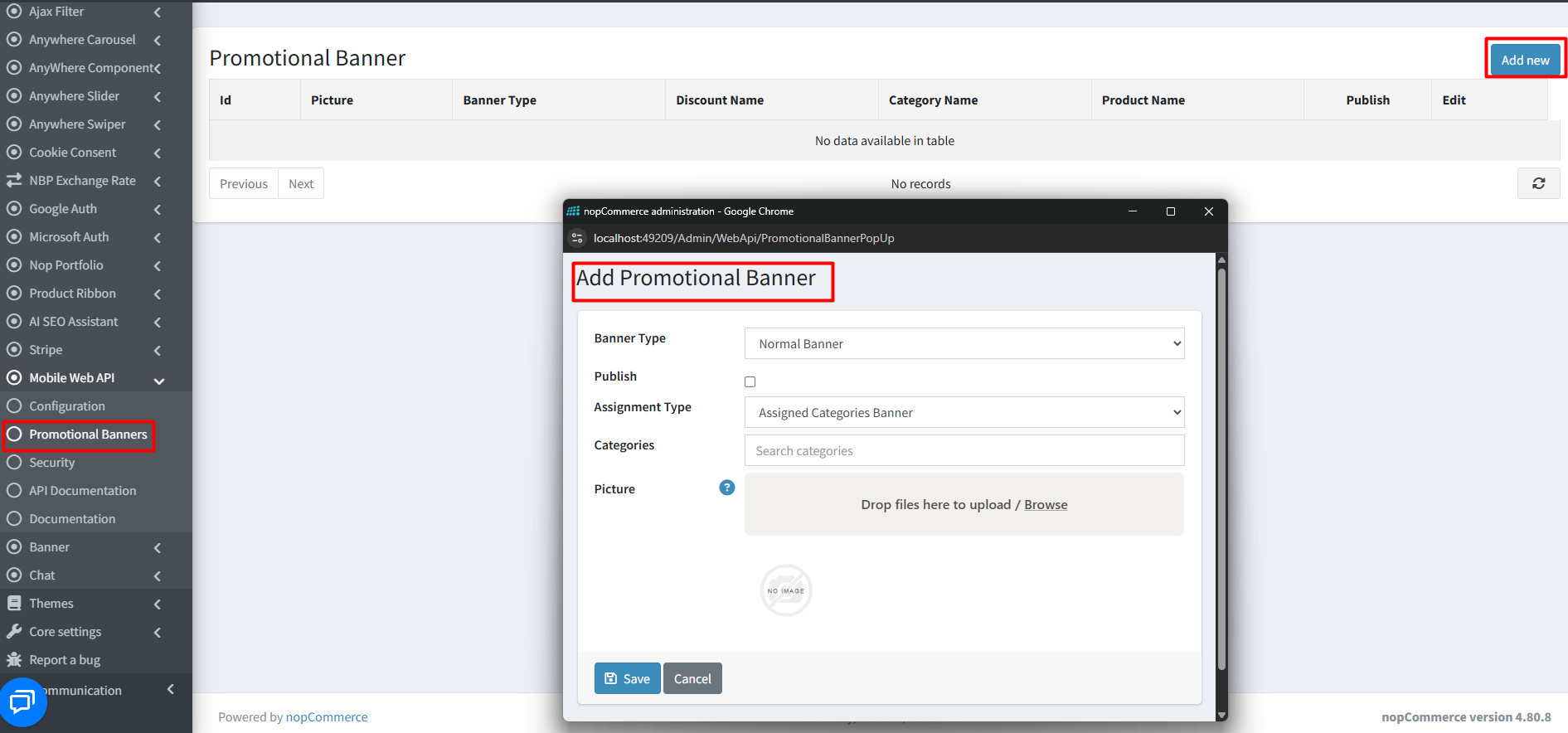
- Banner Type: Select from dropdown
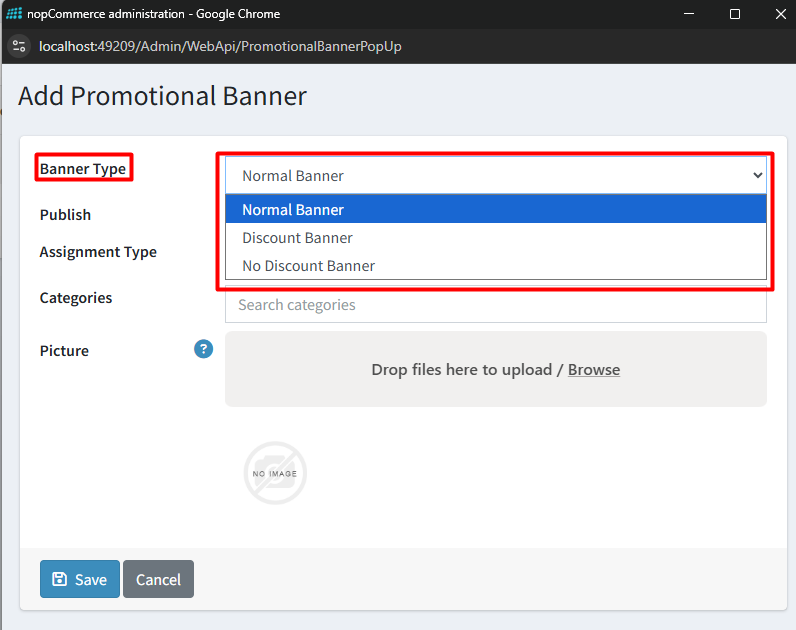
- Publish: Make banner visible in public store
- Assignment Type: Assign to Categories or Products
- Categories / Products: Select based on assignment type
- Picture: Upload multiple images (auto-resize supported)
- Click Save to publish
- Edit or delete banners anytime from the list
SECURITY SETTINGS
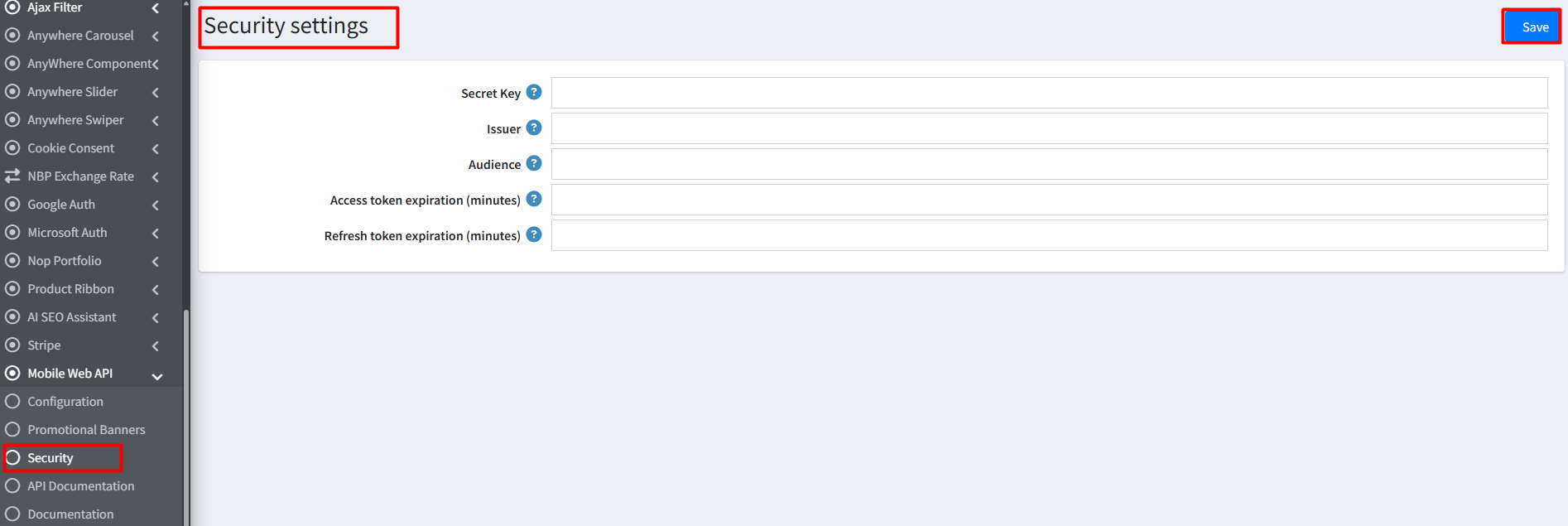
- Secret Key: Enter a unique 32+ character UTF-8 encoded key
- Issuer: Enter your Store URL
- Audience: Specify authorized client URLs
- Access Token Expiration: Define validity duration (minutes)
- Refresh Token Expiration: Define refresh token duration
- Click Save to apply security settings
API DOCUMENTATION
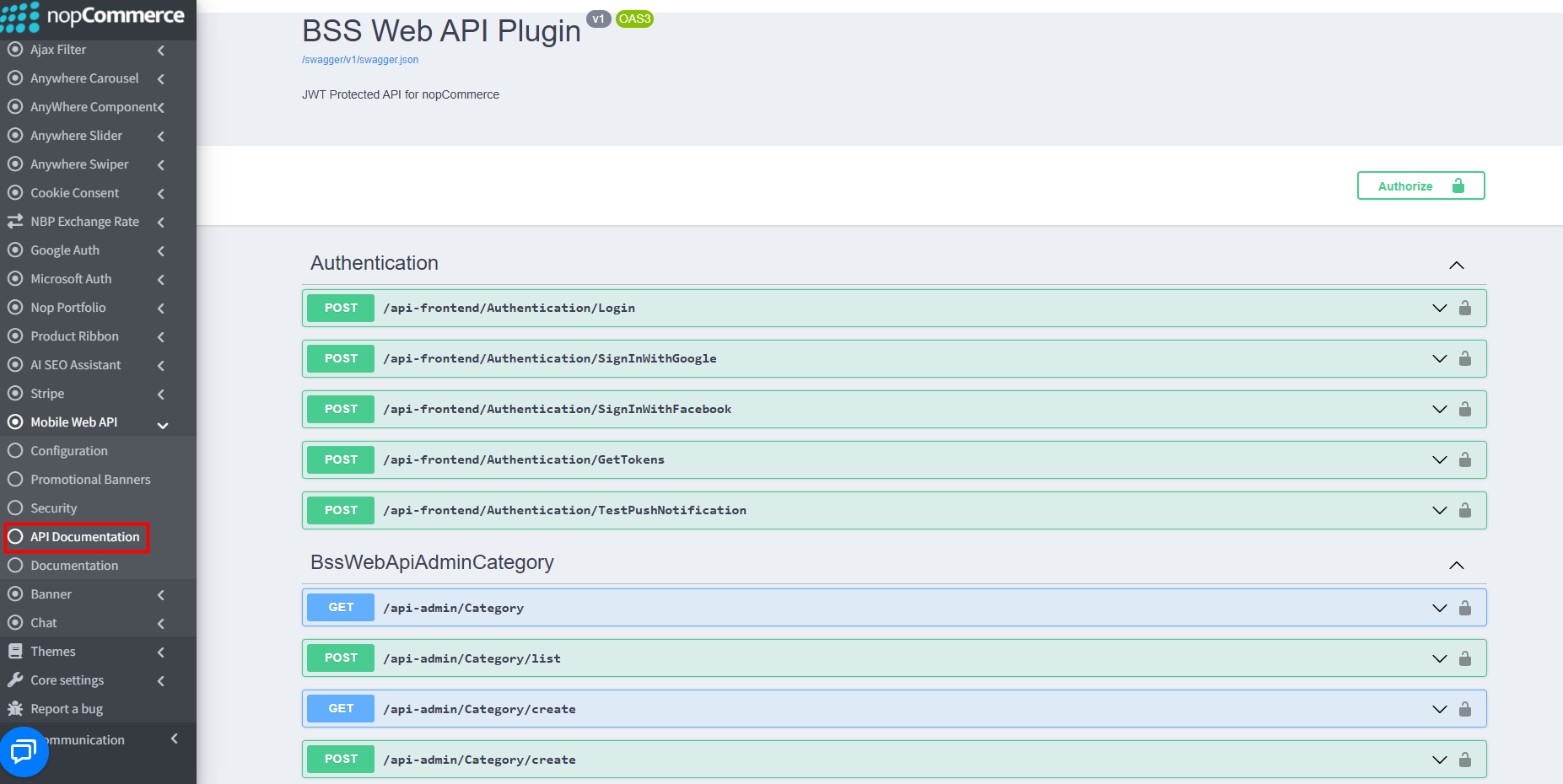
Interactive API Explorer (Swagger)
- Explore and test endpoints via integrated Swagger UI
- Navigate: Admin → Mobile Web API → API Documentation
- Raw documentation endpoint: {your_store_url}/swagger/v1/swagger.json
Authentication & Security
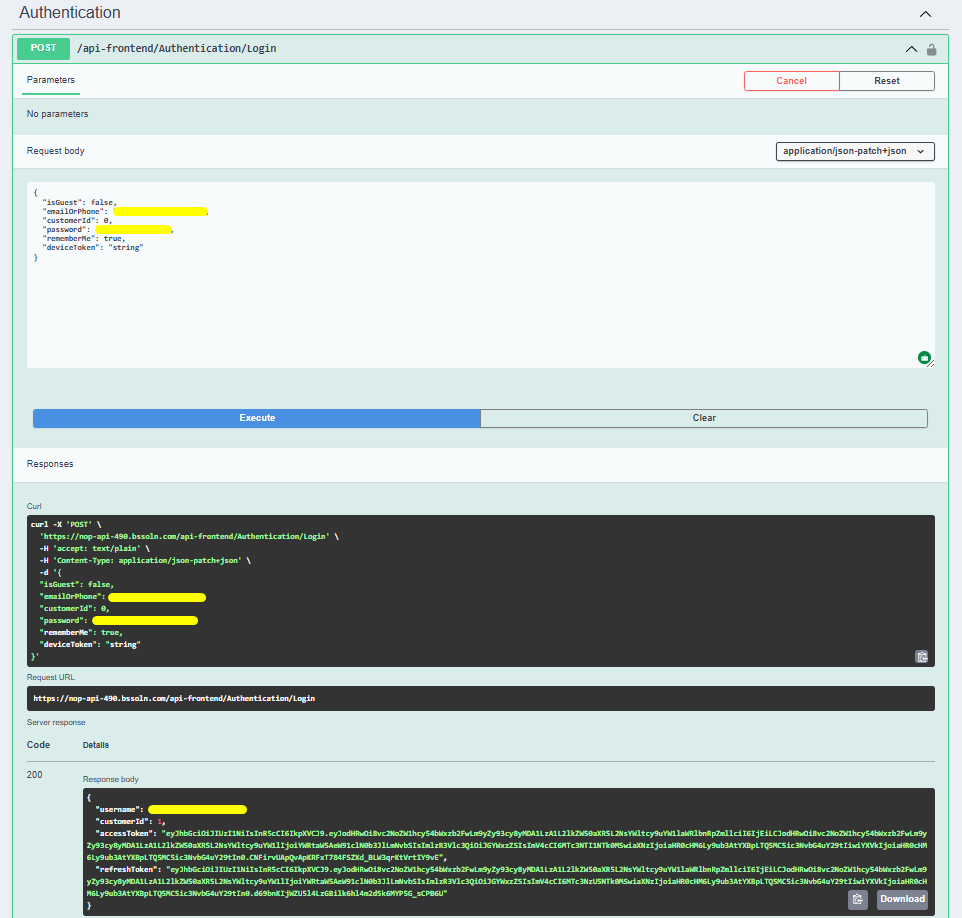
- Use Authentication endpoints (e.g., /Login or /GetTokens) to generate JWT tokens
- Ensure Secret Key, Issuer, and Audience are properly configured
 Postman Integration
- Download BSS API Postman Collection
- Import collection into Postman
- Select your environment (e.g, ‘BSS_API’)
- Update BaseURL variable to your store URL
You can download our demo app from the Google Play Store.
Documentation Menu
NopFashion Theme + 15 Plugin Bundle for NopCommerce
NopBeauty Theme + 12 Plugin Bundle for NopCommerce
NopNoor Theme + 16 Plugin Bundle for NopCommerce
NopGadget Theme + 18 Plugin Bundle for NopCommerce
NopEthnic Theme + 17 Plugin Bundle for NopCommerce
NopFurniture Theme + 19 Plugin Bundle for NopCommerce
NopPharma Theme + 16 Plugin Bundle for NopCommerce
NopVogue Theme + 17 Plugin Bundle for NopCommerce
NopGadence Theme + 18 Plugin Bundle for NopCommerce