NopFashion Theme + 15 Plugin Bundle for NopCommerce
NopBeauty Theme + 12 Plugin Bundle for NopCommerce
NopNoor Theme + 16 Plugin Bundle for NopCommerce
NopGadget Theme + 18 Plugin Bundle for NopCommerce
NopEthnic Theme + 17 Plugin Bundle for NopCommerce
NopFurniture Theme + 19 Plugin Bundle for NopCommerce
NopPharma Theme + 16 Plugin Bundle for NopCommerce
NopVogue Theme + 17 Plugin Bundle for NopCommerce
NopGadence Theme + 18 Plugin Bundle for NopCommerce
VoltFitness Theme + 18 Plugin Bundle for NopCommerce
NopMegastore Theme + 18 Plugin Bundle for NopCommerce
NopEthnic Theme + 17 Plugin Bundle for NopCommerce
Created on: Aug 03, 2026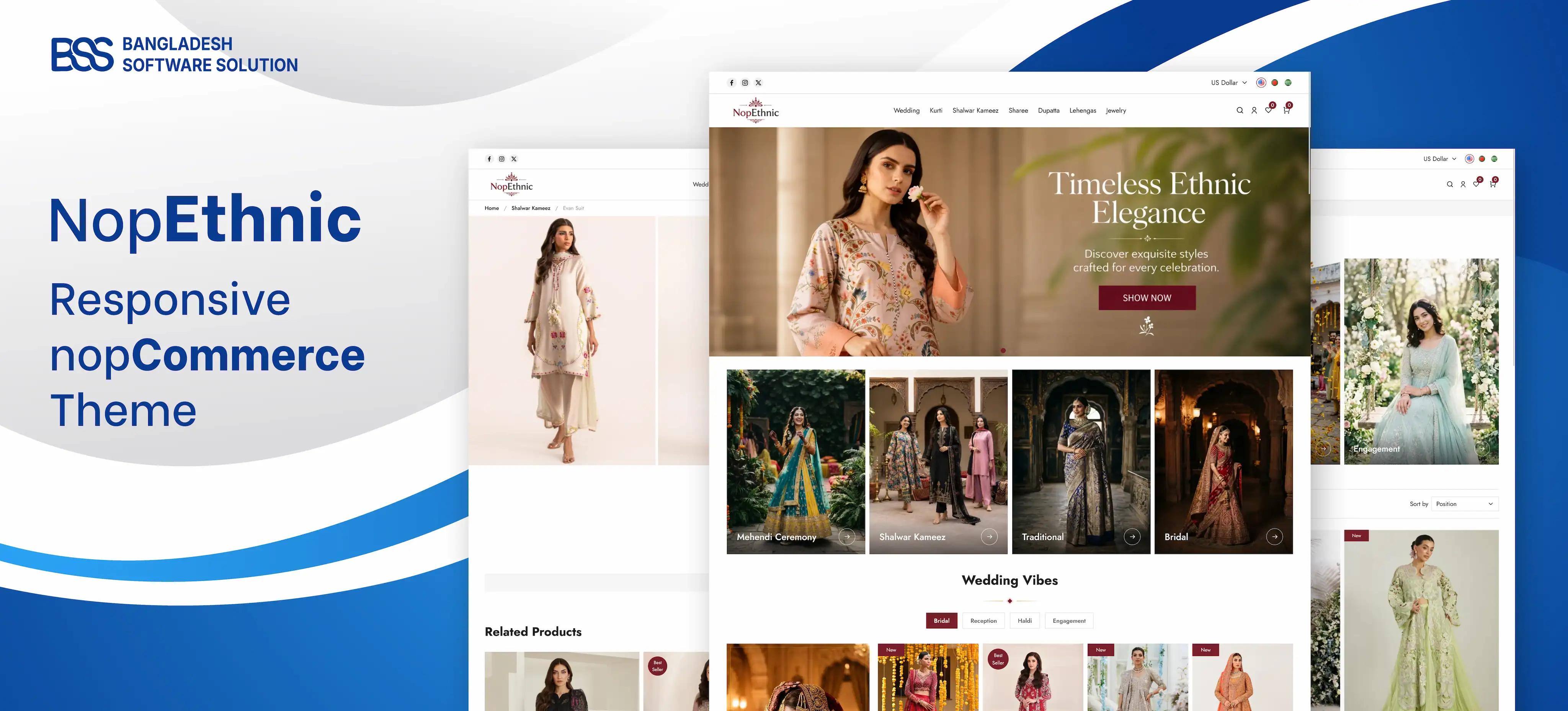
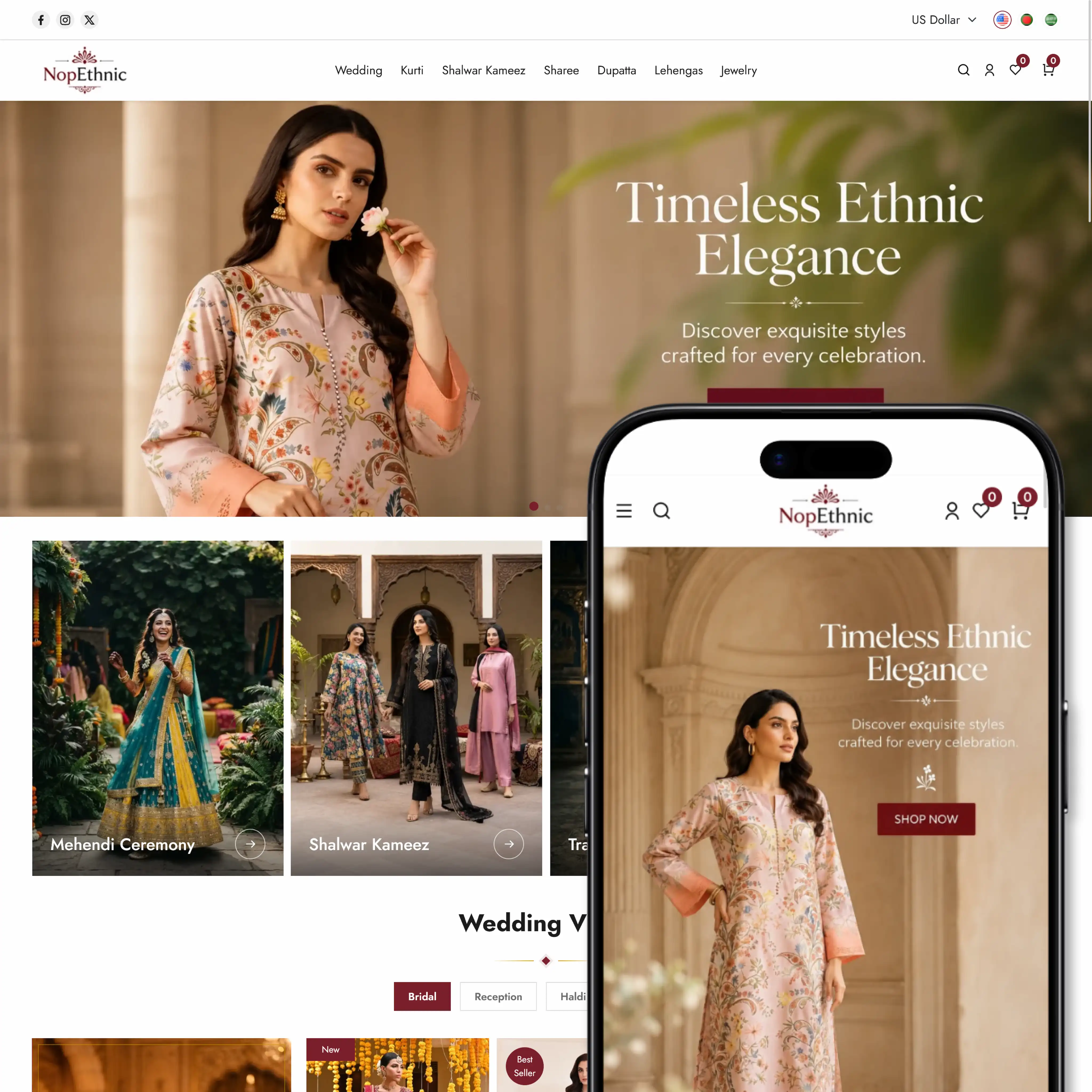
Welcome to the NopEthnic documentation. This guide will help you install, configure, and customize the theme to build a professional ethnic fashion or boutique eCommerce store with nopCommerce. Along with a modern, responsive design, NopEthnic includes 17 integrated plugins that extend your store with powerful customization, shopping, payment, shipping, and SEO capabilities. Throughout this documentation, you'll find step-by-step instructions for setting up the theme, configuring its features, and making the most of the bundled plugins to create a fast, engaging, and fully customized storefront.
PRE-REQUISITES
- The theme requires installation of the BSS Core plugin first.
INSTALLATION
- Go to the Order Details Page and Download NopNoor theme
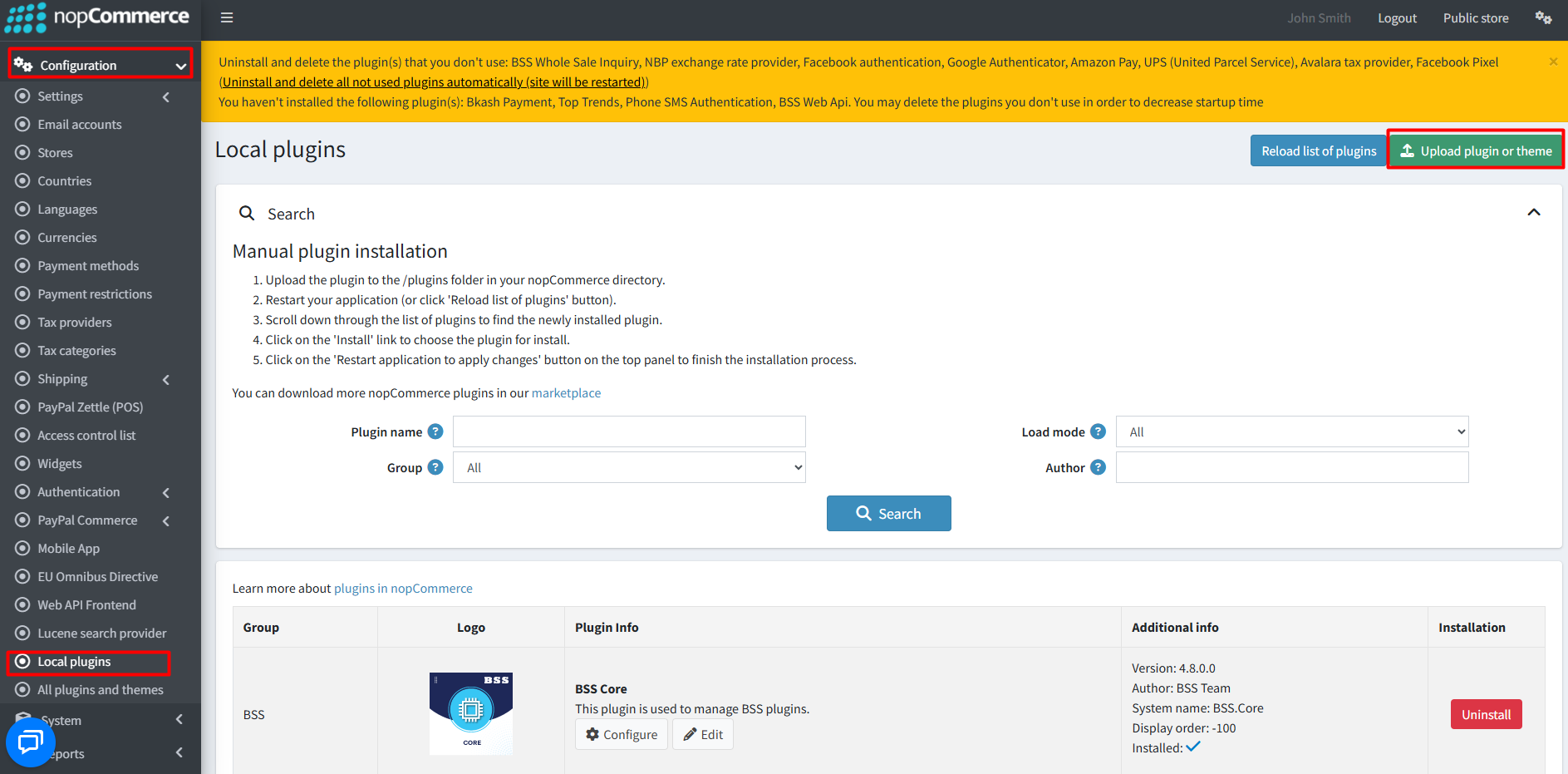
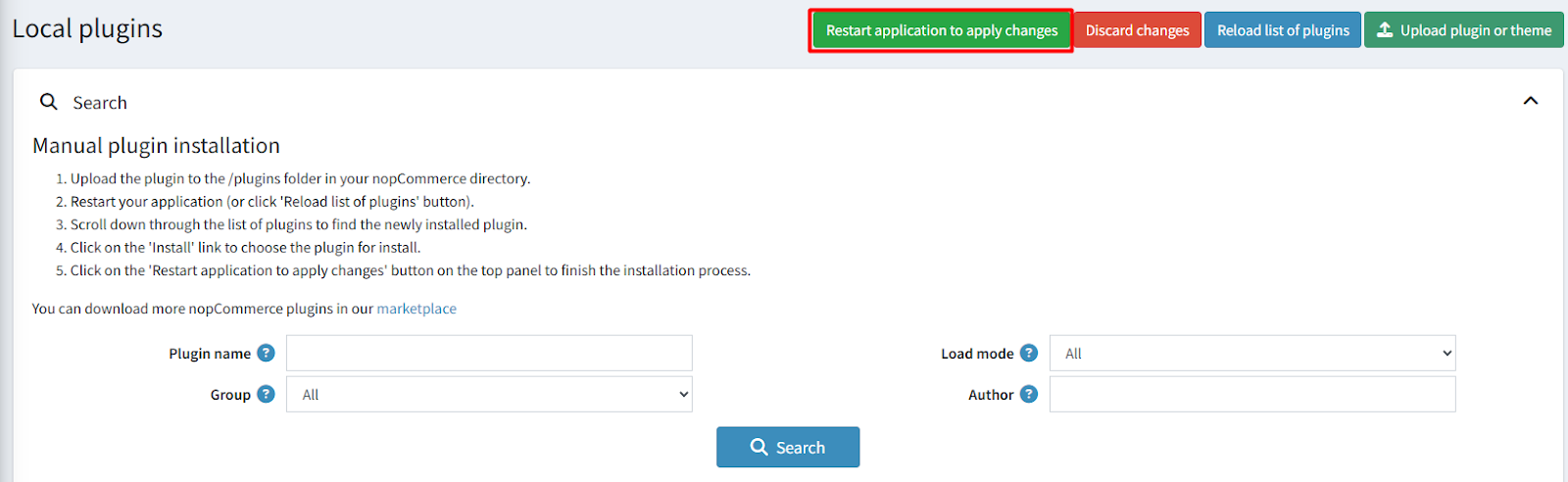
- Go to Administration → Configuration → Local plugins
- Within the bundle, you get all the required files, including BSS.Core
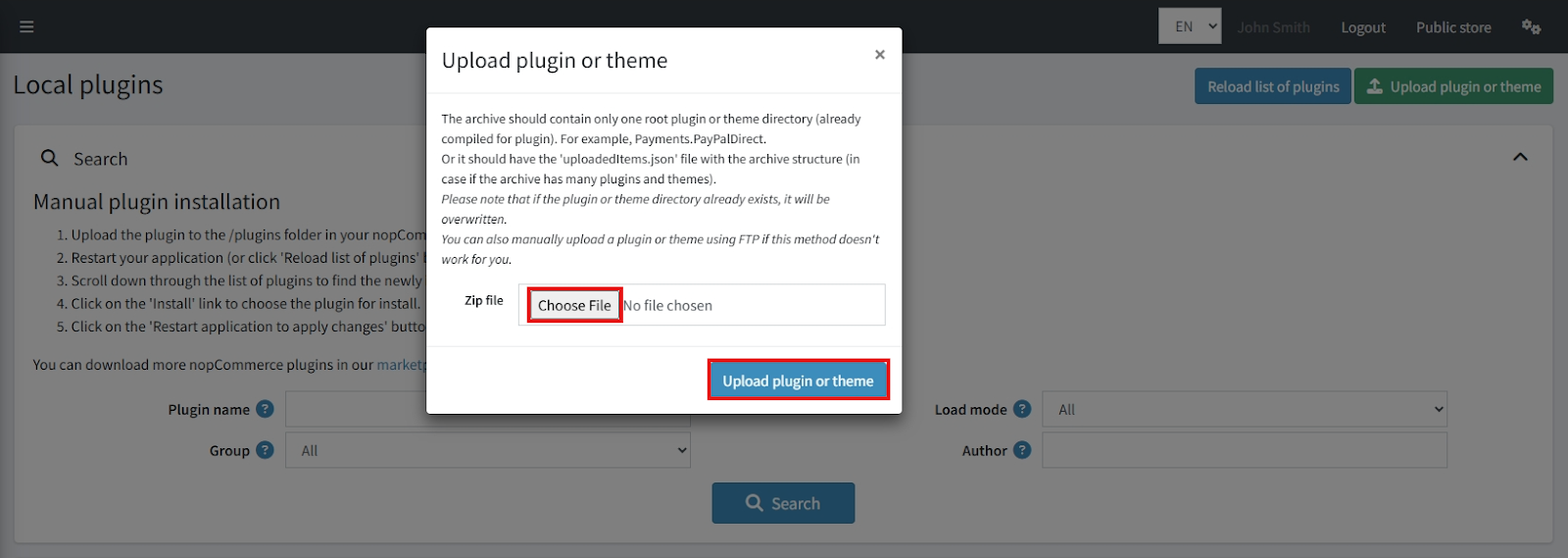
- Upload the zip files using the 'Upload plugin or theme' button
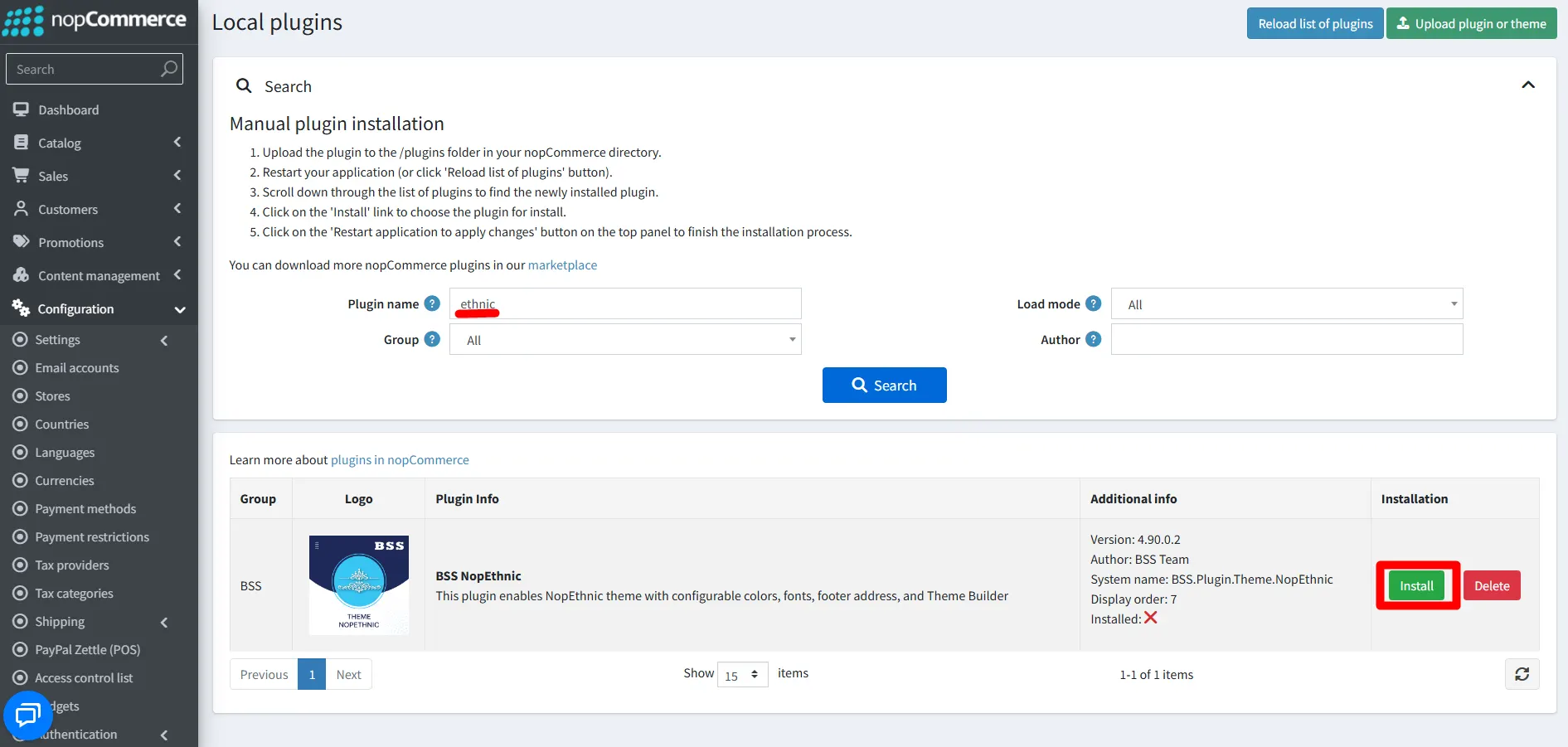
- After uploading, install the ‘BSS Core’ Plugin and ‘NopEthnic Theme’.
- To make the theme functional, restart the application.
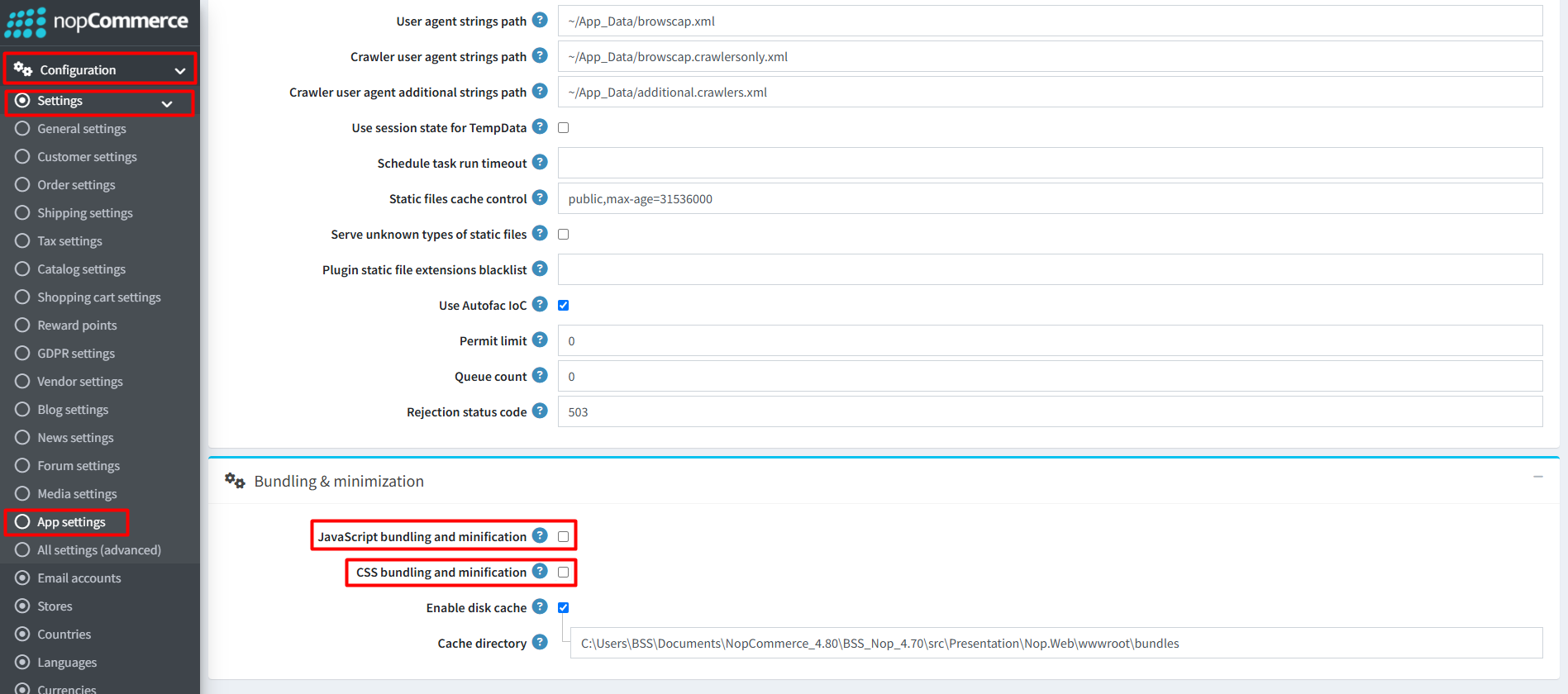
Recommendation: Go to > App Settings. If you find JavaScript bundling and minification, CSS bundling and minification are checked, then uncheck these two options and disable them.
ENABLE THE THEME
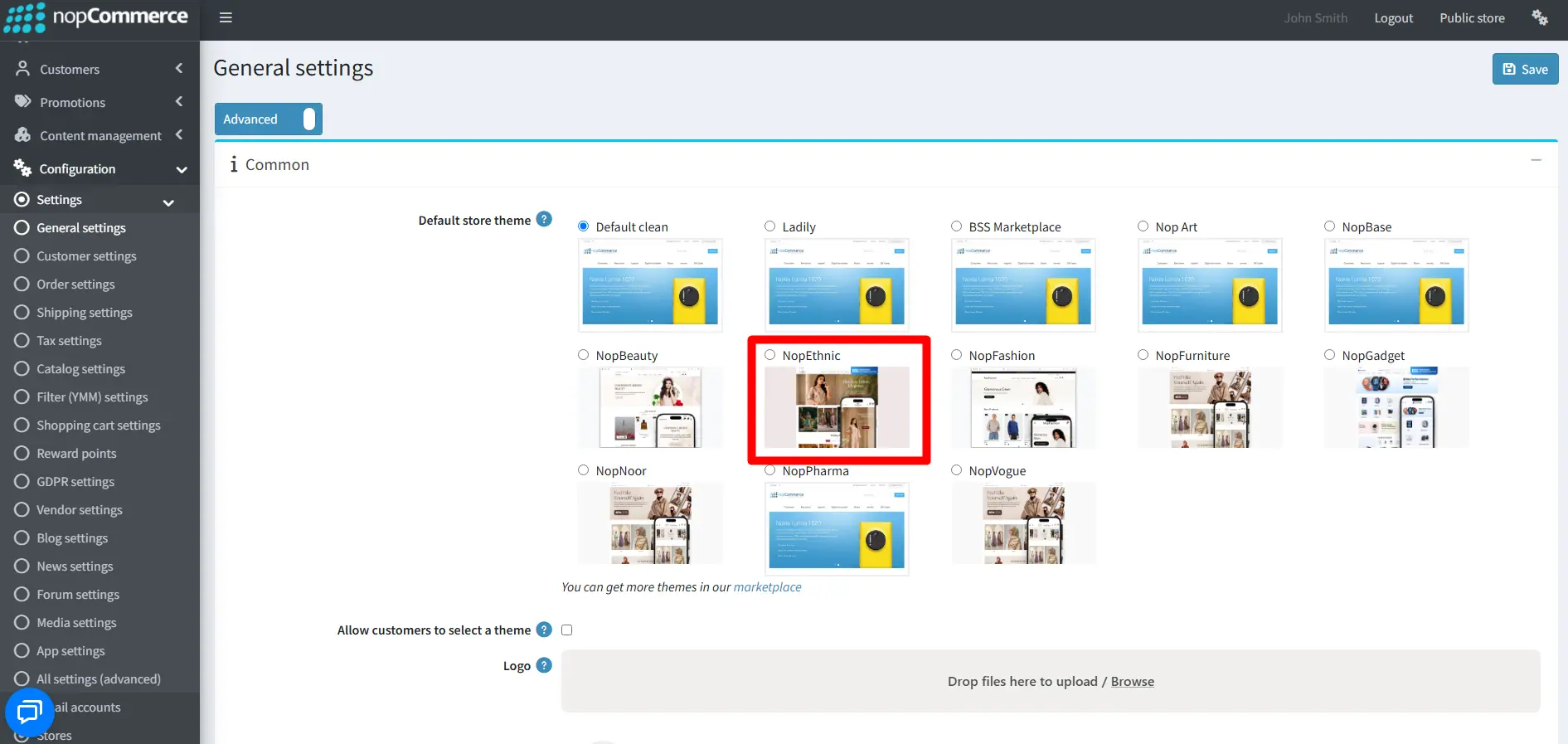
- Go to Configuration → Settings → General settings in the admin panel.
- Choose NopEthnic as the Default store theme and save it.
ENABLE OTHER ASSOCIATED PLUGINS
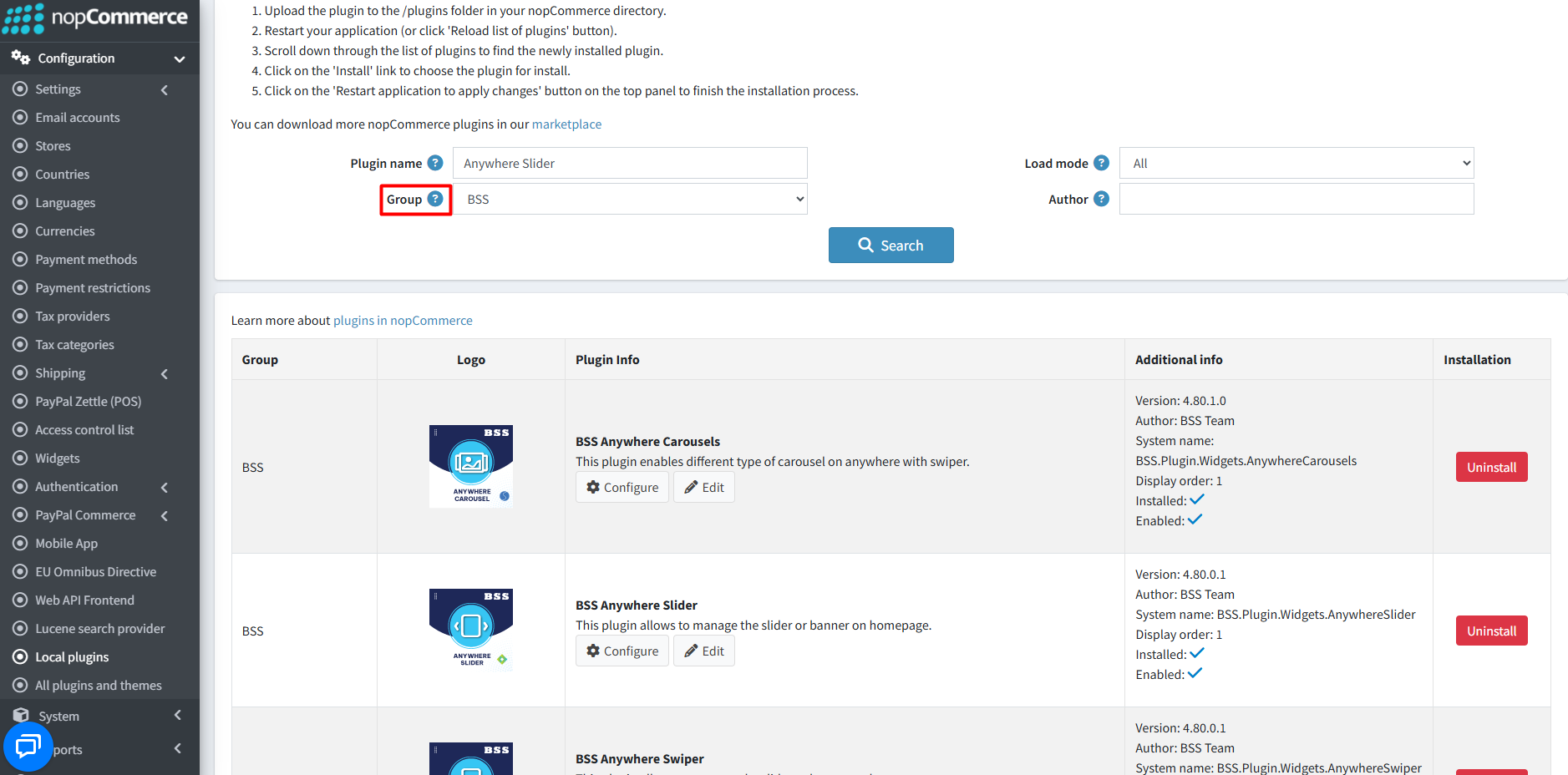
- Go to Administration → Configuration → Local plugins.
- Search the plugins associated with NopEthnic theme using the Group Name ‘BSS’.
- To get the expected homepage view, install plugins by using the Group Name or Plugin Name.
LICENSE KEY
- After purchasing, contact BSS to receive the license key via email.
- First-time configuration of the theme or bundled plugins prompts entry of the License string. It can also be entered via BSS → Core settings → License.
- After entering the License string, save it and clear the cache.

CONFIGURATION
- Go to Administration → BSS → Themes → NopEthnic → Configuration to set the theme configuration.
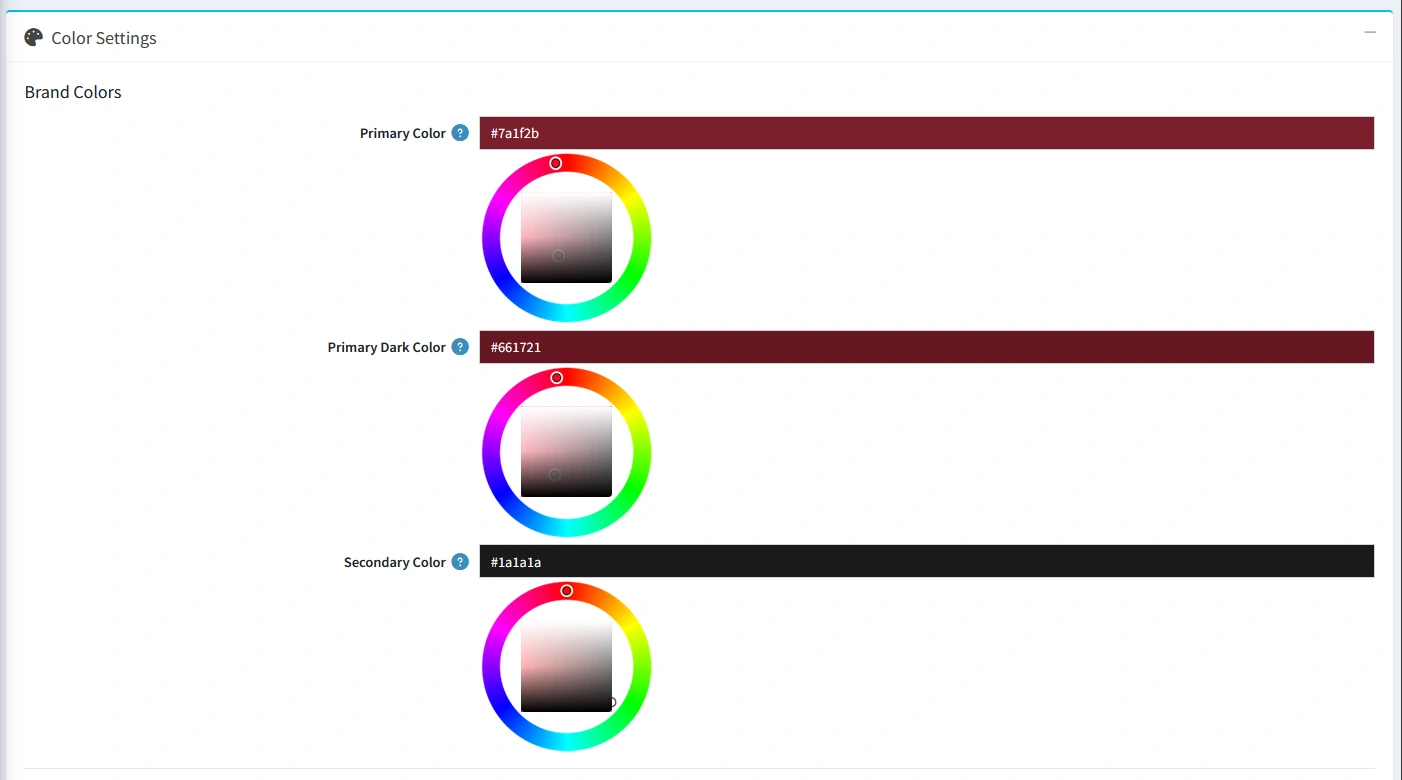
COLOR SETTINGS
- Brand Colors:Set Primary, Primary Dark, and Secondary colors for a consistent brand appearance in your store.
- Background Colors: Set primary and secondary background colors for different sections of your store.
- Text Colors: Configure text colors for default, secondary, and light text elements.
- Button Colors: Customize primary and secondary button background and hover colors.
- UI Colors & Tokens: Control border colors, element corner radius, card rounding, and overlay styling across the theme.
- Status Colors: Set status color for - Success , error and warning.
- Neutral & Gray Scale: Define white, black, and gray shade colors used throughout the theme’s UI and layout elements.
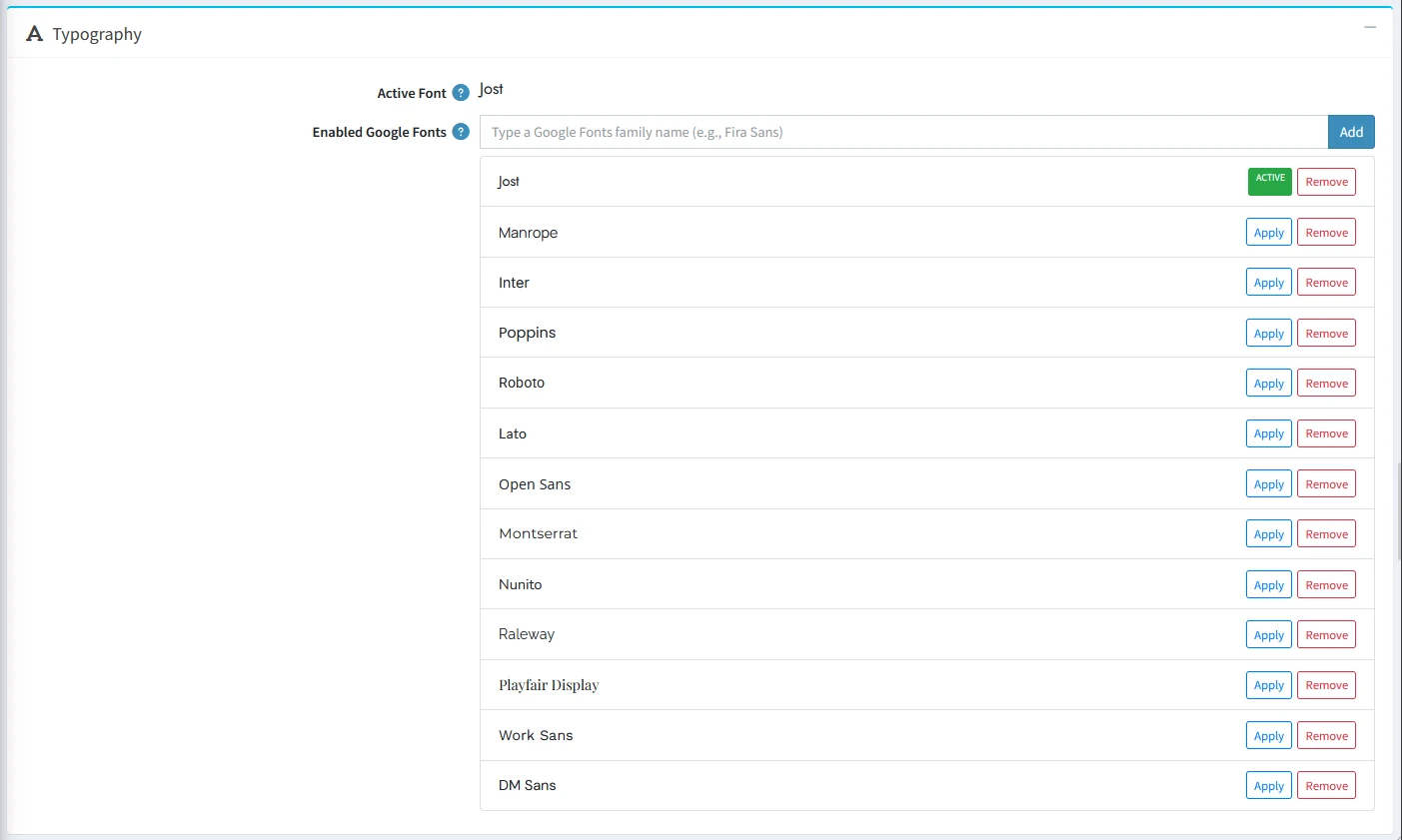
TYPOGRAPHY
- Manage the storefront font settings by selecting an enabled Google Font or adding a custom Google Font family.
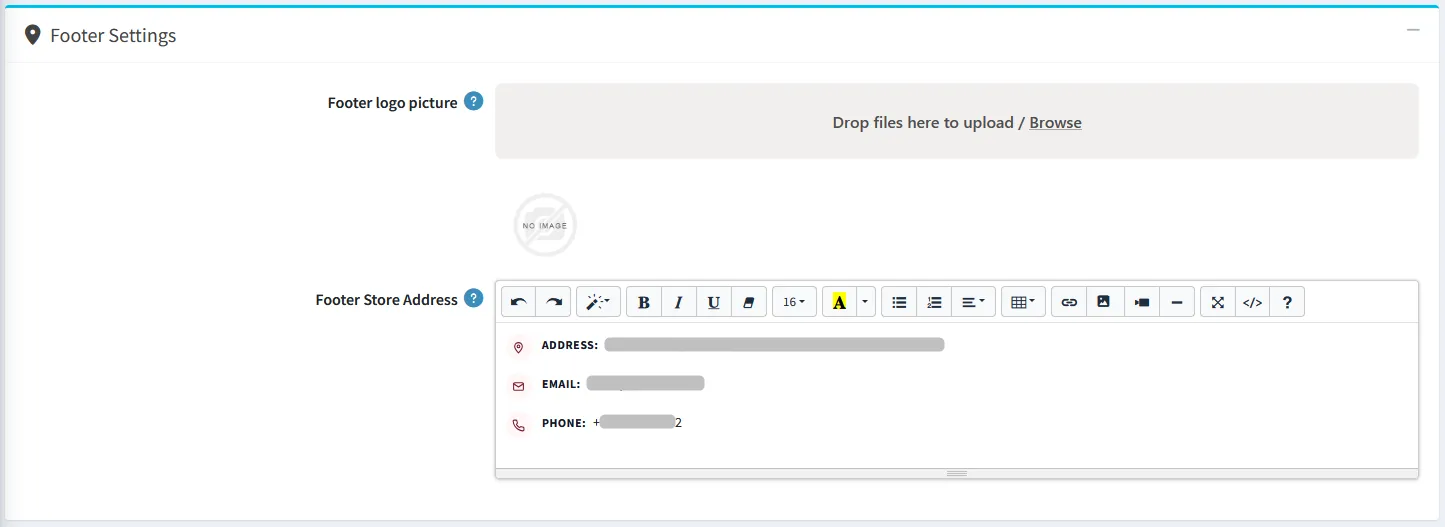
FOOTER SETTINGS
- Upload custom logo for the footer and also can add footer store address and design address style in rich text
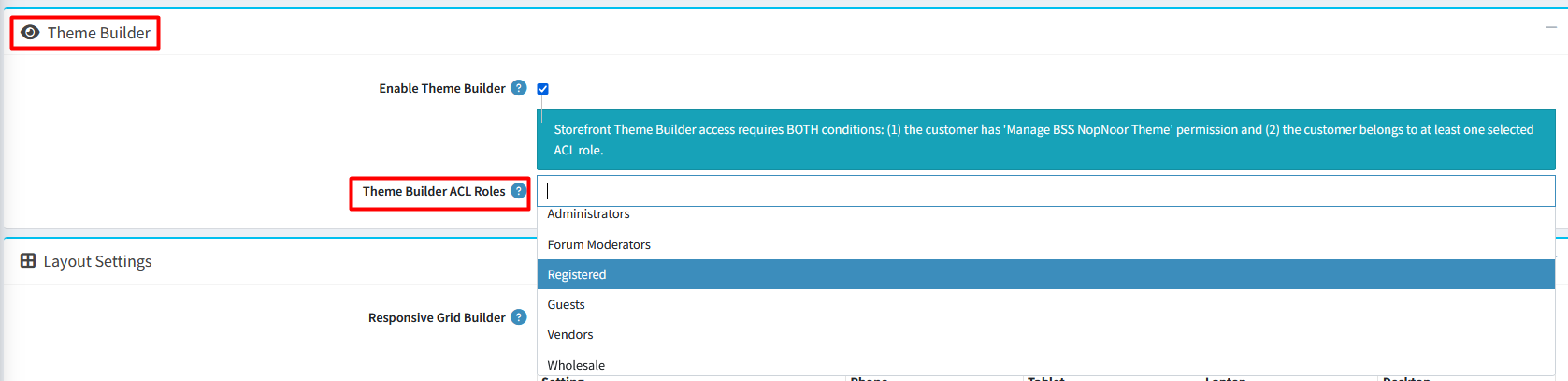
THEME BUILDER
- Enable Theme Builder: Enable the floating Theme Builder panel to customize colors, fonts, and layout settings directly from the storefront.
- Theme Builder ACL Roles: Assign specific customer roles to control who can access and manage the Theme Builder from the storefront.
LAYOUT SETTINGS
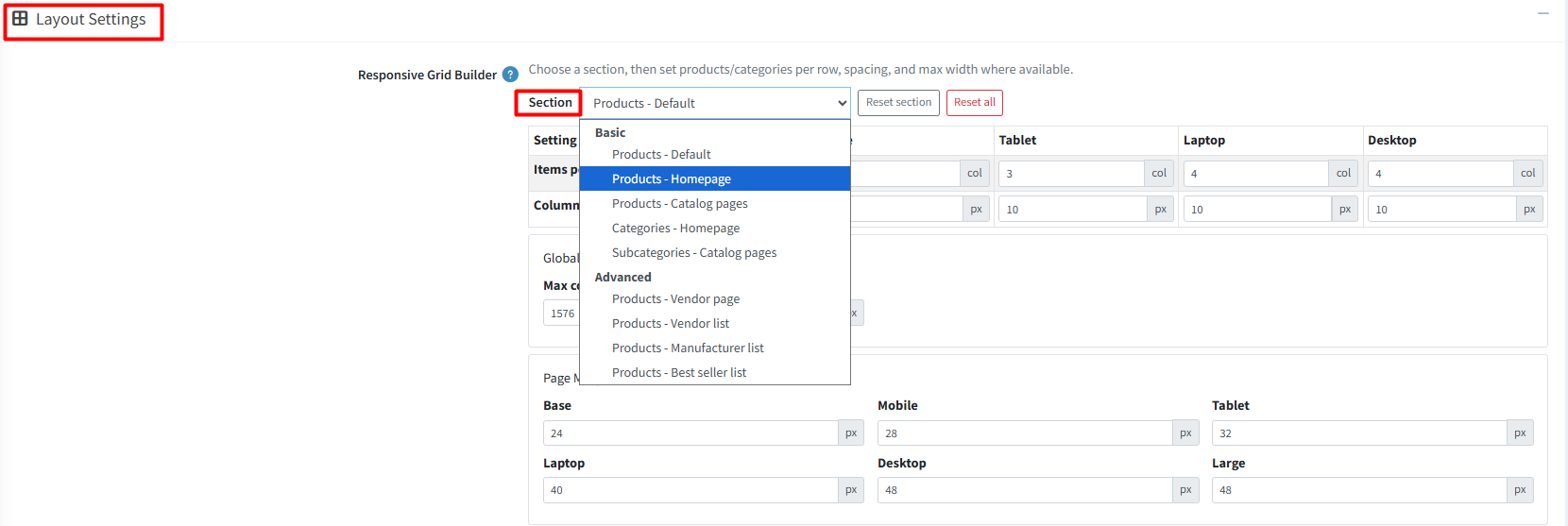
- Targeted Page Specifics: Use the section dropdown to apply unique layouts, margins, and font sizes to individual pages or specific content areas like homepages, catalog lists, and vendor pages.
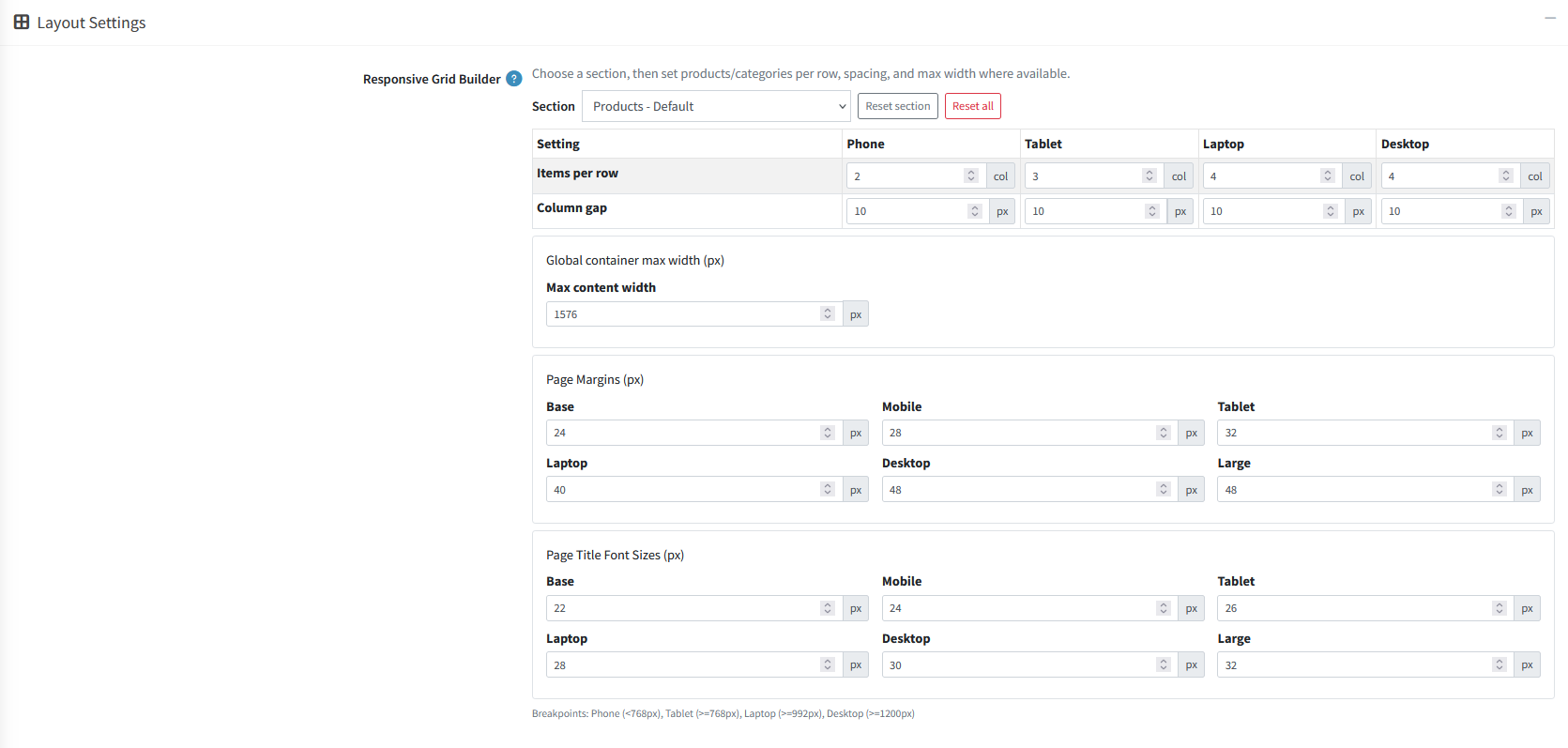
- Customizable Responsive Grids: Configure the number of items per row, spacing, and container widths across various screen sizes (Phone to Desktop), page margin, title size for precise control over your store's visual structure.
Catalog Page Layout
- Catalog filters in offcanvas: Catalog filters are shown in offcanvas style when this option is enabled.
- Infinite loading: When pagination (product per page selector) is hidden and infinite loading option is enabled products keep loading when the user scrolls on the page.
- Enable image lazy-load: Check to enable lazy-loading for product box images.

PRODUCT DETAILS
- After adding to cart: Select option to display a simple success message or automatically open the side flyout cart panel after a product is added to the cart.

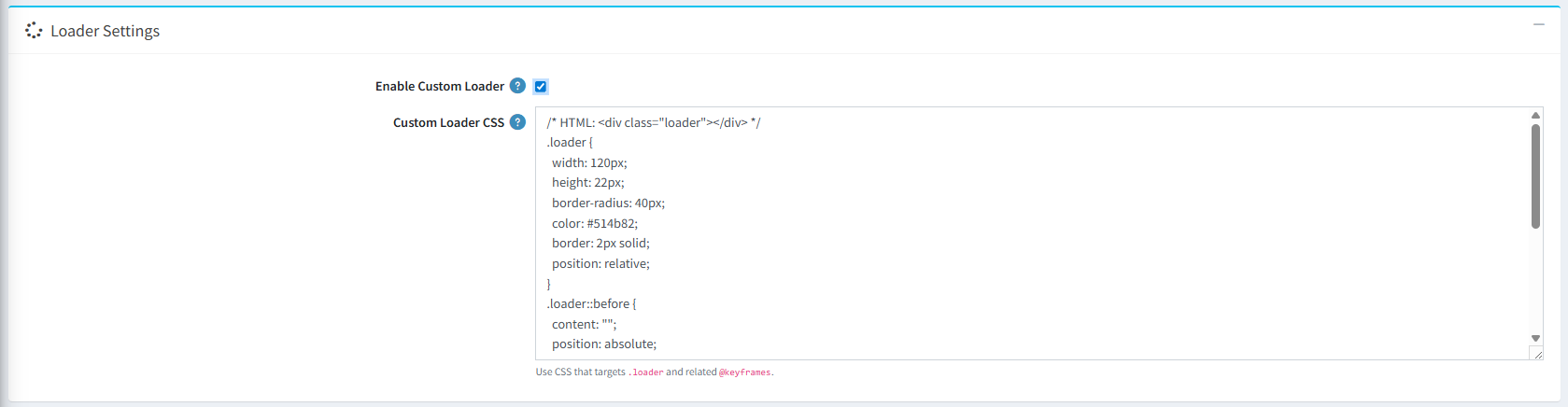
- Loader Settings: Enable loader settings and add your own custom css or use css from any loader site like: css-loaders.com to show customized loader in your site.
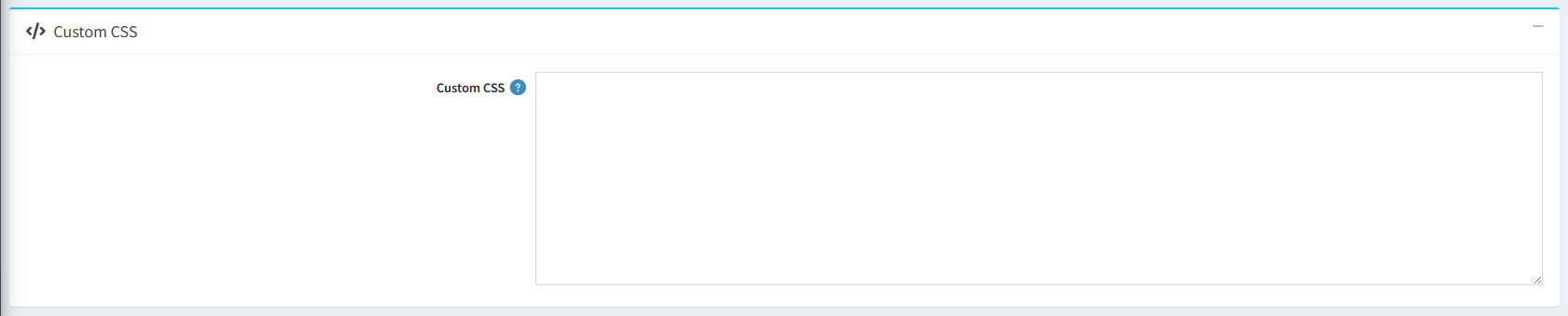
- Custom CSS: You can add custom css to add customize style for your site.
ADDITIONAL PLUGIN CONFIGURATIONS
To give the NopEthnic theme a cleaner and more polished look, we have adjusted the default settings of the plugins below. You can review or change any of these settings to suit your store.
Product Box Configuration
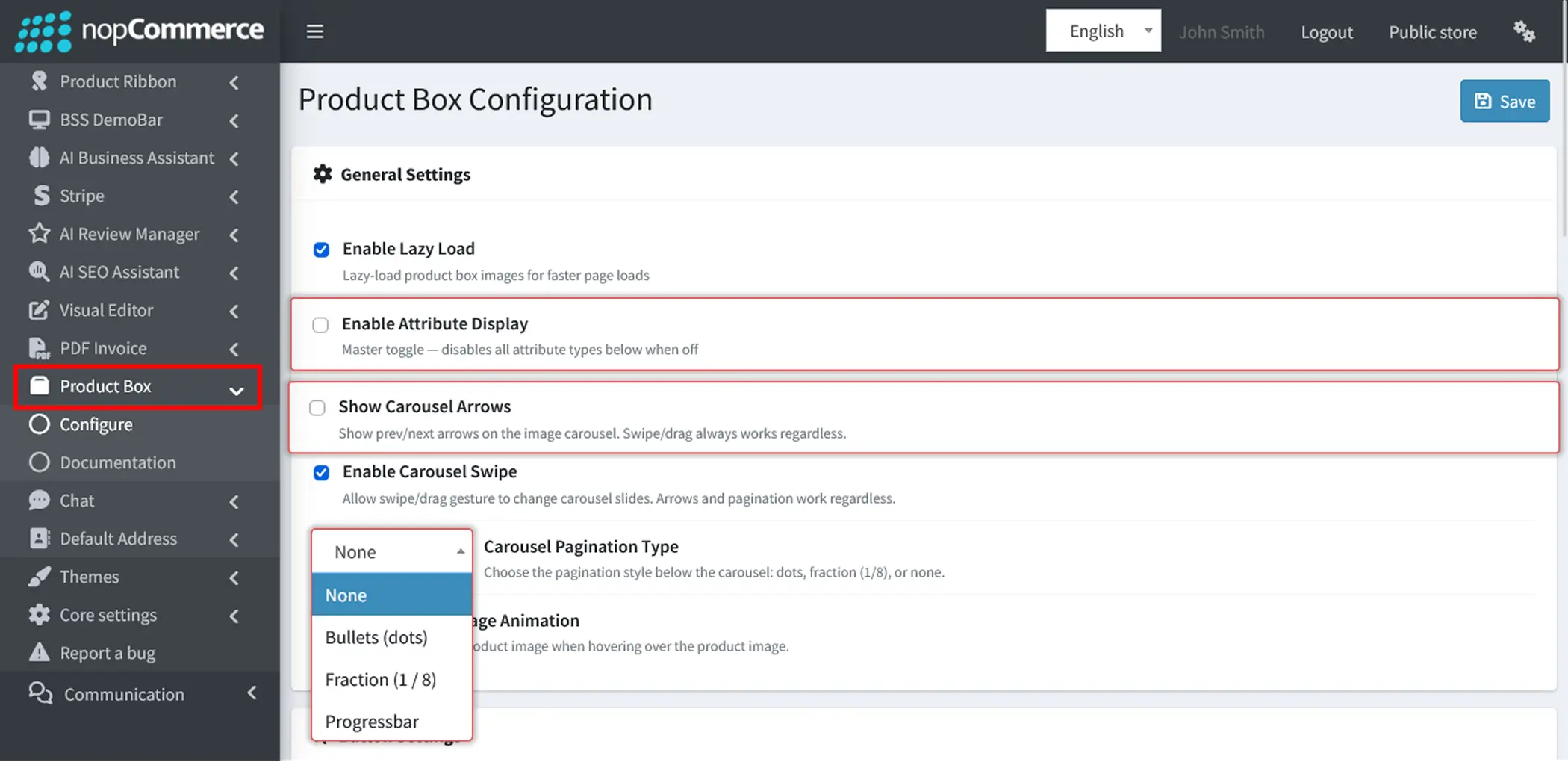
- Go to Administration → BSS → Plugins → Product Box → Configure to manage product box settings.
- Enable Attribute Display: Check this option to show product attributes, such as available colors or sizes, directly on product boxes. Uncheck it to hide all product attributes from product boxes. We have unchecked this option to keep product boxes clean and compact, so you can check it if you want to show attributes on product boxes.
- Show Carousel Arrows: Show previous and next arrows on the product image carousel. We have unchecked this option for a cleaner look, and swipe or drag still works regardless. Check this option if you want to display the arrows on product boxes.
- Carousel Pagination Type: Choose how pagination appears below the product image carousel. We have selected None for this theme, and you can switch to any of the following options:
- None: Hide carousel pagination.
- Bullets (dots): Display dots representing each image.
- Fraction (1 / 8): Show the current image number and total number of images.
- Progressbar: Display a progress bar indicating the current carousel position.
QuickView Configuration
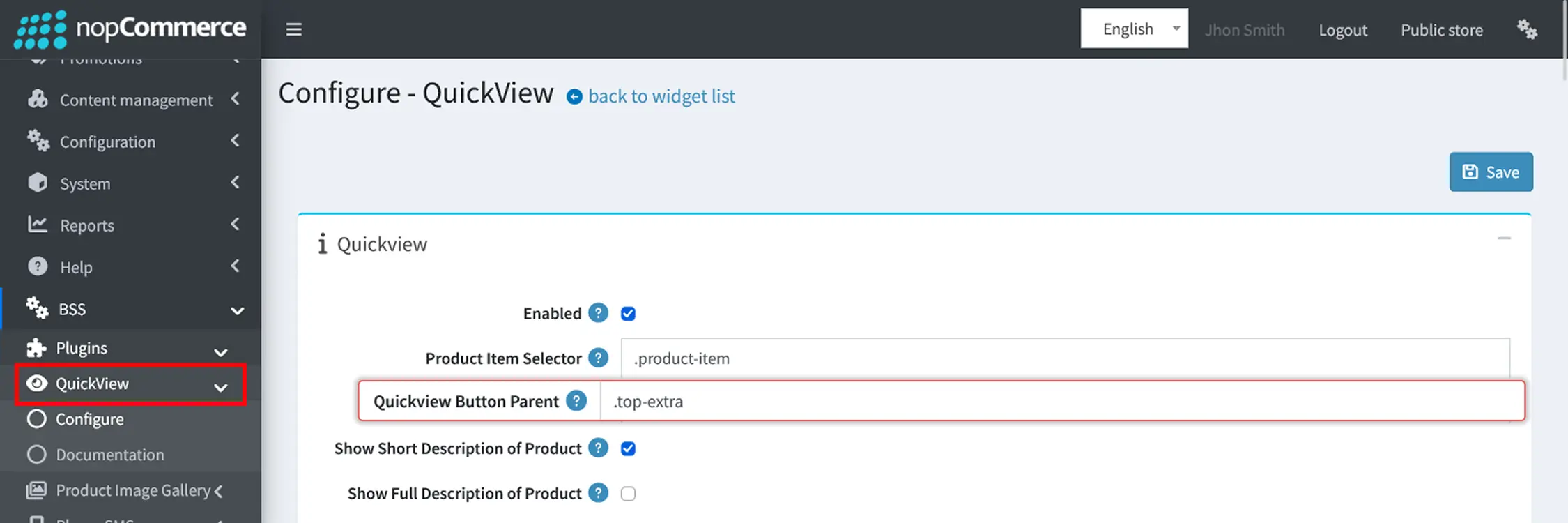
- Go to Administration → BSS → Plugins → QuickView → Configure to manage QuickView settings.
- QuickView Button Parent: Enter .top-extra to place the QuickView button in the product image area. We have entered .top-extra here so the QuickView button appears in the product image area of each product box.
Product Ribbon Configuration
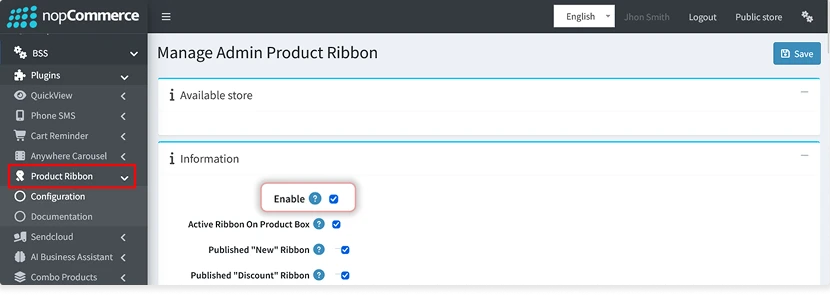
- Go to Administration → BSS → Plugins → Product Ribbon → Configuration to customize product ribbons.
- Enable: Product ribbons are disabled by default. We have enabled them so that labels such as New, Best Seller, Discount, and Out of Stock appear on product boxes. Uncheck this option if you do not want to display ribbons.
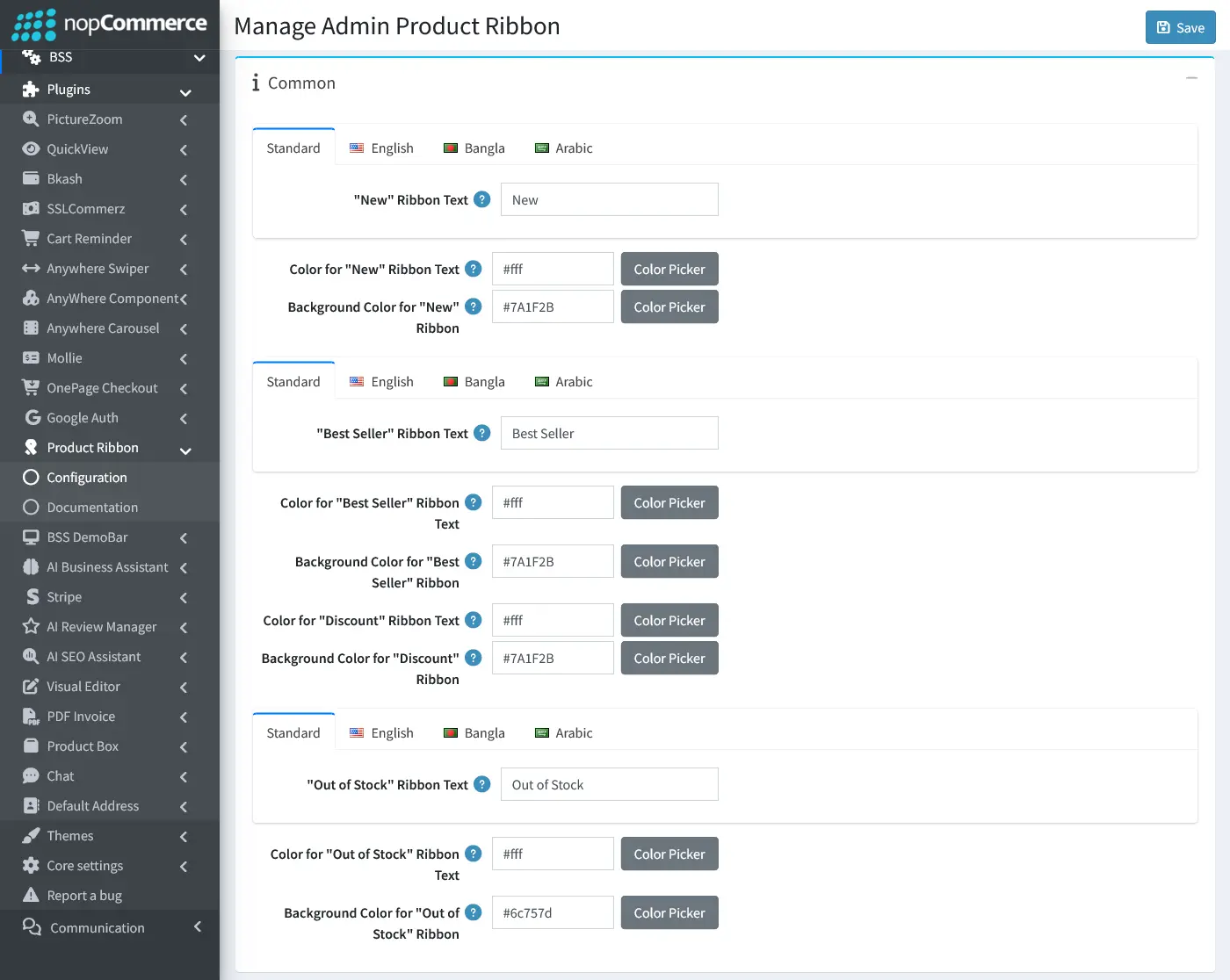
- Ribbon Text: Customize the text displayed on New, Best Seller, and Out of Stock ribbons. Use the language tabs to set different text for each language.
- Ribbon Text Color: Choose the text color for New, Best Seller, Discount, and Out of Stock ribbons.
- Ribbon Background Color: Set the background color of each ribbon using a color code or the Color Picker to match your store's design.
To do a clean update, here are the steps:
- Go to Admin > Configuration > Settings > General Settings, temporarily switch the store theme to Default Clean, and click Save.
- Open your hosting/cPanel File Manager (or FTP), navigate to /Themes/ (or \src\Presentation\Nop.Web\Themes\), and delete your installed custom theme folder. Do not delete the Default Clean folder.
- Go back to your nopCommerce Admin and click Restart Application (top-right corner).
- Once it restarts, go to Configuration > Local Plugins, click 'Upload plugin or theme', and upload the updated theme zip bundle and restart the application
- Finally, go back to General Settings and set NopEthnic as your active theme again.
PUBLIC VIEW
PLUGIN CONFIGURATION
- BSS Product Box
- BSS Anywhere Component
- BSS Visual Editor
- BSS Payment Change
- BSS Product Ribbon
- BSS QuickView
- BSS Picture Zoom
- BSS Anywhere Swiper
- SendCloud
- BSS Anywhere Carousels
- BSS Google Authentication
- BSS Microsoft Authentication
- BSS One Page Checkout
- BSS AI SEO Assistant
- BSS EU Omnibus Directive
- BSS EU GDPR Cookie Consent
- BSS Phone SMS Authentication
Documentation Menu
NopFashion Theme + 15 Plugin Bundle for NopCommerce
NopBeauty Theme + 12 Plugin Bundle for NopCommerce
NopNoor Theme + 16 Plugin Bundle for NopCommerce
NopGadget Theme + 18 Plugin Bundle for NopCommerce
NopEthnic Theme + 17 Plugin Bundle for NopCommerce
NopFurniture Theme + 19 Plugin Bundle for NopCommerce
NopPharma Theme + 16 Plugin Bundle for NopCommerce
NopVogue Theme + 17 Plugin Bundle for NopCommerce
NopGadence Theme + 18 Plugin Bundle for NopCommerce
VoltFitness Theme + 18 Plugin Bundle for NopCommerce
NopMegastore Theme + 18 Plugin Bundle for NopCommerce