NopFashion Theme + 15 Plugin Bundle for NopCommerce
NopBeauty Theme + 12 Plugin Bundle for NopCommerce
NopNoor Theme + 16 Plugin Bundle for NopCommerce
NopGadget Theme + 18 Plugin Bundle for NopCommerce
NopEthnic Theme + 17 Plugin Bundle for NopCommerce
NopFurniture Theme + 19 Plugin Bundle for NopCommerce
NopPharma Theme + 16 Plugin Bundle for NopCommerce
NopVogue Theme + 17 Plugin Bundle for NopCommerce
NopGadence Theme + 18 Plugin Bundle for NopCommerce
BSS Anywhere Component
Created on: Mar 04, 2026
BSS Anywhere Component allows you to place custom content anywhere in your nopCommerce store with complete flexibility and control. From promotional banners and service highlights to conversion-focused call-to-action blocks, you can position content strategically across any page or widget zone to maximize visibility and engagement. Build components that match your brand identity and business goals, including advanced styling and interactive functionality, without touching core files. With powerful placement options and multi-store support, this plugin helps you create a smarter, more engaging storefront that adapts to your marketing needs.
PRE-REQUISITES
- The plugin requires you to install the BSS Core plugin first.
INSTALLATION
- Go to the Order Details Page and Download plugin package.
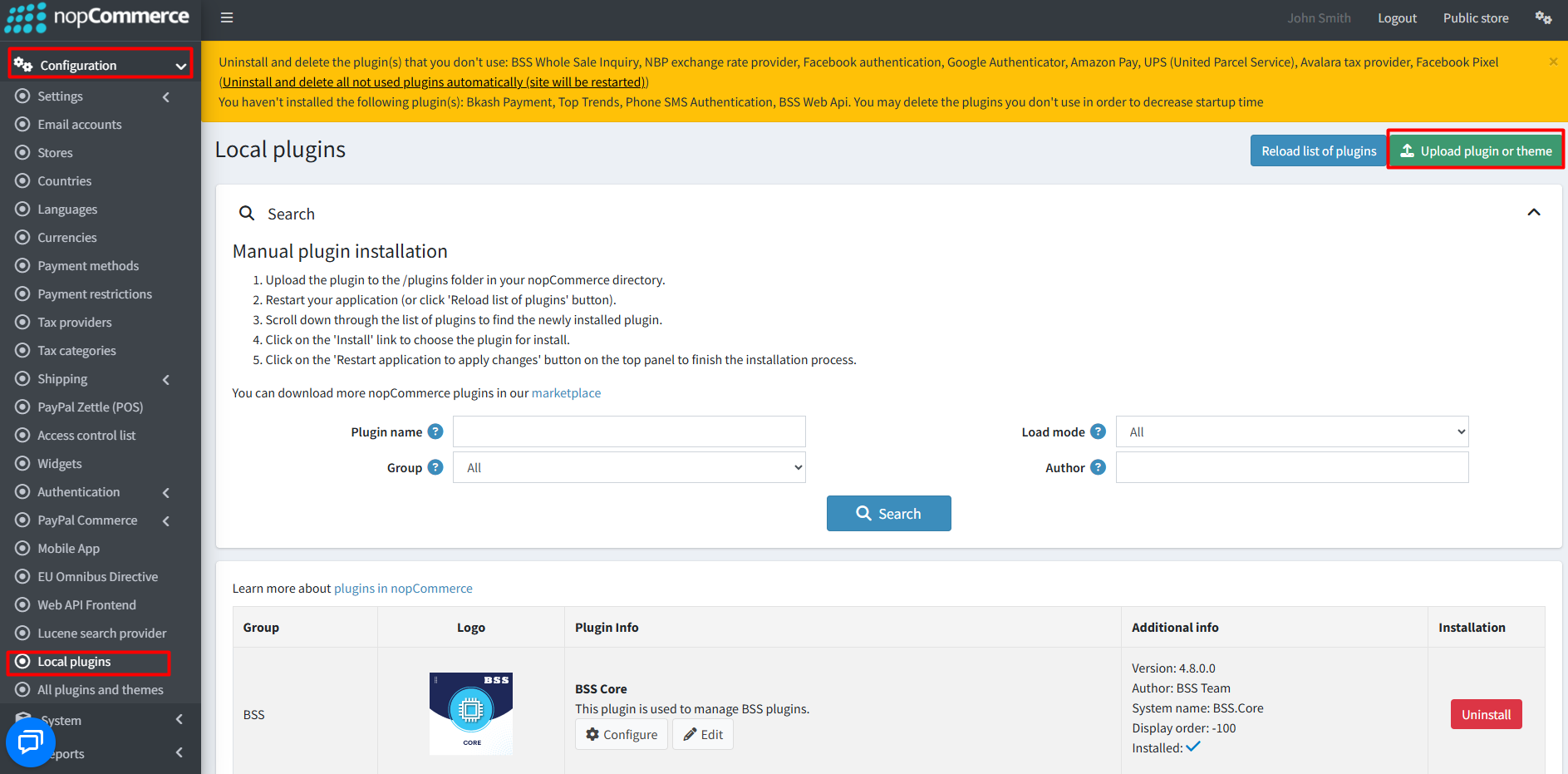
- Go to Administration → Configuration → Local plugins.
- Within the bundle, you get all the required files, including BSS.Core
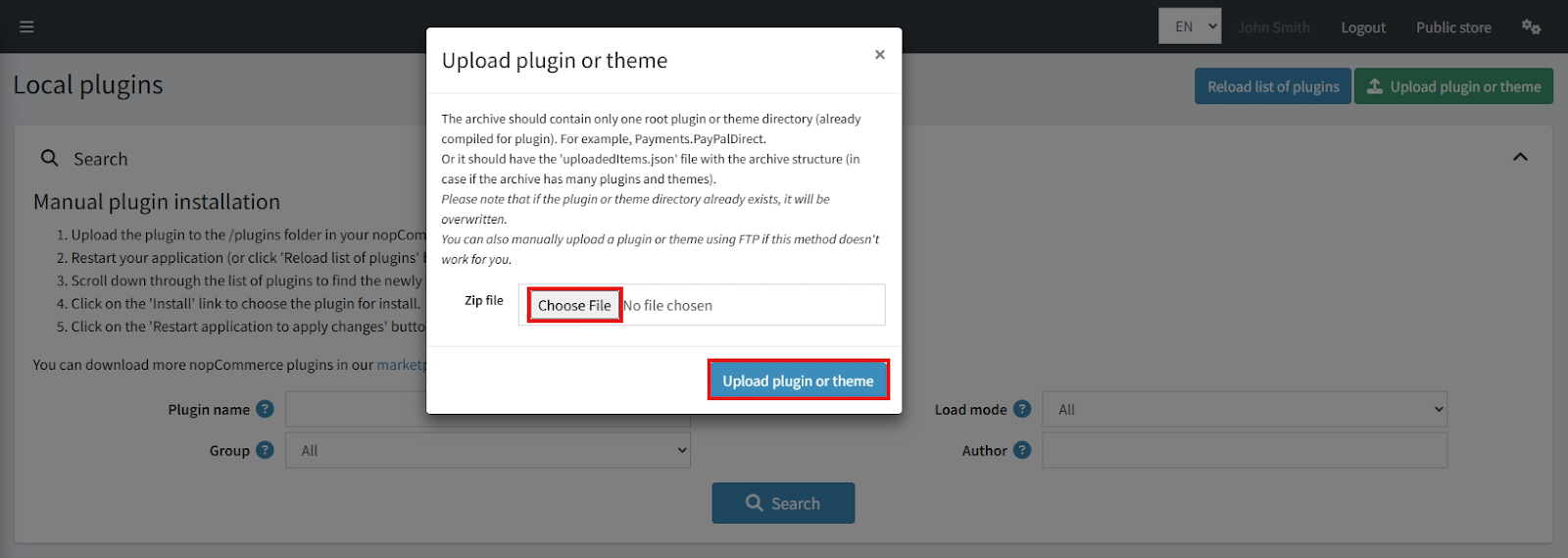
- Upload the zip files using the 'Upload plugin or theme' button.
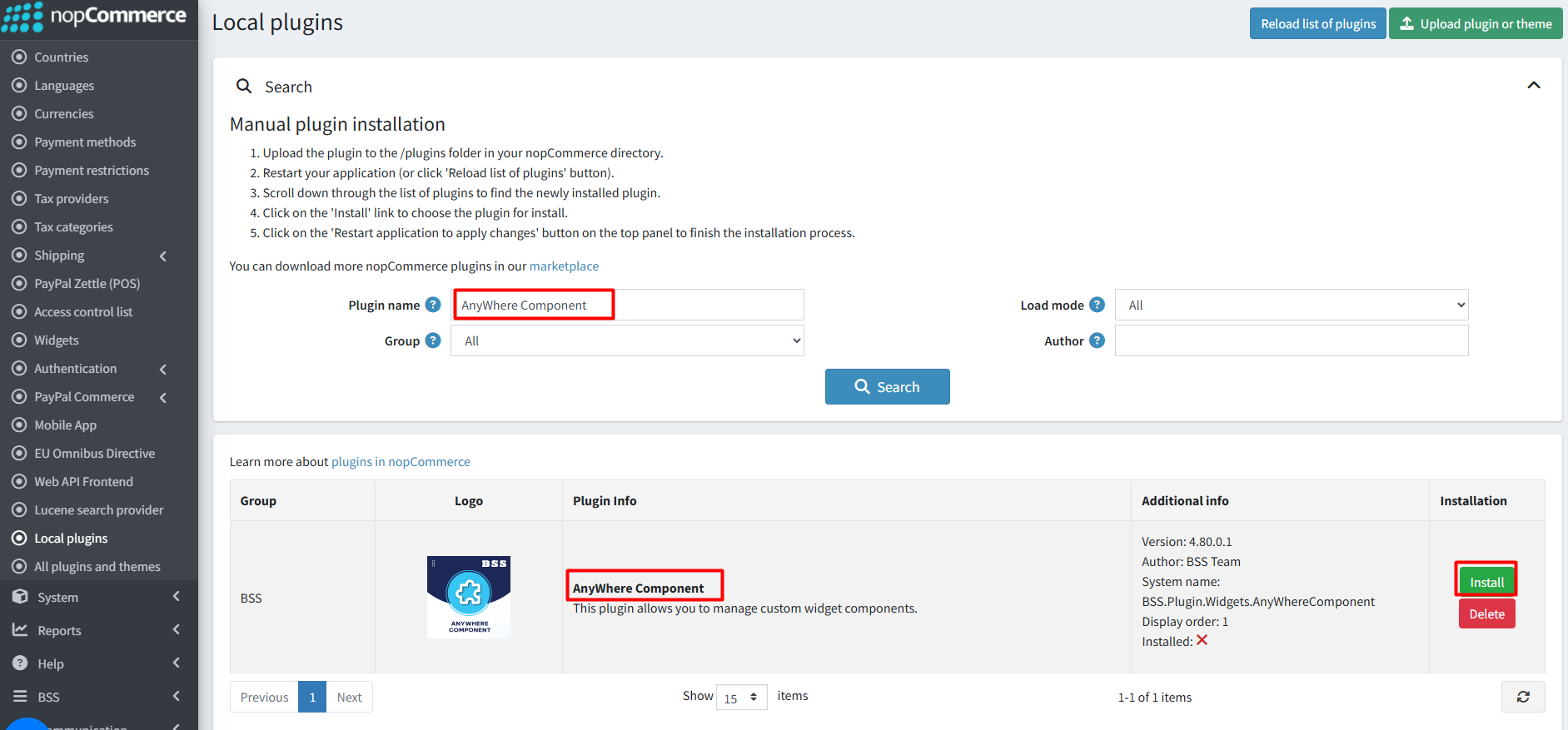
- After uploading, reload the ‘list of plugins’ and install the ‘BSS Core’ plugin first. Then search and install ‘Anywhere Component’.
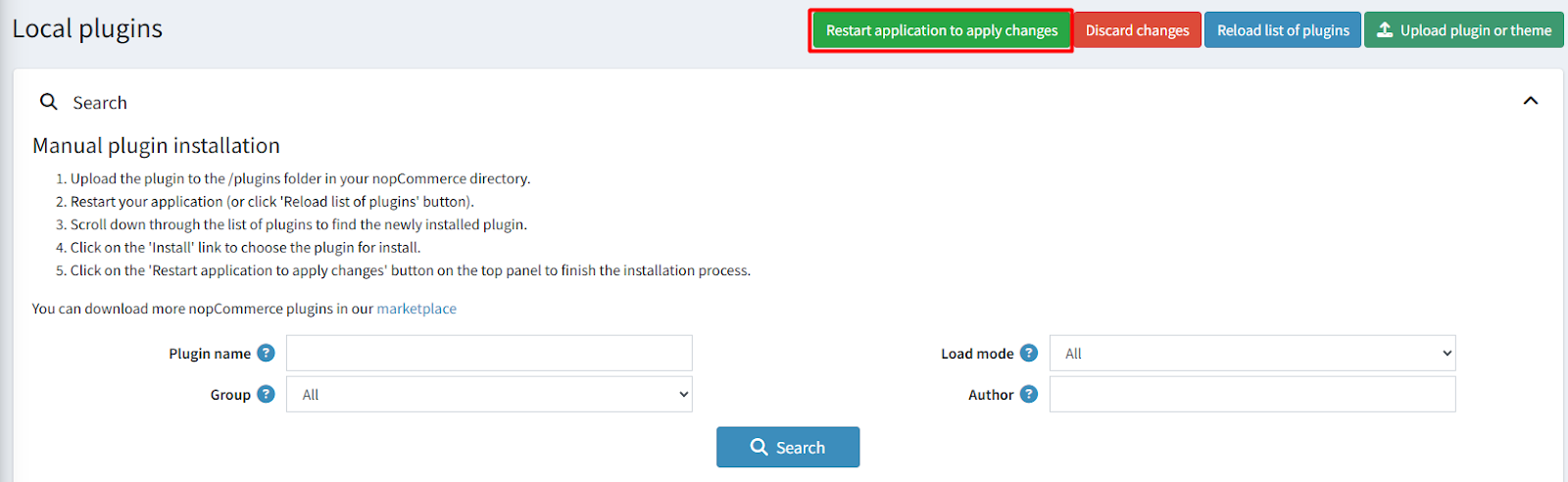
- To make the plugins functional, restart the application.
Recommendation: Go to > App Settings. If you find JavaScript bundling and minification, CSS bundling and minification are checked, then uncheck these two options and disable them.
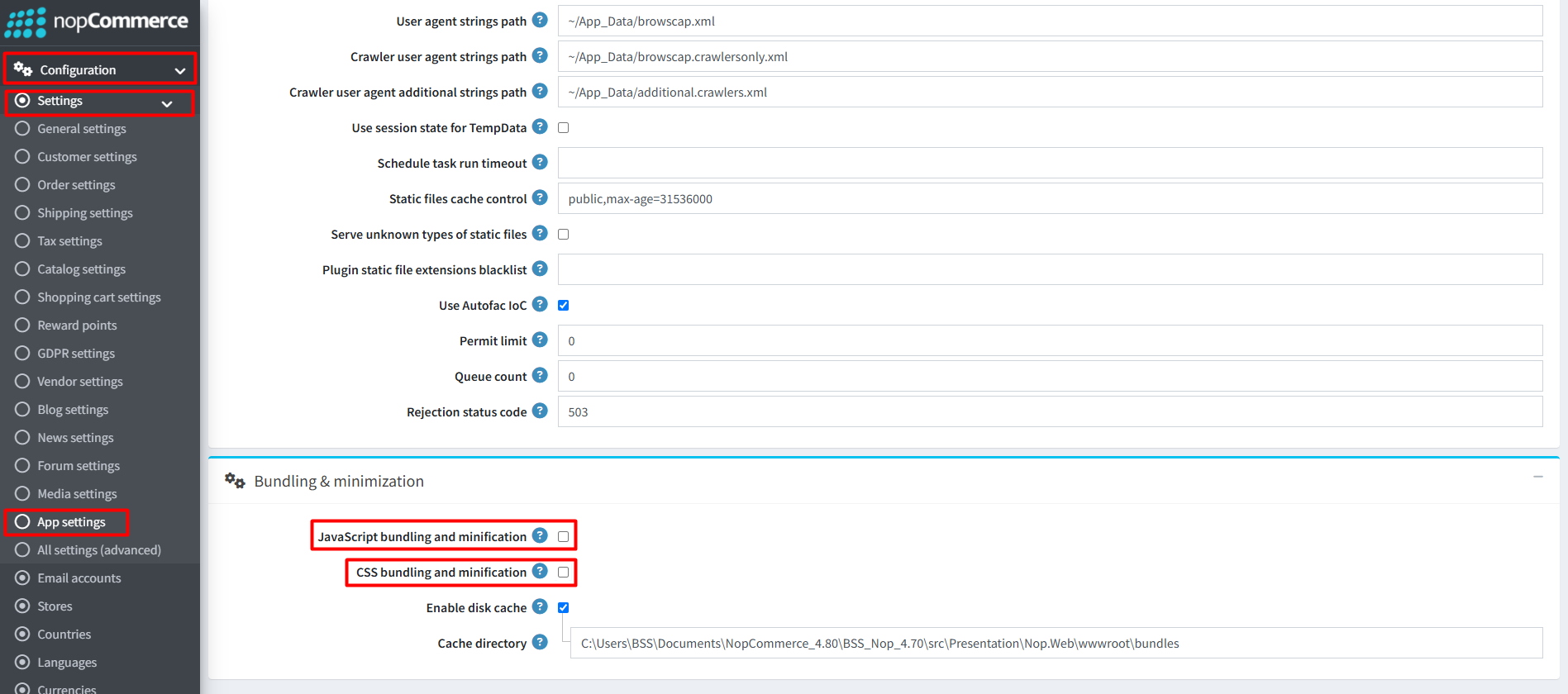
CONFIGURATION
- Go to Admin → BSS → Plugins → Anywhere Component → Configuration. Enter the License string and save. Then clear cache.

- Again go to BSS → Plugins → Anywhere Component → Configuration to set up the plugin.
- Check the box to Enable the plugin, then save.
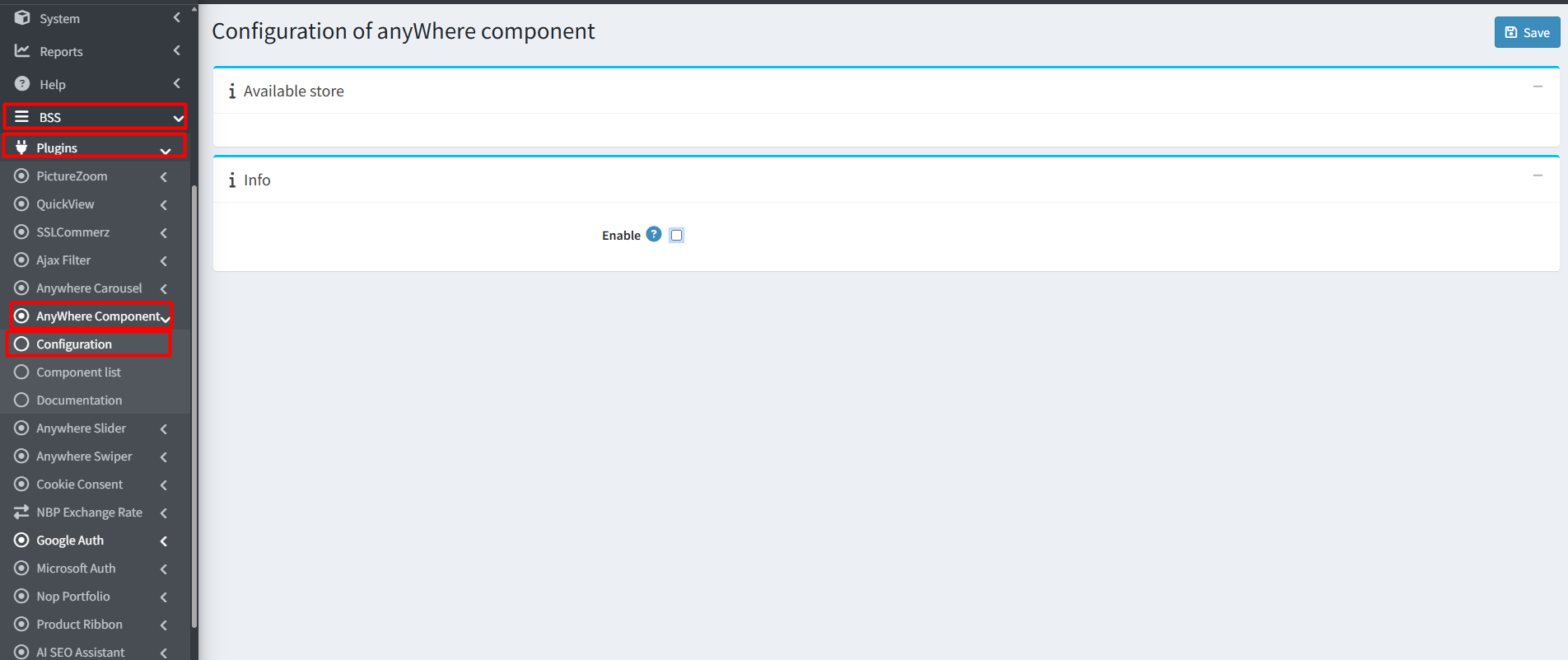
CREATE/EDIT COMPONENT
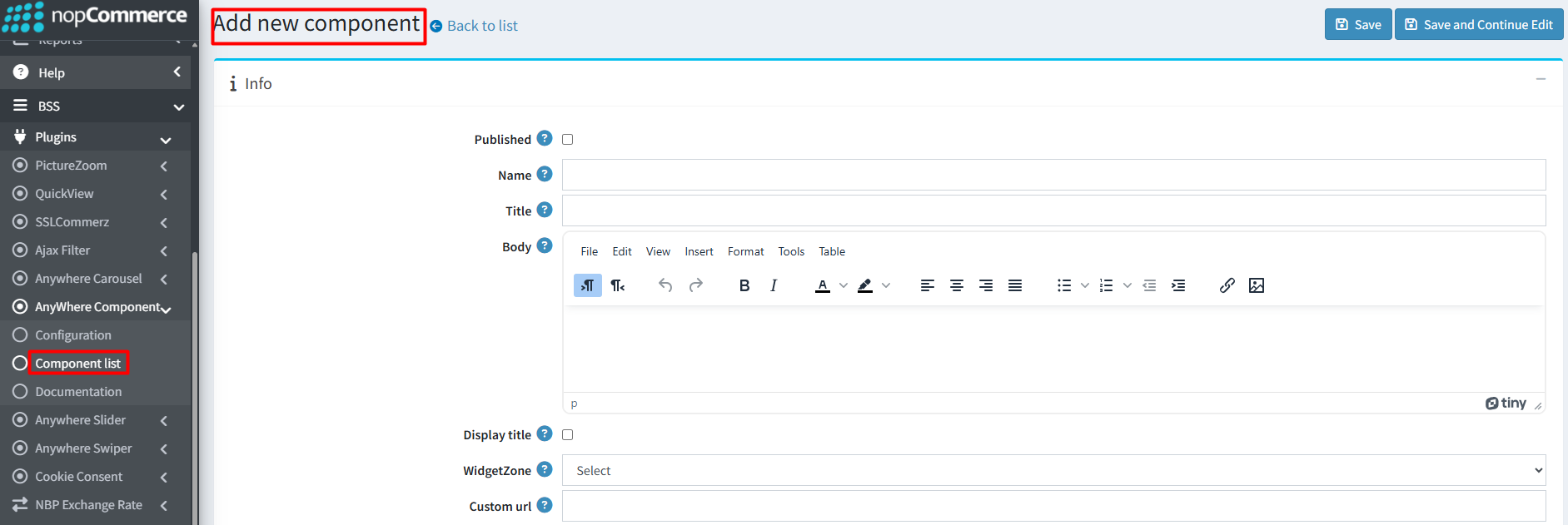
- Go to Admin → BSS → Plugins → Anywhere Component → Component List to view all components.
- Create: Click the Add new button to create a new component.
Component Info
- Published: Check to show the component in the public store. Uncheck to hide it.
- Name: Enter the component name.
- Title: Enter the component title.
- Body: Add and format content using the rich editor. Insert text, images, and tables to create professional and visually engaging content.
- Display Title: Check to show the title in the public store.
- Widget zone: Select where the component will appear in your store from the available widget zones.
- Custom URL: Define a unique slug (e.g., “electronics”) without including the full domain or slashes.
- Custom CSS: Add your own design rules to match your store’s branding.
- Custom JS: Add custom scripts to create advanced functionality or dynamic behavior.
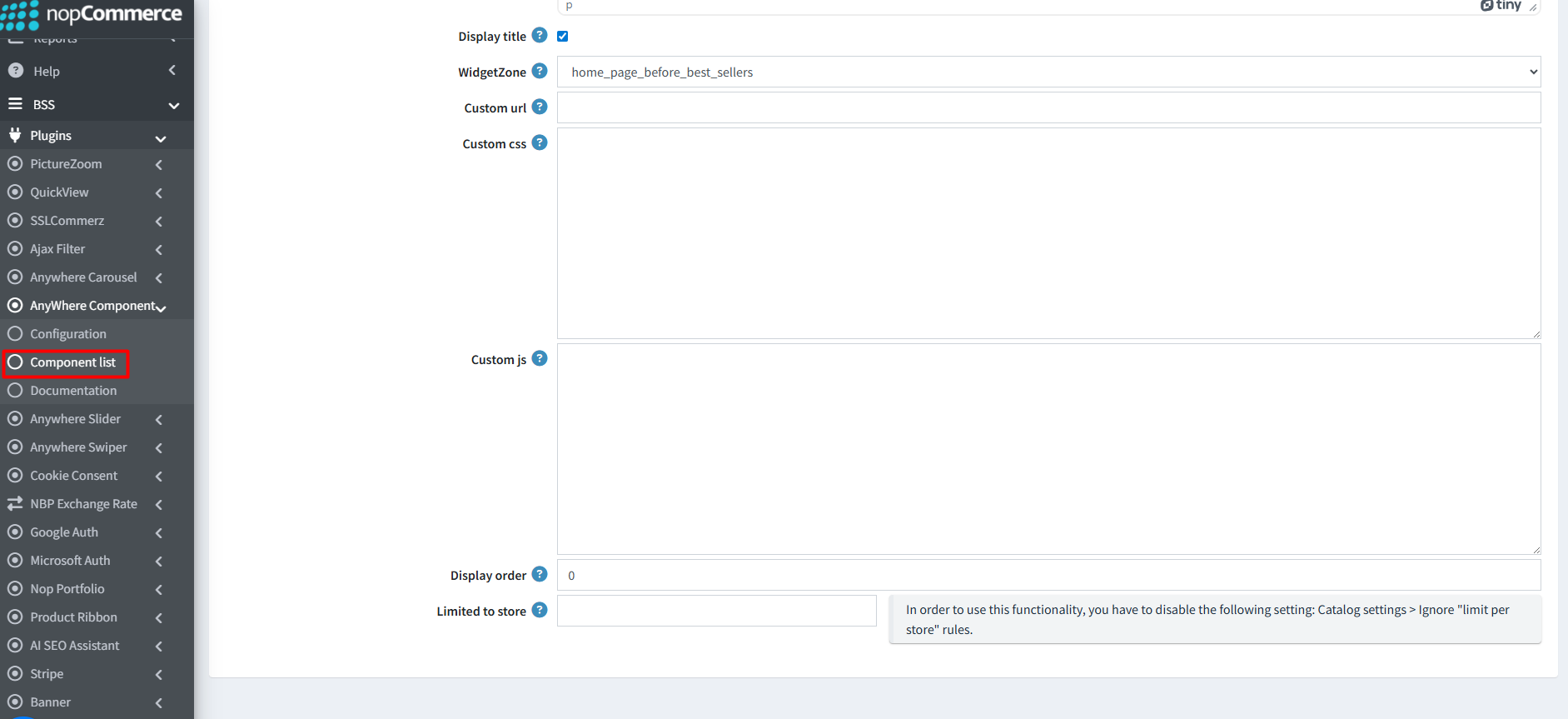
- Display order: Set the numerical order for component positioning.
- Limited to store: Select specific stores to restrict visibility, or leave empty to show across all stores.
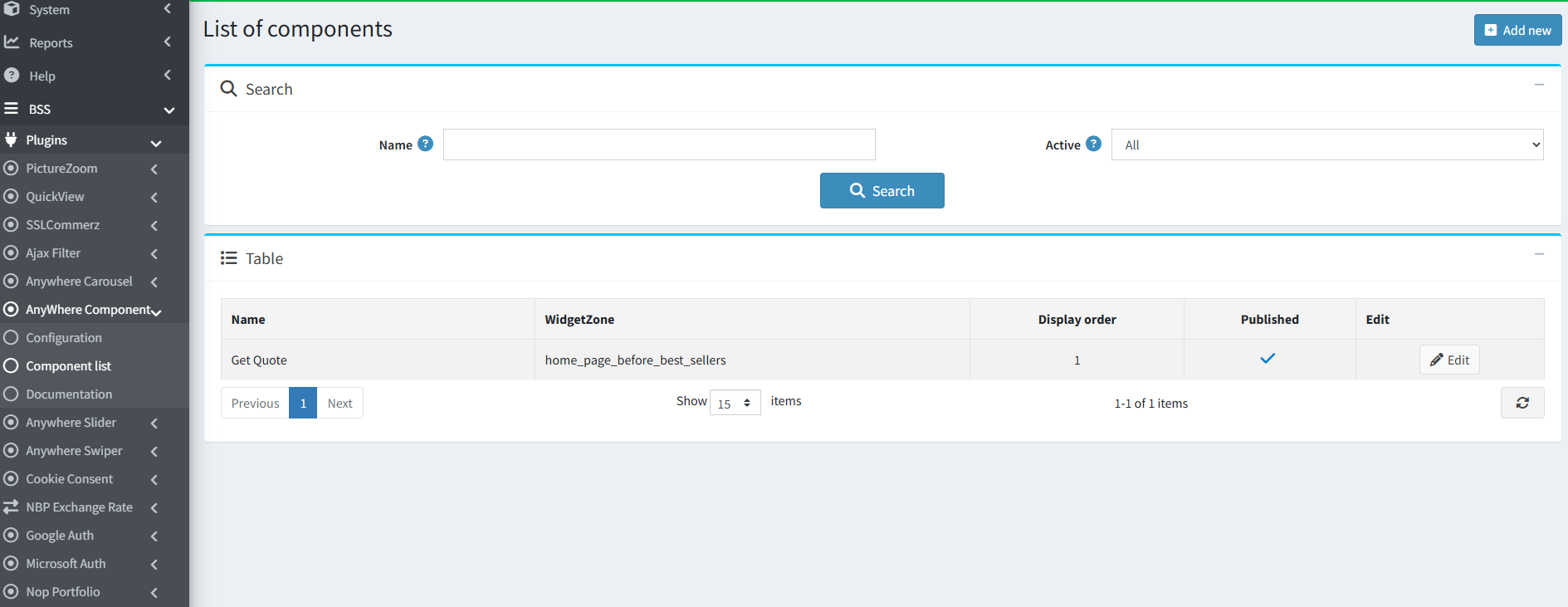
- You can modify any component by clicking the Edit button. Use the search option to quickly find components by name or filter by status such as Active or Published.
Features :
- Publish or unpublish components and choose whether they appear on specific stores or across all storefronts.
- Create components with custom names, optional titles, and fully editable content using a rich-text editor to add text, images, and tables.
- Display components in any widget zone and control their exact position using display order settings.
- Assign a unique slug to each component to improve navigation through SEO-Friendly Custom URL and search visibility.
- Use custom CSS for personalized design and custom JavaScript to add interactive features and dynamic behavior.
Documentation Menu
NopFashion Theme + 15 Plugin Bundle for NopCommerce
NopBeauty Theme + 12 Plugin Bundle for NopCommerce
NopNoor Theme + 16 Plugin Bundle for NopCommerce
NopGadget Theme + 18 Plugin Bundle for NopCommerce
NopEthnic Theme + 17 Plugin Bundle for NopCommerce
NopFurniture Theme + 19 Plugin Bundle for NopCommerce
NopPharma Theme + 16 Plugin Bundle for NopCommerce
NopVogue Theme + 17 Plugin Bundle for NopCommerce
NopGadence Theme + 18 Plugin Bundle for NopCommerce