
NopFashion Theme + 15 Plugin Bundle for NopCommerce
NopBeauty Theme + 12 Plugin Bundle for NopCommerce
NopNoor Theme + 16 Plugin Bundle for NopCommerce
NopGadget Theme + 18 Plugin Bundle for NopCommerce
NopEthnic Theme + 17 Plugin Bundle for NopCommerce
NopFurniture Theme + 19 Plugin Bundle for NopCommerce
NopPharma Theme + 16 Plugin Bundle for NopCommerce
NopVogue Theme + 17 Plugin Bundle for NopCommerce
NopPharma Theme + 16 Plugin Bundle for NopCommerce
Created on: Aug 25, 2026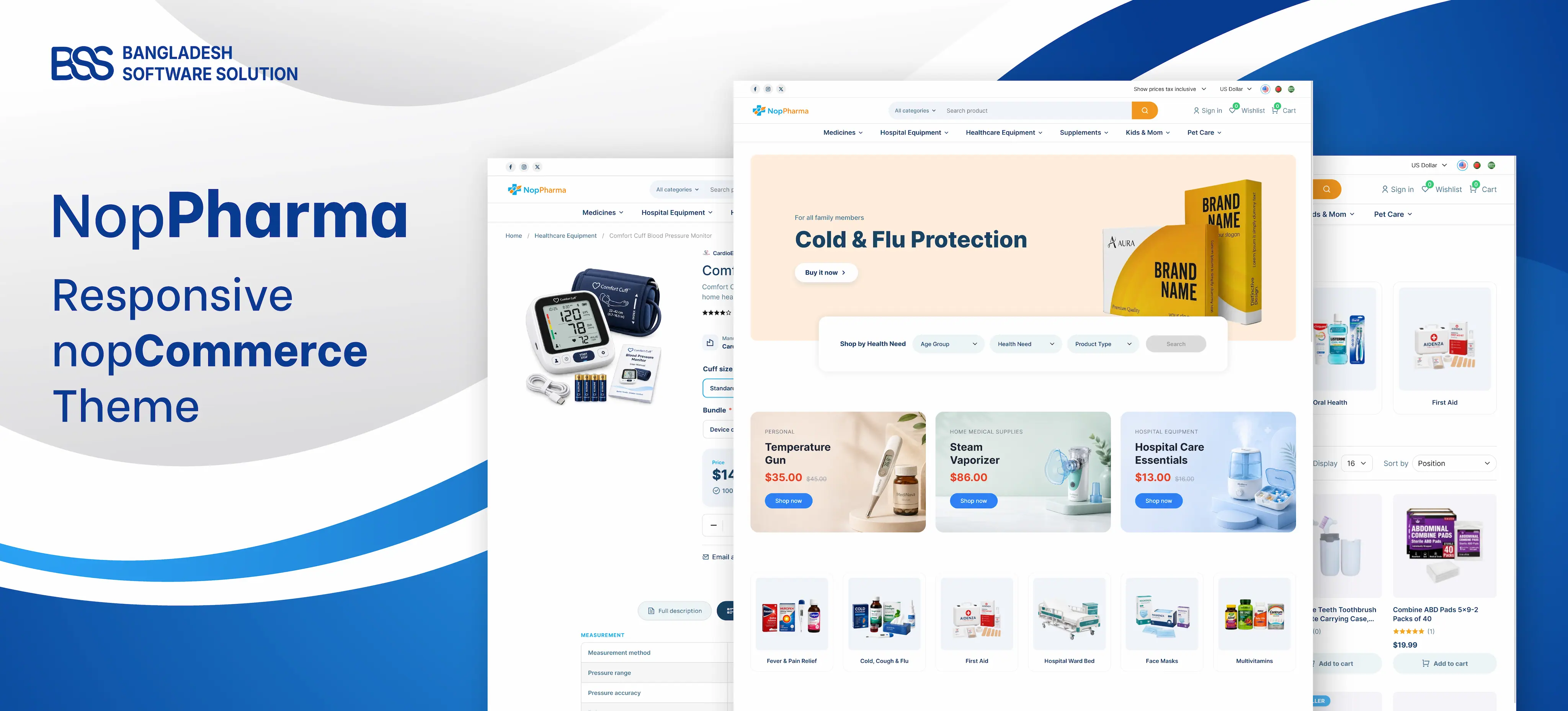
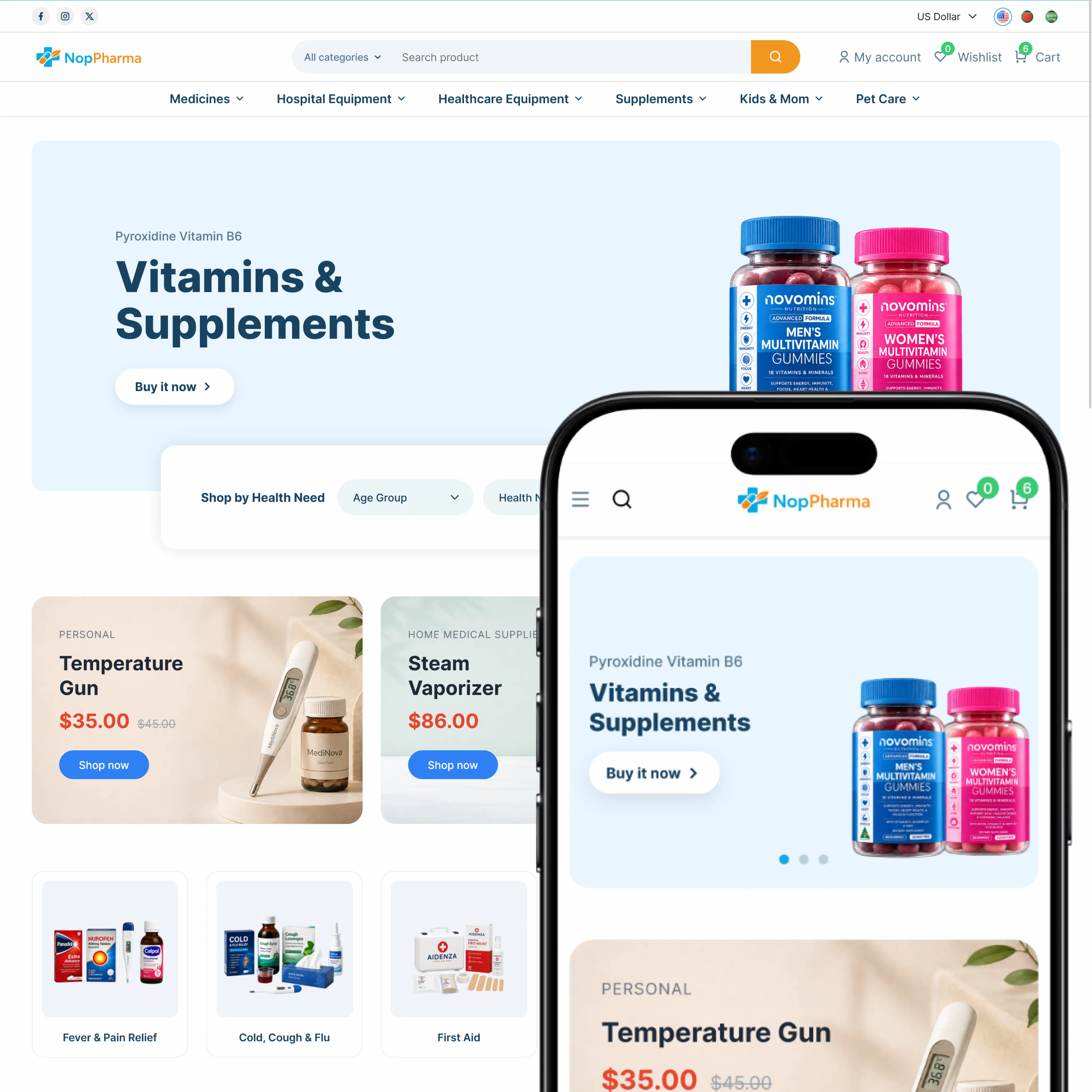
This NopPharma guide walks you through installing, configuring, and customizing a modern, responsive nopCommerce theme built for pharmacy stores, online pharmacies, medical stores to launch a trusted online presence. Whether you're running a medicine store, a medical supply store, or a healthcare products retailer offering medical equipment, supplements, and personal care essentials, NopPharma gives you a clean, professional storefront foundation designed to build customer trust. Along with the theme, you get a 16-plugin bundle covering visual product tools, checkout and payment flexibility, authentication, shipping, GDPR compliance, and SEO - everything needed to turn a pharmaceutical business into a fast, fully customized shopping experience. The sections below walk through each setup step, from installation to full theme and plugin configuration.
PRE-REQUISITES
- The theme requires installation of the BSS Core plugin first.
INSTALLATION
- Go to the Order Details Page and Download NopPharma theme
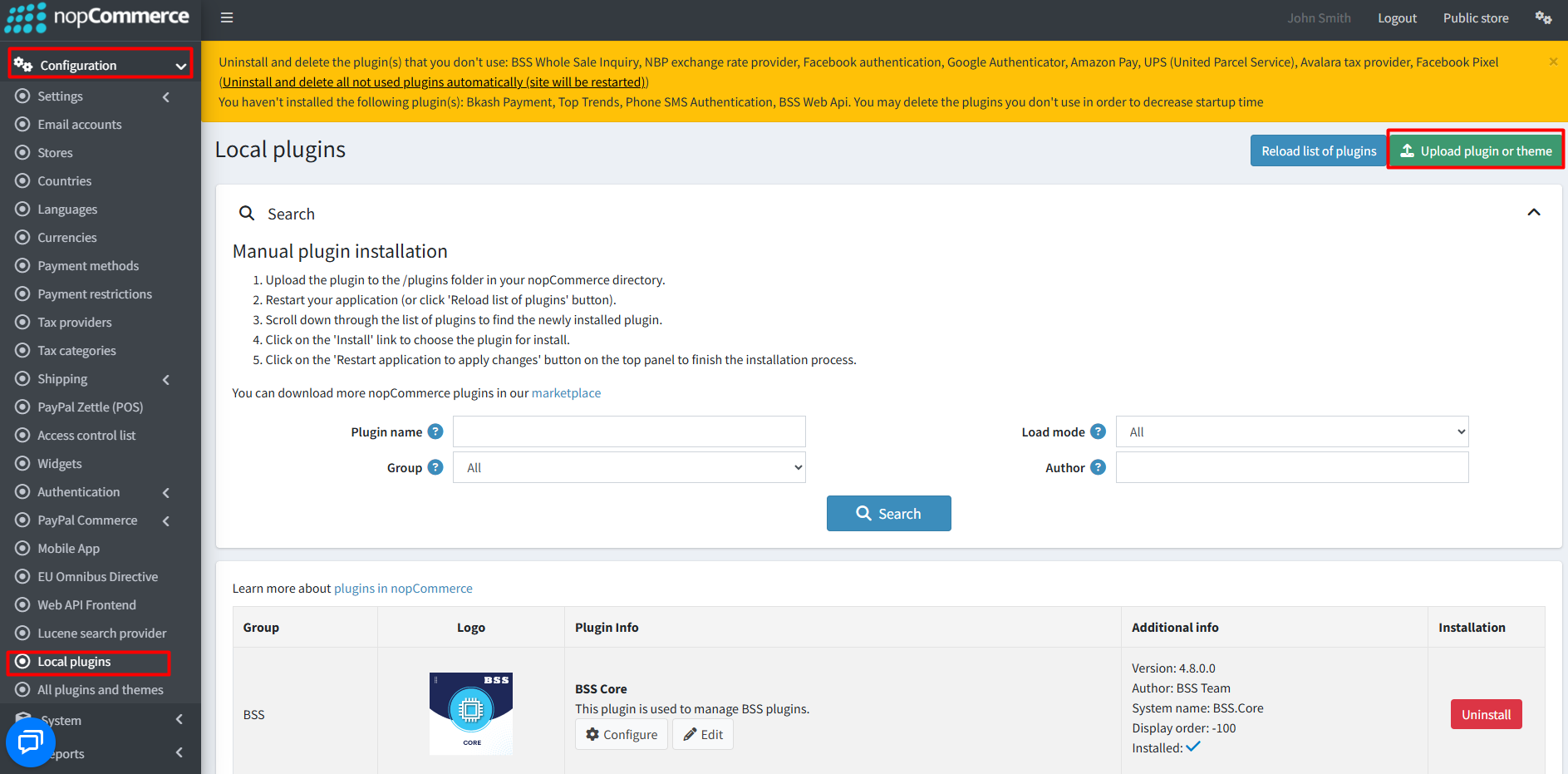
- Go to Administration → Configuration → Local plugins
- Within the bundle, you get all the required files, including BSS.Core
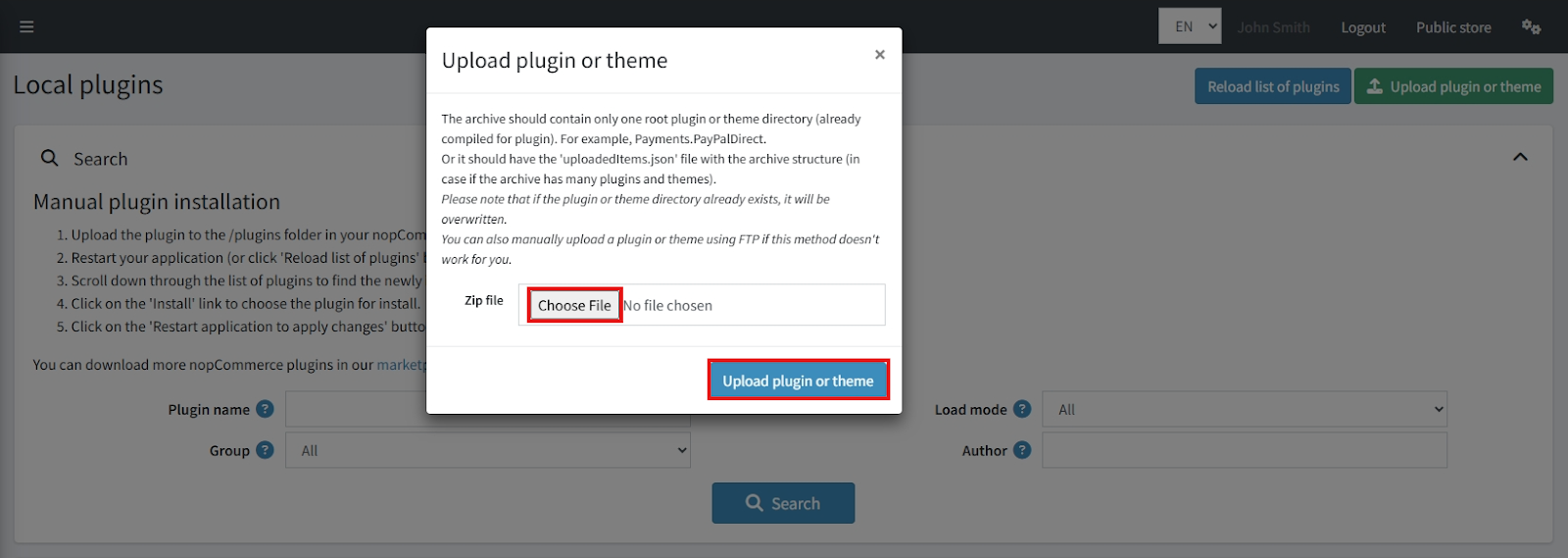
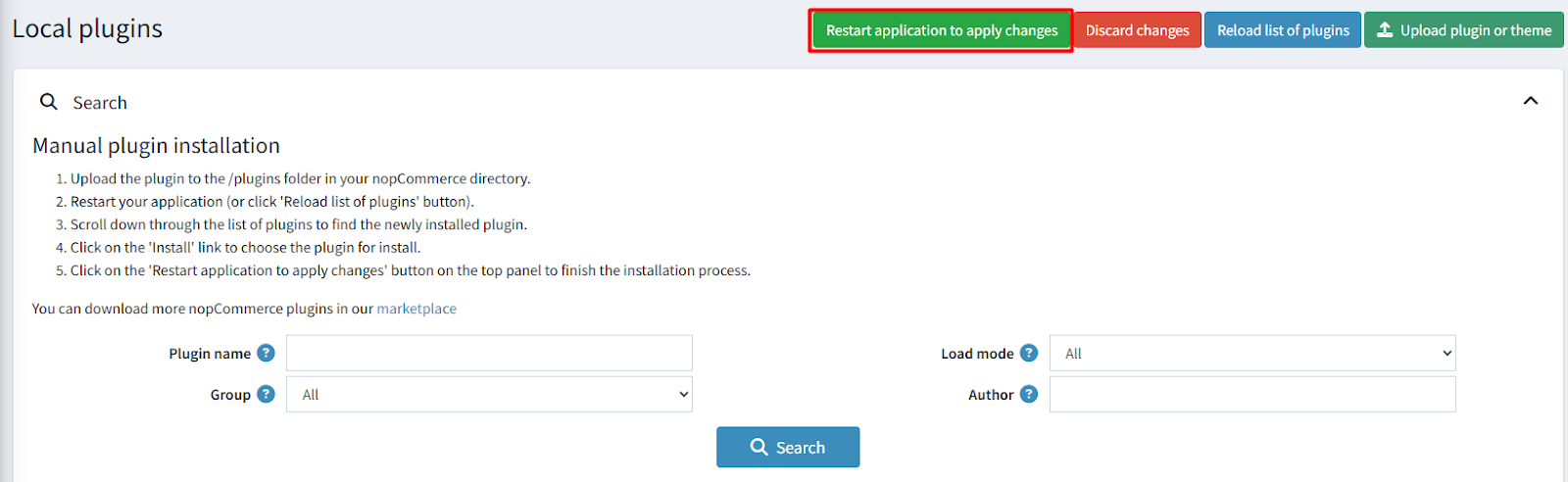
- Upload the zip files using the 'Upload plugin or theme' button
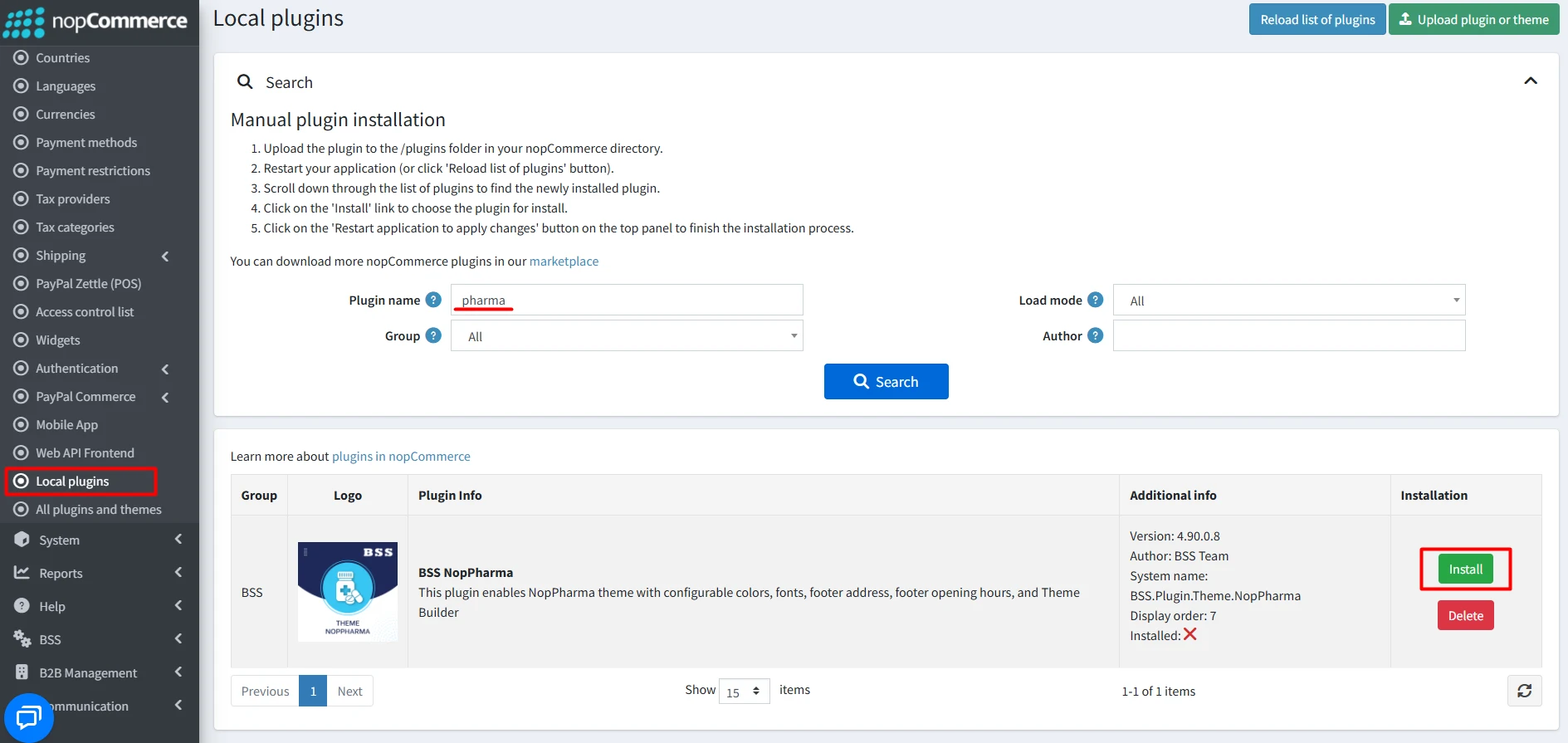
- After uploading, install the ‘BSS Core’ Plugin and ‘NopPharma Theme’.
- To make the theme functional, restart the application.
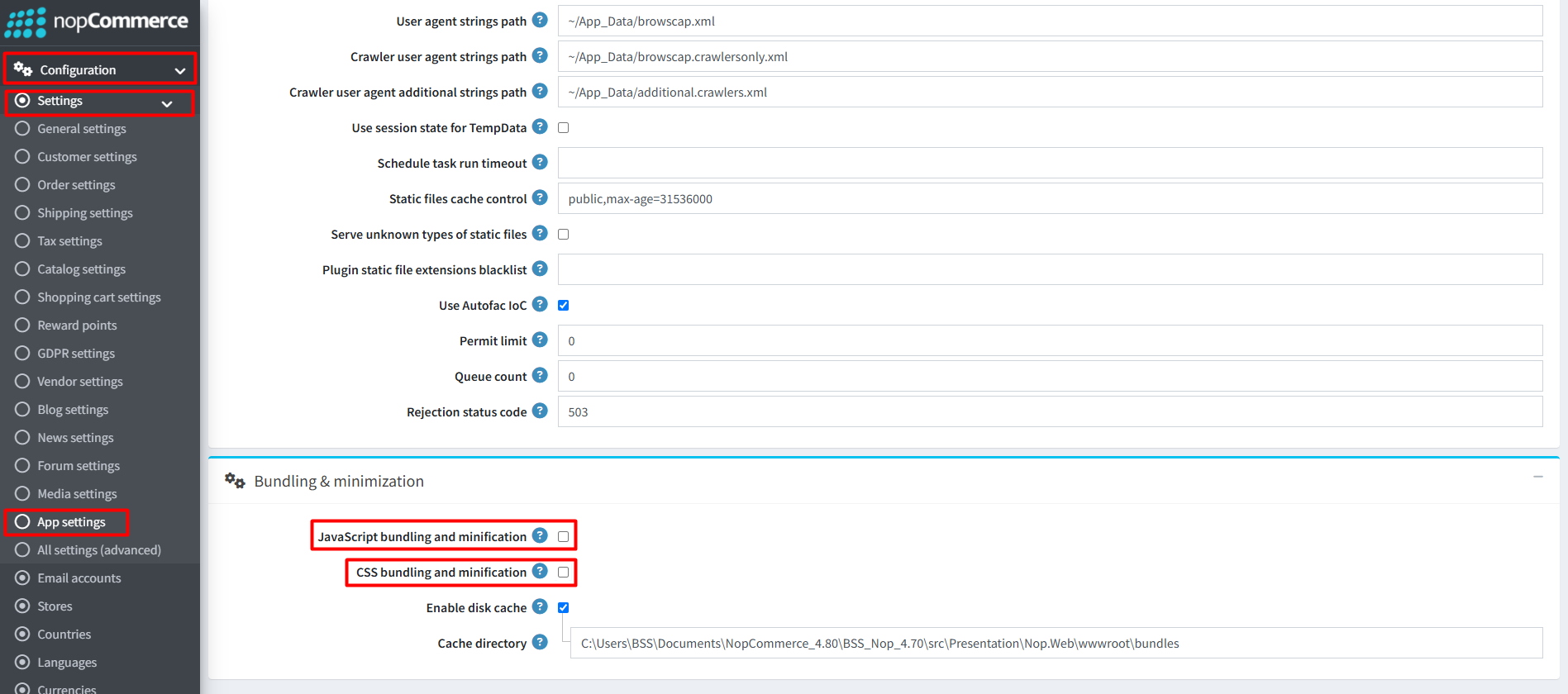
Recommendation: Go to > App Settings. If you find JavaScript bundling and minification, CSS bundling and minification are checked, then uncheck these two options and disable them.
ENABLE THE THEME
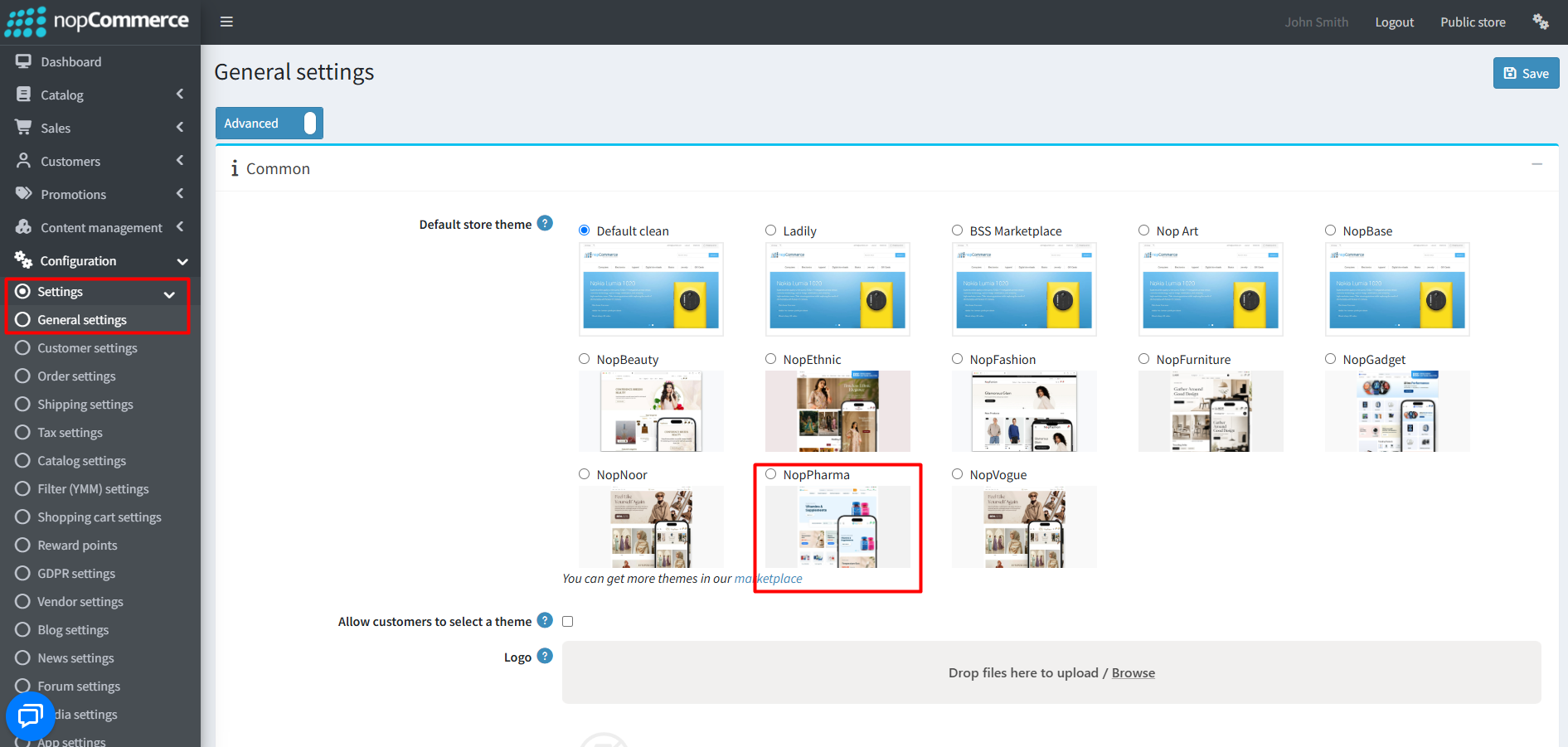
- Go to Configuration → Settings → General settings in the admin panel.
- Choose NopPharma as the Default store theme and save it.
ENABLE OTHER ASSOCIATED PLUGINS
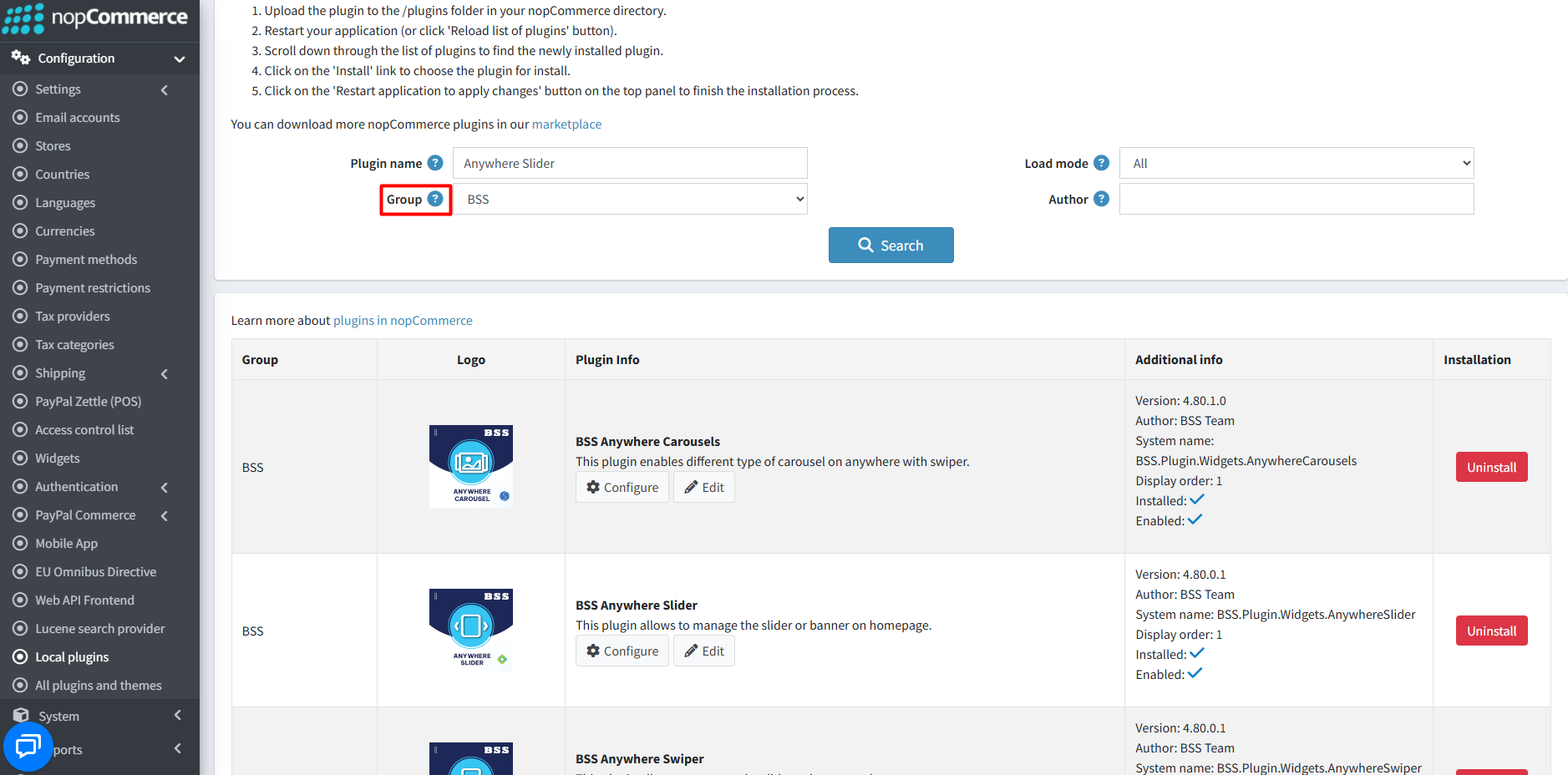
- Go to Administration → Configuration → Local plugins.
- Search the plugins associated with NopPharma theme using the Group Name ‘BSS’.
- To get the expected homepage view, install plugins by using the Group Name or Plugin Name.
LICENSE KEY
- After purchasing, contact BSS to receive the license key via email.
- First-time configuration of the theme or bundled plugins prompts entry of the License string. It can also be entered via BSS → Core settings → License.
- After entering the License string, save it and clear the cache.

CONFIGURATION
- Go to Administration → BSS → Themes → NopPharma → Configuration to set the theme configuration.
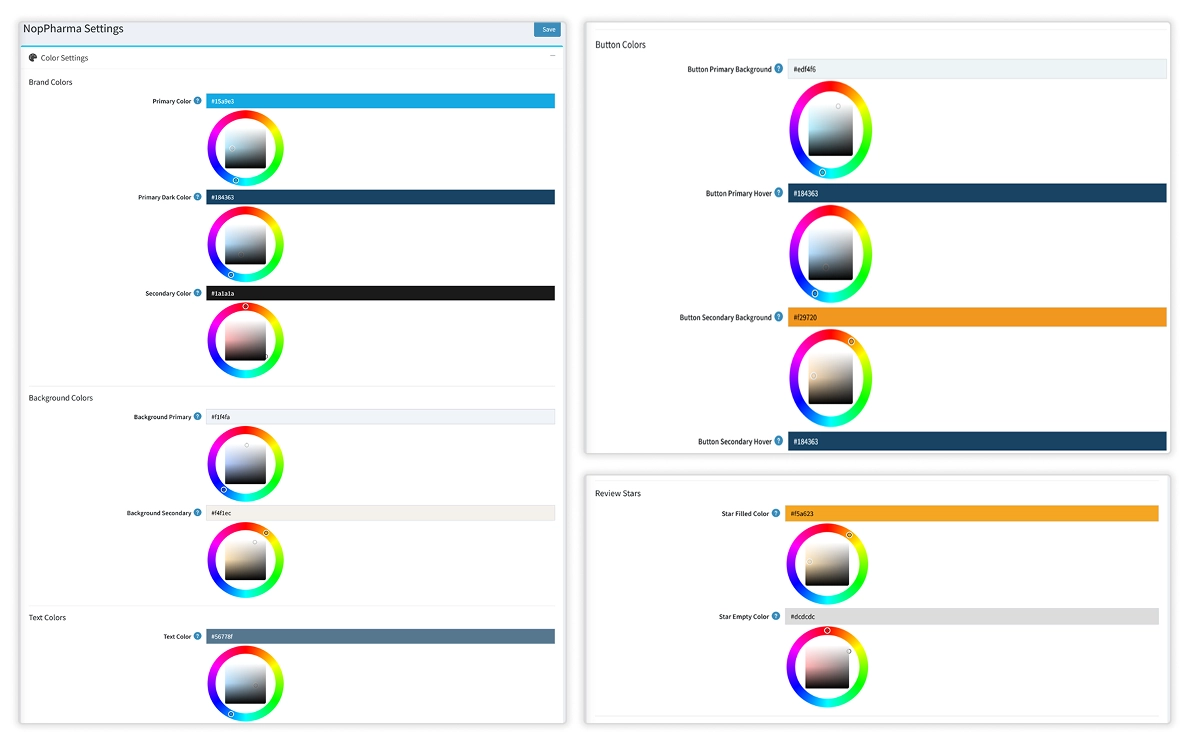
COLOR SETTINGS
- Brand Colors: Set Primary, Primary Dark, and Secondary colors for a consistent brand appearance in your store.
- Background Colors: Set primary and secondary background colors for different sections of your store.
- Text Colors: Configure text colors for default, secondary, and light text elements.
- Button Colors: Customize primary and secondary button background and hover colors.
- UI Colors & Tokens: Control border colors, element corner radius, card rounding, and overlay styling across the theme.
- Status Colors: Set status color for - Success , error and warning.
- Review Stars: Set the filled and empty star colors for review ratings to match your theme color.
- Neutral & Gray Scale: Define white, black, and gray shade colors used throughout the theme’s UI and layout elements.
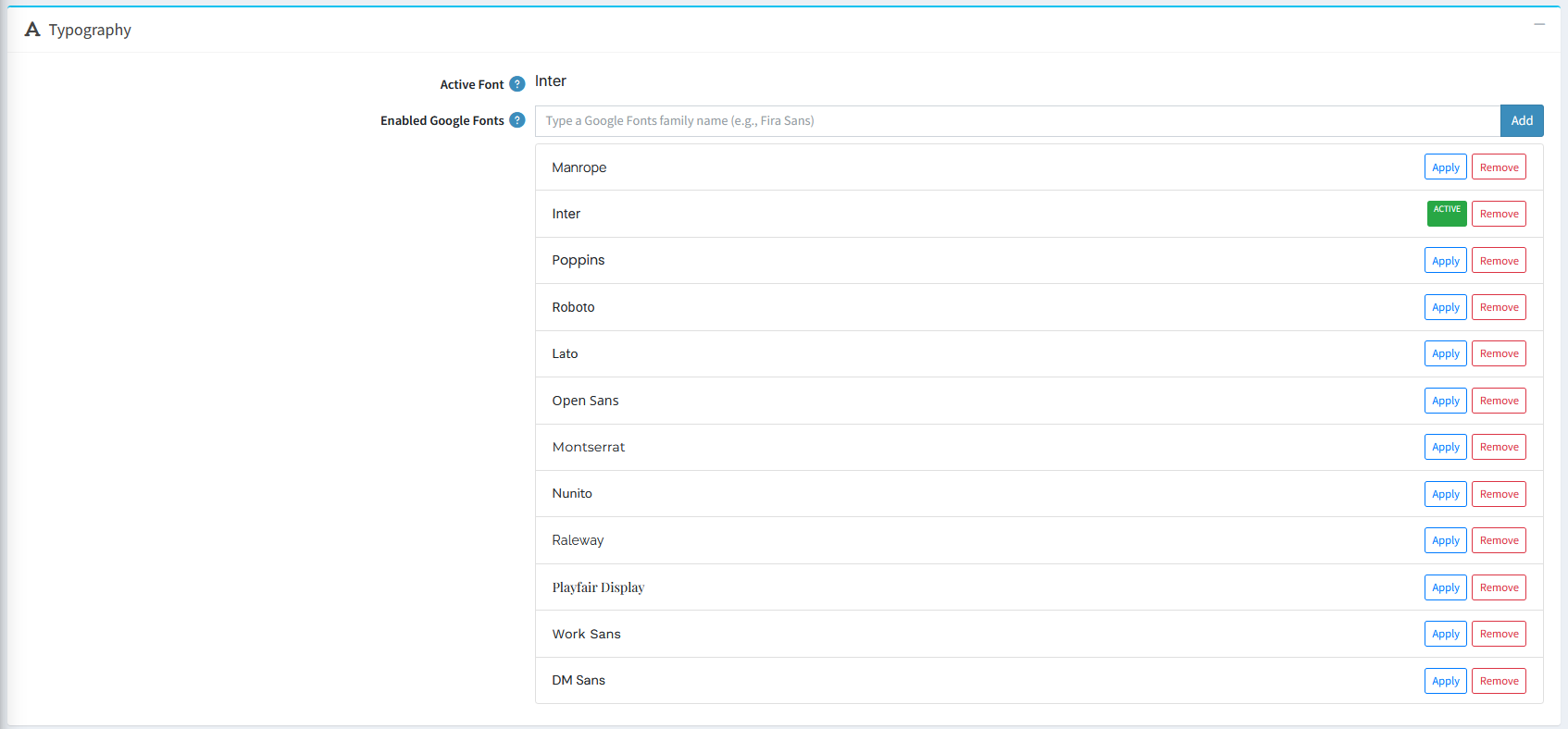
TYPOGRAPHY
- Manage the storefront font settings by selecting an enabled Google Font or adding a custom Google Font family.
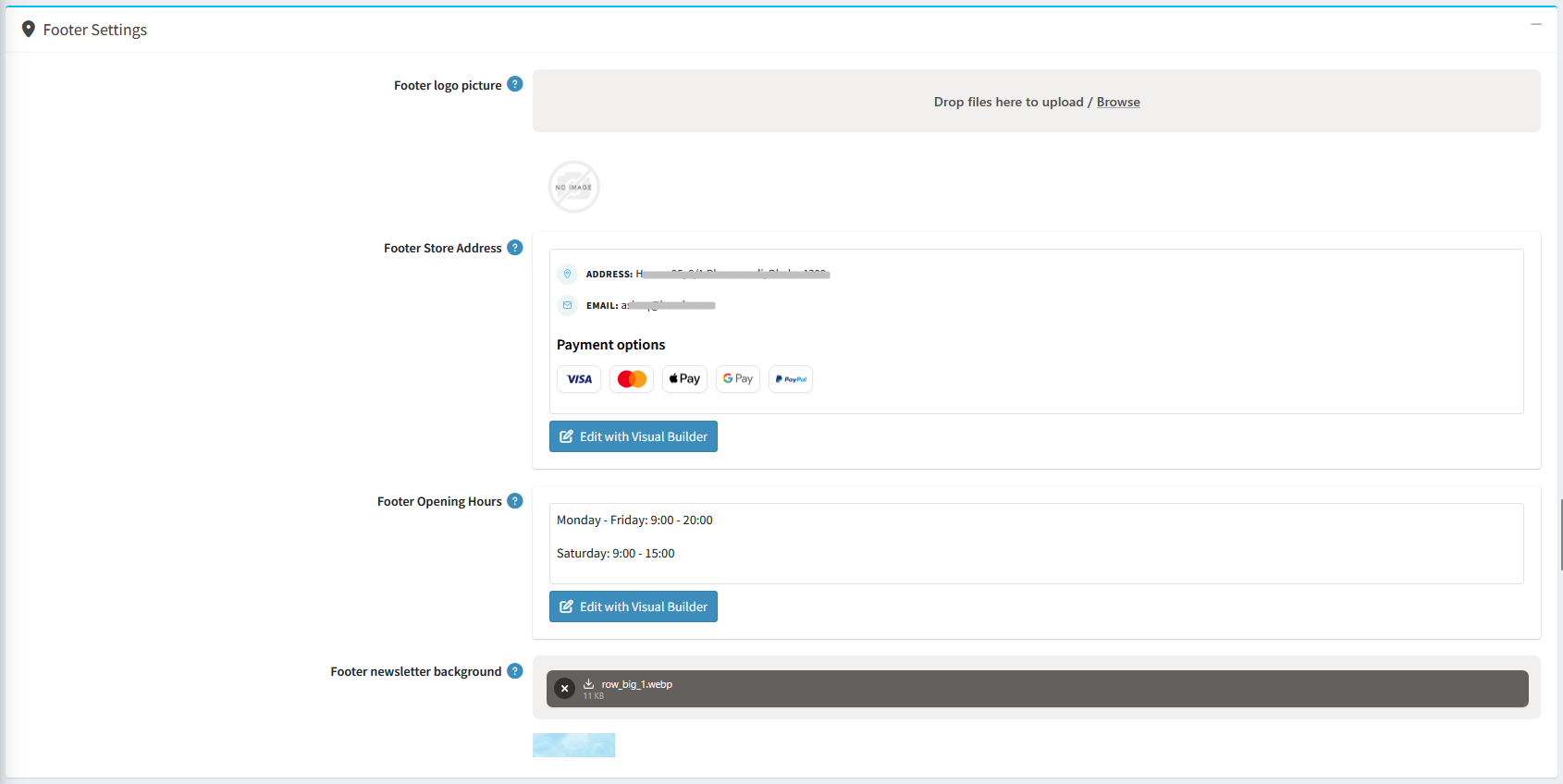
FOOTER SETTINGS
- Upload custom logo for the footer and also can add footer store address and design address style in rich text
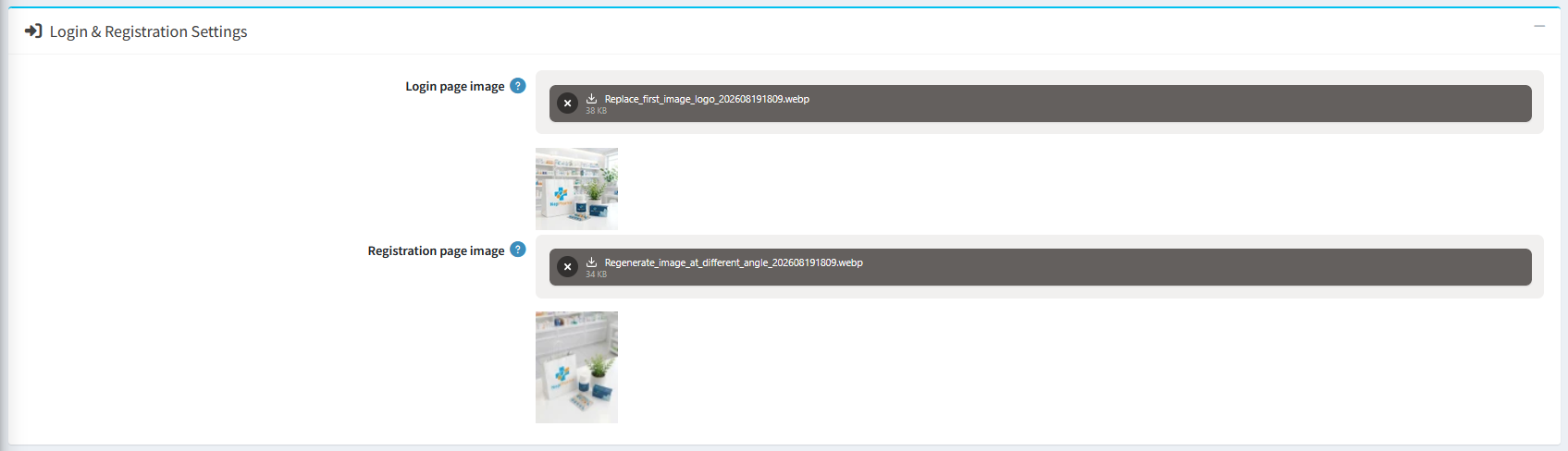
LOGIN & REGISTRATION SETTINGS
- Login page image: Displays an image next to the login form on desktop screens (992px wide or larger). If left empty, the login form displays centered on its own.
- Registration page image: Displays a custom image next to the registration form on desktop screens (992px wide or larger). If left empty, it reuses the login page image. Use this setting to upload a taller or separately cropped image to fit the longer registration form.
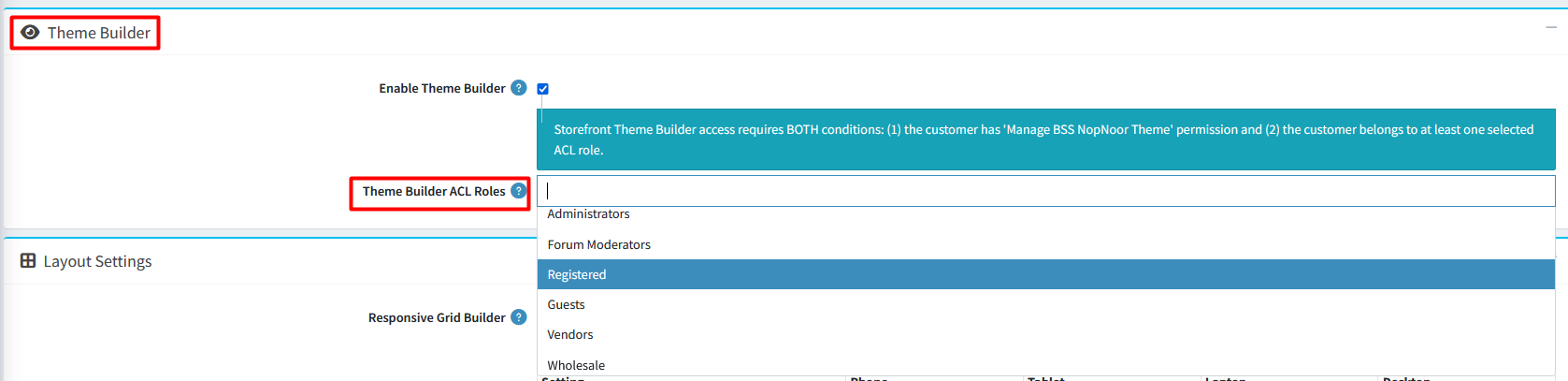
THEME BUILDER
- Enable Theme Builder: Enable the floating Theme Builder panel to customize colors, fonts, and layout settings directly from the storefront.
- Theme Builder ACL Roles: Assign specific customer roles to control who can access and manage the Theme Builder from the storefront.
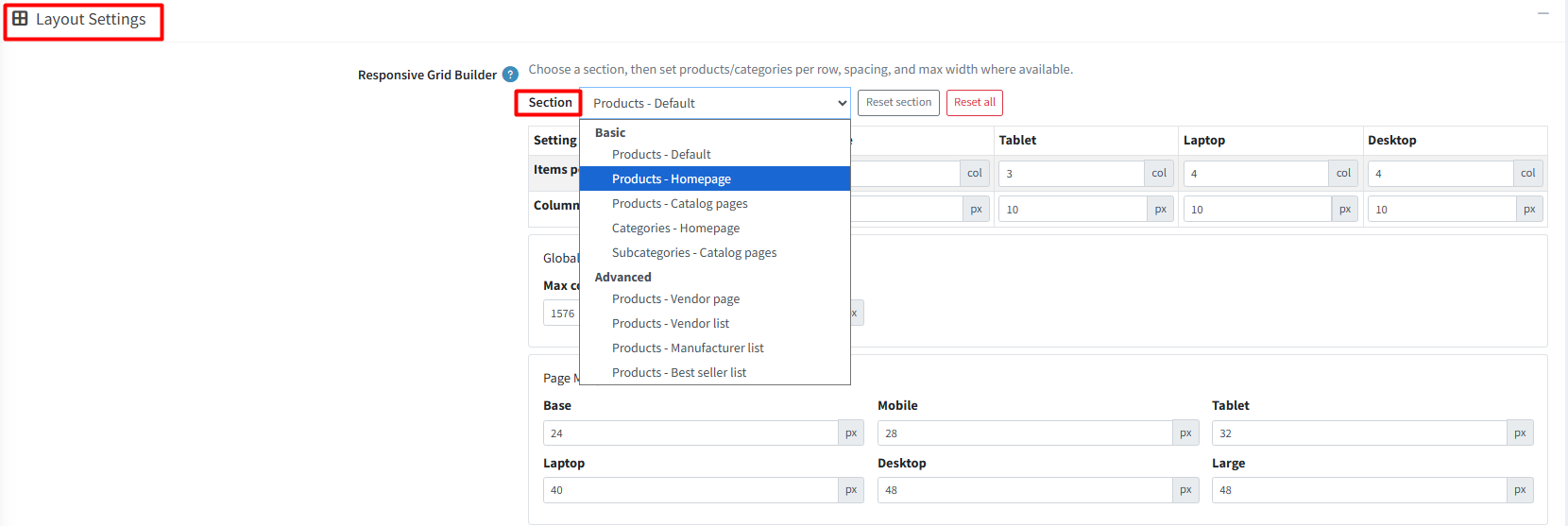
LAYOUT SETTINGS
- Targeted Page Specifics: Use the section dropdown to apply unique layouts, margins, and font sizes to individual pages or specific content areas like homepages, catalog lists, and vendor pages.
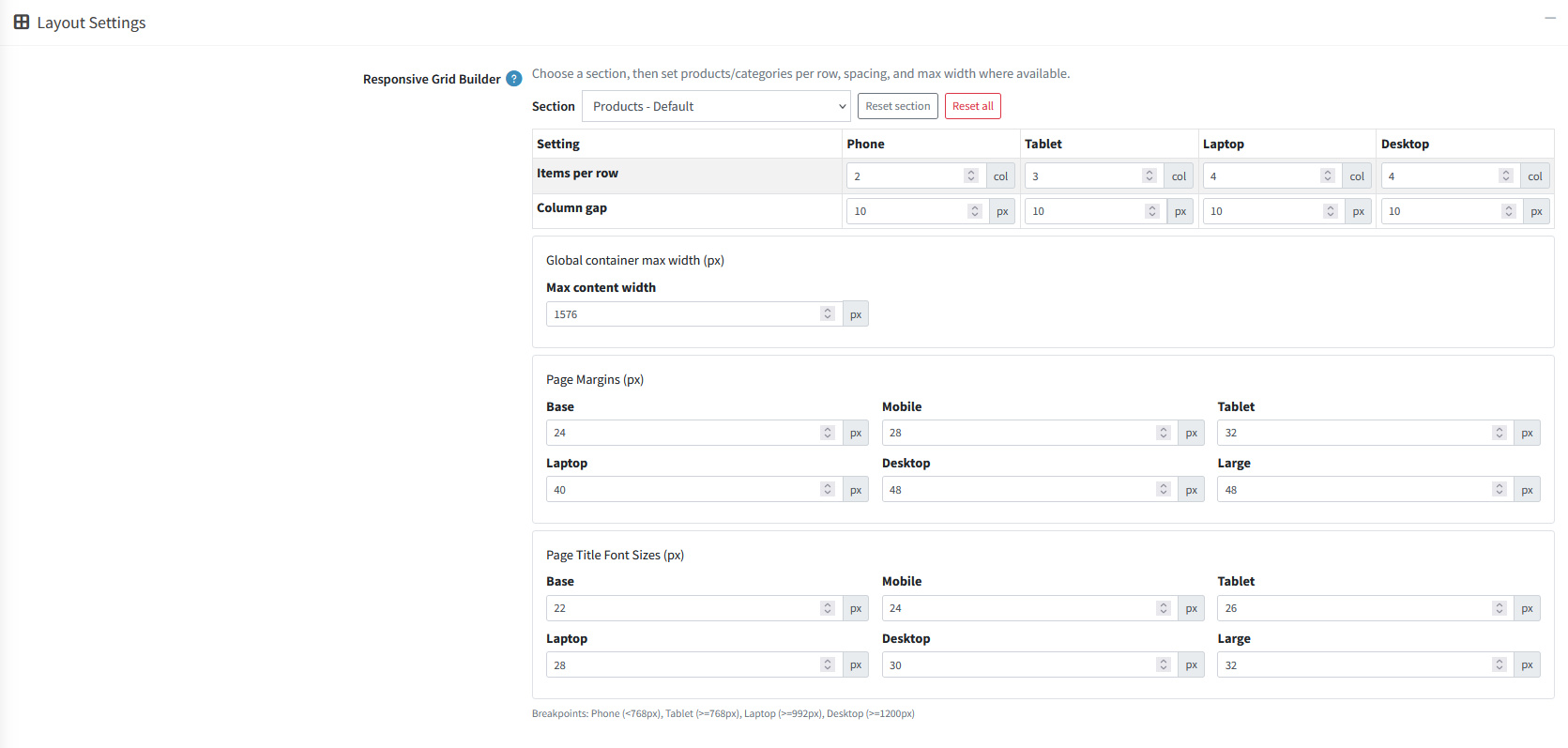
- Customizable Responsive Grids: Configure the number of items per row, spacing, and container widths across various screen sizes (Phone to Desktop), page margin, title size for precise control over your store's visual structure.
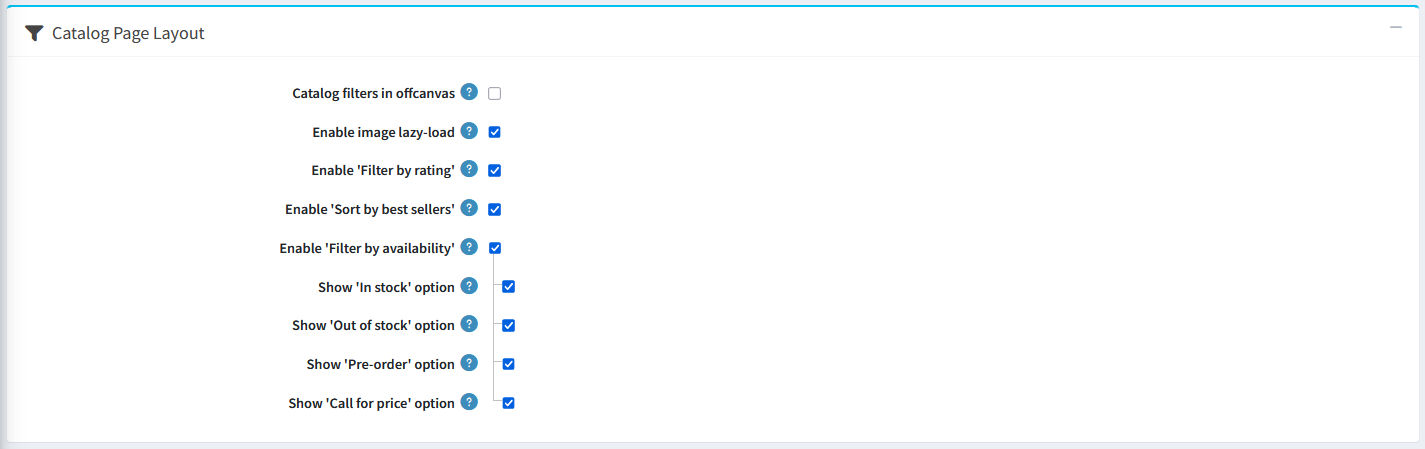
Catalog Page Layout
- Catalog filters in offcanvas: Displays catalog filters inside a flyout/slide-out menu drawer across all device sizes.
- Enable image lazy-load: Loads images only as shoppers scroll down to them, speeding up page load times (applies to product lists, excluding main product detail images).
- Enable 'Filter by rating': Lets shoppers filter products by minimum customer review score (e.g., "4 stars & up").
- Enable 'Sort by best sellers': Adds a "Best Sellers" option to the sort dropdown to rank items by total units sold.
- Enable 'Filter by availability': Adds a stock-status filter to catalog sidebars so shoppers can filter products by availability state.
- Show 'In stock' option: Adds an "In Stock" checkbox to filter for items ready for immediate purchase.
- Show 'Out of stock' option: Adds an "Out of Stock" checkbox to view items currently unavailable for purchase.
- Show 'Pre-order' option: Adds a "Pre-order" checkbox to view items available for advance ordering before release.
- Show 'Call for price' option: Adds a "Call for Price" checkbox to filter for items requiring price inquiry via phone/contact.
PRODUCT DETAILS
- After adding to cart: Select option to display a simple success message or automatically open the side flyout cart panel after a product is added to the cart.

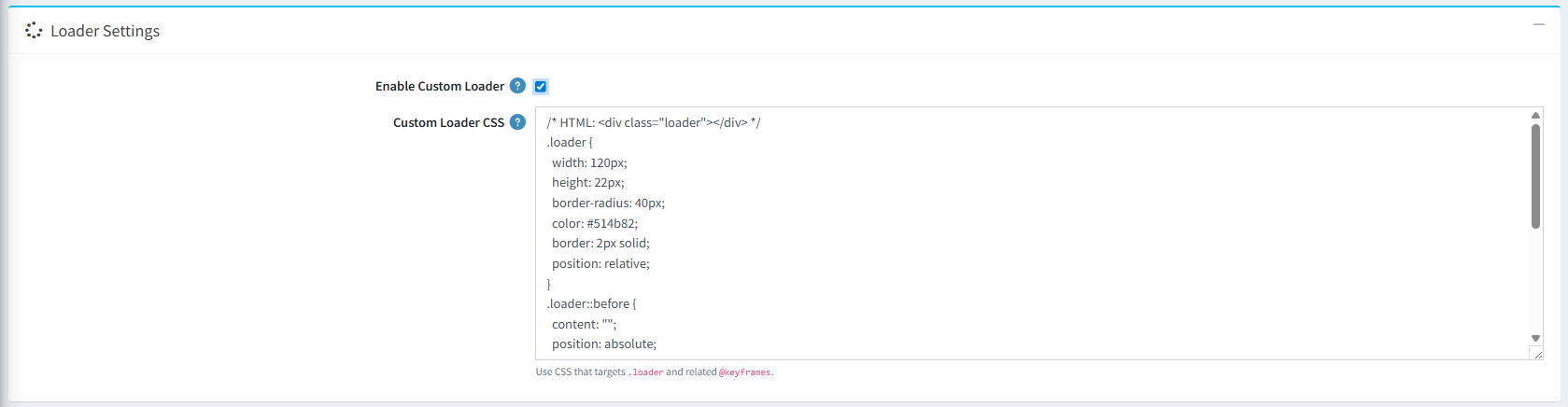
- Loader Settings: Enable loader settings and add your own custom css or use css from any loader site like: css-loaders.com to show customized loader in your site.
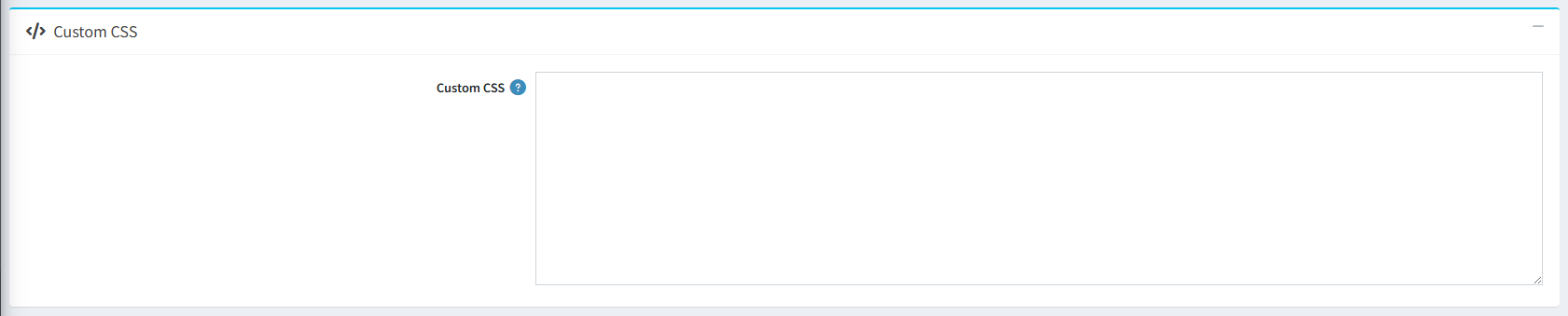
- Custom CSS: You can add custom css to add customize style for your site.
PUBLIC VIEW
PLUGIN CONFIGURATION
- BSS Product Box
- BSS Anywhere Component
- BSS Visual Editor
- BSS Payment Change
- BSS Product Ribbon
- BSS QuickView
- BSS Product Image Gallery
- BSS Anywhere Swiper
- SendCloud
- BSS Anywhere Carousels
- BSS Google Authentication
- BSS Microsoft Authentication
- BSS One Page Checkout
- BSS AI SEO Assistant
- BSS EU Omnibus Directive
- BSS EU GDPR Cookie Consent
Documentation Menu
NopFashion Theme + 15 Plugin Bundle for NopCommerce
NopBeauty Theme + 12 Plugin Bundle for NopCommerce
NopNoor Theme + 16 Plugin Bundle for NopCommerce
NopGadget Theme + 18 Plugin Bundle for NopCommerce
NopEthnic Theme + 17 Plugin Bundle for NopCommerce
NopFurniture Theme + 19 Plugin Bundle for NopCommerce
NopPharma Theme + 16 Plugin Bundle for NopCommerce
NopVogue Theme + 17 Plugin Bundle for NopCommerce


