NopFashion Theme + 15 Plugin Bundle for NopCommerce
NopBeauty Theme + 12 Plugin Bundle for NopCommerce
NopNoor Theme + 16 Plugin Bundle for NopCommerce
NopGadget Theme + 18 Plugin Bundle for NopCommerce
NopEthnic Theme + 17 Plugin Bundle for NopCommerce
NopFurniture Theme + 19 Plugin Bundle for NopCommerce
NopPharma Theme + 16 Plugin Bundle for NopCommerce
NopVogue Theme + 17 Plugin Bundle for NopCommerce
NopGadence Theme + 18 Plugin Bundle for NopCommerce
BSS Anywhere Slider
Created on: Mar 02, 2026
BSS Anywhere Slider is a powerful nopCommerce plugin built on the lightweight and flexible Splide JS library to deliver a smooth and responsive slider experience. It enables store owners to quickly create, display, and manage fully customizable image or content-based sliders directly from the admin panel. With this easy-to-use plugin, you can enhance your store’s design and functionality using modern, high-performance banners that effectively engage customers.
PRE-REQUISITES
- The plugin requires you to install the BSS Core plugin first.
INSTALLATION
- Go to the Order Details Page and Download plugin package
- Go to Administration → Configuration → Local plugins
- Within the bundle, you get all the required files, including BSS.Core
- Upload the zip files using the ‘Upload plugin or theme’ button
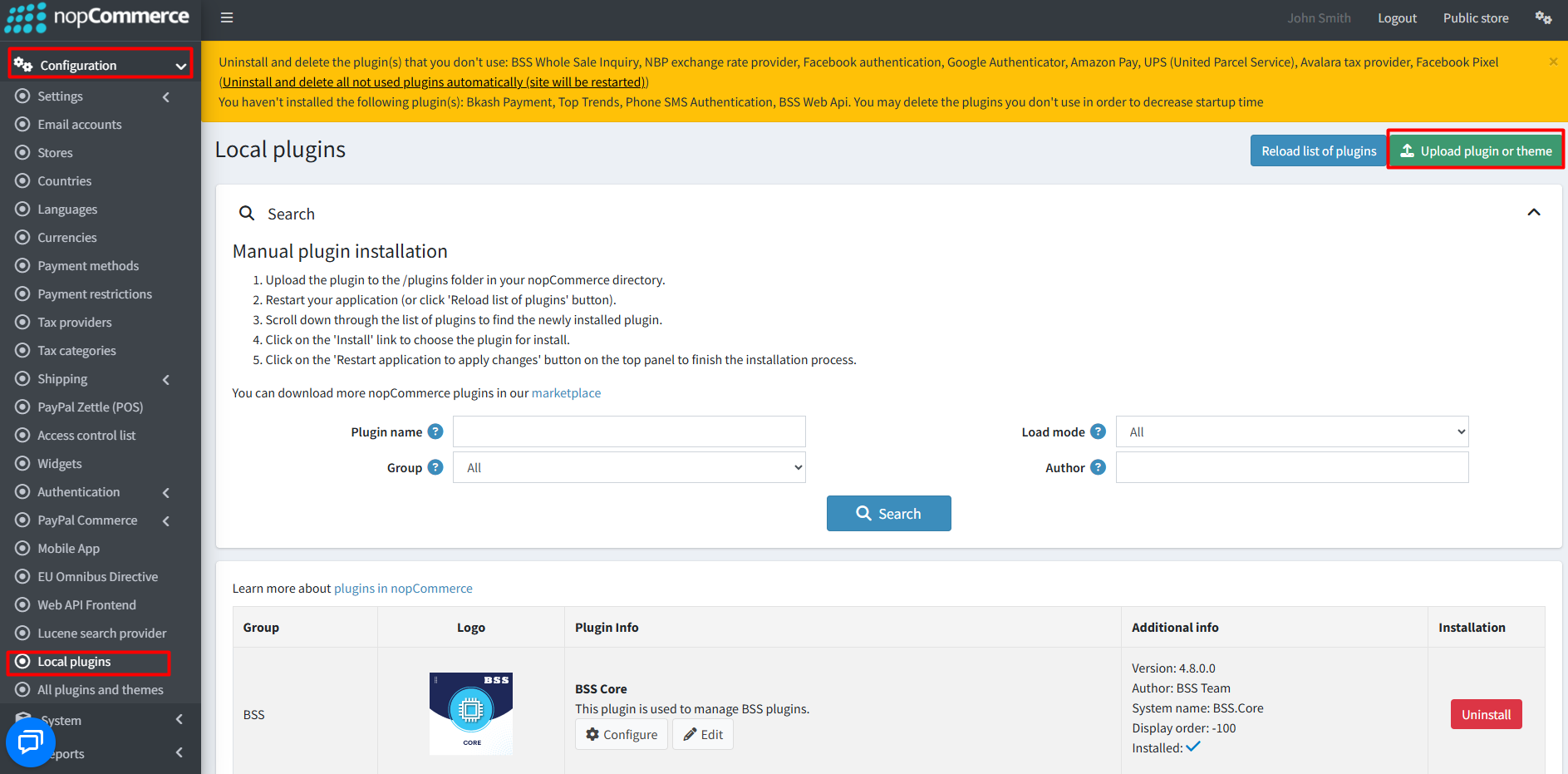
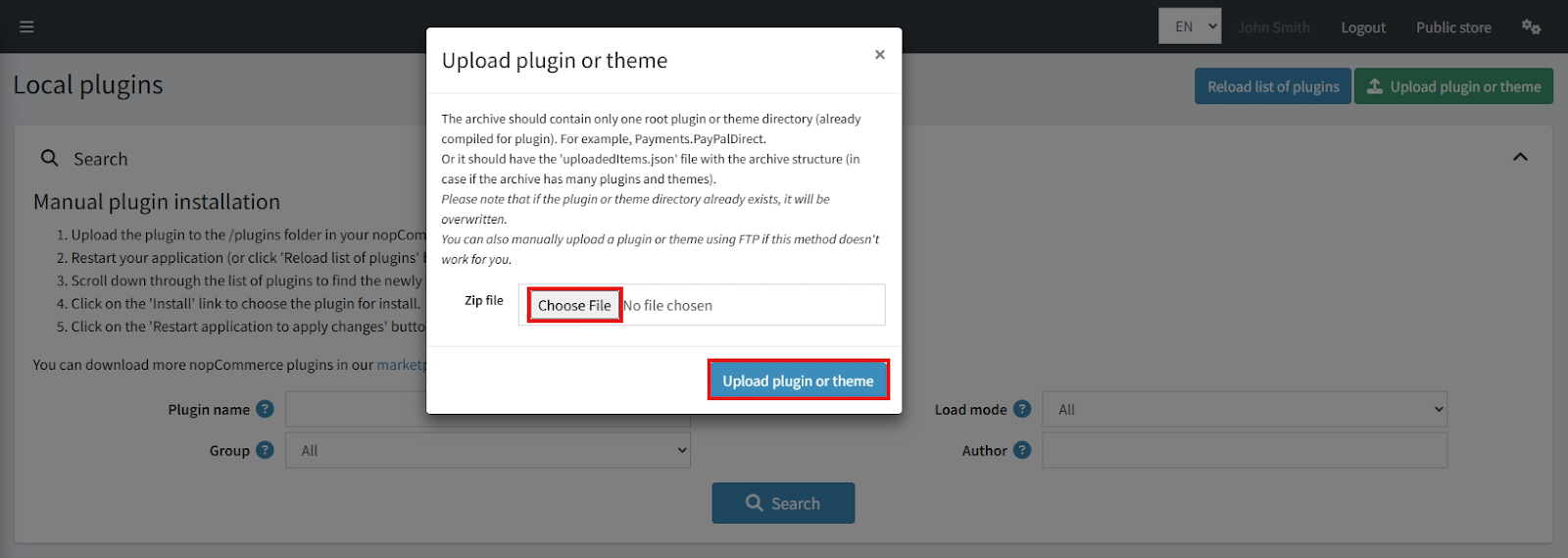
- After uploading, reload the ‘list of plugins’ and install the ‘BSS Core’ Plugin first. Scroll down or write the name of the plugin in the search bar, then install ‘Anywhere Slider.’
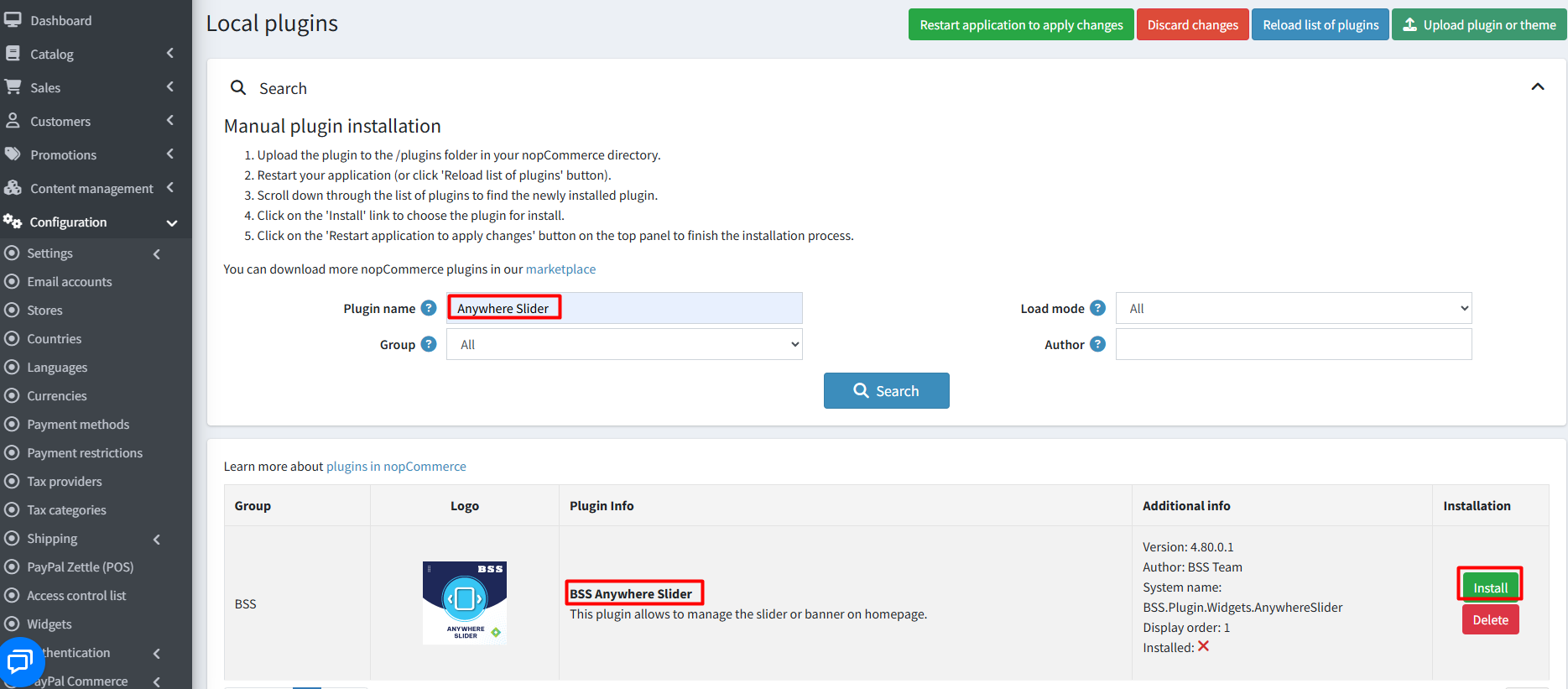
- To make the plugins functional, restart the application.
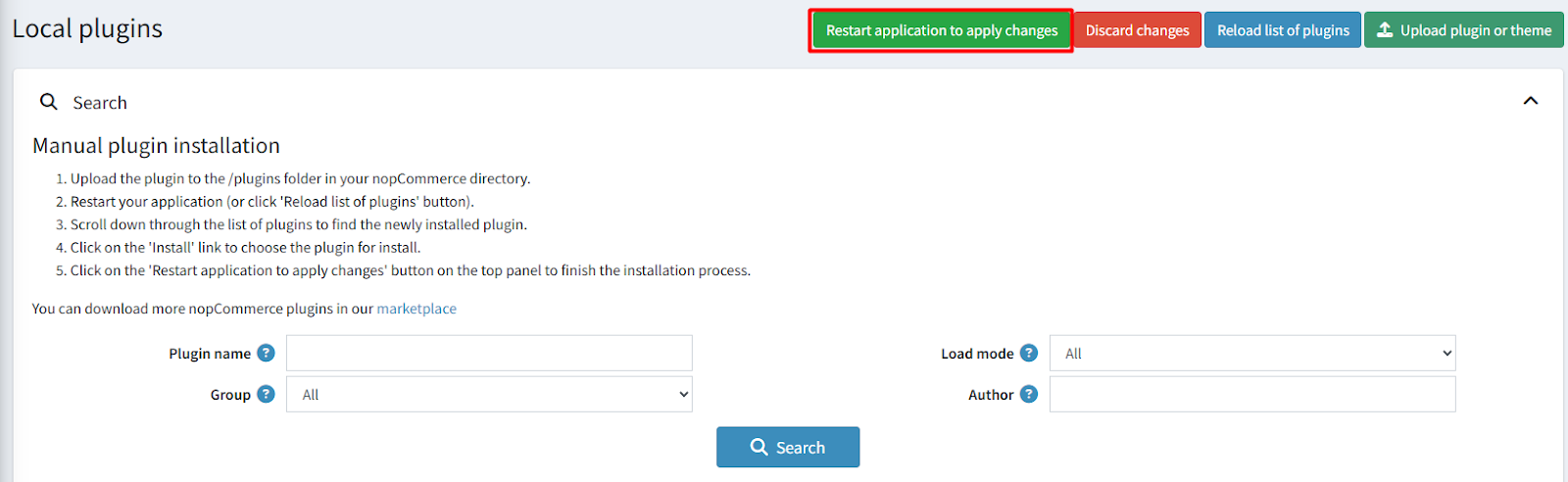
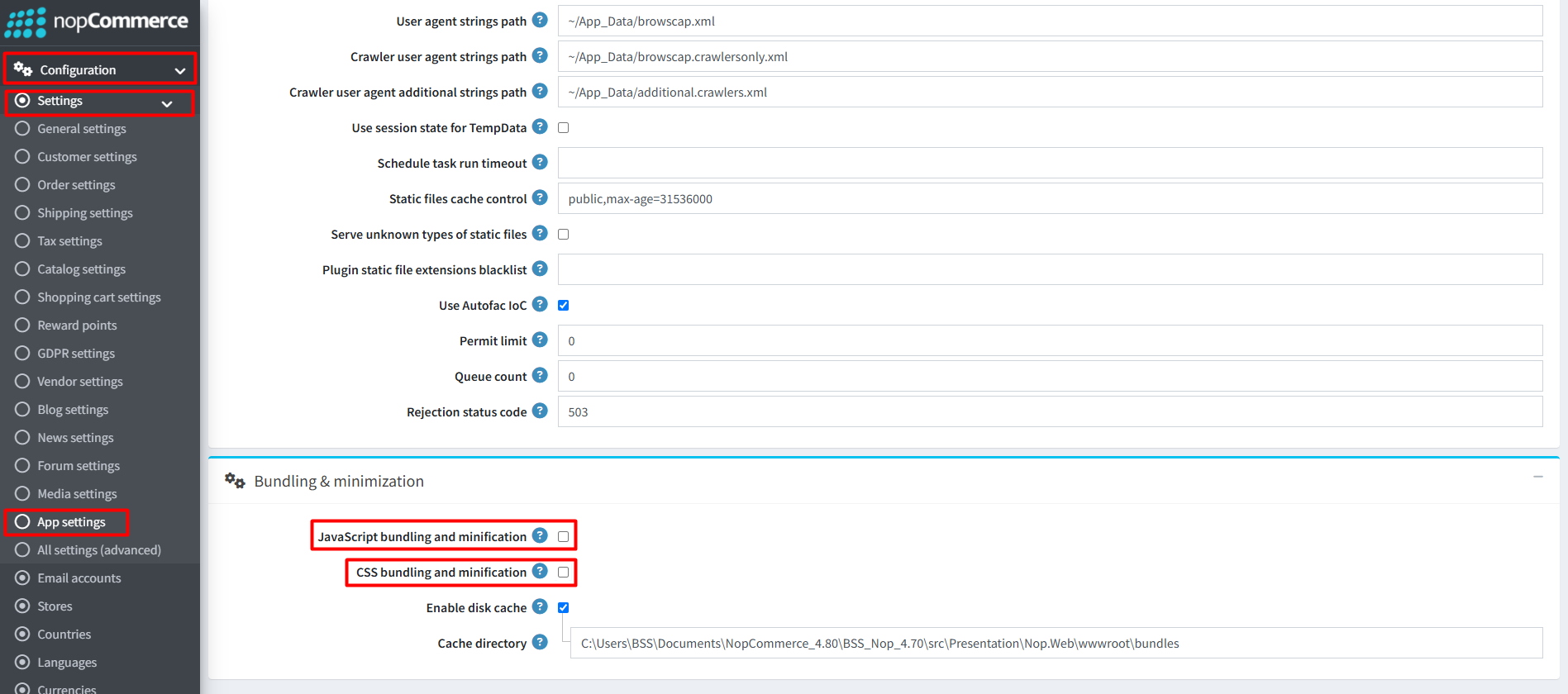
Recommendation: Go to > App Settings. If you find JavaScript bundling and minification, CSS bundling and minification are checked, then uncheck these two options and disable them.
CONFIGURATION
- Go to Admin → BSS → Plugins → Anywhere Slider → Configuration. Then enter the License string and save it. Clear cache.

- Again go to BSS → Plugins → Anywhere Slider → Configuration to set the configuration.
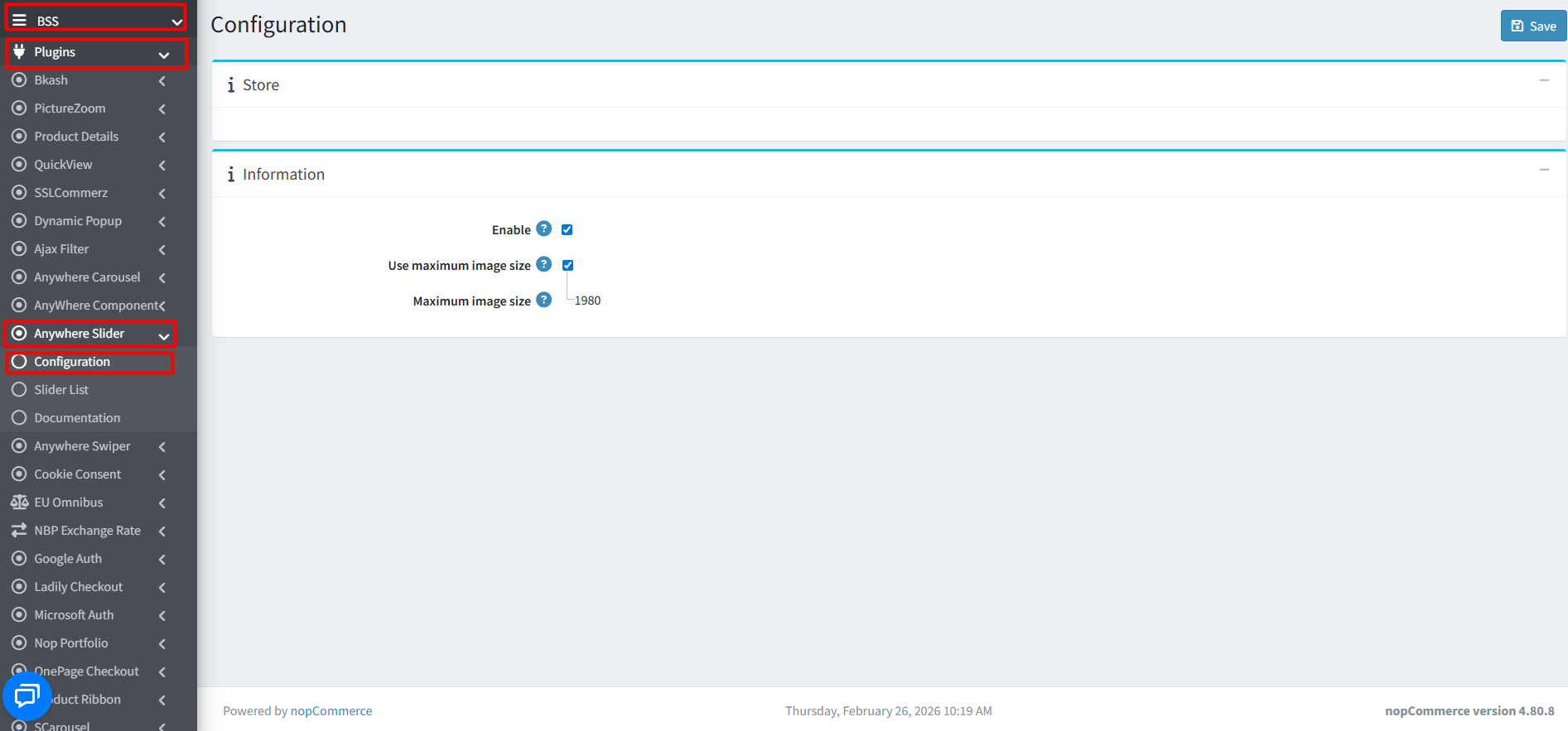
- Check the ‘Enable’ box.
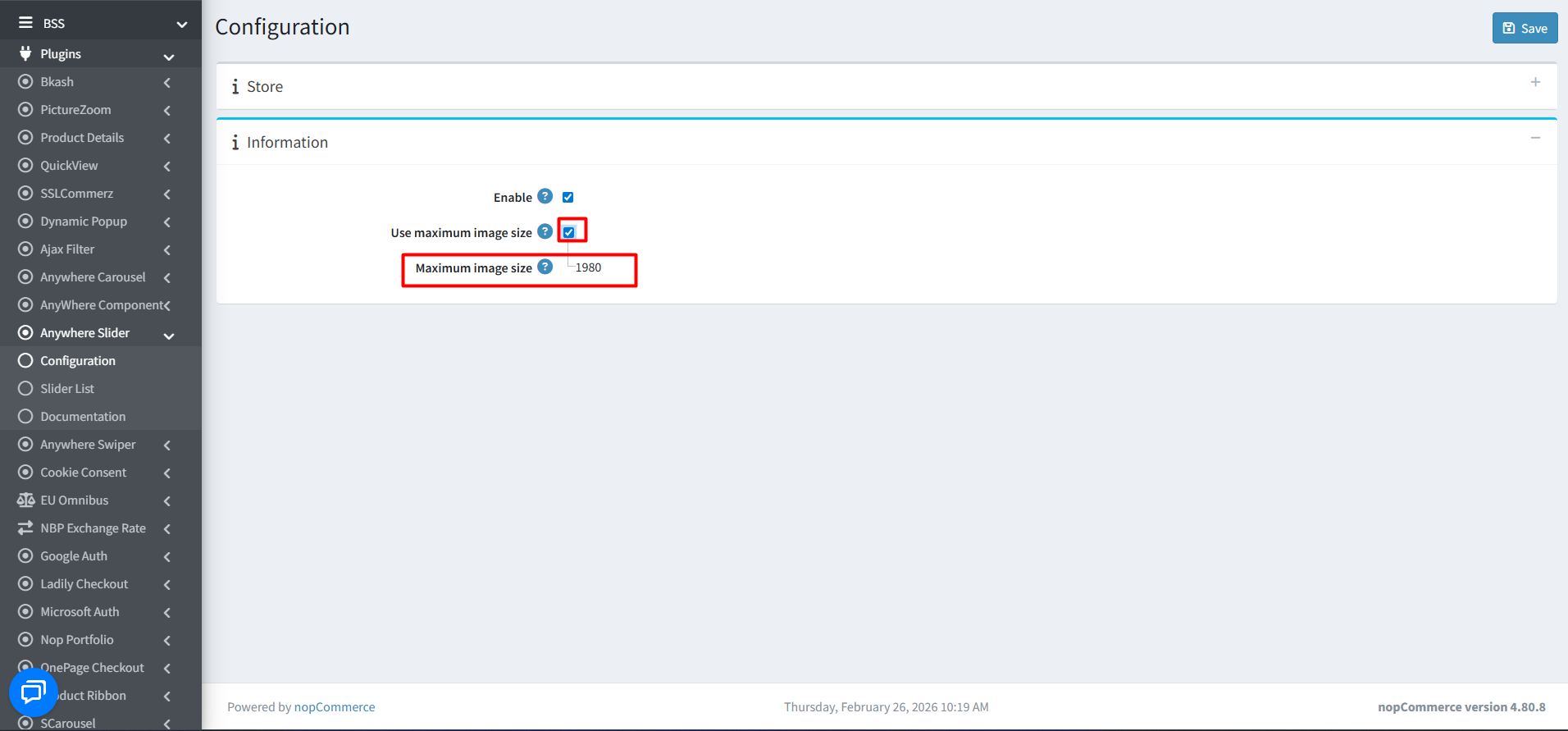
- Use maximum image size: Check this box to upload maximum image size as 1980.
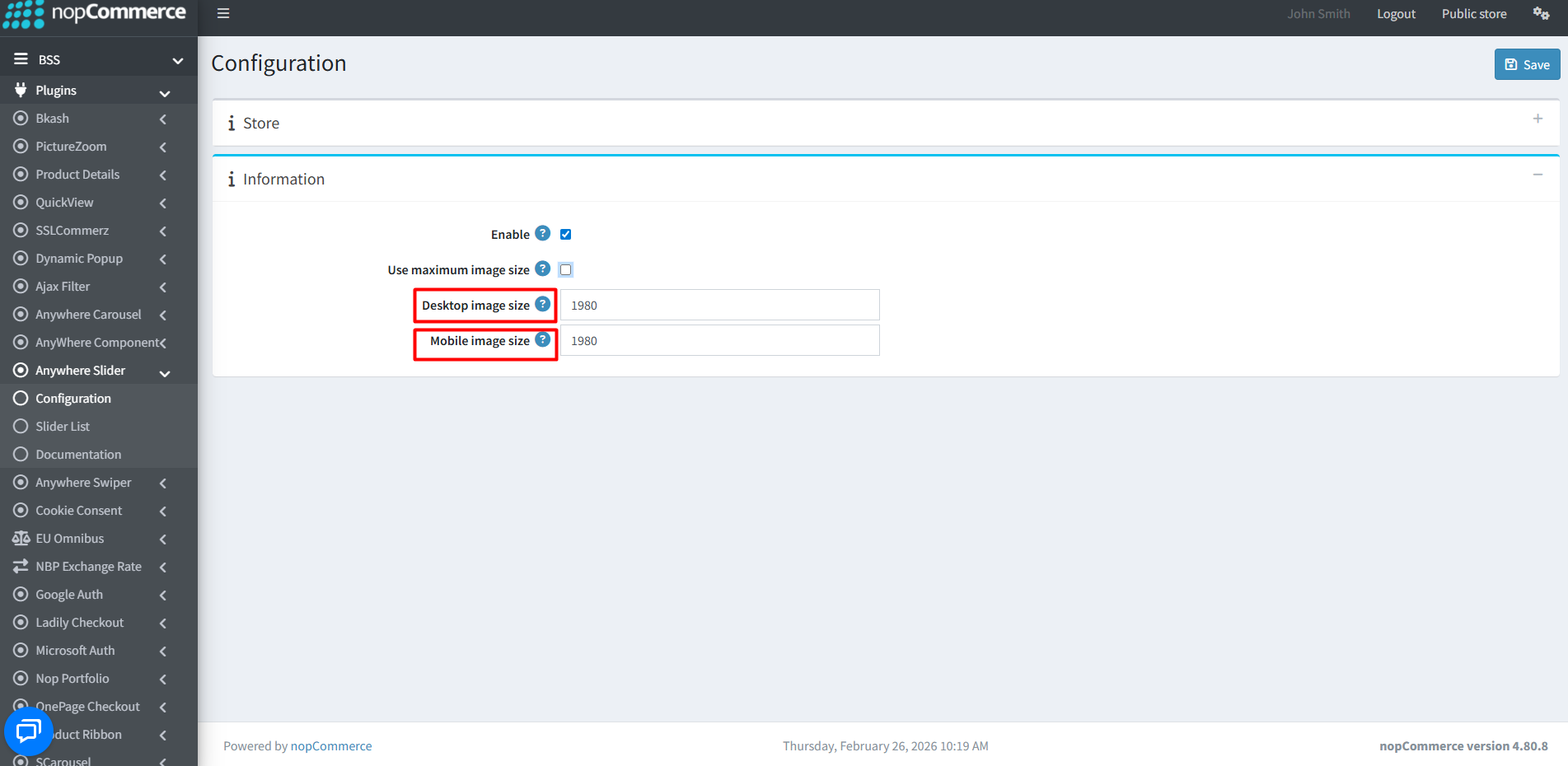
- Use maximum image size: Uncheck this box to set different image sizes for Desktop and Mobile view. Then save it.
CREATE/EDIT SLIDER
- Go to Admin → BSS → Plugins → Anywhere Slider → Slider List. You can see all the slider lists.
- Create: To create a new slider, click Add new button.
Slider Information
- Name of Slider: The slider name.
- Widget zone: Select the locations in which you want your slider to appear from the drop-down list.
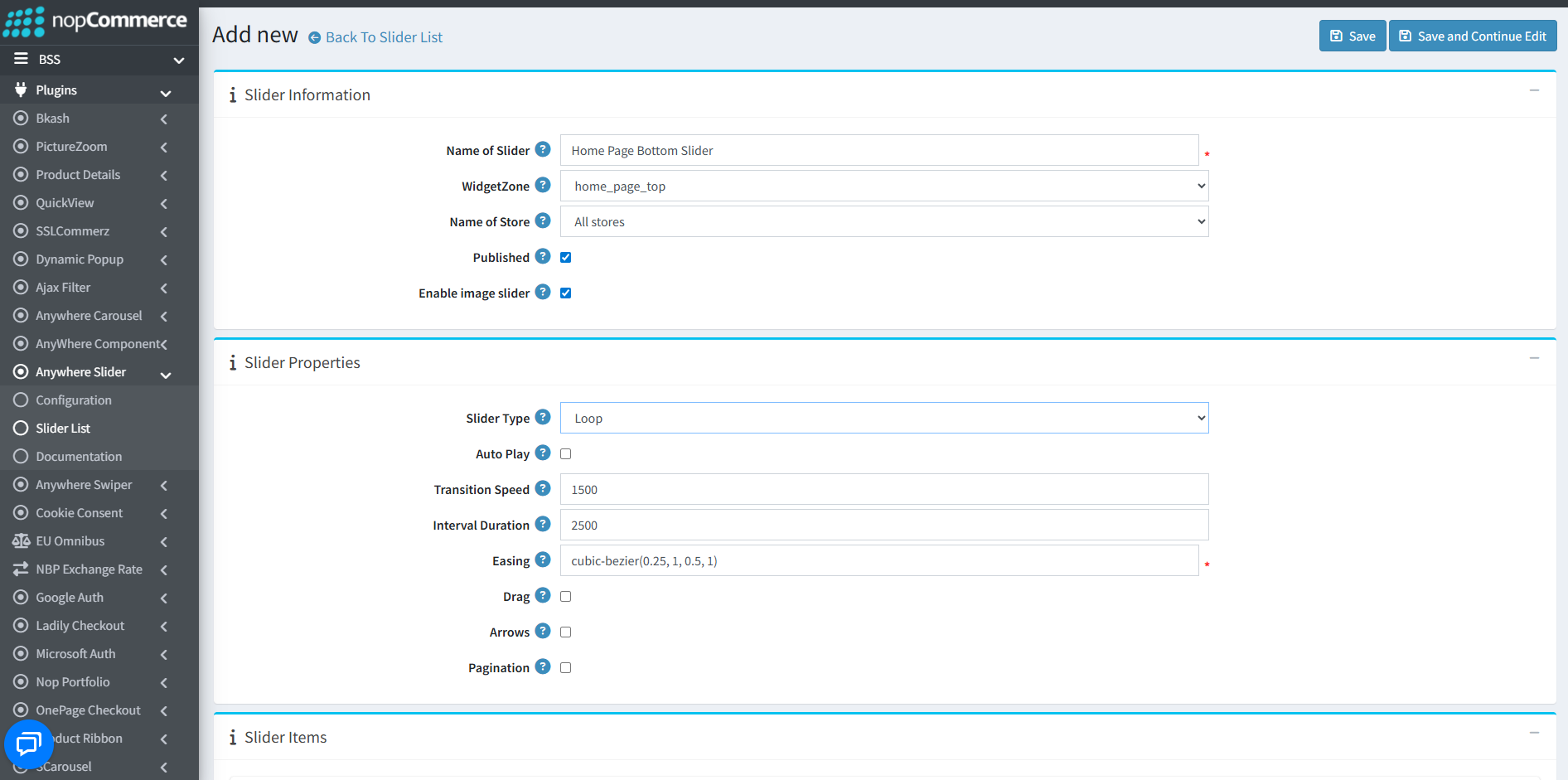
- Name of Store: Select store name to show the slider for that specific store.
- Published: Check to make the slider visible in the public store.
- Enable image slider: Check to set slider category as image type. Keep unchecked to show it as content image slider.
Slider Properties
- Slider Type: Select slider type (e.g., Slide or Loop) from the dropdown list.
- Autoplay: Enables automatic sliding.
- Transition Speed: Carousel transition speed in milliseconds.
- Interval Duration: Set how long each slide stays on screen.
- Easing & Drag: Controls transition timing and enables mouse/finger swiping.
- Arrows & Pagination: Toggle navigation controls on or off.
Slider Items
- Click Add New Item to add slider item information.
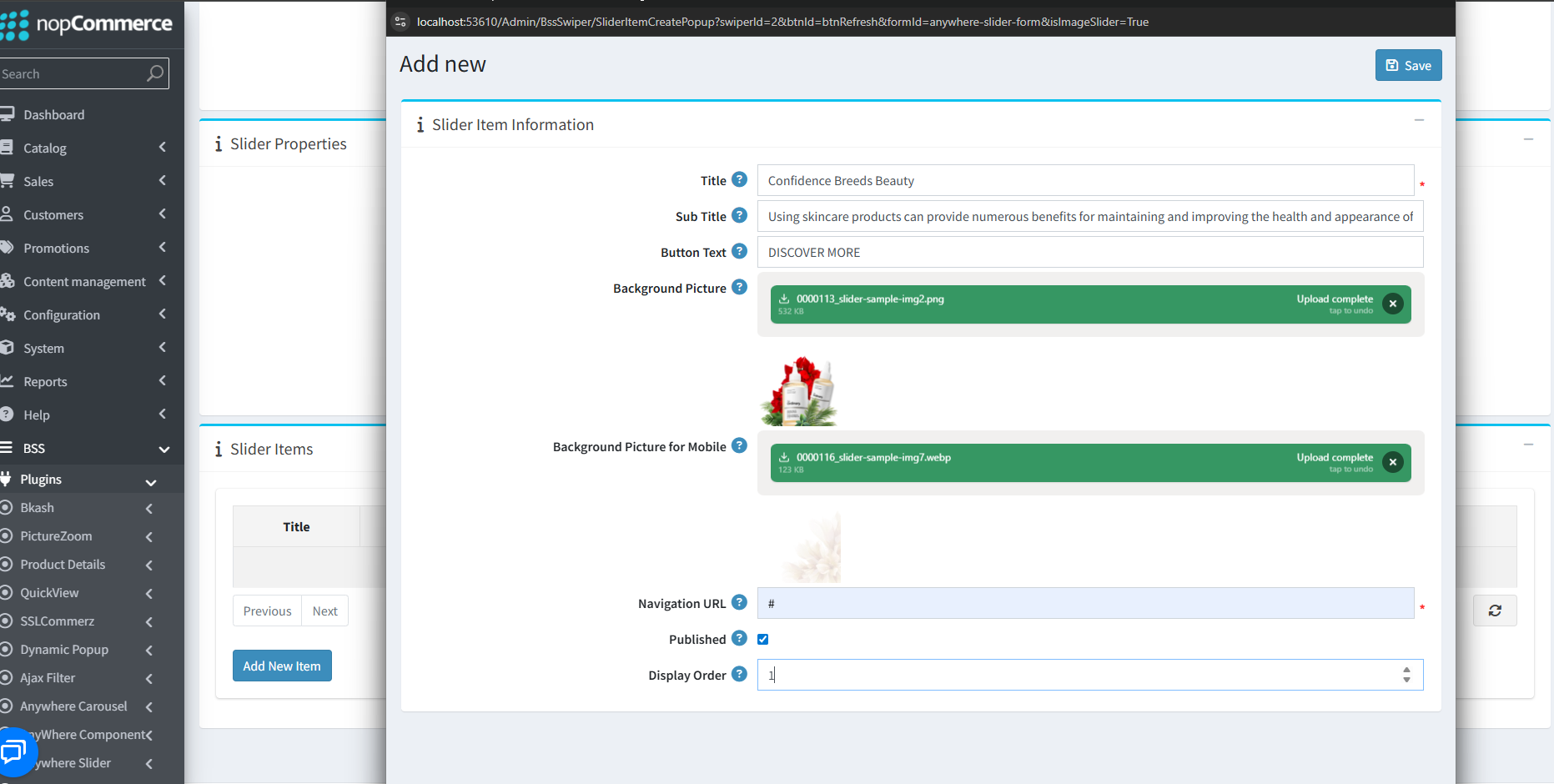
- Title/Sub Title/Button Text: Enter text to be displayed over the slider.
- Background picture: Recommended size 1200W x 462H pixels.
- Background picture for Mobile: Recommended size 425W x 270H pixels.
- Navigation URL: Enter a full URL or just the URL slug.
- Display order: Set the numerical order of the item.
- After setting all slider info and properties, click save button and slider will show in List of Slider.
PUBLIC VIEW

Features :
- Display order management is effective when placing multiple sliders in the same widget zone.
- It supports DefaultClean themes and allows for a custom CSS class to be applied for specific styling.
- Supports views and styles that are open for modification to match any store design.
- Fully compatible with all modern browsers for a seamless and consistent experience.
- Sliders can slide automatically using the integrated Autoplay feature.
- Supports Transition Speed and Interval Duration settings to control animation timing.
- Navigation Arrows and Pagination dots can be toggled on or off as needed.
- Supports separate background pictures for Desktop and Mobile views to ensure full responsiveness.
- Add interactive elements like Titles, Subtitles, and Button Text to make the homepage more attractive.
Documentation Menu
NopFashion Theme + 15 Plugin Bundle for NopCommerce
NopBeauty Theme + 12 Plugin Bundle for NopCommerce
NopNoor Theme + 16 Plugin Bundle for NopCommerce
NopGadget Theme + 18 Plugin Bundle for NopCommerce
NopEthnic Theme + 17 Plugin Bundle for NopCommerce
NopFurniture Theme + 19 Plugin Bundle for NopCommerce
NopPharma Theme + 16 Plugin Bundle for NopCommerce
NopVogue Theme + 17 Plugin Bundle for NopCommerce
NopGadence Theme + 18 Plugin Bundle for NopCommerce