It is the last Friday of the month. The marketplace had a good one — a few hundred orders spread across fourteen vendors — and you are in a spreadsheet, sorting line items by seller, subtracting your commission, deducting the two refunds that came through on Tuesday, and lining up fourteen separate bank transfers. Somewhere in that column of numbers there is a mistake you will not find until a vendor emails you about it.
That spreadsheet is what running a multi-vendor store on stock nopCommerce actually feels like once you are past a handful of sellers. The platform gives you vendors. It does not give you a way to move money to them.
This guide walks through how split payments actually work with Stripe Connect on a nopCommerce store: what happens to a single customer payment for a cart from three different sellers, the two rules you need to decide before you take the first order, how vendors onboard themselves without becoming your support queue, and what the system does on the day a refund arrives after you have already paid someone.
Why Marketplace Payouts Break at Scale
The spreadsheet works fine at three vendors. It stops working somewhere around ten — not because the arithmetic gets harder, but because the number of things that can quietly go wrong grows faster than the number of sellers.
It is worth being precise about where the gap actually is, because nopCommerce's multi-vendor support is genuinely good at what it covers. You get vendor accounts, vendor-scoped products, a vendor-limited admin view, and a commission figure stored on the vendor record. What the platform deliberately does not do is move money.
Key fact: the built-in vendor commission field in nopCommerce is a reporting number, not a payment instruction. Nothing in the platform debits your merchant account and credits a vendor's.
Every payment your store takes settles into one account: yours. nopCommerce records who sold what. It has no opinion about who gets paid, or when.
That single design decision is where both of the problems below come from.
One clarification before going further, because these two get mixed up constantly: multi-vendor is not multi-store. Multi-vendor runs several sellers inside one storefront. Multi-store runs several storefronts from one install. If what you are actually trying to build is a separate wholesale or regional shopfront rather than a seller marketplace, our guide to running multiple stores from one nopCommerce install is the one you want instead — the two features solve different problems and the setup barely overlaps.
How Split Payments Actually Work
So the gap is money movement, and Stripe Connect is the piece that fills it. Before looking at settings, it helps to understand what changes structurally, because it is not simply "Stripe, but for marketplaces."
In a normal Stripe integration there is one merchant account and it is yours. Under Connect, each vendor gets their own connected account, and your store becomes the platform that charges the customer and instructs how the money is divided. Three things happen, in order.
The screen below is the whole idea in one frame. On the left, a single order paid in one Stripe transaction. On the right, the same order in the Vendor Payouts dashboard, already broken into per-vendor rows with gross, commission and net calculated for each.
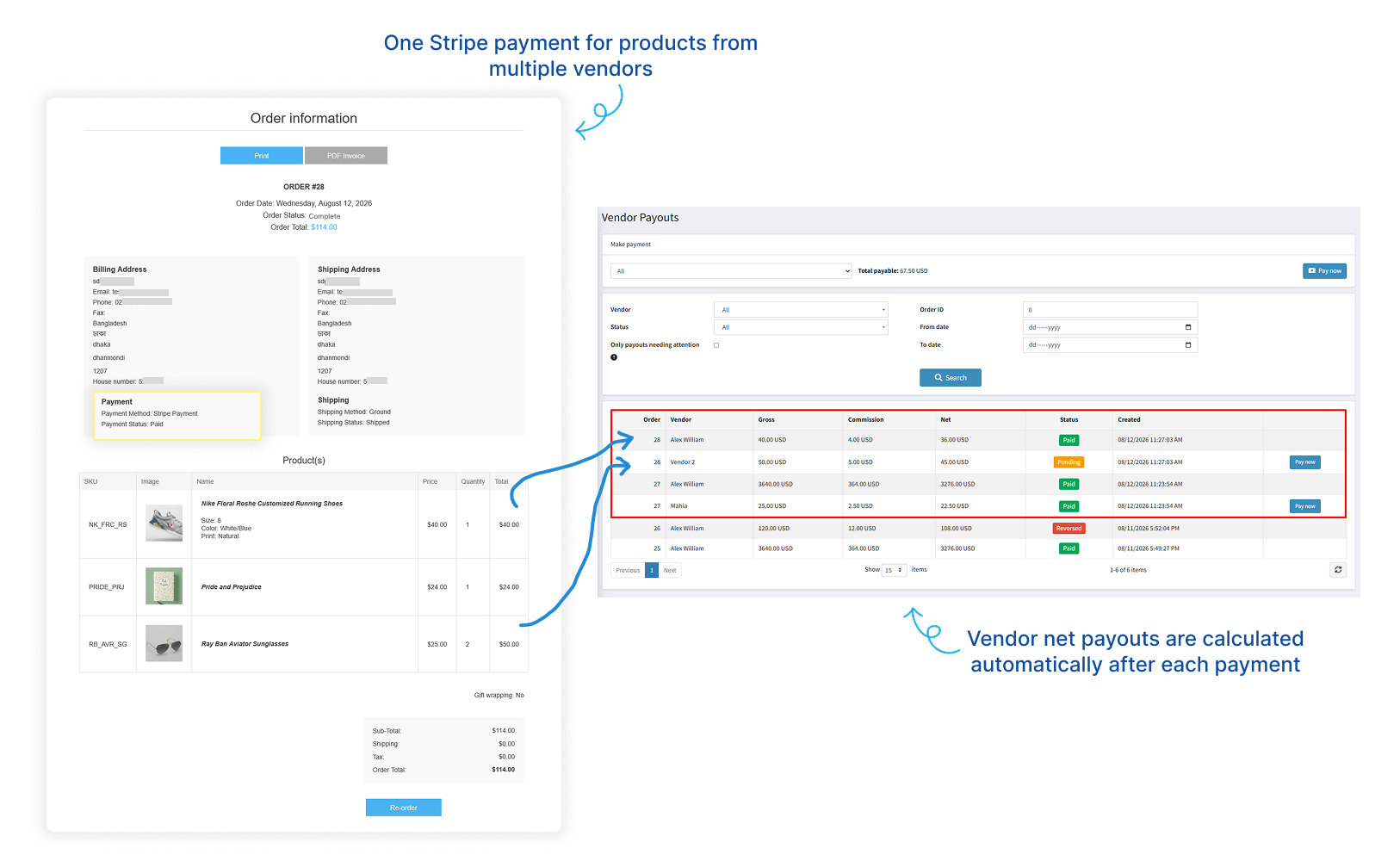
Two details in that split matter more than they look. The commission is taken at the moment of the split, not chased afterwards — so your revenue is never sitting in someone else's balance. And each payout row stays tied to its order ID, which is what turns "I think we paid you" into a record you can both look at.
If you have not settled on Stripe as the gateway yet, that decision comes first and it is worth making deliberately — we compared the realistic options for a nopCommerce store, including regional processors, in our breakdown of nopCommerce payment plugins. Split payments only make sense once the gateway underneath them is the right one for your market.
Deciding Your Commission and Payout Rules
The mechanics above are the easy part. The decisions that actually shape how the marketplace feels to run are the two you make before the first order lands: what you keep, and when vendors get their money.
Commission first. BSS Stripe Connect supports two models — percentage or fixed. Percentage scales naturally with order value and is what most marketplaces default to, because a vendor selling a laptop and a vendor selling a paperback are contributing very different amounts of payment-processing risk and support load. Fixed is the better fit when your basket sizes are consistent and vendors want a number they can price against without doing arithmetic on every listing.
Whichever you choose, the value is set once in the plugin's configuration and applied to every split from then on.
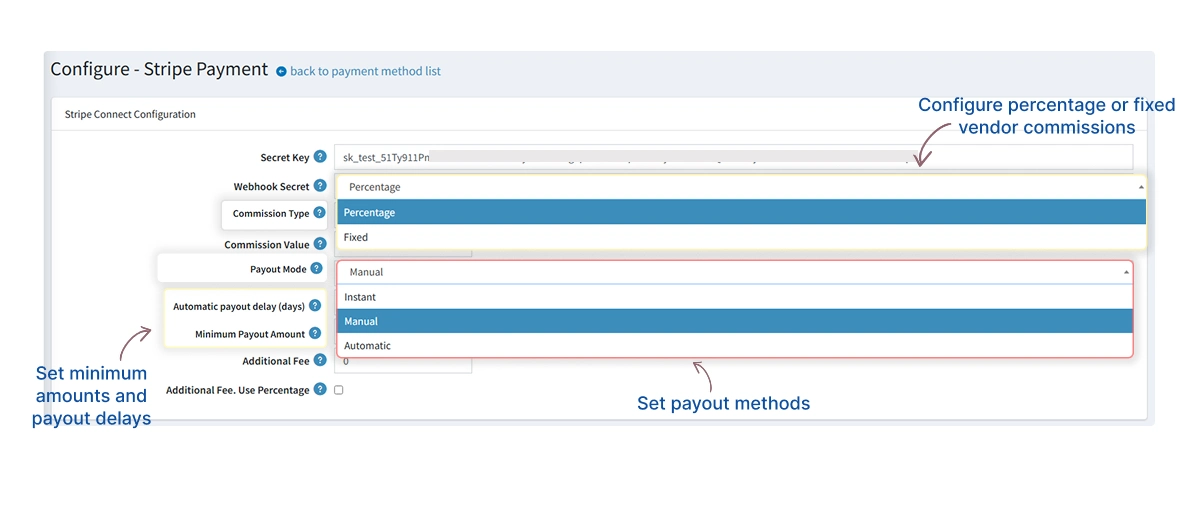
Payout mode is the more consequential of the two, because it is really a decision about risk. The question underneath it is simple: how confident are you, at the moment a payment clears, that the order is going to stick?
| Payout mode | How it works | Best suited to | The trade-off |
|---|---|---|---|
| Instant | The vendor's net transfers as soon as the payment clears. | Digital goods and services — no shipping window, near-zero return rate. | Highest reversal exposure — you have paid before you know the order holds. |
| Automatic | Transfers release on their own after a delay you set, in days. | Physical goods, where the delay can be set to cover your returns window. | The sensible default — as long as the delay outlasts your returns policy. |
| Manual | Nothing moves until someone releases it from the admin. | New vendors, high-value orders, and categories with a dispute history. | Someone has to remember. Needs a standing weekly routine. |
Two supporting settings sit alongside these. A minimum payout amount holds a vendor's balance until it is worth transferring, which keeps small transfers from eating their own value. An optional additional fee lets you add a checkout surcharge, either flat or as a percentage, if you want the payment cost carried visibly rather than absorbed into commission.
The setting that generates the most vendor emails
The minimum payout amount is technically the least interesting field on the page and practically the one that causes the most confusion. Set it at fifty dollars and a vendor who sold thirty-eight this month sees a payout that simply never arrives — correct behaviour, and completely opaque from their side.
Either set it low enough to be invisible, or state it plainly in your vendor terms. When you need to make an exception, the per-row Pay now button in the payouts dashboard releases a single vendor's balance regardless of the threshold.
This is the point where a turnkey plugin earns its place. All of the above — commission model, payout timing, thresholds, surcharges — is configuration in BSS Stripe Connect, rather than logic somebody has to write, test against Stripe's API, and then maintain as that API changes.
Onboarding Vendors Without Becoming Their Support Desk
With the rules decided, the next thing that determines whether any of this is sustainable is how much of your week vendor onboarding costs you.
The failure mode here is predictable, and we have watched it play out on marketplaces that grew faster than their operations. You end up collecting bank details over email, chasing tax forms, storing identity documents you have no business storing, and answering "am I set up yet?" for every new seller. Each one of those is an operational cost and a compliance liability at the same time.
The way out is to not be in the middle of it. The vendor signs in to their own nopCommerce admin, opens the Stripe Connect vendor dashboard, and clicks Connect with Stripe. Stripe's hosted onboarding collects identity, banking and tax information directly from the vendor. A seller who already runs a Stripe account can connect that one instead of creating another, and the account's country is derived from the address the vendor already has in nopCommerce — so you are not asking twice for information the store is holding.
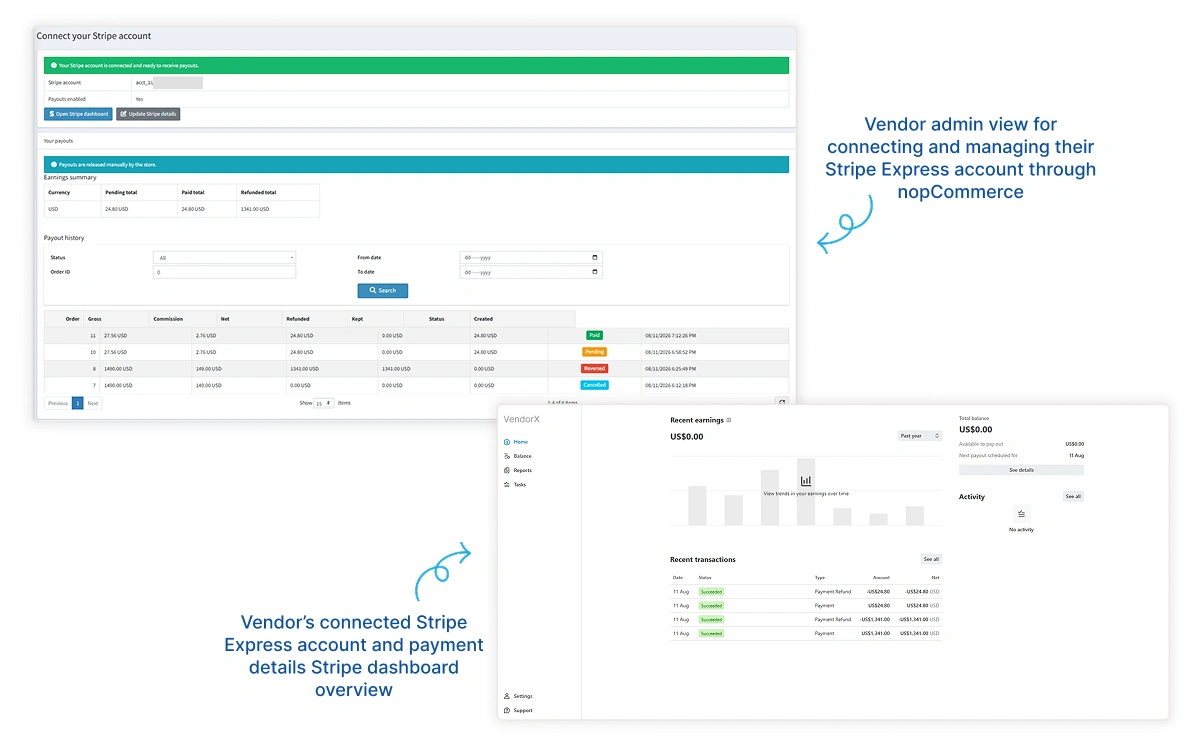
What the vendor gets afterwards is the part that actually reduces your workload. Their dashboard shows connection status, pending and paid totals, refunded totals, and a payout history they can filter by status, order ID or date range. Their Stripe Express dashboard covers balance and bank details, which is Stripe's problem rather than yours.
The payout question you never have to answer is the one your vendor can already see the answer to.
BSS Engineering
On your side, a Vendor Accounts screen in the admin lists every vendor's Stripe account, whether payouts are enabled on it, and where they are in onboarding — with an on-demand refresh so you can check a stalled account without leaving nopCommerce. That screen is how you catch the vendor who started onboarding, got as far as the bank-details step, and quietly gave up.
Paying Vendors From a Single Screen
Once vendors are connected and orders are landing, the monthly spreadsheet collapses into one admin screen — and the Friday afternoon from the top of this article turns into a filter and a button.
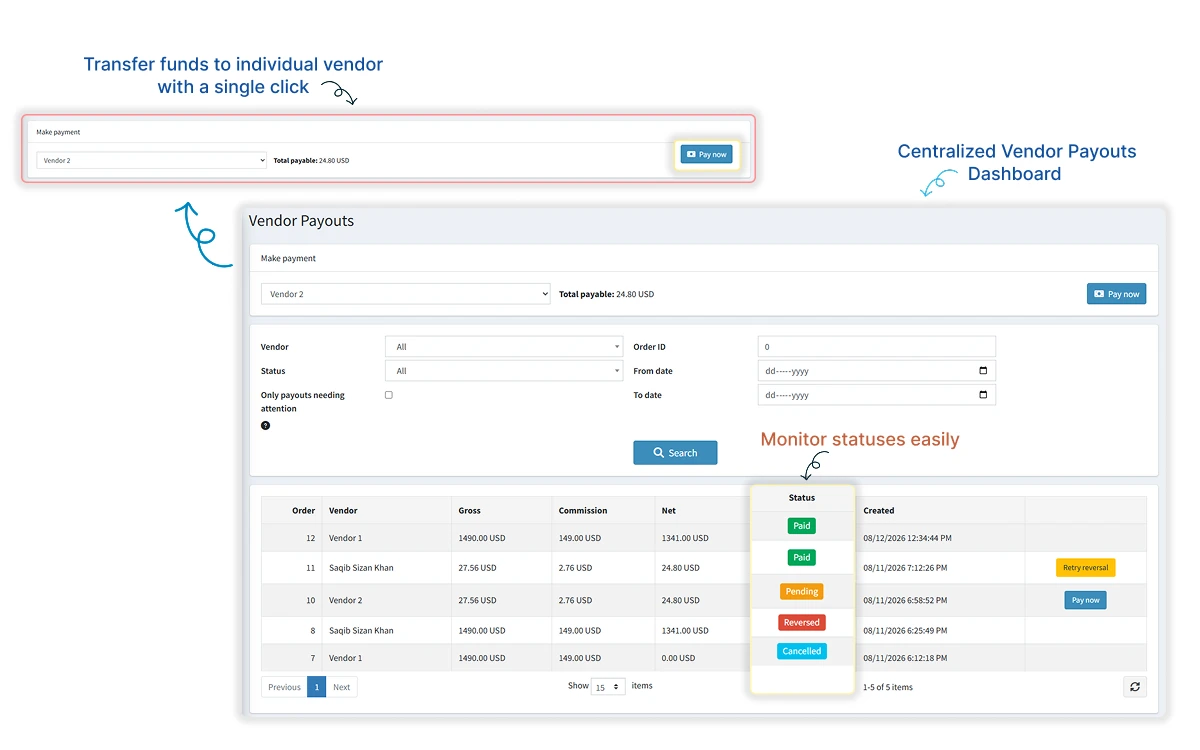
Every payout carries a status, and the statuses are the vocabulary you will end up using with vendors:
- Pending — calculated and owed, not yet transferred.
- Paid — transferred to the vendor's connected account.
- Failed — Stripe rejected the transfer, almost always because the vendor's account is not fully onboarded.
- Reversed — recovered from the vendor after a refund.
- Cancelled — voided before it was ever sent.
The dashboard filters by vendor, status, order ID and date range, and carries an only payouts needing attention filter for the rows that are actually asking something of you. From the make-payment card at the top you can settle a vendor's whole payable balance in one action, or use the per-row Pay now button to release a single order's payout early.
The practical difference from a spreadsheet is not the time saved on the transfers themselves. It is that every figure on the screen was derived from an order rather than typed by a person, so there is nothing to reconcile afterwards.
Refunds, Reversals and Staying in Sync
Everything above is the happy path. The real test of a payout system is the day a customer returns a laptop worth more than that vendor's entire month, and the payout for it went out four days ago.
In the spreadsheet world this is the worst case, because the money has already left. Recovering it means an awkward email, a manual adjustment, and a correction carried forward that somebody has to remember next month. Handled through Stripe Connect, the recovery is part of the refund itself. There are two routes into it, and they exist for different reasons.
A standard order refund — the ordinary Refund or Partial refund buttons under Sales → Orders — works exactly as it always has, except the vendor's share is now deducted automatically. Pending payouts are reduced; transfers that have already gone out are reversed proportionally through Stripe.
The Vendor Refunds screen exists for the case a standard refund handles badly: a multi-vendor order where only one seller's product is coming back. You load the order by ID, see the products grouped by vendor with their refundable amounts, and set exactly what to return.
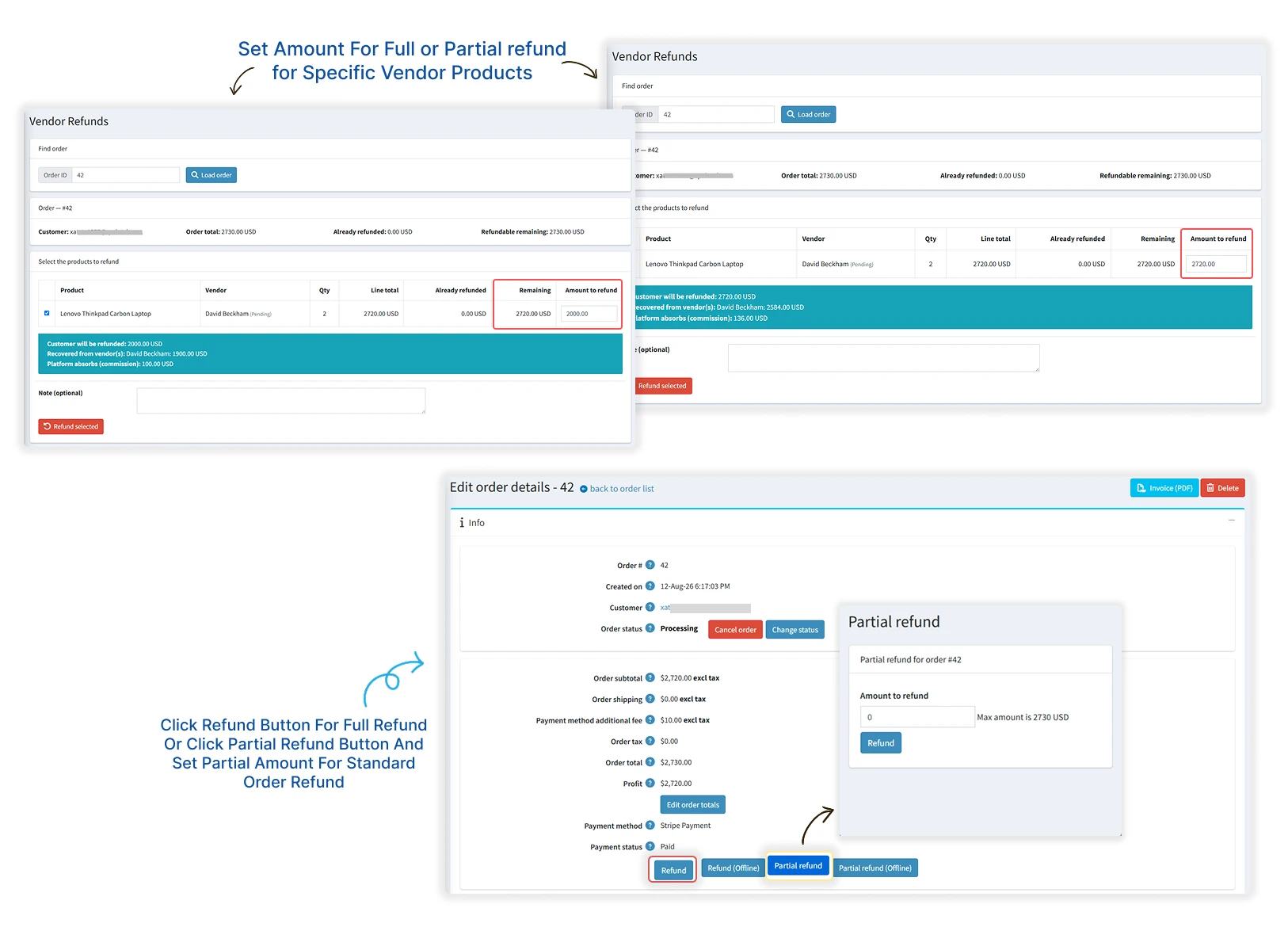
The breakdown bar in that screen is the detail worth pausing on. Before you commit, it tells you three numbers: what the customer gets back, what is recovered from each affected vendor, and what your commission absorbs. Only the vendors whose products are actually being returned are touched — the other sellers on that order never see a change.
Reversals do occasionally fail, usually because the vendor's Stripe balance is empty at the moment you try to claw funds back. Those payouts are flagged rather than silently dropped, they can be retried, and the store can be emailed when a reversal fails so it does not sit unnoticed.
The setup step people skip
Register the webhook endpoint. Refunds issued directly in the Stripe Dashboard — which is where a lot of support-driven refunds actually happen — only flow back into nopCommerce through it. Without the endpoint, your order statuses and vendor payouts drift out of alignment with Stripe and nobody notices until month end.
The plugin listens for four events covering completed and expired checkout sessions, connected-account updates, and refunded charges. Every incoming call is signature-verified against your webhook signing secret, so an unsigned or tampered request cannot move money.
One more thing worth naming, because it changes your compliance position rather than just your workload: customers enter card details on Stripe's hosted page, never on your storefront. Card data does not reach your server or your database. The part of checkout you still own is everything up to the redirect — and that is where most ready-to-buy shoppers are actually lost, which is why our notes on checkout page design are worth reading alongside this.
Choosing Your Route, and Going Live
Before the checklist, the honest comparison. There are three ways to solve marketplace payouts, and the right answer genuinely depends on where you are.
If the middle route is where you are headed, the engineering is well-documented and we have written up the developer's side of it in our guide to building a payment plugin in nopCommerce. If you are taking the third route, the checklist below is the order we work through on a real deployment.
Pre-launch checklist for split payments
-
Enable nopCommerce's multi-vendor feature and confirm every seller exists as a vendor with a complete address — the Stripe account's country is derived from it.
-
Install BSS Core first, then BSS Stripe Connect, then restart the application so both register cleanly.
-
Run the whole flow in test mode against a Stripe test secret key before you point it at live traffic.
-
Register the webhook endpoint, subscribe to all four events, and confirm a test event is accepted and signature-verified.
-
Decide commission type and value, and write both into your vendor terms before you onboard anybody.
-
Choose a payout mode. If automatic, set the delay longer than your returns window rather than shorter.
-
Set the minimum payout amount low enough that vendors are never surprised by a payout that does not arrive.
-
Turn on the vendor email notifications for paid, refunded and account-ready — they remove most routine payout tickets before they are raised.
-
Onboard one cooperative vendor end to end, place a real low-value order, then refund it and watch the reversal land on the right payout row.
-
If you run more than one storefront, check the per-store configuration overrides so each store settles with the right keys and commission.
Every setting named above, with the exact admin paths and the full webhook event list, is written up in the BSS Stripe Connect documentation. And if you are still at the stage of working out how to evaluate a paid nopCommerce extension before committing to it, our plugin buyer's guide covers what to check first.
Split Payments Across Vendors, Without the Spreadsheet
One customer checkout for a multi-vendor cart, commission taken at the moment of the split, self-service vendor onboarding through Stripe, a single payouts dashboard, and refunds that reverse the right vendor's payout on their own. Built for nopCommerce 4.90 by the BSS engineering team.
Frequently Asked Questions
Final Thoughts
It is the last Friday of the month again. Same few hundred orders, same fourteen vendors — and the spreadsheet is not open.
Your commission was taken at the moment each order was paid. The refunds from Tuesday already reversed themselves against the two vendors they belonged to, and left everybody else's payouts alone. You open Vendor Payouts, filter to pending, and release. The two sellers who would once have emailed you about their balance checked their own dashboards on Wednesday.
None of that makes a marketplace succeed by itself. But payout friction is one of the few operational problems that gets strictly worse as you grow, and it is unusual in being almost entirely solvable with configuration rather than headcount. Getting it right early is what lets you add the fiftieth vendor as easily as the fifth.
If that is where your store is heading, BSS Stripe Connect is the shortest route to it — and if you would rather talk through your marketplace's specific commission and payout rules before committing to anything, our team is happy to walk through them with you.