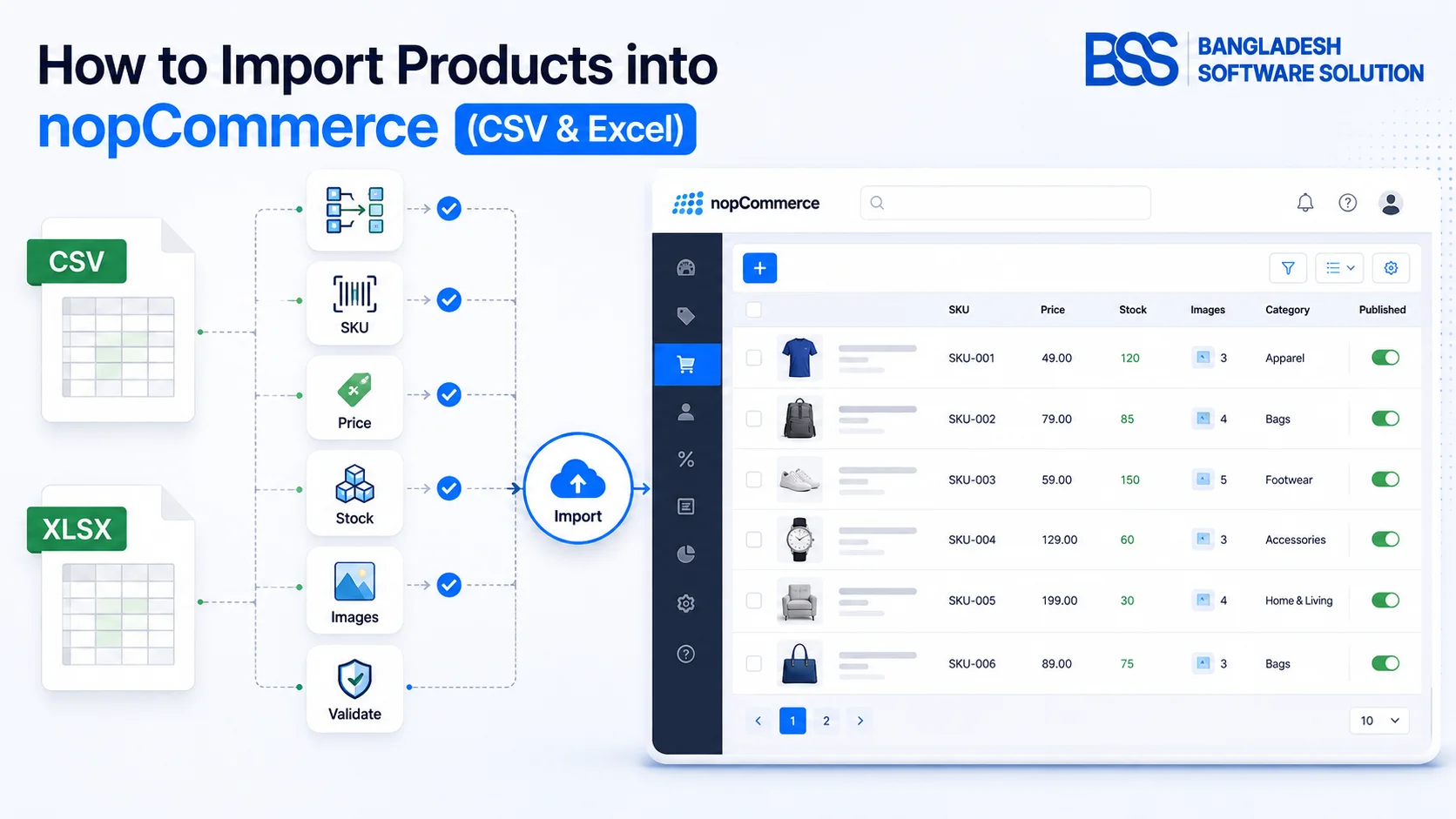
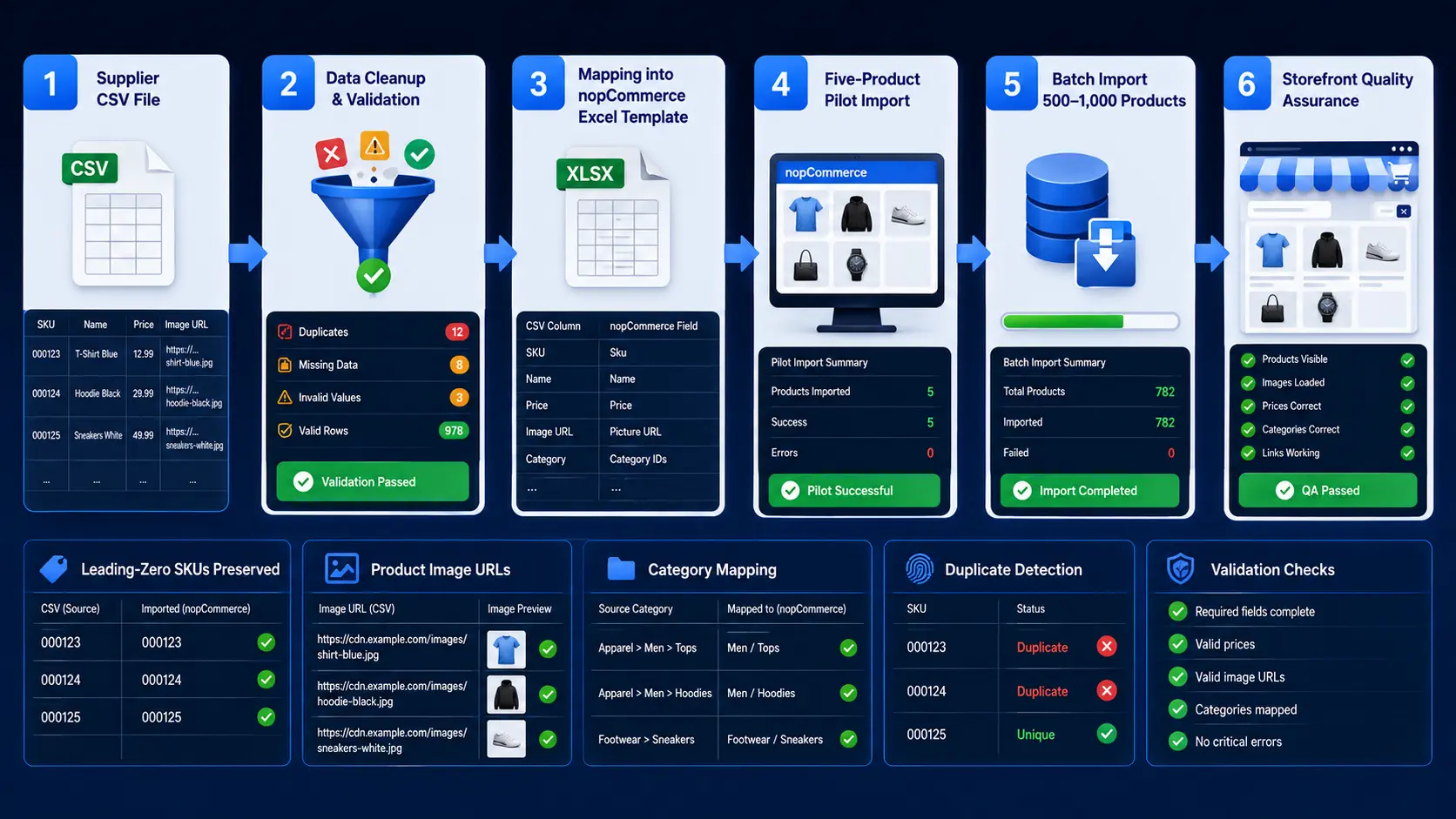
A supplier sends you a 2,500-row CSV containing SKUs, prices, stock, categories, and image URLs. Uploading it without a plan can create duplicate products, strip leading zeros from identifiers, misassign categories, or leave thousands of products without images.
A controlled nopCommerce product import avoids those problems. The key is to use an Excel export from the target store as your schema, treat SKU as the stable update key, test a small sample, and import the catalog in manageable batches.
Important: nopCommerce’s built-in product importer works with Excel. If your source is CSV, use it as staging data: open it in a spreadsheet application, map it to a same-version nopCommerce export, and save the finished workbook as .xlsx. Direct CSV feeds normally require a compatible plugin or custom integration.
What Product Format Does nopCommerce Import?
In the administration area, the product list includes an Import action for Excel files. nopCommerce can also export catalog data to Excel or XML. For a bulk import, the safest template is an Excel export generated by the same store and nopCommerce version that will receive the data.
That export matters because supported columns and behavior can change between versions or installed customizations. The column headers in your import workbook must match the exported table. Do not rename them to match a supplier’s vocabulary; map the supplier values into nopCommerce’s vocabulary instead.
1. Back Up the Store and Export a Template
Never begin a large catalog import on the live store without a database backup and a recovery plan. Product imports can update existing records, create new records, and connect related entities. A clean rollback is far faster than manually correcting hundreds of rows.
- Back up the database and the product-image storage location.
- Use a staging copy when the catalog or mapping is complex.
- Go to Catalog → Products in nopCommerce administration.
- Export a small representative set of products to Excel.
- Keep an untouched copy of that export as your reference template.
Include products that represent the variations in your catalog: a simple product, a product with attributes, a product assigned to multiple categories, a discounted item, and an item with several images. This reveals how your exact installation expresses those cases.
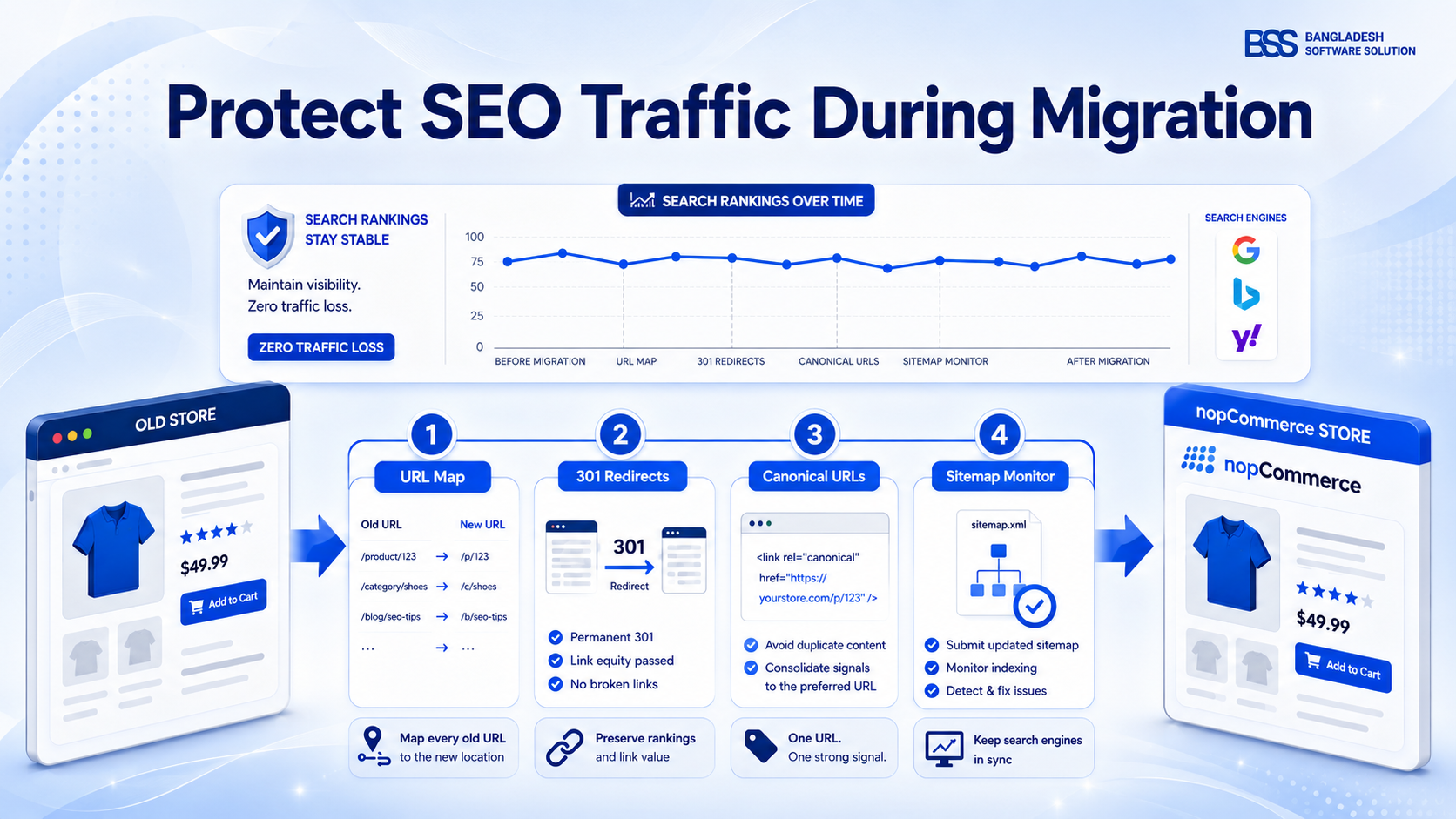
If the import is part of a platform move, the nopCommerce migration SEO guide helps protect URLs and search visibility while catalog data changes.
2. Understand the Most Important Product Columns
You do not need to populate every exported field, but every value you do provide must use the expected format. Start with a minimum viable import, verify it, and add advanced data in later passes if necessary.
| Field | Purpose | Import guidance |
|---|---|---|
| Name | Customer-facing product name | Required when creating a new product; keep it meaningful and unique enough for administrators. |
| SKU | Stable catalog identifier | Use a unique, persistent SKU. nopCommerce uses a matching SKU to update an existing product. |
| ProductId | Export reference | Do not treat it as the portable matching key between stores. |
| Price | Base selling price | Use a consistent decimal format and validate currency assumptions. |
| Published | Storefront visibility | Consider importing new items unpublished until quality assurance is complete. |
| Categories / Manufacturers | Catalog relationships | Confirm the referenced values exist and match the selected import settings. |
| Picture fields | Product imagery | Use valid accessible paths or URLs and test image downloading separately. |
SKU is the safety rail
If an import row has a SKU that matches an existing product, nopCommerce can update that product. A row without the correct SKU can create a new product instead, even when its name looks familiar. Normalize and deduplicate SKUs before every import.
3. Prepare CSV Data for nopCommerce Excel Import
CSV is common for supplier exports, ERP reports, and marketplace feeds. It is also easy to damage unintentionally because the file carries little information about data types. Use Excel, LibreOffice Calc, or Google Sheets to import the CSV deliberately instead of double-clicking it and accepting automatic conversions.
- Choose the correct encoding and delimiter. Confirm UTF-8 and whether the file uses commas, semicolons, or tabs.
- Import identifiers as text. Preserve leading zeros in SKUs, GTINs, manufacturer part numbers, and postal-like codes.
- Normalize values. Standardize booleans, decimal separators, HTML descriptions, line breaks, and date formats.
- Remove spreadsheet formulas. Paste calculated values so the workbook contains the result, not a fragile formula or external reference.
- Map source columns. Copy supplier data into the corresponding headers of your untouched nopCommerce export structure.
- Save as XLSX. Keep the CSV as the raw source and save a separate, versioned import workbook.
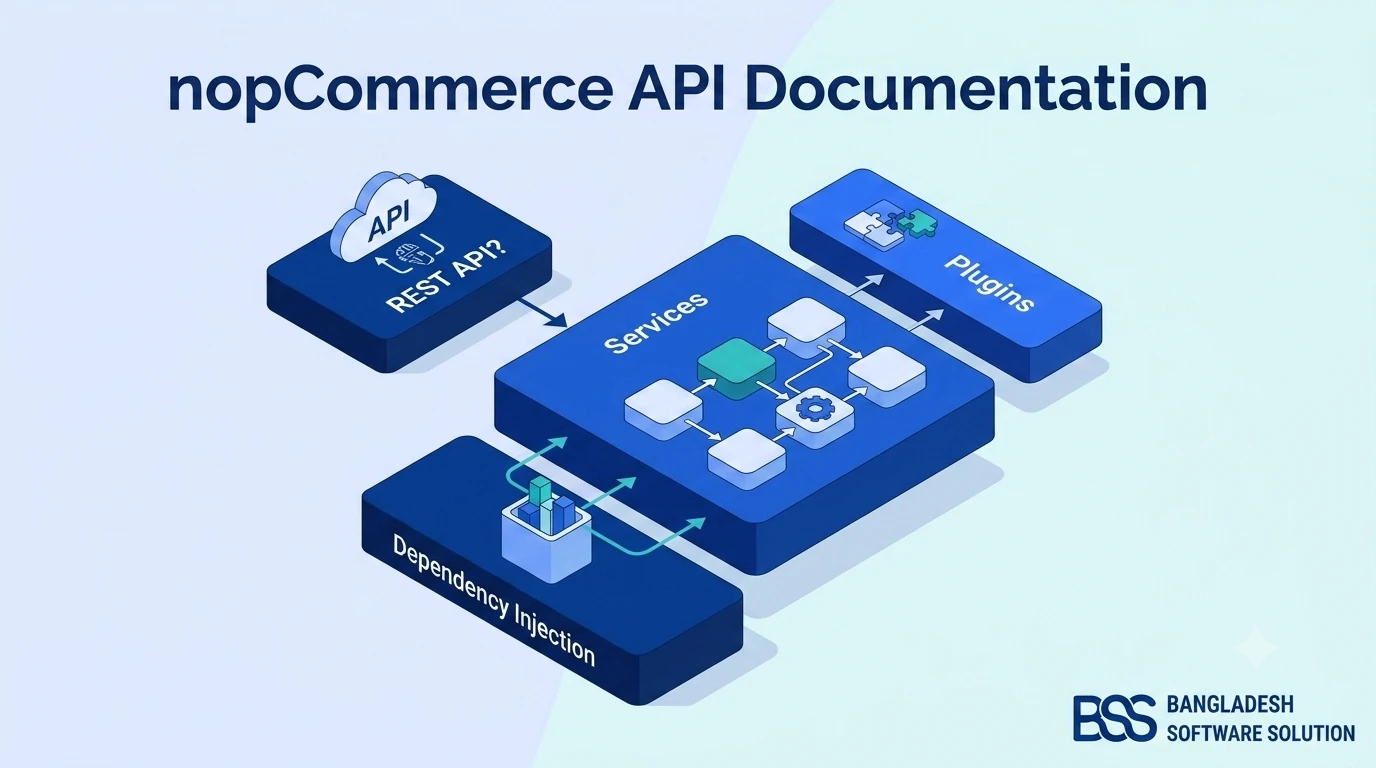
For recurring integrations, manual mapping becomes a business risk. The nopCommerce API walkthrough explains the building blocks for a controlled system-to-system workflow.
4. Map Categories, Manufacturers, Attributes, and Stores
Flat product rows often depend on related data that already exists in nopCommerce. Before importing, audit category names, manufacturer names, attribute combinations, warehouse choices, tax categories, and store mappings.
Under Configuration → Settings → Catalog settings, nopCommerce provides export/import options for products with attributes, specification attributes, category breadcrumbs, categories by name, related entities by name, store limitation, image downloading, and file splitting. The correct combination depends on how your catalog is structured.
- Use a controlled naming convention for categories and manufacturers.
- Create missing related entities before the main product import when possible.
- Test products with attributes separately from simple products.
- Verify localized fields if two or more languages are enabled.
- Confirm multi-store assignments rather than assuming every product belongs everywhere.
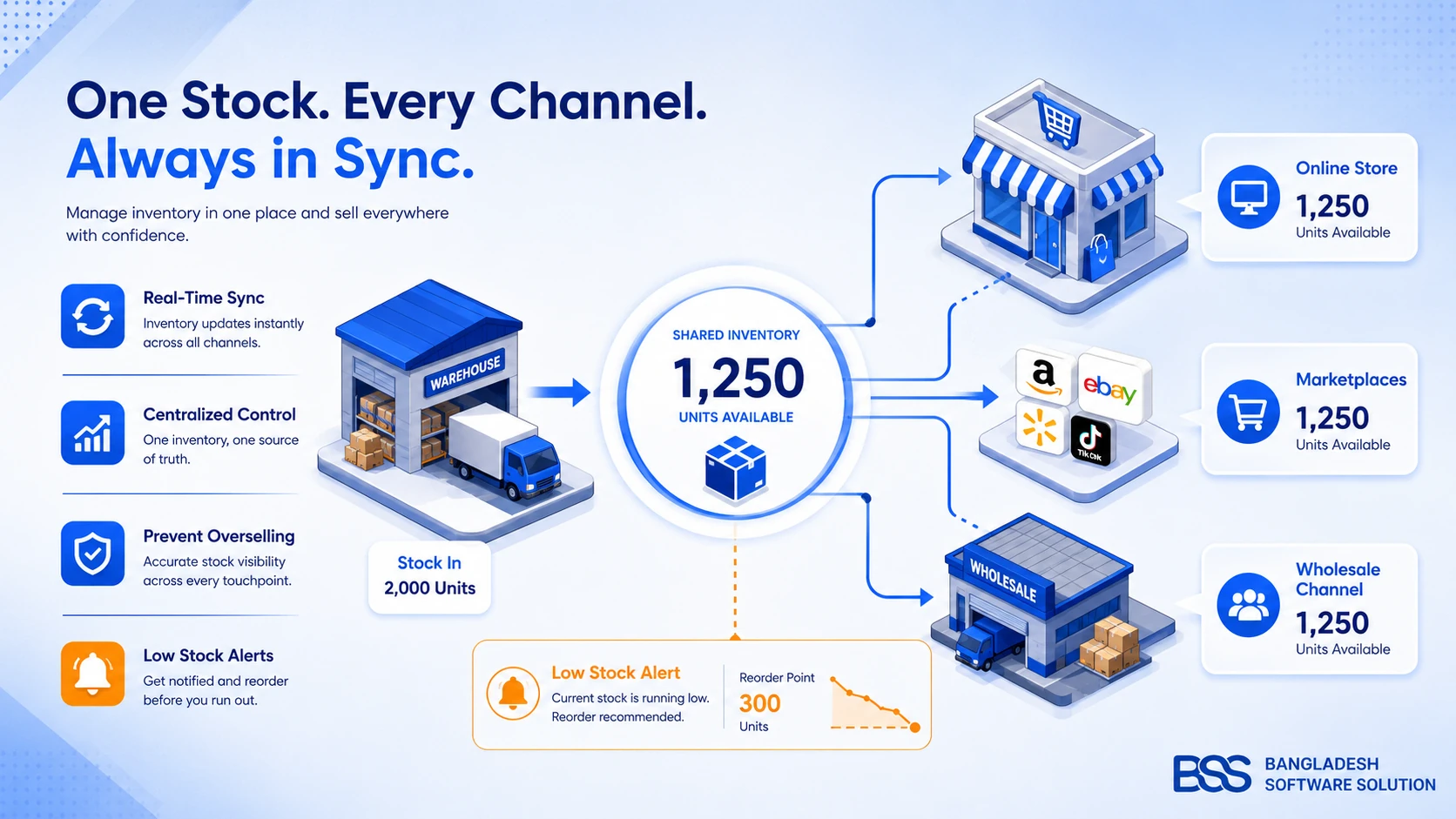
After import, compare inventory behavior with the practices in the eCommerce inventory management guide, especially if quantities also come from another system.
5. Import Product Images Safely
nopCommerce can download product images from external locations when Export/import products: Allow download images is enabled in Catalog settings. The option is disabled by default for security, so enable it only for a controlled import and trusted image sources.
- Use HTTPS URLs that the server can access without authentication.
- Verify every URL returns an actual image rather than an HTML error page.
- Use predictable Latin-character filenames and avoid troublesome special characters such as
^and~. - Resize and compress oversized supplier images before import.
- Test one product with multiple images before processing the full catalog.
- Disable remote downloading again if it is not needed after the import.
Image downloads add network and processing work. If product data imports successfully but images fail, isolate the image test rather than repeatedly importing the entire catalog.
6. Import Products Step by Step
- Open Administration → Catalog → Products.
- Select Import, choose the prepared Excel workbook, and start the import.
- Run a pilot containing roughly 5–10 representative products first.
- Review the result in both administration and the storefront.
- Correct the source workbook—not individual imported rows—so the fix is repeatable.
- When the pilot passes, import the remaining products in controlled batches.
The official nopCommerce guidance notes that importing is memory-intensive and recommends splitting large catalogs into batches of roughly 500–1,000 records. Catalog settings also include an option to allow file splitting so optimal-size split files can be processed automatically.
- New products are created with the expected names and SKUs.
- Existing products update rather than duplicate.
- Prices, stock, published state, and tax settings are correct.
- Categories, manufacturers, attributes, and stores are assigned correctly.
- Descriptions render safely and images load at the right quality.
7. Update Products Without Creating Duplicates
For repeat imports, SKU discipline is more important than spreadsheet styling. Assign one unique SKU to every sellable product or variant, keep it stable across systems, and never recycle an old SKU for an unrelated item.
Before importing an update file, compare its SKU column against both the current nopCommerce export and the source system. Look for blanks, leading or trailing spaces, case changes, scientific notation, and duplicate values. A product name is not a safe identity key, and the exported ProductId is not a portable replacement for SKU.
8. Troubleshoot Common nopCommerce Import Errors
| Symptom | Likely cause | What to check |
|---|---|---|
| Column or format error | Workbook does not match the target version | Start again from a fresh export and keep headers unchanged. |
| Import times out or exhausts memory | File is too large or image processing is heavy | Split into 500–1,000-row batches and separate image testing. |
| Product is duplicated | SKU is blank, altered, or not matched | Compare exact SKU strings against a fresh store export. |
| Category or manufacturer fails | Related entity is missing or named differently | Create or normalize entities and review Catalog import settings. |
| Leading zeros disappear | Spreadsheet converted an identifier to a number | Re-import the source CSV with that column typed as text. |
| Remote image is skipped | Download disabled, URL blocked, or filename invalid | Enable the setting temporarily and test a directly accessible image URL. |
Keep the original source, cleaned data, final import workbook, import date, batch number, and operator in a simple log. That audit trail makes correction and rollback much easier.
9. Run Post-Import Quality Assurance
An import is complete only after storefront and operational checks pass. Sample products from every batch, category, tax class, warehouse, language, and product type.
- Search for several imported SKUs in administration and the storefront.
- Open product pages and verify name, URL, description, price, stock, images, and availability.
- Add simple and variant products to the cart and complete a test checkout.
- Check category navigation, filters, manufacturers, and multi-store visibility.
- Confirm unpublished pilot items stay hidden until approved.
- Review application logs and background-task failures.
- Re-export a sample and compare it with the intended source values.
Need a Reliable Catalog Migration?
BSS can clean and map supplier data, build repeatable CSV or ERP integrations, import products and images, preserve SEO fields, and validate the finished nopCommerce catalog.
Frequently Asked Questions
Final Thoughts
The supplier’s 2,500-row CSV is not a one-click import file—and that is a good thing. Preserve it as the raw source, map it into a same-version nopCommerce Excel export, protect identifiers as text, validate a representative pilot, and then process controlled batches.
That workflow takes slightly longer before the first upload, but it prevents the expensive outcomes: duplicate products, incorrect prices, broken category relationships, missing images, and an import nobody can reproduce.