A category page feels quick in the office, but a customer on mobile sees empty product cards while oversized photographs arrive one by one. The same source image is being used for a tiny listing tile, a product gallery, and a zoom view. Adding lazy loading everywhere sounds tempting, yet delaying the first visible product image can make the page feel slower.
The solution is not one setting. Effective nopCommerce image optimization combines sensible source files, correctly sized thumbnails, modern formats where the delivery stack supports them, selective lazy loading, stable dimensions, and cacheable delivery through the origin or a CDN.
Optimization order: measure the current pages, correct dimensions and compression, regenerate thumbnails safely, optimize delivery, lazy-load only off-screen images, and verify representative templates on real devices.
Start With an Image Performance Audit
Before changing formats or installing a plugin, identify which images actually dominate transfer size and visual loading. Test the home page, a dense category, search results, a product with several gallery images, the cart, and any custom widget or theme section.
Record the delivered file type, byte size, rendered dimensions, intrinsic dimensions, cache headers, and whether the image appears above or below the initial viewport. Browser developer tools and a repeatable performance test reveal whether the bottleneck is an oversized source, an inappropriate thumbnail, late discovery, missing caching, or too many competing requests.
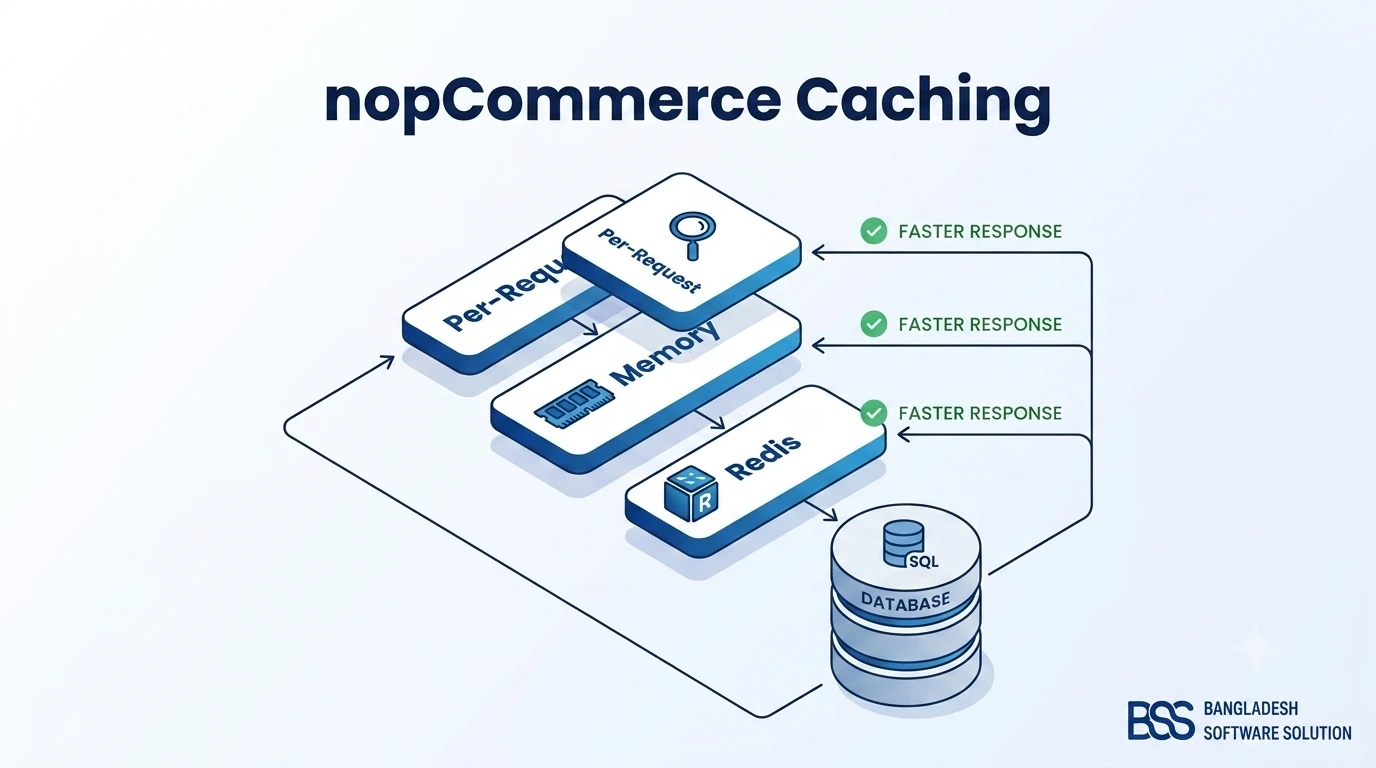
If the entire store is struggling—not only its images—continue with the nopCommerce caching guide after isolating the image-specific work.
Configure nopCommerce Media Settings First
Official nopCommerce documentation places image controls under Configuration → Settings → Media settings. Available controls include storage in the database or file system, maximum upload dimensions, multiple thumbnail directories, default image quality, and page-specific thumbnail sizes for products, categories, manufacturers, carts, wishlists, and other areas.
These settings matter because each interface needs a different delivery size. A catalog tile should not require the same pixels as a detailed gallery or zoom image. Define sizes from the theme's actual rendered breakpoints, not from arbitrary round numbers.
| Image role | Optimization goal | Implementation check |
|---|---|---|
| Category product card | Small, consistent listing thumbnail | Match the widest rendered card at supported pixel densities. |
| Product main image | Clear primary product view | Balance detail against the maximum display width. |
| Gallery thumbnail | Fast navigation between images | Do not deliver the full gallery asset into the thumbnail strip. |
| Zoom image | High detail on demand | Load only when the experience genuinely needs the larger file. |
| Cart and mini-cart | Compact recognition image | Use the dedicated cart and mini-cart sizes. |
Thumbnail regeneration is a deployment task
The official Media Settings documentation states that changing default image quality requires existing generated thumbnails to be deleted manually. Back up the store, test the regeneration process on staging, and plan cache invalidation before applying the change in production.
Use WebP Where Your nopCommerce Stack Supports It
WebP supports lossy and lossless compression as well as transparency and animation. It can be a useful delivery format for product photography and interface imagery, but the result still depends on the encoder, quality level, image content, and target dimensions. Do not promise a universal percentage reduction; compare representative files visually and by byte size.
nopCommerce Media Settings document quality and sizing controls, but the available documentation does not establish a universal one-click WebP switch for every version, theme, storage provider, or image plugin. Confirm what your exact installation generates and serves. WebP may be introduced through a compatible plugin, custom picture service, reverse proxy, image CDN, or deployment pipeline.
- Keep the original or a high-quality master outside the delivery pipeline.
- Create separate listing, detail, and zoom derivatives.
- Compare fine textures, text in images, transparency, and color gradients.
- Verify content type, filename behavior, cache keys, and fallback strategy.
- Check social previews, feeds, email templates, and integrations that consume image URLs.

Serve Responsive Images, Not One File Everywhere
Responsive image markup lets the browser choose an appropriate resource for the rendered size and device conditions. Where your theme or image service can generate reliable variants, use srcset and sizes rather than forcing a narrow phone to download the desktop-sized image.
Every important image should also have meaningful alternative text and explicit dimensions or an equivalent stable aspect ratio. MDN documents that width and height allow the browser to reserve the image's space before download, reducing layout movement. In nopCommerce, product picture alt and title values can be entered in the product's multimedia settings; if left empty, the store may apply its configured default rule.
- The browser receives candidates that match real theme breakpoints.
sizesdescribes the rendered layout rather than the source asset.- Width and height—or a stable aspect ratio—reserve space.
- Product alt text describes the product and view without keyword stuffing.
- The fallback
srcremains valid for integrations and older clients.
Lazy-Load Off-Screen Images Selectively
The HTML loading="lazy" attribute tells the browser it may defer an off-screen image until the image approaches the viewport. This is appropriate for product cards farther down a category page, secondary recommendation blocks, long reviews, and below-the-fold article images.
Do not apply lazy loading blindly to the image most likely to become the page's Largest Contentful Paint element. web.dev explicitly advises against lazy-loading above-the-fold images because delaying their request can hurt LCP. The main product image or visible category hero should normally remain eagerly discoverable; a genuinely critical image can be evaluated for fetchpriority="high", used sparingly.
Add a CDN Without Breaking Image URLs
A CDN can cache images closer to visitors and reduce repeat traffic to the application server. An image CDN may also transform format, dimensions, and quality from URL parameters. But CDN setup changes how cache keys, hostnames, invalidation, security rules, and canonical image URLs behave.
The official nopCommerce Media Settings page does not document a general CDN toggle. Implement CDN delivery through supported hosting infrastructure, a reverse proxy, a compatible extension, or a tested customization. For web farms, nopCommerce documentation specifically notes configuration around media paths and shared application behavior; a multi-node deployment therefore needs a consistent image origin or shared storage strategy.
- Decide whether the CDN uses the primary hostname, a media subdomain, or a third-party origin.
- Preserve HTTPS and avoid mixed-content requests.
- Define long-lived caching for fingerprinted derivatives and an invalidation method for replaced images.
- Confirm access rules do not block product images, sitemaps, crawlers, feeds, or social previews.
- Test multi-store domains, localized stores, and administrator previews.
- Monitor origin misses, error responses, transformation costs, and stale assets.
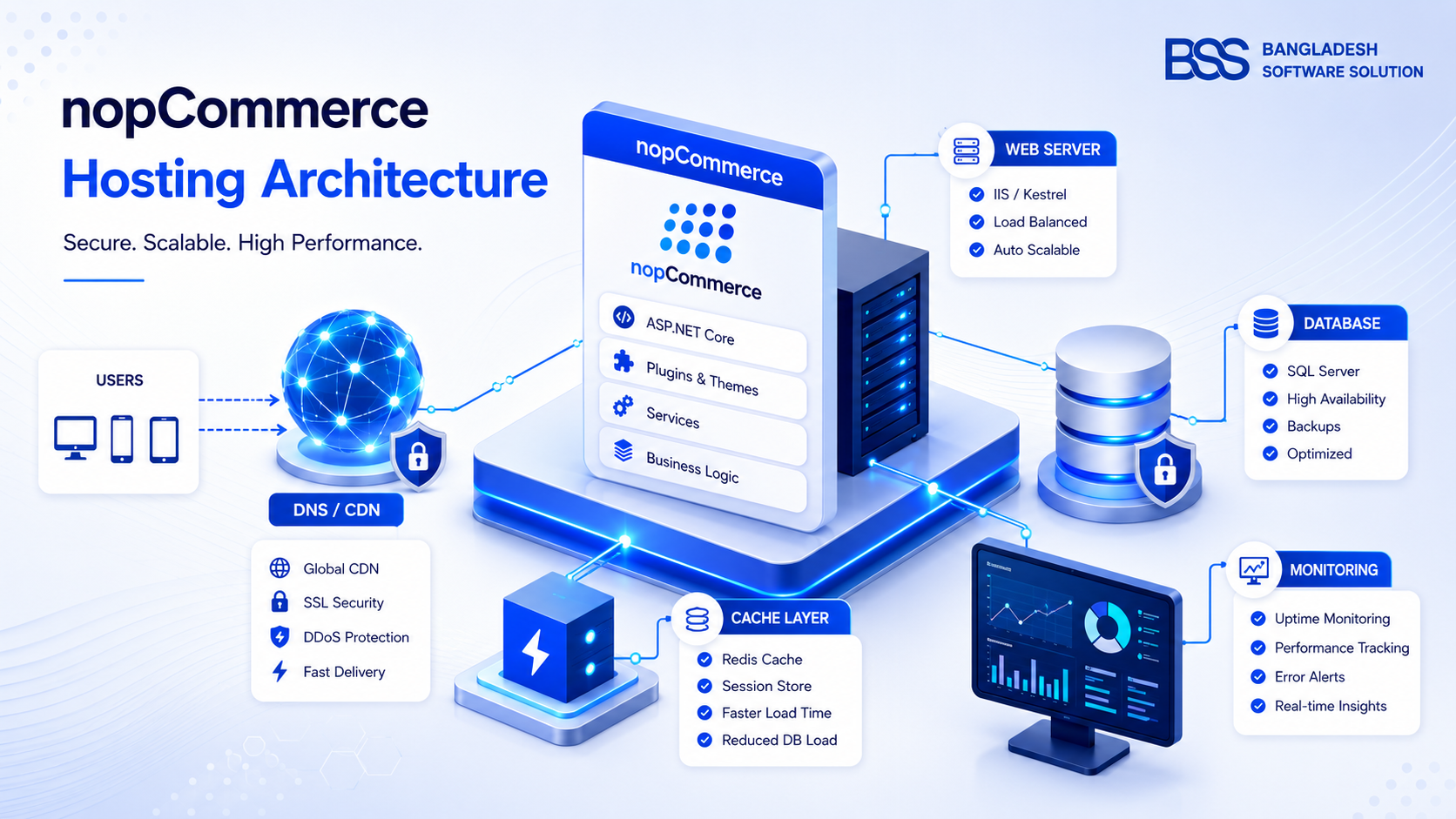
Infrastructure choices affect this design, so pair the rollout with the nopCommerce hosting guide.
Recommended nopCommerce Implementation Sequence
- Back up media and configuration. Record current Media Settings and keep a rollback path.
- Measure representative pages. Capture a baseline under consistent network and device conditions.
- Correct source files. Remove unnecessary pixels and compression overhead before upload.
- Align thumbnail dimensions. Map settings to the theme's actual card, detail, gallery, and cart layouts.
- Test modern-format delivery. Validate WebP generation, quality, MIME type, fallback, and cache behavior.
- Apply selective lazy loading. Keep the likely LCP image eager and defer genuinely off-screen media.
- Add CDN delivery if justified. Configure hostname, origin, caching, transformations, and invalidation.
- Regenerate and warm caches. Follow the tested thumbnail procedure and prevent a cold production launch.
- Re-measure and inspect visually. Compare bytes, loading order, layout stability, and image fidelity.
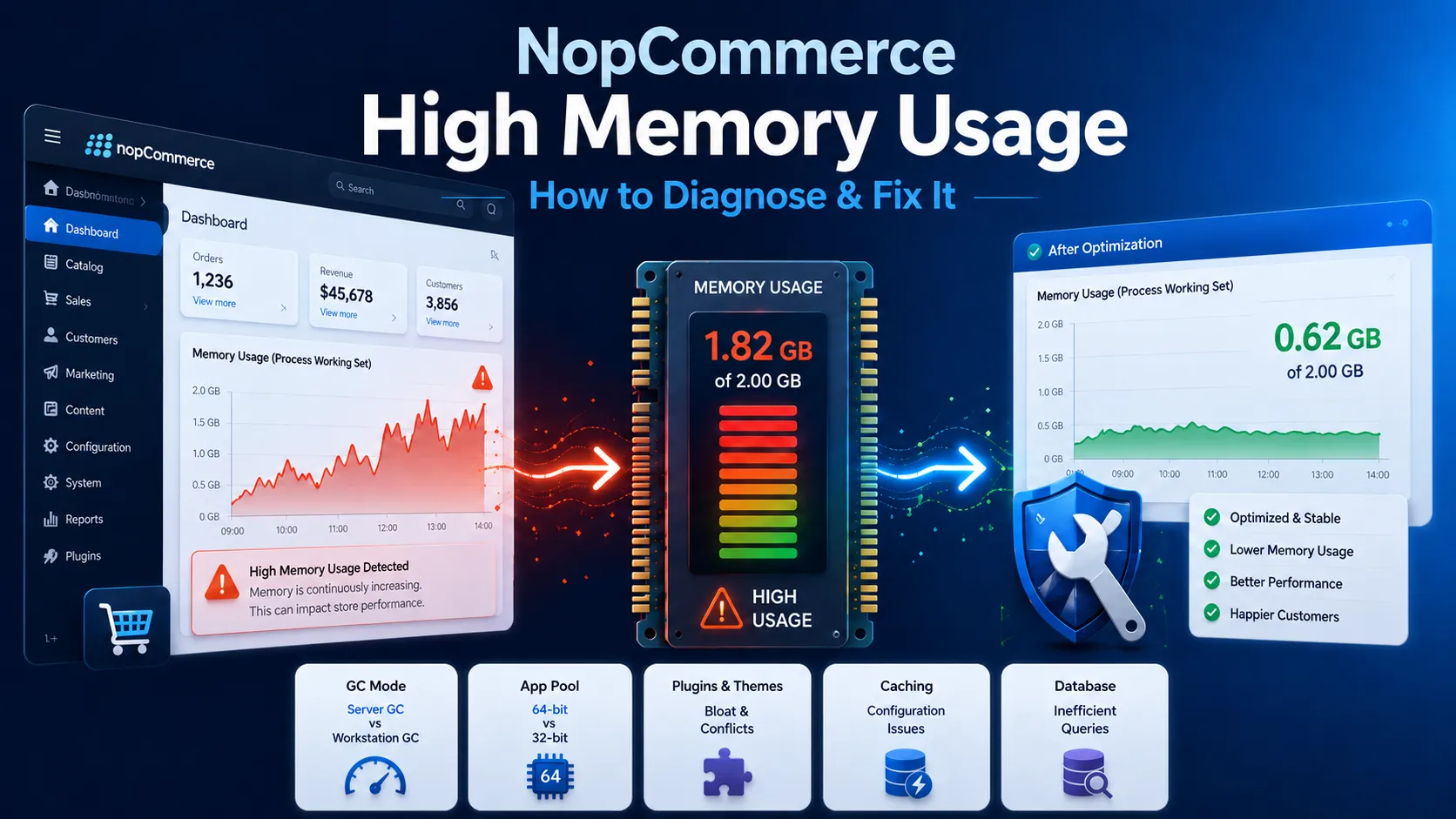
If image processing is contributing to server pressure, use the nopCommerce high-memory troubleshooting guide to separate media work from broader runtime issues.
Need a Faster Product Image Pipeline?
BSS can audit product-page image delivery, tune thumbnail generation, implement WebP and responsive markup, configure CDN integration, and verify performance across your real catalog templates.
Test Quality, Performance, and Operations
Optimization is successful only when customers receive smaller appropriate files and the merchandising team can still replace, reorder, and publish images safely.
| Test area | What to verify |
|---|---|
| Visual quality | Fine textures, edges, transparency, zoom detail, and color remain acceptable. |
| Network delivery | Expected format, dimensions, content type, cache status, and response code are returned. |
| Loading behavior | Critical images load early; off-screen images defer; no duplicate derivatives download. |
| Layout stability | Reserved image space prevents product cards and content from jumping. |
| Operations | Replacing an image invalidates the intended derivatives and CDN entries. |
| Compatibility | Multi-store pages, feeds, email, social previews, zoom, and plugins still work. |
Frequently Asked Questions
Final Thoughts
The slow mobile category page from the opening does not need one aggressive optimization. It needs an image pipeline: correctly sized nopCommerce thumbnails, deliberate compression and format choices, responsive delivery, eager loading for the critical visible image, lazy loading below the fold, and a CDN only when its operational model is understood.
Measure each stage and preserve a rollback path. That produces a faster store without trading away product detail, accessibility, cache correctness, or the merchandising workflow.