Your redesign is ready to launch. The footer carries your company name, policies, payment marks, and social links—but one final line still says “Powered by nopCommerce.” It is tempting to hide the element with CSS or delete it from a Razor view. That may remove the text visually, but it skips the decision that matters first: whether your production URL is authorized to remove it.
This guide shows the safe order of operations. Confirm the license requirement, purchase the official removal right for the correct URL, change the built-in setting, verify every storefront, and document the change so an upgrade does not surprise the next developer.
Before Editing the Footer, Check the License
nopCommerce is open source, but its standard license still requires the “Powered by nopCommerce” statement to remain intact, linked to nopCommerce, and clearly visible unless the store owner purchases the official copyright removal key. The current official product page describes the standard URL-specific key as a one-time purchase and also lists wildcard and server options for qualifying multi-site setups.
The practical rule: do not remove, edit, obscure, recolor into invisibility, or hide the notice on a production store until the applicable removal right has been purchased. A CSS workaround is still hiding the notice.
The purchase is tied to the URL you enter. Check the canonical production hostname carefully, including whether the business uses a different domain for each store. According to the official FAQ, the key does not expire and does not need to be repurchased just because nopCommerce is upgraded, but it cannot simply be moved to a new URL.
This is a configuration guide, not legal advice
License terms and pricing can change. Confirm the current wording on the official nopCommerce copyright-removal page before purchasing or changing a production footer.
Choose the Right Removal Option
A single public store normally needs the URL-specific option. A business operating multiple subdomains or paths on one domain should evaluate the wildcard option, while an agency or host serving many stores from one IP may need the server option. Do not assume one purchase covers unrelated domains.
| Option | Intended scope | Check before purchase |
|---|---|---|
| Single URL | One production store URL | Exact canonical domain and whether www/non-www redirects consistently |
| Wildcard | Multiple sites on one domain, including eligible subdomains or paths | Every storefront remains under the purchased domain |
| Server | Multiple sites accessed through one server IP, subject to the stated store limit | Hosting topology, IP stability, and current official limits |
| Test/QA | Non-production environment | Clearly label it as testing or retain the notice; restrict public access where possible |
Remove “Powered by nopCommerce” from the Admin
After authorization, use the built-in setting instead of deleting theme markup. This keeps the change centralized and avoids maintaining a custom footer solely for one line.
Configuration Steps
- 1Sign in to the nopCommerce administration area using an account permitted to manage settings.
- 2Open Configuration → Settings → All settings (advanced).
- 3Search for storeinformationsettings.hidepoweredbynopcommerce.
- 4Edit its value from False to True, then click Update.
- 5Clear the nopCommerce cache and reload the public storefront in a private browser window.
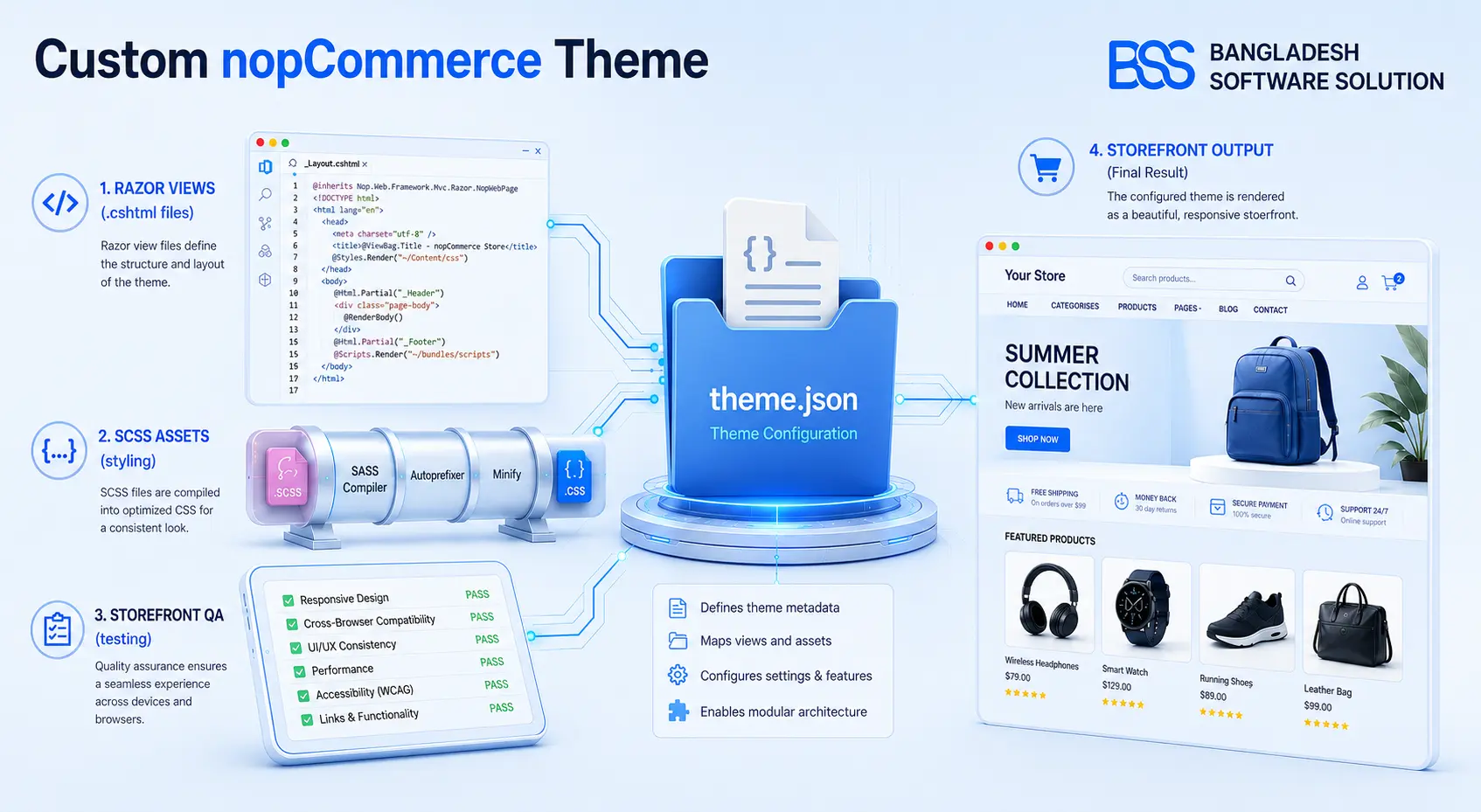
If the setting is missing, do not create a similarly named guess. Confirm the nopCommerce version, active theme, and whether custom code replaced the standard footer. Our theme customization guide explains which changes belong in settings and which require template work.
Verify the Notice Is Gone Without Breaking the Footer
Check more than the home page. Open a product, category, cart, checkout entry page, account page, blog Topic, and any alternate store or language. The notice should be absent while policy links, copyright year, newsletter, payment badges, and mobile layout remain intact.
View the rendered source or inspect the footer to confirm the statement is not merely pushed off-screen or covered. If a CDN caches HTML, purge it after clearing the application cache.
Why the Notice May Still Appear—or Return Later
The most common cause is caching: the database setting changed, but a cached footer or full-page response still serves the old markup. Next, check store scope. A multi-store installation can carry an override for one store while another inherits the default.
If the footer is fully custom, it may contain hard-coded credit text that does not read the built-in setting. Update that view only after confirming authorization, and keep the change in a custom theme—not the default theme—so an update does not overwrite it. The developer workflow in our custom nopCommerce theme guide shows how to isolate theme changes cleanly.
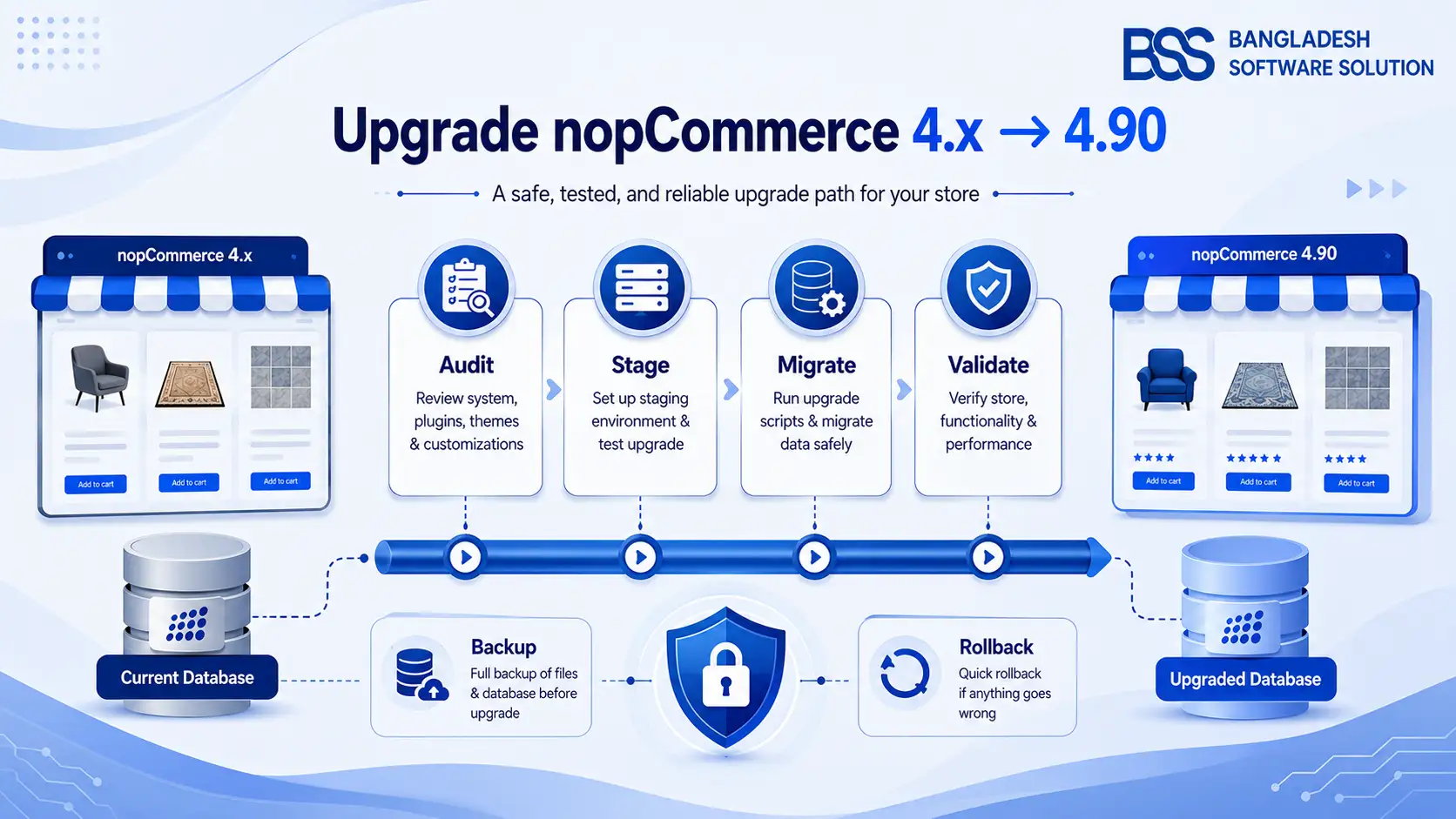
After an upgrade, confirm the domain is unchanged and search the setting again. The official guidance says an upgrade alone does not expire the purchase. If the value reverted, restore it and test. If authorization cannot be confirmed, contact nopCommerce rather than purchasing blindly. Use our nopCommerce 4.90 upgrade guide to include this footer check in the wider post-upgrade QA pass.
Need a Footer That Matches Your Brand and Survives Upgrades?
BSS engineers can implement compliant footer customization inside a maintainable custom theme, verify multi-store behavior, and test the result across desktop and mobile.
Frequently Asked Questions
Final Thoughts
Back at the launch-ready storefront, the correct fix is not a one-line CSS rule. It is a short, auditable sequence: obtain permission for the correct production URL, enable the supported setting, clear caches, inspect every store and viewport, and record the change for the next upgrade.
That approach removes the platform credit cleanly without turning the footer into a licensing risk or a fragile theme patch.