You post on Instagram every week. Your followers like the photos, ask about the products in the comments, and then many of them never find their way to your store.
Adding an Instagram feed to your nopCommerce store closes that gap. Shoppers see real photos of your products on your own site, and with the right setup they can buy straight from a post. But in 2026 a nopCommerce Instagram feed works differently from the old guides, because Meta changed the rules in late 2024.
We built the Instagram Feed plugin for nopCommerce at BSS, so we've been through every one of those changes. This guide shows you how to add an Instagram feed to nopCommerce properly: what changed, the three methods side by side, the setup steps, shoppable posts, privacy and the fixes when a feed stops updating.
Why Add an Instagram Feed, and What Changed in 2024
First, why bother? Instagram passed 3 billion monthly users in September 2025, as Mark Zuckerberg announced. In the US, Pew Research Center's 2026 figures show 51% of adults use it.
The change most guides miss
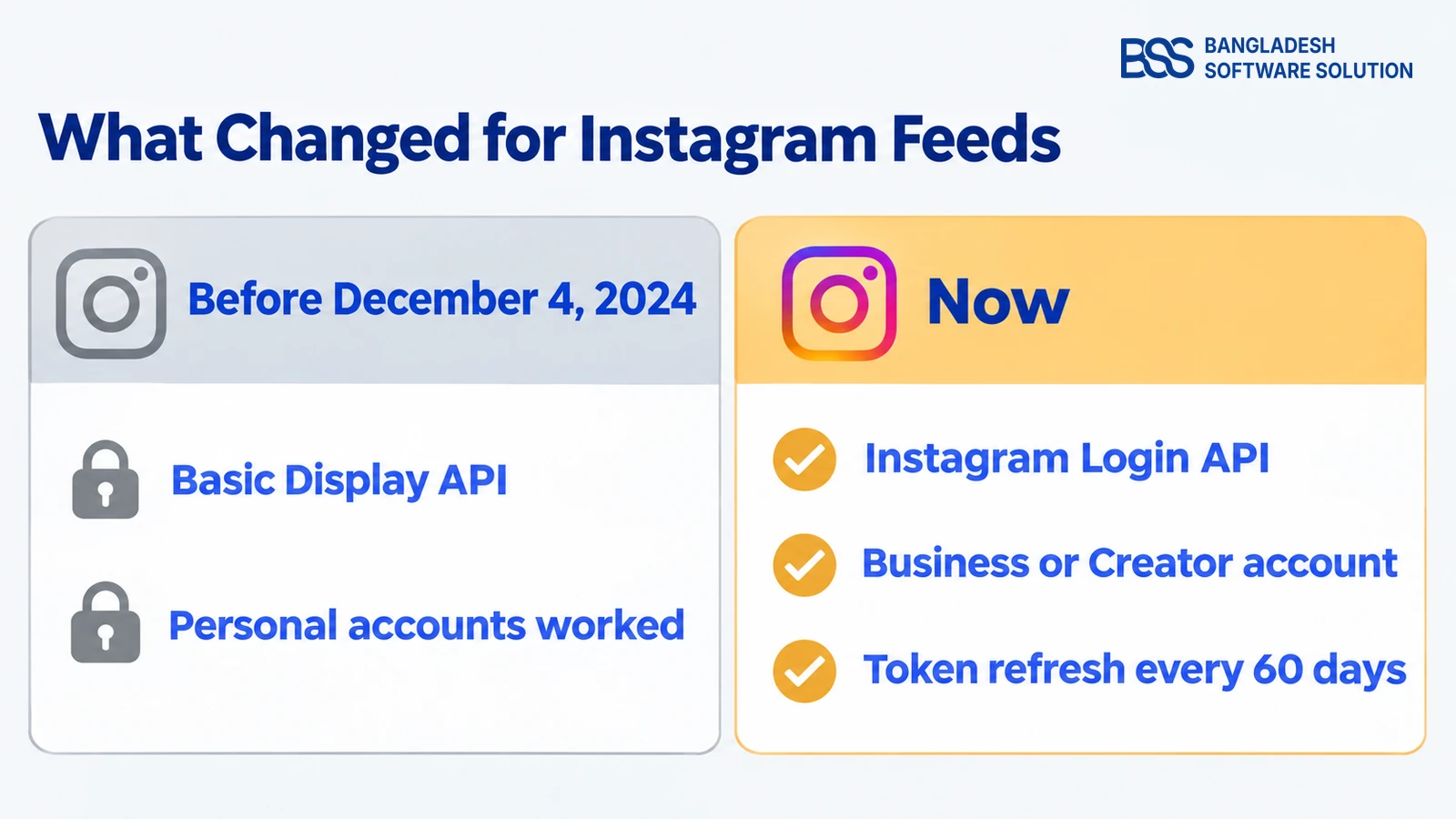
Many older "embed your Instagram feed" guides still describe the Instagram Basic Display API. Meta shut that API down on December 4, 2024, so any feed built on it stopped working.
Today, a website feed has to use the Instagram API with Instagram Login or Facebook Login. Meta's documentation says your account must be an Instagram professional account, meaning a Business or Creator account. A personal account can no longer feed a website.
There's one more catch. Meta's long-lived access tokens last 60 days and must be refreshed before they expire. Miss that, and your feed quietly freezes on old posts.
Want your Instagram feed set up for you? The BSS team can connect your account, build the feed and place it where it sells.
Talk to the BSS teamThree Ways to Add Instagram to nopCommerce
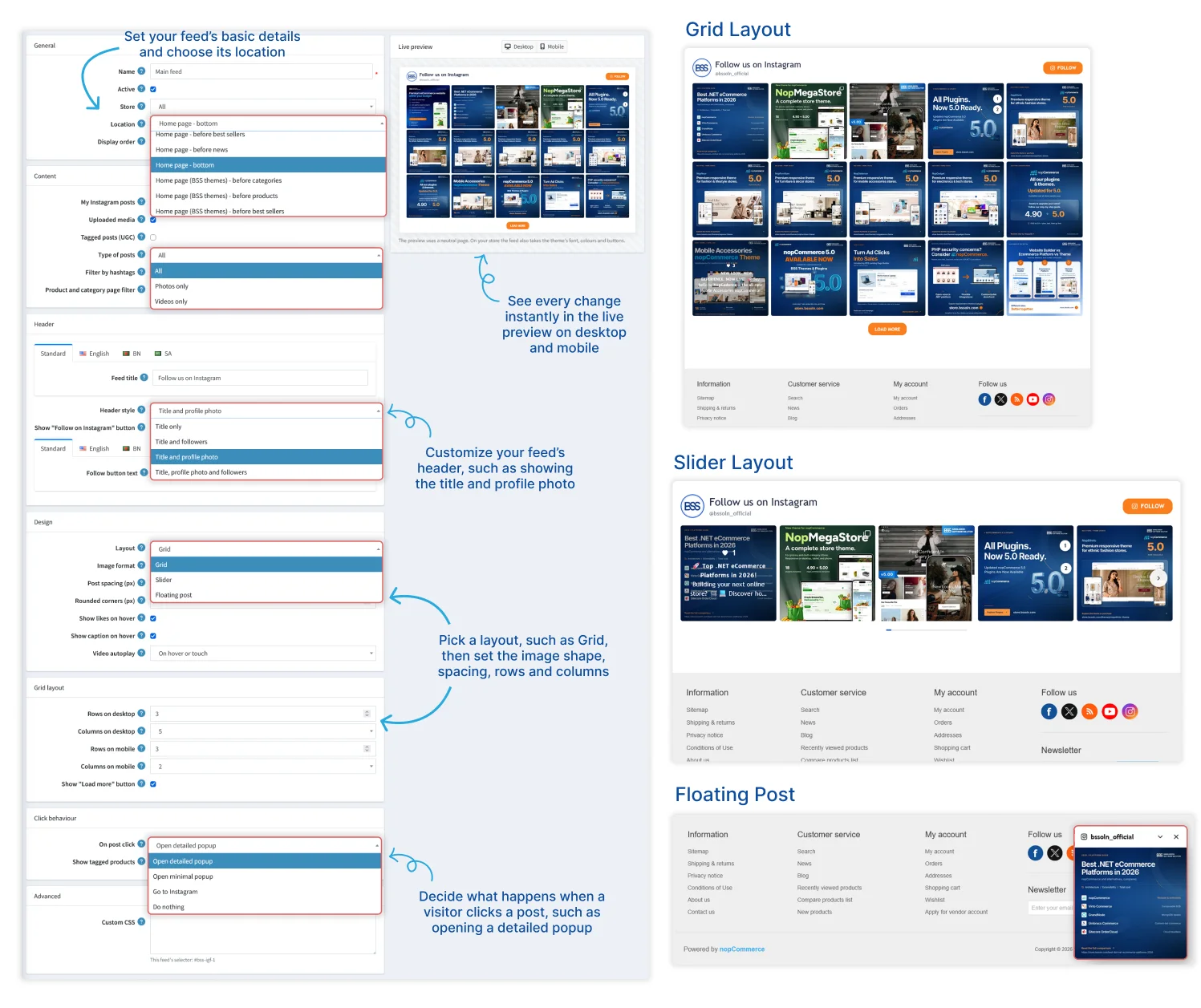
With those rules in mind, there are three realistic ways to show Instagram on a nopCommerce store. They differ most in whether the feed updates itself and whether shoppers can buy from it.
| Method | Updates itself | Shoppable with your products | Effort |
|---|---|---|---|
| Embed single posts | No, one post at a time | No | Low, but manual every time |
| Third-party widget script | Yes | Usually not linked to your catalog | Low, often a monthly fee |
| nopCommerce Instagram feed plugin | Yes | Yes, tagged to your products | Medium setup, then little upkeep |
1. Embed single posts
On Instagram on the web, open a post, choose Embed and copy the Instagram embed code. You can paste it into a nopCommerce Topic page or an HTML block. It's free, but it shows one post, never updates, and private or age-restricted posts can't be embedded.
2. A third-party widget
Online widget services build a feed on their site and give you a script to paste into your store. To add an Instagram feed to a website quickly, that works. The trade-off is another outside script on every page, usually a subscription, and posts that don't know about your nopCommerce products.
3. A nopCommerce plugin
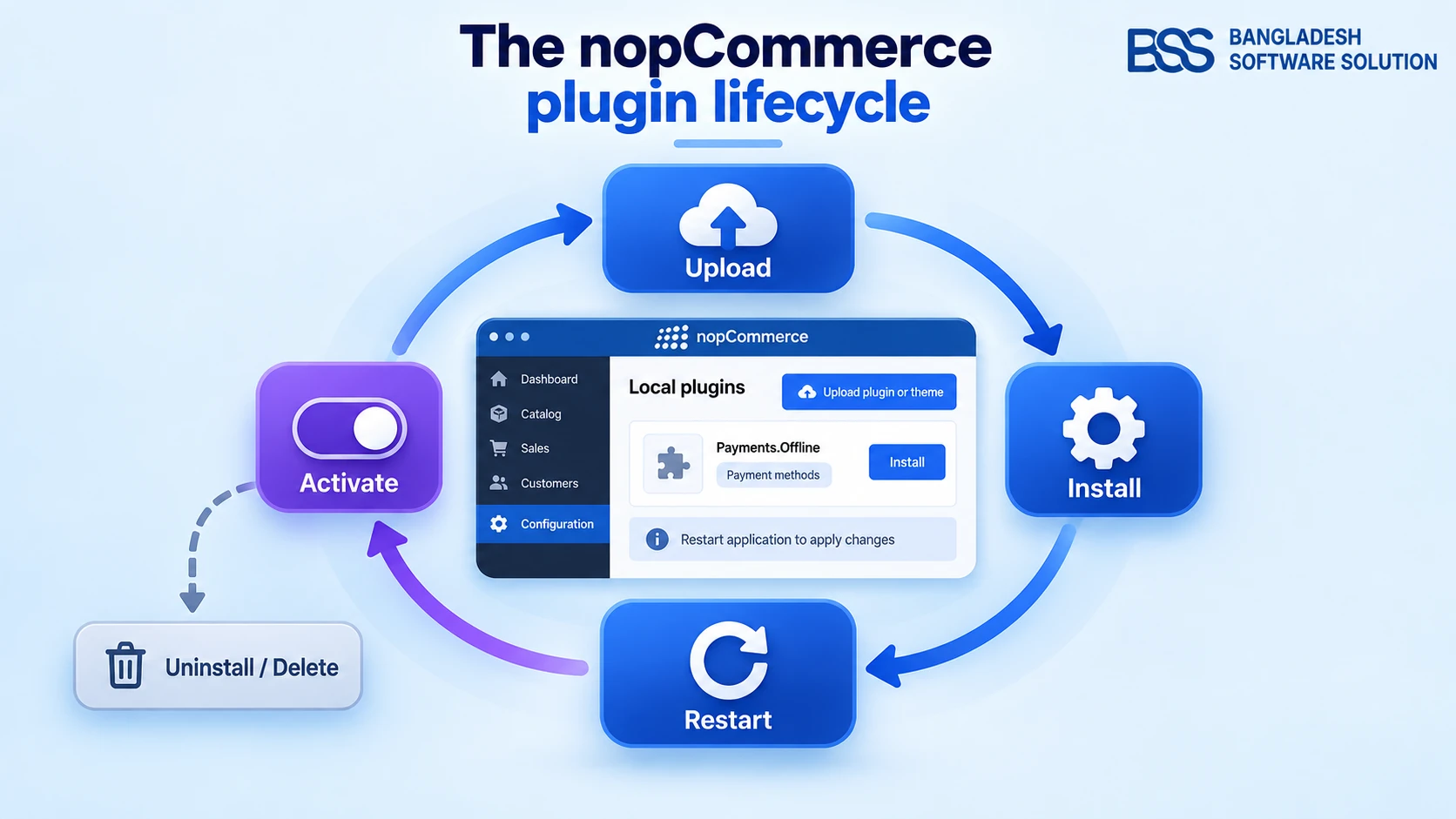
A plugin runs inside your store, so it can link posts to your own products, prices and cart. It's the only option that turns a post into a sale without sending shoppers somewhere else first. If you're new to plugins, our guide on how to install a plugin in nopCommerce covers the basics.
Don't forget page speed
Every outside script your store loads is more work for the shopper's browser, and an Instagram embed or widget loads its own. On a product page, that can slow down the part that matters most.
Whichever method you choose, run a page speed test before and after adding the feed. Load images only as shoppers scroll to them, and keep the feed off your checkout pages entirely.
Step by Step: Setting Up Your nopCommerce Instagram Feed
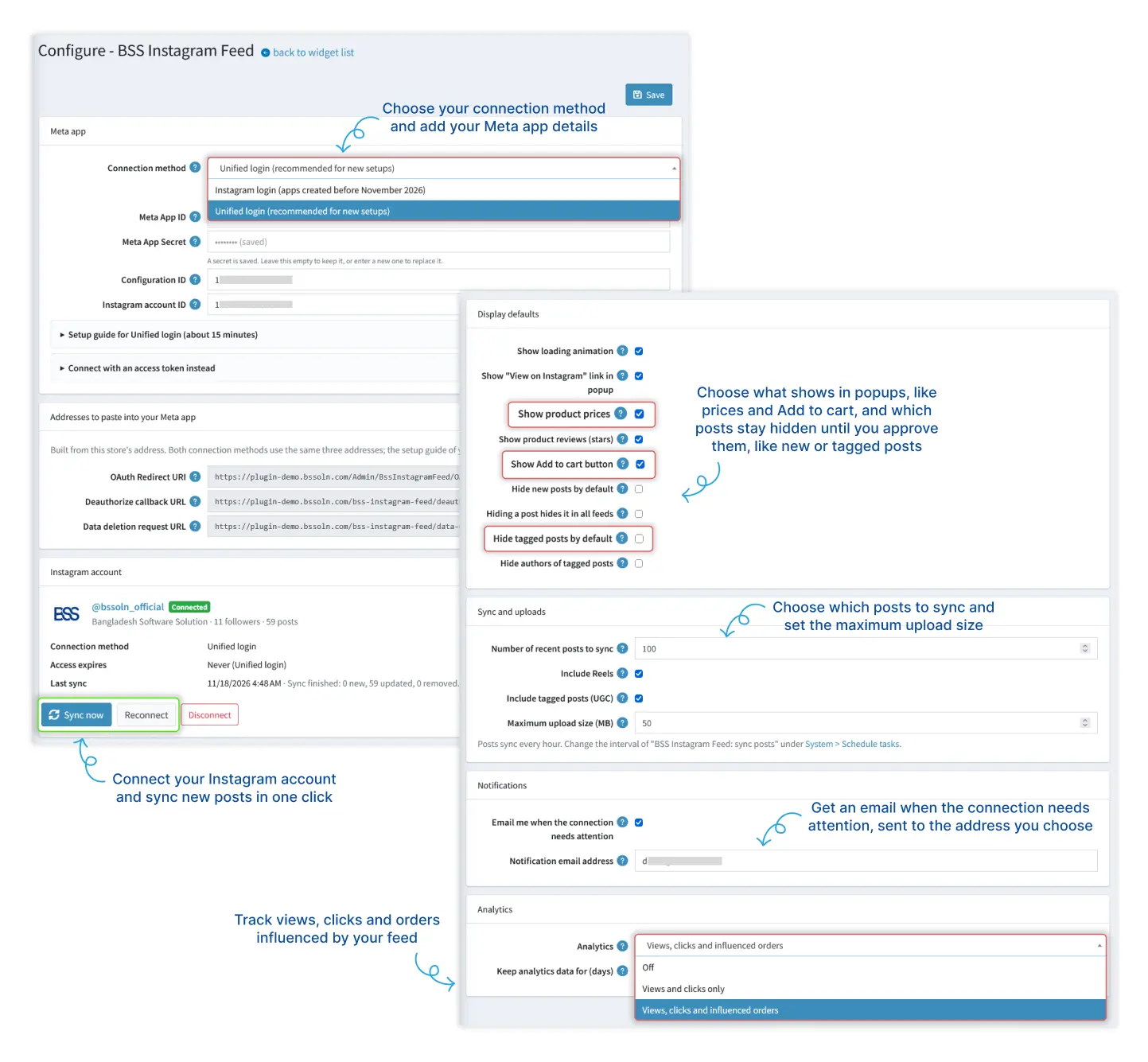
Here's the setup we walk store owners through, using a plugin. The first two steps apply whatever method you choose.
Setting up the feed
-
Switch your Instagram account to a Business or Creator account in the Instagram app's settings.
-
Create a Meta app with Instagram Login, and note its app ID and secret.
-
Install the plugin, add your Meta app details and connect your Instagram account.
-
Sync your latest posts and Reels, then pick a layout: grid, slider or floating post.
-
Choose where it shows, such as the home page, product pages, category pages or footer.
-
Check the live preview on desktop and mobile before you publish.
Which posts to show
Not every post belongs on your store. The ones that tend to work show a product being used, worn or unboxed, with the product clearly visible. Behind-the-scenes posts and memes are fine on Instagram, but they rarely help someone decide to buy.
Placement matters more than most people think. A grid on the home page builds trust, but a feed on a product page that shows only posts featuring that product does more for sales. Keep it below the Add to cart button on phones, so it never pushes the price out of sight.
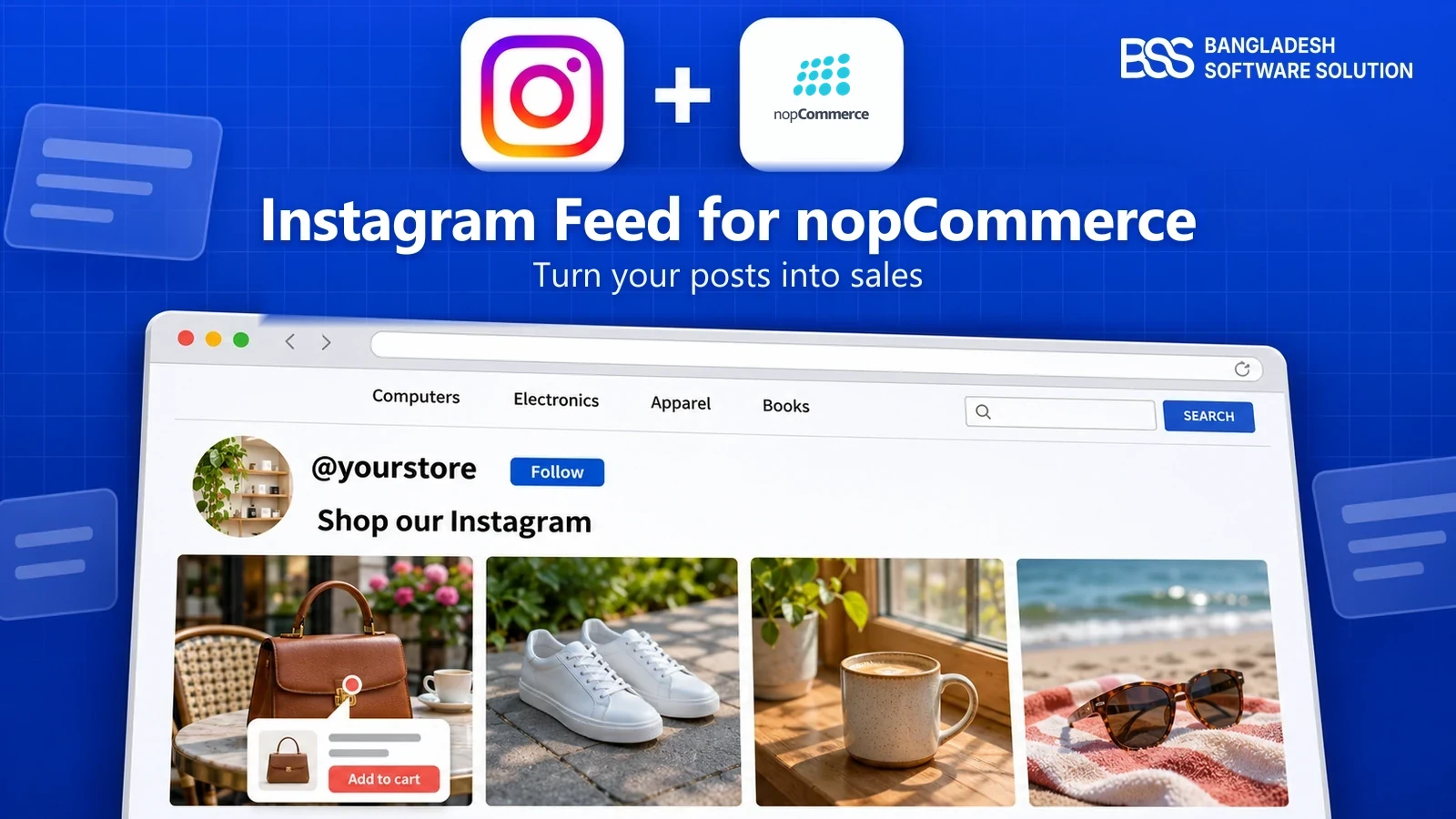
Connects through Instagram Login, syncs posts and Reels every hour, and shows them as a grid, slider or floating widget on any nopCommerce page.
View the pluginMaking Your Instagram Feed Shoppable
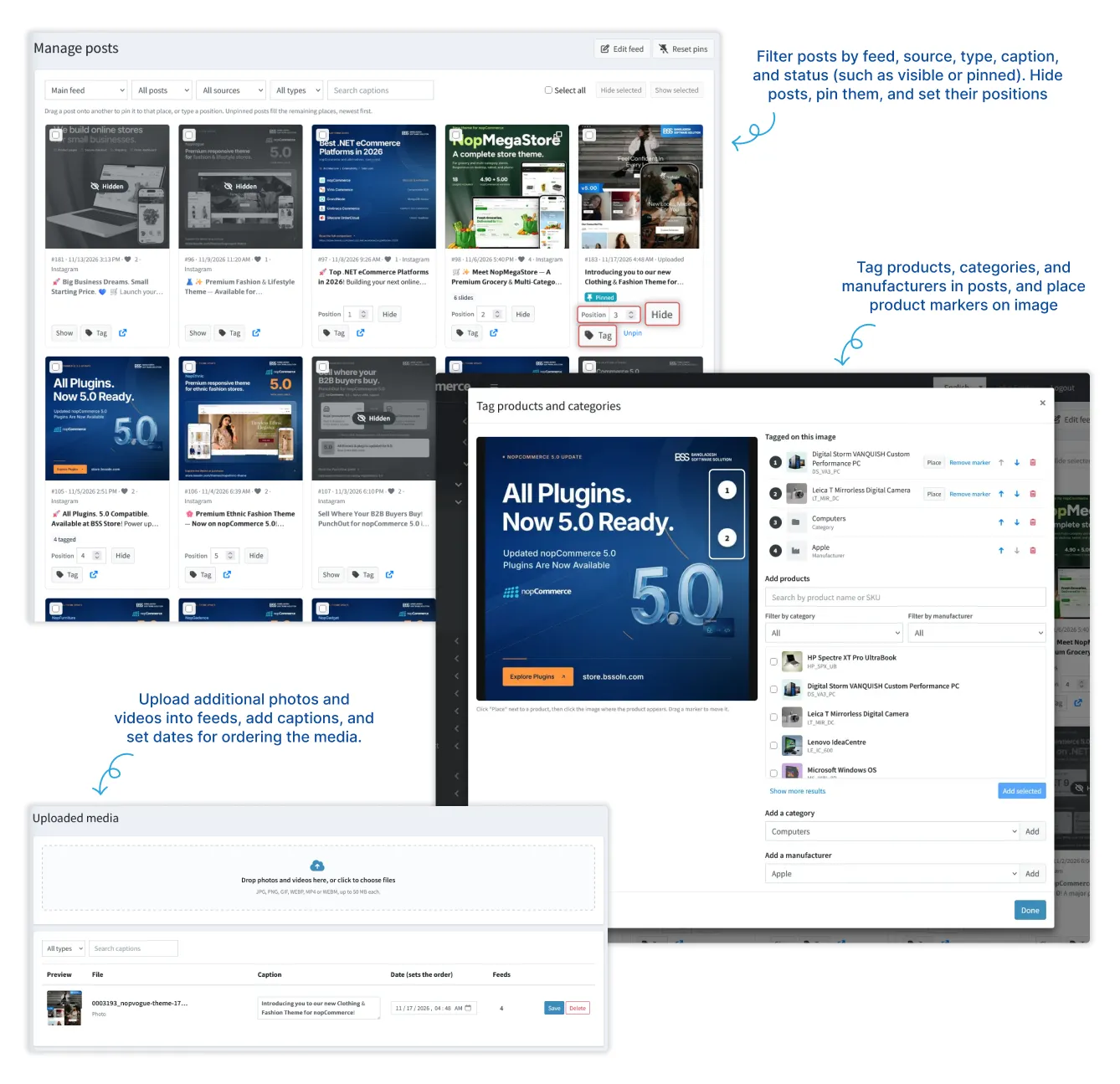
A pretty grid is nice, but a shoppable Instagram feed is where the sales come from. That means tagging the products shown in each post, so a shopper can tap the photo and add the item to their cart.
If you're starting a shoppable nopCommerce Instagram feed from scratch, tag your ten best-selling products first. Those posts bring the quickest results, and you'll learn how the tagging works before doing the rest.
Ask before you show customer posts
User-generated content on Instagram is powerful, but it belongs to the person who posted it. Ask permission before showing a customer's photo on your store, and keep each one hidden until you've approved it.

When we built our Instagram Feed plugin, we made customer posts stay hidden until the store owner approves them, because one unchecked photo on a product page can do real damage. If your feed needs custom work on top, you can hire a .NET developer from BSS.
Measuring, Privacy and Fixing a Feed That Stops
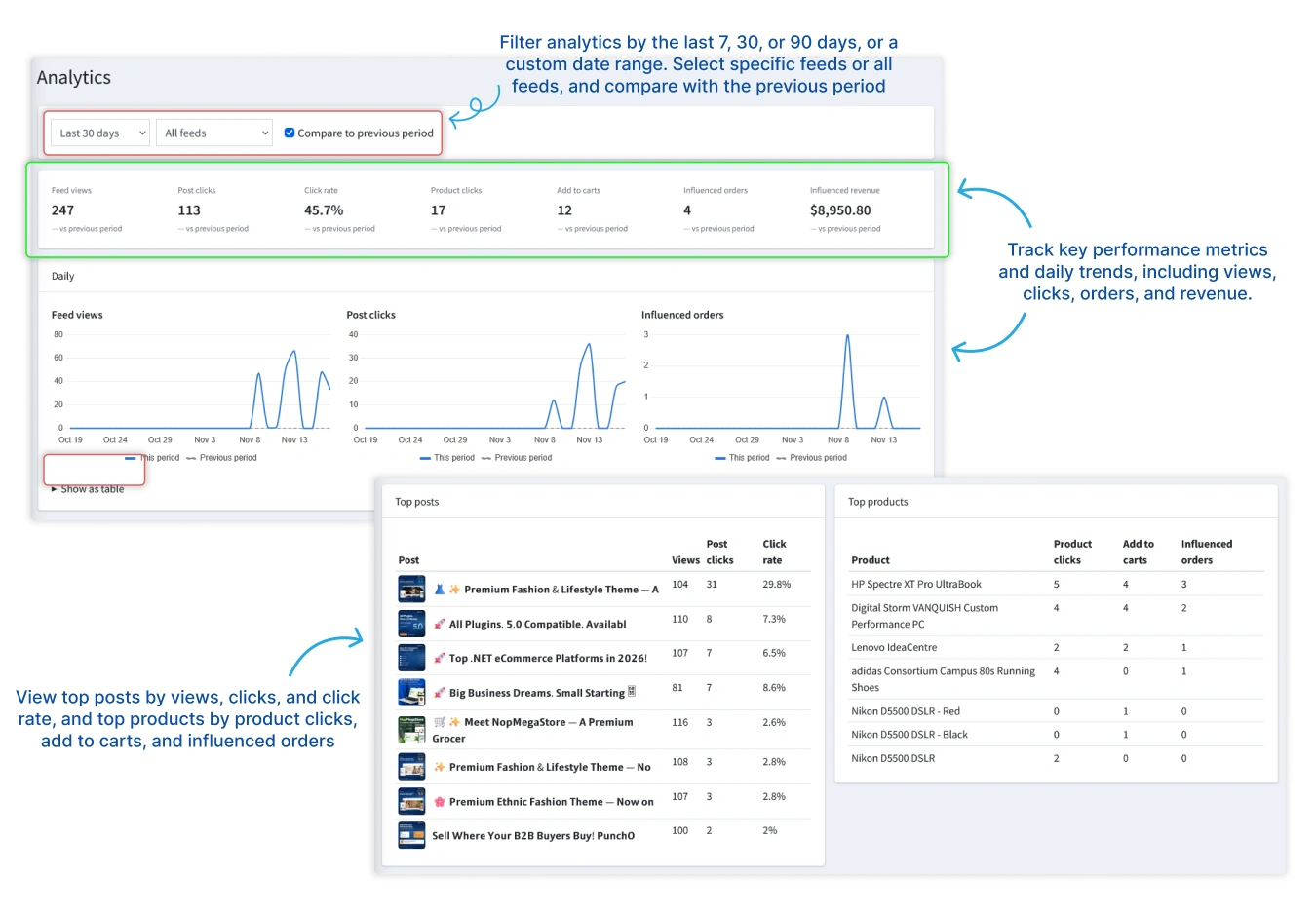
Once your feed is live, three jobs remain: checking that it earns its place, keeping it legal, and keeping it running.
Measure orders, not likes
Track feed views, post clicks, product clicks, add to carts and orders that followed a click. Compare one month with the next, and drop posts that never get tapped.
Give a new feed at least a month before judging it, and change one placement at a time so you know what made the difference. For a fair test of whether the feed really adds sales, see our guide to testing store features with a holdout.
Mind privacy in the EU
Instagram's own embed code loads Meta's scripts in your visitors' browsers. In the Fashion ID case, the EU Court of Justice ruled that a website using an embedded Meta plugin is jointly responsible for collecting and passing on visitors' data. Hunton's summary of the ruling explains what that means.
So for EU shoppers, get consent before Meta's embed scripts load. Our cookie consent plugin can hold scripts back until a visitor agrees. This isn't legal advice, so check your own setup with a lawyer.
When the feed stops updating
- The token expired: long-lived tokens last 60 days, so reconnect the account or check that automatic refresh is working.
- The account changed: if someone switched it back to a personal account, the connection breaks. Switch it to Business or Creator again.
- The password or permissions changed: reconnect the account and approve the permissions again.
- A post won't show: private and age-restricted posts can't be embedded at all.
The 60-day token is the problem we designed around most when building our plugin. It emails you when the connection needs attention, so you don't find a feed stuck on posts from months ago. If you'd rather not handle any of this, our team can set up and look after the feed for you.
Turn Your Instagram Posts Into Sales? Work With the BSS Team
From connecting your Instagram account and tagging products to placing feeds where they sell and keeping them running, our engineers build social features for nopCommerce stores.
Frequently Asked Questions
Final Thoughts
Remember those followers who liked your photos but never reached your store? An Instagram feed on your nopCommerce store brings those photos to the place where people can actually buy.
Use a Business or Creator account, plan for the 60-day token, and pick the method that fits: single embeds for a post or two, a widget for a quick feed, or a plugin when you want shoppable posts tied to your catalog. Then measure orders, mind consent, and keep the feed fresh.
Tell us about your Instagram account and your store. We'll help you connect it, tag your products and place the feed where it sells.
Book a free consultation