It is Tuesday, and marketing needs a Black Friday landing page live by Friday. In stock nopCommerce that page is a rich-text box: bold, bullet lists, and a pile of raw HTML for anything more. So the request goes to a developer, waits behind two other tickets, and comes back as a page nobody dares touch.
At BSS we build nopCommerce plugins, and the Visual Editor is the one aimed at that queue: a drag-and-drop page builder inside the admin your team already uses. This guide covers what it changes, where to switch it on, how it protects your theme, and the AI Bridge that drafts layouts for you to approve.
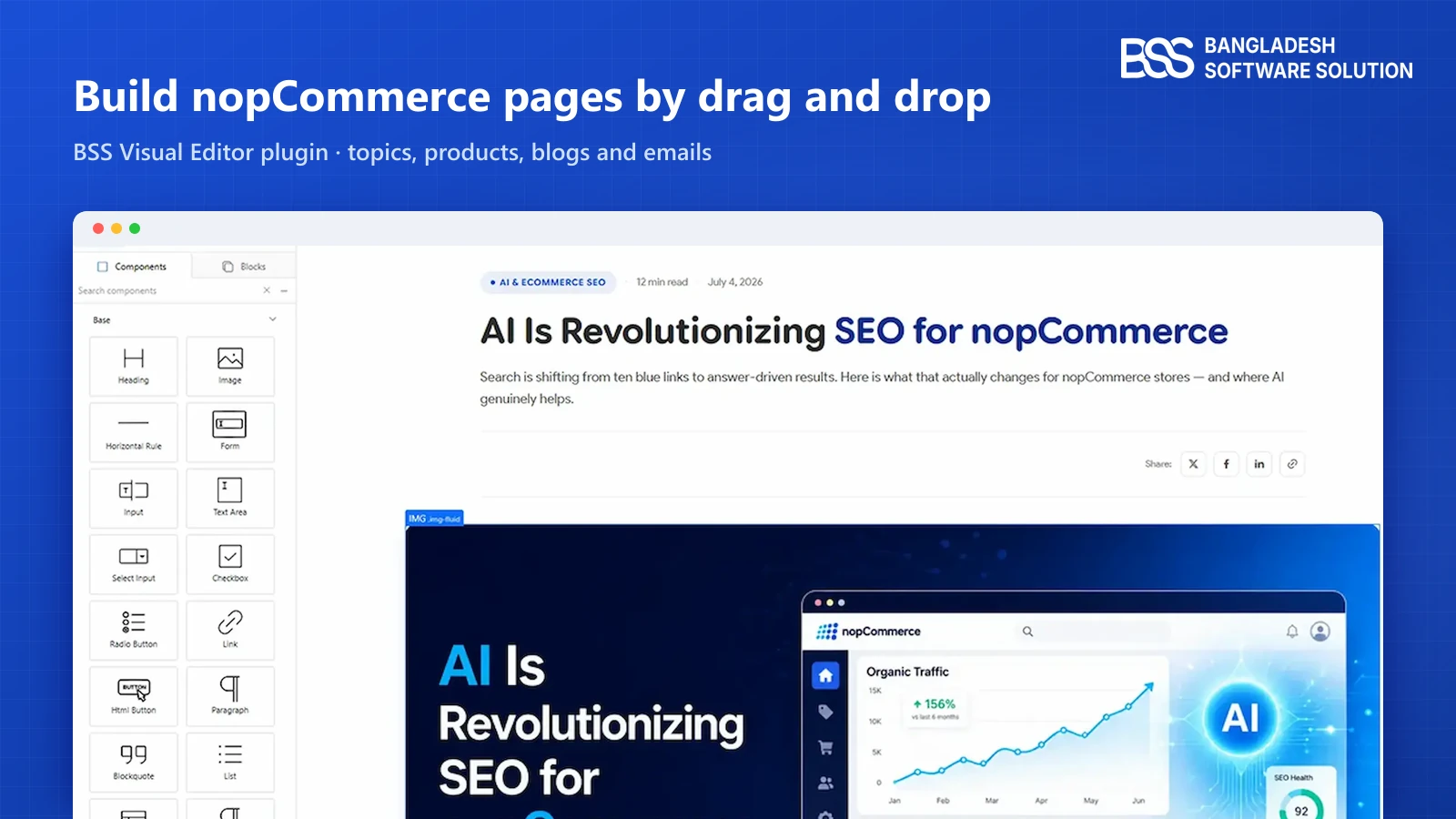
Key fact: The Visual Editor replaces the default rich-text editor with a drag-and-drop builder for topics, product, category and manufacturer descriptions, blog posts, news items and email message templates. What it produces is server-rendered HTML, so search engines read it like any other page.
What the Visual Editor Changes in the nopCommerce Admin
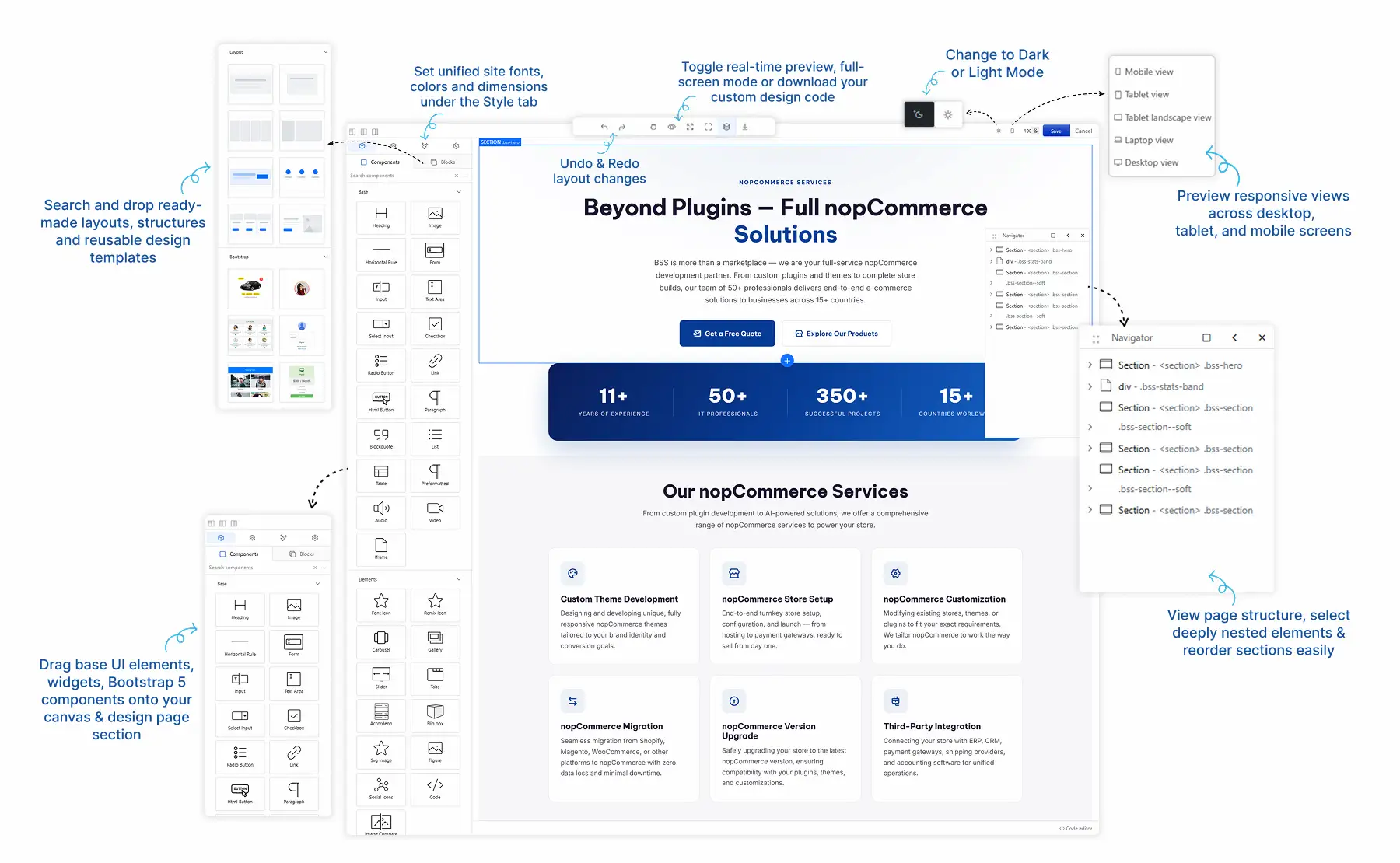
Back to Friday's deadline. Your marketer does not lack ideas; the editor simply only understands text. A landing page is layout, and layout needs columns, cards, buttons and a way to see how it falls on a phone.
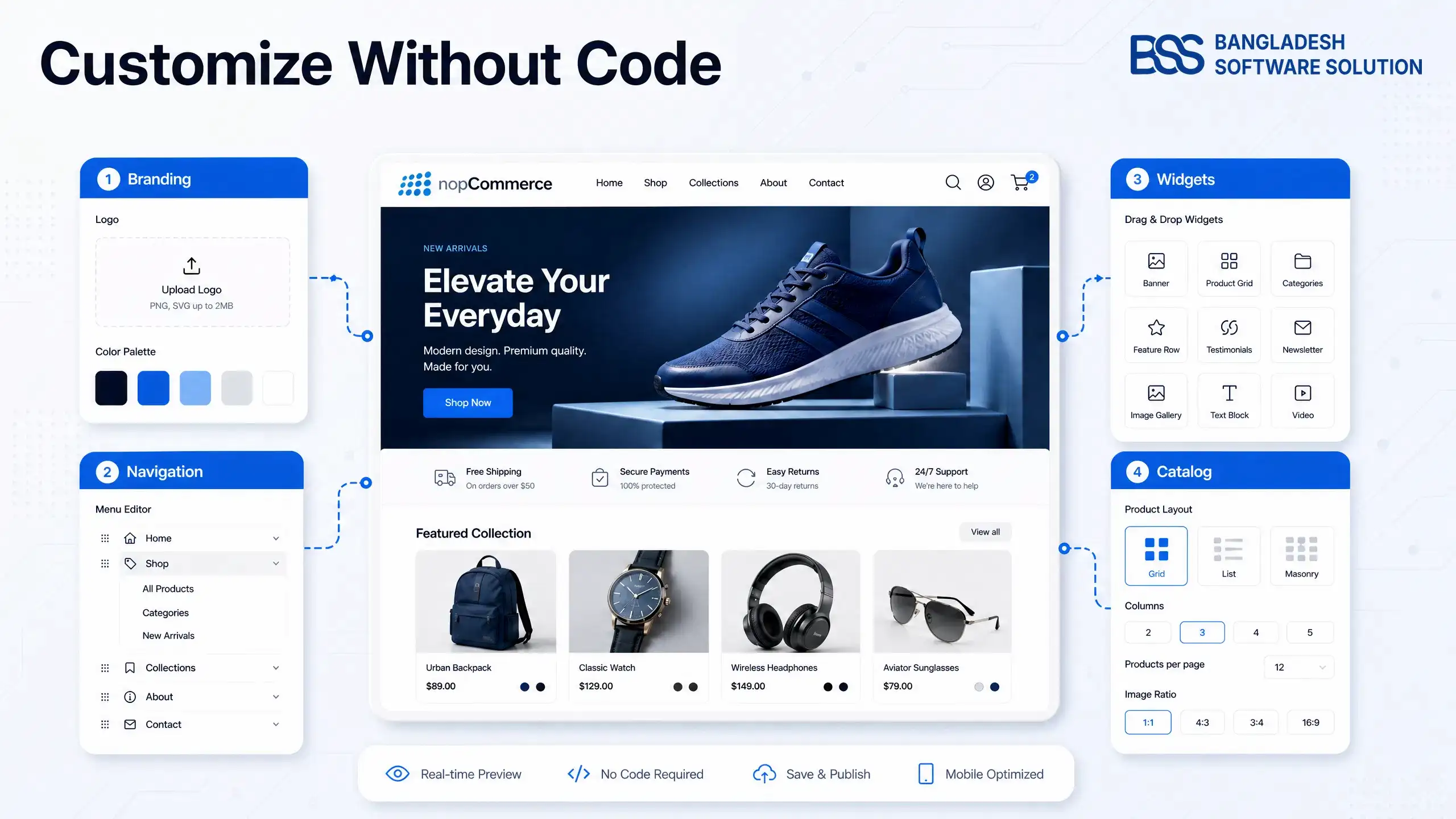
The BSS Visual Editor brings that into the editor field itself. Open a topic, choose Edit with Visual Builder, and you get a component library beside a live canvas.
The difference shows up on the second page, not the first. A rich-text box invites styles pasted from Word, one-off colours and image sizes chosen by eye, so each page drifts from the last. A builder works from the same components every time, so the tenth page looks like the first.
What you build is stored as ordinary HTML in the same field nopCommerce already used, and it is rendered on the server, so crawlers see finished markup rather than a script waiting to run.
Want the first pages built for you? We set up nopCommerce stores and tailor them to your brand, Visual Editor layouts included.
Talk to a nopCommerce expertSeven Content Areas, One Global Switch
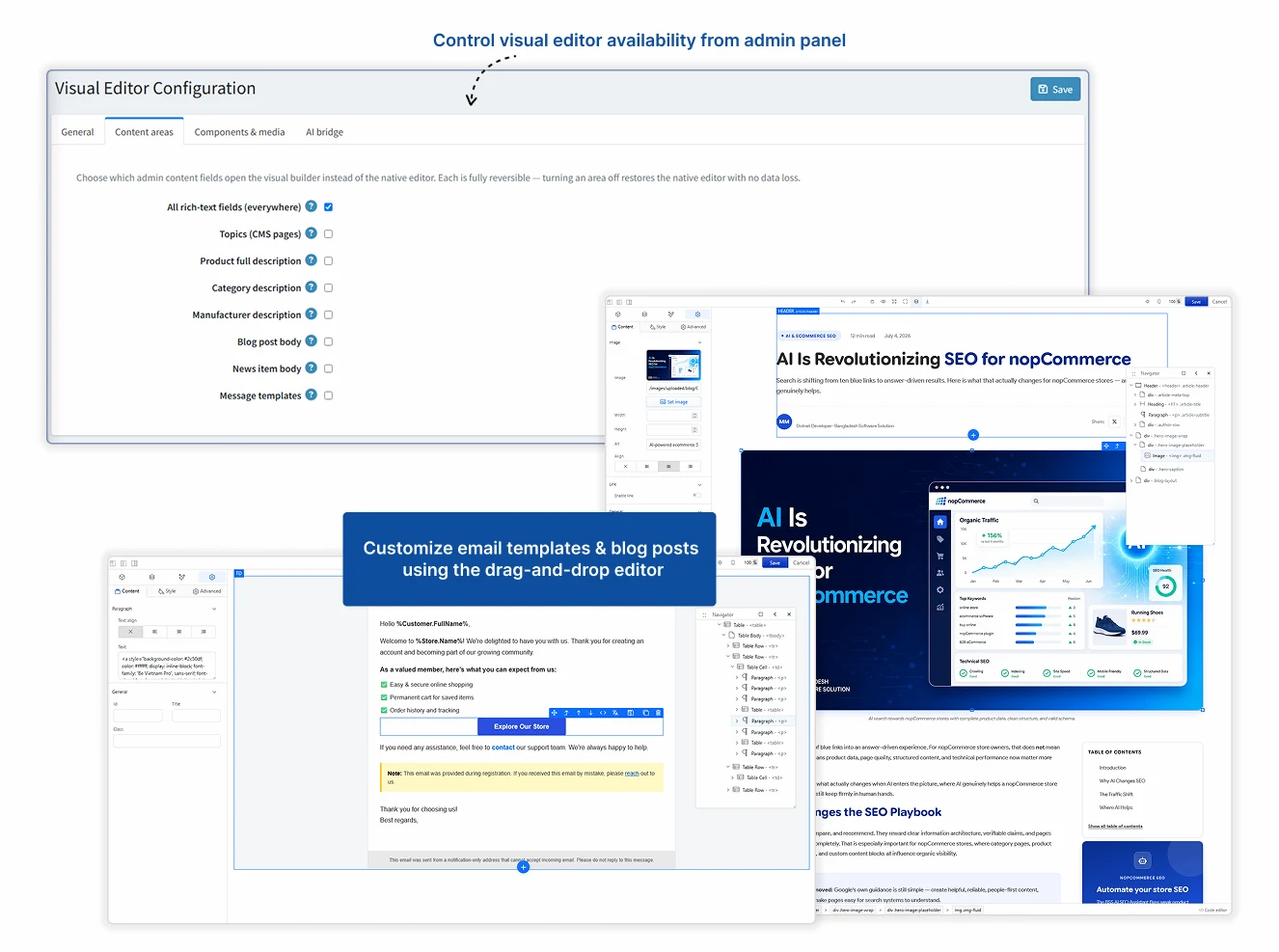
The first decision is scope. Not every store wants a page builder in every text box, so the Content areas tab lets you choose exactly where it replaces the native editor.
Leave the global switch off at first and enable one area, usually Topics. That gives your team a safe place to learn the builder while product descriptions keep working exactly as before.
| Content area | What teams build there |
|---|---|
| Topics (CMS pages) | Landing pages, campaign pages, About and size-guide pages. |
| Product full description | Feature blocks, comparison strips and spec layouts. |
| Category and manufacturer descriptions | An introduction above the listing, or a brand story with highlights. |
| Blog post and news item bodies | Articles with columns, cards and calls to action. |
| Message templates | Order and notification emails designed visually. |
Watch out
Message templates are the one area where the documentation flags a limit: dynamic tokens have limited support in this version. Send yourself a test order email before you rely on a visual design for it.
One practical note for search. Because the builder saves finished HTML, the headings, links and image descriptions you set on the canvas are exactly what a crawler reads. Keep one clear heading order per page and describe every image, as you would in any editor.
If what you really want is a homepage refresh without a developer, our guide to customizing a nopCommerce theme without coding covers the settings-only route first.
Reusable Blocks and an Isolated Container Keep Pages Consistent
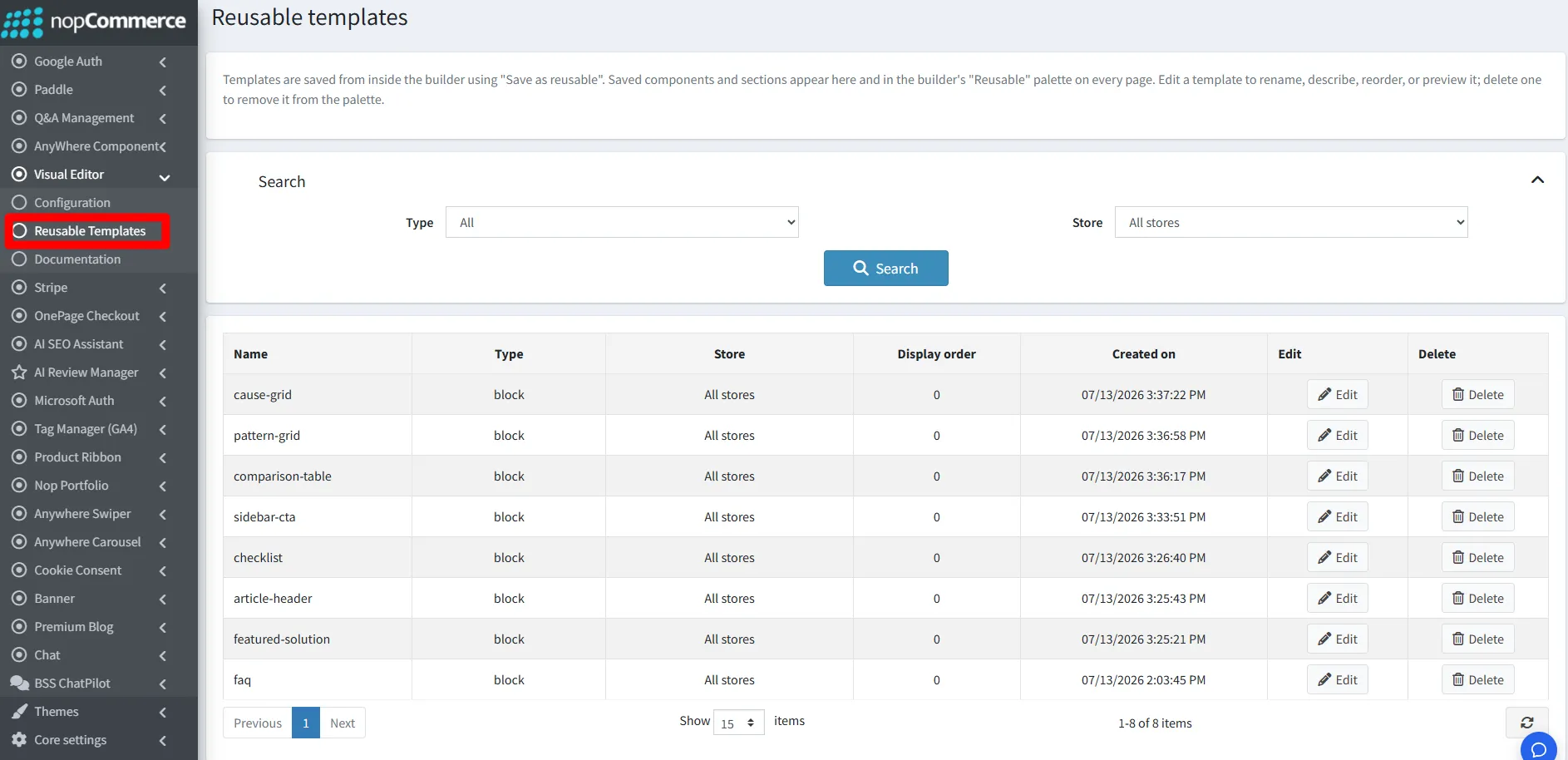
Hand-built pages fail slowly. The first campaign page looks sharp, the tenth uses a slightly different button, and the theme update that follows breaks half of them. Two features are aimed at exactly that drift.
A sensible first library is small: a campaign banner, a three-card feature row and a call-to-action band, each built once and reused from then on.
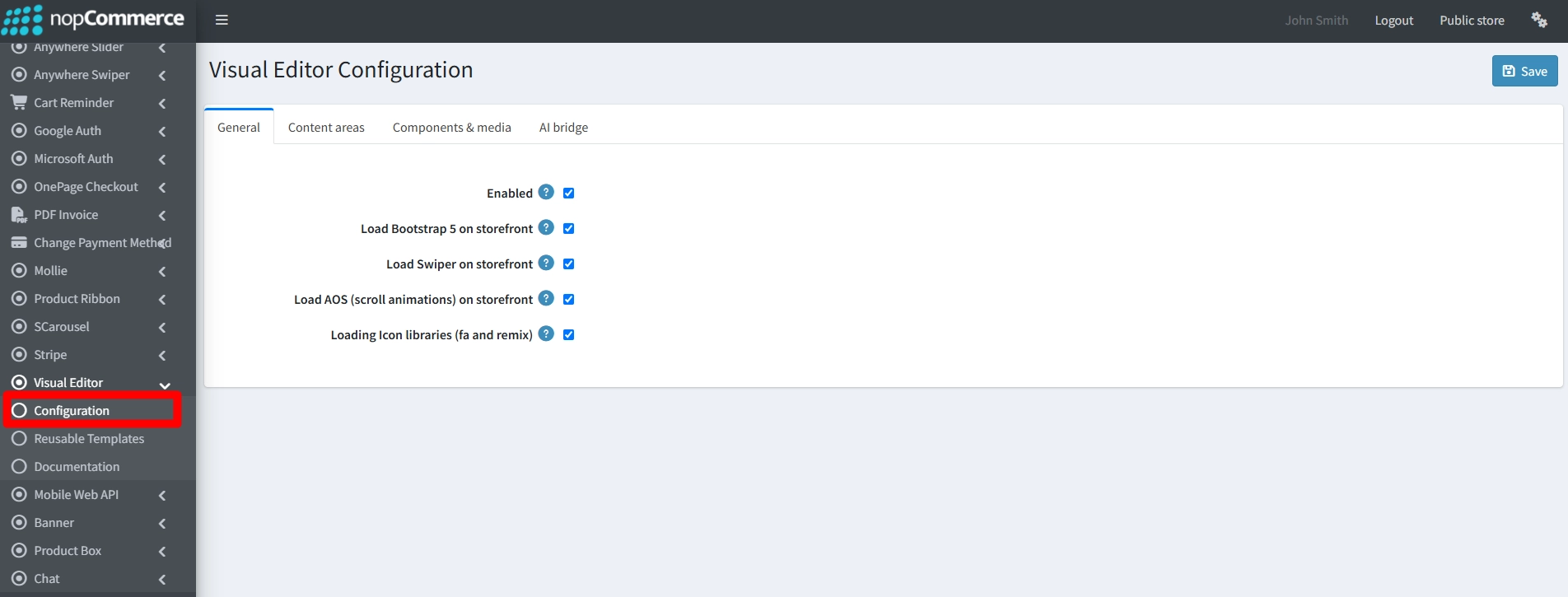
The General tab adds a third control. Bootstrap 5, Swiper, AOS scroll animations and the FontAwesome and Remix icon libraries each get their own switch, so you can leave off whatever your theme already loads. Scroll animations such as fade, slide and zoom come from AOS, behind the same kind of switch.
Blocks are not limited to the page body. The product page lists widget-zone placement, with zones such as productdetails_before_pictures, categorydetails_top and main_column_before, so a promo strip can sit above a category's products through a zone instead of an edited theme file.
Stores with several languages or storefronts are covered as well: the plugin supports store-specific designs and a separate copy of each block per language.

On theme work at BSS, a second copy of Bootstrap loading over the theme's own is one of the first things we check when a page looks wrong. It is also why the per-library switches matter more than they look.
The AI Bridge: An Assistant Drafts the Layout, You Approve It
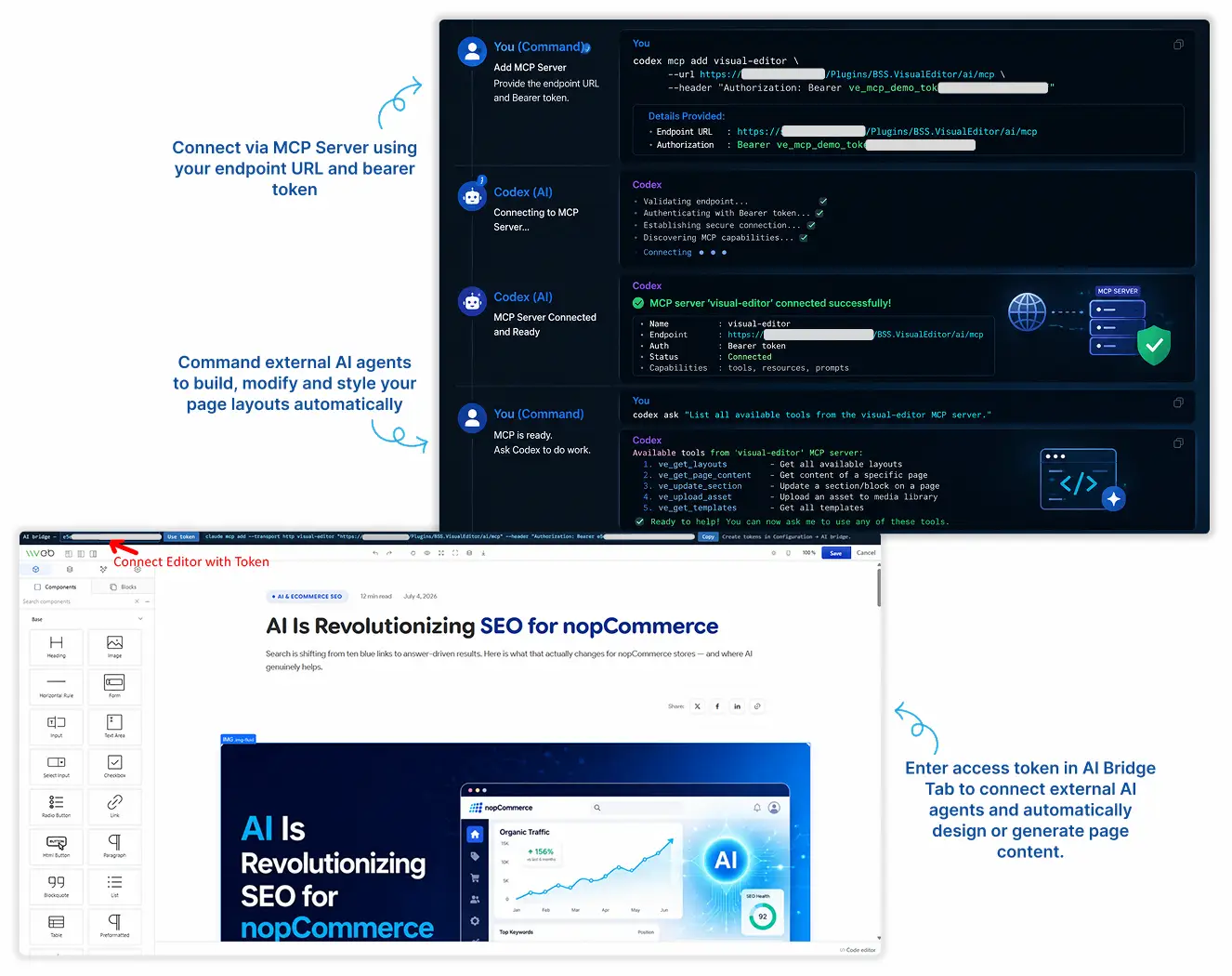
AI page generation usually fails at the handoff: you prompt one tool, copy HTML into another and hope the styling survives. The AI Bridge removes the copy step by connecting your assistant directly to the builder that is open in your admin.
In the Visual Editor settings you enable the AI bridge (MCP), copy the endpoint URL and create a token for each person. Paste both into your agent and into the builder's AI bridge bar, and the agent's commands reach the page you have open.
The settings page prints ready-made snippets for Claude Code, .mcp.json, Codex and mcp-remote. The shape of an entry looks like this:
{
  "mcpServers": {
    "visual-editor": {
      "type": "http",
      "url": "https://your-store.com/Plugins/BSS.VisualEditor/ai/mcp",
      "headers": { "Authorization": "Bearer <your-token>" }
    }
  }
}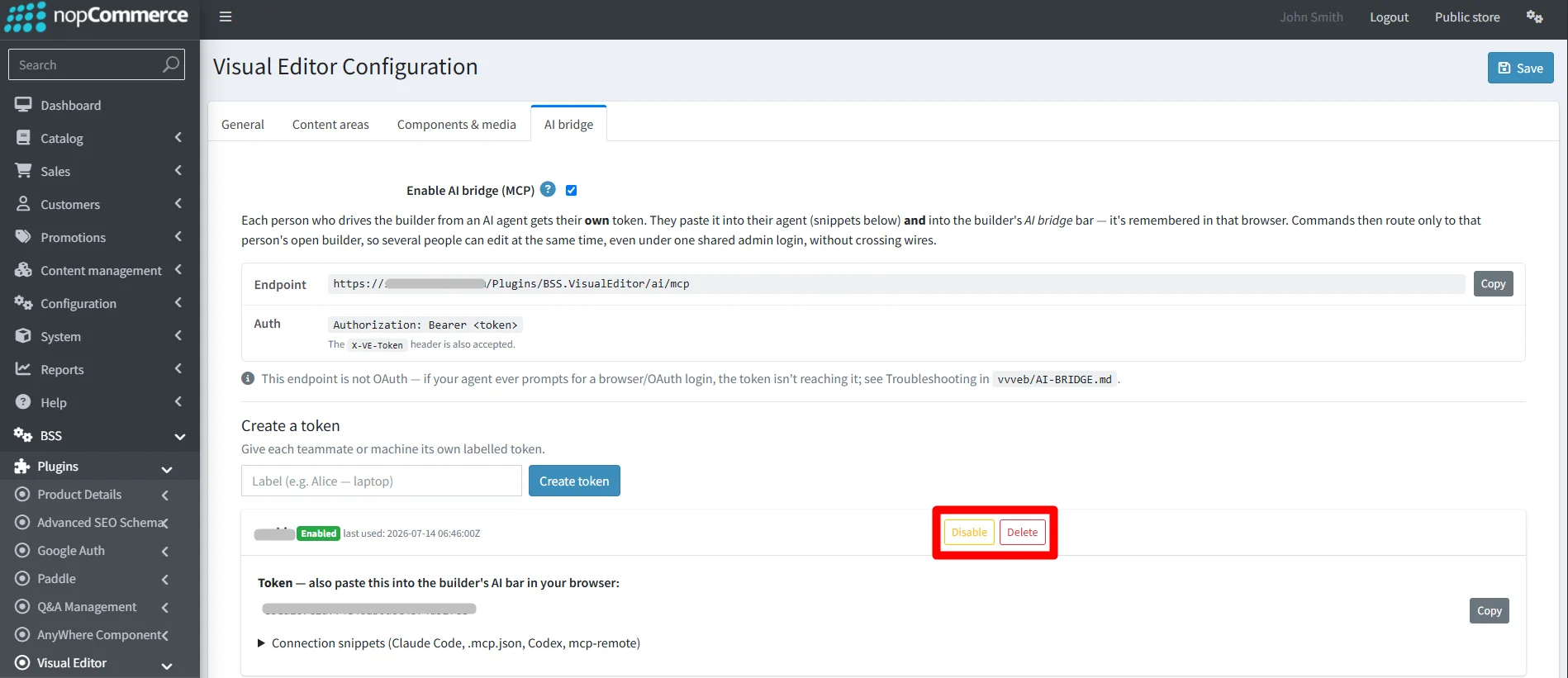
Two rules from the documentation matter in practice. Give each teammate their own token, and use one token per browser window, because sharing a token across windows sends conflicting commands.
Start with a bounded job: a section for a campaign page, a product-description layout, an email header. Review the result at all three preview widths, then save it as a reusable block if it earns a second use.
We publish our own blog this way: an AI agent loads each post into the builder, and a person reviews it and clicks Save. Treat the assistant as a fast first drafter, not the approver, and read the Visual Editor documentation before you connect one.
Teams that want a repeatable AI-assisted workflow, with brand blocks, approvals and product data wired in, usually need a developer for the integration. You can hire a .NET developer from BSS to build it.
Installing and Configuring It: What to Check First
Installation follows the usual nopCommerce plugin route, with one dependency to respect: the core plugin has to go in before the Visual Editor.
Setup checklist from the documentation
-
Download the bundle from your order details; it contains every file you need.
-
Upload the zip files under Administration, Configuration, Local plugins.
-
Install BSS Core first, then the Visual Editor, and restart the application.
-
If JavaScript or CSS bundling and minification are on, switch both off, as the documentation recommends.
-
Open BSS, Plugins, Visual Editor, Configuration, enter your license string, save and clear the cache.
-
Choose your content areas, and switch off any library your theme already loads.
Before more than one person starts building, three settings are worth deciding on purpose.
The store lists the plugin for nopCommerce 4.90, and licensing depends on the source-code option, single or multiple URLs and whether you want installation support. Check the product page for the version and option that match your store.
A drag-and-drop page builder for topics, products, categories, blogs and email templates, with an AI bridge for your assistant.
View the pluginIf you would rather not do the install and the first layouts yourself, the BSS team can set the store up and tailor it to your brand.
Need a nopCommerce Developer? Hire the BSS Team
From custom plugins and theme work to full-store builds and performance tuning, our dedicated nopCommerce engineers ship production-grade code. Tell us what you need and we'll match you with the right developer.
Frequently Asked Questions
Final Thoughts
Back to Tuesday's request. With the Visual Editor, the Black Friday page is built by the person who knows the offer, previewed on a phone, and saved as a block for the next campaign. The developer ticket becomes a review instead of a build.
Start small: enable Topics, build one landing page, and decide from there whether product descriptions and emails deserve the builder too. The documentation walks through every setting when you are ready.
It is the right fit when your store has more pages than developers: several campaign pages a month, descriptions that need real layout, emails that should match the brand. If you publish a handful of pages a year, the native editor is enough, and that is an honest answer too.
Tell us what you want to publish, and the BSS team will help you install the plugin and shape the first layouts around your theme.
Book a free consultation