Swapping the look of a nopCommerce store used to mean editing Razor views by hand. In nopCommerce 4.80, installing and changing a theme is a controlled, repeatable admin task — whether you're applying a theme you bought from the nopCommerce Marketplace, one built by a developer, or switching back to a default theme for testing.
This guide walks through both installation paths (uploading through the admin panel and copying files onto the server), how to activate a theme once it's installed, the settings that control who sees which theme, and the mistakes that most often break a theme switch.
What a nopCommerce Theme Actually Changes
A theme in nopCommerce is a self-contained package of Razor views, stylesheets, and images that controls how your store looks — not how it behaves. Switching themes doesn't touch your catalog, customer accounts, orders, or SEO-friendly URLs; it only changes the templates nopCommerce uses to render those pages.
Key Fact: Every nopCommerce theme is built from three parts — a theme.config file that declares the theme's name and supported version, a Views folder with the Razor templates it overrides, and a Content folder holding its CSS, JavaScript, and images.
At runtime, nopCommerce's view engine checks the active theme's Views folder first. If a page isn't overridden there, it falls back to the platform's default view — which is why a theme only needs to ship the views it actually customizes, not a copy of the entire site.
Theme vs. Plugin: What's the Difference?
A theme changes presentation; a plugin adds or changes behavior. In practice the line blurs — many premium themes from the nopCommerce Marketplace ship as a theme package plus one or more companion plugins (a page builder, a mega menu, a slider widget) that need to be installed separately. Read the theme's documentation before you install it so you know whether you're installing one package or several.
Where to Get a Theme for nopCommerce 4.80
Before you touch the admin panel, decide where the theme itself is coming from — it changes how you'll install it.
How to Install a Theme in nopCommerce 4.80
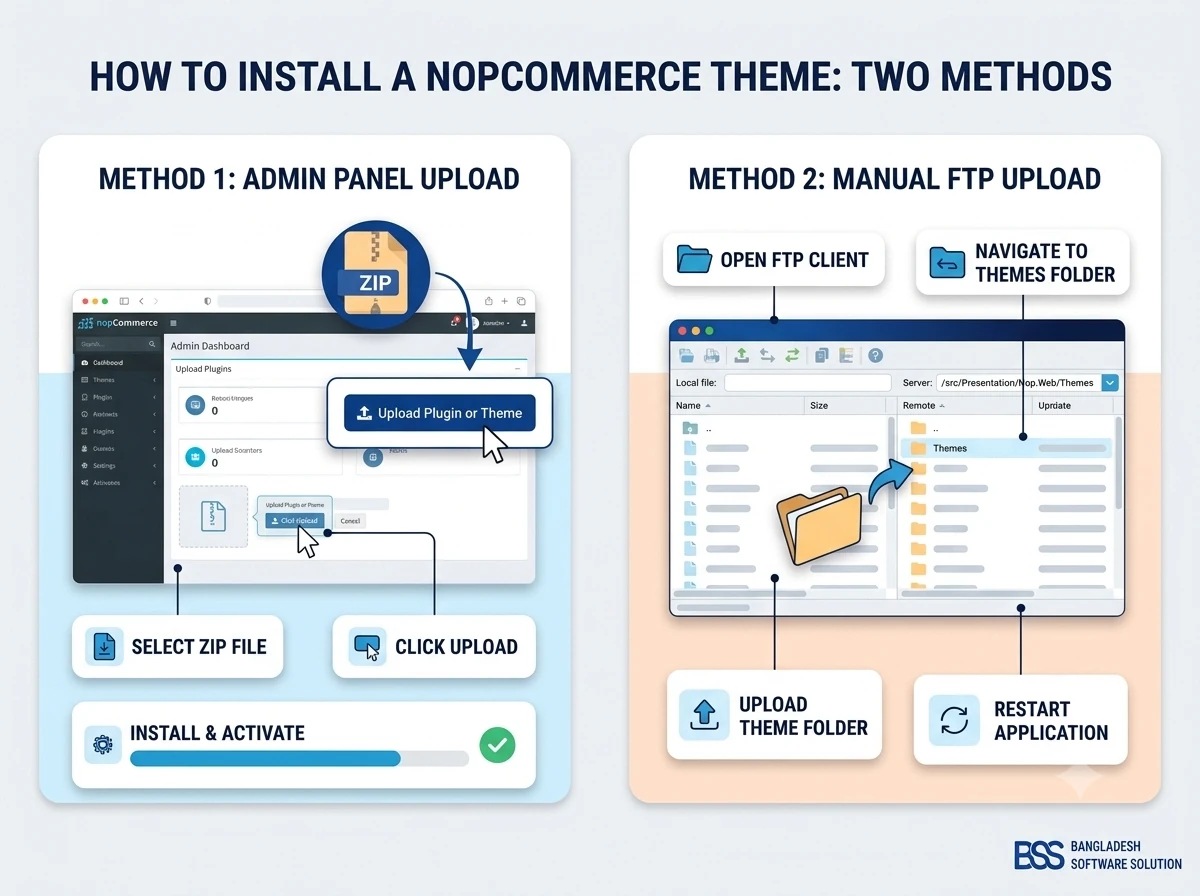
There are two supported ways to get a theme's files onto your store, and which one you use depends on the access you have to the server.
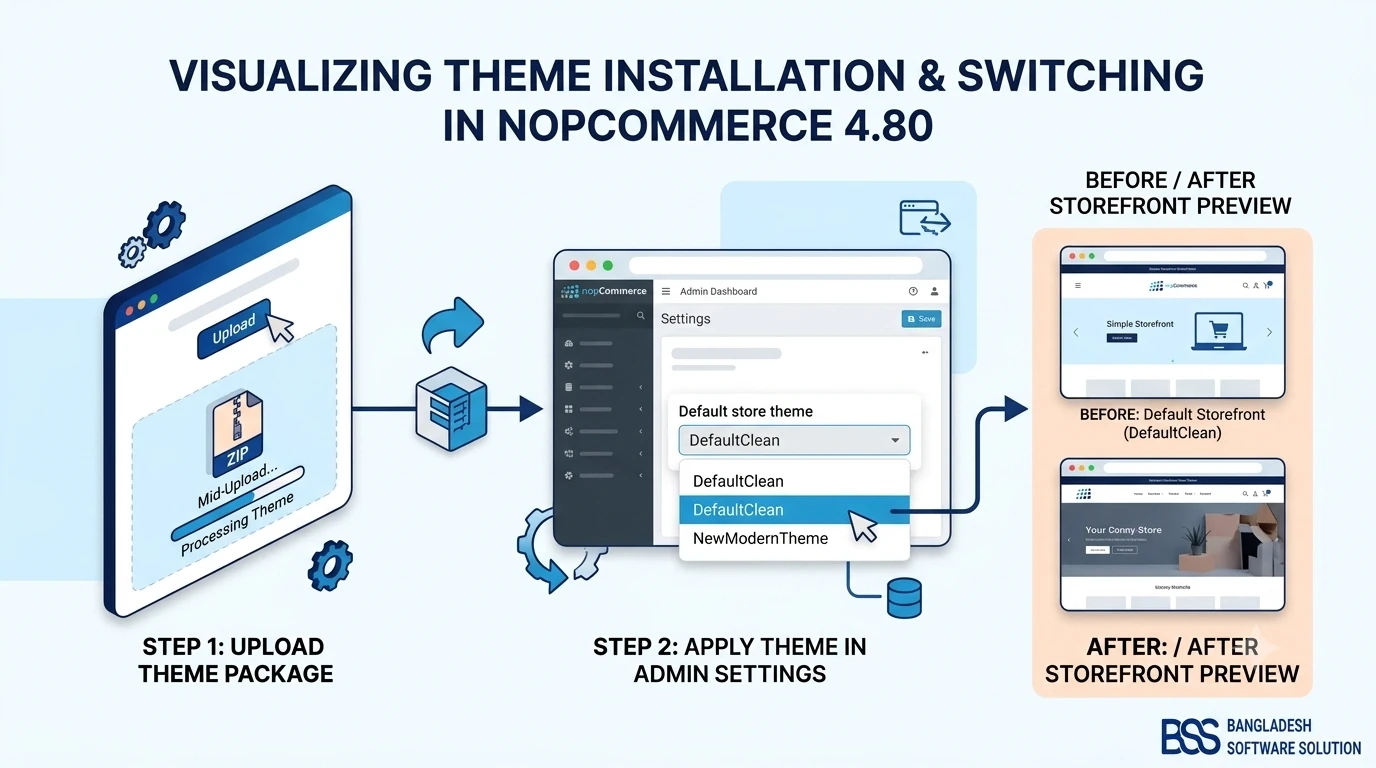
.zip package. nopCommerce extracts and registers it automatically — no FTP or file-system access required. This is the fastest path for store owners without server access, and it's how most themes purchased from the nopCommerce Marketplace are installed.Themes directory so it sits alongside the built-in themes. Restart the application afterward so nopCommerce picks up the new theme folder.What's Inside the Theme Package
A well-formed theme folder looks like this once it's in place:
Themes/
  YourThemeName/
    theme.config
    Views/
      Shared/
      Catalog/
    Content/
      css/
      images/
The theme.config file is what nopCommerce reads to list the theme as a selectable option in the admin panel — if that file is missing or malformed, the theme won't show up even if the rest of the folder is correctly in place.
Activating and Configuring Your New Theme
Installing a theme's files only makes it available — you still need to switch to it, and decide who sees it.
Switching the Store's Default Theme
Go to Configuration → Settings → General settings, open the General and miscellaneous settings tab, and pick your new theme from the Default store theme dropdown. Save the page and the storefront starts rendering with the new theme immediately — no restart needed for a theme that's already installed.
| Setting | What It Controls | Scope |
|---|---|---|
| Default store theme | Which theme actually renders your storefront by default. | Per store |
| Allow customers to select a theme | Whether shoppers can override your default with a theme picker on the storefront. | Per store, opt-in |
| theme.config supported version | Whether a given theme is compatible with your installed nopCommerce version. | Per theme |
Multi-Store and Customer-Selectable Themes
The Default store theme setting is store-scoped, so in a multi-store nopCommerce installation each store can run its own theme independently — useful if you run separate storefronts for different brands or regions from one install. Separately, the Allow customers to select a theme option adds a picker so visitors can switch themes themselves; use it with a small, curated list, since turning it on for every installed theme lets visitors land on one you haven't fully tested.
Don't Skip the Restart
Uploading or copying in a new theme's files doesn't make it selectable until nopCommerce reloads its plugin and theme cache. If a newly installed theme isn't showing up in the Default store theme dropdown, use Restart application in the admin panel before troubleshooting further — it resolves the majority of "my theme isn't appearing" cases.
Pre-Launch Testing Checklist
A theme that looks right on the homepage can still break somewhere a customer will actually notice. Work through this list before you open a new theme to all traffic.
Before You Go Live
-
✓Preview the theme on desktop, tablet, and phone breakpoints — table and grid-heavy pages reveal layout issues fastest.
-
✓Click through checkout, cart, search, and account pages, not just the homepage — theme overrides sometimes miss less-visited views.
-
✓Confirm every widget zone your plugins render into (home page slider, footer, header banners) still shows up; a new theme can silently drop a zone the old one rendered.
-
✓Check page load time and Core Web Vitals after the switch — some paid themes ship extra JS/CSS that adds noticeable weight.
-
✓Roll it out on a staging store or to a small slice of traffic before enabling "Allow customers to select a theme" for everyone.
-
✓Clear the site's output cache after activating the theme so cached HTML from the old theme isn't served alongside new assets.
Common Theme Installation Problems (and Fixes)
Most theme issues fall into one of three categories. Here's what to check for each.
Need Help Installing or Customizing a nopCommerce Theme?
From a clean install and QA pass to deep visual customization and companion-plugin setup, our nopCommerce engineers handle the whole theme switch so your storefront looks right on day one.
Frequently Asked Questions
Final Thoughts
Installing a new theme in nopCommerce 4.80 is a low-risk, easily reversible change — the platform's views-override model means you're never touching your actual store data, and switching back to a known-good theme is one dropdown selection away if something looks wrong. Take the extra ten minutes to run through the testing checklist above before you flip the switch for every visitor, and a theme change becomes a routine part of running your store rather than something to dread.