Someone on your team just pulled up nopCommerce's feature list, compared it line by line against your current cart, and said the four words every platform evaluation eventually reaches: "let's just try it." That instinct is correct — reading a spec sheet and clicking through a working store tell you two completely different things.
Here's the part that trips people up: nopCommerce doesn't hand you a private sandbox when you show interest. There's one public demo, shared by everyone evaluating the platform at the same time you are, and how it's actually built determines whether the twenty minutes you spend on it tells you anything useful. If you're brand-new to the platform itself, our plain-language guide to what nopCommerce is is worth a five-minute detour before you go further.
This is the walkthrough we point prospects to before we ever get on a call: how the demo is actually set up, what to click through on the storefront and in the admin panel, what the demo can never show you no matter how long you spend on it, and where to go once you're ready for an honest preview of your own store.
How the nopCommerce Demo Is Actually Set Up
Most platform demos are one thing — a single guided tour. nopCommerce's is two separate installations, and knowing that before you start saves you from drawing the wrong conclusion halfway through.
Key fact: The storefront demo and the admin (back-office) demo are two disconnected installs. A product you edit in the admin demo will never appear on the storefront demo, and an order you place on the storefront demo will never show up in the admin demo's order list.
That's not a bug — it's the only sane way to run one shared demo for thousands of simultaneous evaluators. If edits from every visitor landed on the same public storefront, nobody's demo would look the same twice.

The login for the admin demo isn't a secret you have to dig for — nopCommerce publishes it directly on its own demo page, right next to the link. Don't waste time hunting through forum threads for credentials; if you can't find them on the official page, you're looking in the wrong place.
The admin demo also resets itself on a fixed hourly cadence, wiping back to its original state. Per nopCommerce's own demo documentation, this is deliberate and by design, not a glitch — it's what keeps the shared environment usable for the next person after you. It matters for one practical reason: don't build anything in the admin demo you want to still be there in an hour.
Watch out
Don't judge your future store's speed or branding from this environment. It's a shared, public install running the stock demo theme and generic sample catalog under whatever load every other evaluator that hour is putting on it — not a preview of your store, your host, or your data.
What to Click Through on the Storefront Side
Start as a shopper would, before you ever touch the admin panel. This is the side a customer actually experiences, and it's where most evaluators stop too early — they browse the homepage for thirty seconds and call it done.
The storefront demo checklist
-
Open a full category and use the layered-navigation filters — price range, brand, and any attribute filters — to see how quickly results narrow.
-
Search for a product two ways: by its exact name, and by a partial or misspelled term, to gauge how forgiving the built-in search actually is.
-
Open a product with variants — size, color, or another attribute — and confirm the price and stock status update correctly as you change your selection.
-
Add two or three items to the cart and walk through a full guest checkout, from cart to the order confirmation screen.
-
Look for the currency and language switchers, if visible, to get a feel for how multi-currency and multi-language display works.
-
Resize the browser window or reload the same pages on a phone to see how the responsive layout holds up.
None of this tells you what your own catalog will look like — it's still the stock demo data and the default theme — but it tells you whether the underlying shopping mechanics behave the way you expect before you commit any real budget to finding out.
What to Explore in the Admin Panel
Once you've walked the storefront as a shopper, log into the separate admin demo and look at the same store from the other side of the counter — this is where the people who'll run the store day-to-day should be spending their time.
The plugin browsing experience matters more than it looks like it should, especially if you're coming from a platform where extensions are hit-or-miss. Our own guide to finding, vetting, and buying nopCommerce plugins covers what separates a well-maintained extension from one that'll break on the next update.
What the Public Demo Can't Show You
A shared public demo is honest about nopCommerce's mechanics and dishonest about almost everything else: your branding, your real product data, your actual hosting provider's response time, and how the platform behaves once the specific plugins you need are installed side by side.
That gap is exactly what separates the three realistic ways to actually see this properly, and each one trades speed for accuracy differently.
| Approach | What it actually shows you | Business value |
|---|---|---|
| Testing only the public demo | The core shopping and admin mechanics, on the stock theme and generic sample data, on shared infrastructure reset every hour. | Low — fast, but tells you nothing about your own store |
| Spinning up your own dev install | A persistent sandbox where you can install real plugins and load a slice of your own catalog — but still not your final host's performance, and it needs someone who knows how to stand it up. | Medium — closer, but still not production |
| A guided proof-of-concept build | Your actual theme direction, a real sample of your catalog, the specific plugins you're evaluating, and hosting that resembles what you'd actually launch on. | High — the closest thing to an honest preview |
A public demo proves nopCommerce works. It was never built to prove what your store will look like.
BSS Engineering
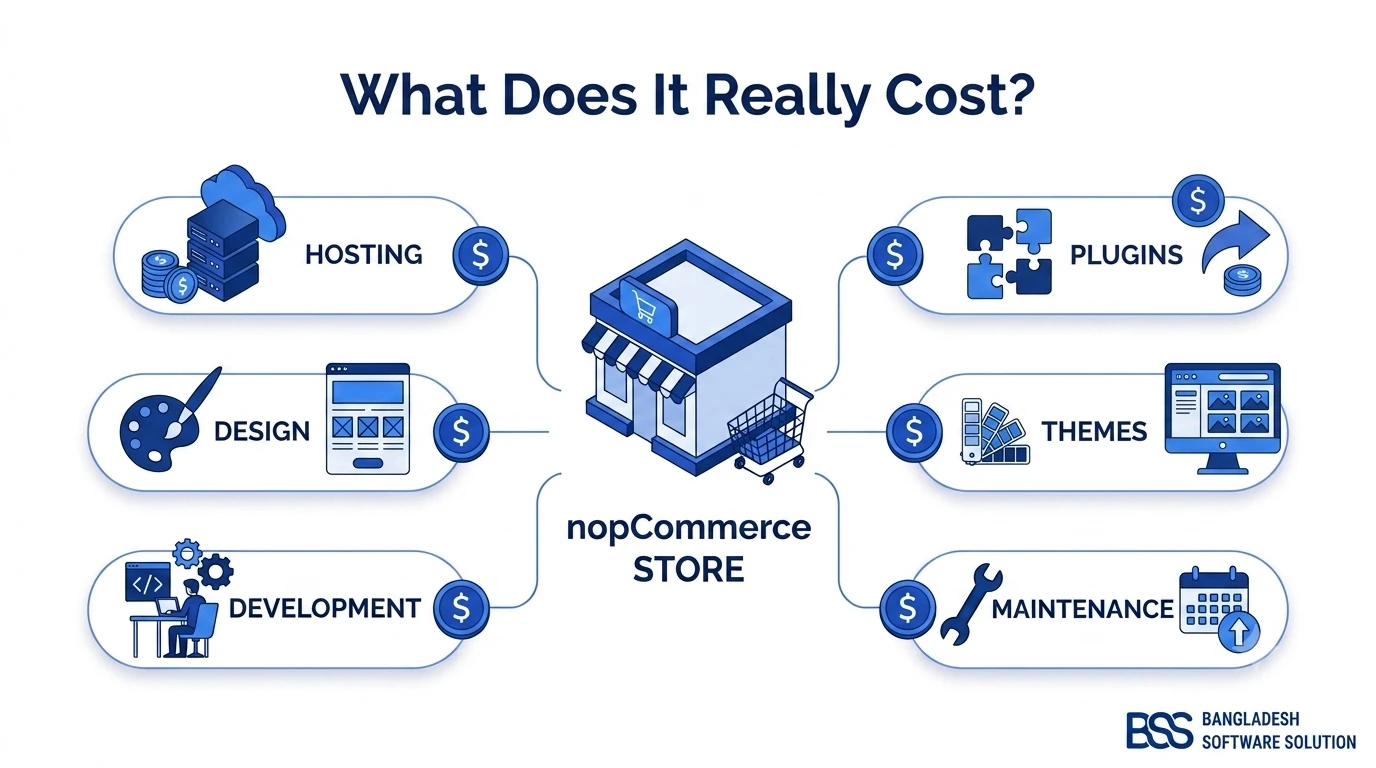
In our own conversations with prospective clients, the demo checklist above is usually what surfaces the next real question, which is budget. If that's where you are next, we broke down exactly what a nopCommerce build actually costs — licensing, theme and development work, hosting, plugins, and the ongoing costs most first-time budgets miss.
Ready to See It With Your Own Theme and Data?
The BSS team turns a public demo into a working proof of concept — your theme direction, a real sample of your catalog, and the specific plugins you need, running on hosting that resembles what you'd actually launch on. Tell us what you're evaluating and we'll show you what it looks like built.
Frequently Asked Questions
Final Thoughts
Twenty minutes into the demo, most teams land in one of two places: either the mechanics feel right and the conversation moves to what a real build costs, or something specific didn't behave the way the current platform does and that becomes the next question to chase down. Both are better outcomes than the vague "let's just try it" your team started with.
That's the actual value of doing this properly — not a verdict on nopCommerce in the abstract, but a specific, shared checklist your whole team can point back to instead of everyone forming a different impression from a few unguided minutes on the storefront. When you're ready to turn that into an honest preview of your own store, our guide to choosing the right nopCommerce development partner is the natural next step.