A customer has found a phone in your store. Before buying, they want to compare it with another brand, choose the right storage option, and find a case that fits the exact model. Your catalog needs to answer each question without making them start their search again.
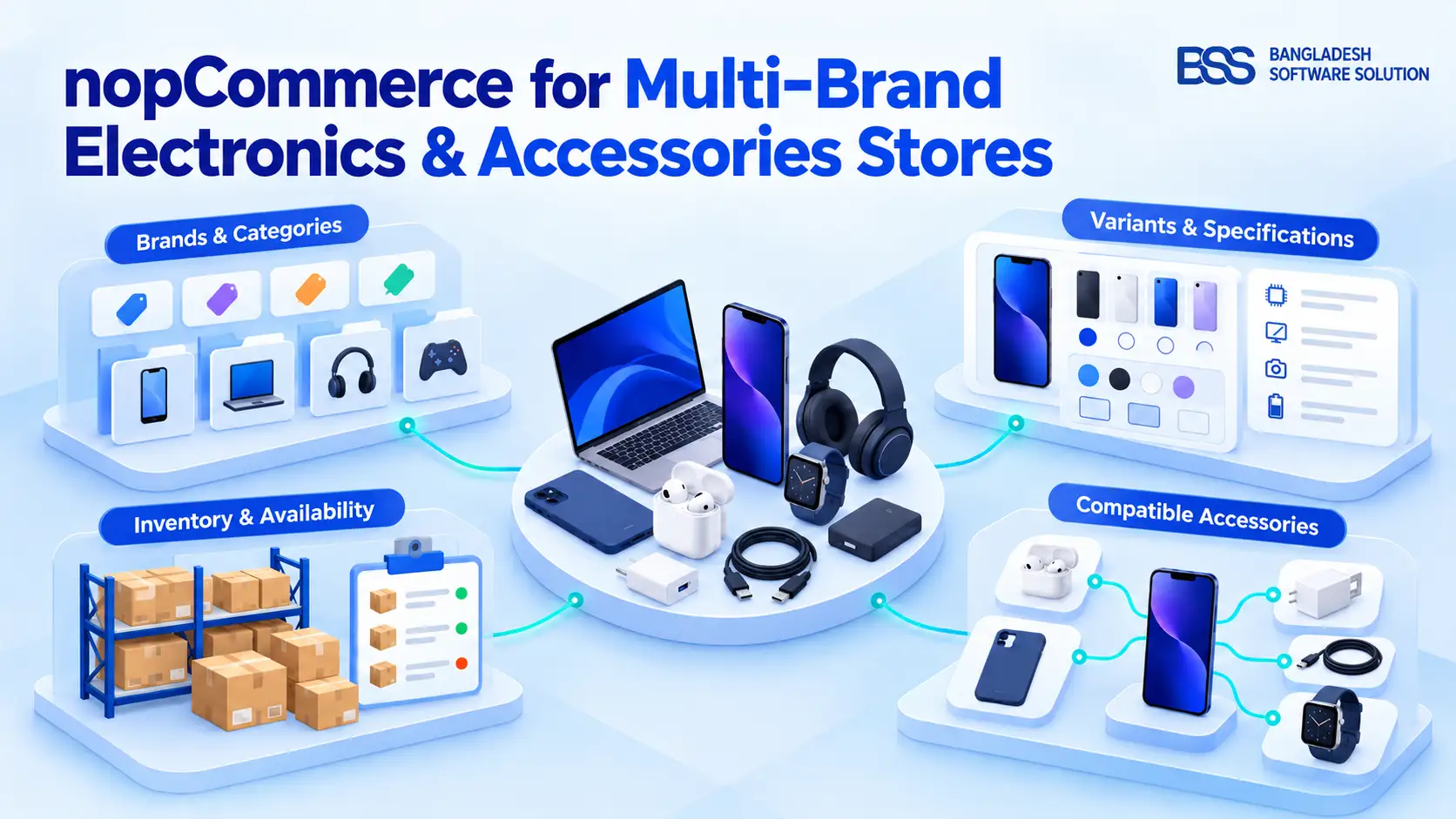
That is the practical focus of nopCommerce for multi-brand electronics and accessories stores: connecting brands, specifications, purchasable variants, and compatible accessories in a catalog people can understand.
nopCommerce documents tools for these tasks, including manufacturer pages, product attributes, specification attributes, inventory tracking, and related products. This guide explains how to use them together, where careful configuration matters, and what to check before choosing your storefront theme.
The central decision: Selling several manufacturers through one shop is a catalog problem. Running separate websites for different retail brands is a multi-store decision. Establish which business model you need before designing the store.
Give brands and product categories distinct jobs
Start with the two routes a shopper may use: “I want a laptop” and “I want products from this manufacturer.” Keep both routes available rather than forcing one to carry the entire catalog.
nopCommerce supports categories and subcategories, and its manufacturer records have names, descriptions, pictures, and associated products. The official Manufacturers documentation also describes manufacturer filtering and dedicated SEO fields.
For your catalog plan, list product families first, then decide which accessory families deserve their own subcategories. Record manufacturer names consistently and assign products to the appropriate records. These are editorial recommendations for organizing the documented features, rather than a prescribed category tree.
Write brand-page descriptions about the products you actually carry. Avoid unsupported statements about being an authorized reseller, offering a manufacturer warranty, or stocking a complete product range.
If you also need installation and launch guidance, continue with the electronics store setup guide. Here, the focus stays on keeping a multi-brand catalog coherent.
Separate what customers choose from what they compare
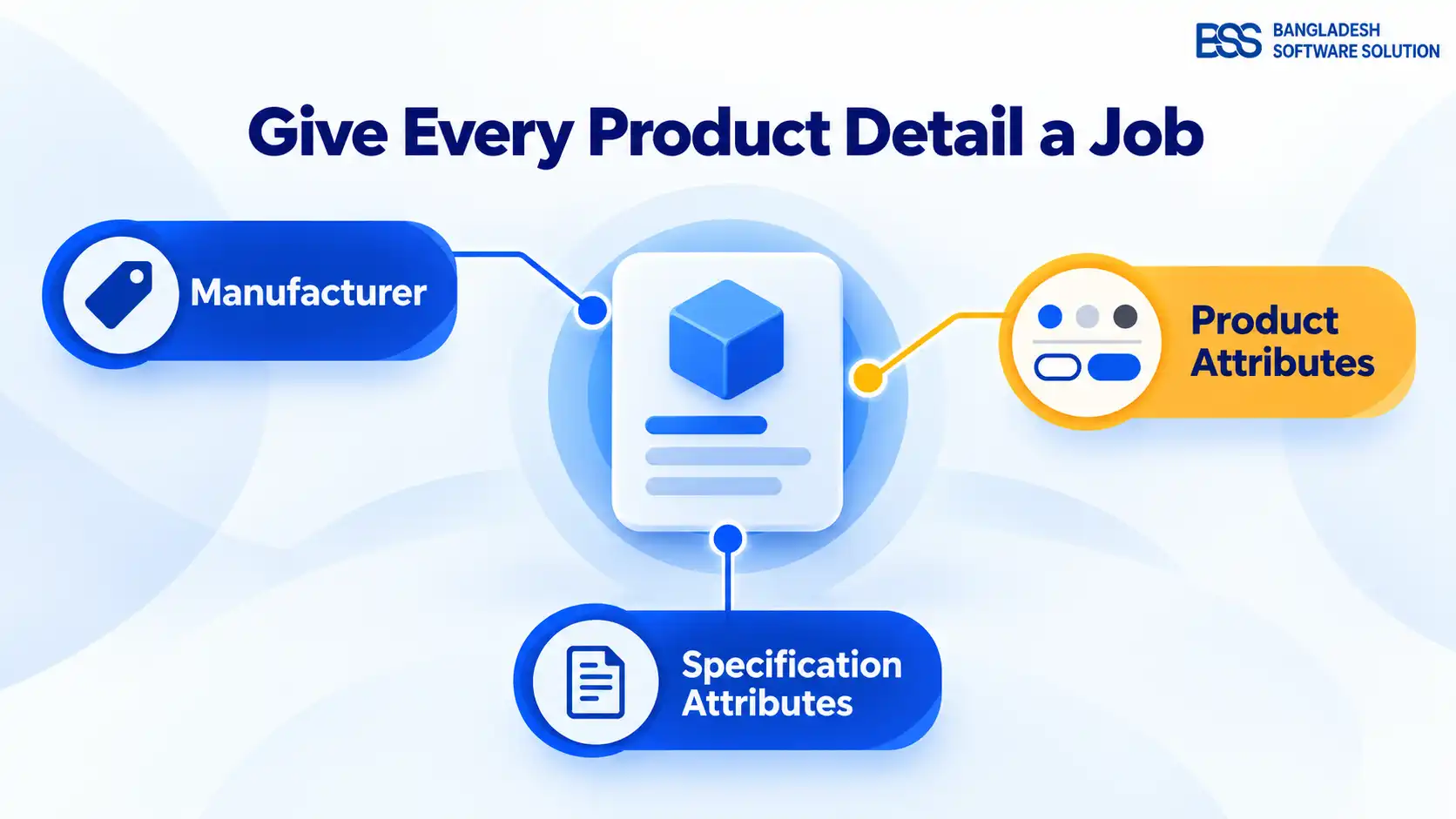
A storage selector and a processor specification may both look like product details, but they serve different purposes. Before entering an attribute, ask whether it changes the item being purchased or describes the item being evaluated.
The official Product attributes documentation explains that attributes represent variations and can affect price and inventory. Specification attributes are informational: they can appear on product pages and support category filtering, but they do not control price or stock.
| Catalog element | Use it for | Important distinction |
|---|---|---|
| Product attribute | A purchasable choice, such as color or storage. | Can participate in price and inventory configuration. |
| Specification attribute | A technical fact, such as processor family or display resolution. | Supports information, filtering, and comparison; does not manage stock. |
| Manufacturer mapping | The manufacturer associated with the product. | Creates a brand-browsing route alongside categories. |
The comparison feature also uses specification attributes. nopCommerce documents a catalog setting to enable product comparison, plus “Show on product page” and “Allow filtering” options when assigning specifications.
Choose a consistent set of relevant fields for each product family. Keep units and labels consistent across manufacturers, and check every value against the exact model's documentation. Leave an unverified value out until you can confirm it; a tidy comparison table is useful only when its contents are dependable.
Make availability accurate for the option being purchased
Once selectable options are defined, check how stock is recorded. An item being available in one configuration should not be your basis for presenting every configuration as available.
nopCommerce's Inventory management documentation lists three methods: do not track inventory, track inventory by product, and track inventory by product attributes. For a product whose combinations have separate stock quantities, use attribute-based tracking and enter those quantities in the Attribute combinations tab.
Review availability display and out-of-stock permissions together. The documentation describes an “Allow only existing attribute combinations” option and a separate “Allow out of stock” setting for individual combinations. Test the resulting behavior on the storefront rather than relying on the parent product's availability label.
Variant checks before launch
- Confirm each selectable combination represents a configuration you actually sell.
- Reconcile combination quantities with the stock records your team uses.
- Test an unavailable option and confirm whether purchasing is blocked or deliberately permitted.
- Check that the selected option, displayed price, and cart contents agree.
These checks are a recommended acceptance test. A theme preview cannot establish whether your live inventory configuration is correct.
Recommend accessories with a verified reason
The same discipline applies when the shopper moves from a device to its accessories. Decide whether you are offering an alternative device or a complementary item, then explain why the recommendation belongs there.
nopCommerce provides Related products and Cross-sells panels on the product edit page. Its official documentation places related products on the product details page and cross-sells in the checkout flow. Both are configured by selecting products from the catalog.
Use related products for a considered shortlist, and test where your chosen theme displays it. For accessories, confirm compatibility before adding the relationship. The platform lets an administrator select even a non-complementary product as a cross-sell; the relationship itself therefore does not establish technical compatibility.
For each recommendation, check the exact supported models and any restrictions against the accessory manufacturer's information. Put confirmed compatibility details in the product copy, and make exclusions as clear as the supported uses.
Catalog review tip: Ask a colleague to explain each accessory recommendation using only the information visible on the product page. If they need an internal spreadsheet or a guess to justify it, revise the page before launch.
Apply the same evidence standard to warranty and package contents. Publish the terms and included items you can substantiate for that listing, and make your own service commitments distinguishable from manufacturer claims.
Make every accessory recommendation something your product information can explain.
Editorial takeaway
Use multi-store when you need separate storefronts
After organizing the catalog, revisit the store model. A retailer carrying several manufacturers can present them through manufacturer pages in one storefront. Separate websites become a different decision when the retail identities themselves need distinct domains and presentation.
nopCommerce's Multi-store documentation describes multiple front-end stores on different domains managed from one administration panel. Catalog data can be shared, and a product can belong to more than one store.
Products, categories, and manufacturers have “Limited to stores” mappings. Their documentation warns that the catalog setting to ignore limit-per-store rules must be disabled for these restrictions to apply. Treat store visibility as something to configure and verify, rather than something the separate domain guarantees.
Before choosing this arrangement, document which records should be shared and which belong to a particular storefront. Test catalog visibility using each domain, and review the settings you intend to vary between stores.
For the domain and administration setup, use the nopCommerce multi-store setup guide as your next step.
Build search visibility around useful catalog pages
Brand navigation and technical filters help people browse; your search plan should also identify the pages worth discovering directly. Start with the categories, manufacturer pages, and exact product listings that have a clear purpose and maintained content.
nopCommerce documents search-friendly page names, meta titles, and meta descriptions for categories, manufacturers, and products. Write these around the page's actual contents, using the manufacturer and model where relevant. Avoid repeating a string of keywords instead of describing what the page offers.
Google Search Central recommends a linked ecommerce navigation structure so products can be reached through browsing. Make sure important listings have a route through category pages; being accessible only through the search box is insufficient for the navigation approach Google describes.
Review filter URLs separately from product URLs
Google's faceted-navigation guidance warns that parameter-based filter combinations can create very large URL spaces and consume crawling resources. Audit the URLs your filtering implementation generates, then decide which filtered pages need search visibility and which are only browsing controls.
Have your developer apply the appropriate crawl controls for that implementation. Avoid a blanket rule copied from another store: the decision depends on which URLs you want Google to discover.
Check the structured data the store actually emits
Google documents ProductGroup markup for grouping product variants alongside Product structured data. Verify the rendered markup for your selected nopCommerce version, theme, and extensions; a selectable variant alone does not prove that the required structured data is present.
Use Google's Rich Results Test on representative product URLs after implementation. Structured data must describe the visible product accurately, and eligibility does not guarantee a particular search appearance.
To extend this into a store-wide review, follow the nopCommerce SEO guide after the catalog structure is settled.
Bring the catalog together with NopGadget
With brand routes, specifications, variants, and accessory relationships in place, the remaining question is how clearly the storefront presents them. This is the point to evaluate a theme against the catalog you have built.
BSS's NopGadget theme is positioned for electronics and gadget stores. Its product page lists a theme and 18-plugin bundle, including AJAX Filter, Advanced Product Compare, QuickView, image-gallery tools, Theme Builder, Visual Editor, and One-Page Checkout.
These tools connect naturally to the tasks above: filtering a technical catalog, comparing models, viewing product details, and customizing the storefront. The product page describes a differences-only comparison view and controls for colors, typography, and layout.
At the time of this research, the listing shows nopCommerce 4.90, and the installation documentation requires BSS Core first. Check the package version and license scope against your deployment before purchase.
Evaluate the demo with your own representative catalog and checkout requirements. The listed features establish what BSS offers; they do not establish a measured sales increase or a performance result for your store.
Explore NopGadget for your electronics storefront
Review the theme and its documented tools against your brand navigation, product comparison, and storefront customization requirements.
Frequently asked questions
Final Thoughts
Return to the shopper choosing a phone and its accessories. They need a clear brand route, comparable technical facts, an available configuration, and an accessory recommendation supported by evidence. Use those four questions as the test for your catalog.
Build and review a representative product family before expanding the approach across the store. Once the information and buying rules are dependable, evaluate NopGadget against how well it presents them. That gives you a practical basis for choosing the storefront and a catalog standard your team can maintain.