One of your wholesale accounts sends in a large reorder. Your agreement says any order from them of $1,000 or more should cross your desk first, and the cart total reads exactly $1,000.00. Does the plugin hold that order, or does it sail through to checkout?
The documentation answers both ways. One page says orders at or above the threshold wait for approval; another says orders exceeding it do. When we build approval flows for B2B stores at BSS, the boundary case is the first thing we test, because it is the one a buyer's finance team notices.
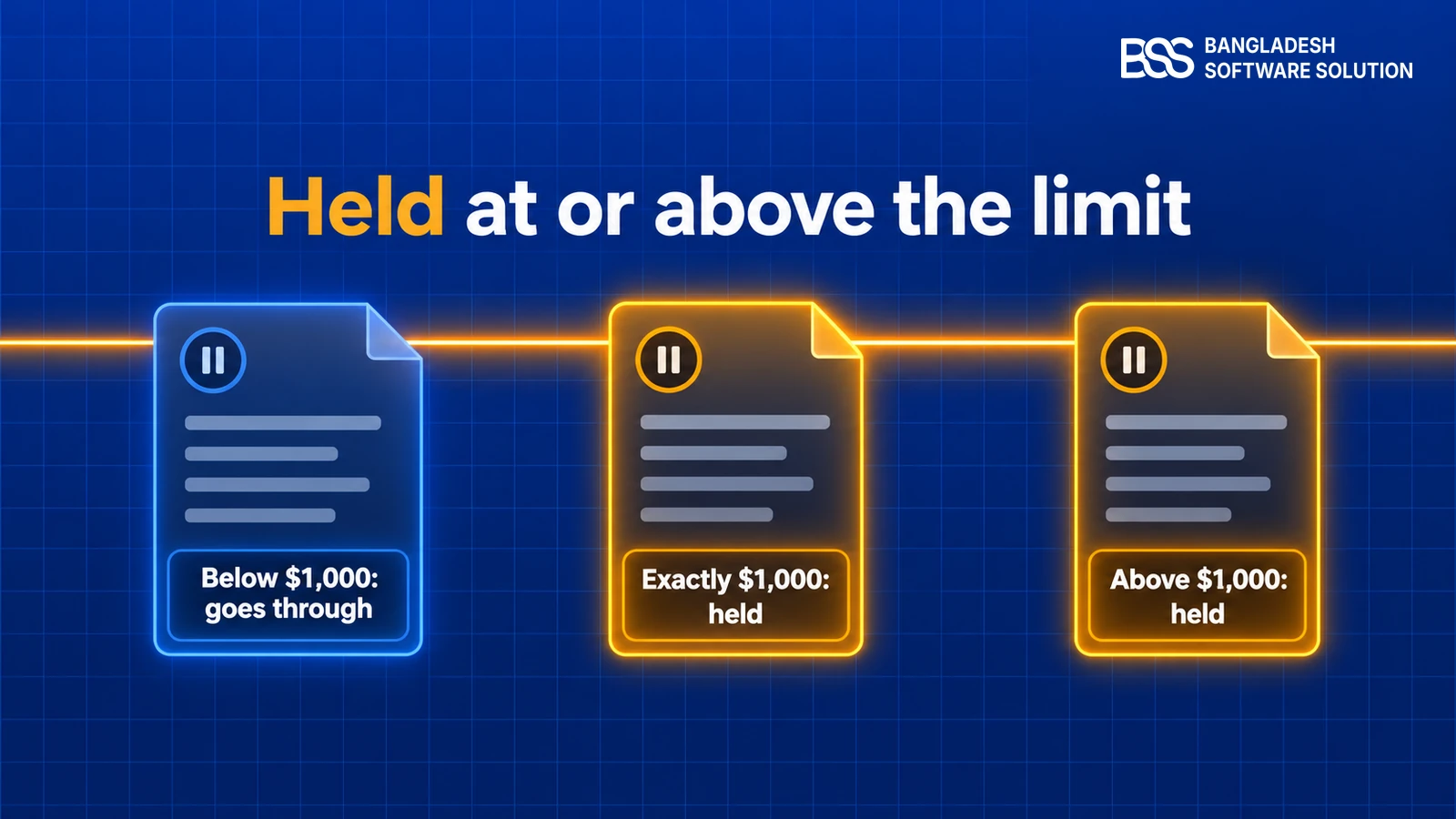
The rule: an order is held for approval when its total is equal to or greater than a threshold that applies to the buyer's company. We checked this in the plugin's code, so the rest of this guide states it once and builds on it.
From here we turn the workflow on, set a global limit, give one company its own, and test the boundary before real orders arrive.
The exact rule: held at or above the threshold
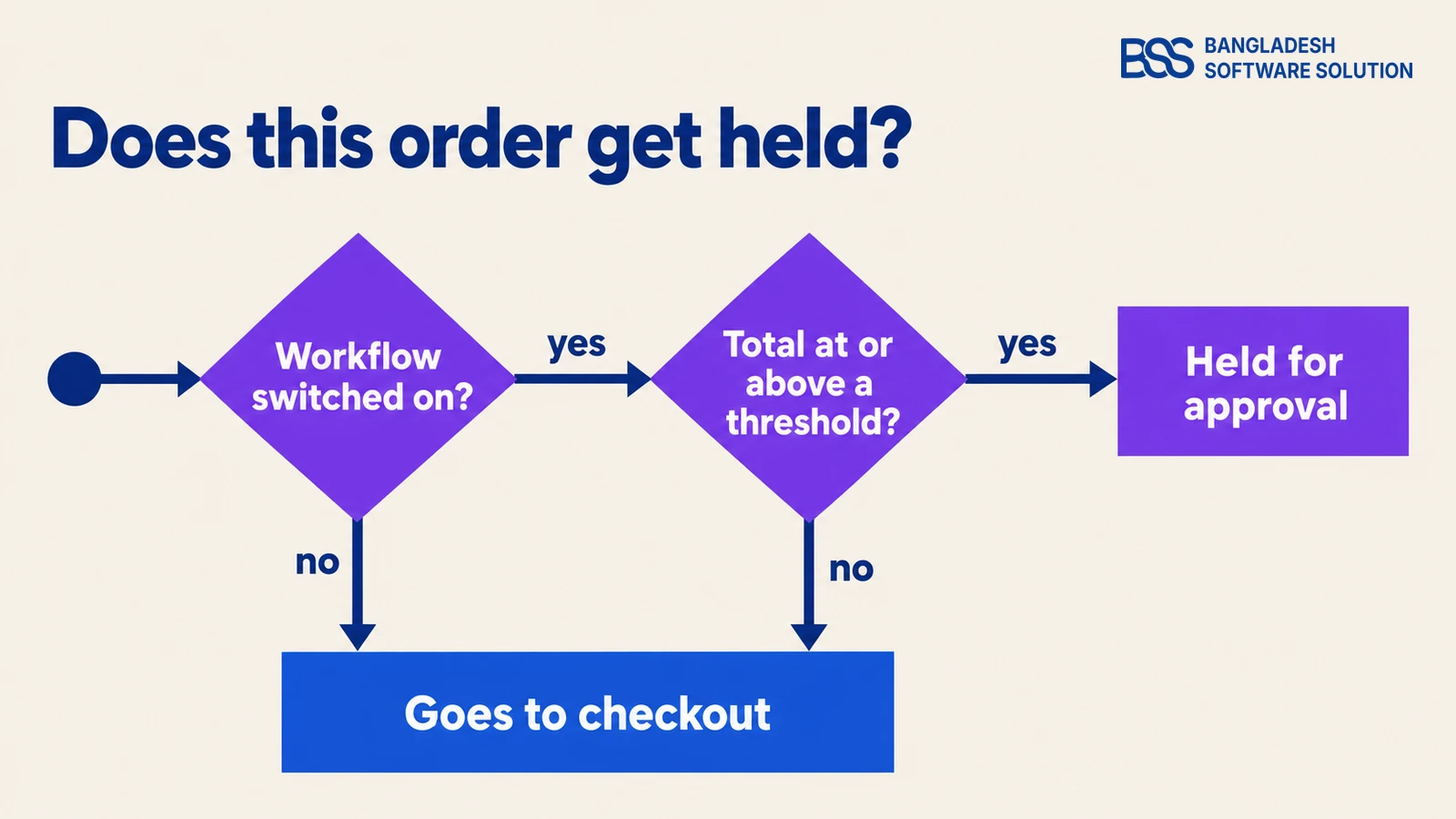
Every order a B2B buyer submits gets two checks. Is the order approval workflow switched on? If so, is the order total at or above a threshold that applies to this company? Two yes answers hold the order; anything else lets it carry on to checkout.
At the threshold, the order is held. One cent below it, the order goes through.
BSS Engineering
So why does the wording drift? "Exceeding" is the everyday way to say "over the limit". It appears in the feature list, the hint under the Threshold amount field and the notice a buyer sees.
The comparison in the code is greater than or equal: orderTotal >= ThresholdAmount. That matches the "at or above" wording in the Approval Rules documentation and the product FAQ.
Set the number deliberately
To review an order of exactly $1,000, enter 1000. To let $1,000.00 through and hold anything larger, enter 1000.01. The plugin does not guess which one you meant.
The number being compared is the sum of the order lines on the Quick Order page. Shipping and other checkout charges are worked out later and are not part of it, so set your limits against the product value of the order.
Want this set up for you? The BSS team sets up B2B approval rules and company limits as part of a wholesale nopCommerce build.
Talk to a nopCommerce expertTurn the approval workflow on first

Rules do nothing until the workflow is on. In the admin, open B2B Management, then Configuration, tick Enable order approval workflow and save. With the box clear, no order is held whatever your rules say.
The same page has Require admin approval for registration. That is a different gate: it decides whether a new company account waits for you before it can order. Approving a company and approving an order are separate steps, and our guide to a B2B registration workflow covers the first one.

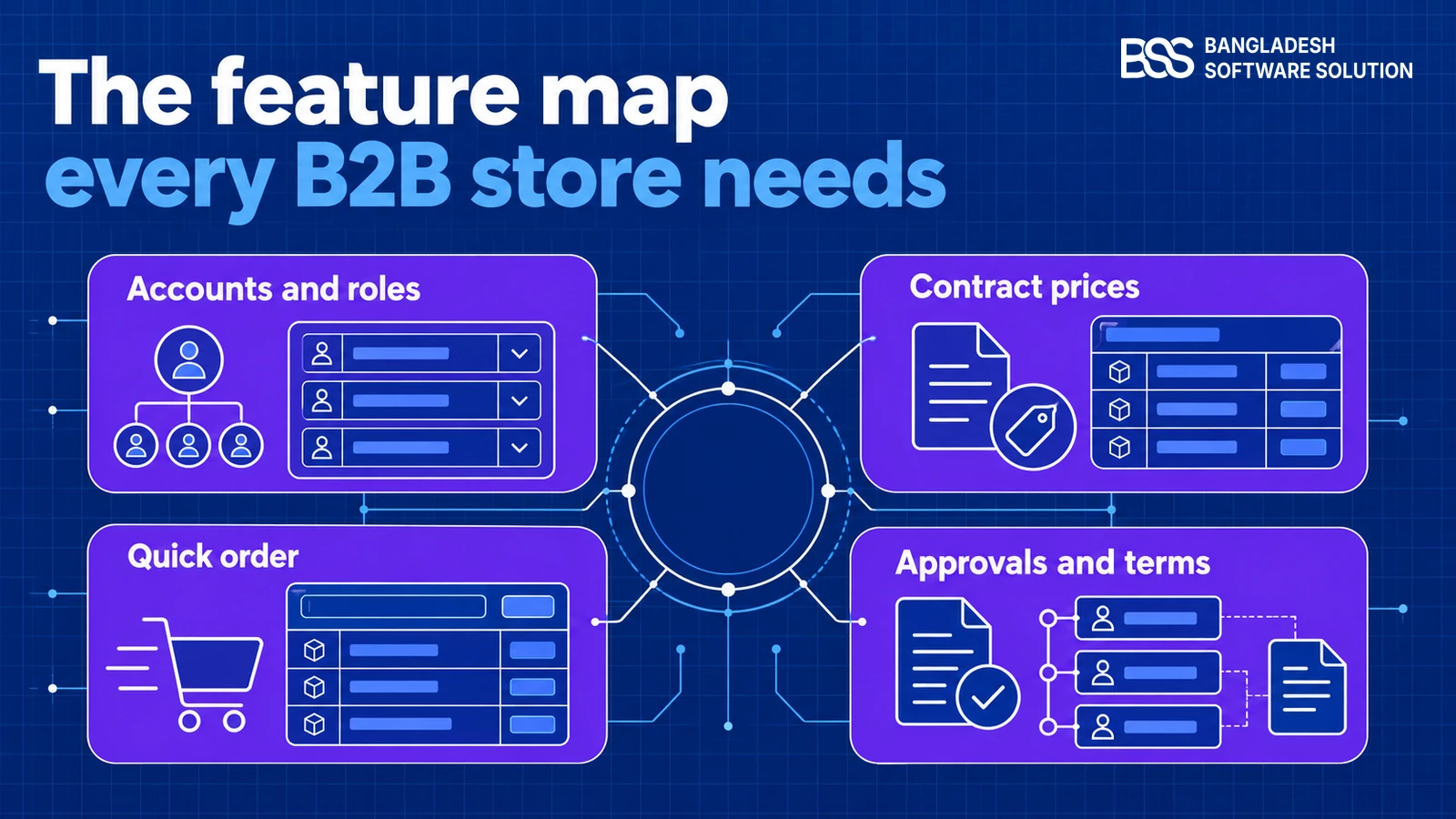
Order approval rules, company limits and the approval queue come with the plugin, alongside price lists, contract prices and Quick Order.
View the plugin
In the B2B stores we build, the approval switch is the setting we check last. A saved rule that is not switched on looks like a bug the first time a big order sails through. Our nopCommerce services team runs that go-live check with you.
Set one global limit for every company

Your default policy goes in as a global rule. Open Approval Rules, click Add new and fill in three fields.
In the screenshot the global rule sits at 2000. With that saved, any company's order of $2,000 or more is held, and anything below goes straight to checkout. Pick the figure as the order size at which you would want to look before you ship.
The list doubles as a policy sheet: every rule, its amount and whether it is live. It is worth printing for whoever signs off on credit limits.
Before you save a global rule
-
The order approval workflow is switched on in Configuration.
-
The threshold is in your primary store currency, not a buyer's display currency.
-
You have decided whether a total exactly at the threshold should be held (enter 1000) or allowed (enter 1000.01).
-
The rule is marked Active.
Give one company its own limit
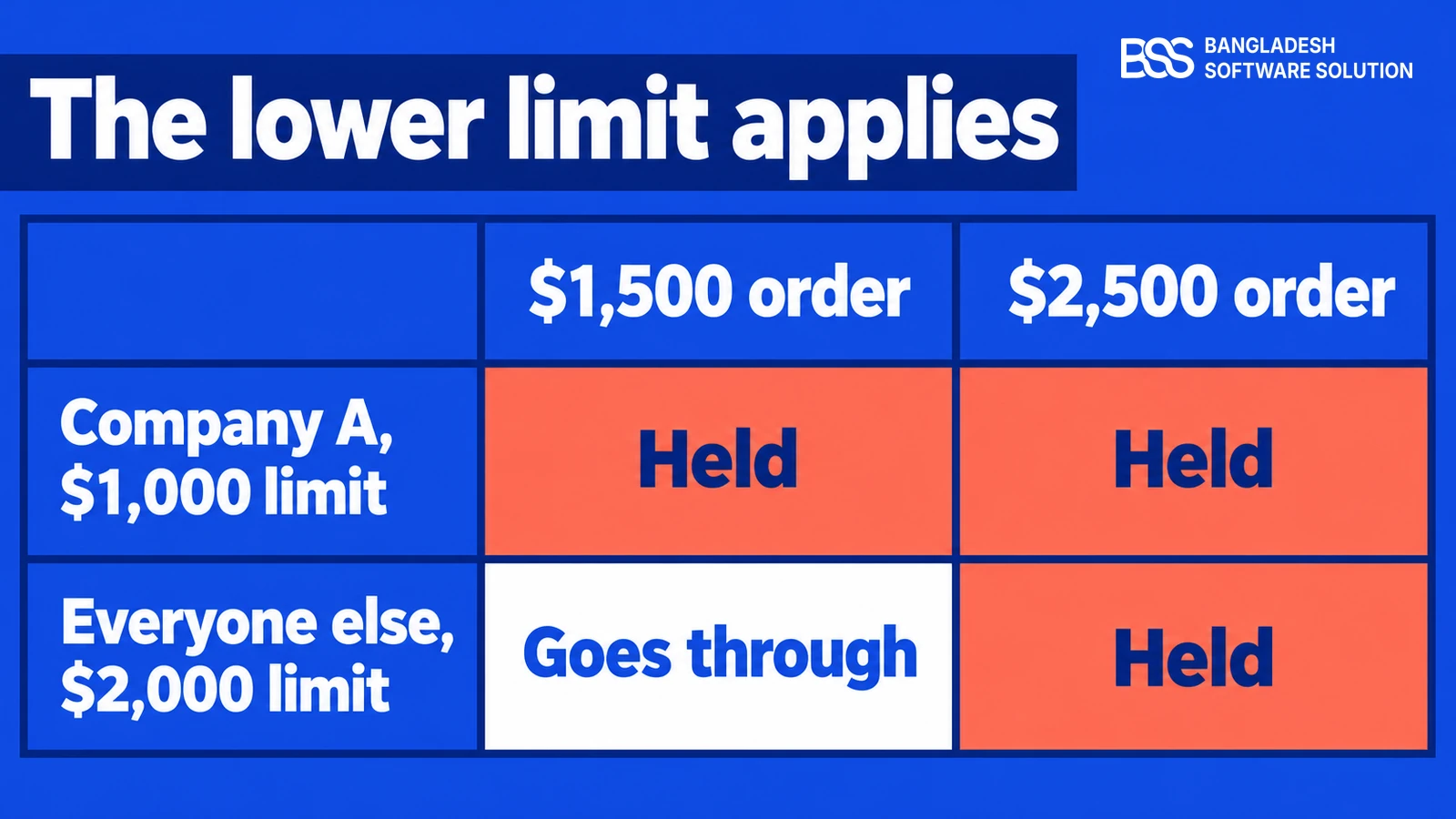
Now the account with the $1,000 agreement. Add a second rule, pick that company in the Company field, enter 1000 and save. The list now shows two active rules: the global one and the company's own.
The documentation says company rules override global ones, and its example is a $2,000 global limit with a $1,000 company limit. That works when the company limit is lower.
In the check itself, the plugin gathers every active rule that applies to the company, its own and the All Companies rule. It holds the order if any one of them is met.
| Order total | Company A ($1,000 rule) | Any other company ($2,000 global rule) |
|---|---|---|
| $1,500 | Held | Goes through |
| $2,000 | Held | Held (at the threshold) |
| $2,500 | Held | Held |
A higher company limit does not relax the global one
If Company B has a $5,000 rule and the global rule is $2,000, a $3,000 order from Company B is still held by the global rule. To give one company more room than the rest, skip the global rule and add one rule per company, or set the global figure at your highest limit and tighten the others.
A common mistake we see in B2B setups is treating a company rule as a replacement for the global one. After you save a company rule, place a test order from that company at a total between the two limits. We built approvals into the OLA Sportswear B2B store, and this is the first check we run.
A dollar threshold is a blunt instrument. If your policy needs sign-off by product category or by buyer role, that is custom work; you can hire a .NET developer from BSS to build it on top of the plugin.
Review, approve or reject held orders

When an order is held, the buyer sees a notice and lands on an Order Approvals page. Their cart is saved on the request, so nothing is lost while they wait. You find the request under Approval Requests and can filter the list by status.
Open one and you see the company, the buyer, the order total and every line. Approve lets the buyer who placed the order carry on to checkout. Reject closes the request, and you can add a reason that the buyer sees on their approval page.
While a request is Pending, the buyer can edit the cart. If the new total falls below the threshold, the page tells them they can process the order directly, and the plugin records it as auto-approved (below threshold). That is the plugin working as intended: a buyer trimming an order is a faster outcome for both of you.
Only admin roles with the BSS B2B Manage approvals permission see these screens. Decide who on your team that is before the first large order lands, and make sure someone covers their time off.
Test the boundary before you rely on it

Five minutes with a test company saves an awkward email later. The banner in the screenshot says "exceeds" even though the plugin holds an order that exactly equals the limit, so do not read the wording as the rule: test the numbers.
A boundary test with a $1,000 rule
-
Create a test company, add a rule for it at 1000 with Active ticked, and confirm the workflow is on.
-
Submit an order just under the limit. Expect to go straight to checkout.
-
Submit an order that totals exactly $1,000.00. Expect the held notice and a Pending request in Approval Requests.
-
Reject one request with a reason and approve another. Check the buyer sees the reason and can proceed after approval.
-
Repeat on every way your buyers order. The check in the code we read sits on the Quick Order submit, so confirm the standard cart behaves the way your policy needs.
If the result is not what your policy says, change the number, not your expectations. A threshold is easy to move; a buyer who expected a fast order and got a hold is harder to win back.
Need B2B Approvals Built Around Your Policy?
Dollar thresholds are the start. If your approval policy depends on category, buyer role or an ERP credit limit, our dedicated nopCommerce engineers can build it into your store. Tell us what you need and we will match you with the right developer.
Frequently Asked Questions
Final Thoughts
Back to the reorder with the cart at exactly $1,000.00. Against a $1,000 rule it is held: it appears under Approval Requests as Pending, the buyer sees a notice, and you approve or reject it. One cent less and it would have gone straight to checkout.
That is the whole rule. Turn the workflow on, set a global limit for everyone and add company rules where a lower limit fits. The lowest applicable threshold decides.
Run the boundary test once, so the first real order never has to be the experiment. If you would like help, the BSS team sets this up inside a full nopCommerce B2B build.
Approval rules are one piece of a wholesale build. The BSS team configures them with company accounts, pricing and ordering, and hands you something your sales team can run.
Book a free consultation