On Monday morning your biggest wholesale account writes in. Last quarter you agreed 15% off one product through the end of July, and their buyer has just logged in to find the same price a stranger would see.
That gap is what company-specific pricing in nopCommerce has to close. When we set up wholesale stores, the discount rate is rarely the hard part; agreeing who a deal belongs to and when it ends is.
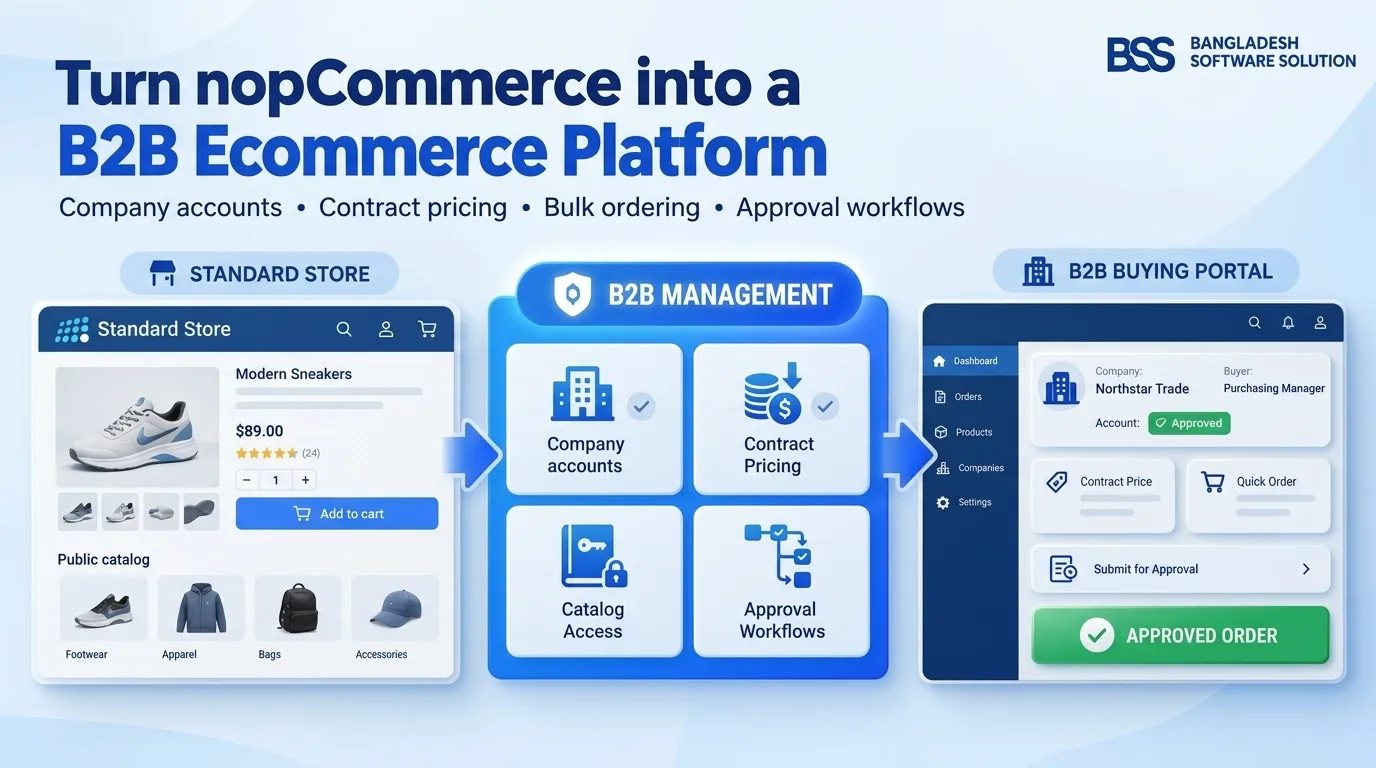
This guide builds it in five steps with the BSS B2B Management plugin on nopCommerce 4.90: price lists with global or company scope, priority and start and end dates, then fixed-price and percentage contract prices on top, then a check of what each buyer sees.
Why one price list stops working at the first negotiated deal
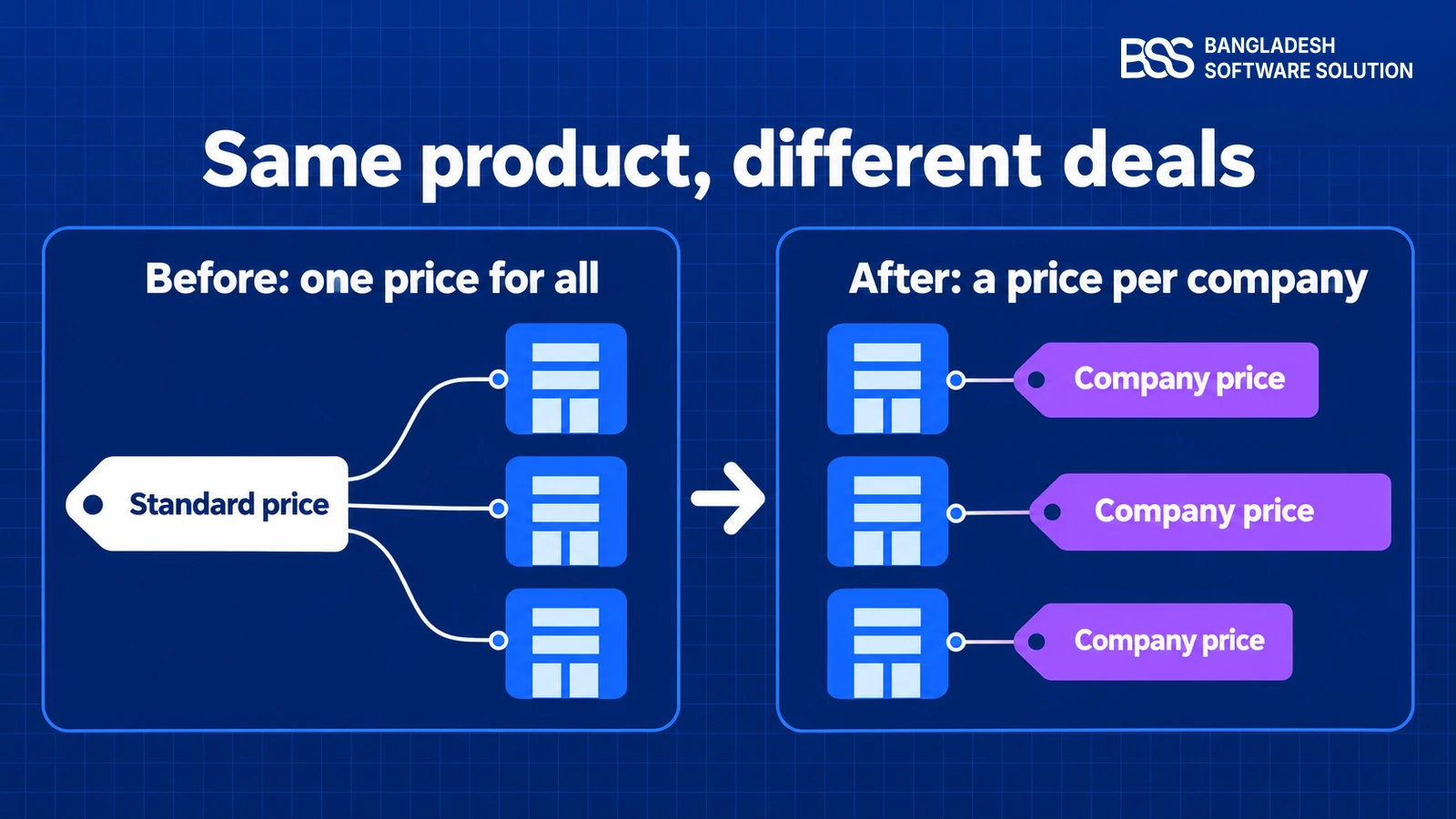
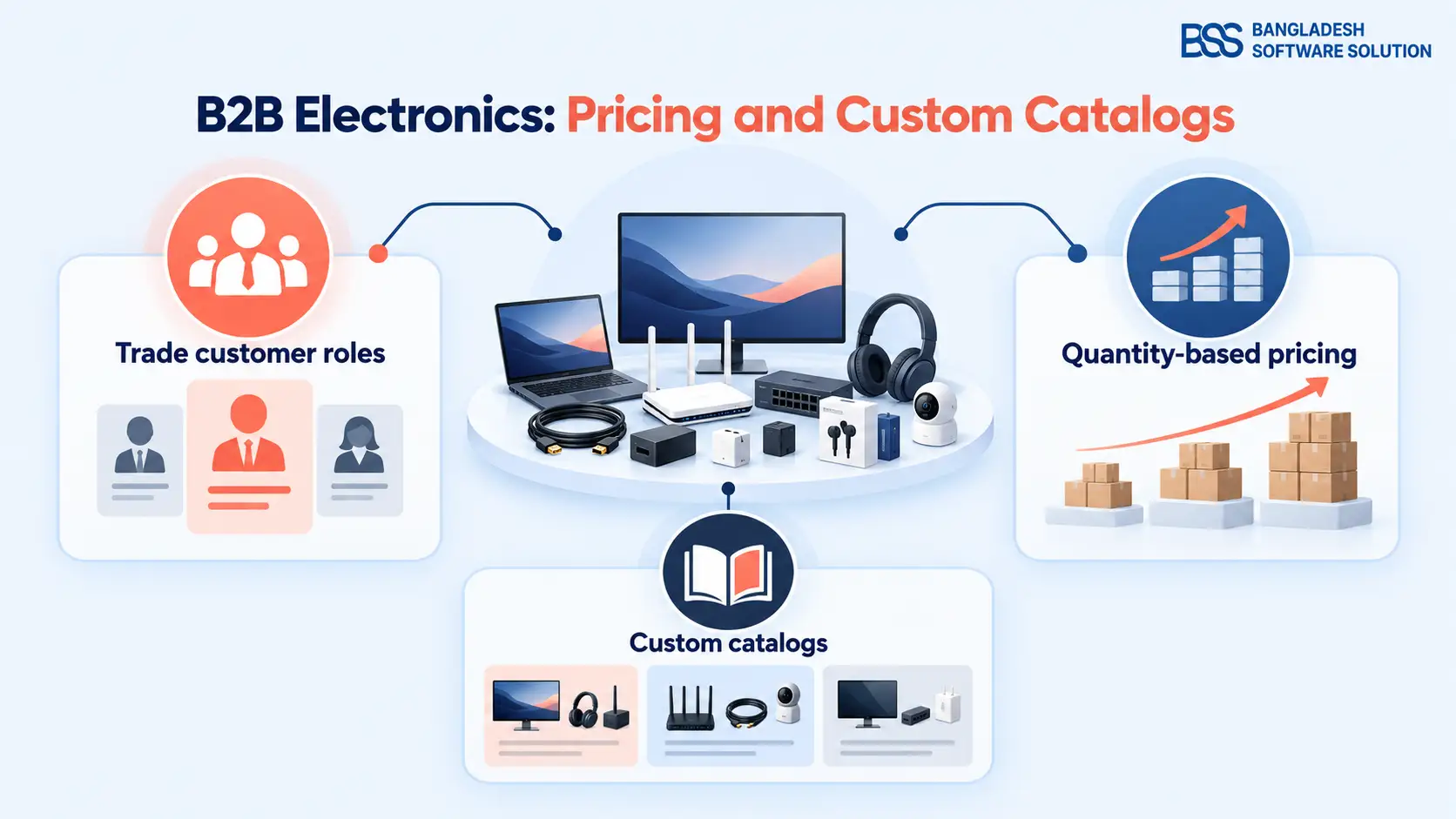
nopCommerce can already price by quantity and by customer role. Tier prices give a better unit price at higher quantities, and customer roles control who sees what, as our guide to tiered pricing and custom catalogs for electronics distribution shows.
What neither tool does is attach a price to one company. Roles are shared by many accounts, so the workaround is a role or a discount per customer, and every renewal means hunting through them. The nopCommerce project's own feature request for native price lists names the same gap: discounts, tier prices or plugins are the options today.
Key fact: A company-specific price needs a scope (who it is for), a rank (which price wins when several apply) and dates (when it starts and stops). A contract price then sits on top for a deal negotiated with one company.
nopCommerce 5.0 is in beta and adds native price lists; our 5.0 guide covers what changes and when moving is worth it. This guide is for 4.90 stores, the version the plugin supports today.
Want this set up for you? The BSS team configures wholesale pricing on nopCommerce, from company records to price lists and contract prices.
Talk to a nopCommerce expertStep 1: Install the plugin and get your companies in

The pricing engine in this guide is the BSS B2B Management plugin. It needs the BSS Core plugin first, so upload both under Administration → Configuration → Local plugins, install BSS Core, then B2B Management, and restart the application.

Companies, global and company price lists, contract prices and Quick Order in one plugin for nopCommerce 4.90.
View the pluginOpen B2B Management → Configuration, enter your license string, save, and tick Enable B2B plugin. The plugin's documentation also recommends switching off JavaScript and CSS bundling in App Settings while you set up.
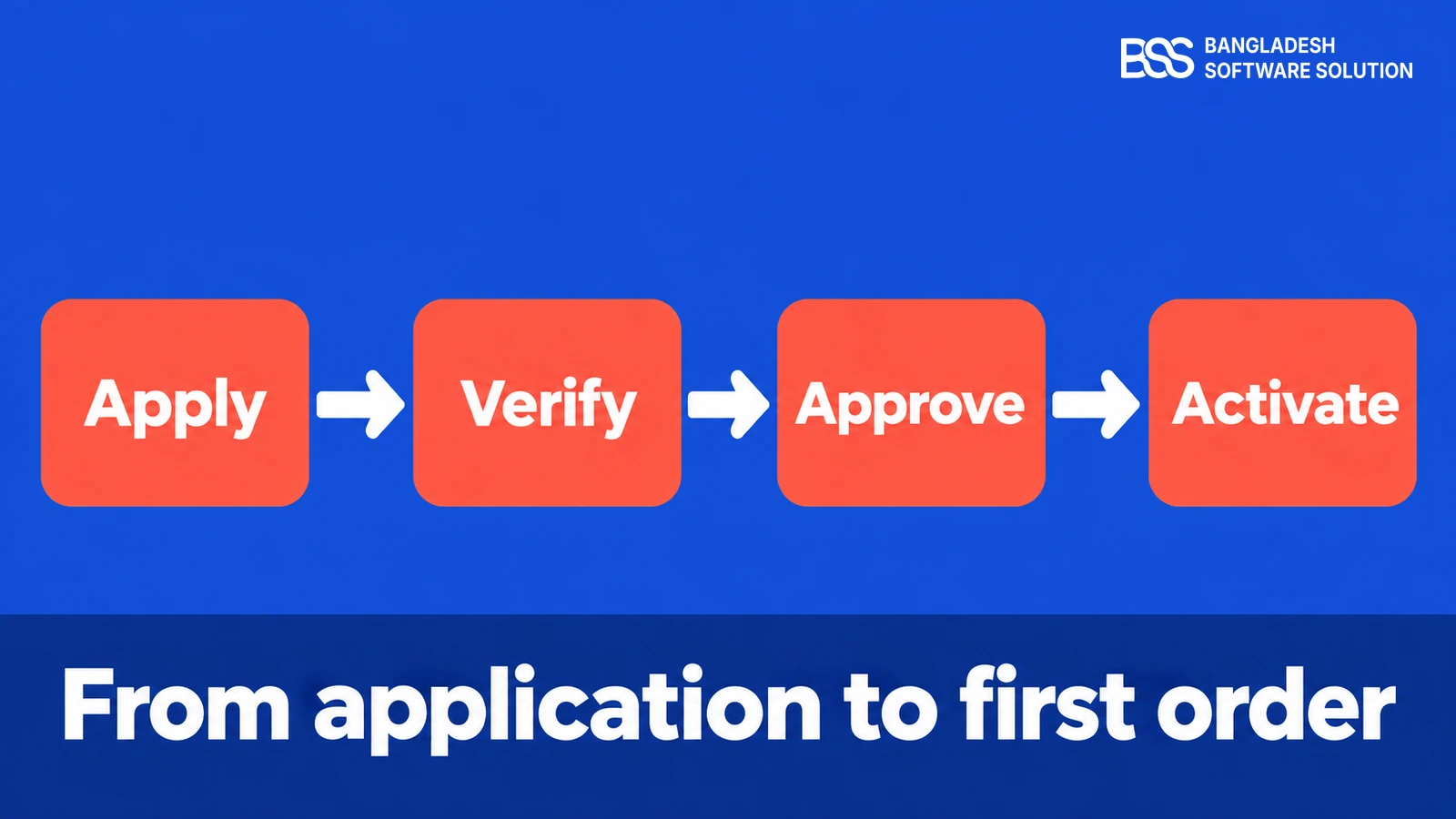
Prices belong to companies, so the companies must exist first. Review them under B2B Management → Companies, where each one carries a status (Pending, Active, Rejected or Suspended), a contact person, a Tax ID and admin notes.
How applications reach that list is its own workflow, and our guide to a B2B registration workflow that doesn't slow you down covers it.
Ready before you build a list
-
BSS Core and B2B Management are installed and the application has restarted.
-
The license string is saved and Enable B2B plugin is ticked.
-
Every company you will price has a record under Companies, approved and Active.
-
Optional: companies sit in distributor tiers, such as Main Distributor or Retailer, so a global list is easy to reason about.
Step 2: Create a price list with the right scope, priority and dates

Open B2B Management → Price Lists and click Add new. The Create Price List form has six fields, and three of them decide who pays what.
Name and Active are housekeeping, but do not skip Active: an unticked list stays on file and does not apply.
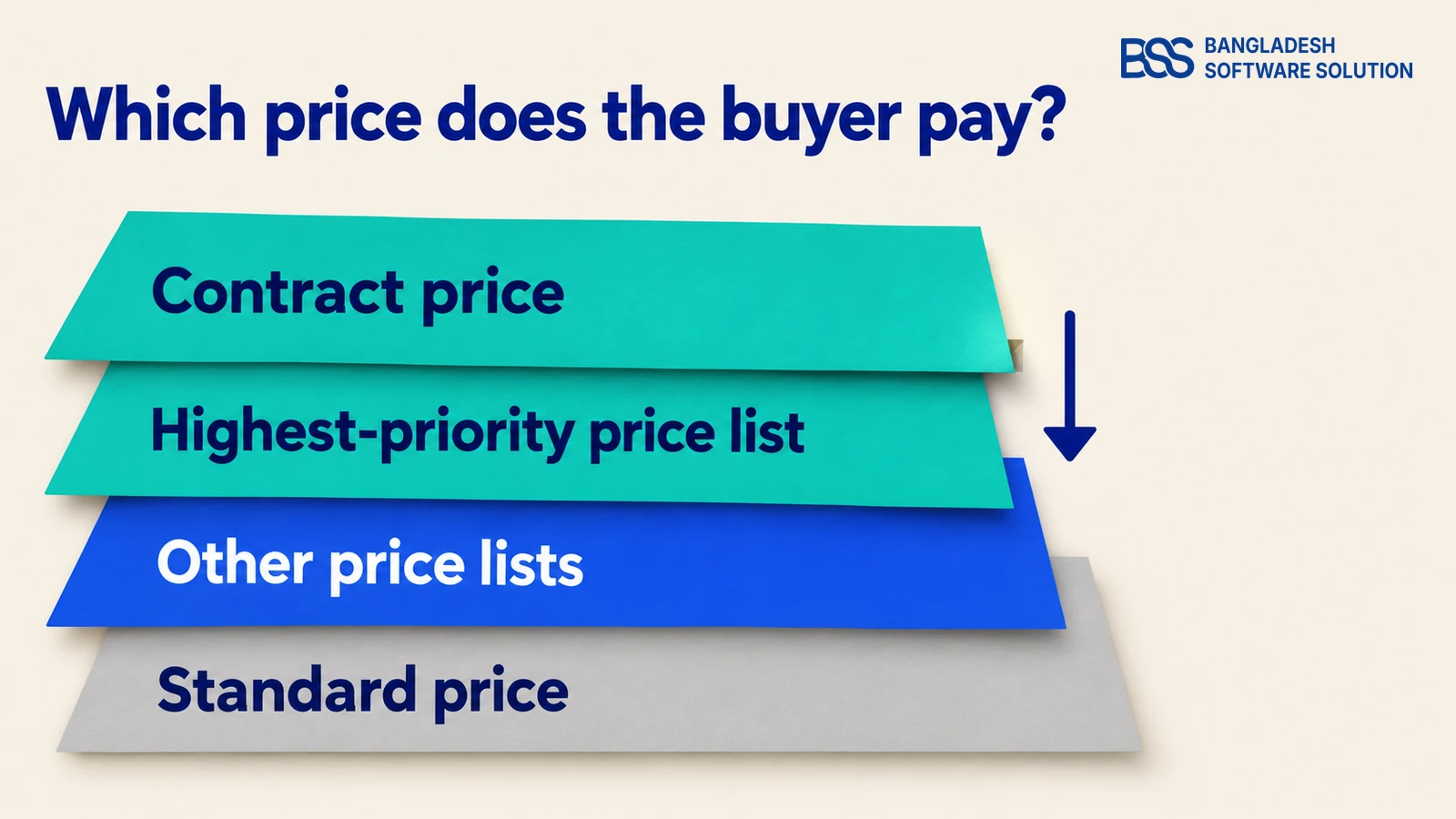
Priority matters most, so here is the plugin documentation's own example. One product at 360.00 sits on two lists, and the buyer is charged 288.00.
| Price list | Priority | Discount | Price | Result |
|---|---|---|---|---|
| Summer Offers | 2 | 10% | 324.00 | Overridden |
| Winter Deal | 1 | 20% | 288.00 | Buyer pays this |
In that example the list set to priority 1 beats the one set to priority 2, so the smaller number is the stronger list. Confirm that on one test product before you number the rest.
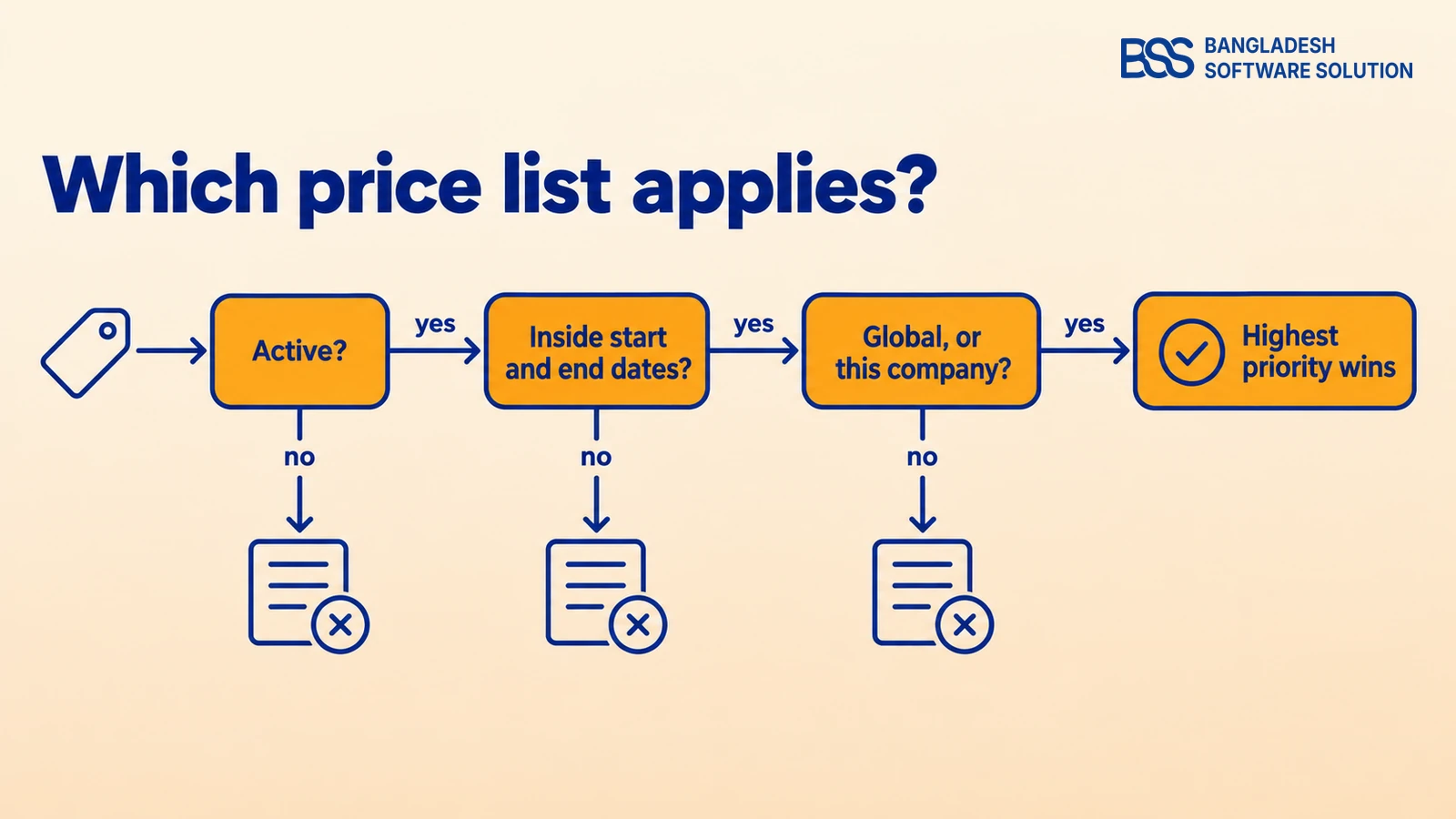
Priority only settles a tie between lists that already apply. A list must be active, inside its dates and in scope for the company before rank matters.
Watch out
Put the real contract end on the list the day you create it. A date nobody typed in is a price nobody remembers to retire.

On the wholesale stores we build, we give every company-scope list a contract reference in its name before anyone adds a product. Our nopCommerce setup service starts from that structure.
Step 3: Put products on the list, one by one or by category

A new list is empty. Add products one at a time, or load a whole category and set Discount %, Min Qty and Max Qty once, then click Apply to All.
The New Price column does the sums. In the documentation's example, 20% off a 27.00 book gives 21.60, and the product page later tells the buyer the quantity band, such as "Available for quantity 10-50".
Loading a price list
-
Pick the category and click Load Products.
-
Set the default Discount %, Min Qty and Max Qty, then click Apply to All.
-
Change any row that needs its own rate or quantity band.
-
Tick the rows and click Add Selected to Price List, then check each product's Active status.
Step 4: Add a contract price for a negotiated deal

A price list sets the rate for many buyers. A contract price is for one company that negotiated beyond it, and while it is active it replaces that company's list price for the product.
One rule catches people out: a contract price only applies if the product is also on an active price list. Put the product on a list first, then add the contract.
The Add New Contract Price form
-
Select Company & Product: choose the Company, narrow with the Category filter, then pick the Product.
-
Contract Terms: set the Start date and End date, and keep Active ticked.
-
Contract Price: enter the negotiated Contract price, or set the Discount % and the price follows.
Fixed price and percentage are two ways to enter the same deal. Use the fixed price when the contract names a number, and the percentage when it names a discount off list.
Watch out
A contract replaces the list price; it does not add to it. 306.00 beats a 324.00 list because 15% is deeper than 10%, but if the same company's list gave 20% (288.00), a 15% contract would raise its price. Compare before you save.
Products with sizes or colours get a Variant Contract Price option. Apply one discount to every variant, or select variants and give each its own rate, such as 10% for one size and 20% for another.
The questions we get after launch are mostly about renewals: which contracts end this month, and what those buyers see next. Keep the contract reference and renewal date in the company's admin notes, which the B2B Management plugin gives every company record.
Step 5: Check what each buyer actually sees

Sign in as a buyer from the company and open the product. A B2B buyer sees both the standard price and a B2B price box with the discount, the struck-through standard price, the quantity band and an Order at B2B Price link.
Watch out
B2B pricing is only applied through Quick Order. The regular cart and checkout always charge the standard price, and the same item cannot sit in both carts at once.
Return to B2B Price Lists often. The table shows scope, assigned companies, Active, Priority and dates for every list, which is where an expired deal or a forgotten global list shows up.

Test before you tell the customer
-
As the company's buyer, open a listed product: the B2B price box shows the rate you expect.
-
Click Order at B2B Price and confirm the Quick Order total.
-
Add the same product to the regular cart: it should charge the standard price.
-
Sign in as a buyer from another company: your company-scope lists and contracts should not appear.
-
When an end date passes, confirm the price falls back to the next list or the standard price.
This is also where many teams see that pricing is one slice of a wider wholesale build. If you would rather hand it over, BSS sets up and launches nopCommerce stores end to end, pricing rules included.
For the rest of the checklist, such as approvals and catalog visibility, see what features a B2B ecommerce website needs.
Need Wholesale Pricing Built Around Your Catalog?
From price rules and ERP feeds to custom plugins and full store builds, our dedicated nopCommerce engineers ship production-grade code. Tell us how your deals are structured and we will match you with the right developer.
Frequently Asked Questions
Back to Monday's email
Run the five steps and that email has a short answer. The company exists, its list carries the rate and the dates, the contract sits on top at 15%, and its buyer sees 306.00 against 360.00 until the contract ends.
Start with one company and one product, check the buyer's view, then repeat for the rest of the catalog. The next negotiation becomes a form, not a project.
Company records, price lists and contract prices are one part of a B2B build. The BSS team configures them with the rest of your store and hands you something your sales team can run.
Book a free consultation