You are ready to buy an ecommerce theme, but its demo leaves an important question unanswered: will it support your actual shopping journey? Use this theme demo checklist to replace a visual impression with evidence before you pay.
The 20 tests below cover the storefront and the ownership questions behind it. They are recommended evaluation tasks, not claims that any particular demo has passed. Keep a simple sheet with the test number, page URL, device, result, evidence and seller response.
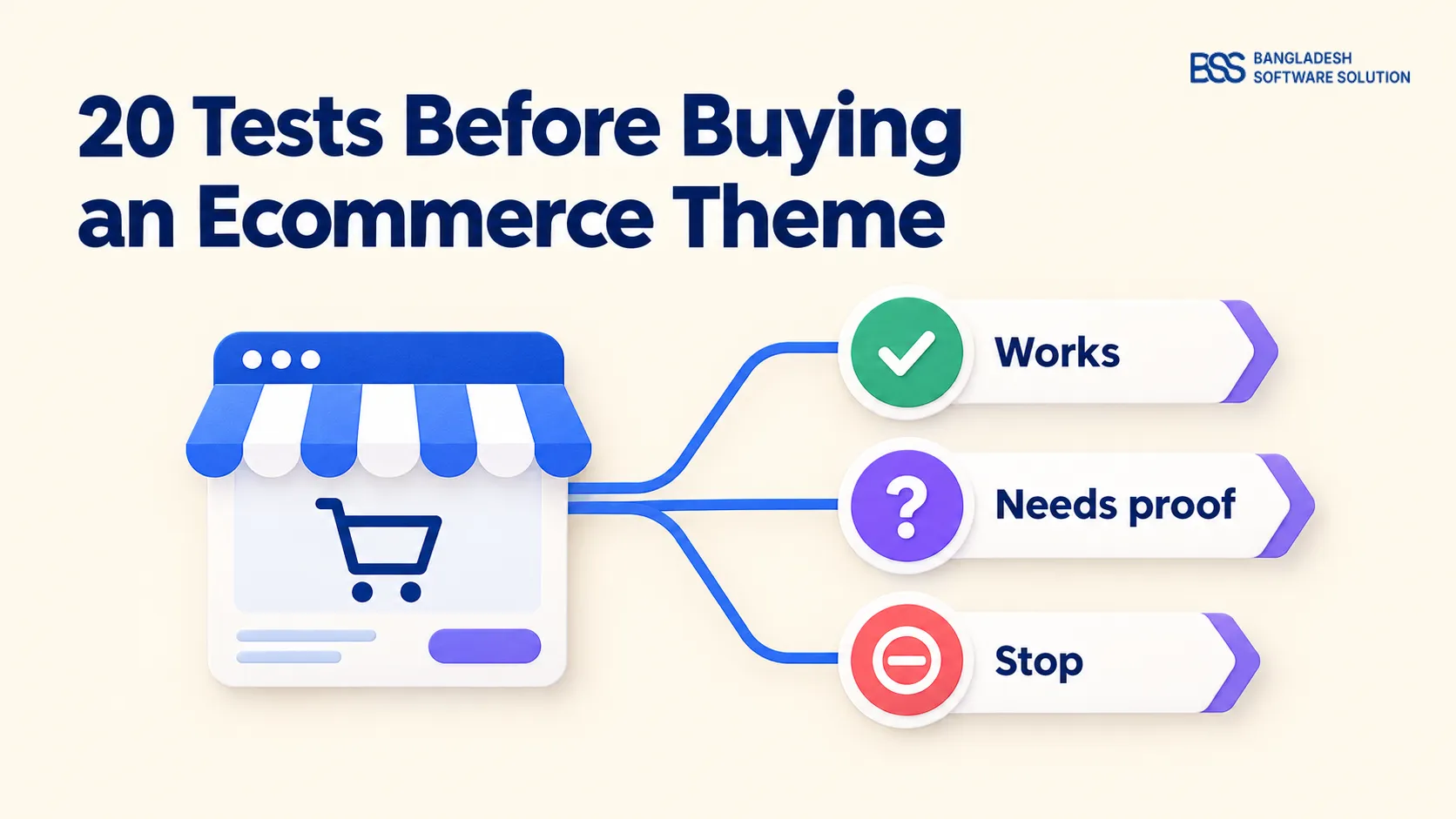
Use three results: pass when demonstrated; fail when a reproducible problem blocks your requirement; not verified when access or evidence is missing. Do not turn unknowns into passes, or average away a checkout blocker.
Use the same tasks for every candidate. If you are still deciding what kind of template suits your business, start with our ecommerce template selection guide, then return here to test the shortlist.
Can shoppers find the right product?
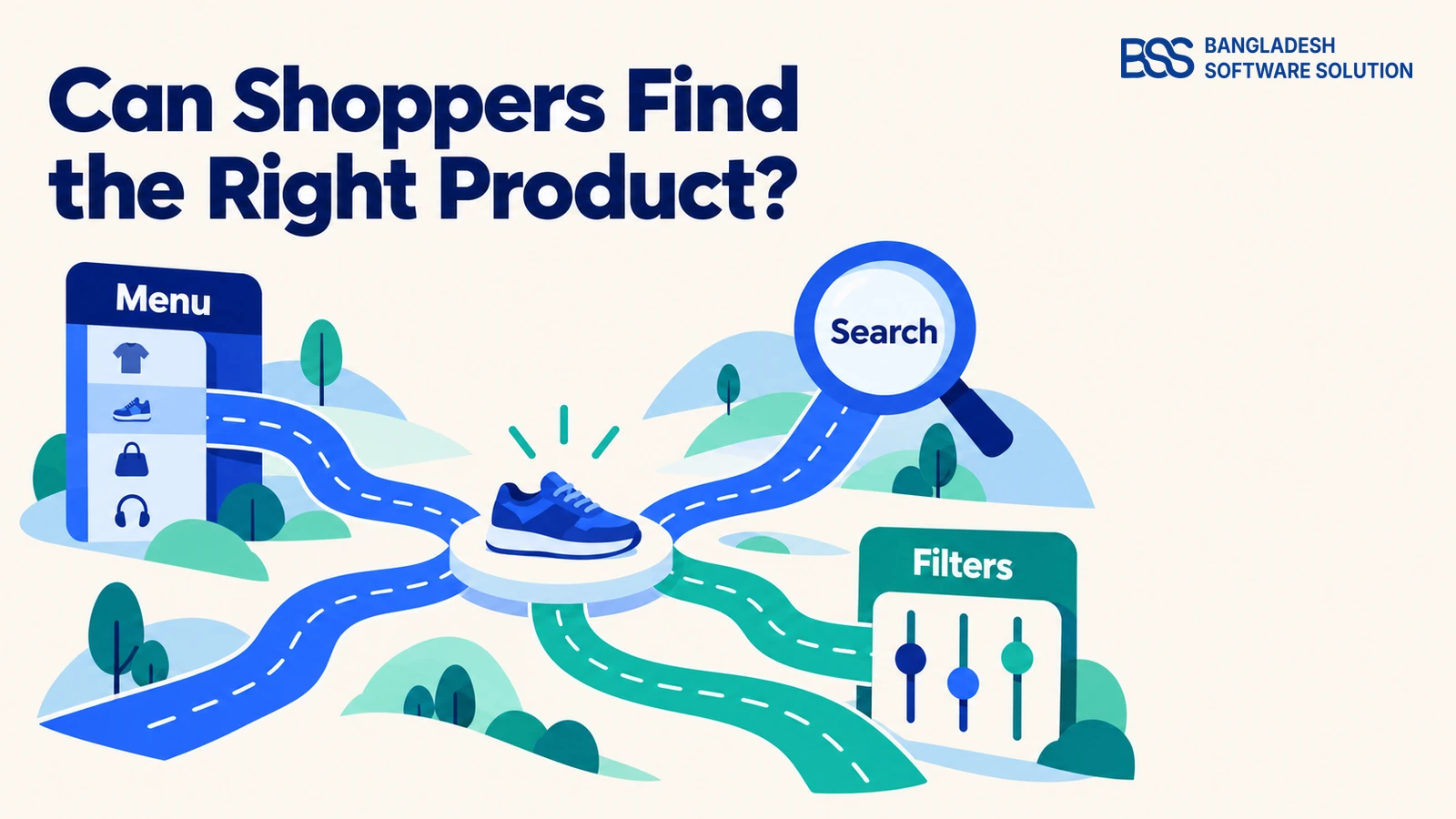
Begin with a shopping task, rather than the homepage tour: find a specific item from the catalog. These first tests reveal whether the demo helps you reach it, narrow the choices and recover when a search goes nowhere.
1. Open the full category menu
Open every menu level on desktop and a phone, then follow a category and return. Check that labels explain what is inside and that opening a submenu does not accidentally follow its parent link.
Pass: you can reach the intended category without relying on a mouse hover.
2. Search for a specific item
Search for an exact product name and, if your store uses them, a model number or SKU. Try an unsuccessful query too.
Pass: results identify matching products clearly, while an empty result offers a useful route back. Ask which search capabilities belong to the platform or an extra plugin.
3. Apply and remove filters
Combine relevant filters, change the sort order, remove one filter and clear the rest. On a phone, close the filter drawer and inspect the results.
Pass: selected filters remain understandable, the results reflect your choices and the drawer does not prevent you from returning to shopping.
4. Return from a product to the listing
Scroll down a category, open a product, then use the browser Back button. Repeat after filtering.
Pass: the return journey preserves enough context to continue comparing products. Record whether your position and selections survive; make the behavior you require part of the seller discussion.

We build nopCommerce themes and plugins at BSS. For this checklist, keep a feature’s appearance separate from the software that supplies it; use the same test sheet when comparing our themes with any other candidate.
Need help implementing what you find? BSS offers custom nopCommerce themes, plugin work and store development.
Discuss your storefrontDo product pages answer buying questions?
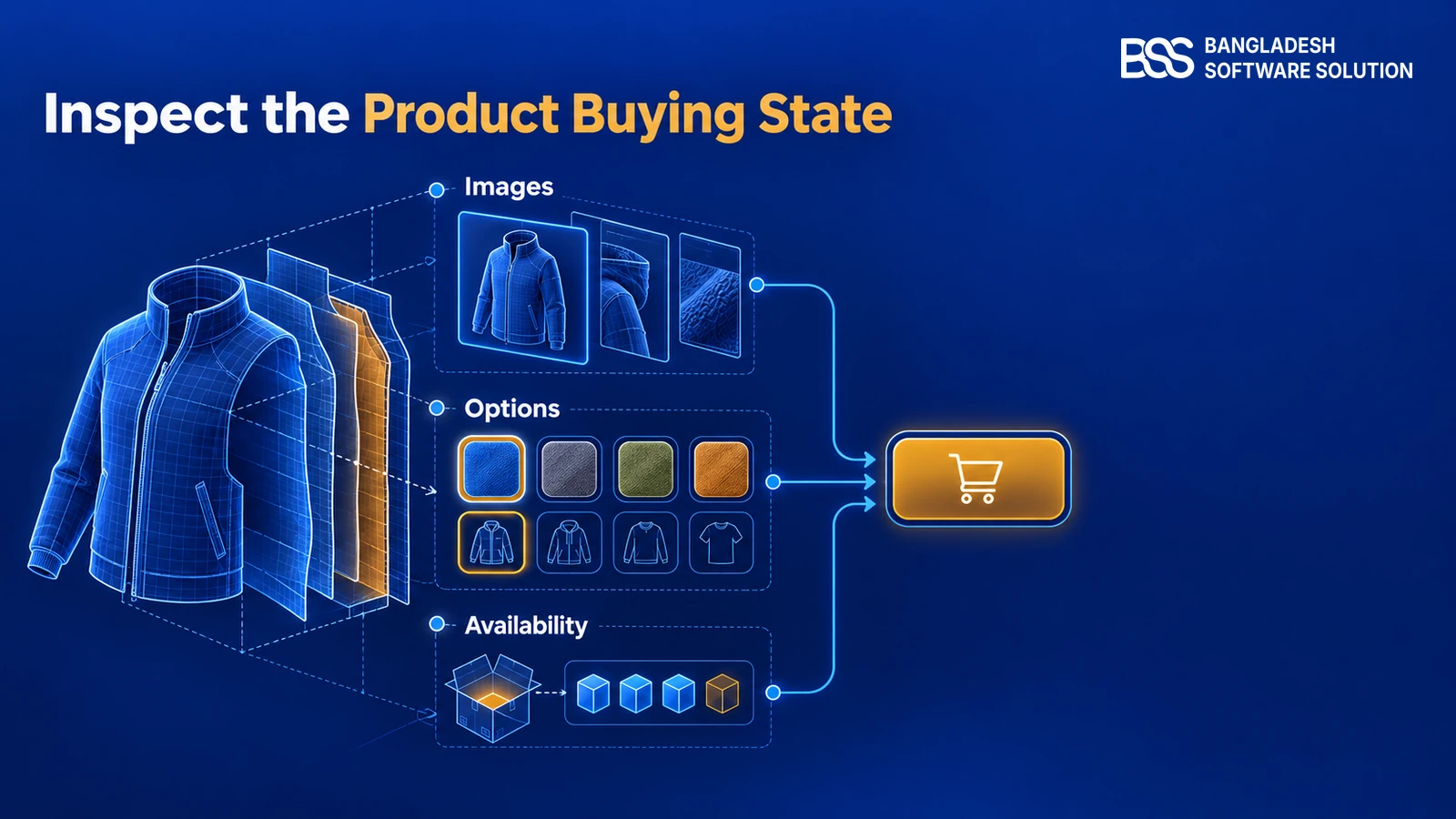
Once discovery works, inspect the item itself. Use a product with several options and detailed information, rather than judging only the simplest example. If the public demo lacks that example, request a private demonstration instead of marking the test as passed.
5. Read a difficult product page
Look for a long title, sale price, detailed description, delivery information and returns guidance. Expand tabs or accordions and inspect them on a phone.
Pass: important information remains readable and accessible. Identify which missing details need content entry and which require a layout or feature change.
6. Inspect the image gallery
Open thumbnails, swipe where supported, enlarge an image and close the viewer. Check portrait and landscape viewing.
Pass: images remain useful for judging the product, navigation is clear and closing the gallery returns you to the buying controls. Request examples using image proportions similar to your own catalog.
7. Change product options
Select available sizes, colors or other options, then try adding the item without making a required choice.
Pass: the selected option is clear and the resulting cart contains the intended variant. Where options affect price, images or availability, verify those changes rather than assuming they happen.
8. Try an unavailable item
Find an out-of-stock product or request a seller-provided example. Inspect its message and buying controls, then check any notification or alternative-product feature you need.
Pass: the page makes the unavailable state understandable. Record whether the behavior comes from theme presentation, stock settings or an additional extension.
If the layout fits but your product rules need engineering, BSS offers nopCommerce customization. Define that work before purchase; an attractive demo is not evidence that a particular customization is included.
Can the shopper complete and correct an order?
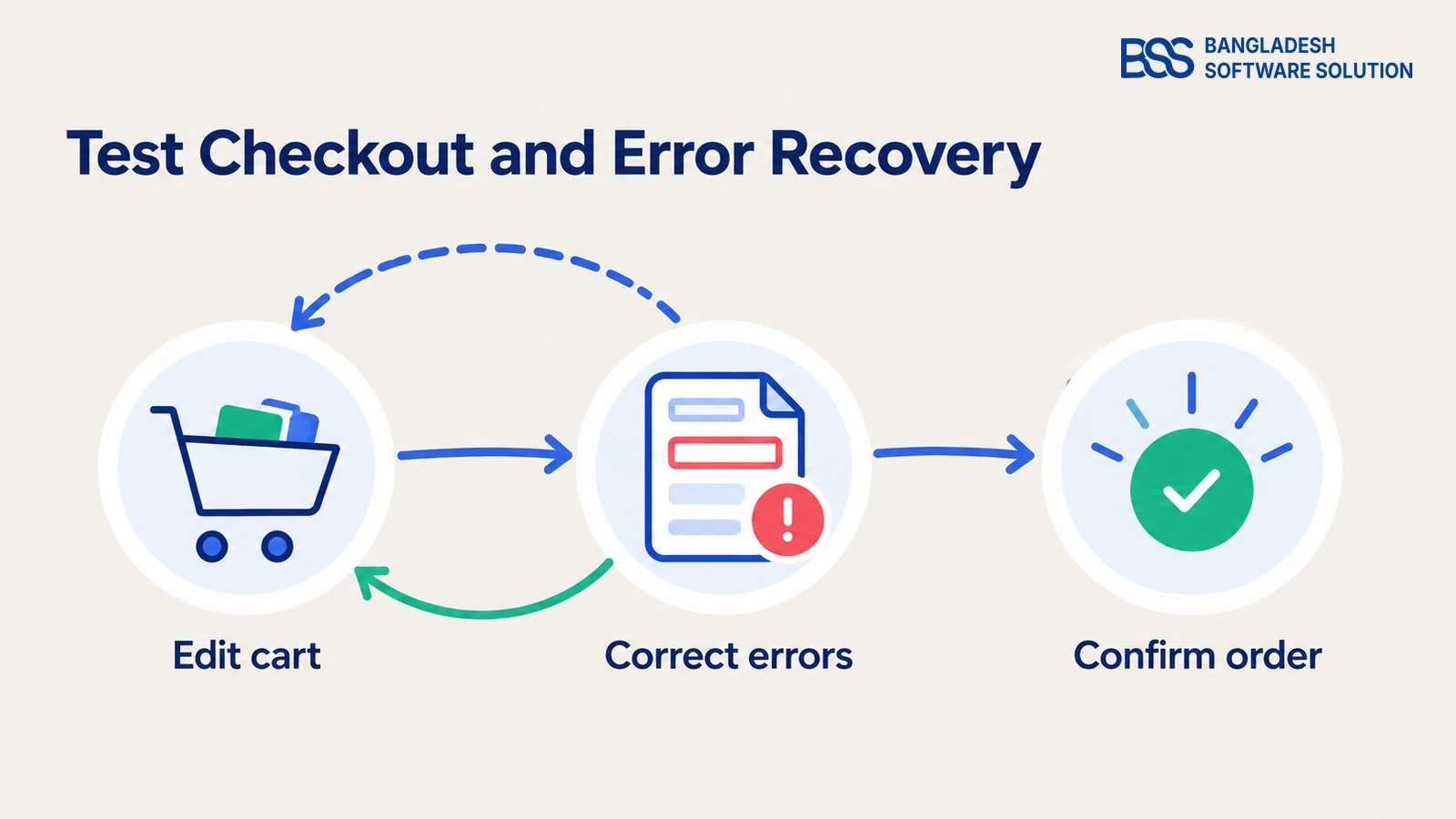
The product may look convincing, but the buying journey still needs to work. Use dummy details and a seller-approved sandbox for transactional tests. Never enter real payment credentials or submit an order on a public demo unless the seller explicitly provides a safe test procedure.
9. Check add-to-cart feedback
Add the selected variant and inspect the confirmation, cart count and cart contents. Repeat from a listing or QuickView if those entry points matter to you.
Pass: you can tell what was added, in which quantity, and where to continue. Record inconsistent behavior between entry points.
10. Edit the cart
Change quantity, remove an item and return to shopping. Test a valid coupon only if the seller supplies one, and try an invalid code to inspect feedback.
Pass: line items, totals and messages stay understandable. Ask the seller to explain calculations you cannot verify from the available demo data.
11. Test checkout forms and recovery
Try the available guest or account route, leave a required field blank and enter an invalid email. Correct the errors and continue.
Pass: labels remain visible, errors explain the correction and valid entries are retained. W3C’s Forms Tutorial recommends clear feedback that helps users resolve submission errors.
12. Verify delivery, payment and confirmation
In the approved sandbox, inspect delivery choices, charges, the final total, payment handoff and confirmation. Test a cancellation or decline only through the seller’s documented procedure.
Pass: the outcome and next action are clear. If payment is disabled, mark it not verified, not failed or passed.
For a closer look at form layout and order review, continue with our checkout page design guide. Keep this checklist focused on observing the demo rather than redesigning the checkout during evaluation.
Does the experience work beyond a mouse?
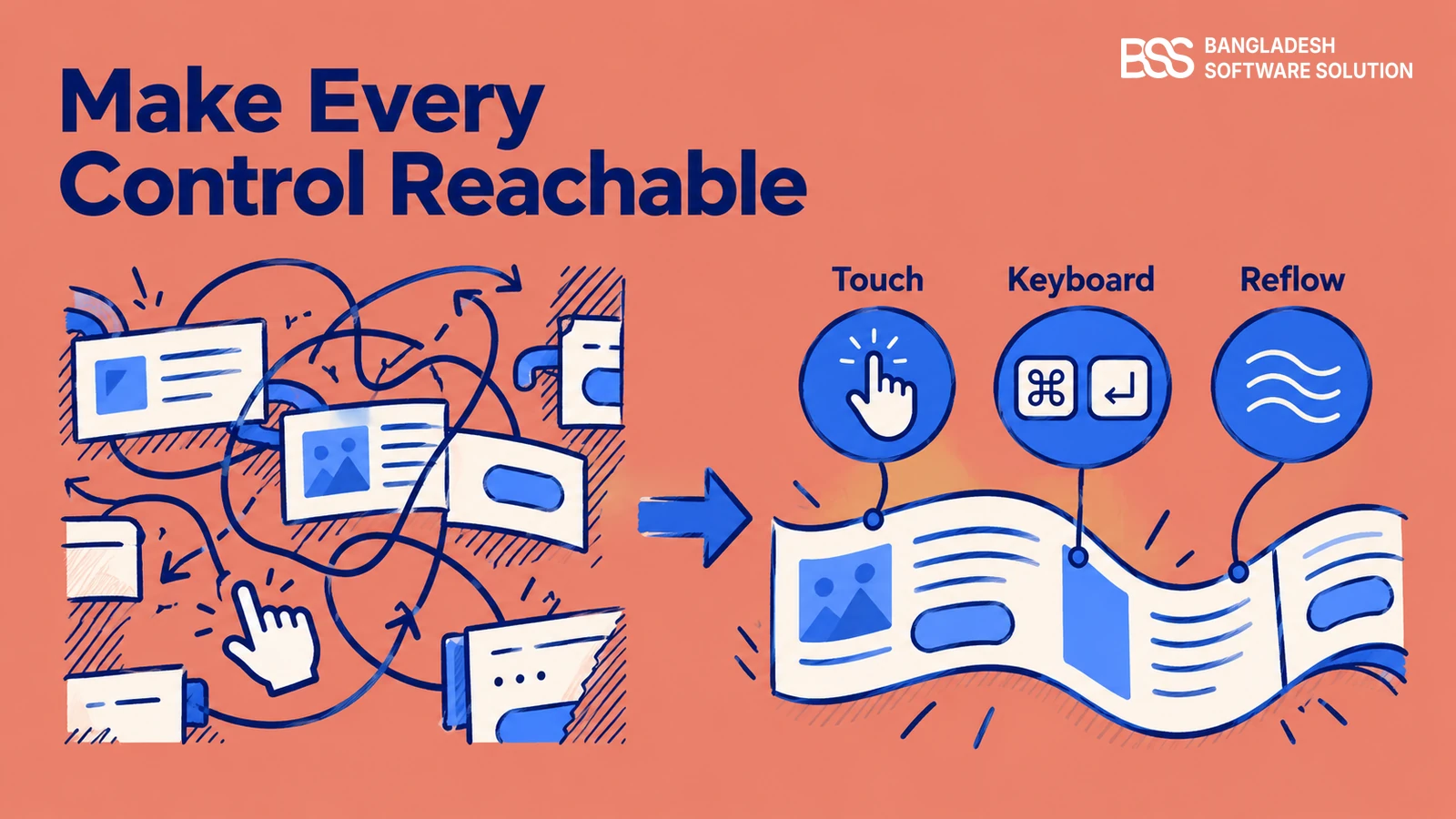
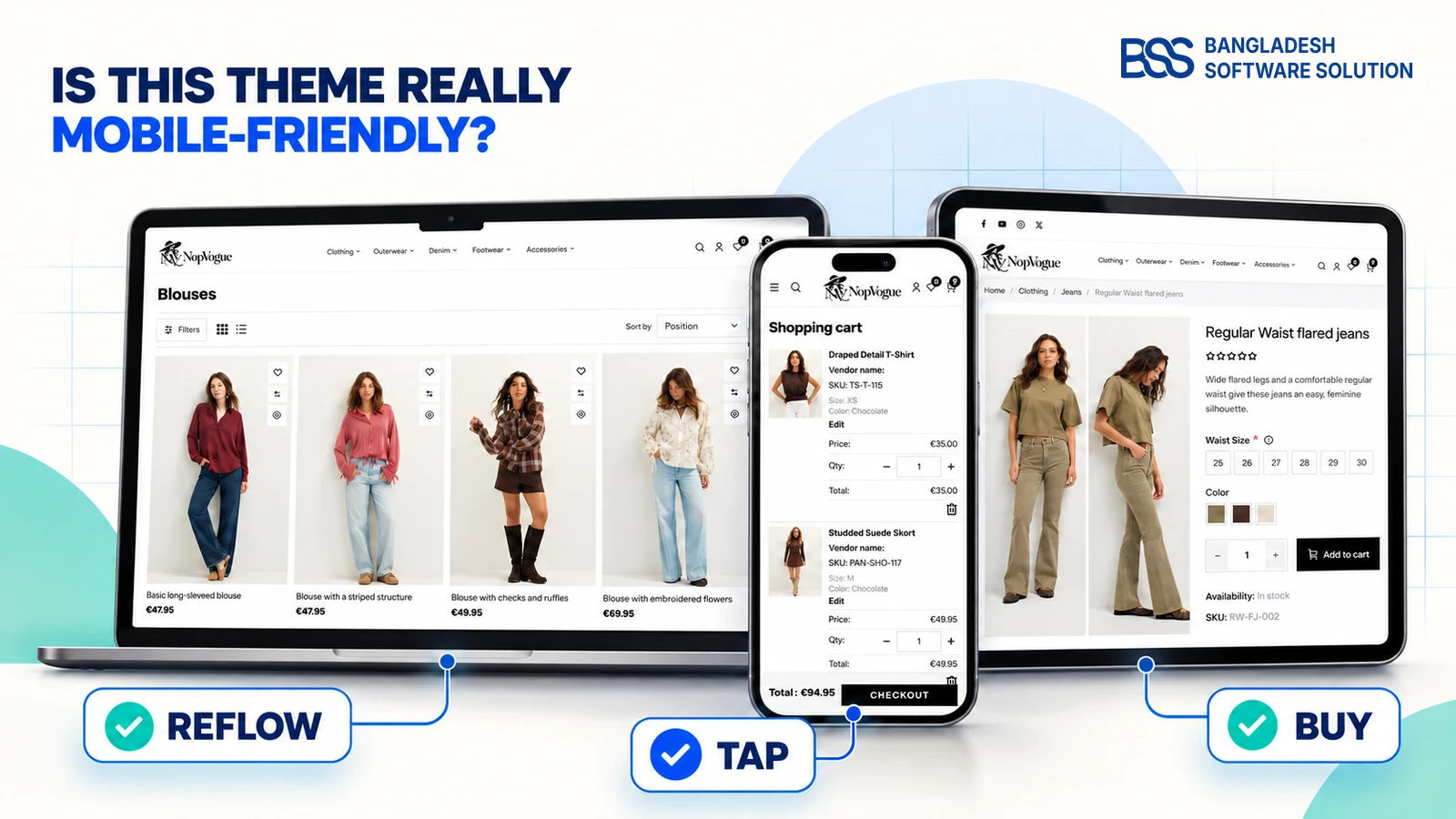
Now repeat the important actions with different ways of using the store. A resized browser gives useful clues, but Chrome’s Device Mode documentation describes simulation as an approximation. Include a physical phone before accepting the mobile experience.
13. Resize the layout and enlarge text
Inspect narrow and wide layouts, rotate a phone and enlarge browser text. Check menus, prices, option selectors and checkout.
Pass: essential content remains available without clipping. W3C’s Reflow criterion uses a width equivalent to 320 CSS pixels for vertically scrolling content, with exceptions for content requiring a two-dimensional layout.
14. Tap controls and inspect overlaps
Tap swatches, quantity controls, menu icons and close buttons. Open banners, chat widgets and the phone keyboard together.
Pass: controls remain reachable. WCAG 2.2’s Target Size (Minimum) criterion specifies 24 by 24 CSS pixels, with exceptions including sufficient spacing; treat this as a minimum criterion, not a complete usability verdict.
15. Use the keyboard
Set the mouse aside and use Tab, Shift+Tab and appropriate activation keys through menus, search, product options and forms.
Pass: focus is visible, actions are usable and dialogs do not strand you. W3C’s Keyboard criterion requires functionality to be keyboard-operable, with an exception for inherently path-dependent input.
16. Check browsers and translated content
Repeat the core journey in the browsers you plan to support. If you need another language, currency or right-to-left layout, request that exact configuration.
Pass: labels, amounts and buying actions remain clear in the demonstrated setup. Record any configuration the seller cannot show as an open question.
BSS develops storefront themes and provides customization. If overlapping controls or plugin interactions need code changes, our nopCommerce services can help implement the fixes; agree on the acceptance tests before that work starts.
These are screening checks, not a full accessibility audit. Our mobile-friendly theme guide explores the phone experience in more detail.
What will you actually receive and maintain?
The final checks move beyond what a visitor can click. Request evidence for performance, editing access and the purchase terms. A feature that looks finished on the demo still needs a clear explanation of what is included in your installation.
17. Measure representative pages
Run PageSpeed Insights on the homepage, category and product URLs. Record the URL, date and mobile or desktop mode.
Google distinguishes controlled lab diagnostics from real-user field data; if field data is missing, leave it unverified. Demo results describe that deployment, not a guaranteed score for your future store.
18. Identify the plugins behind the demo
Ask for a written list matching visible features to included plugins, optional purchases and custom work. For example, the NopVogue product listing names QuickView, Product Picture Gallery, One-Page Checkout and Theme Builder. If you shortlist it for a fashion store, apply the same tests to those features and confirm the supplied package.
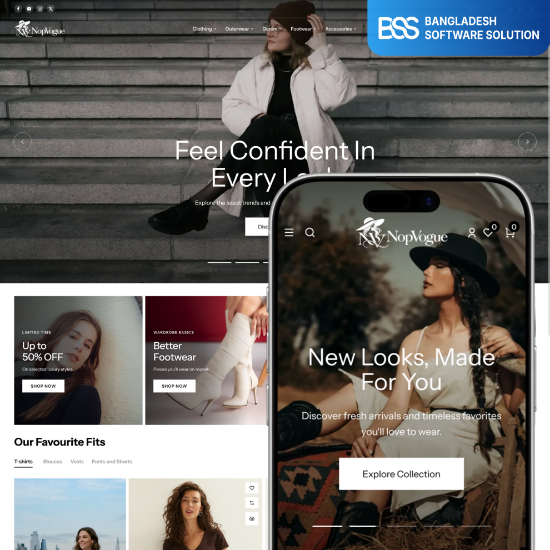
Shortlisting a fashion theme? Check the listed plugins and test their behavior against your store’s requirements.
Explore NopVogue19. Watch an ordinary content edit
Request admin access or a screen-share. Ask the seller to replace a banner, edit a menu and change a brand color, then show the result on a phone.
Pass: the demonstrated workflow is one your team can maintain. Confirm whether demo images, content and layout settings are included or licensed separately.
20. Confirm compatibility and ownership terms
Ask for supported platform versions, required plugin versions, license scope, update delivery, support coverage and refund terms in writing.
Pass: answers apply to the package you will buy. For nopCommerce, request confirmation against your exact version and planned plugins; do not infer compatibility from the demo’s appearance.
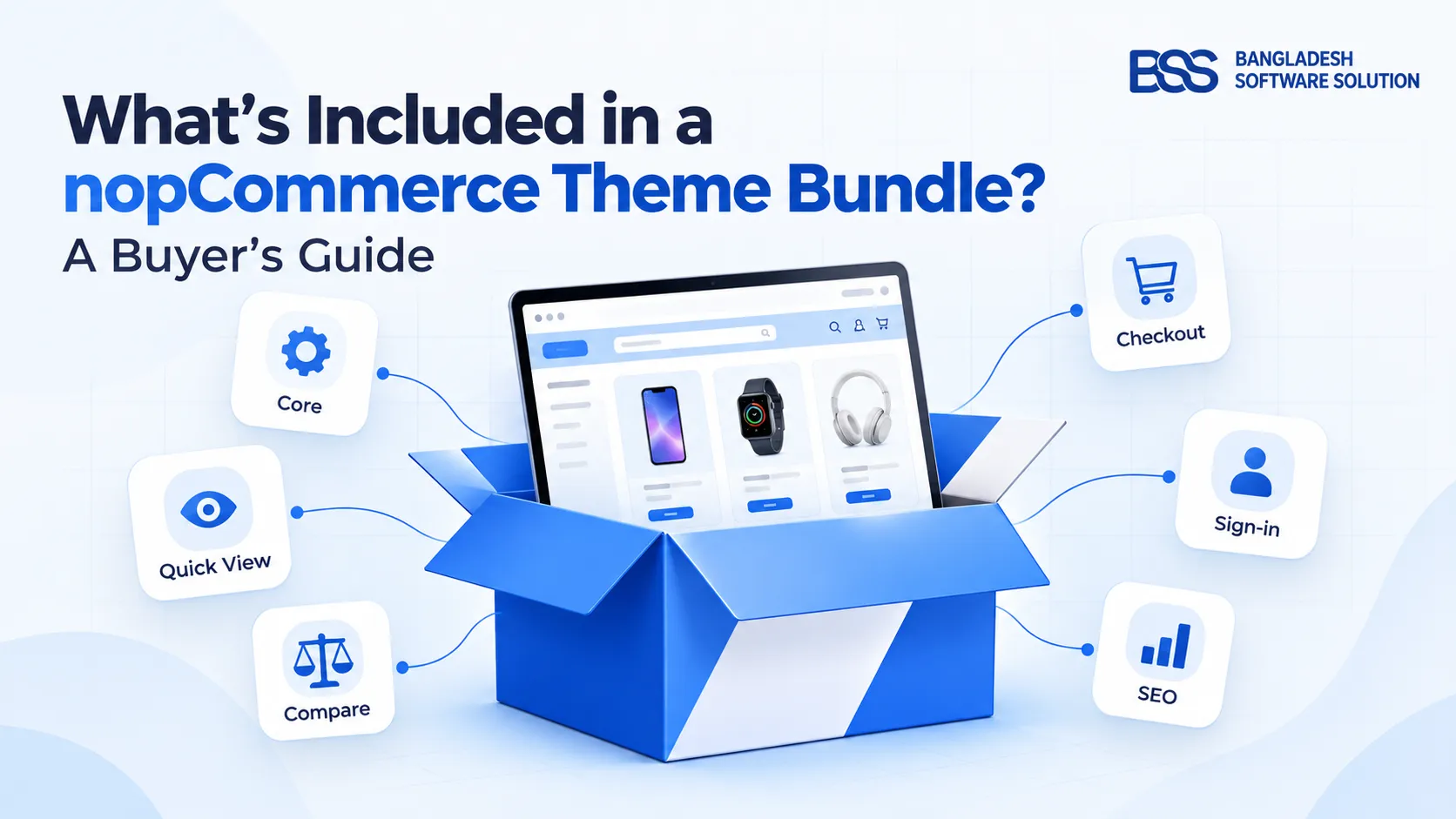
For the package-versus-theme distinction, see what a nopCommerce theme bundle includes. Keep every unanswered requirement beside the relevant test, rather than letting a long feature list substitute for evidence.
Turn your findings into a clear implementation brief
Share your theme shortlist, catalog requirements and unresolved demo tests. BSS provides nopCommerce theme customization, plugin development and integrations.
Frequently asked questions
Buy when the evidence supports the decision
Return to the theme you were about to buy. You should now have a record of what works, what needs correction and what still needs a demonstration. Resolve essential unknowns with the seller and put any promised fixes in writing before committing.
A useful demo evaluation ends with a decision you can explain: the candidate supports your required journey, the package is clear and the remaining work is understood. Keep the test sheet for staging, where you can repeat the checks with your own content, integrations and checkout configuration.
Bring your shortlist and test results to BSS for a discussion about nopCommerce design, customization and integrations.
Book a free consultation