Your agency sends an email on a Monday morning: nopCommerce 5.0 is out in beta, so could you book the upgrade before the holiday season?
You want the new version and its features. You also have a store that takes orders every day, plugins nobody has checked since the last upgrade, and a team that would rather not learn on Black Friday which one breaks.
Before you answer, you need three things: a clear view of where 5.0 stands today, a list of what a major upgrade actually touches, and a rollback you have tested rather than assumed. This guide takes them in that order.
We build and sell nopCommerce themes and plugins at BSS, so the checks below are the ones we work through ourselves.
For most owners the answer is yes to a test copy this month, and not yet to a live date. The rest of this guide explains why, and what to do in the meantime.
Decide the timing before you touch the server
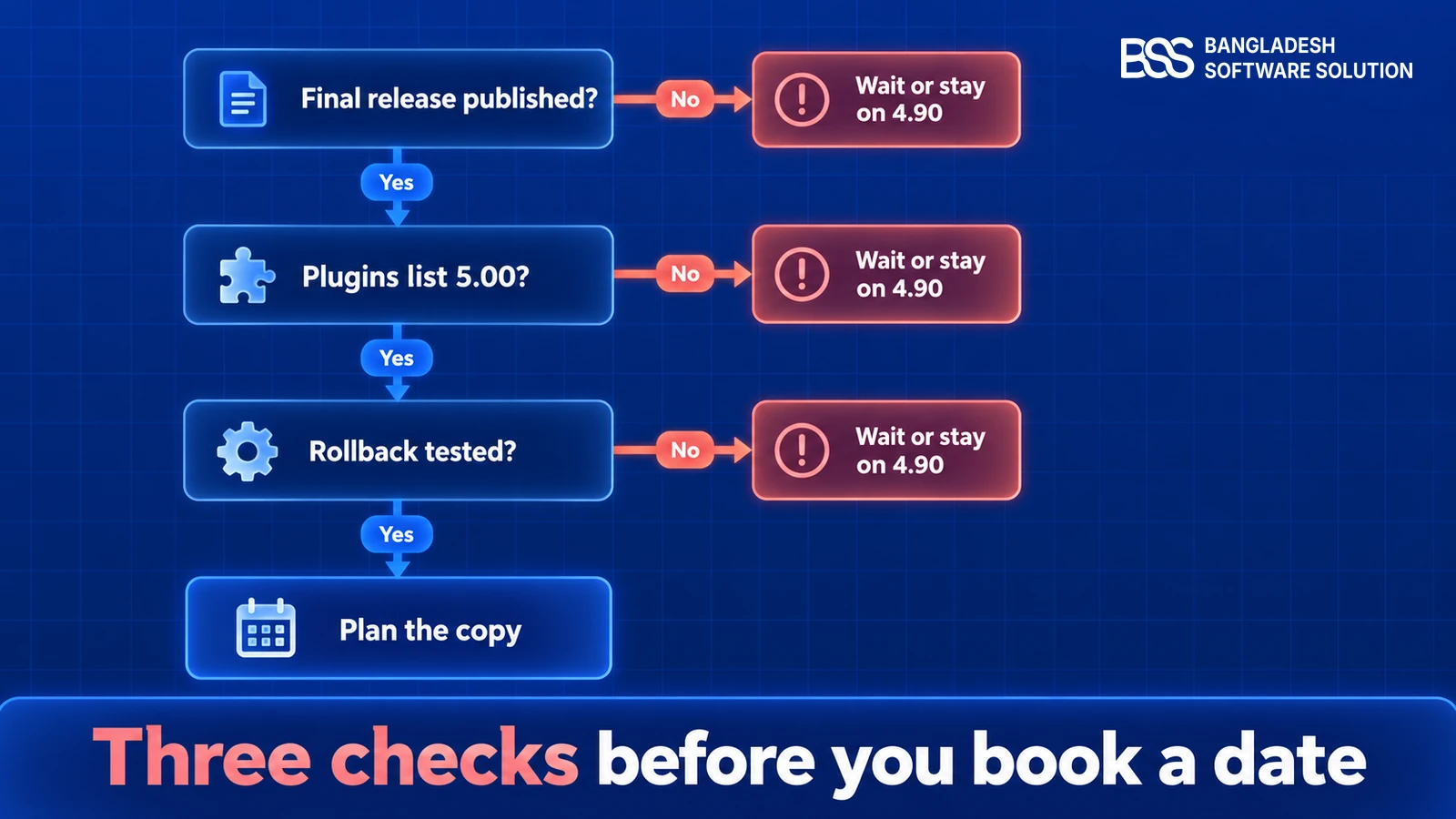
Start with the status, because it decides what you should do this month. nopCommerce 5.00 is in beta, tagged on GitHub as release-5.00.0-beta and announced on the nopCommerce forums, which ask users to test it before the official announcement.
The GitHub milestone for the 5.00 release is due on 12 October 2026 and shows 98 percent of its issues closed. The official release notes page still lists 4.90.8, released on 4 September 2026, as the latest version.
That gap is the important part. A milestone is a plan, and a beta exists to find problems. So 5.0 is worth testing now and worth moving to only once the final release is published.
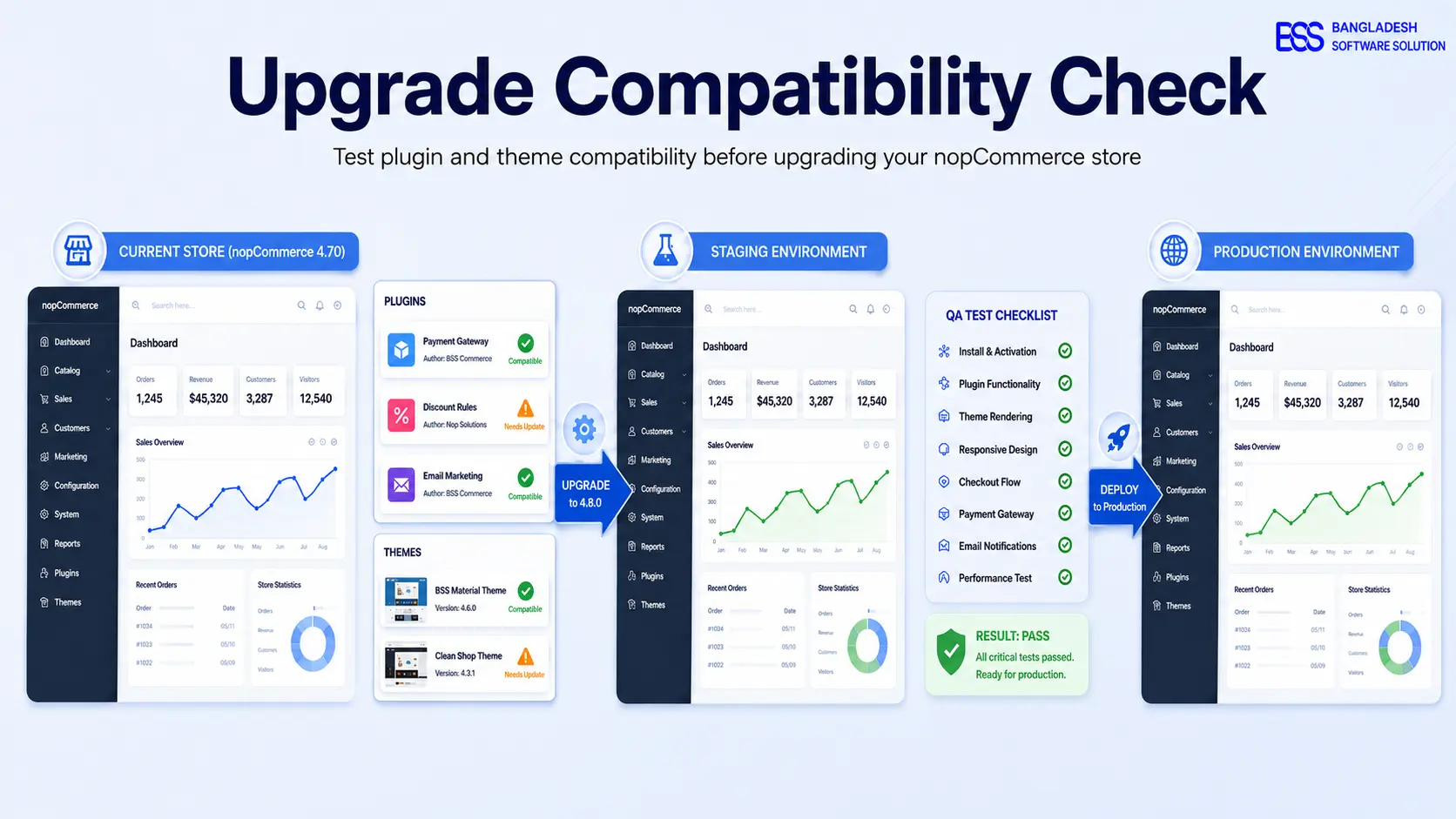
Before you book a date, answer three questions in order. Has the final release been published? Do the plugins and theme you depend on list 5.00 as a supported version?
Have you restored a backup to a copy and run a full test on it? A no to any of them means waiting, or staying on 4.90 while you prepare.
The 4.90 minor releases are fully compatible with each other, according to the release notes, so 4.90 is a steady place to wait.
Check the release notes page on the day you set the date, and again the day before the live move. It lists every final version, so it is the quickest place to confirm that 5.00 is no longer a beta. A beta date can move, so keep the copy current rather than rushing.
The short version: test on a copy now, and set the live date only after the final release, a plugin check and a tested rollback.
Not sure the timing is realistic? The BSS team can look at your plugins and integrations and tell you what a move would take before you commit to a date.
Talk to a nopCommerce expertWhen an upgrade breaks, look in four places
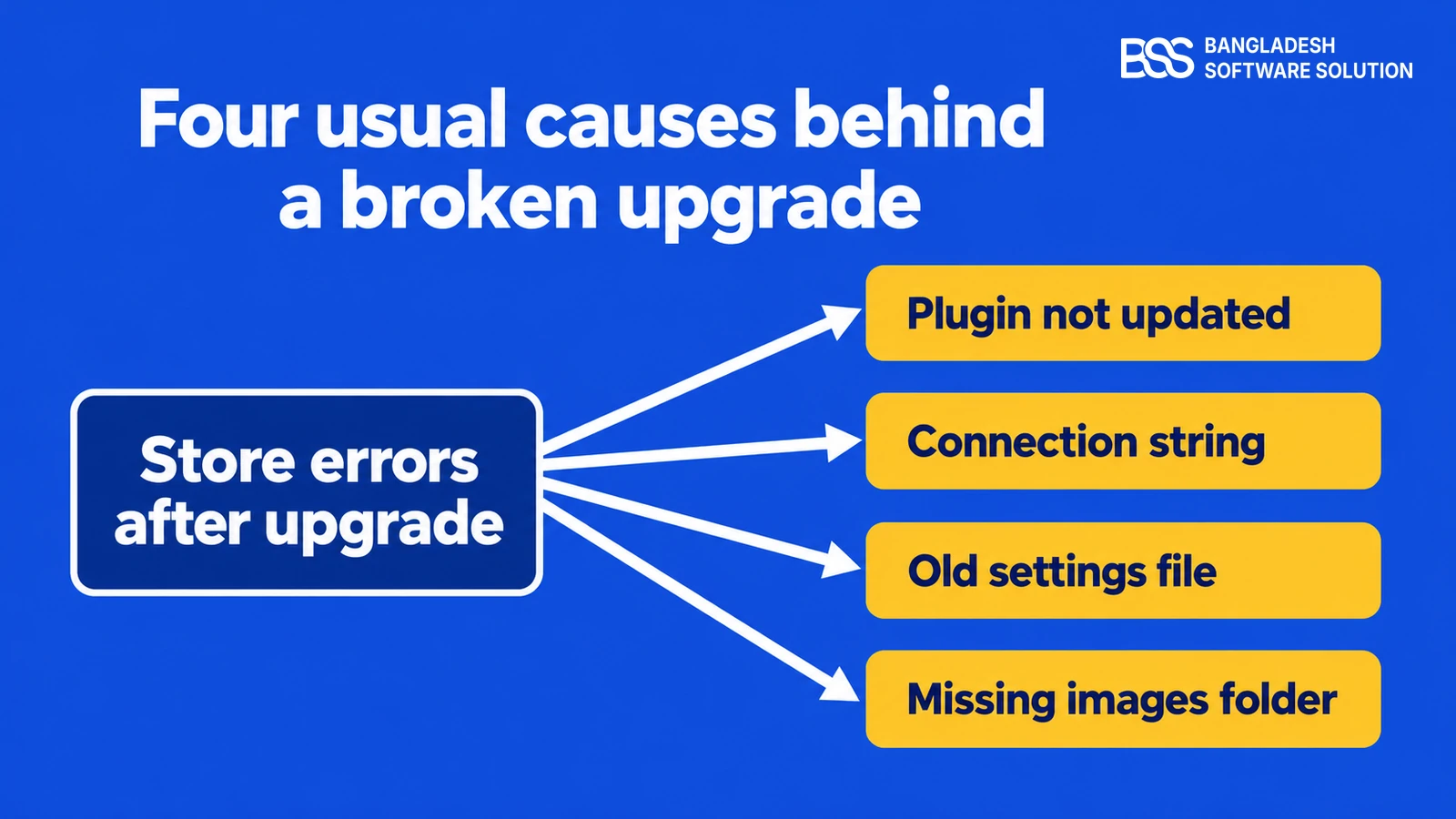
When an upgrade goes wrong, these four places are the first to check, and the labels in the picture name them. Work through them before you decide the move is ready.
The first is the plugin. Each nopCommerce plugin declares the versions it supports in its plugin.json file.
The official plugin documentation says that in most cases you only need to update the SupportedVersions field in that file. That shortcut assumes nothing the plugin relies on has changed, so for a major release like 5.00, ask the author for a 5.00 build first. An unmaintained plugin may have to be replaced.
The second is the connection string. The 5.00 beta moves nopCommerce to .NET 10, according to the beta announcement.
Moves to a new .NET version can change default settings, and an earlier move did exactly that. When nopCommerce moved to .NET 6 for 4.50, its release announcement told upgraders to add Encrypt=false or TrustServerCertificate=True to the connection string, because the Microsoft.Data.SqlClient library had changed its Encrypt default from false to true.
Check first
Read the connection settings on the copy before anything else. A broken connection stops the whole store, so it is the one check you cannot skip.
Finding these four problems takes a list, not a developer. Fixing what they reveal is the harder part, and that is where the plugin decision usually lands.
The third is the settings file. The official upgrade steps say to remove the old files, but to keep the JSON files in the App_Data folder, such as appsettings.json and plugins.json.
Those files hold your database connection and your list of installed plugins. Keep them, then check that each still points at the right database once the copy is running.
The fourth is the pictures. If your product images are stored on disk under wwwroot, the official steps say to back up the images folder and copy it back after the upgrade. A missing images folder makes a working store look broken, and it is easy to miss while you are watching the checkout.
If an ERP, a mobile app or a partner calls your store's API, add those calls to the copy's test list. The product below is the one to check if your integrations use the store's REST API.
Its product page lists 4.90 and 4.80 as the supported versions at the time of writing, so confirm a 5.00 build before you set the date.
Use it as the reference for your API test list: check which calls it exposes and confirm its supported version before the copy goes up.
View the plugin
A plugin that works on the old version and fails quietly on the new one is the surprise we plan for first. BSS handles nopCommerce version upgrades for stores that would rather hand that check over.
Run the copy in a loop until checkout passes
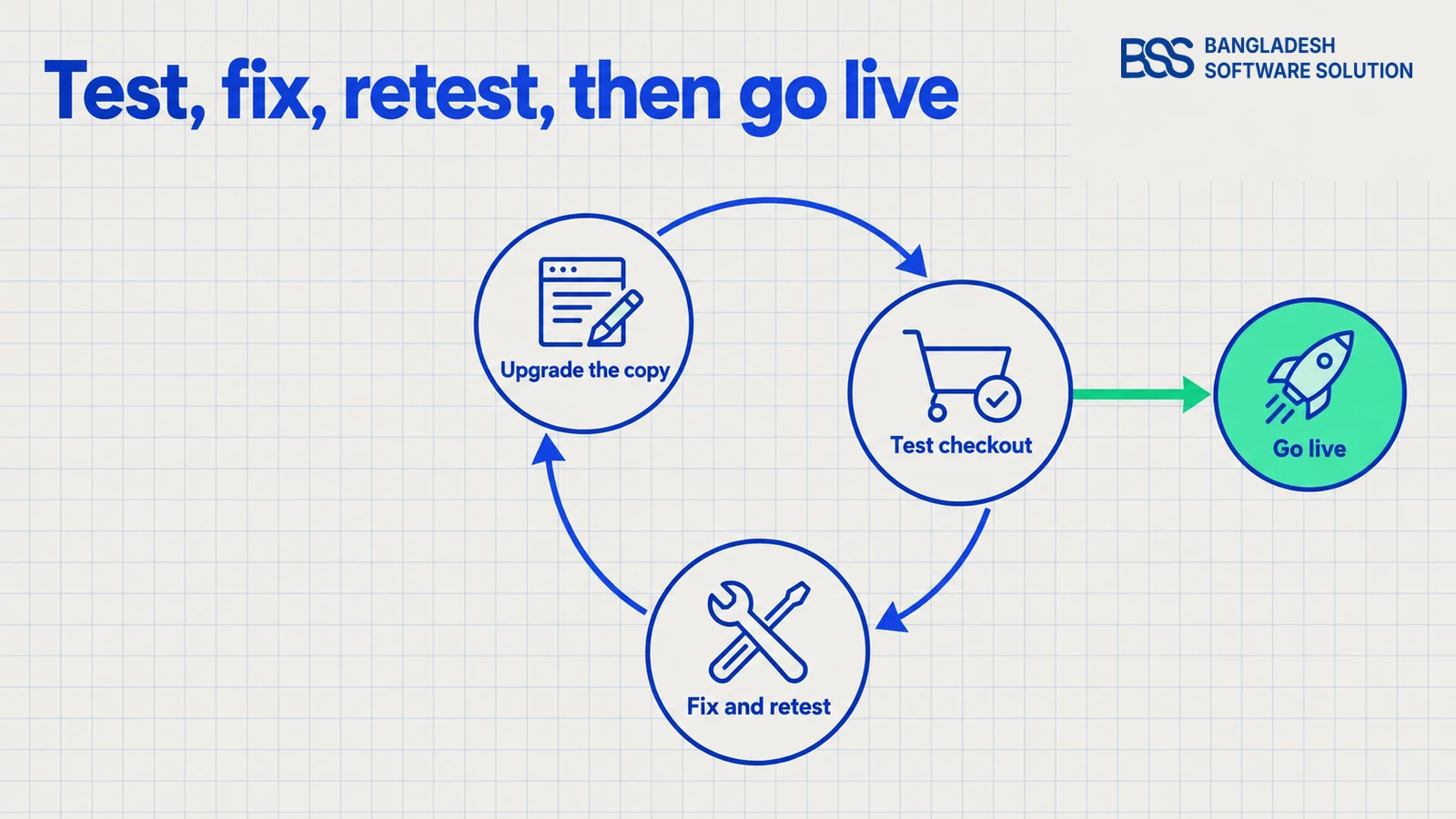
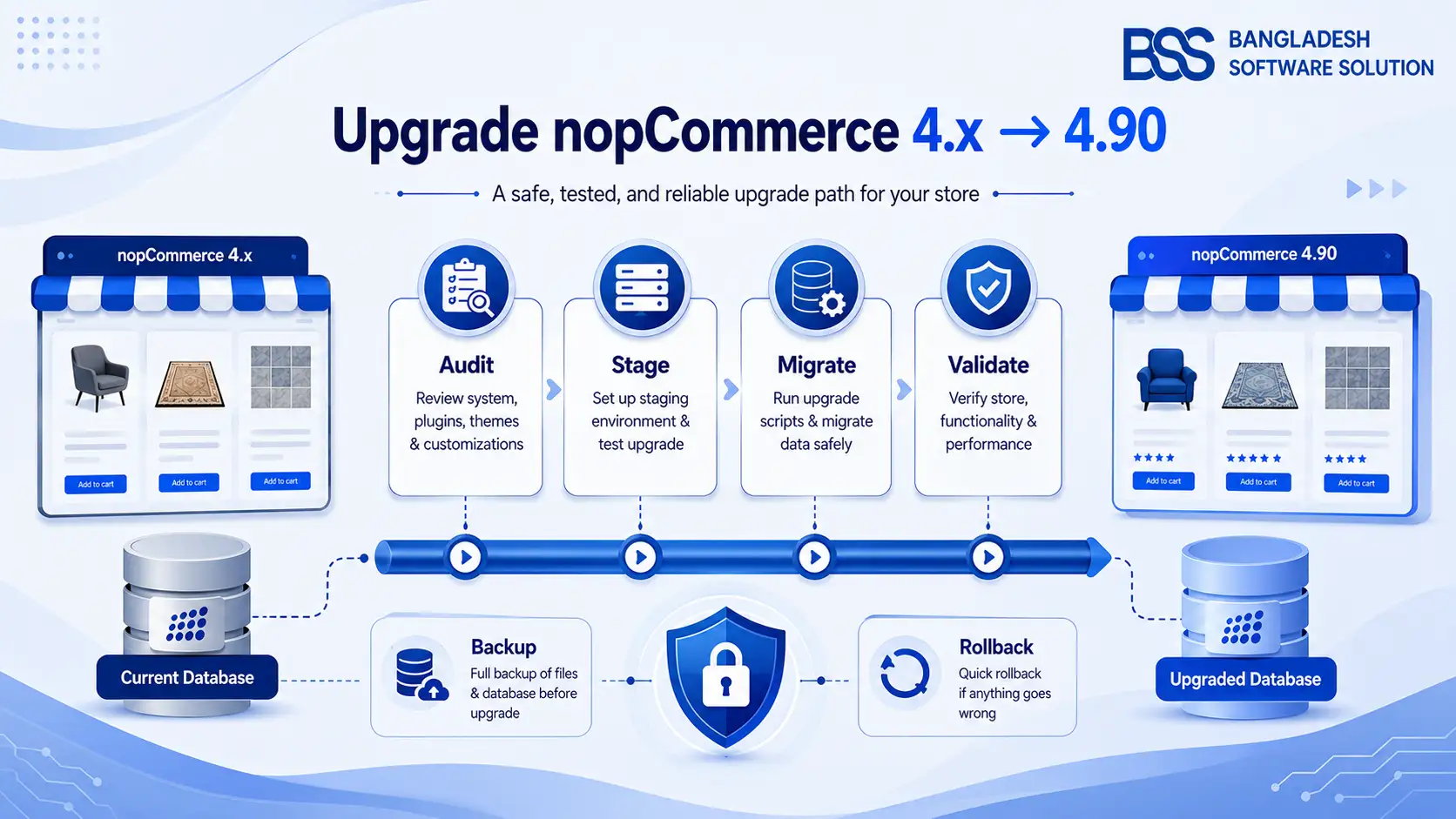
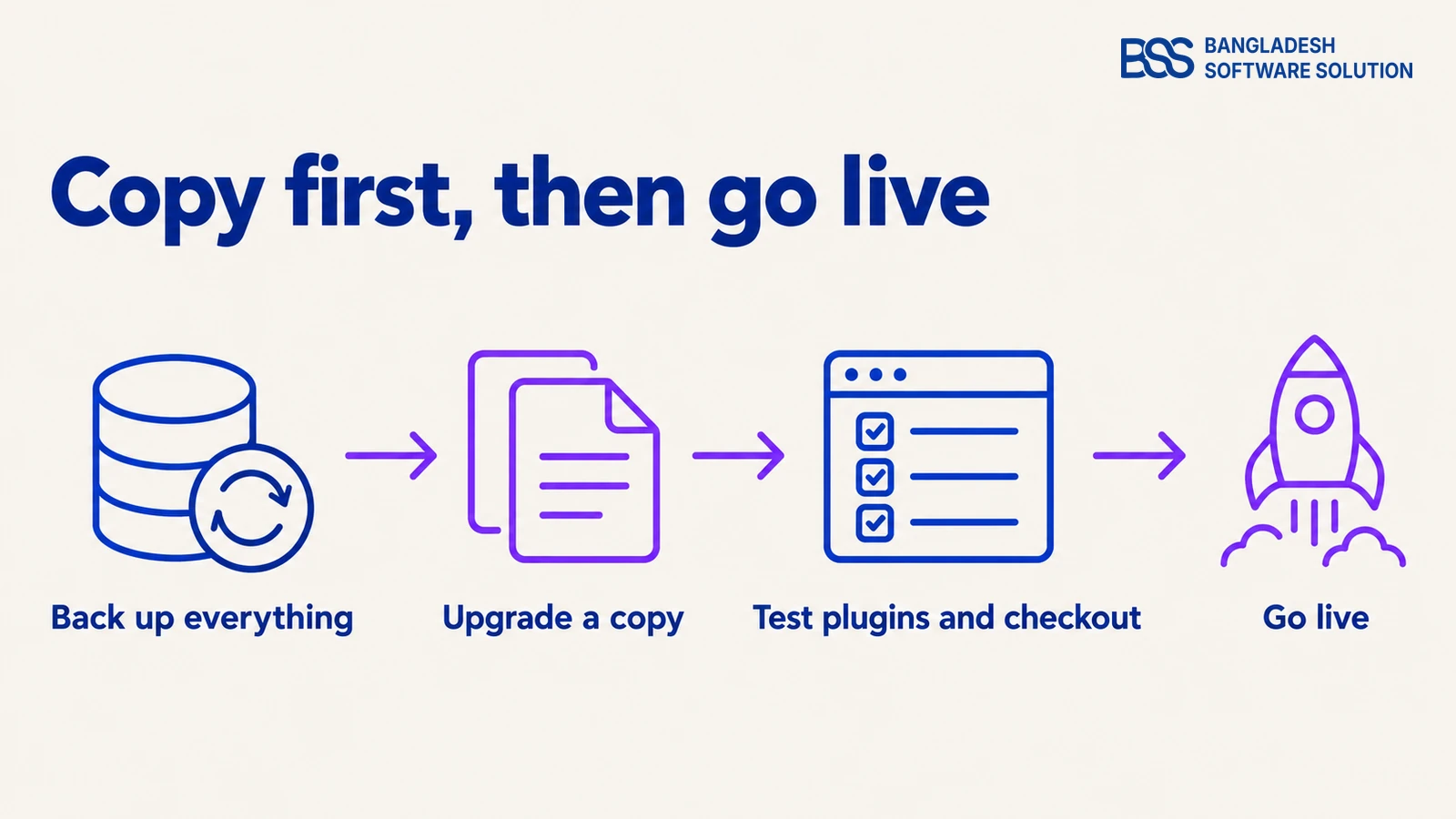
The upgrade itself takes the least thinking. The real work is the loop after it: upgrade the copy, test checkout, fix what breaks, and repeat until a complete order passes on the copy.
Only then does the live store change. Plan time for this loop: a first run on a copy exists to find problems, so expect to go round more than once.
A useful test of readiness is simple: could someone who did not run the copy place a complete order on it without help? If the answer is no, the copy is not ready, however many checks have passed.
Work through the loop in this order.
The copy-first sequence
-
Back up the live database and the whole site folder, then restore that backup once to make sure it works.
-
Restore the backup to a staging server that runs .NET 10, and install the 5.00 build there.
-
Install a 5.00 build of each plugin from its author, or replace the plugin, and write down which ones changed.
-
Place a complete test order: the cart, the payment, the shipping choice and the confirmation email.
-
Repeat the order test for every payment and shipping method you offer.
-
Schedule the live move only after a full order passes on the copy, with the backup ready to restore.
Make the copy honest. A staging server that differs from production teaches you little, so match the database version, the payment sandbox settings and the plugin list as closely as you can. Keep a short log of each plugin change, because when a test fails late in the evening, the log shows whether the problem is new.
Make the rollback real. A backup that leaves out the settings files or the images will not bring the store back, and the official upgrade steps name both. Restore it to a spare copy once, before you need it, and check that the store comes up and takes an order.
This is the point where many owners bring in a developer. You can hire a .NET developer from BSS to run the copy and the test loop while your team keeps the catalogue running.
Watch out
Do not let a passing homepage count as a passing upgrade. A homepage can load while checkout, payment callbacks or order emails fail, and none of those show on the front page.
When we test an upgrade, a complete order through payment is the check we treat as non-negotiable, because a store can look fine and still fail at checkout. Our nopCommerce services include upgrades alongside setup and integrations.
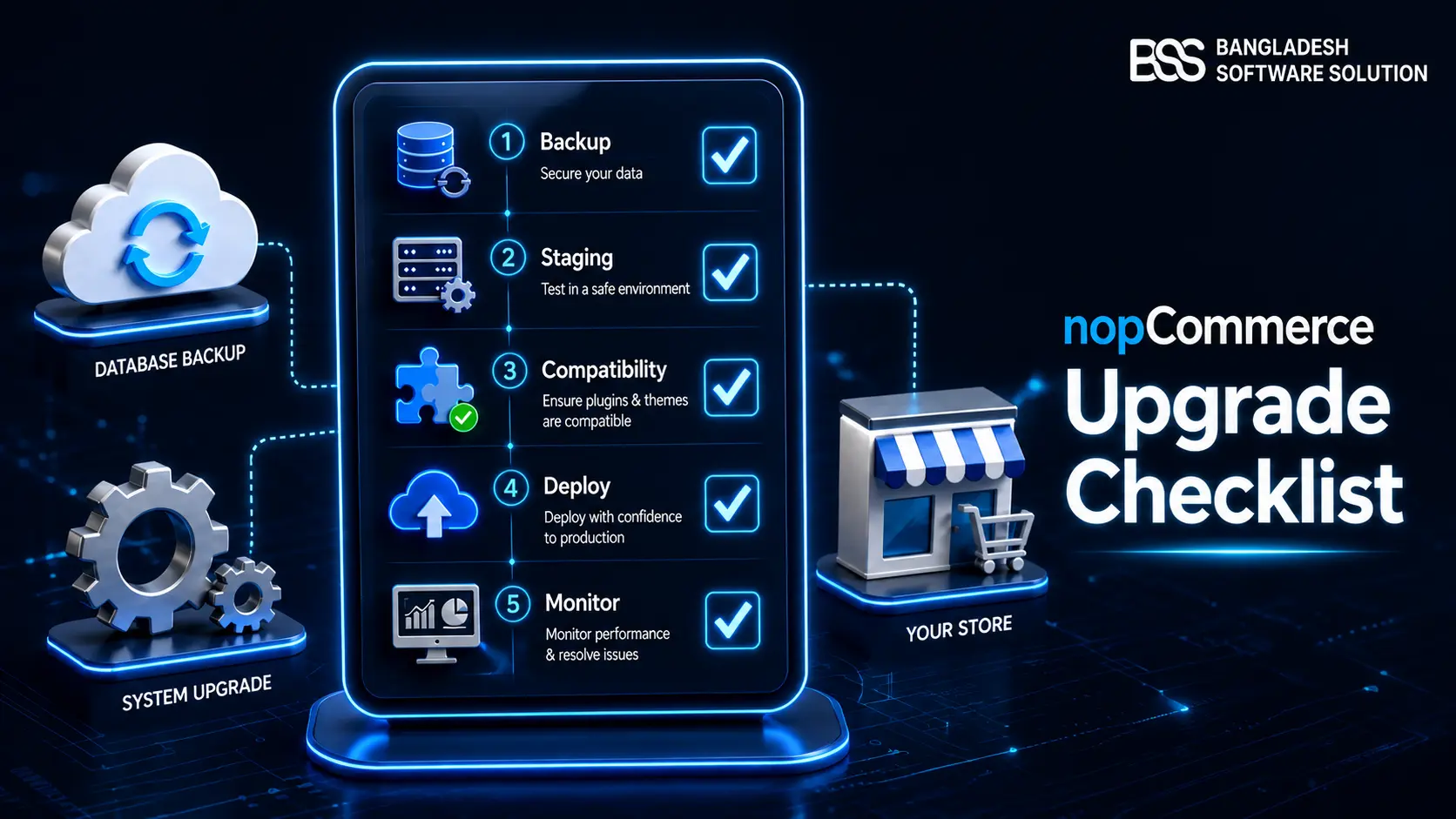
For the full list, the nopCommerce upgrade checklist covers the same ground in more depth, and the 4.90 upgrade guide shows the rollback-safe method for the version before this one.
Need your nopCommerce upgrade run for you? Hire the BSS Team
From plugin compatibility checks to a tested copy and a rollback you can trust, our dedicated nopCommerce engineers can run the move. Tell us what you need and we will match you with the right developer.
Frequently Asked Questions
Final Thoughts
Go back to the email from your agency. The honest answer is yes to a copy this month, and not yet to a live date. Put the backup on a staging server, run the loop against your own plugins and checkout, and check the official release notes before you fix the day.
The features are a separate question. The nopCommerce 5.0 what's new guide covers what changes for owners and developers, so you can judge whether the upgrade is worth the work before you start it. Once the copy passes and the final release is out, the live move becomes a planned change rather than a gamble.
If you would rather hand the whole move over, nopCommerce services lists upgrades among the work the team takes on.
Tell us which plugins and integrations your store depends on. We will tell you which ones need an update, which need replacing, and what a safe move would take.
Book a free consultation