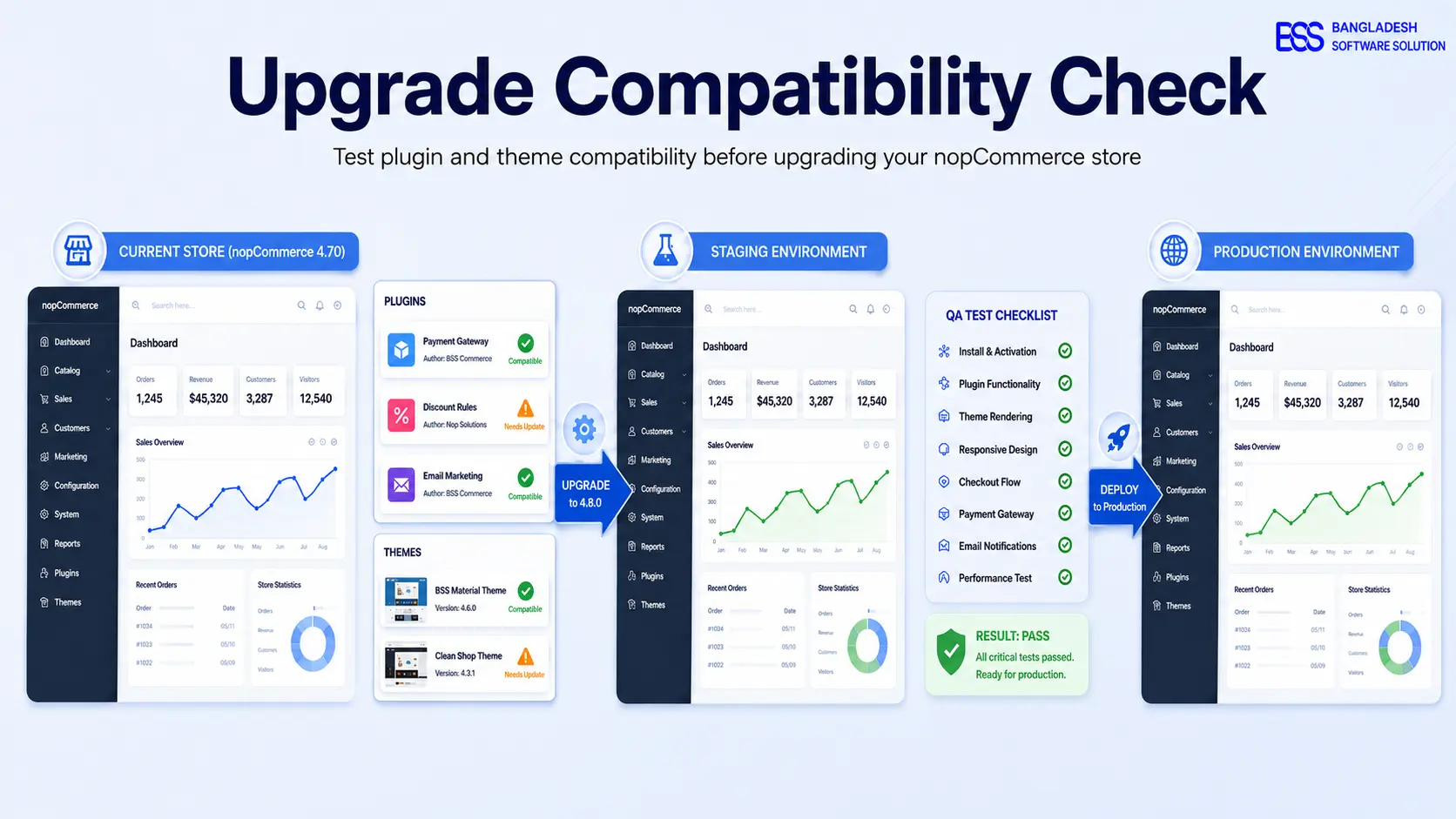
Plugin and theme compatibility before upgrading NopCommerce should be tested before the production store is touched. Most painful nopCommerce upgrades are not caused by the core upgrade alone; they come from extensions, custom theme overrides, old view files, custom JavaScript, and database changes that were never validated against the target version.
In our deployments, the safest upgrade path is a staging-first process: clone the store, freeze extension changes, upgrade in a controlled environment, then run a repeatable test matrix across checkout, catalog, account, admin, integrations, and scheduled tasks.
Short answer: never test compatibility directly on production. Build a staging copy, inventory every plugin and theme customization, confirm target-version support, run smoke tests after each extension group, and keep a tested rollback plan ready before the live upgrade window.
Start with an extension and theme inventory
Before upgrading, list every installed plugin, custom plugin, theme, widget, script injection, payment module, shipping module, tax provider, external feed, and admin customization. A store may look simple from the storefront while relying on several hidden extensions for checkout, search, analytics, email, ERP sync, or payment capture.
Use the nopCommerce admin as the starting point, then verify against the file system and source repository. In many stores, the risky items are not the obvious marketplace plugins; they are older custom plugins, copied view files under the theme, and one-off JavaScript added years ago.
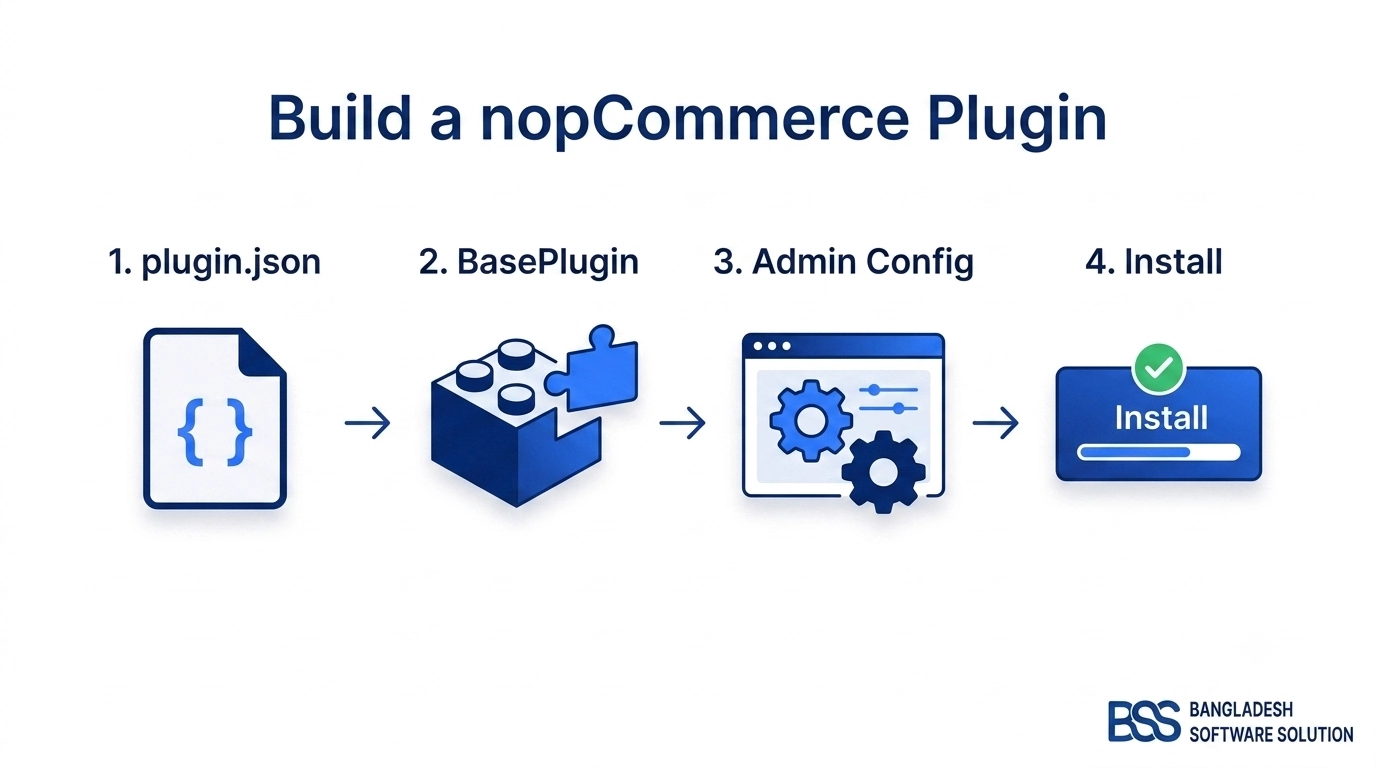
If your upgrade involves custom plugins, the nopCommerce plugin development guide is useful context for how plugin structure, settings, routes, and install logic should be isolated.
Build a realistic staging copy before testing
A compatibility check is only useful when staging behaves like production. Use the same nopCommerce target version, same .NET runtime family, same database engine, same plugin set, same theme, same media paths, and realistic catalog data. Sanitized customer and order data is fine, but an empty demo database will hide the failures that matter.
Common staging mistakes include skipping scheduled tasks, disabling email without logging, ignoring payment sandbox setup, and testing with a tiny catalog while production has complex attributes, discounts, localized content, and customer-role pricing.
Upgrade rule we use
If a plugin cannot be tested in staging with real settings, it is not ready for production upgrade. Do not rely on vendor claims alone; confirm install, configuration, runtime behavior, logs, and rollback impact in your own store context.
How to test plugin compatibility
Plugin compatibility is more than checking whether the plugin appears in the admin list. A plugin can install successfully and still break checkout, background tasks, dependency injection, routing, admin menus, payment callbacks, or database migrations.
Test plugins in risk order. Start with payment, shipping, tax, checkout, pricing, search, ERP, inventory, and customer-role plugins because they affect orders or revenue. Then test widgets, analytics, marketing tools, admin helpers, and content modules.
| Plugin area | What to test | Failure signal | Priority |
|---|---|---|---|
| Payment | Configure, place sandbox order, confirm callback, refund/void path if supported. | Order stuck pending, failed redirect, callback error, duplicate payment status. | Critical |
| Shipping and tax | Rate lookup, address validation, tax calculation, checkout totals, error handling. | Wrong totals, timeout, missing rates, checkout blocking exception. | Critical |
| Search and catalog | Category pages, filters, product pages, stock visibility, price display, indexing jobs. | Slow pages, empty filters, stale prices, failed scheduled task. | High |
| Widgets and marketing | Homepage, product widgets, tracking scripts, consent behavior, admin configuration. | Broken layout, JavaScript errors, missing scripts, invalid consent behavior. | Medium |
For API-based plugins and integrations, test the exact endpoints and payloads used by production. The nopCommerce API documentation walkthrough can help teams build an integration-focused test list.
How to test theme compatibility
Theme compatibility problems usually appear when old view overrides no longer match the target nopCommerce version. A custom theme can look fine on the homepage but fail on checkout, account registration, product attributes, Ajax cart, multi-currency display, or mobile navigation.
Compare your theme overrides against the target version's default theme files. Pay special attention to layout files, checkout views, product templates, category templates, customer account pages, scripts, bundled CSS, and any widget zones the theme depends on.
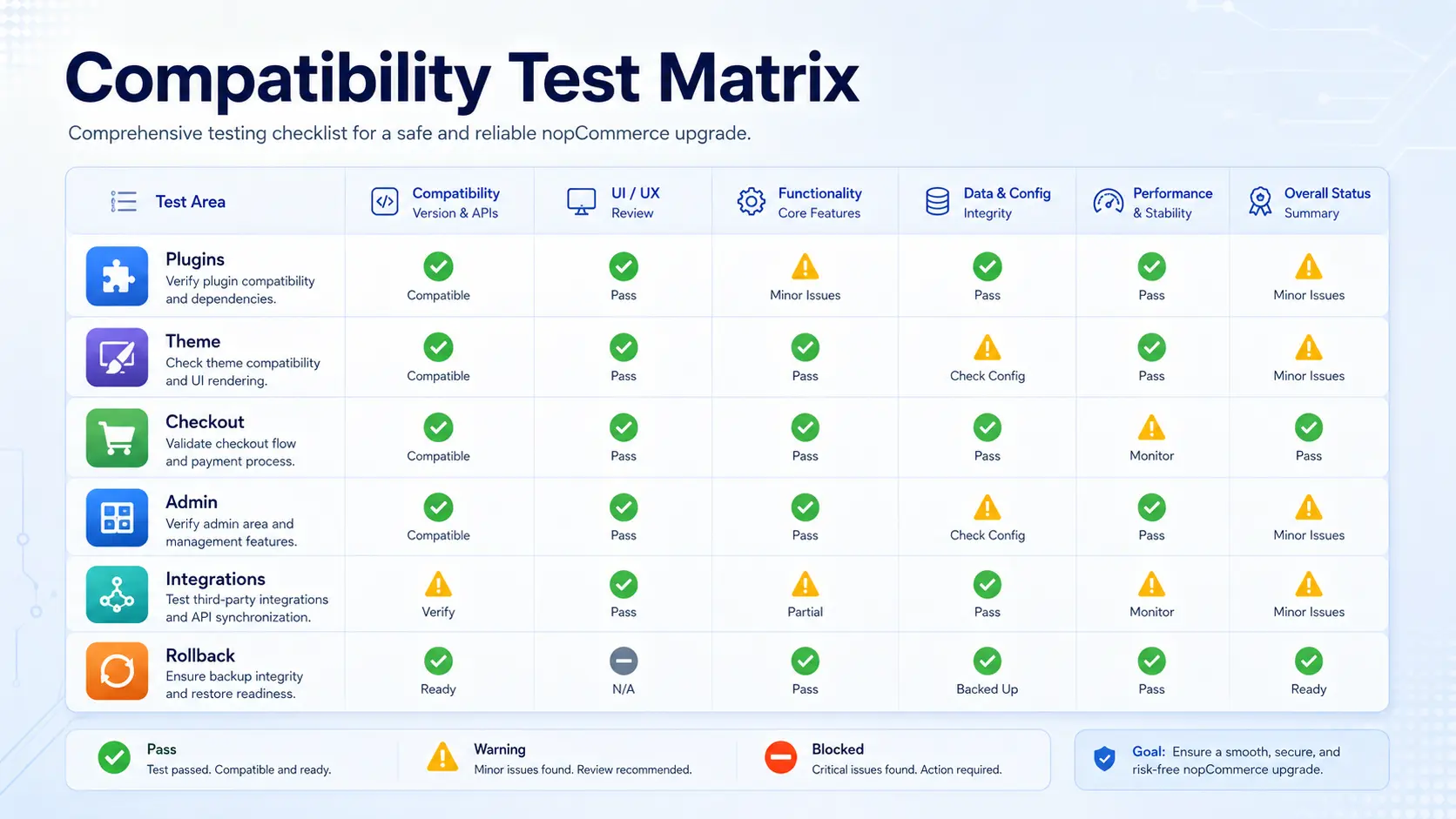
Theme smoke test pages
- Catalog: home, category, manufacturer, search, product detail, product attributes, compare, wishlist.
- Checkout: cart, discount entry, shipping estimate, checkout steps, payment selection, order confirmation.
- Customer: register, login, password reset, address book, order history, downloadable products.
- Mobile: header, menu, filters, product gallery, cart drawer, checkout form fields, footer links.
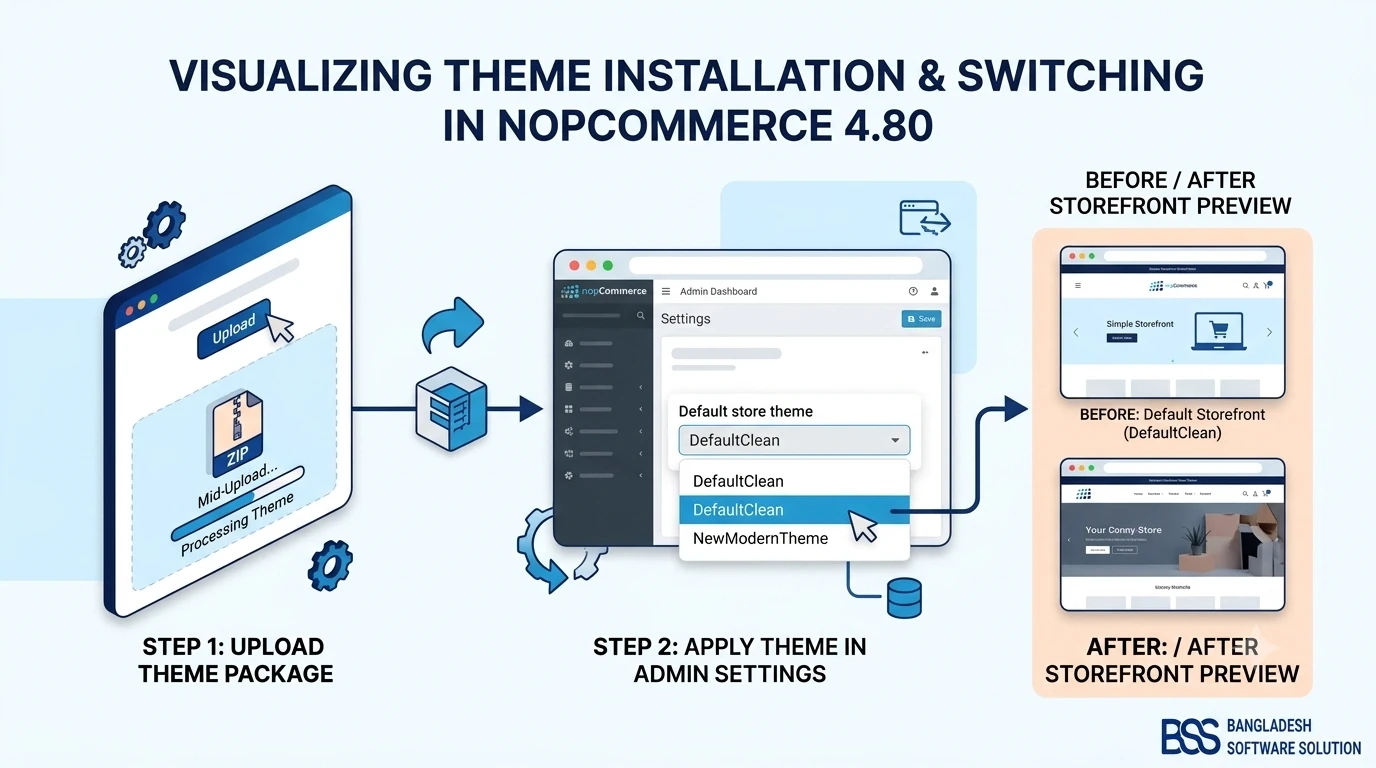
For theme-specific upgrade work, see the BSS guide on installing and changing a nopCommerce theme. If your site supports right-to-left languages, include the RTL theme support checklist in the same test pass.
Do not skip database, settings, and scheduled jobs
A plugin or theme may pass visual checks while still leaving data issues behind. Upgrade testing should include plugin install/uninstall behavior, database migration scripts, custom settings, localized resources, ACL permissions, scheduled tasks, queues, logs, and cache behavior.
Run scheduled tasks in staging and inspect logs after each test group. If a custom integration syncs inventory or orders, use sandbox credentials and verify that retry behavior does not create duplicate records.
Practical warning
Do not delete old plugin folders casually during upgrade testing. First confirm whether the plugin owns tables, settings, localized resources, scheduled tasks, or queued background work. Removing files without understanding data ownership can make rollback harder.
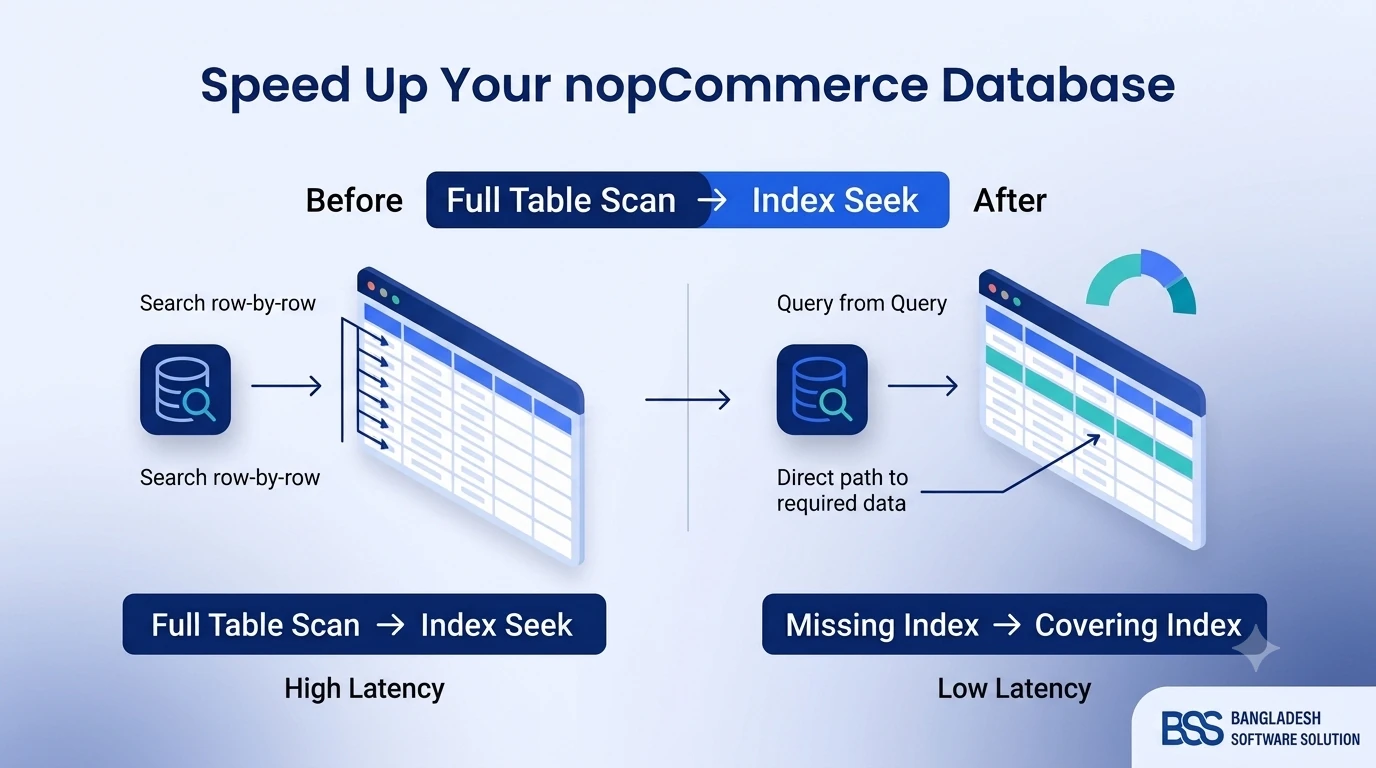
For stores with large catalogs or slow admin reports, combine compatibility testing with database checks. The BSS guide on nopCommerce database indexing and query tuning is a useful companion for performance-sensitive upgrades.
Compatibility checklist before the live upgrade
When staging passes individual tests, run one final end-to-end test as if the store were live. This is where teams catch missed dependencies between theme behavior, plugin settings, payment flow, scheduled tasks, and customer-role logic.
Pre-upgrade compatibility checklist
- 1Create a full backup of production files, database, media, plugin folders, theme files, settings, and deployment scripts.
- 2Build staging from a recent production copy and confirm the target nopCommerce version, runtime, database engine, and hosting configuration.
- 3Test every payment, shipping, tax, checkout, catalog, search, ERP, email, and widget plugin in priority order.
- 4Compare theme overrides against the target version and test key desktop and mobile pages.
- 5Run scheduled tasks, review logs, test cache clearing, verify admin permissions, and document every fix applied in staging.
- 6Define a rollback decision point: exact backup to restore, who approves rollback, and how long the live upgrade window can run.
Upgrade testing approaches compared
The right testing approach depends on store complexity. A small store can use a focused checklist, while a customized B2B or multi-store project needs a formal QA matrix and technical ownership.
| Approach | Best fit | Pros | Main risk |
|---|---|---|---|
| Manual DIY checklist | Small stores with few plugins and a lightly customized theme. | Low cost, fast to start, clear ownership for simple stores. | Easy to miss edge cases in checkout, integrations, and scheduled tasks. |
| Custom technical QA plan | Stores with custom plugins, API integrations, role pricing, or complex checkout. | Tests the real business flows and catches code-level compatibility issues. | Needs developer time, staging discipline, and source access. |
| Professional upgrade implementation | Revenue-critical stores where downtime, payment failure, or SEO disruption is expensive. | Best risk control with architecture review, staging fixes, QA, and rollback planning. | Requires a qualified nopCommerce team and clear scope. |
Need a safer nopCommerce upgrade plan?
BSS can review your plugins, theme overrides, custom code, database changes, hosting environment, and staging test results before the live upgrade window.
Bangladesh Software Solution works with nopCommerce stores where plugin compatibility, theme customization, integrations, performance, and launch timing all matter. Our team can run staging upgrade checks, fix incompatible extensions, adjust theme overrides, and document a rollback-ready deployment plan that keeps the production upgrade controlled.
Frequently Asked Questions
Final Thoughts
Testing plugin and theme compatibility before upgrading NopCommerce is not optional for a production store. It is the difference between a controlled upgrade window and a live incident involving checkout, payment, catalog pages, or admin operations.
Build staging first, test plugins by business risk, compare theme overrides carefully, validate scheduled tasks and database changes, and keep rollback realistic. A nopCommerce upgrade is much safer when compatibility testing is treated as engineering work, not a last-minute visual check.