
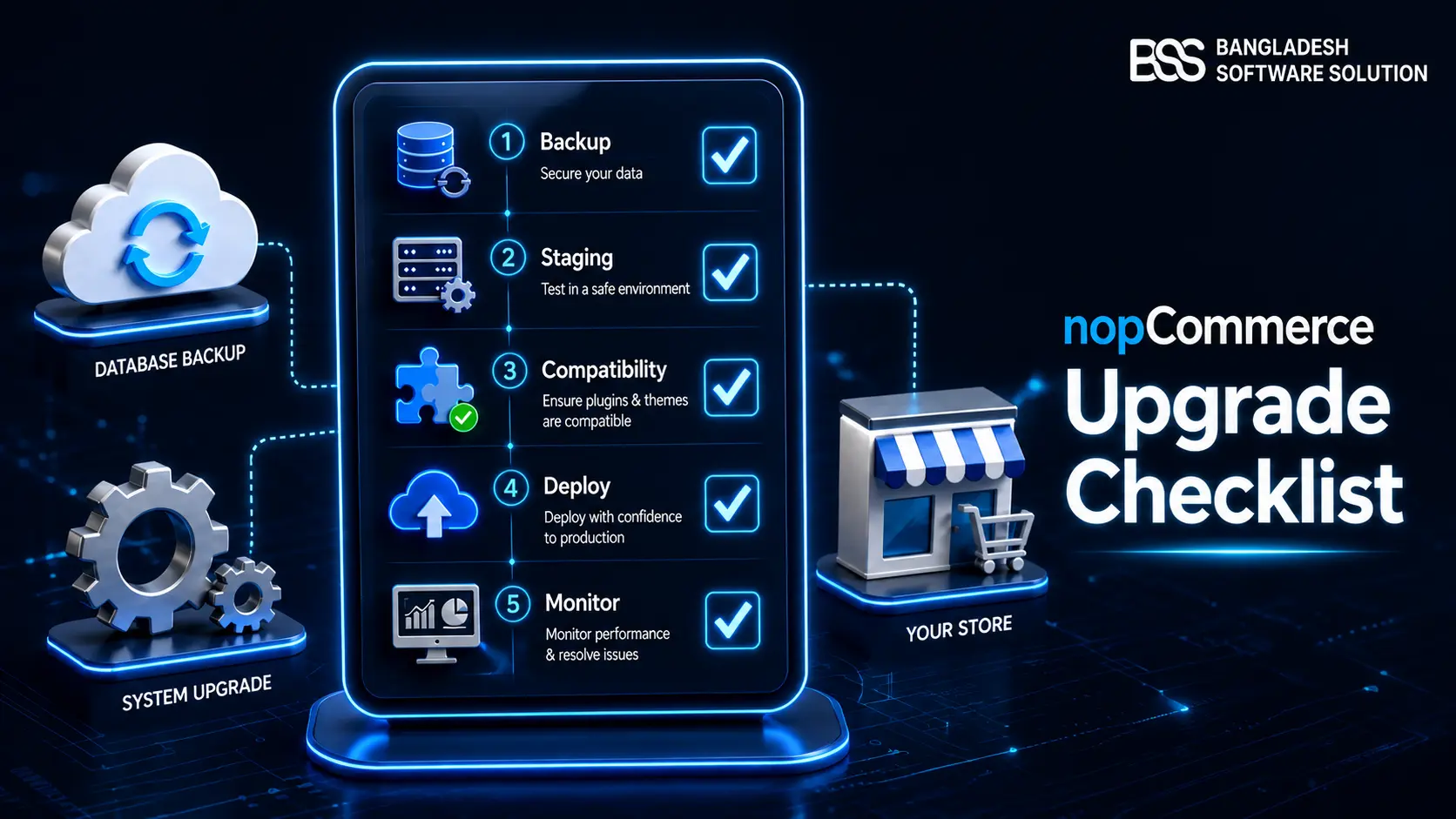
NopCommerce upgrade checklist work is less about clicking through a version change and more about protecting revenue, data, integrations, SEO, and checkout stability. The upgrade itself may be straightforward; the risk comes from untested plugins, theme overrides, appsettings.json differences, database changes, and missed rollback steps.
In our deployments, the safest upgrades are treated like small release projects. We prepare a staging copy, test the exact upgrade path, validate plugins and themes, rehearse the rollback plan, and monitor the production store after launch instead of assuming the first application start will reveal every issue.
This guide gives you ten practical checks to run before and after every upgrade. It is written for store owners, developers, and technical teams who need a repeatable process rather than a one-time emergency fix.
The 10-Point nopCommerce Upgrade Checklist
Official nopCommerce documentation says upgrades are manual, and from version 4.40 onward database upgrades are performed automatically through migrations during the first application start rather than through SQL upgrade scripts. That makes preparation more important, not less important, because the first start of the upgraded app is now part of your production risk if you skip staging.
The current nopCommerce download page lists version 4.90.6 as the current release as of July 17, 2026. Always verify your exact source and target version before planning, because older upgrade paths can require different handling.
Before the Upgrade: Build a Safe Upgrade Window
1. Confirm the exact upgrade path
Start with the current version, target version, hosting stack, database server, .NET runtime, deployed package type, custom code, and installed plugins. Do not assume a direct jump is safe for every older store; official nopCommerce notes still call out special handling for older 3.x to 4.x paths and pre-4.40 SQL script upgrades.
For a developer-heavy store, pair this with the architecture overview in Developers Choose NopCommerce so your team understands where custom code, plugins, and theme overrides are likely to break.
2. Take a real backup before nopCommerce upgrade work starts
A proper backup before nopCommerce upgrade includes the database, application files, App_Data files, plugin folders, theme folders, uploaded files, image folders, certificates or keys where applicable, and any scheduler/integration configuration outside the web root.
Do not call the backup complete until you have restored it to a separate environment. A backup that cannot be restored under pressure is just a false sense of control.
3. Create a nopCommerce staging environment
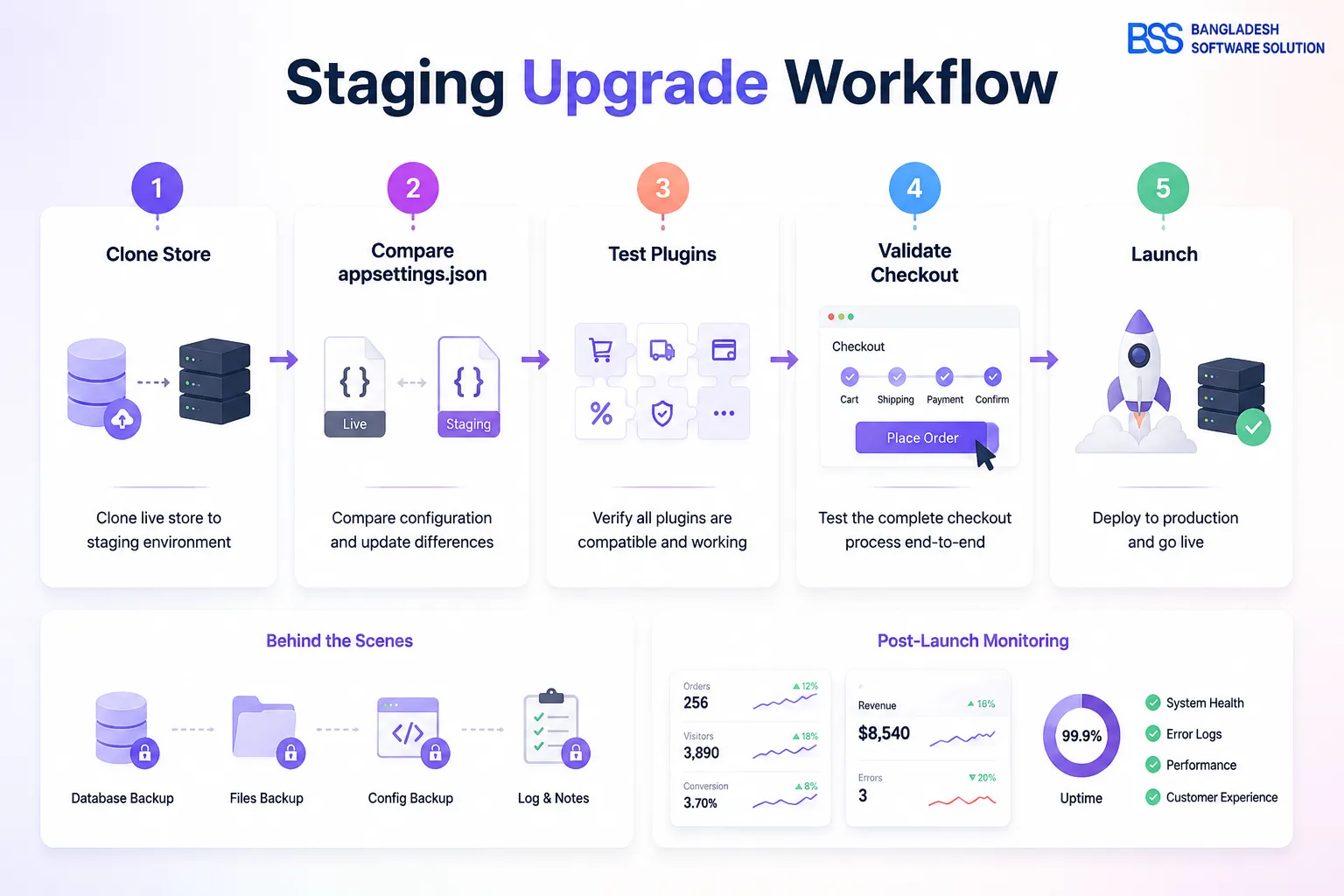
Your nopCommerce staging environment should match production closely: same nopCommerce version before upgrade, same database copy, same plugins, same theme, comparable hosting, and safe versions of payment, email, shipping, and ERP integrations.
Block public indexing on staging, disable real customer emails, and make sure test credentials cannot charge live customers. A common mistake we see is using staging only for visual review, while checkout, scheduled tasks, search, and plugin workflows are never exercised.
Insider warning: clone configuration deliberately
When copying production into staging, immediately change payment sandbox keys, email delivery, cron/scheduler behavior, and external integration endpoints. A good staging environment should behave like production without touching production customers, production payment accounts, or production inventory feeds.
Check Plugins, Themes, and Custom Code
4. Validate plugin compatibility before replacing files
nopCommerce plugin metadata includes supported versions in plugin.json. That file is not a guarantee of business behavior, but it is an early compatibility signal that should be checked before deployment.
List every plugin by system name, version, vendor, purpose, target-version availability, license status, configuration dependency, and whether it is business-critical. Payment, shipping, tax, search, ERP, B2B, and checkout plugins should be tested as full workflows, not just installed successfully.
For a deeper compatibility process, use our guide on testing plugin and theme compatibility before upgrading nopCommerce.
5. Review theme overrides and front-end assets
Theme issues usually appear as broken layouts, missing partial views, old CSS assumptions, JavaScript conflicts, and checkout rendering problems. Compare your theme files against the target version's default theme structure before you assume the public storefront is ready.
If your store has heavy theme customization, review how to install and change a theme in nopCommerce for the admin paths and theme handling basics, then test your custom theme on staging.
6. Review custom plugins and integrations
Custom code should be compiled against the target nopCommerce version, tested with the target plugin model, and validated against real scenarios. Pay special attention to event consumers, scheduled tasks, dependency injection, admin pages, checkout overrides, and integrations that call external APIs.
| Upgrade area | What can fail | How to test it |
|---|---|---|
| Payment plugins | Checkout callbacks, capture/refund flow, token settings | Run sandbox orders, refunds, failed payments, and abandoned checkout cases. |
| Theme overrides | Broken views, CSS regressions, missing scripts | Compare product, category, cart, checkout, account, and mobile layouts. |
| Custom integrations | Wrong API endpoint, auth failure, changed payloads | Run inventory, order export, customer sync, and failure retry tests. |
| Search and cache | Stale results, slow pages, broken cache provider settings | Rebuild search/catalog indexes, warm cache, and test high-traffic pages. |
Protect appsettings.json and App_Data
7. Compare appsettings.json before and after upgrade
The official appsettings.json documentation describes it as a central configuration file, and notes that settings can be overridden by environment variables. In practice, this means a safe appsettings.json upgrade is a comparison task, not a blind copy-paste task.
Keep production database connection strings, cache settings, hosted service flags, data protection settings, and environment-specific values under control. Official upgrade guidance also notes that appsettings.json and plugins.json in App_Data should be preserved and updated for the target version.
For version 4.50 upgrades from earlier versions, official guidance specifically calls out connection string encryption parameters related to Microsoft.Data.SqlClient behavior. That is a good example of why reading version-specific notes matters.
8. Check permissions, media, and generated files
nopCommerce installation documentation lists writable directories such as App_Data, bin, Logs, Plugins, uploaded plugin folders, images, thumbs, files, sitemaps, and related web root folders. After deployment, verify the upgraded app can write logs, generate thumbnails, load plugins, and access media.
If your store stores pictures on the file system, official upgrade documentation says to back up the image folder and copy it back after the upgrade. Missing media is one of the fastest ways to make a technically successful upgrade look broken to customers.
After the Upgrade: Validate the Store Before Calling It Done
9. Run smoke tests and business workflow tests
After the upgraded application starts successfully, test the storefront as a customer and as an admin. Confirm homepage, categories, product pages, search, cart, checkout, account registration, login, password reset, email templates, payment, shipping, tax, order placement, and admin order processing.
Then test the store-specific workflows that generate revenue: B2B pricing, quotes, subscriptions, marketplace/vendor features, loyalty rules, custom checkout fields, product feeds, ERP sync, and reporting. For B2B scenarios, our guide on whether nopCommerce is right for B2B stores can help frame the workflows that need explicit validation.
10. Monitor logs, performance, SEO, and conversion paths
The first production hours matter. Watch application logs, server logs, database CPU, memory, slow pages, search results, broken images, failed scheduled tasks, payment failures, 404s, and customer support tickets.
If the upgrade touches hosting, runtime, caching, or SQL behavior, review the nopCommerce hosting guide, nopCommerce caching guide, and database indexing and query tuning guide before launch.
Printable nopCommerce upgrade checklist
- 1Confirm source version, target version, hosting stack, database server, .NET runtime, and upgrade path.
- 2Back up and test-restore database, files, App_Data, plugins, themes, images, uploads, and integration configs.
- 3Build a nopCommerce staging environment that mirrors production without touching real customers.
- 4Validate every plugin's target-version availability, supported versions, license, and full business workflow.
- 5Compare theme overrides and test product, category, cart, checkout, account, and mobile views.
- 6Rebuild and test custom plugins, scheduled tasks, integrations, API flows, and admin screens.
- 7Compare appsettings.json, plugins.json, environment variables, connection strings, cache settings, and App_Data files.
- 8Verify permissions, logs, uploaded files, images, thumbnails, sitemaps, plugin folders, and media paths.
- 9Run smoke tests, checkout tests, payment tests, order admin tests, email tests, and customer account tests.
- 10Monitor logs, 404s, performance, scheduled jobs, payment failures, conversion paths, and customer tickets after launch.
How BSS Helps With nopCommerce Upgrade Projects
Bangladesh Software Solution works with nopCommerce upgrades as controlled release projects. That usually means we audit the current store, review plugin and theme compatibility, prepare staging, compare appsettings.json and App_Data, test business workflows, and support production launch.
For stores with custom plugins, integrations, B2B logic, or large catalogs, BSS can help reduce upgrade risk by turning the checklist into a tested implementation plan. Our nopCommerce services page is the best starting point when you need hands-on upgrade support.
Need a Safer nopCommerce Upgrade?
BSS can help plan, stage, test, and launch your upgrade with plugin checks, theme validation, configuration review, rollback planning, and post-launch monitoring.
Frequently Asked Questions
Final Thoughts
nopCommerce upgrades are much safer when they are treated as controlled release work instead of last-minute maintenance. The strongest process is simple: back up, stage, test compatibility, compare configuration, deploy carefully, and monitor after launch.
Reference points checked: official nopCommerce upgrade documentation, official nopCommerce appsettings.json documentation, official nopCommerce plugin documentation, official plugin.json documentation, official installation permission documentation, and the nopCommerce download page. They are named in plain text to keep this article free of third-party outbound links.


