Key takeaways
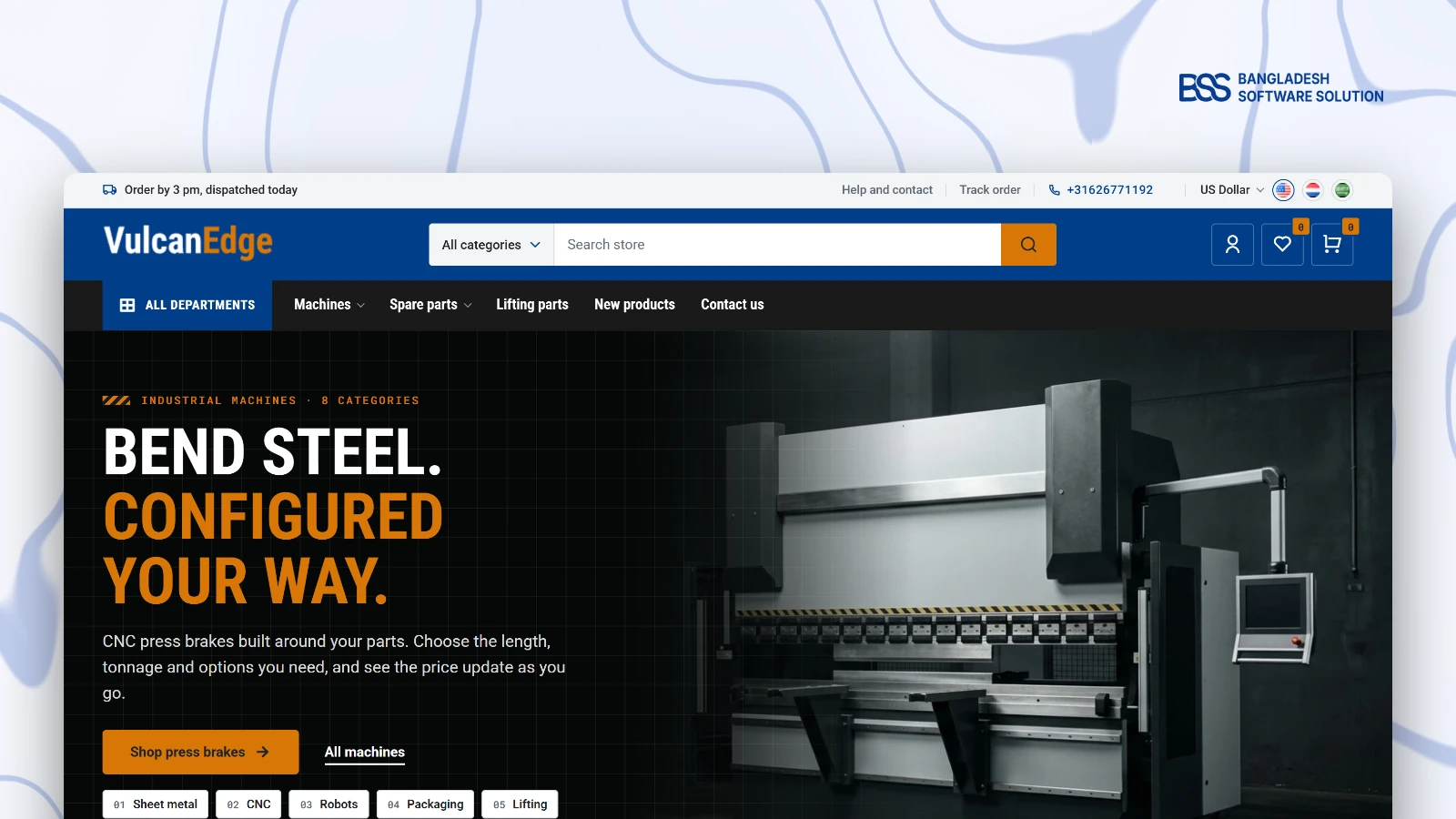
- VulcanEdge is a nopCommerce 4.90 and 5.00 theme for machinery, industrial equipment, tools and spare parts stores. Nineteen plugins come in the bundle.
- A machine page can walk a buyer through size and options in steps, and show the price and the build time as they choose.
- Department menus with pictures, side-by-side compare, QuickView and a one-page checkout are part of the bundle.
- The live demo store has sixteen departments, eight for machines and eight for spare parts, so you can test a wide catalogue before you buy.
Selling a press brake online is a different job from selling a drill bit. The machine has a bed size, a tonnage and a lead time, and the buyer wants to set those before anyone sends a quote. The drill bit needs a clear photo, a stock line and a fast checkout.
We built VulcanEdge, an industrial ecommerce theme for nopCommerce, for stores that sell both. We build and sell it, so weigh our view accordingly. Everything below can be checked on the live demo store.
This guide covers which stores it fits and which it does not, the product pages, the menus and home page, the buying tools, and what the 19 plugins and the setup involve.
Which Industrial Stores VulcanEdge Fits
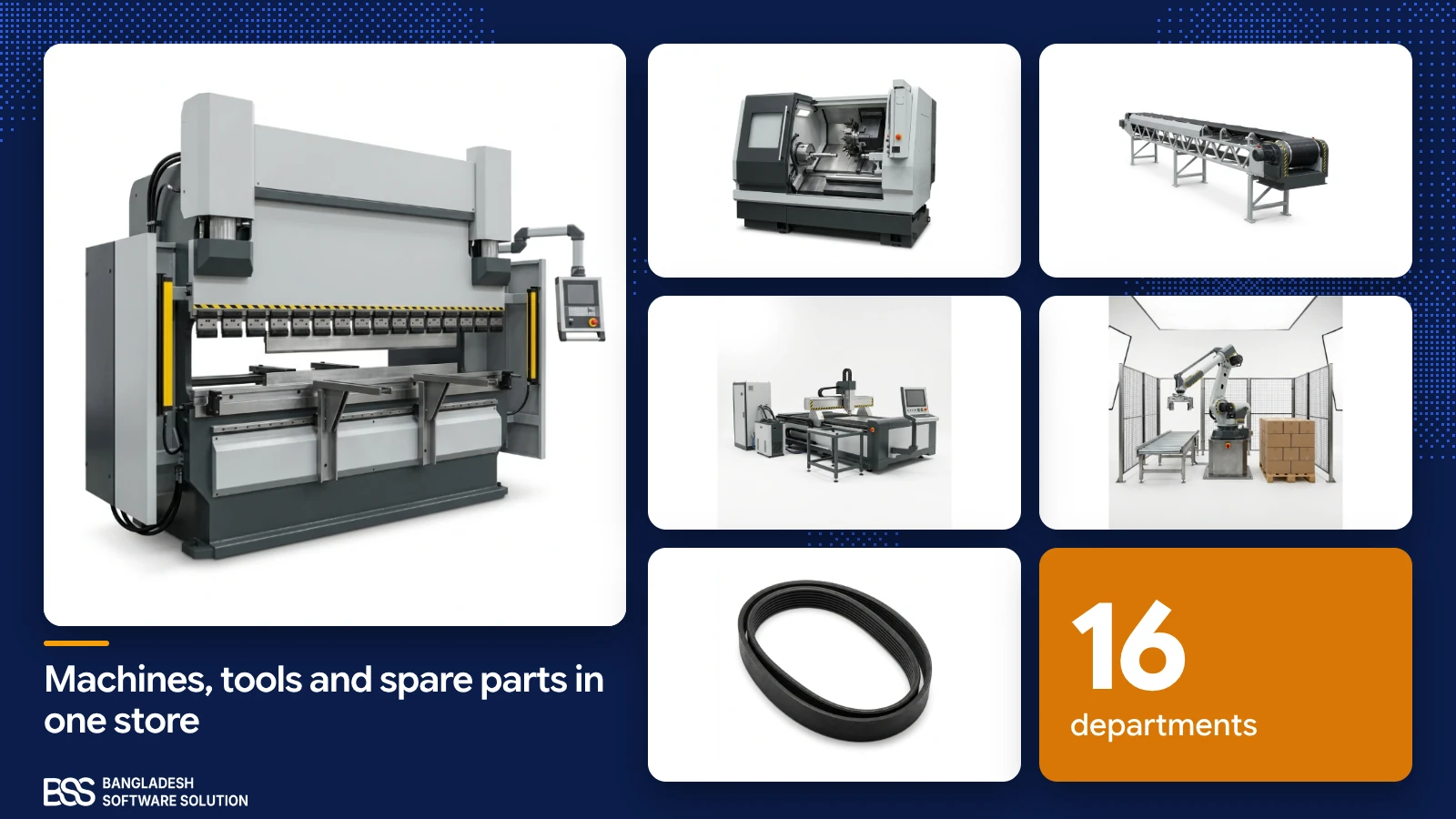
VulcanEdge is made for machinery, industrial equipment, power tools, spare parts and MRO products, whether you run an online machinery store, an industrial supplies webshop or a tools and equipment ecommerce site.
It assumes a catalogue with departments. The demo has eight machine departments, from machining and robots to conveyors and sheet metal, and eight spare parts departments under a second menu item. Each department has its own page and its own picture in the menu.
Here is how the demo catalogue maps to what you sell:
| If you sell… | The demo shows |
|---|---|
| Machines built to order | Machine pages that take a buyer through size and options, such as the CNC router. |
| Spare parts, tools and consumables | A Spare parts department of plain product pages, each with a stock line, a price and Add to cart. |
| Machines and the parts that wear out | One catalogue with both: a Machines menu and a Spare parts menu side by side. |
| Tool sets and service kits | Combo Products, which comes with the theme, sells a kit as one product at one price. |
The Spare parts menu has eight departments of its own, from conveyor parts and sheet metal tooling to welding and finishing parts., so the stock side of the catalogue gets the same menu and the same cards as the machines.
When VulcanEdge is the wrong pick
It needs nopCommerce 4.90 or 5.00. A store on 4.80 or older upgrades first, and our list of nopCommerce 5.0 themes shows which themes are ready for the new version.
VulcanEdge is a storefront theme. Nothing in its feature list covers an ERP link, a CAD viewer or a punch-out feed, so a plan that needs one is custom work next to the theme. If you sell one narrow product family, compare a theme built around it.
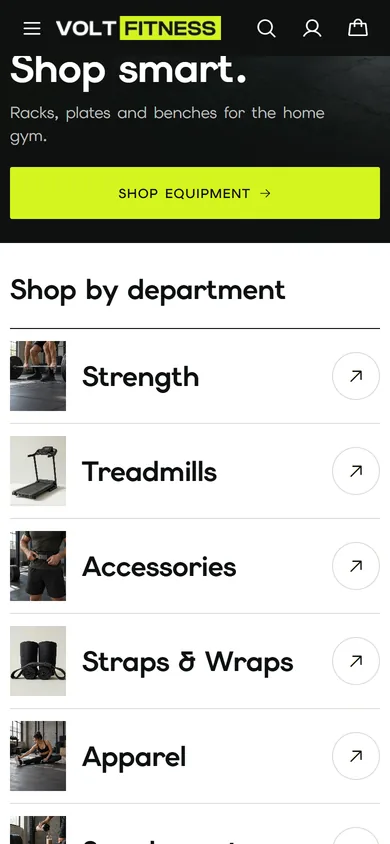
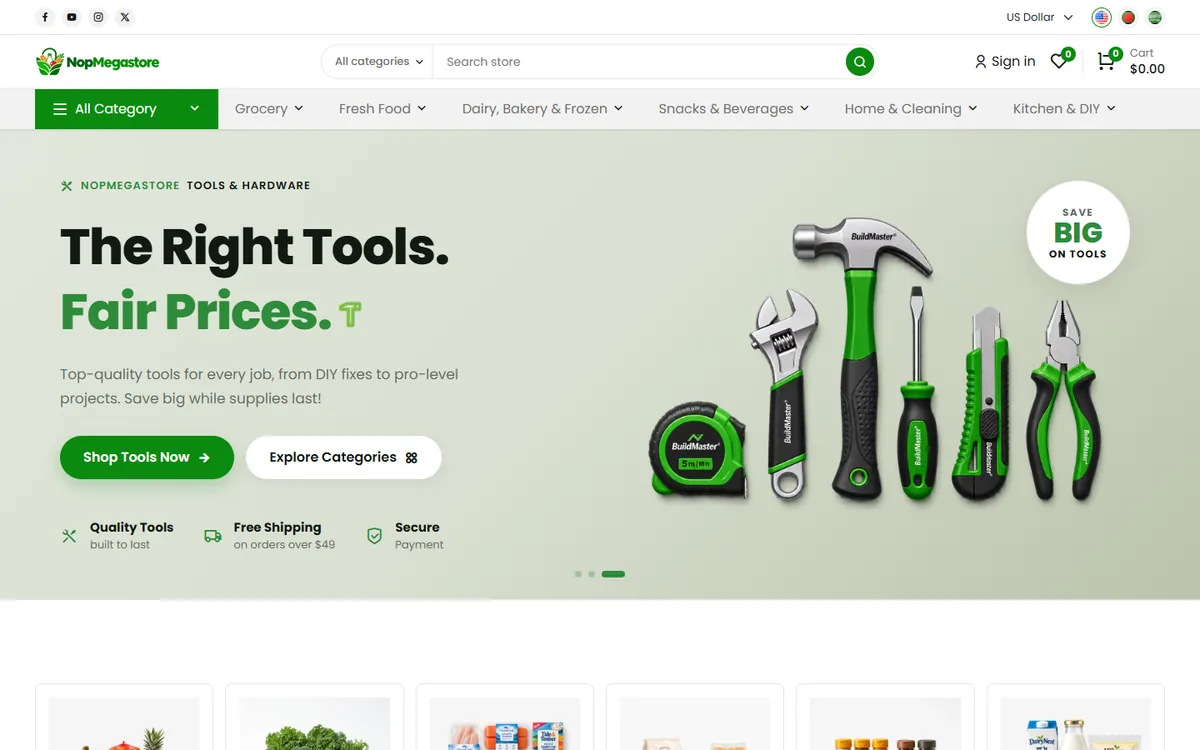
Selling something other than machines? Compare these
All themes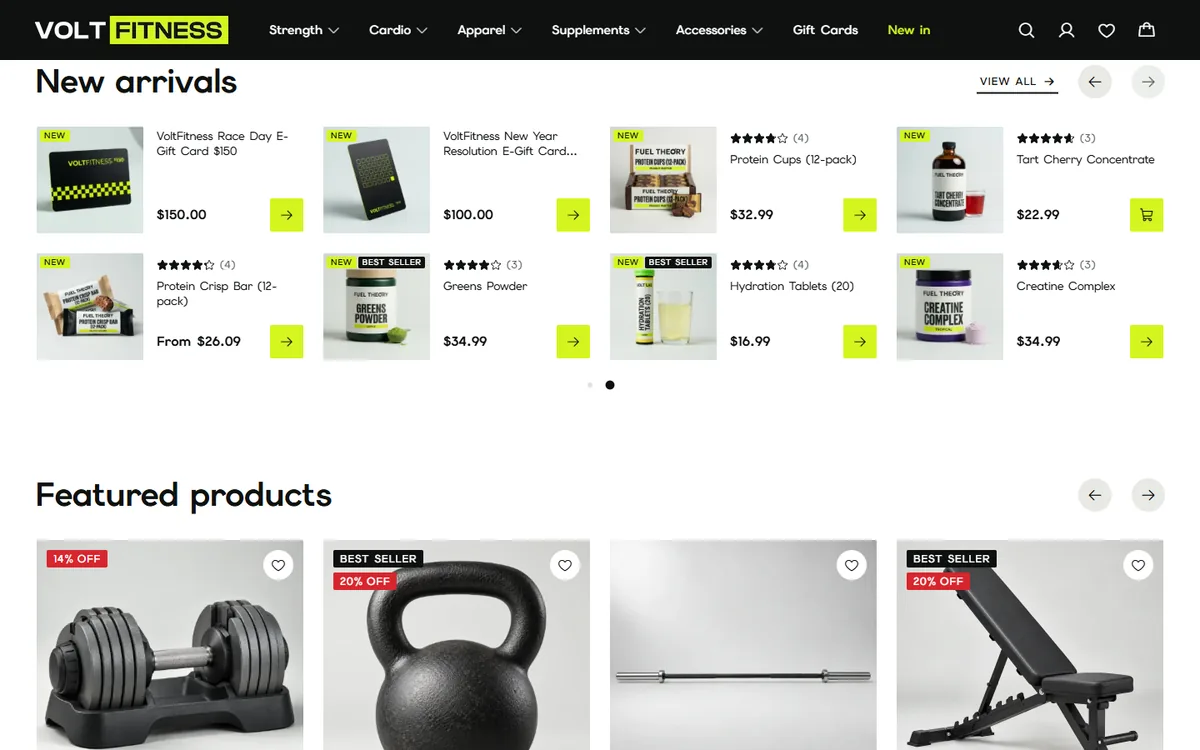

We filled the demo with sixteen departments on purpose. A catalogue that wide is where a menu, a filter and a product page get tested, so open a few machines and a few parts before you decide.
See VulcanEdge and its demoRather not set it up yourself? Ask the BSS team about installation before you buy, or choose Installation support on the product page.
See the optionsProduct Pages Built Around Specs and Options
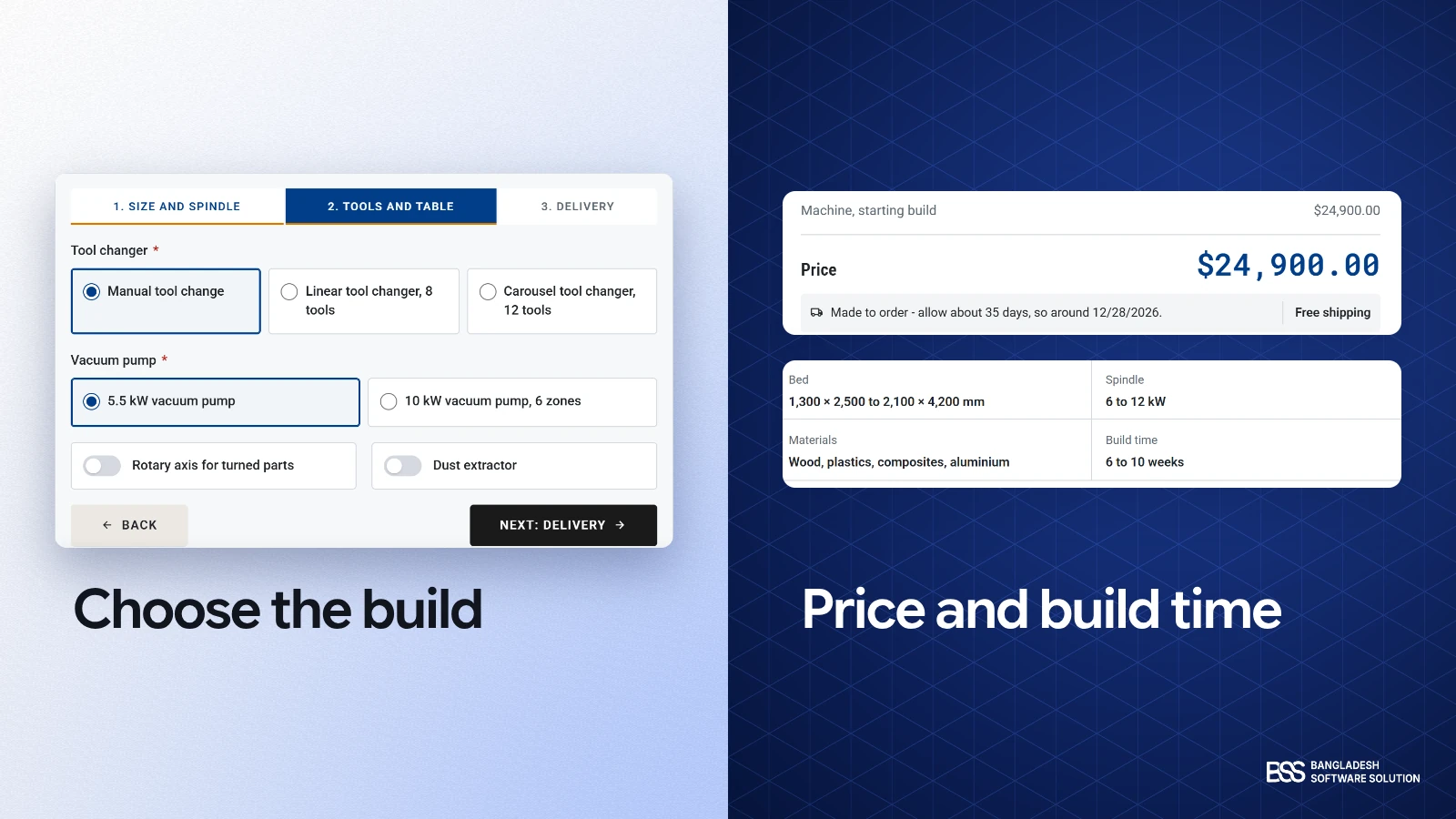
The demo's CNC router shows what the theme is for. The page has three steps: Size and spindle, Tools and table, and Delivery.
In step one the buyer picks a bed size from 1,300 × 2,500 mm to 2,100 × 4,200 mm and a 6, 9 or 12 kW spindle. The largest bed carries a note, Quoted by our engineers.
Step two covers the tool changer, a vacuum pump of 5.5 or 10 kW, and two switches, a rotary axis and a dust extractor. Step three is delivery. Beside the steps the page keeps a price card, which starts at $24,900.00 on the demo, with the build time under it: made to order, about 35 days.
The product page says a buyer can add the configured machine to the cart or request a quote, and can save a configuration and come back to it later.
Under the gallery, an At a glance card lists the first specifications of the table: bed, spindle, materials and build time on the router. It shows 2, 4 or 6 of them, or none. The description and the specifications can sit side by side, in separate sections or in tabs.
A machine on the demo has six photos above the steps, from a studio view to a close-up of the spindle. Product Image Gallery adds the zoom modes and a full-screen view, and puts the thumbnails at the bottom or on the left.
A sticky buy bar keeps the price, the quantity, Add to cart, the wishlist and compare buttons in view while the buyer scrolls. SKU, manufacturer part number and brand sit under the product name, which is where a buyer who already knows the part looks first.
Check what your bundle includes
The product page lists the Product Configurator among VulcanEdge's features, and the demo runs it. The configurator is a separate BSS plugin that the theme is styled for. Ask us which plugins your bundle contains before you plan configurators around it.
Open the CNC router and the spindle belt set on the demo, and compare a made-to-order page with a stock page.
Category pages and product cards
Product cards come from Product Box. You pick the photo shape, square, portrait or landscape, and whether a photo shows whole or fills the frame. The Add to cart button on a card can be filled, outlined, a text link or a floating icon.
Cards carry New and Best seller ribbons, and a configurable machine shows a Choose options or Configure button where a part shows Add to cart.
On a category page a Filters button and a sort list sit above the grid, and the home page can load more rows of featured products on request, from 1 to 12 rows at a time.
Department Menus and a Home Page You Edit
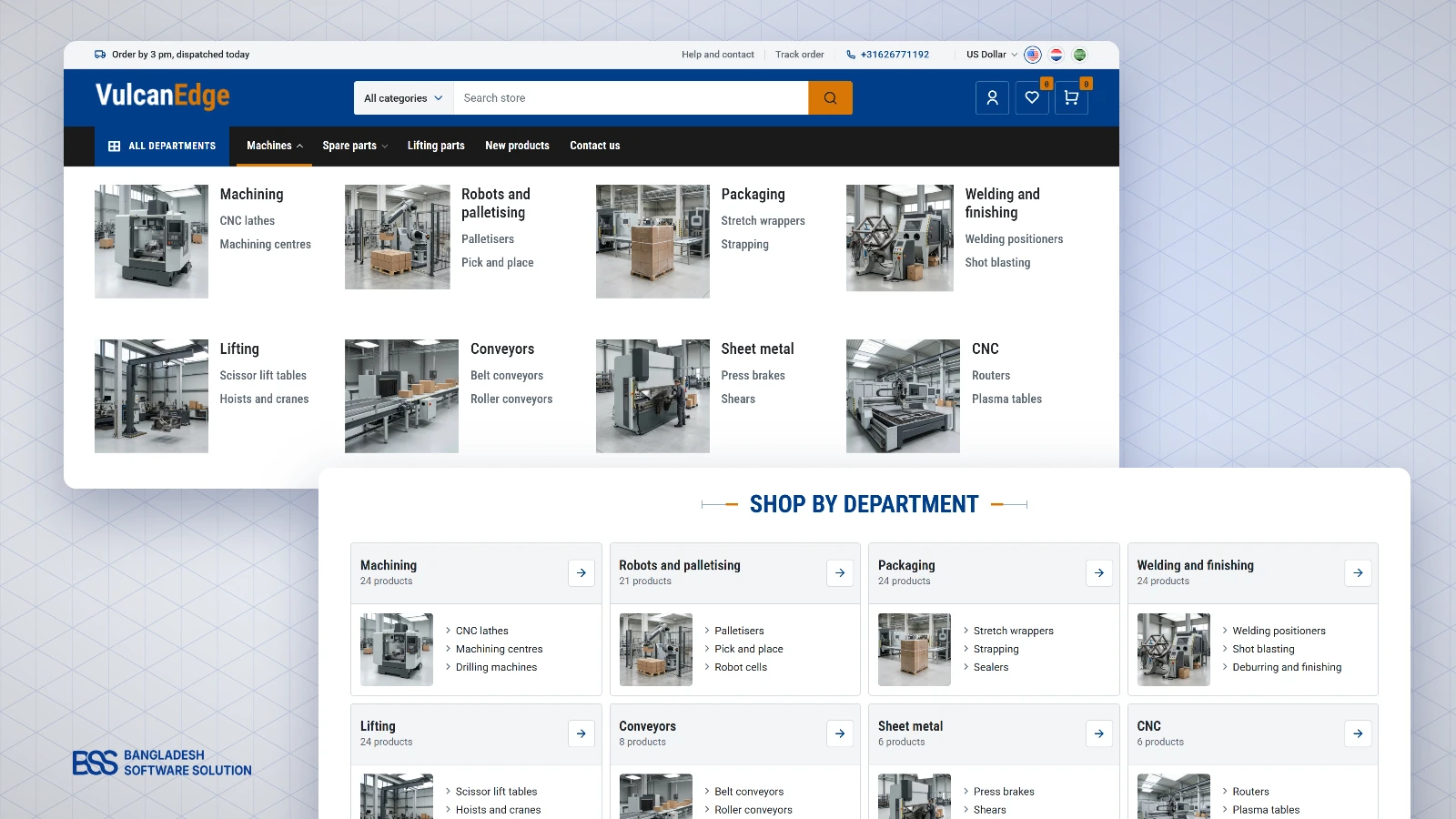
VulcanEdge puts an All departments button at the start of the menu row, and it lists your top-level categories and their subcategories. Hover Machines on the demo and a panel opens with a picture for each department and its subcategories.
The panel layout is a setting: columns only, columns with a spotlight, columns with products, image tiles, or columns with a promo zone. The promo content comes from a widget zone, and one menu item can override the layout for itself.
Dropdowns open as a card or as a full-width panel, and long menus move extra items into a More item or onto a second row.
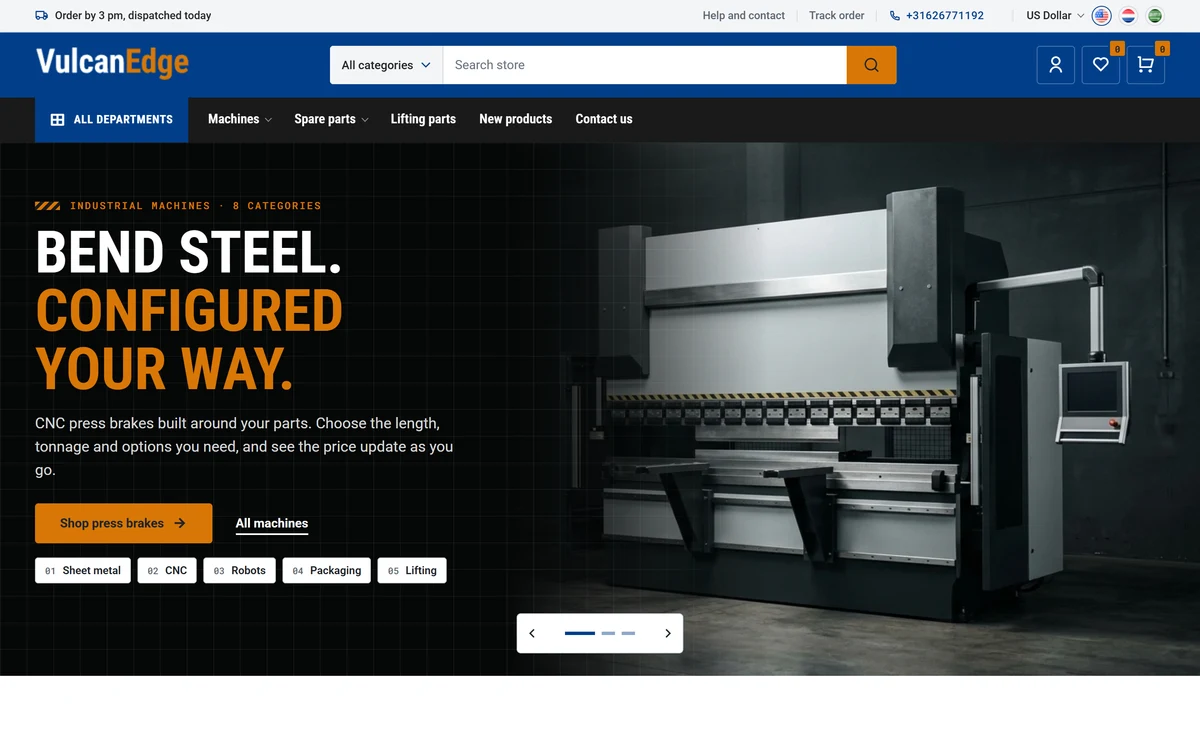
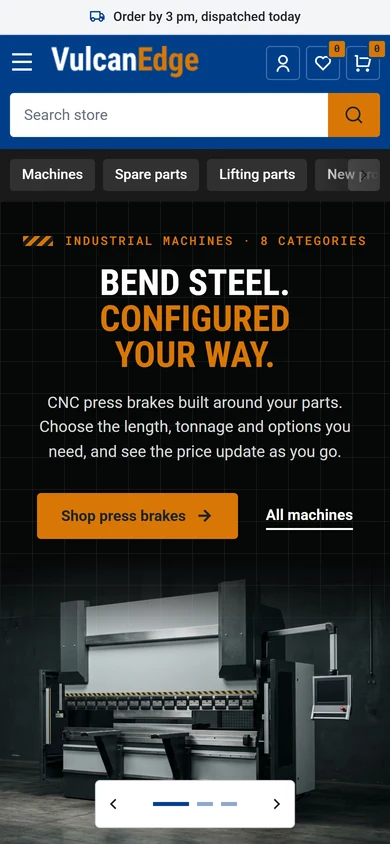
The strip above the header carries a short message, such as Order by 3 pm, dispatched today, and the store phone number. The logo can sit on the left or in the centre, with its own width for desktop and phone.
| On the demo home page | Where you change it |
|---|---|
| Shop by department | Homepage category style: department cards, photo tiles or editorial, with a title and subtitle per language. Each picture comes from a product or from the category. |
| Featured products with Load more | The number of rows shown first, and the rows added per Load more, from 1 to 12 each. |
| Seasonal offers with a countdown | The Dynamic Sales Carousel: a promotional product carousel with countdown timers. |
| Your own bands, such as a four-step explainer | Anywhere Component: a content block placed in any widget zone, edited in the Visual Editor. |
| The newsletter band in the footer | Upload your own picture on the Configure page, or keep the theme photo. |
The Visual Editor opens those blocks for drag-and-drop editing, so you change words, pictures and links without writing HTML. It also has an AI bridge, which lets an AI assistant edit a design from a description.
We edit the pages of this store through the same Visual Editor and its AI bridge, and this post went into the store that way. If you can describe a home page band, an assistant can build the block.
See the Visual Editor pluginCompare, QuickView and One-Page Checkout
Industrial buyers compare before they buy. Advanced Product Compare puts products on one page with a search box for adding more, and a switch, Show differences only, that hides every row two products share. The rows cover price, rating, availability and specification groups such as Capacity.
QuickView opens a product from any grid without a page load. On the demo it shows a configurable machine with its steps, the price bar and Add to cart inside the pop-up, so a buyer can pick a belt width and an abrasive before they ever see the full page.
After Add to cart, the demo shows a confirmation with Continue shopping and Go to cart. A setting swaps that for a side cart that slides open. The cart drawer lets a buyer change quantities and see the subtotal before checkout.
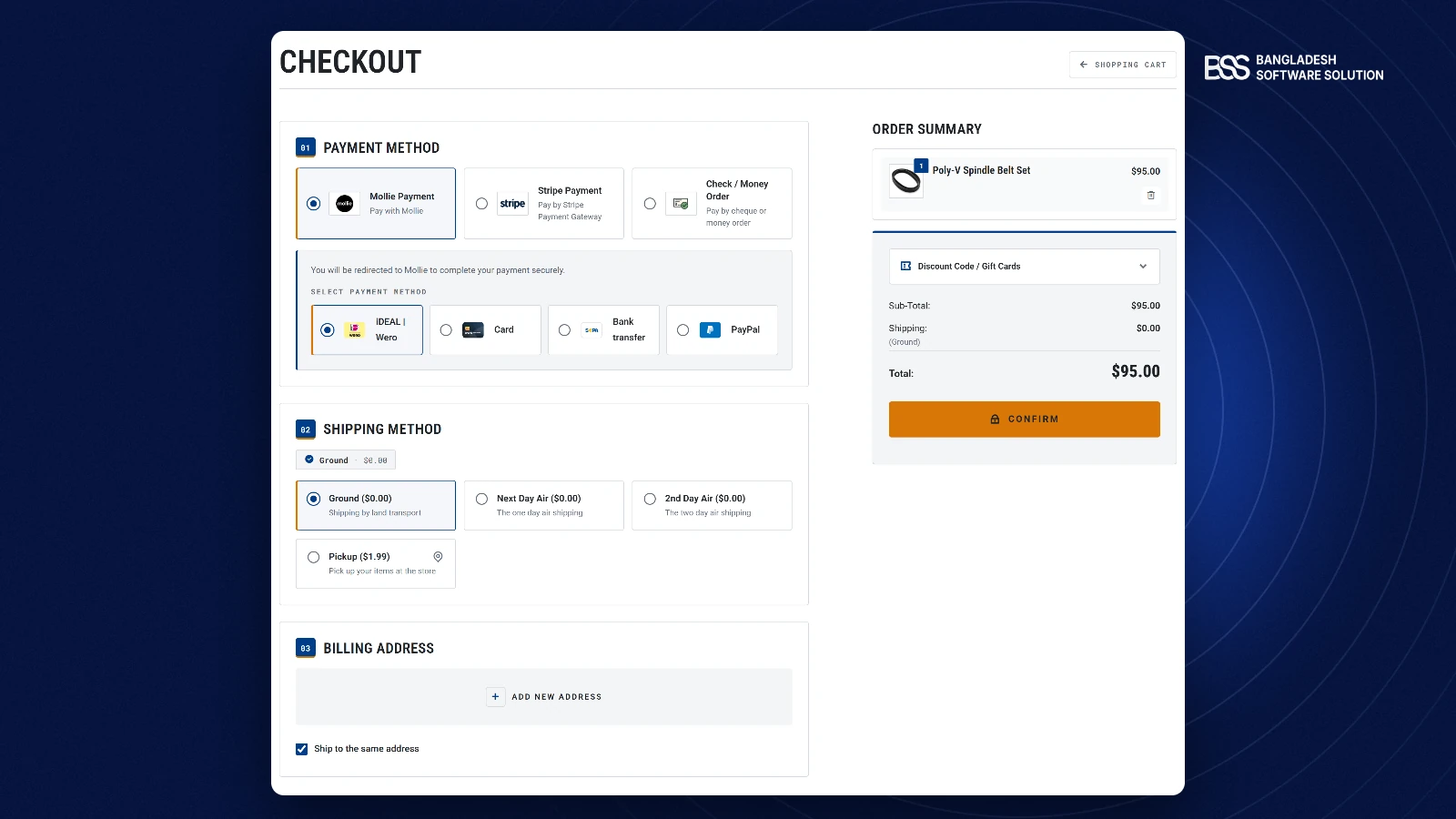
Checkout is one page. Payment method, shipping method and billing address sit in three numbered boxes, with the order summary beside them and a Confirm button under the total. A Discount Code or Gift Cards box opens inside the summary, and on a phone the sections stack in one column.
Two more plugins matter after the order. Payment Change lets a buyer retry a failed payment or switch to another method without a new order, and Sendcloud adds delivery services and a pickup point picker on a map.
Showing tax the way buyers expect
VulcanEdge has a VAT display group. You choose how tax shows on product cards and on the product page, whether a small tax line sits under the subtotal or the total, and whether it states the VAT amount, the percentage or both.
The demo header has a currency switch, with US Dollar and Euro. Combo Products suits a store that sells a tool set or a service kit: it lists the included items, shows the saving against the original total, and keeps each item separate in the cart and the order.
What the 19 Plugins and the Setup Cover
The bundle holds the theme, BSS Core and the plugins the demo uses. The product page describes 19 plugins in all, and these are the ones it explains in detail. Most are also sold on their own in this store.
| Plugin | What it does in VulcanEdge |
|---|---|
| Product Box | The product card in every grid: lazy photos, a swipeable image carousel, a hover photo, and colour, image and radio-style attribute choices. |
| QuickView | Opens a product from a grid in a pop-up, with its attributes, reviews, SKU and Add to cart, wishlist and compare buttons. |
| Advanced Product Compare | A side-by-side compare page with product search and a switch that shows differences only. |
| Combo Products | Kits with fixed items, extras and one kit price, shown with the saving against buying each item. |
| Product Image Gallery | Zoom modes, a full-screen lightbox, thumbnails at the bottom or the left, and an autoplay slider. |
| Anywhere Carousels | The dynamic sales carousel: promotional products with countdown timers and Add to cart, wishlist and compare buttons. |
| Anywhere Component | Custom content blocks in any widget zone, with no code changes. |
| Visual Editor | Drag-and-drop page editing, with an AI bridge (MCP) that edits a design from a description. |
| One Page Checkout | Address, shipping and payment on one page, with coupons and gift cards applied without a reload. |
| Product Ribbon | New, Discount and Best Seller ribbons, set by the plugin from sales and discounts. |
| Payment Change | Lets a buyer retry or switch the payment method of an order after it is placed. |
| Sendcloud Shipping | Several delivery services, shipping prices before the order, and a pickup point picker on a map. |
Setting it up
VulcanEdge needs BSS Core first. The download holds the theme, BSS Core and the bundled plugins as separate zip files.
- Download the files from your Order Details page. In the admin, go to Configuration › Local plugins, upload the zips and install BSS Core and the VulcanEdge theme.
- Restart the application. In the app settings, turn off JavaScript and CSS bundling and minification if they are on; our setup guide recommends it.
- Pick VulcanEdge under General settings › Default store theme.
- Install the other plugins, filtering the list by the BSS group, then paste the licence key we email you under BSS › Core settings › License and clear the cache.
Install the bundled plugins
The demo's cards, product page and checkout come from these plugins, so a store without them will not look like the demo.
Choose Installation support on the product page and we do the installation for you.
Read the setup guideAfter that, every theme setting lives on one page, BSS › Themes › VulcanEdge › Configuration.
A colour preset, such as Navy and orange, sets the brand, background and border colours in one step. The storefront Theme Builder lets you try colours, fonts and layout live, and only the customer roles you allow can open it.
Settings an industrial store reaches for first
-
A header message above the logo, with your cut-off time or your delivery promise.
-
How many key specifications show in the At a glance card: none, 2, 4 or 6.
-
The menu panel layout, and whether All departments shows.
-
How a card adds to cart: filled button, outline, text link or floating icon.
-
The VAT display on cards, on the product page and under the totals.
-
A side cart that opens after Add to cart, or the standard confirmation.
The Single URL licence covers one domain. If you run more, our guide to single vs multiple domain theme licences helps you count them, and our theme demo checklist gives you twenty things to test on any demo, ours included.
VulcanEdge in your brand, with the features your catalogue needs
Need design changes, a plugin changed or an integration such as your ERP? The team that built VulcanEdge can tailor it to your store, starting with a free consultation.
Frequently Asked Questions
Final Thoughts
VulcanEdge is for a nopCommerce store with a wide industrial catalogue, where some products need options and a lead time and others need a clear stock line and a quick checkout. If that is your store, open the demo, change an option on the CNC router, compare two press brakes and run the checkout on your phone.
If you sell one narrow family of products, compare the other BSS themes first. If your plan needs an ERP link or a CAD viewer, talk to us before you buy anything.
Tell us what you sell and where it has to connect. The team that built VulcanEdge will tell you whether it fits, and what it would take to make it yours.
Talk to an expert