You changed styles.css, refreshed the storefront, and nothing moved. Or a plugin page reached production with raw, unstyled markup even though its CSS file exists in the deployment. When nopCommerce CSS is not loading, repeatedly editing selectors is usually the slowest way to find the fault.
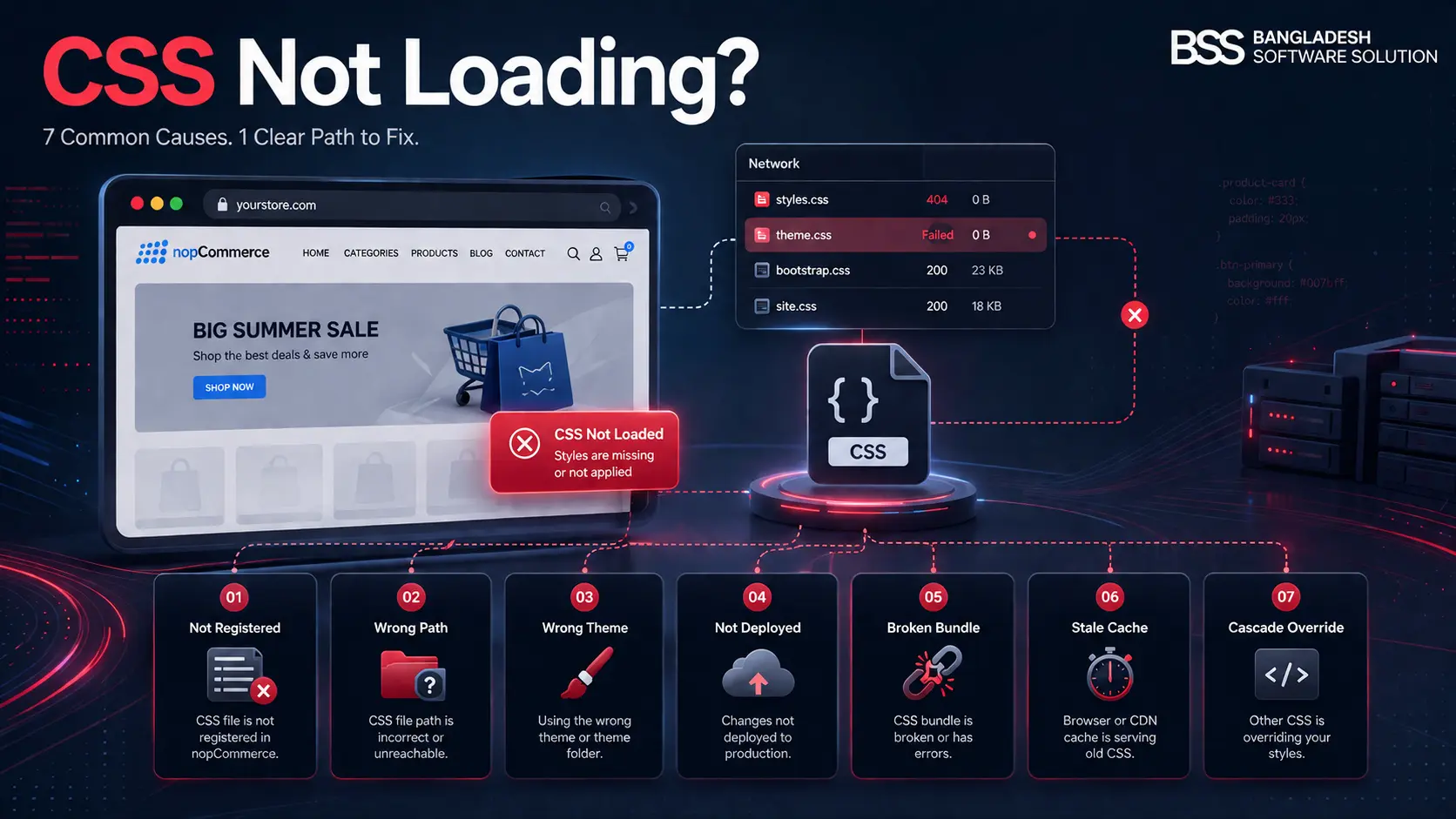
The useful first question is not “what CSS should I write?” It is where did the stylesheet pipeline break? This guide separates seven causes into three observable states: the browser never requested the file, the request failed, or the file loaded but its rules did not win.
Start in DevTools: open Network, filter by CSS, enable Disable cache, and reload. Then inspect the affected element in the Elements panel.
No request points to registration or layout. A 404/403/MIME error points to delivery. A 200 response with crossed-out rules points to the cascade, specificity, or source order.
Diagnose the Failure Before Changing Code
In our theme and plugin audits, the fastest investigations classify the symptom before touching the project. That keeps a missing resource reference from being mistaken for a specificity problem.
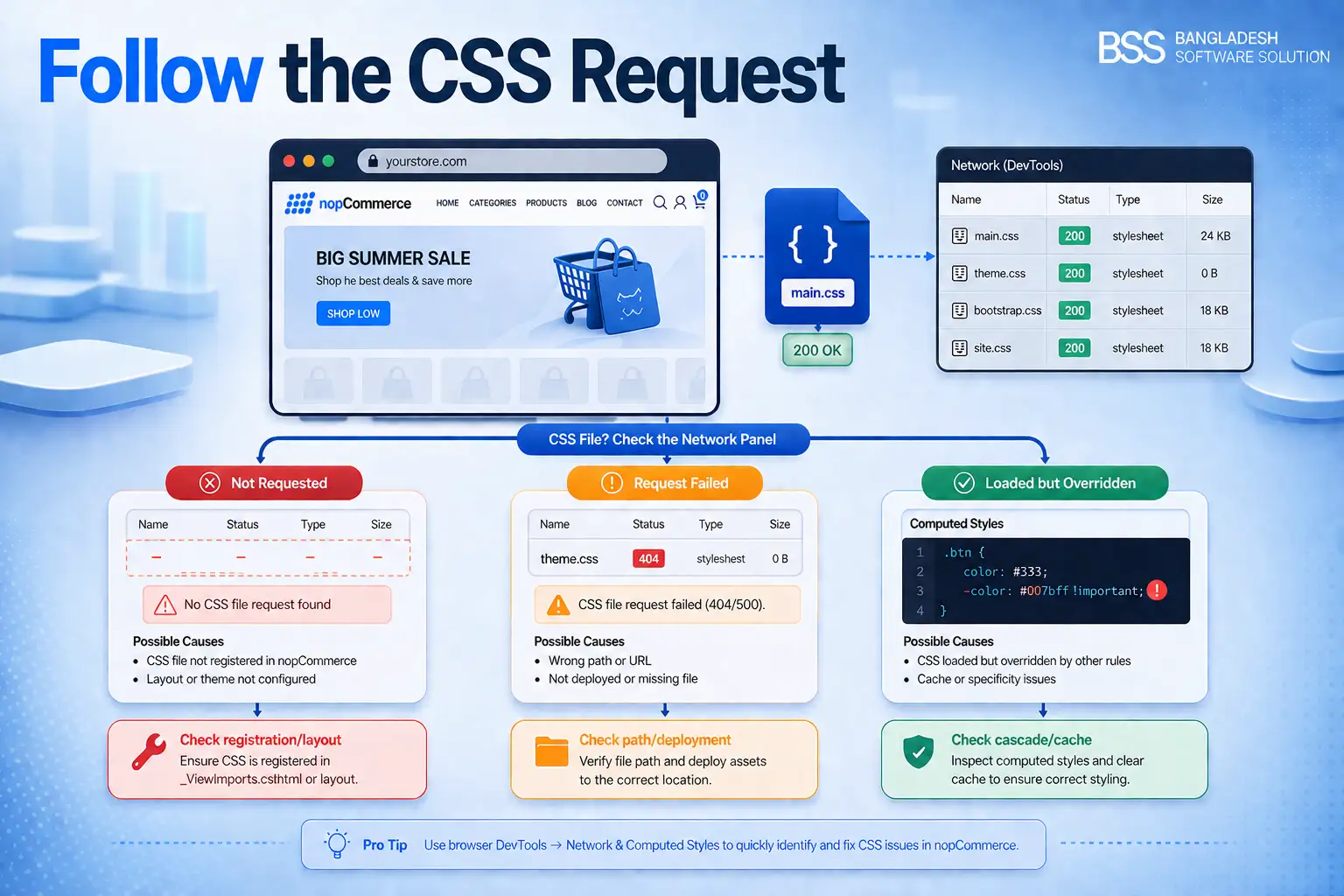
1. The Stylesheet Was Never Registered
A CSS file sitting in a theme or plugin folder is not proof that nopCommerce will emit a link for it. Plugin resources normally need to be registered from a view through INopHtmlHelper; theme resources must be included by the layout used by the storefront.
@{
    NopHtml.AddCssFileParts(
        "~/Plugins/Widgets.Example/Content/example.css",
        excludeFromBundle: false);
}
How to confirm: the file name does not appear in Network or the rendered page source. Put a breakpoint in the view, confirm the view executes, and verify that the resource is registered before the layout generates CSS resources.
Fix: register the file in a view that actually renders for the target page, or include it in the active theme’s head/layout resource setup. For a broader plugin structure refresher, continue with our nopCommerce plugin development walkthrough.
2. The CSS Path or File Name Is Wrong
If the browser requests the stylesheet but receives 404, inspect the exact request URL. Common mistakes include a missing ~, an incorrect plugin system-name folder, a renamed Content directory, a relative URL resolved from the current route, and letter-case differences that worked on Windows but fail on Linux.
Fix: copy the failed request URL, map it to the deployed web root, and verify every directory and character. Use an application-root path such as ~/Plugins/Widgets.Example/Content/example.css when registering plugin resources. Avoid guessing from the source-project path; inspect the actual publish output.
Linux deployment warning
Styles.css and styles.css may behave like the same file during local Windows development but are different names on a case-sensitive Linux filesystem. Match the deployed casing exactly.
3. You Edited the Wrong Theme or Layout
The CSS request may be absent because the storefront is not using the theme or layout you edited. A multi-store configuration can select different themes per store, and a theme may override shared layouts or views. The nopCommerce layout chain ultimately controls which resource registrations reach the page head.
Fix: confirm the active store and theme in administration, inspect the live page’s stylesheet URLs, and add a harmless temporary marker comment or declaration to the file being served. Check both the theme override and the base Views/Shared layout before assuming your edit path is active.
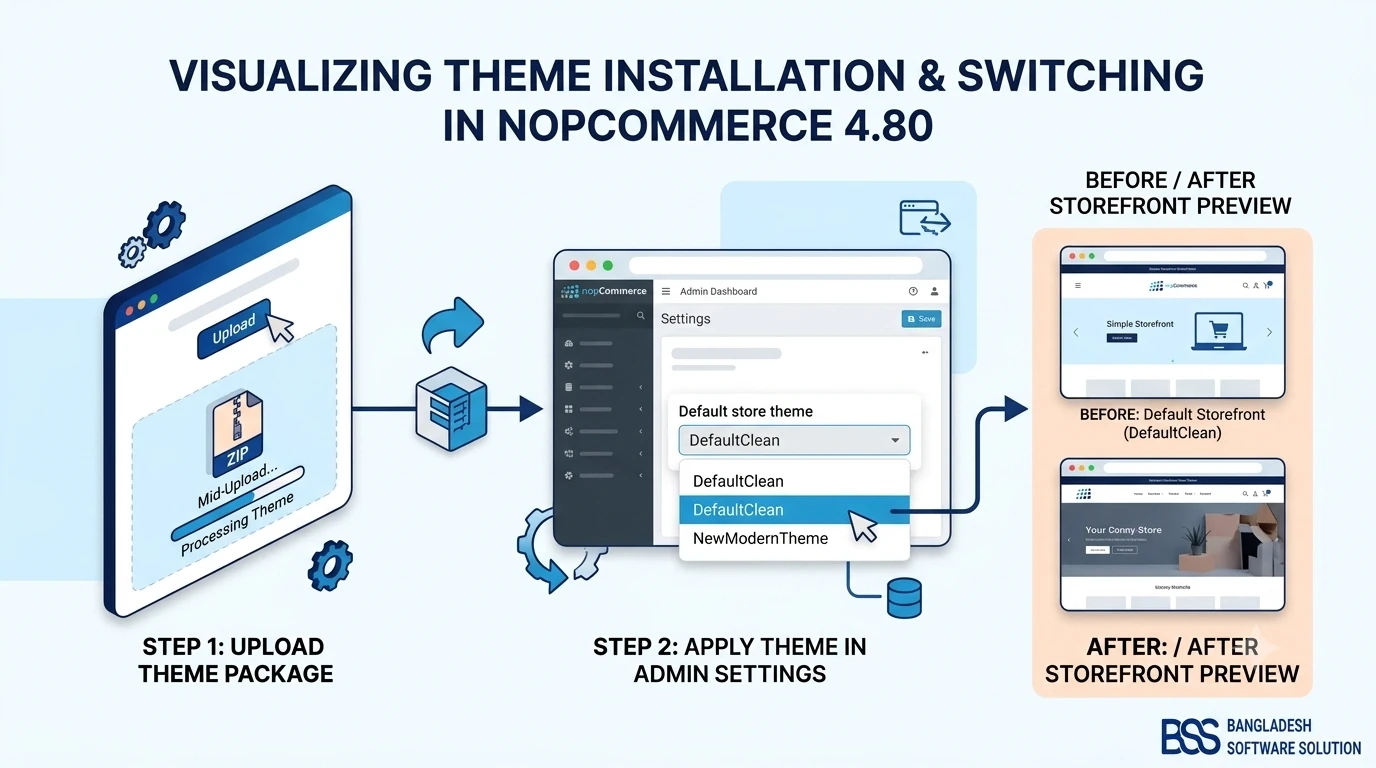
If theme selection or installation is the uncertain part, use the exact admin workflow in How to Install & Change a Theme in nopCommerce 4.80.
4. The File Was Not Published or Cannot Be Served
A correct reference still fails when the CSS file never reaches the server, is excluded from the project output, has restrictive permissions, or is intercepted by a reverse proxy. A 403 suggests authorization or server rules; a 404 with the file missing from publish output points to deployment; a 200 response containing HTML often means a fallback or error page was returned instead of CSS.
Fix: inspect the published artifact before deployment and the destination after deployment. Verify that the plugin’s static content exists under the deployed Plugins/<PluginName> directory, the application identity can read it, and the response has a CSS content type. Correct the project’s content-copy/publish settings when the asset never enters the artifact.
5. WebOptimizer Is Serving a Stale or Broken Bundle
nopCommerce uses WebOptimizer settings for CSS bundling, minification, and caching. When bundling is enabled, the browser may request a generated bundle rather than your source file. A stale disk or memory cache can hide changes; one malformed or missing input can also affect bundle generation.
How to confirm: compare behavior with CSS bundling disabled in a safe development or staging environment. Inspect the generated bundle response and search for a distinctive rule from your source file.
Fix: correct the bad input first, clear the application cache, restart the application when appropriate, and remove only the configured bundle-cache contents as part of a controlled deployment. Do not make “delete every cache folder” the default production procedure. The current nopCommerce settings expose WebOptimizer.EnableCssBundling, caching controls, and a configurable bundle cache directory.
6. Browser, CDN, or Static-File Cache Is Masking the Change
A 200 response can still be old. nopCommerce can send long-lived cache headers for static content, while a CDN or reverse proxy may keep its own copy. A normal refresh is not reliable evidence when the request shows from memory cache, from disk cache, or an old response body.
Fix: reload once with DevTools Disable cache enabled, compare the response body to the deployed file, then purge the relevant CDN/proxy object if necessary. Use versioned asset URLs or a deployment-time cache-busting strategy so new CSS produces a new URL. The admin system menu can clear application cache, but that does not automatically purge every browser or external CDN cache.
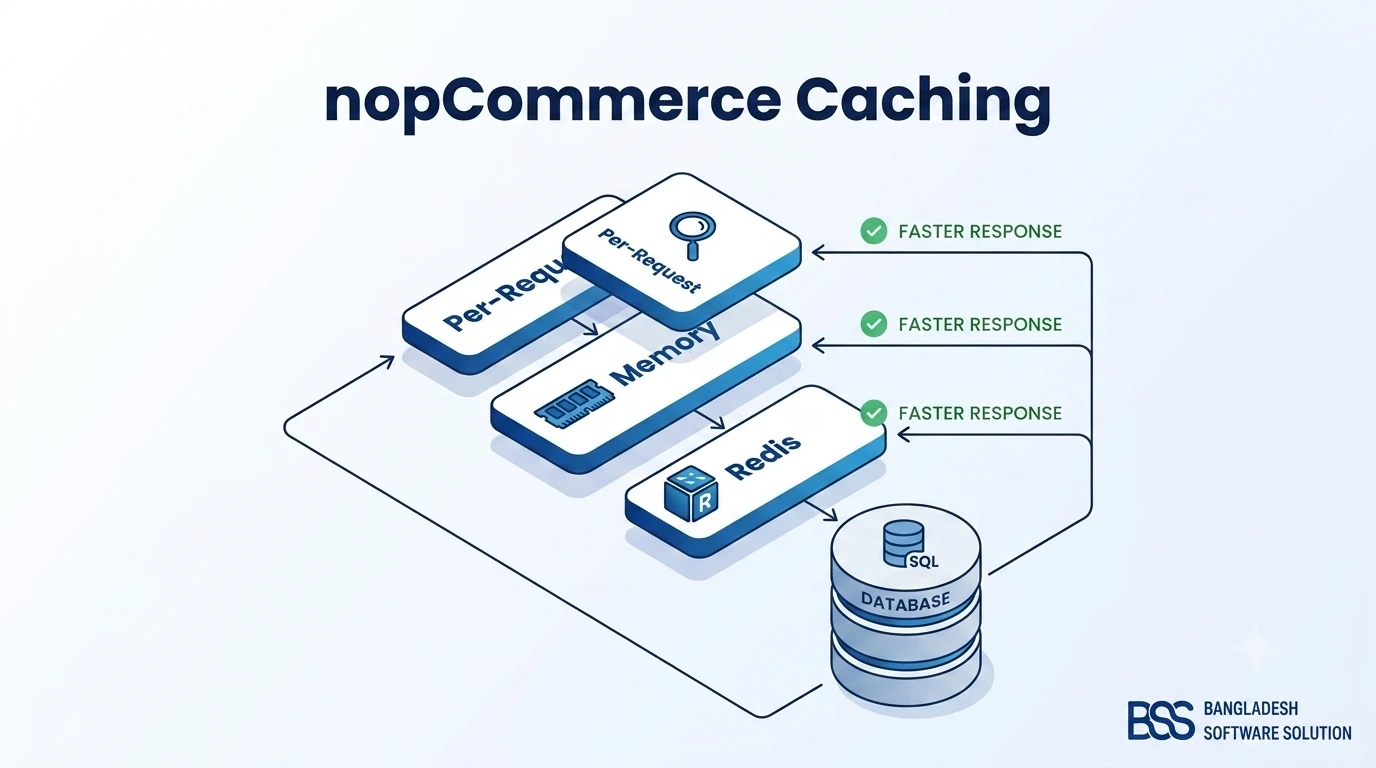
For the boundaries between application, static-file, and distributed caches, see our nopCommerce caching guide.
7. The CSS Loaded, but Another Rule Wins
This is the case most often mislabeled “CSS not loading.” Network returns 200, the stylesheet contains your rule, and DevTools shows the declaration crossed out. The cause is then selector mismatch, specificity, source order, an inline style, !important, a media query, or markup that changed after a theme/plugin upgrade.
Fix: inspect the affected element’s Computed panel, identify the winning declaration and its source file, then make the smallest durable correction. Prefer a selector scoped to your component over escalating specificity across the whole theme. Confirm the rule is not inside an inactive media query and that the selector matches the rendered HTML—not the Razor markup you expected.
Avoid the !important reflex
!important can prove that the cascade is involved, but it is rarely the final fix. It can create a new override war across responsive rules, third-party plugins, and RTL styles. Diagnose the winner, then correct scope or order.
If an upgrade changed the markup beneath your selectors, our plugin and theme compatibility testing guide shows how to catch that drift in staging.
Quick Reference: Symptom to Next Check
| Browser evidence | Most likely causes | Next action |
|---|---|---|
| No CSS request | Not registered; wrong theme/layout | Inspect page source and executed Razor view |
| 404 or 403 | Wrong path; missing deployment; permissions | Map request URL to published file |
| 200, old content | Bundle, browser, proxy, or CDN cache | Disable cache, inspect body, purge/version asset |
| 200, rule crossed out | Specificity, source order, media query | Inspect Computed styles and winning declaration |
Seven-minute CSS audit
- 1Open Network, filter CSS, disable cache, and reload.
- 2Confirm whether the file is absent, failed, stale, or successful.
- 3For a failed request, verify URL casing, response code, content type, and deployed file.
- 4For an absent request, verify resource registration, the active store/theme, and layout execution.
- 5For stale content, inspect bundle output and every cache layer before purging.
- 6For a 200 response, inspect the target element and the winning computed declaration.
- 7Retest the actual page, viewport, language direction, and production-like environment.
Still Chasing a Production-Only CSS Failure?
BSS Engineering can trace theme and plugin resource loading across Razor layouts, bundles, deployment artifacts, CDNs, and the browser cascade—then implement a fix that survives the next release.
Frequently Asked Questions
Final Thoughts
A nopCommerce stylesheet problem becomes manageable once you stop treating every symptom as a selector bug. First establish whether the browser requested the CSS, whether the server delivered the correct bytes, and whether the cascade accepted the rule.
That sequence narrows the seven causes quickly and leaves you with evidence for the fix: register the resource, correct its path, activate the right layout, publish the asset, rebuild the bundle, invalidate the right cache, or repair the cascade. If the failure crosses several of those layers, BSS nopCommerce services can take the investigation from trace to tested deployment.