You click Upload plugin or theme in the nopCommerce admin, pick a theme package, and the upload dies at the same point every time. Or Import from Excel fails on the big catalog file but works on a small one, or a Downloadable product file refuses to attach. Search for the fix and almost every answer says the same thing: raise maxRequestLength in web.config.
On any nopCommerce from 4.00 onward, that advice does nothing. maxRequestLength belongs to classic ASP.NET on the .NET Framework, and nopCommerce left that stack when it moved to ASP.NET Core. The cap you are hitting is real, but it lives in two or three other places, and which ones depend on how the store is hosted.
Key fact: on nopCommerce 4.x, an upload passes through up to three size limits: IIS request filtering (maxAllowedContentLength), the ASP.NET Core server's own MaxRequestBodySize, and, behind a Linux proxy, nginx's client_max_body_size. Raise the one that fired, and on IIS raise the first two together.
This guide shows how to tell which limit rejected the file, then the exact change for IIS, for Linux and Docker, and for files over 128 MB.
On the nopCommerce stores we deploy at BSS, the upload limit is something we set on purpose before launch. Otherwise the first person to hit the default is usually an admin uploading a theme package on a deadline.
Why maxRequestLength Does Nothing on nopCommerce 4.x
maxRequestLength is an attribute of the <httpRuntime> element, read by System.Web, the request pipeline of classic ASP.NET. Microsoft documents it in kilobytes, with a default of 4096 KB, which is 4 MB. nopCommerce 3.90 was the last release built on that stack, and its web.config carries an <httpRuntime> element with no maxRequestLength at all, so 3.90 stores ran on the 4 MB default.
From 4.00, nopCommerce runs on ASP.NET Core, which never reads <httpRuntime>. Add maxRequestLength="1048576" to a 4.80 or 4.90 store and nothing changes, because nothing is listening. We checked the web.config that ships with the 4.80.9 and 4.90.8 releases: it has no request-size setting of any kind, and the 4.90.8 source sets none in code either. Your store is running on the framework defaults.
The 28.6 MB figure is 30,000,000 bytes, the default Microsoft documents for IIS request filtering, for the IIS in-process server and for Kestrel alike. The table maps every setting you will see in forum answers to whether it applies to your store.
| Setting | Where it lives | Unit and default | Applies to nopCommerce |
|---|---|---|---|
| maxRequestLength | <httpRuntime> in web.config |
Kilobytes, 4096 (4 MB) | 3.90 and earlier only |
| maxAllowedContentLength | <requestLimits> in web.config |
Bytes, 30,000,000 | Every 4.x store on IIS |
| IISServerOptions.MaxRequestBodySize | Application code | Bytes, 30,000,000 | IIS in-process, the nopCommerce default |
| Kestrel MaxRequestBodySize | Code, appsettings.json or an environment variable | Bytes, 30,000,000 | Linux, Docker, IIS out-of-process |
| FormOptions.MultipartBodyLengthLimit | Application code | Bytes, 134,217,728 (128 MB) | Only for files over 128 MB |
| client_max_body_size | nginx configuration | Size with a suffix, 1m | Any store nginx proxies |
Find the Limit That Rejected the Upload
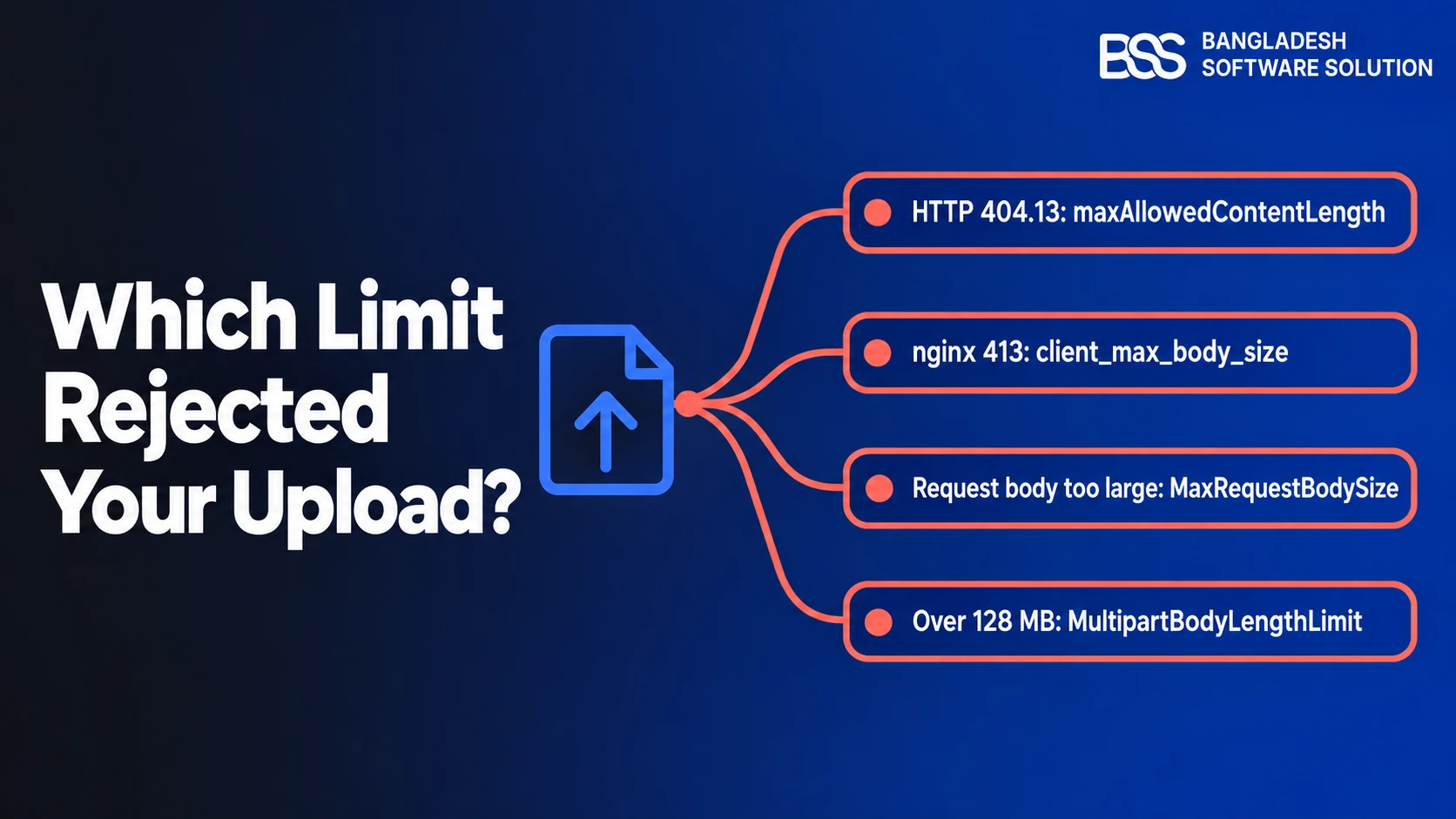
Before changing anything, read the error. Each layer rejects an oversized request in its own way, so the response tells you which one fired, and you avoid raising a limit that was never the problem.
maxAllowedContentLength.client_max_body_size.MaxRequestBodySize.If the admin shows only a generic error and the log is empty, turn on the ASP.NET Core stdout log for one test. The shipped web.config already has the switch: set stdoutLogEnabled="true" on the <aspNetCore> element, repeat the upload, read the file in the logs folder, then set it back to false.
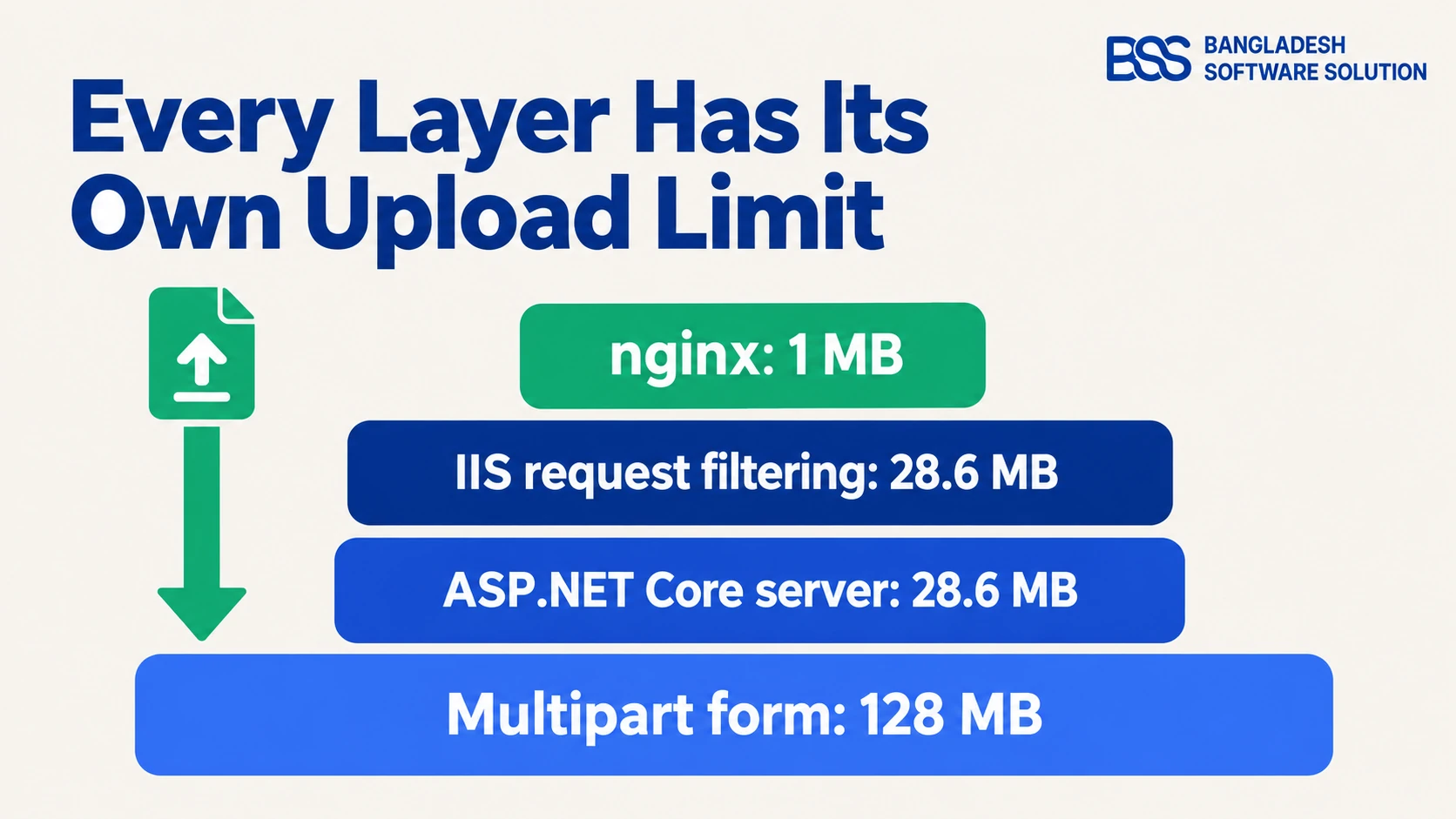
The order matters. A request must clear every layer above the application, so the effective limit is the smallest one on its path. That is why raising a single setting so often just moves the error to the next layer down.
Fix It on IIS: web.config Plus One Line of Code
Windows hosting with IIS is the most common nopCommerce setup, and it is the one where the usual advice falls short. The web.config nopCommerce ships sets hostingModel="InProcess", and Microsoft's documentation is explicit that in-process hosting enforces two limits: IIS request filtering, and the ASP.NET Core IIS server's own 30,000,000-byte cap. Both have to move.
Step 1: Raise maxAllowedContentLength in web.config
Open web.config in the root of the published site, the folder that holds Nop.Web.dll, not the one in the source tree. Add a <security> block inside the existing <system.webServer> element. The value is in bytes, so 100 MB is 104,857,600:
<system.webServer>
  <!-- the modules, handlers, aspNetCore and httpProtocol elements nopCommerce ships stay as they are -->
  <security>
    <requestFiltering>
      <!-- 104857600 bytes = 100 MB -->
      <requestLimits maxAllowedContentLength="104857600" />
    </requestFiltering>
  </security>
</system.webServer>
Saving the file is enough for IIS to pick it up and restart the application. Test an upload just over the old limit. If it now fails with "Request body too large" instead of 404.13, you have cleared the first layer and met the second one.
On IIS in-process hosting, raising web.config alone moves the error. It does not move the limit.
BSS Engineering
Step 2: Raise MaxRequestBodySize from a small plugin
The second limit is an ASP.NET Core option, so it is set in code. You could edit Program.cs, but that change disappears the next time you deploy a stock nopCommerce build. The clean place is a plugin, because nopCommerce runs every installed plugin's INopStartup class while it builds the application. When we need a host-level setting like this on a client store at BSS, it goes in a small plugin of its own, so the next upgrade does not quietly undo it.
using Microsoft.AspNetCore.Builder;
using Microsoft.AspNetCore.Http.Features;
using Microsoft.AspNetCore.Server.Kestrel.Core;
using Microsoft.Extensions.Configuration;
using Microsoft.Extensions.DependencyInjection;
using Nop.Core.Infrastructure;

namespace Nop.Plugin.Misc.UploadLimits.Infrastructure;

public class UploadLimitsStartup : INopStartup
{
    // 104857600 bytes = 100 MB. Keep it equal to maxAllowedContentLength in web.config.
    private const long MaxUploadBytes = 104_857_600;

    public void ConfigureServices(IServiceCollection services, IConfiguration configuration)
    {
        // IIS in-process hosting, the model nopCommerce's web.config ships with
        services.Configure<IISServerOptions>(options => options.MaxRequestBodySize = MaxUploadBytes);

        // Kestrel: Linux, Docker and IIS out-of-process
        services.Configure<KestrelServerOptions>(options => options.Limits.MaxRequestBodySize = MaxUploadBytes);

        // The multipart default is 128 MB, so only raise it, never lower it
        if (MaxUploadBytes > FormOptions.DefaultMultipartBodyLengthLimit)
            services.Configure<FormOptions>(options => options.MultipartBodyLengthLimit = MaxUploadBytes);
    }

    public void Configure(IApplicationBuilder application)
    {
    }

    public int Order => 0;
}
The class needs the usual plugin wrapping, a plugin.json and a plugin class, so nopCommerce can install it. Our guide to creating a plugin in nopCommerce 4.80 walks through that skeleton. Once it is built, the plugin install steps are the same as for any other plugin. Restart the application after installing it, because server options are read once, at startup.
Watch out on upgrades
The web.config is part of every nopCommerce release package. Deploy a new version over the site folder and the shipped file replaces yours, taking the <requestLimits> block with it. Keep a copy of your edited file and re-apply it as a step in your upgrade checklist.
Fix It on Linux and Docker: Kestrel and nginx
On Linux, nopCommerce runs on Kestrel, usually behind nginx, and the official Docker image starts Kestrel directly with dotnet Nop.Web.dll. There is no web.config to edit here, but there are still two limits, and the proxy's is far smaller.
Step 1: Raise client_max_body_size in nginx
nginx refuses any request body over 1 MB unless told otherwise, which is why a Linux store can fail on a product photo that a Windows store accepts. Set the limit in the server block that proxies the store, then test and reload the configuration:
server {
    # ... your existing listen, server_name and location / proxy settings ...
    client_max_body_size 100m;
}
sudo nginx -t && sudo systemctl reload nginxStep 2: Raise Kestrel's MaxRequestBodySize without code
Kestrel reads its limits from configuration, so on Linux you can skip the plugin. The quickest route is an environment variable, which nopCommerce loads at startup. In Docker, pass it to the container:
docker run -e Kestrel__Limits__MaxRequestBodySize=104857600 ... your-nopcommerce-imageFor a systemd service, add the same name and value as an Environment= line in the unit file and restart the service. You can also add a top-level Kestrel section to App_Data/appsettings.json. nopCommerce keeps sections it does not recognise when it rewrites that file from the admin, so the value survives a settings save:
{
  "Kestrel": {
    "Limits": {
      "MaxRequestBodySize": 104857600
    }
  }
}
If you are still choosing between Windows and Linux hosting, our nopCommerce hosting guide compares the two setups beyond upload limits.
Above 128 MB, and How Big Is Too Big
Below 128 MB, the multipart form reader never gets in the way, because its default is 134,217,728 bytes. Above it, the form fails to parse even after both server limits are raised, which is why the plugin above lifts MultipartBodyLengthLimit whenever your target goes past that figure. Most stores never get there: theme packages and catalog spreadsheets rarely do, while large video or software files for digital downloads can.
Two settings look related and are not. The admin's Maximum image size setting is a pixel dimension, 1980 by default, that nopCommerce resizes pictures down to; it never rejects a file by size. And the requestTimeout on the shipped <aspNetCore> element is already 23 hours, so a slow upload is not cut off by IIS.
Verify the Fix
Run through this once after the change, and again after every nopCommerce upgrade.
Upload limit checklist
-
Read the error first: 404.13, an nginx 413, or "Request body too large" in System → Log.
-
Pick one target size in bytes and use it in every layer on the request's path.
-
IIS: add
maxAllowedContentLengthto the publishedweb.configand raiseIISServerOptions.MaxRequestBodySizefrom a plugin. -
Linux or Docker: set
client_max_body_sizein nginx andKestrel__Limits__MaxRequestBodySizefor the app. -
Restart the application, then upload a file just above the old limit and one just below the new one.
-
Turn
stdoutLogEnabledback tofalseif you switched it on for testing. -
Save a copy of the edited
web.configand add re-applying it to your upgrade runbook.
If compiling and deploying a plugin just to move one number is more than your team wants to take on, this is routine work for us: BSS's nopCommerce maintenance and support covers host-level fixes like this alongside upgrades and security patches.
Stuck on Hosting or Configuration? Hire the BSS Team
From IIS and Linux deployments to custom plugins, upgrades and performance tuning, our nopCommerce engineers handle the work that sits between the code and the server. Tell us what you need and we'll match you with the right developer.
Frequently Asked Questions
Final Thoughts
The fix for a nopCommerce upload limit is rarely the setting the error search turns up. maxRequestLength stopped mattering at 4.00. What caps uploads today is a stack of limits that all default to about 28.6 MB, with nginx at 1 MB in front of Linux stores. Read the error, raise the layer that fired, and on IIS raise web.config and MaxRequestBodySize together.
Pick one size, set it everywhere on the request's path, and write it into your upgrade steps. That way the next theme package or catalog file uploads the first time, after the next release as well as this one.