The new theme looked perfect in the demo. Then you activate it on a copy of your store and the home page slider is gone, the footer links have vanished and the product page has lost the badge your best-seller relied on.
None of that is a bug in the theme. A nopCommerce theme is only the top layer of a store, and the layers beneath it, widget zones, plugin output and hand-edited content, were quietly built around the old one.
This guide walks through four steps for moving a live store to a new theme without a rough launch: audit the old theme, match every widget zone on a staging copy, protect SEO and speed, then cut over with a rollback ready.
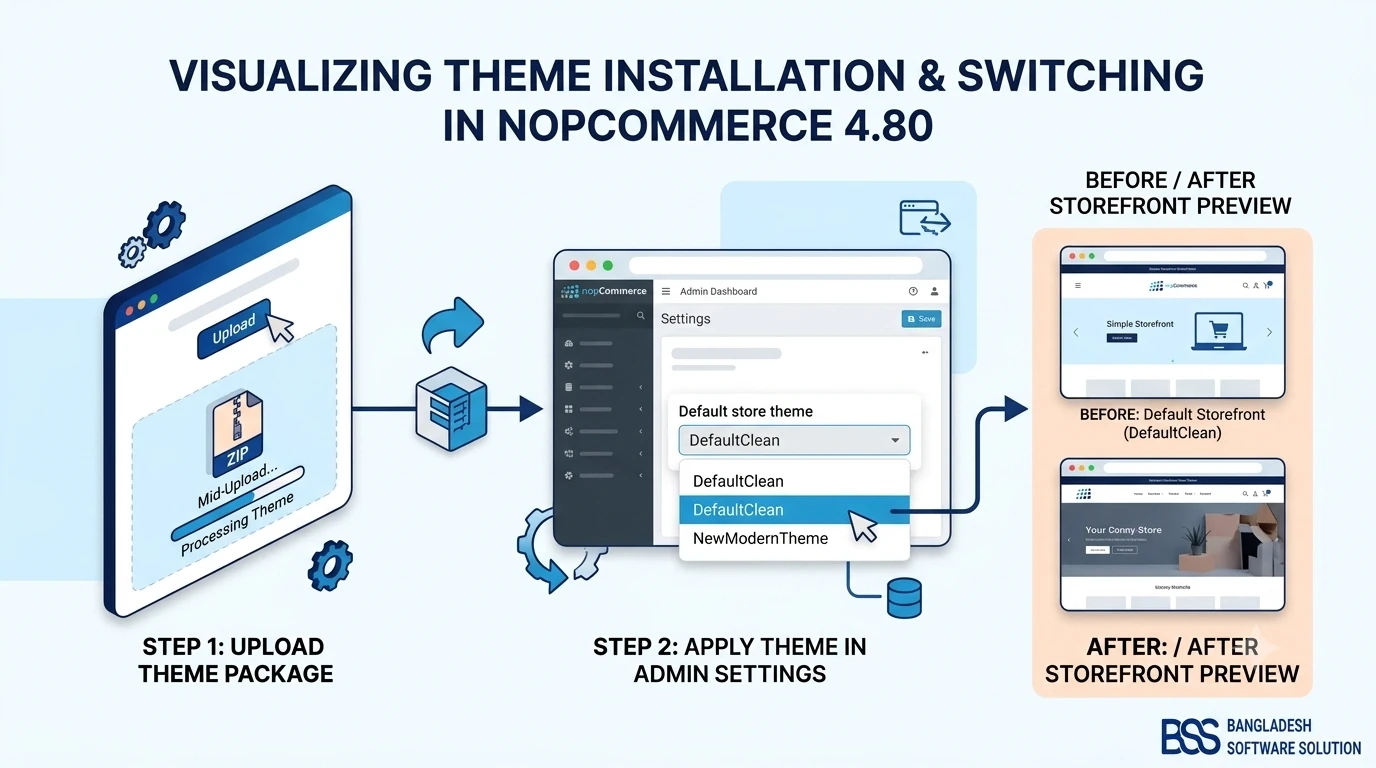
When we move stores onto a new theme at BSS, the plan matters far more than the colours. If you only need the install clicks, how to install and change a theme in nopCommerce 4.80 covers them.
A Theme Migration Is More Than a Switch

Installing a theme is a file operation. Migrating to one is a project, because the old theme has been doing jobs nobody wrote down.
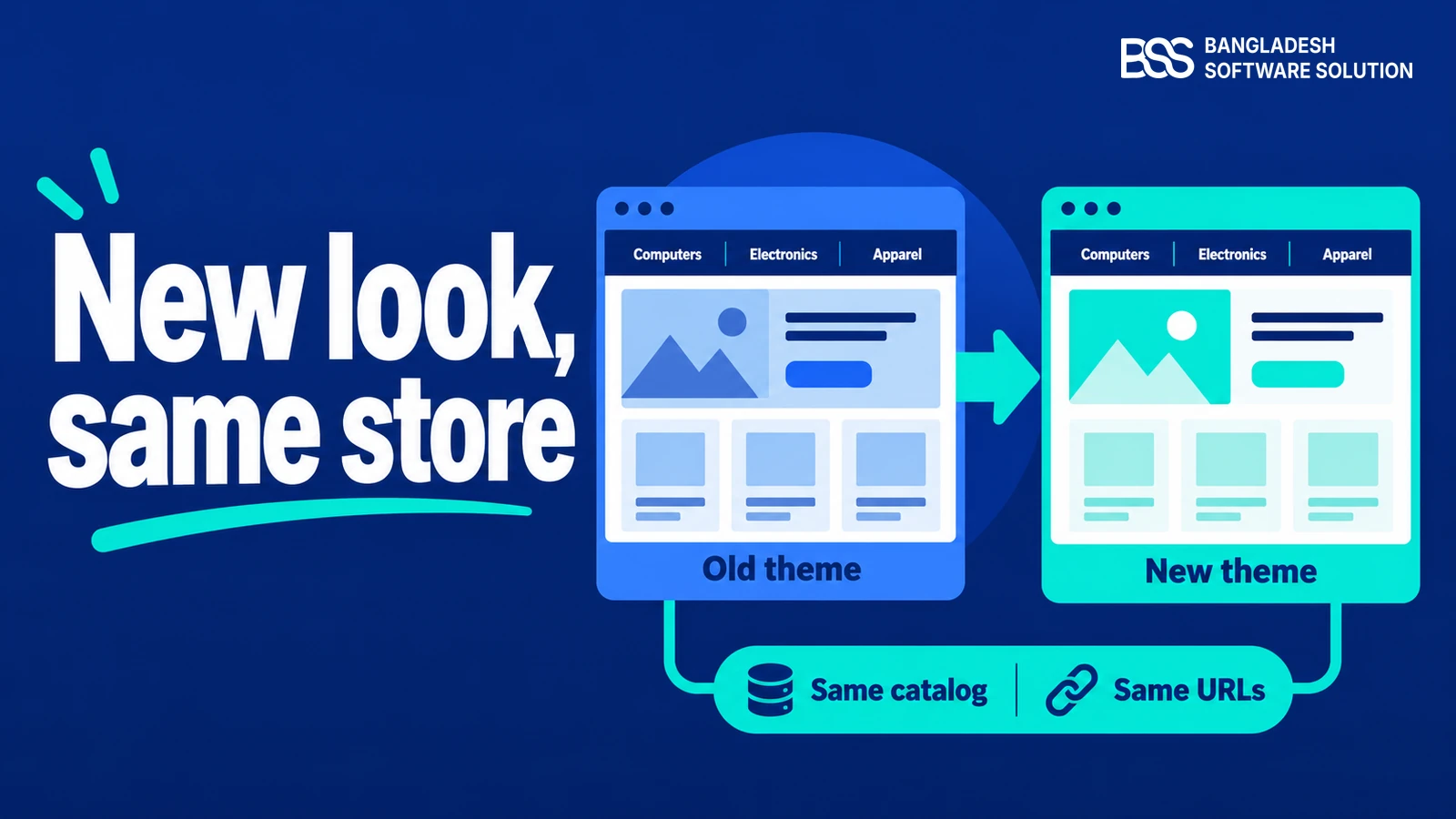
Key fact: a theme controls how pages are rendered, not what is stored. Your catalog, customers, orders and SEO-friendly URLs stay exactly where they are; what moves is everything wired into the old theme's templates.
That tells you where to spend your time: not on the catalog, but on the three layers above it.
Why the glue layer causes most surprises
Views and CSS are visible: you open the page and see what is wrong. Widget zones are not. A plugin that renders into a zone the new theme never calls simply produces nothing, and nothing is what the logs show too.
That is why a theme can pass a quick visual check and still lose a banner, a trust badge or a cookie notice. The loss only shows up when someone asks why a campaign page looks empty.
Treat each layer as its own checklist. The rest of this guide does exactly that, one step at a time.
Want this done for you? The BSS team builds nopCommerce themes and customizes stores every day. We can audit the old theme, build what the new one lacks and run the cutover.
Talk to a nopCommerce expertStep 1: Audit What Your Old Theme Really Does
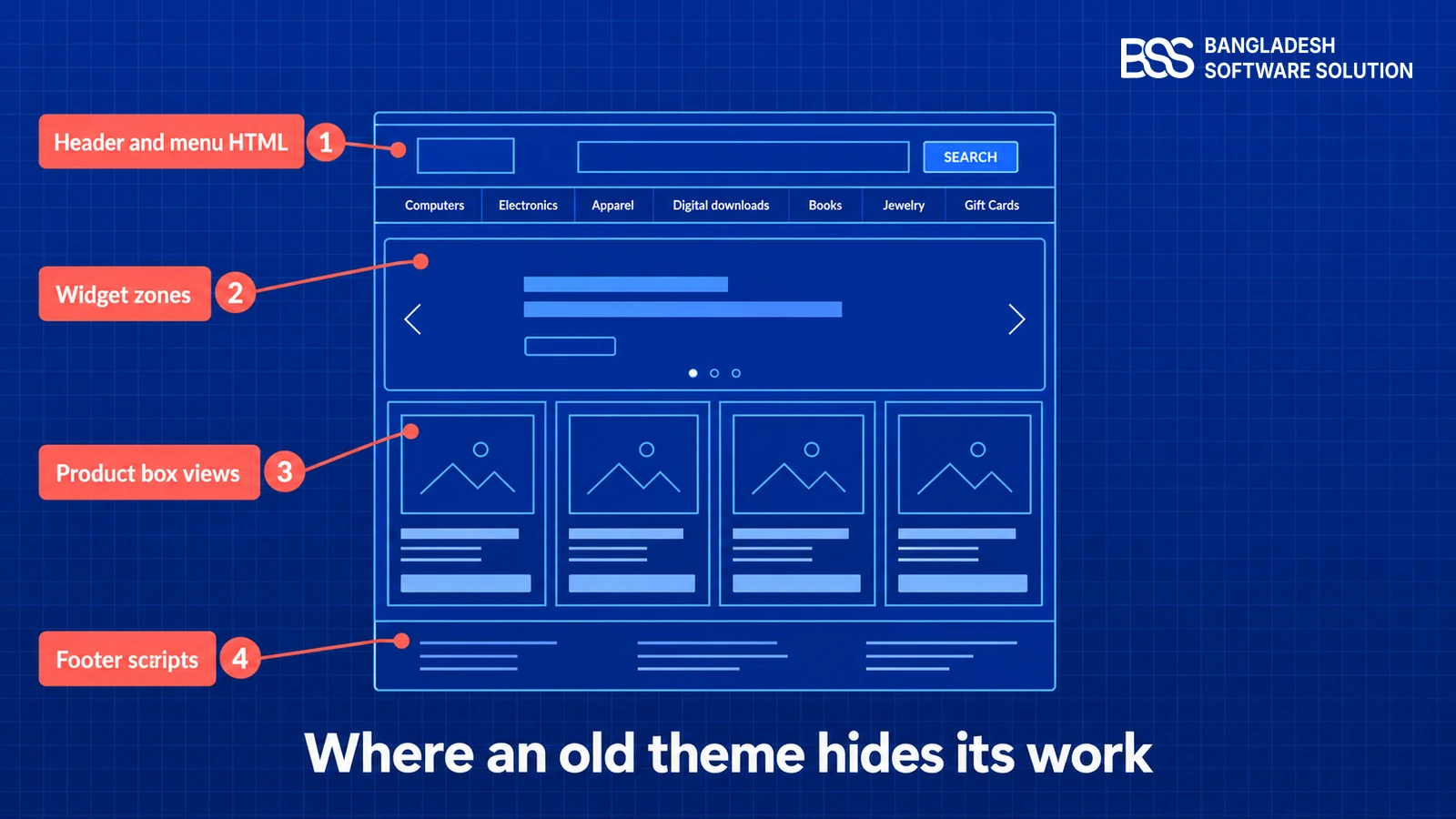
Start by writing down everything the old theme does that is not on the new theme's feature list. Most of it hides in four places: the header and menu markup, the widget zones, the product box and detail views, and any scripts added to the footer.
The fastest first pass is to list every view the old theme overrides. Each file in that list is a decision: keep the behaviour in the new theme, or let it go.
# List every view the old theme overrides (run from the site root)
cd Themes/YourOldTheme/Views
find . -type f -name "*.cshtml" | sort
On a Windows host, Get-ChildItem -Recurse -Filter *.cshtml in the same folder gives the same list. Next, open the store as a customer does and note what you see on the home, category, product, cart and checkout pages, then compare that with the admin widgets list and your custom HTML settings.
Audit checklist
-
Every view the old theme overrides, from the list above.
-
Every widget plugin and the zone it draws into.
-
Custom HTML, scripts and head tags added through store settings.
-
Topics and banners that use the old theme's CSS classes.
-
The picture sizes the old product boxes expect, against your Media settings.
-
Per-store theme settings, if you run more than one store.
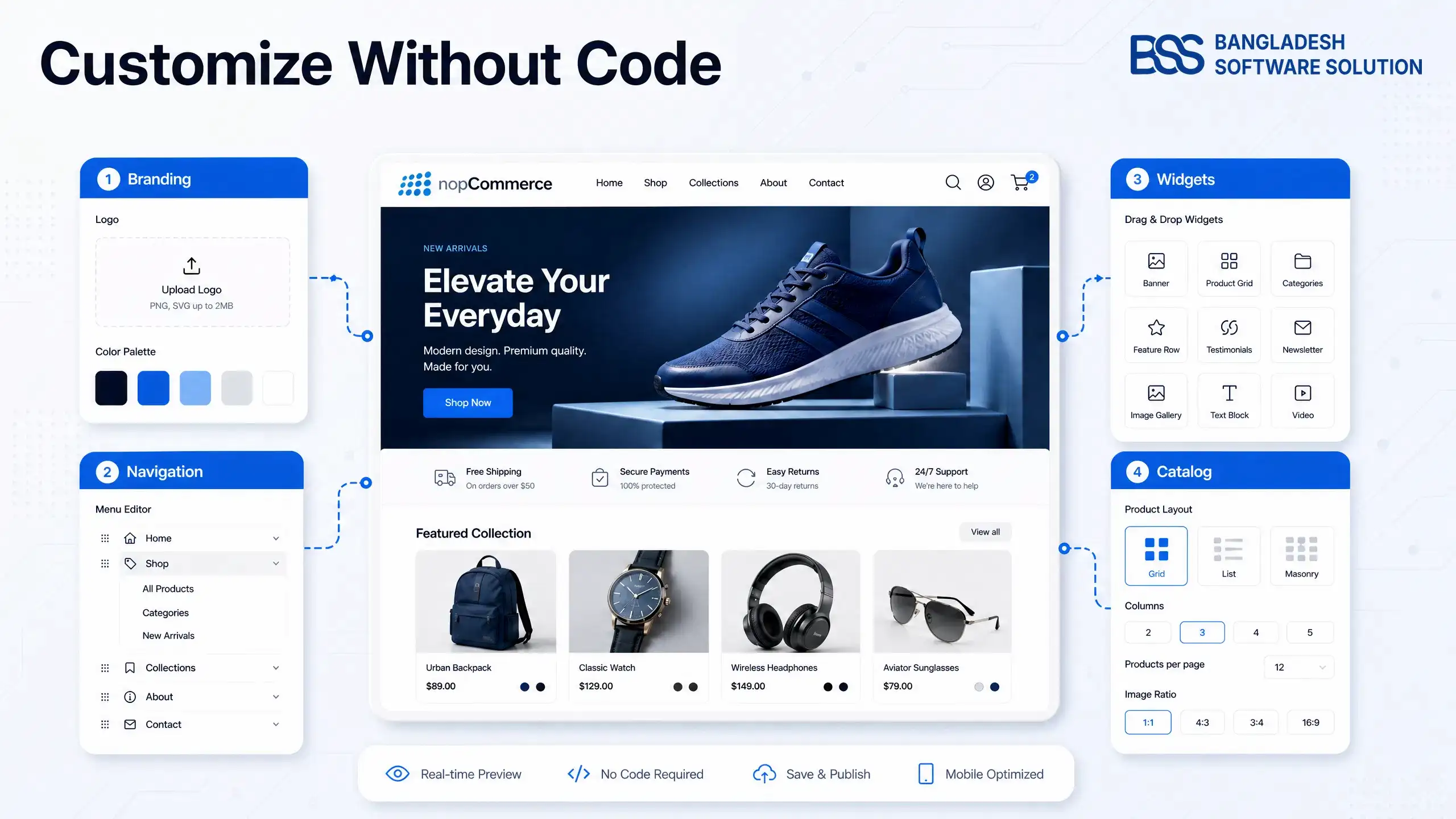
If the list is short and mostly branding, the no-code route in how to customize a nopCommerce theme without coding may spare you a migration altogether.
If it is long, this is the point where many owners bring in a developer, because reading override files is quicker for someone who does it daily. You can hire a .NET developer from BSS to run the audit while your team keeps working on the catalog.

On the theme moves we run, the surprise is rarely the theme folder. It is a script pasted into a header setting years ago that nobody remembers, so we start the audit in the settings, then the files. See our nopCommerce services.
Step 2: Stage the New Theme and Match Every Zone
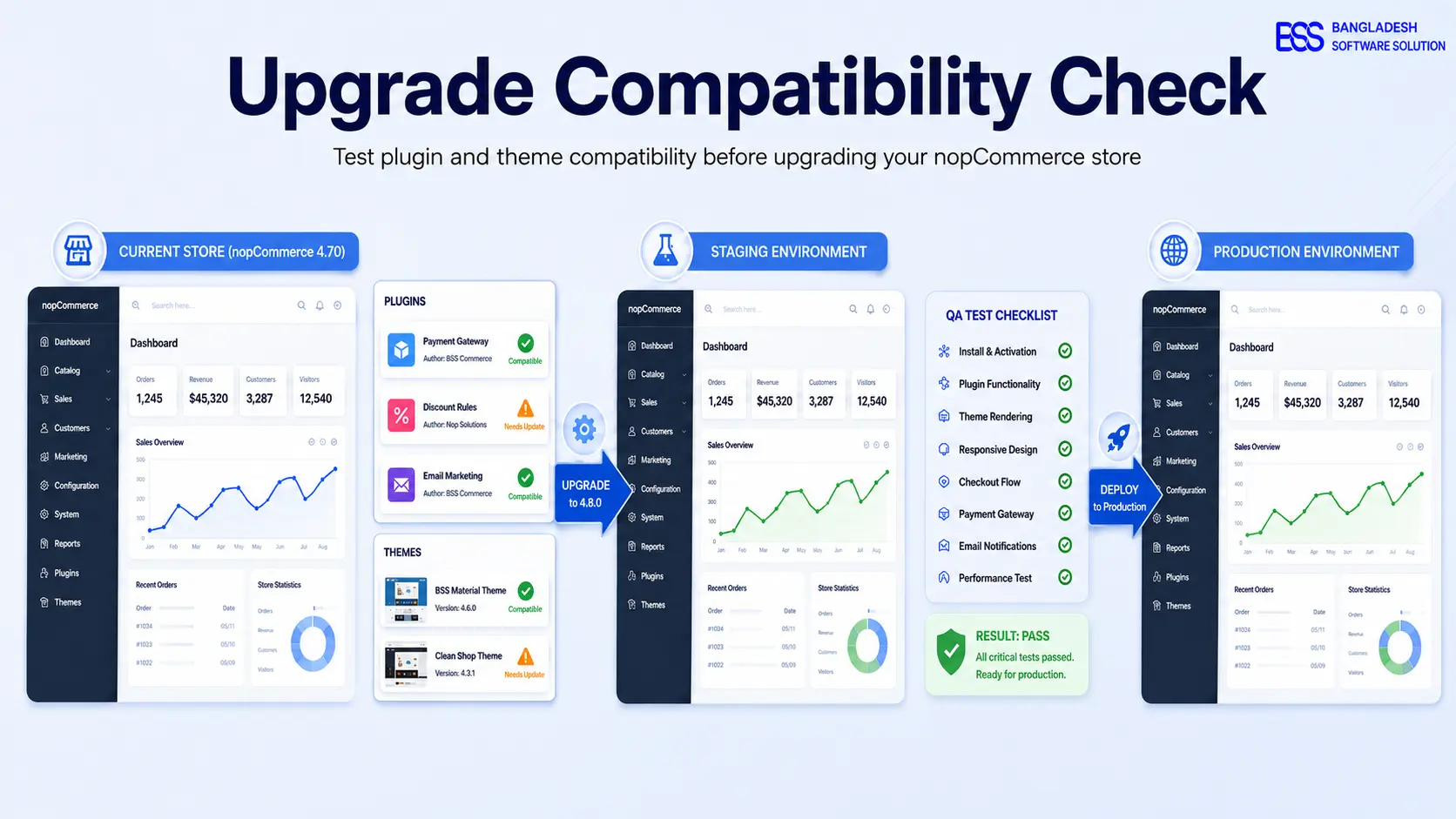
Never meet the new theme for the first time on production. Clone the store to a staging copy and activate the theme there, the same way testing plugin and theme compatibility before an upgrade does.
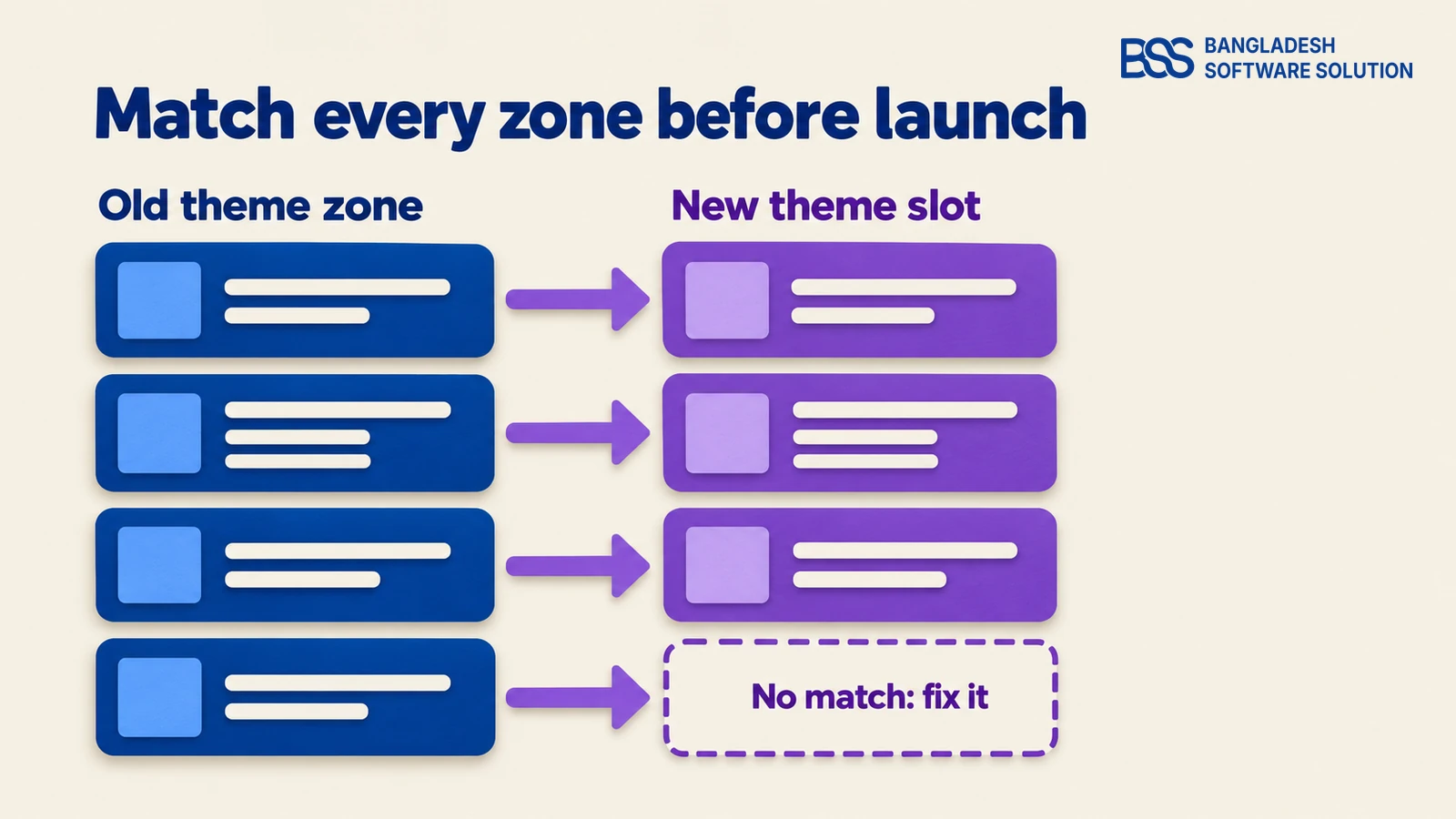
Then compare zones. For each widget in your audit list, find where it should appear in the new theme and check that the page actually calls that zone.
Watch out
A new theme can look finished and still drop a widget zone. The plugin stays enabled, its settings stay correct, and nothing renders. Check the home page, product page and footer zones before you trust a clean-looking page.
Three ways to close a gap
Write the mapping as two columns: the old zone and the slot that replaces it. When a widget has no slot, you have three options. Add the zone call to the new theme's view, move the widget into a zone the new theme already renders, or retire the widget if it no longer earns its place.
Whichever you choose, write it down. The mapping becomes your cutover checklist, and the next developer to open the theme will need it.
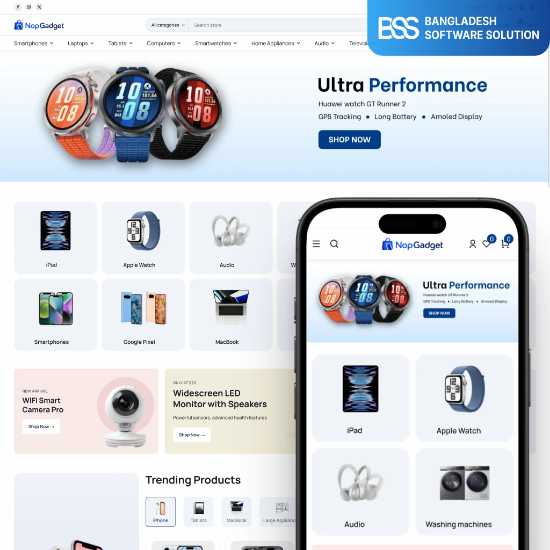
Still choosing the new theme? If you sell electronics, NopGadget ships as a theme plus an 18-plugin bundle, so the widgets and the zones they use are packaged together.
View the themeYou can run this step three ways. The right one depends on how much the old theme was customized and how much of the work your team wants to own.
| Approach | Best when | Trade-off |
|---|---|---|
| Do it yourself on staging | The old theme had few overrides and your team reads Razor views. | Gaps are found late if the audit list is thin. |
| Developer-led theme work | The old theme carried custom views you need to keep. | Needs a clear audit list and developer time. |
| Bundled theme plus a managed move | You want theme and plugins packaged together and a planned cutover. | Less bespoke: you accept the theme's structure. |
When the audit shows custom views worth keeping, that is custom nopCommerce theme development rather than a settings change, and BSS builds it for stores.
Step 3: Protect SEO and Speed Before You Switch
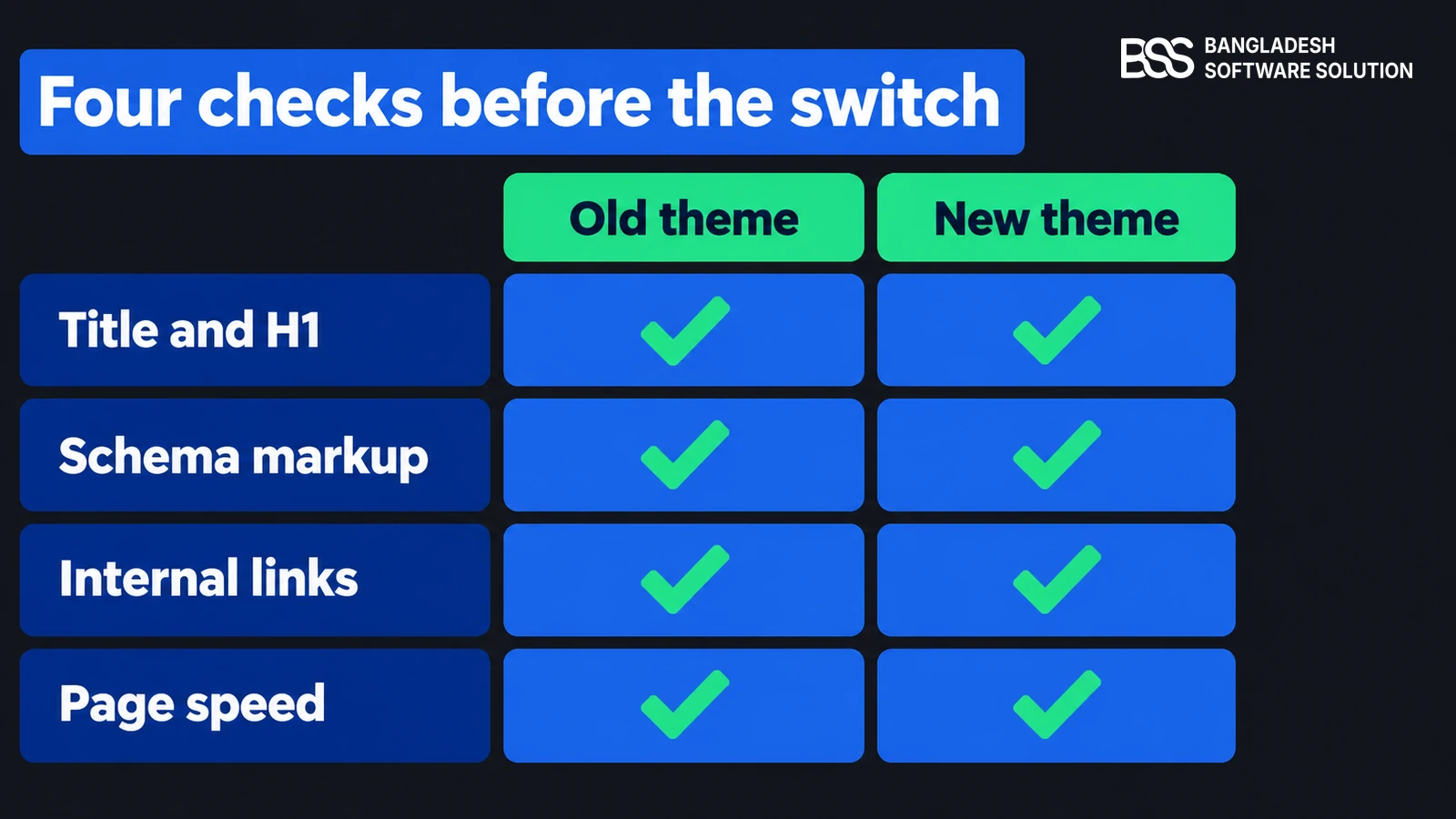
A theme does not own your URLs, so a clean migration keeps your rankings. What it does own is the HTML around them: the title and H1 its views render, the structured data they emit, the links in menus and footers, and the weight of its CSS and scripts.
Compare old and new on staging, page by page, with view-source open. Do it for the home page, a category page and a product page.
- Title and H1 — one of each, saying what the page is.
- Structured data — run a product page through the Rich Results test and compare with the old theme.
- Page speed — measure on a mid-range phone before and after, not only on your office laptop.
Test speed with the cache cold. A page served from the old theme's cache will look fast whatever the new theme weighs, so clear it first or use a private window on a fresh staging cache.
Record the numbers somewhere you can find them after launch. A speed regression you can see in a before-and-after table gets fixed; one you remember vaguely does not.
URLs should not change in a theme switch, so any URL that does is a red flag. If you are also moving platforms, how to avoid SEO traffic loss during a nopCommerce migration covers redirects and canonicals, and nopCommerce CSS not loading helps when styles fail only on production.
Step 4: Cut Over, Watch, and Keep a Way Back
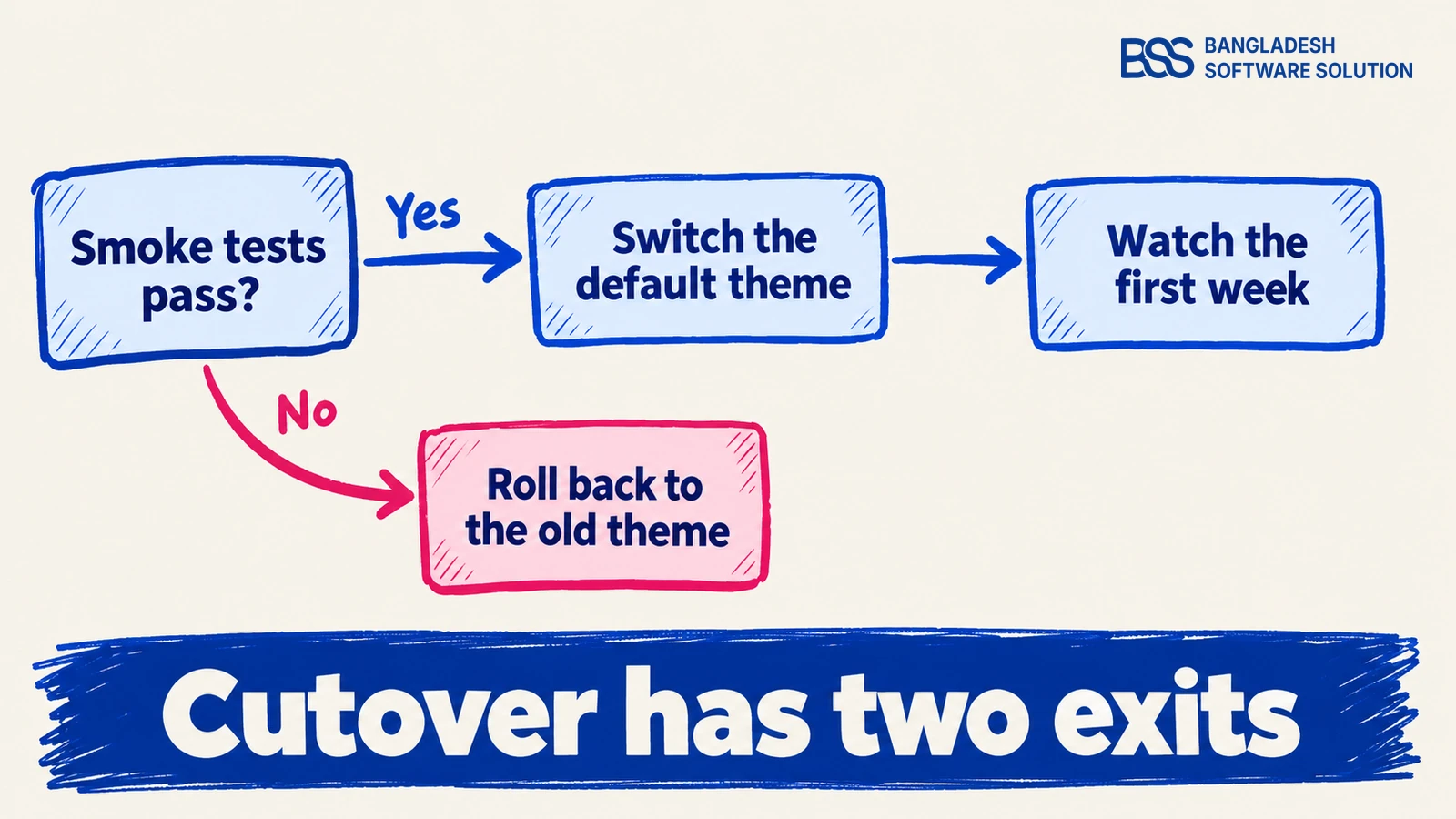
Cutover is a small change once the staging work is done: set the new theme as the default store theme and clear the cache. What makes it safe is deciding in advance what failing looks like.
Cutover-day checklist
-
Back up the database and the Themes folder.
-
Set the Default store theme in General settings and save.
-
If the theme is not listed, restart the application, then clear the cache.
-
Smoke test the home, category, product, cart and checkout pages.
-
Confirm every widget zone from your audit list renders.
-
Keep the old theme installed until the first week passes.
Rollback is the same change in reverse, which is why the old theme stays installed. If old pages keep appearing after the switch, the nopCommerce caching guide explains which layer is serving them.
After the switch, watch three things for the first week: the error log, search performance for your top landing pages, and checkout completions. A theme problem usually shows as a drop in one of them before anyone reports it.
If any of the three moves the wrong way, use the rollback first and diagnose second. Customers should not be your test environment while you debug.
Our rule on a cutover is that the rollback gets rehearsed before the launch does. A switch you can undo in minutes is routine; one you cannot is an incident. If you would rather not run it yourself, BSS can run the move end to end.
Moving to a New nopCommerce Theme? Hire the BSS Team
Our nopCommerce engineers audit the old theme, rebuild the views you rely on, match the widget zones and run the cutover with a rollback ready. Tell us what the old theme does and we will scope the move.
Frequently Asked Questions
Final Thoughts
Back to the home page with the missing slider. It was never a broken theme: it was a widget zone the new theme did not call, and now you know to look for it before launch.
With an audit list, a staging copy that matches every zone, an SEO and speed check and a rehearsed rollback, the new theme goes live and the only thing shoppers notice is the look.
The BSS team builds nopCommerce themes and plugins and runs moves like this one. Tell us what your old theme does and we will scope the work with you.
Book a free consultation