A few days after nopCommerce 5.00 was released on 27 October 2026, your developer sends one line: “Ready to upgrade when you give the date.” Your store has run on 4.90 without trouble, so the date feels like the only open question.
It is not. The question is the order of work: what to check first, what to do to a copy, what breaks in your own code, and how to get back if the new version misbehaves. This guide answers that for a 4.90.x store, and it follows the official upgrade steps.
It stays on the how. For what the release adds, read what is new in nopCommerce 5.0. For whether now is the right time, read our upgrade timing guide.
We build and sell nopCommerce plugins and themes at BSS, and every plugin we sell is now updated for nopCommerce 5.0. Our own 5.00 test store runs those builds, so the checks below are the ones we work through ourselves.
Before You Start: Three Gates
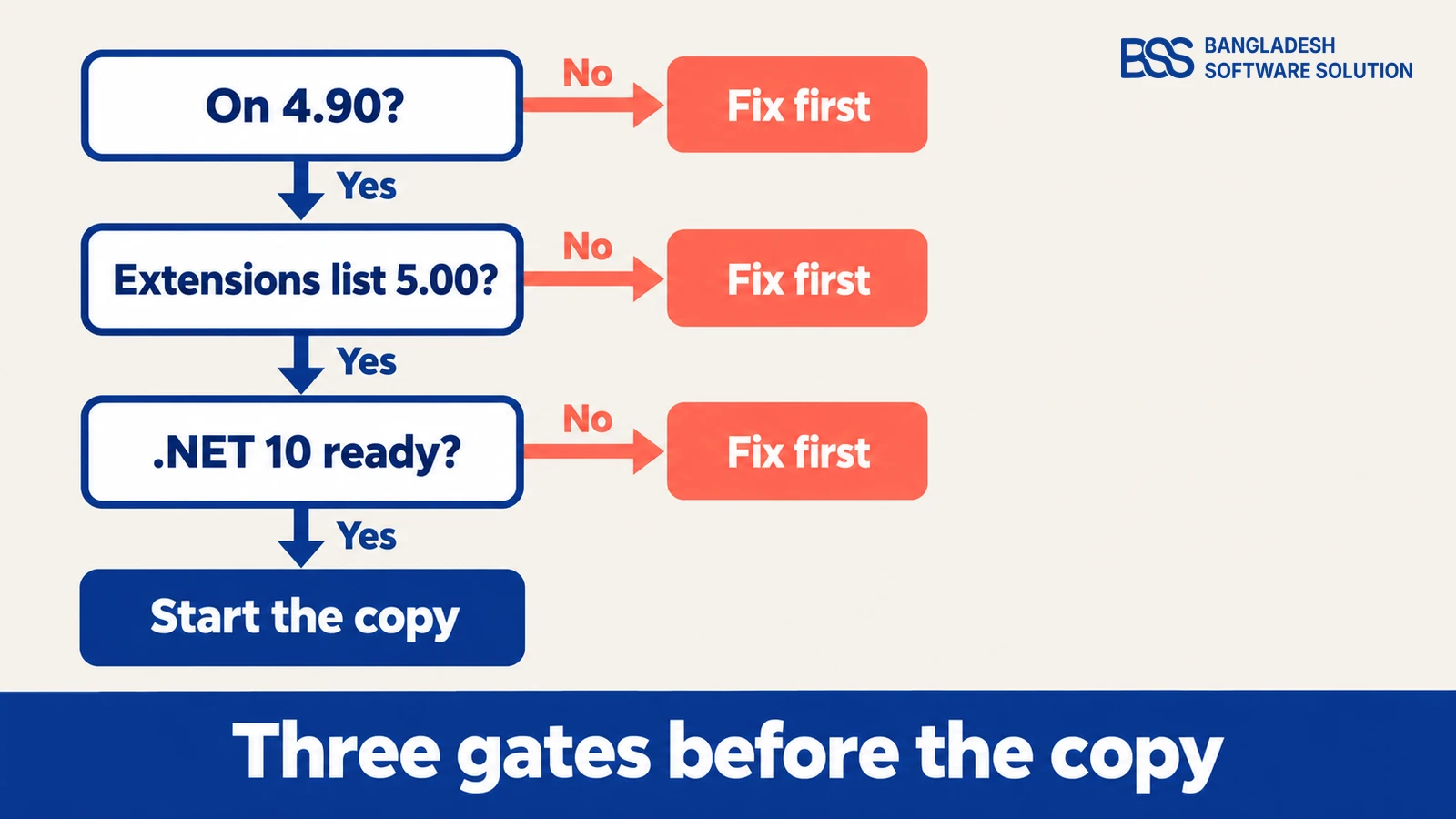
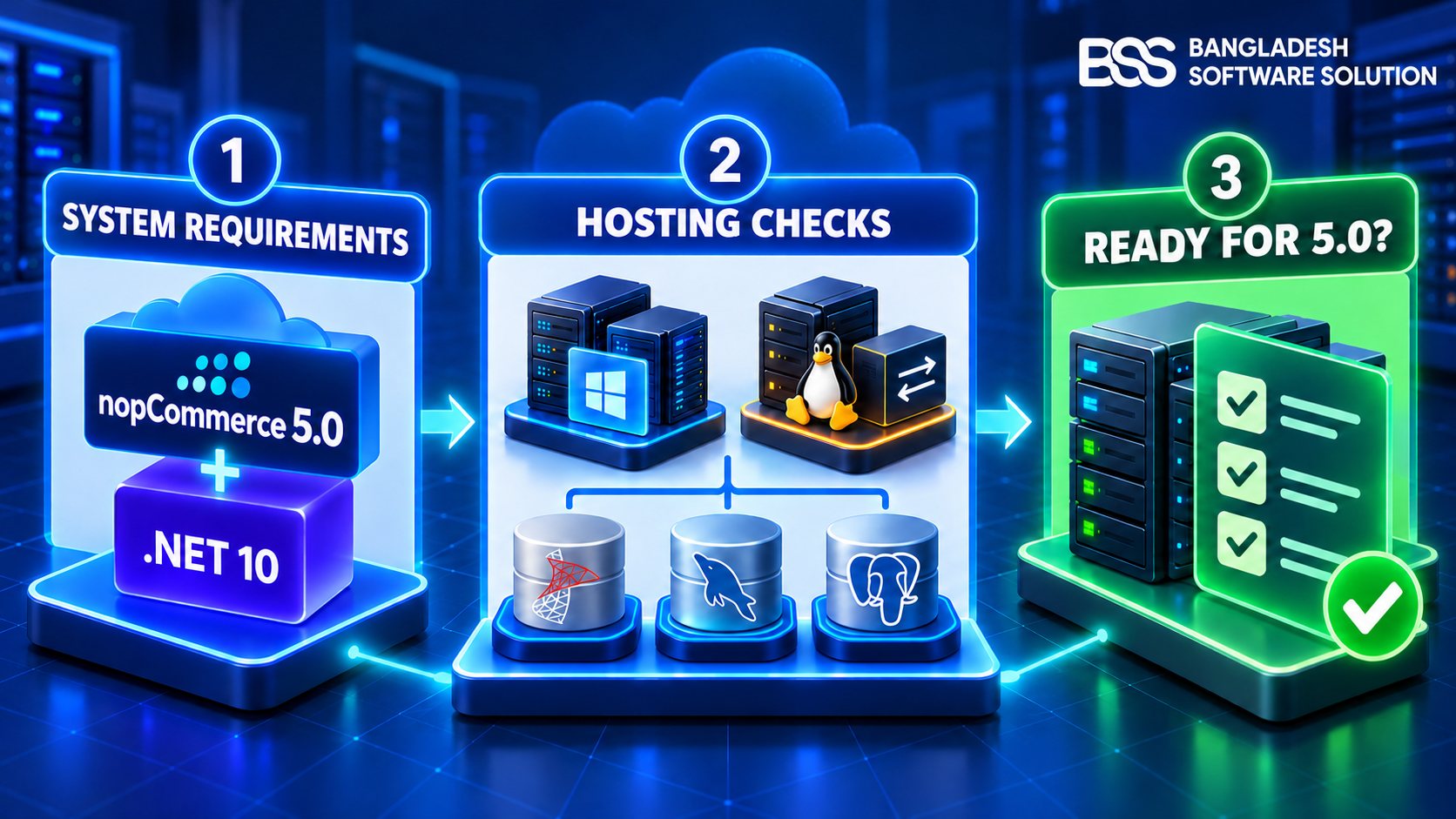
Do not clone anything until three answers are yes. Each gate removes a way the copy can fail for a reason that has nothing to do with your code.
To check the second gate, open All plugins and themes in the admin and use the Version filter, then compare the list with the plugins you actually run. Anything that does not list 5.00 needs an answer from its vendor before you go further.
A store older than 4.90 should start with our 4.90 upgrade guide. For the server gate, our 5.0 hosting requirements guide lists the operating systems, web servers and databases.
Pick the right package
The 5.00 release ships a source package, no-source packages for Windows x64, Windows x86 and Linux x64, and an upgrade-scripts package. Most store owners need the no-source package for their server. Developers who change the core code need the source package.
The official upgrade chapter says SQL upgrade scripts have not been used since 4.40: the upgrade runs through migrations on the first start. Read any readme in the upgrade-scripts package before you decide you can skip it.
Want the copy built for you? BSS handles nopCommerce version upgrades, from the clone to the cutover.
Talk to a nopCommerce expertUpgrade a Copy in Four Moves
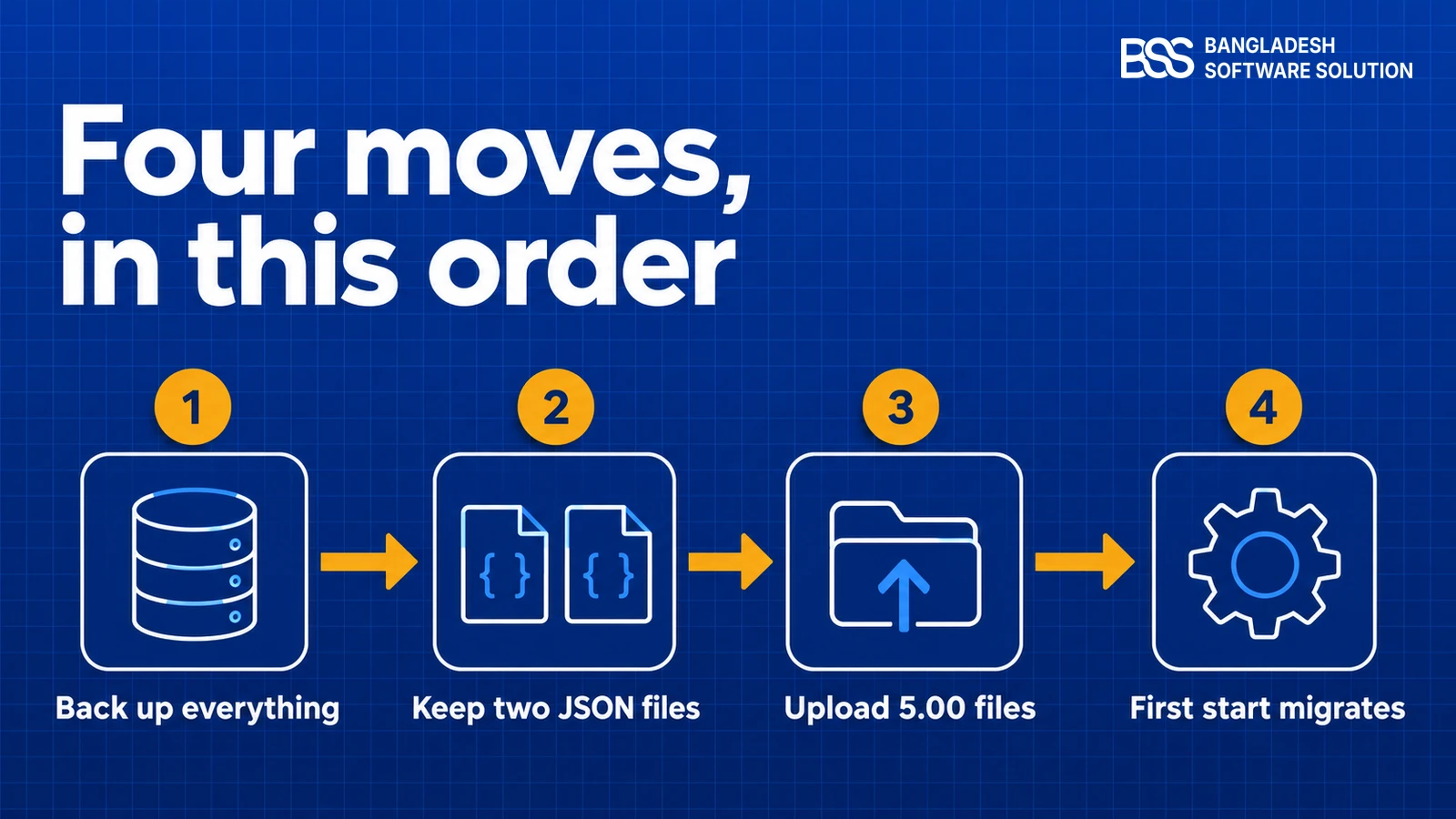
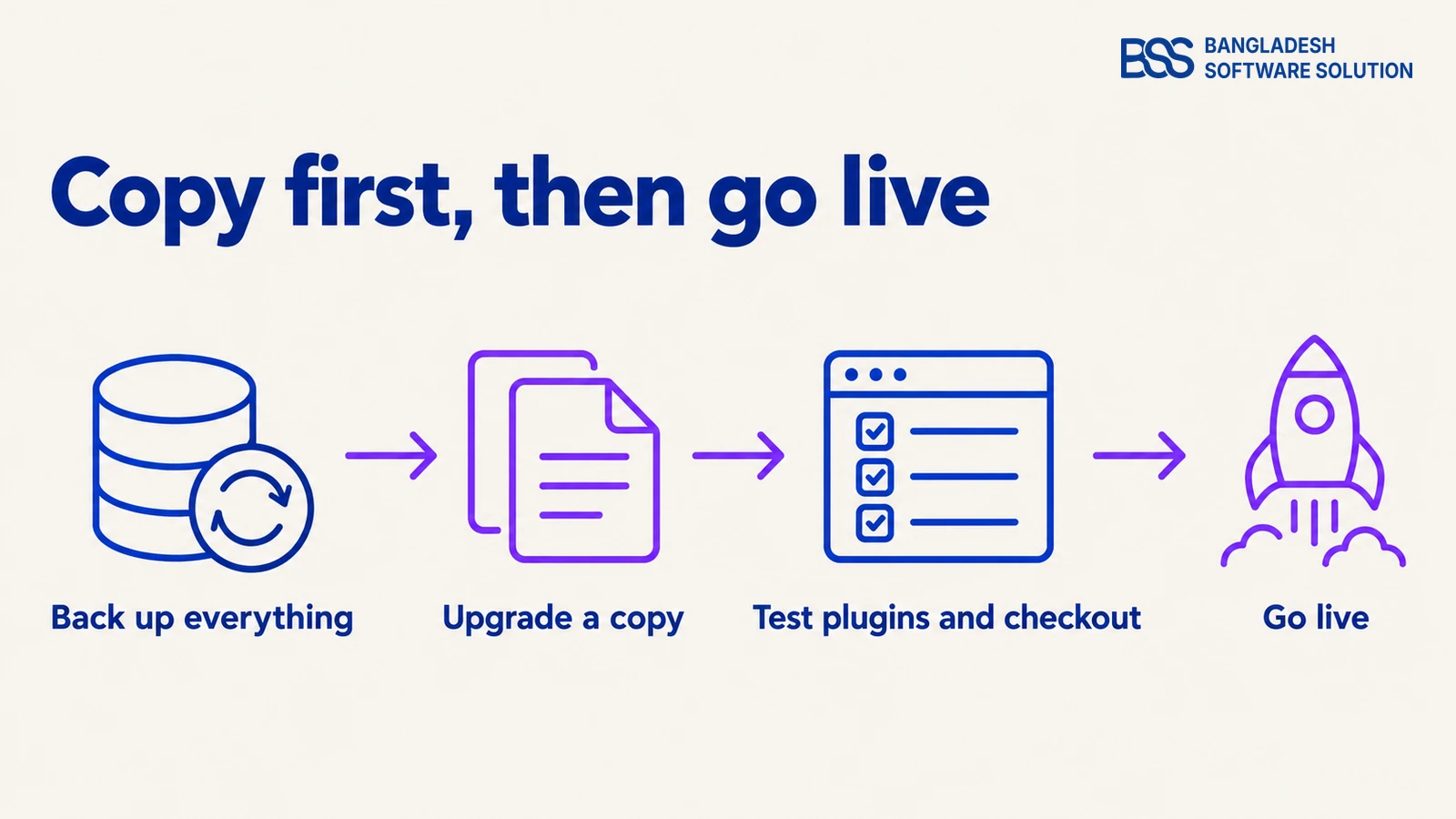
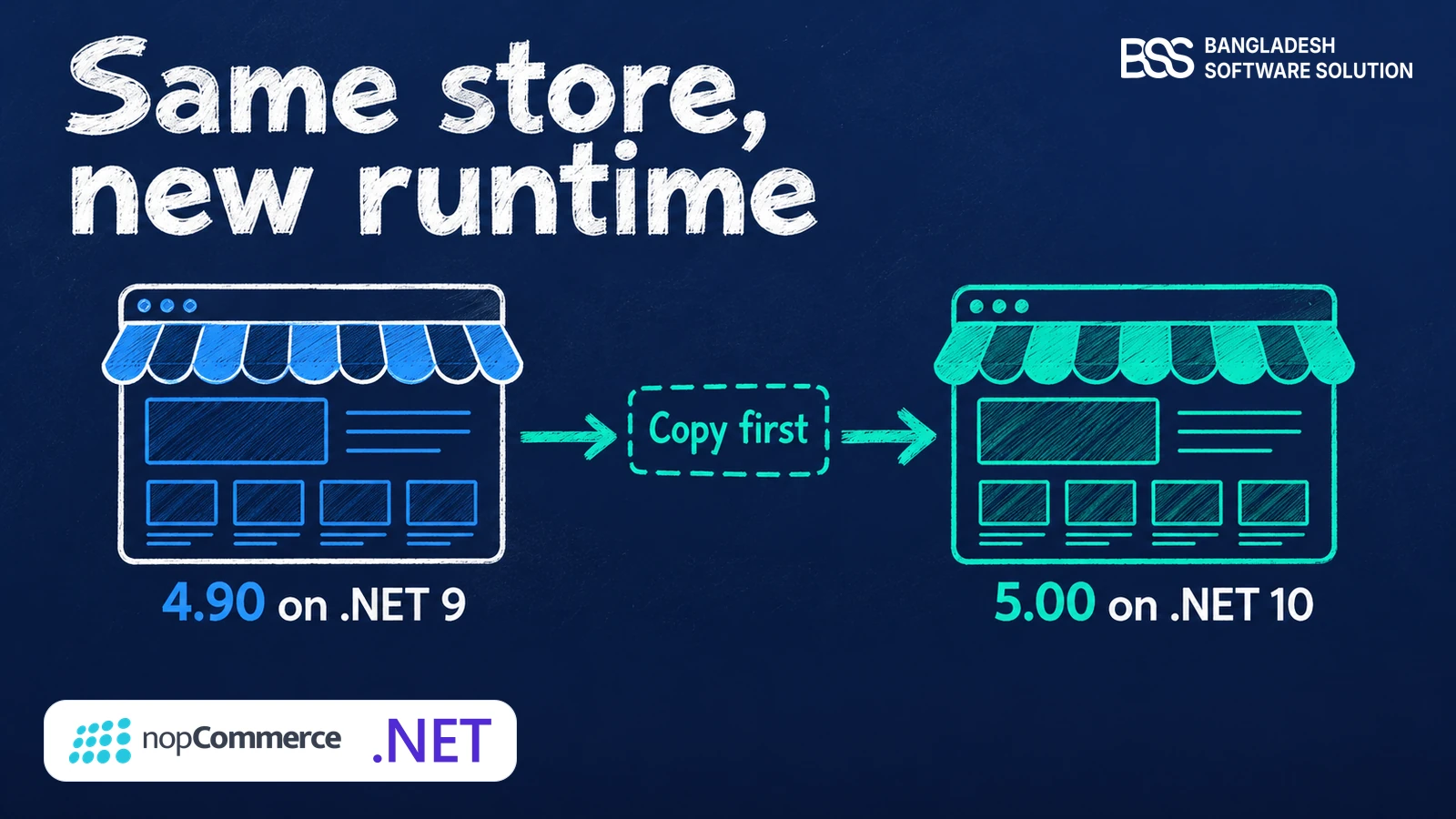
Do these on a clone of your store, never on the live one. The order is the one the official chapter gives, and each move exists for a reason.
The four moves
- Back up everything. Take the database and the whole site folder, then restore that backup once to prove it works.
- Clear the old files, but keep two. Keep the JSON files in the App_Data folder, such as appsettings.json and plugins.json. They hold your database connection and your installed plugins.
- Upload the 5.00 files for your server. If you store pictures on disk, copy your wwwroot Images folder back afterwards.
- Start the application. The first start runs the database migrations, so watch the startup log and allow time on a large database.
Two details catch people. Check that appsettings.json on the copy points at the copy’s database, because a copy that writes to your production database is not a rehearsal. Then check plugins.json, which lists what is installed: a plugin without a 5.00 build can fail to load on the first start.
On a Windows server, make sure IIS has picked up the new files before the first start. On Linux, restart the systemd service once the files are in place. Then confirm the server has the runtime the release notes name:
dotnet --list-runtimes
# look for a line starting: Microsoft.AspNetCore.App 10.0.12
Watch out
If the application stops straight after the first start, compare the runtimes installed on the server with the one the build targets before you change any nopCommerce code. A missing runtime looks like a broken upgrade.

When we run an upgrade for a client, the first start on the copy is the step we watch most closely, because that is when the migrations run. If you would rather hand the move over, BSS handles nopCommerce version upgrades.
Port Your Plugins and Theme
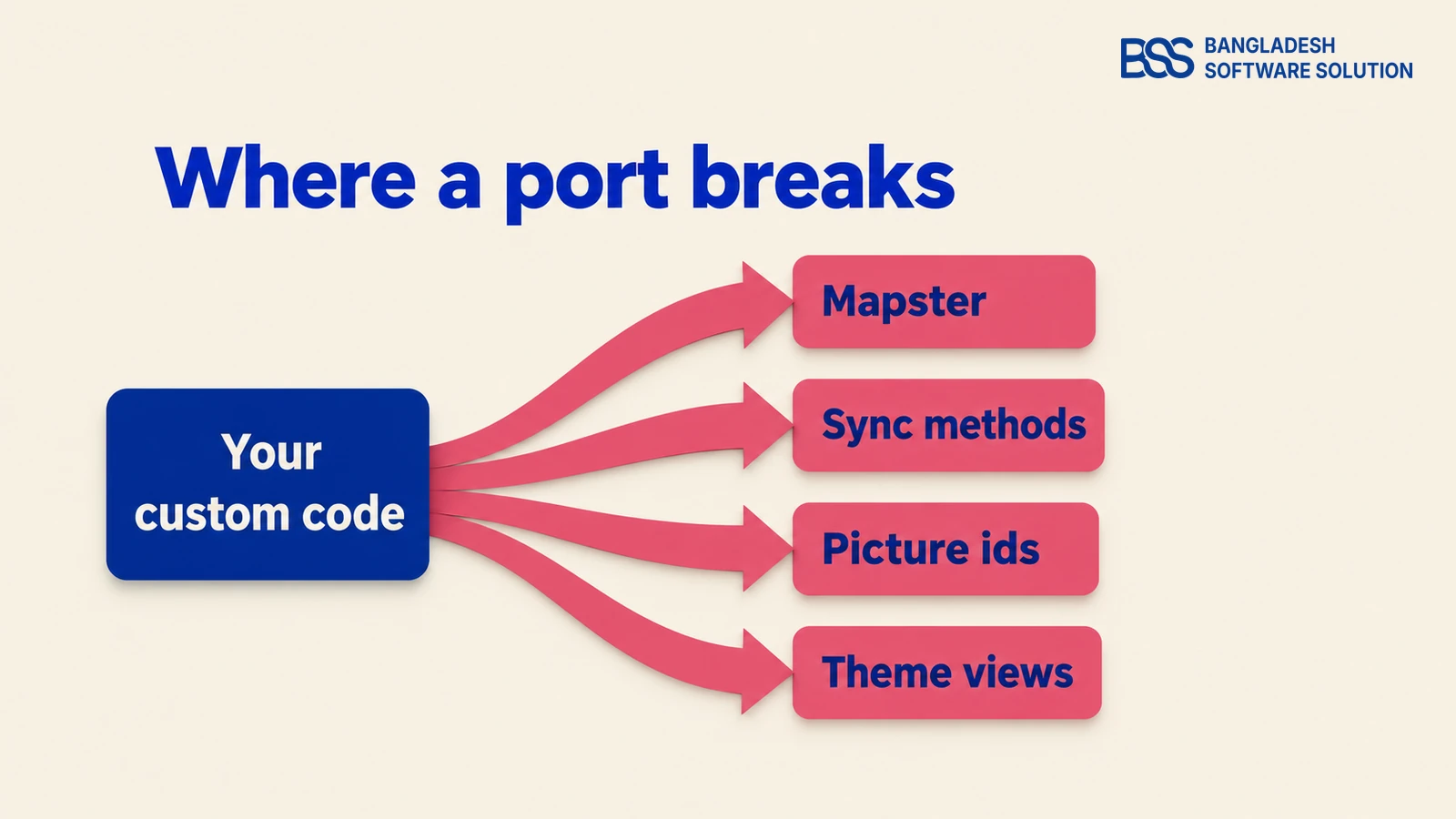
A major version changes the code under your extensions. The release notes give titles, not diffs, so treat this table as a search list for your own solution.
| Change in 5.00 | Who it touches | Our read |
|---|---|---|
| AutoMapper replaced by Mapster | Plugins that register mapping profiles or call the mapper | Check first |
| Synchronous service methods moved into a helper class | Code that calls the synchronous versions | Check first |
| Picture ids removed from ProductAttributeCombination and ProductAttributeValue | Plugins, themes and integrations that read them | Check first |
| ThemeableViewLocationExpander refactored | Themes with view overrides | Check |
| News, polls and forums moved to plugins | Stores and code that use them | Check |
| Payments.Manual removed from the core | Stores that take manual card payments | Check |
Search before you open Visual Studio 2026. The results tell you how big the port is before you commit to it:
# run from your plugin or theme solution folder
grep -rn "AutoMapper" --include="*.cs" .
grep -rn "PictureId" --include="*.cs" --include="*.cshtml" .
grep -rn "ThemeableViewLocationExpander" --include="*.cs" .
Each plugin declares the versions it supports in its plugin.json file. The official plugin documentation says that in most cases you only need to update the SupportedVersions field, but that assumes nothing the plugin relies on has changed. For a major version, ask the author for a 5.00 build first.
In the themes we ship at BSS, everything depends on how views are resolved, so the ThemeableViewLocationExpander line is the one we read twice. If your port is bigger than your team’s spare time, you can hire a .NET developer from the same team to port the plugins while your own engineers stay on the roadmap.
If an ERP, a mobile app or a partner calls your store’s API, add those calls to the copy’s test list. The plugin below is the one to check when your integrations use the store’s REST API.
Updated for nopCommerce 5.0. RESTful API endpoints for a mobile app, third-party services and web API integrations.
View the pluginTest the Copy Until an Order Passes
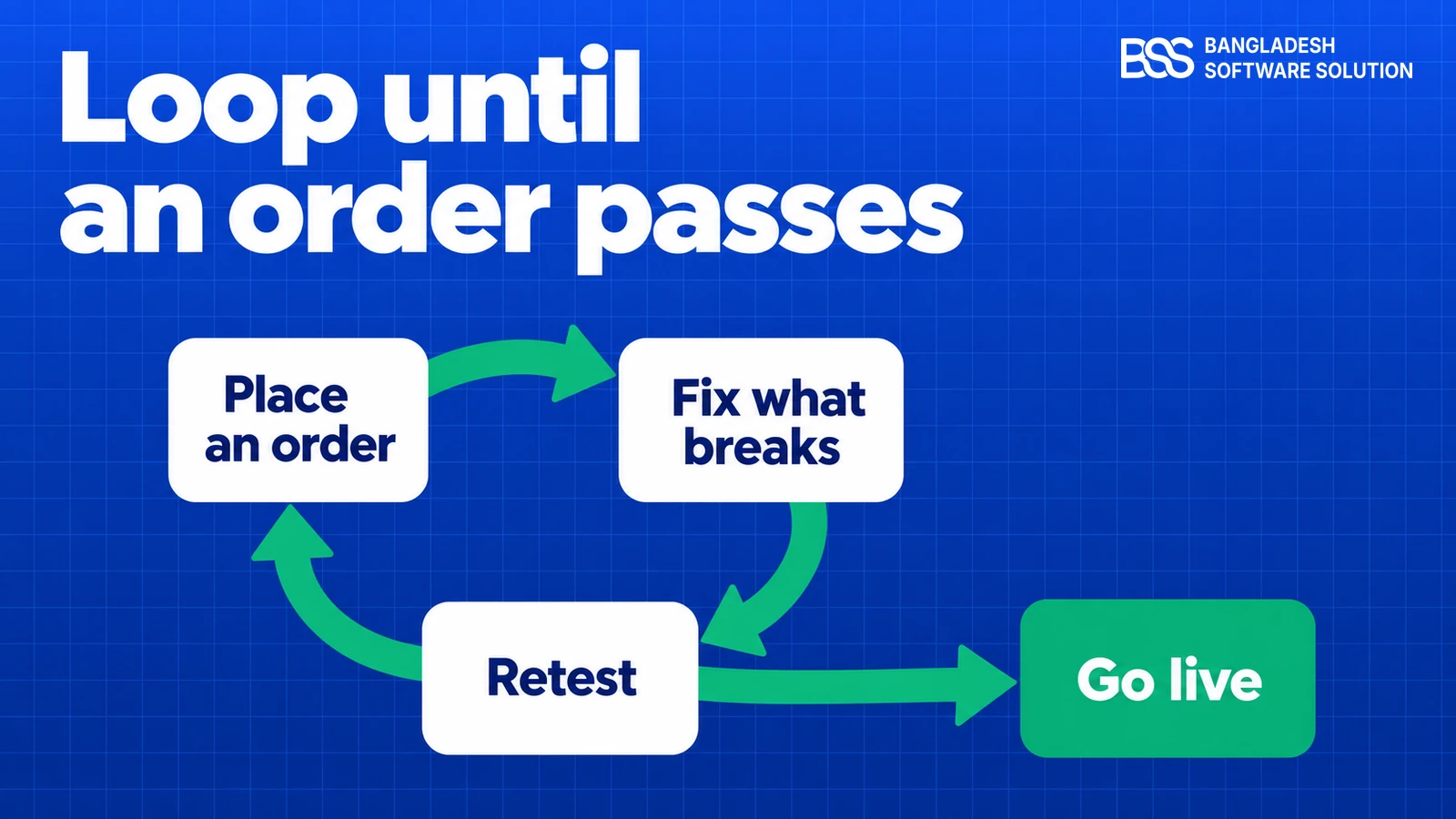
A homepage that loads proves little. Test the journeys that earn money first, then the ones that run in the background.
| Test on the copy | Why it can break |
|---|---|
| Cart and checkout | Payment and shipping plugins are the most likely to need a 5.00 build. |
| Order emails | The %Order.CustomValues% token was split into several tokens, so custom templates may change. |
| Scheduled tasks | Reminders and feeds depend on the application running its tasks after a restart. |
| Admin and uploads | Roxy Fileman was replaced by elFinder, which changes the file picker. |
| Integrations | API consumers and callbacks must reach the copy and get the same answers. |
Run the same test order through every payment and shipping method you offer. Payments are where a plugin gap hurts most, and the BSS plugin below is one we have updated for 5.0.
Updated for nopCommerce 5.0. Stripe checkout for your nopCommerce store: secure payments, global cards and easy plugin installation.
View the pluginA passing homepage is not a passing upgrade. An order that reaches the confirmation email is.
BSS Engineering
Test as more than one kind of customer. Place one order as a guest and one from a registered account, and run the admin side of each order too, because a plugin that fails on the way in often fails quietly on the way out.
Make the copy honest. Match the database version, the payment sandbox settings and the plugin list to production, and keep a short log of every plugin change, so a late failure can be traced. Loop until someone who did not run the copy can place a complete order without help.
A store can look fine and still fail at checkout, so a complete order through payment is the check we treat as non-negotiable. Our nopCommerce services include upgrades alongside setup and integrations.
Go Live With a Way Back
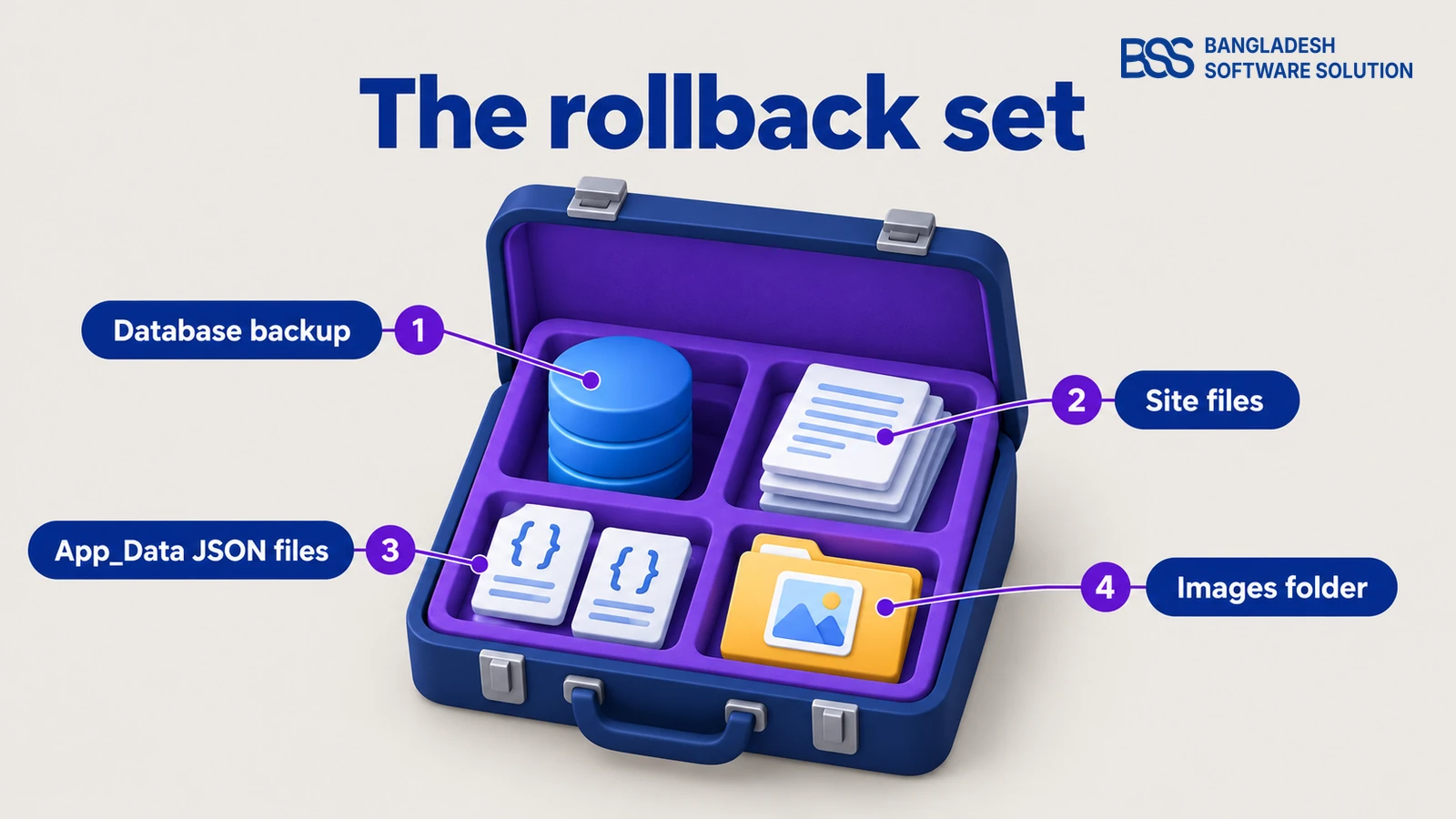
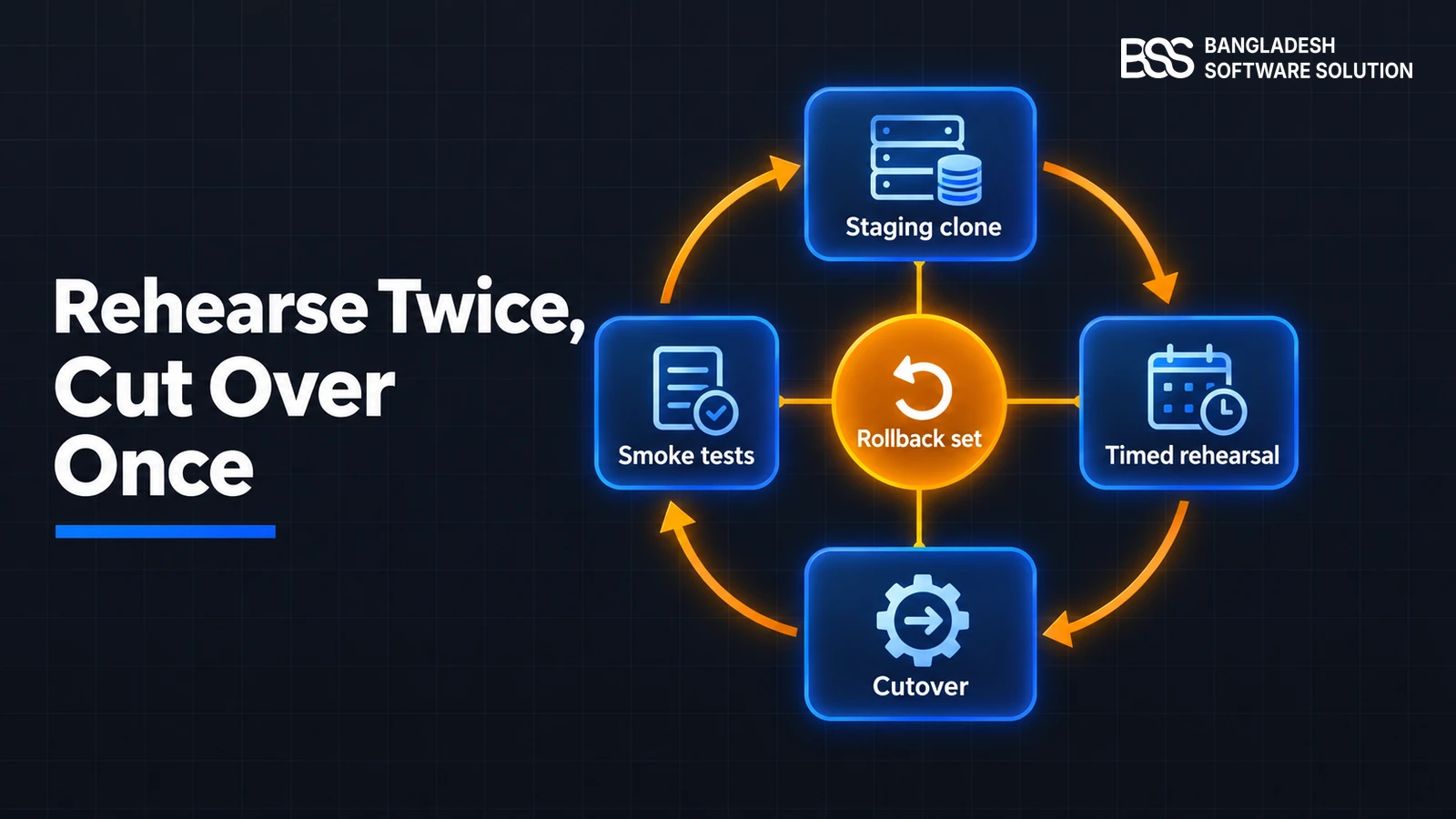
When a full order passes on the copy, repeat the same four moves on the live store in a quiet window. You have rehearsed them, so the cutover is a repeat, not a discovery.
The rollback set: the database backup, the site files, the App_Data JSON files and the images folder. If the new version misbehaves, the official answer is to restore the backup and replace the files with the ones from your previous version.
- Before the window - take a fresh backup, freeze admin changes and confirm the runtime on the live server.
- In the window - run the four moves exactly as you rehearsed them.
- After the first start - place a real small order, check the emails and open the plugin list.
- Afterwards - keep the previous files until the new version has handled real orders.
Restore the rollback set once on a spare copy before the day, and check that the store comes up and takes an order. Our nopCommerce upgrade checklist and our compatibility testing guide cover the same ground in more depth.
Need your 4.90 store moved to 5.0? Hire the BSS Team
From plugin ports to a tested copy and a rollback you can trust, our dedicated nopCommerce engineers can run the move. Tell us what you need and we will match you with the right developer.
Frequently Asked Questions
Final Thoughts
Back to the developer’s line: “Ready to upgrade when you give the date.” The date is the last decision, not the first. This week, answer the three gates and clone the store; the live date follows the copy, not the calendar.
Run the four moves on the copy, port what the search turns up, loop on checkout until an order passes, and keep the rollback set within reach. If you want one team to do it with you, our nopCommerce services include version upgrades.
Tell us your version, plugins and hosting. We will tell you what to port, what to test and what a safe move would take.
Book a free consultation