BSS AI Business Assistant
Created on: Apr 03, 2026
PRE-REQUISITES
-
The plugin requires you to install the BSS Core plugin first.
INSTALLATION
- Go to the Order Details Page and Download plugin package
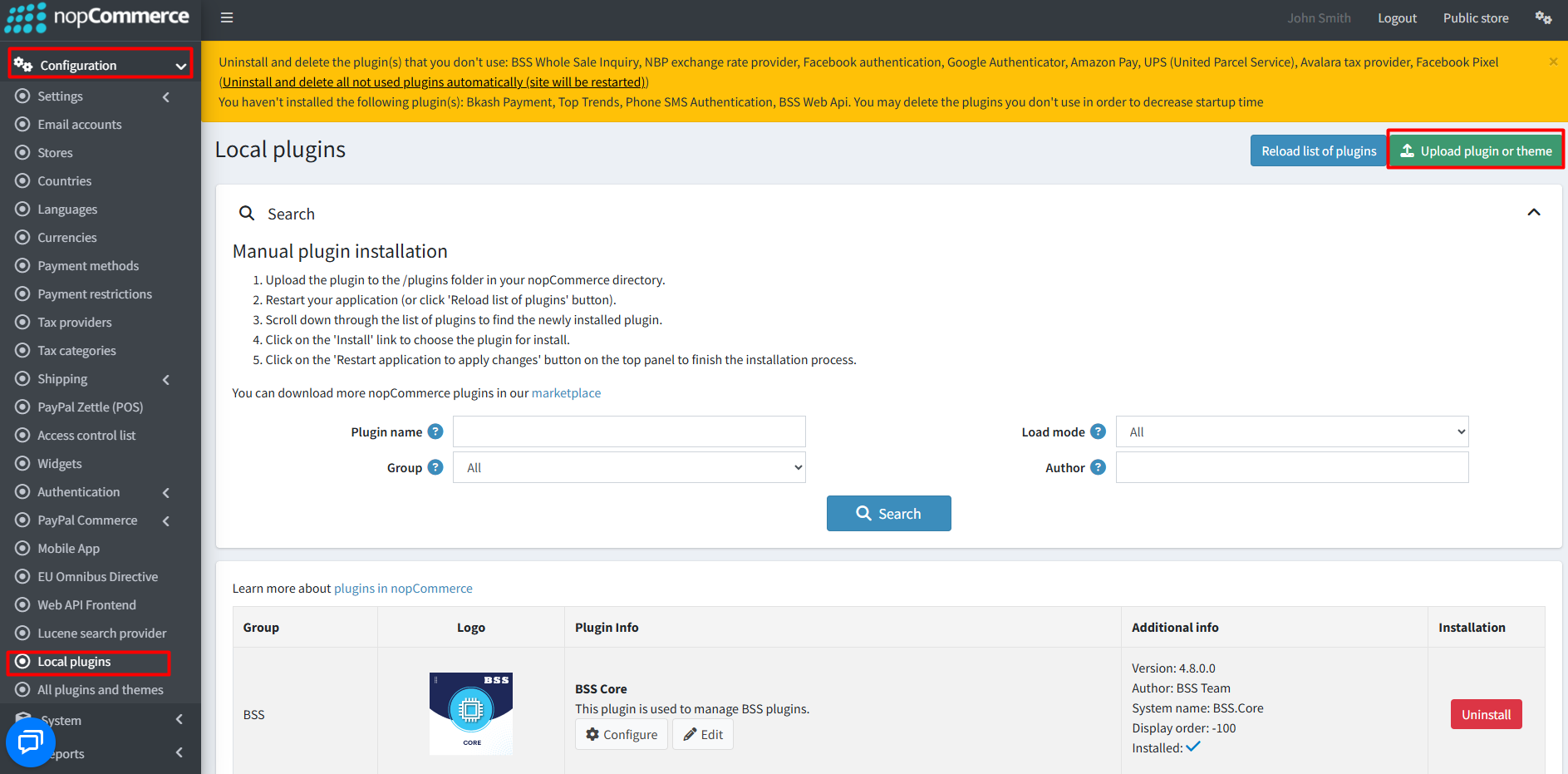
- Go to Administration → Configuration → Local plugins
- Within the bundle, you get all the required files, including BSS.Core
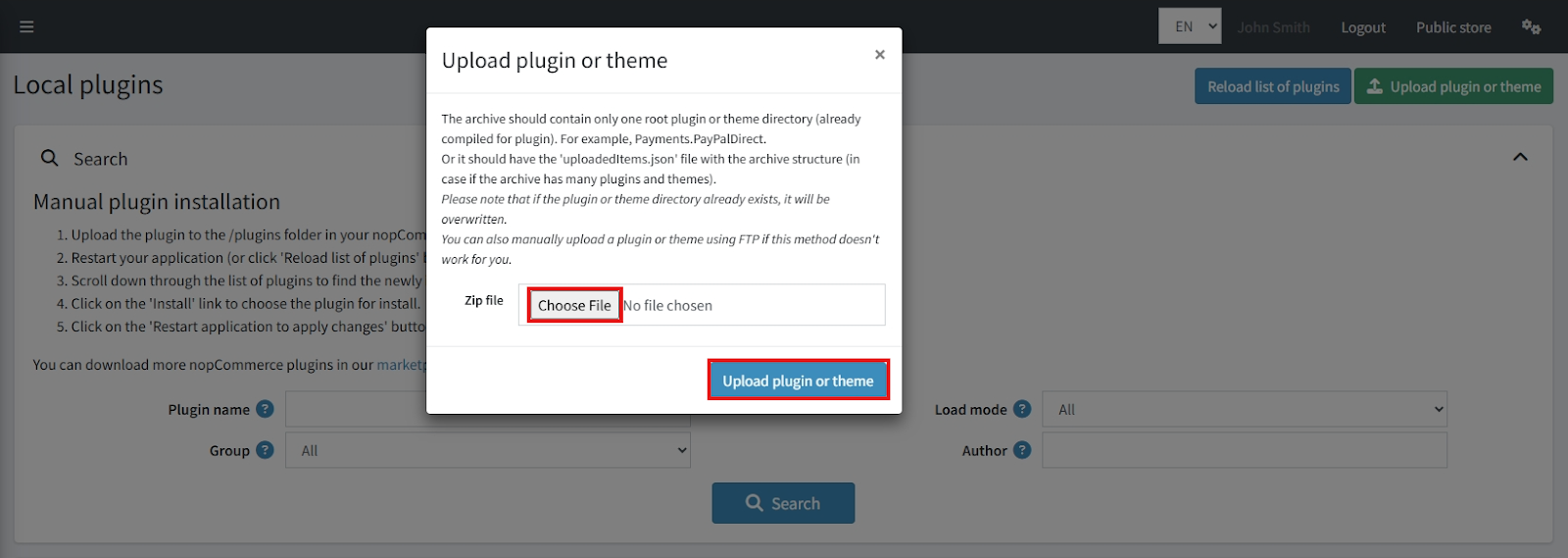
- Upload the zip files using the 'Upload plugin or theme' button
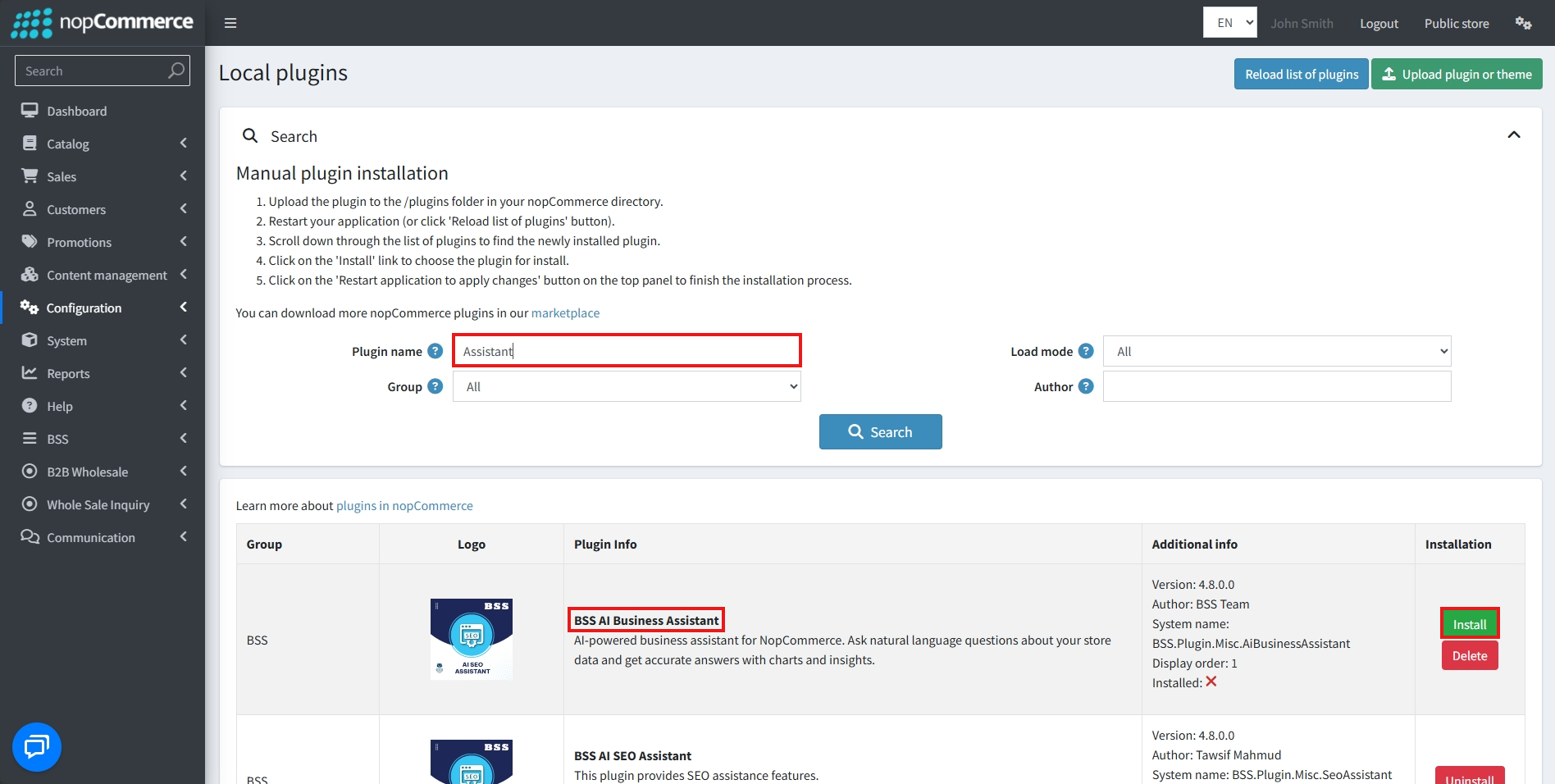
- After uploading, install the ‘BSS Core’ Plugin and ‘BSS AI Business Assistant’.
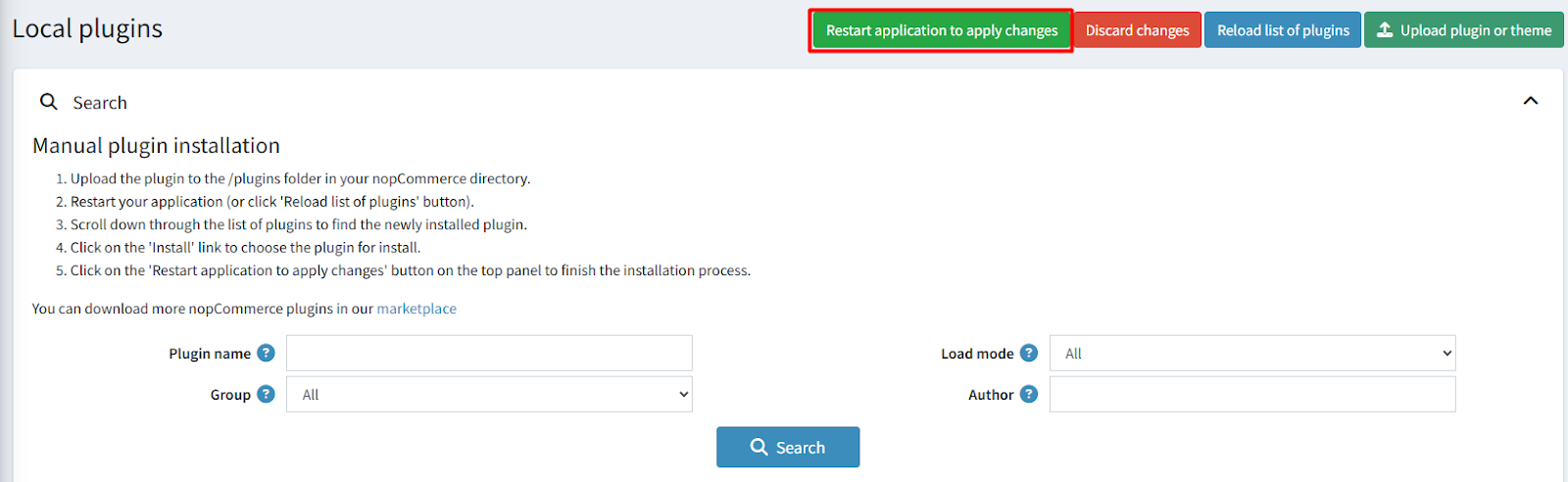
- To make the plugins functional, restart the application.
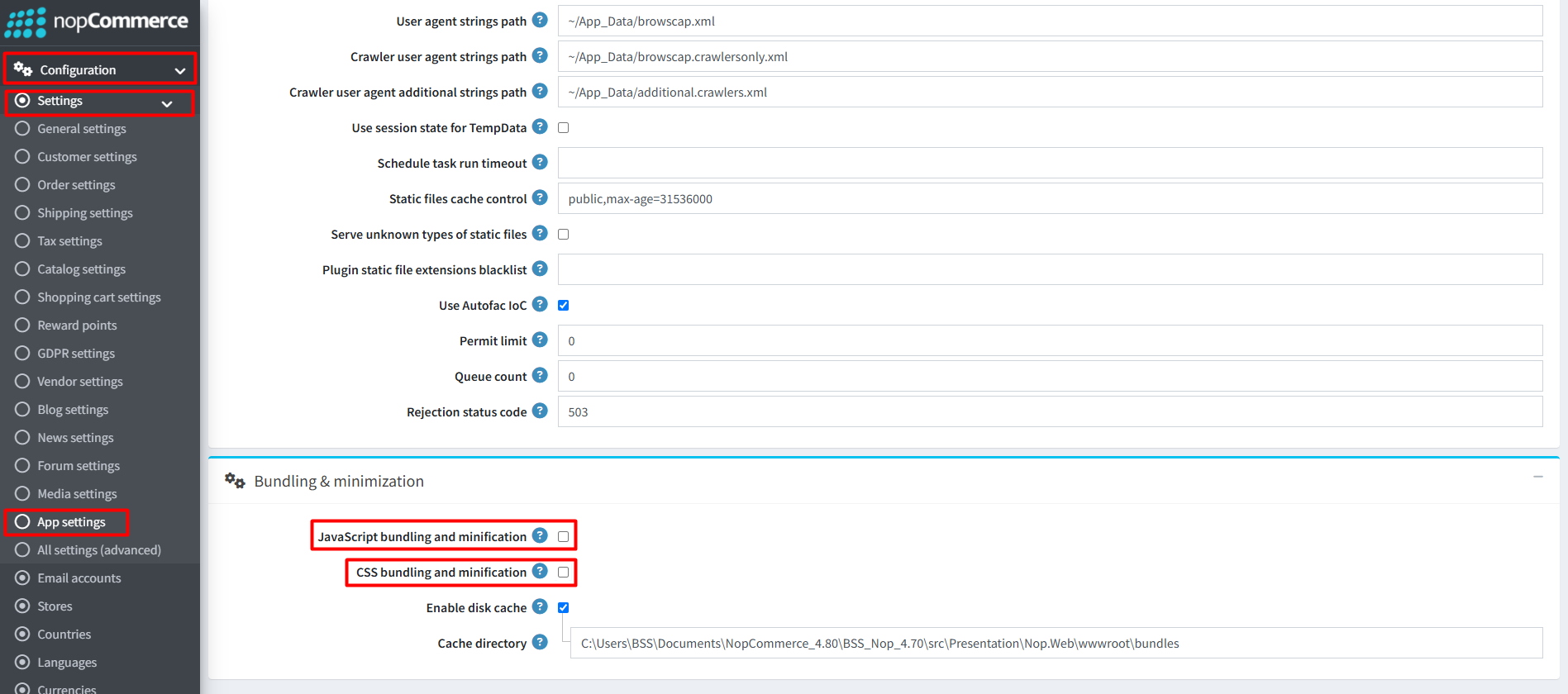
Recommendation: Go to > App Settings. If you find JavaScript bundling and minification, CSS bundling and minification are checked then unchecked this two options and disable it.
CONFIGURE
-
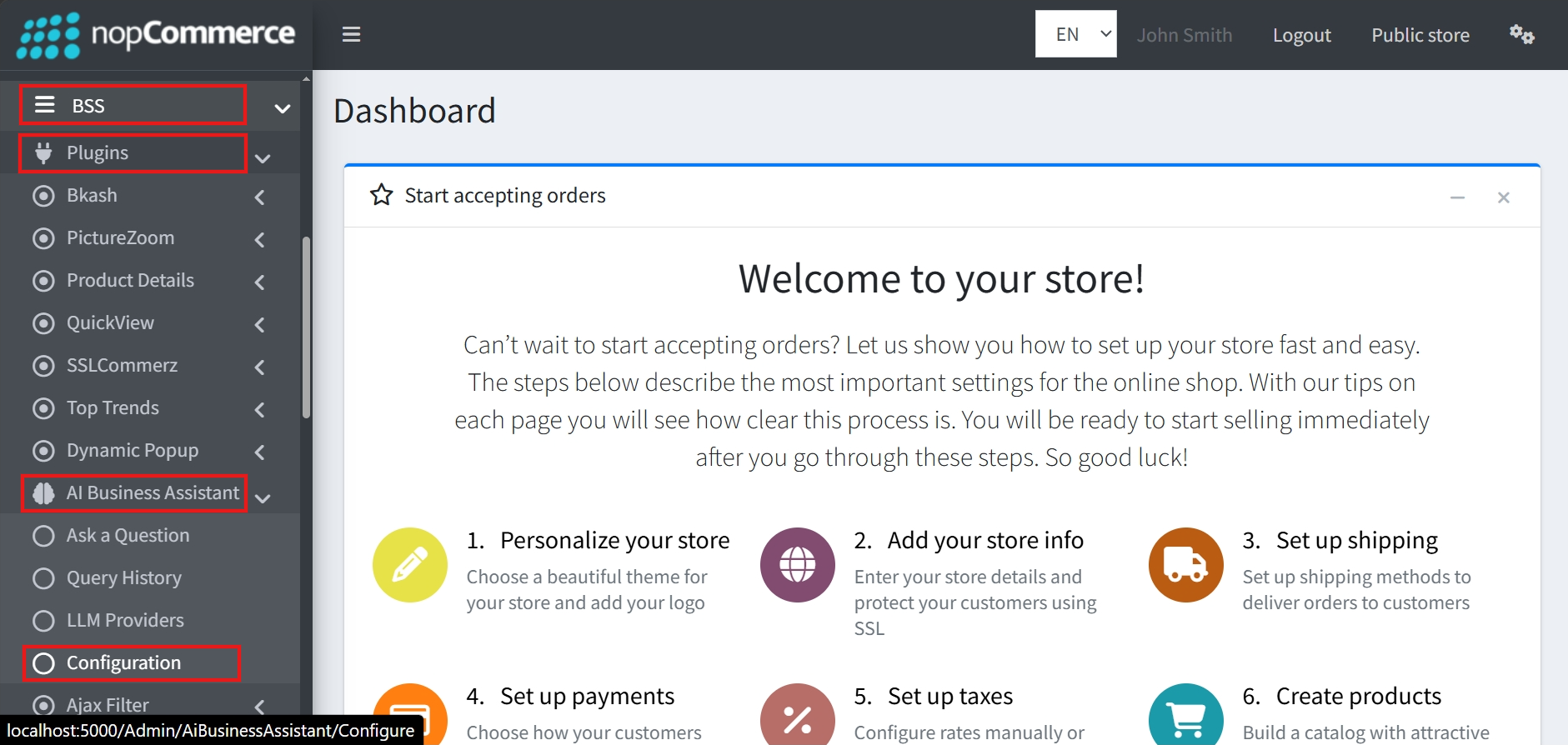
Go to Admin → BSS → Plugins → AI Business Assistant → Configuration
-
Enter the License string and save it. Then clear cache.

-
Then again go to BSS → Plugins → AI Business Assistant → Configuration to set the configuration.
QUERY SETTINGS
-
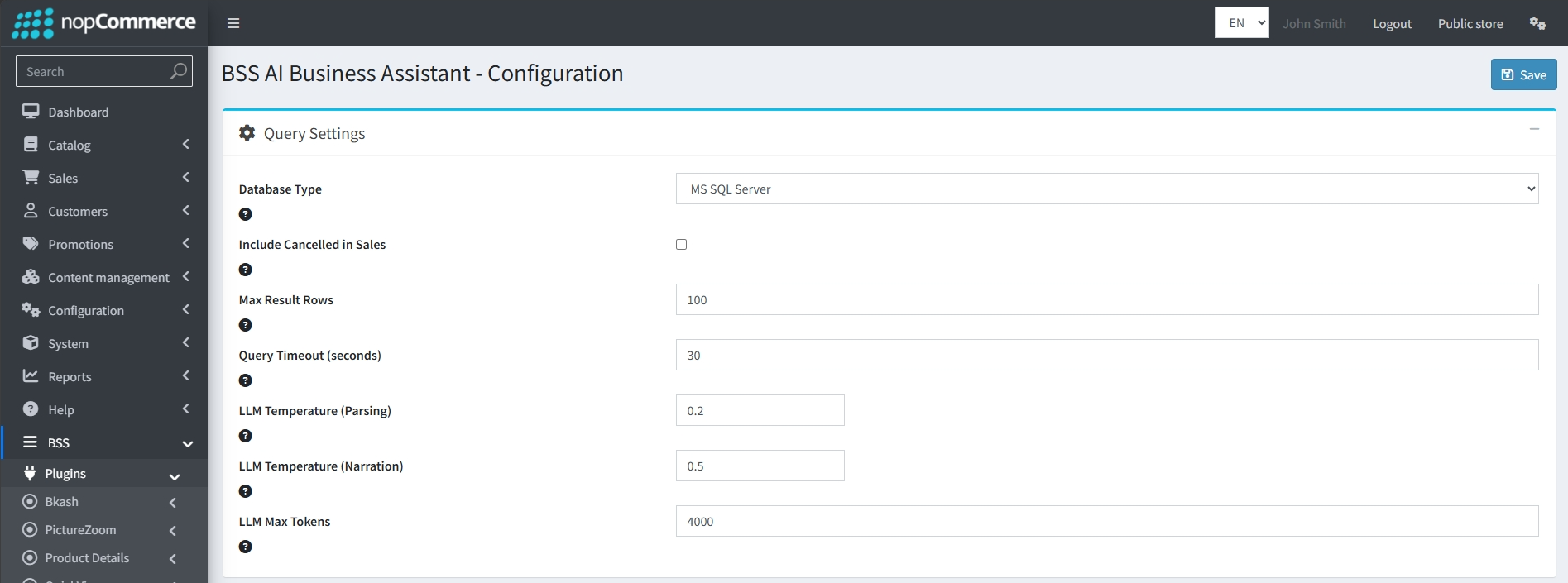
Database Type: Select your database platform from the dropdown menu.
-
Include Cancelled in Sales: A toggle to determine if cancelled orders should be counted in sales-related AI queries.
-
Max Result Rows: Limits the number of rows returned in a single query.
-
Query Timeout: Sets the maximum time in seconds for a query to run before timing out.
-
LLM Temperature (Parsing & Narration): Controls the randomness of the AI's output. Parsing (default 0.2) is kept lower for higher accuracy in understanding data, while Narration (default 0.5) is slightly higher for more natural responses.
-
LLM Max Tokens: Limits the total length of the AI's response.
LOGGING SETTINGS
-
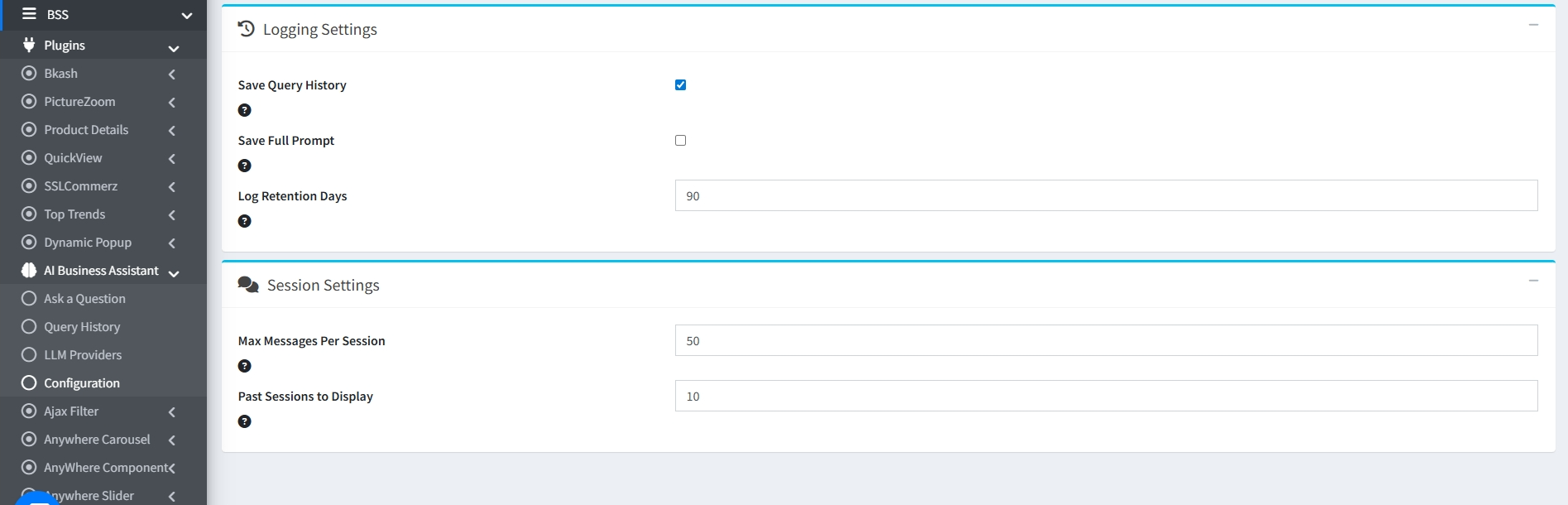
Save Query History: A checkbox to enable or disable the recording of user questions and AI answers.
-
Save Full Prompt: Determines if the entire technical prompt sent to the LLM should be stored for debugging.
-
Log Retention Days: Specifies how many days query logs should be kept before being automatically deleted.
SESSION SETTINGS
-
Max Messages Per Session: Limits the number of individual messages allowed within a single chat conversation.
-
Past Sessions to Display: Determines how many previous chat sessions are visible to the user in their history.
LLM PROVIDERS
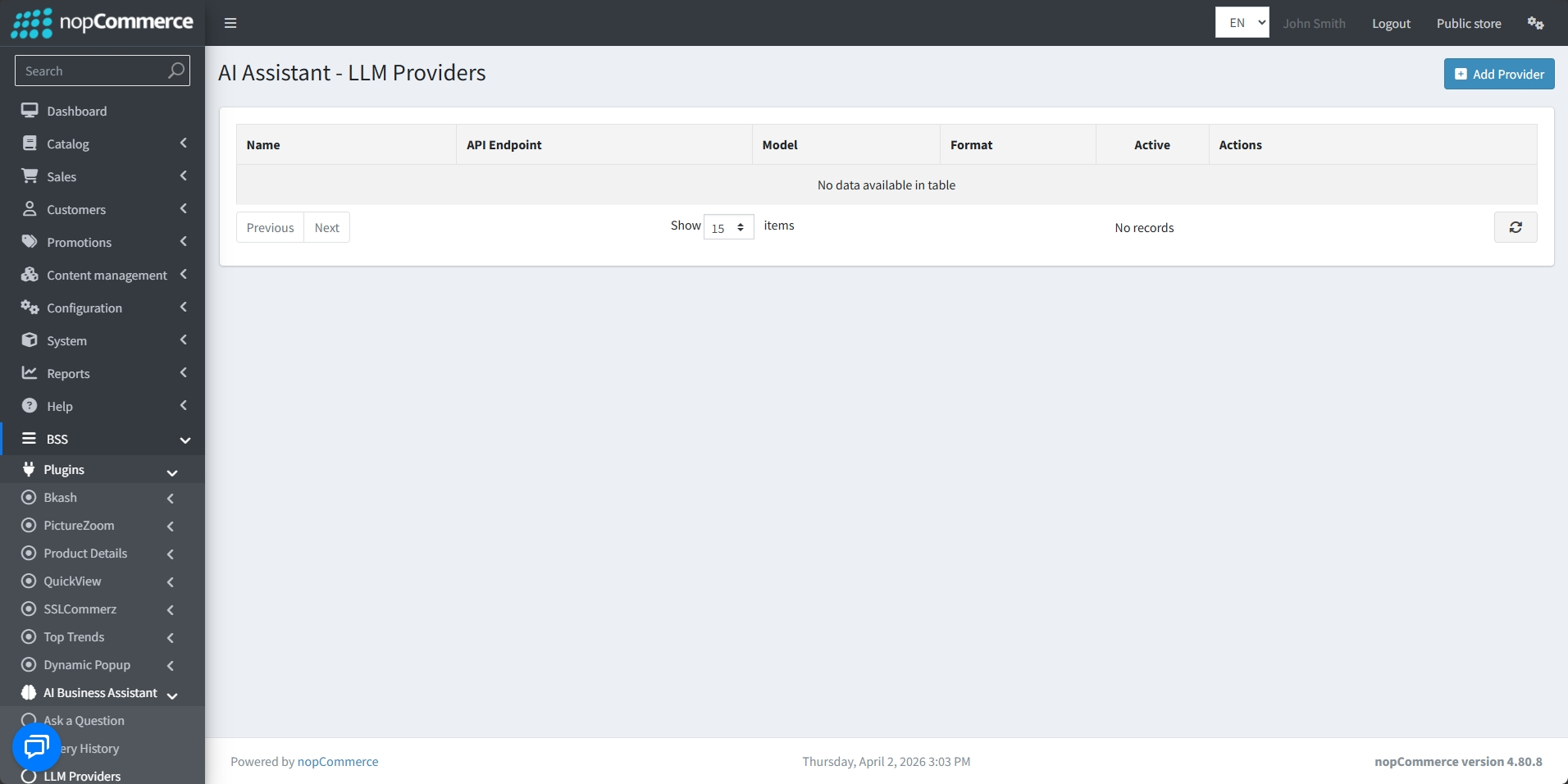
- Go to Admin → BSS → Plugins → AI Business Assistant → LLM Providers to view and manage LLM Providers.
-
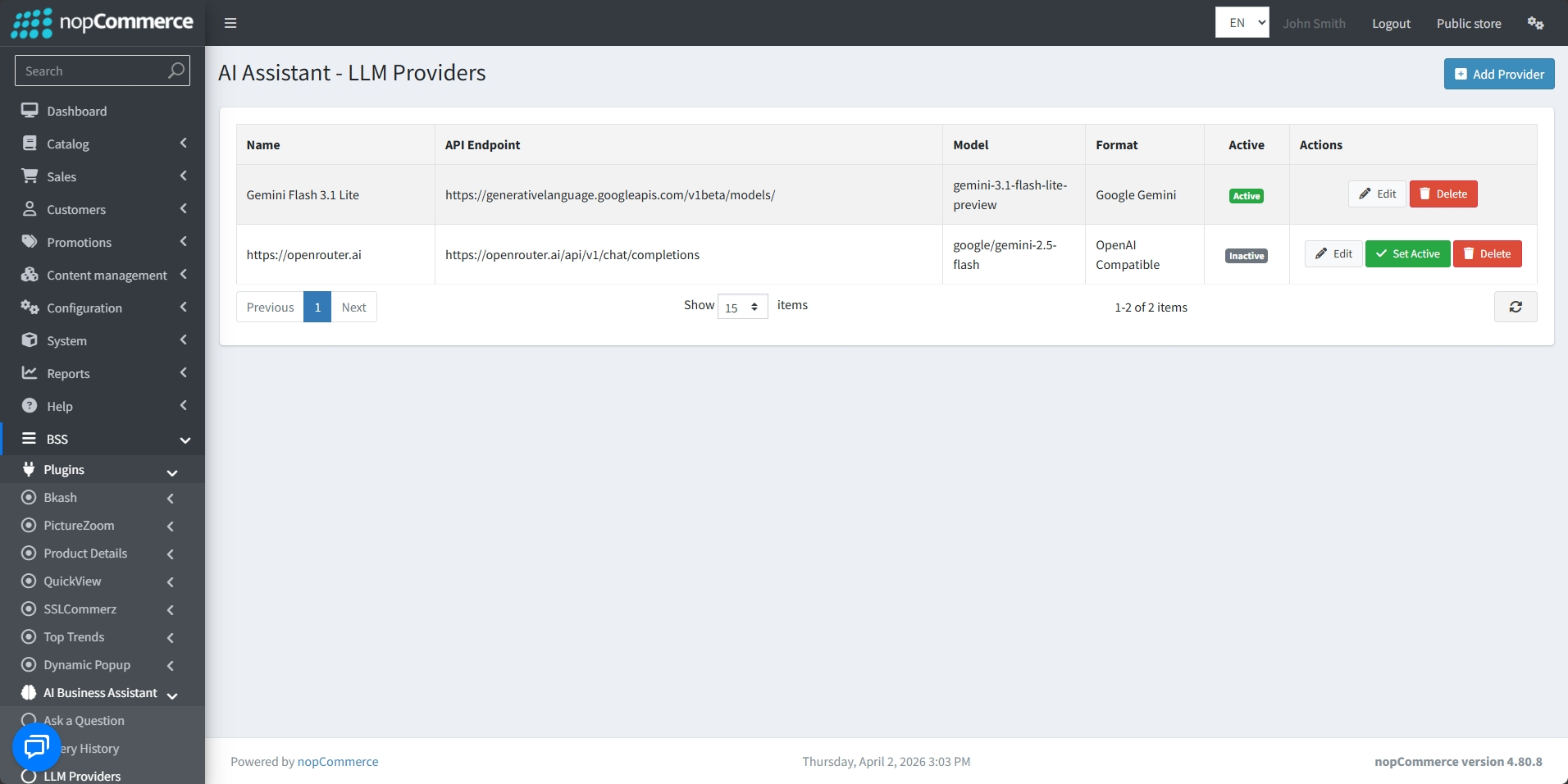
View the Name, API Endpoint, Model, Format and Active Status for every entry.
-
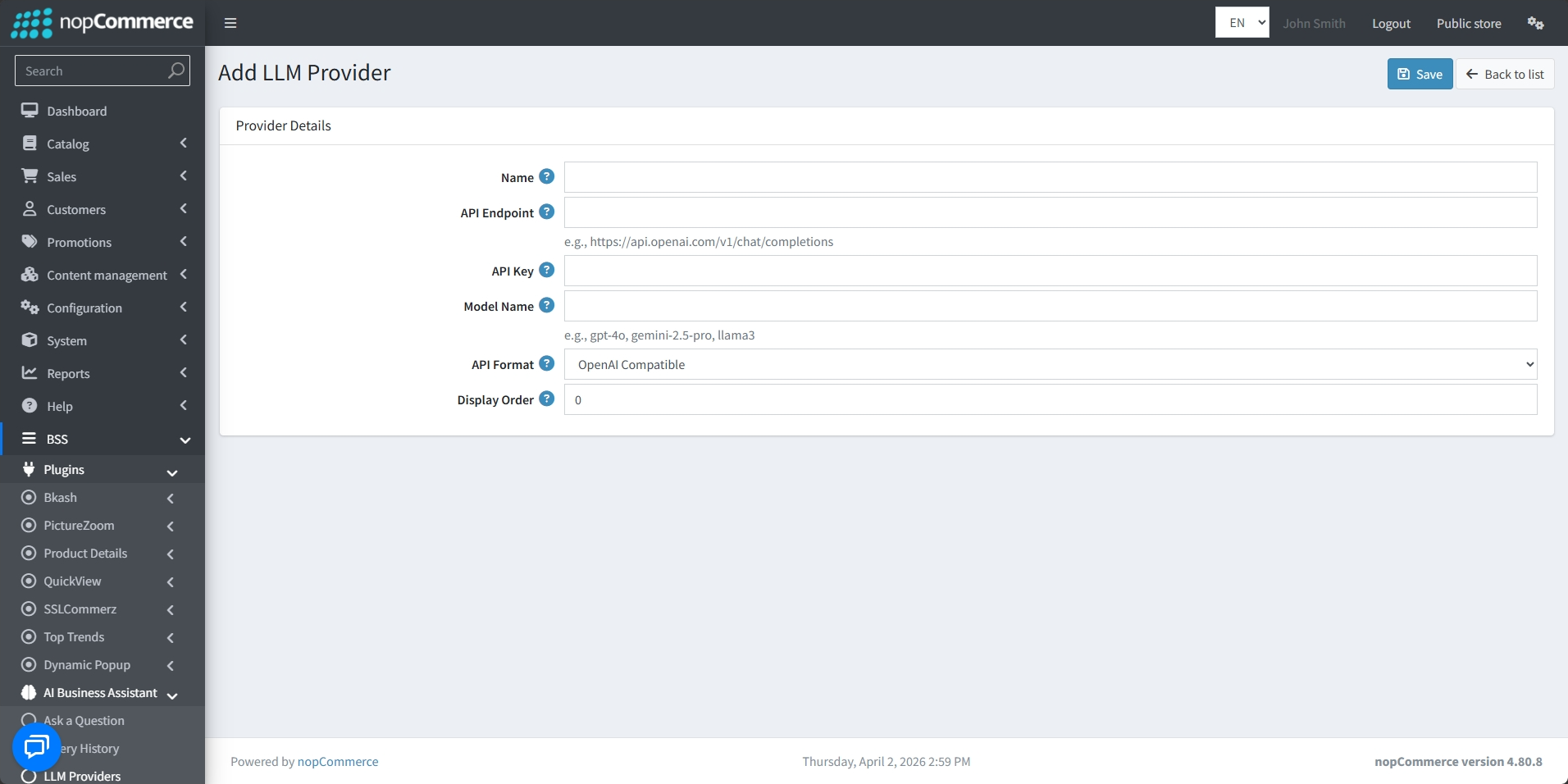
Use the Add Provider button at the top right to create additional configurations.
-
Enter a recognizable Name for the provider.
-
Provide the API Endpoint (base URL) for the service.
-
Enter the API Key provided by your AI service
-
Specify the exact AI Model you wish to use
-
Select the API Format from the dropdown menu
-
Set the Display Order to determine where the provider appears in your lists
-
After adding LLM Providers, select a provider by clicking the Set Active button.
-
Note: Only one provider can be active at a time; activating a new one will automatically deactivate any previously active provider.
ASK A QUESTION
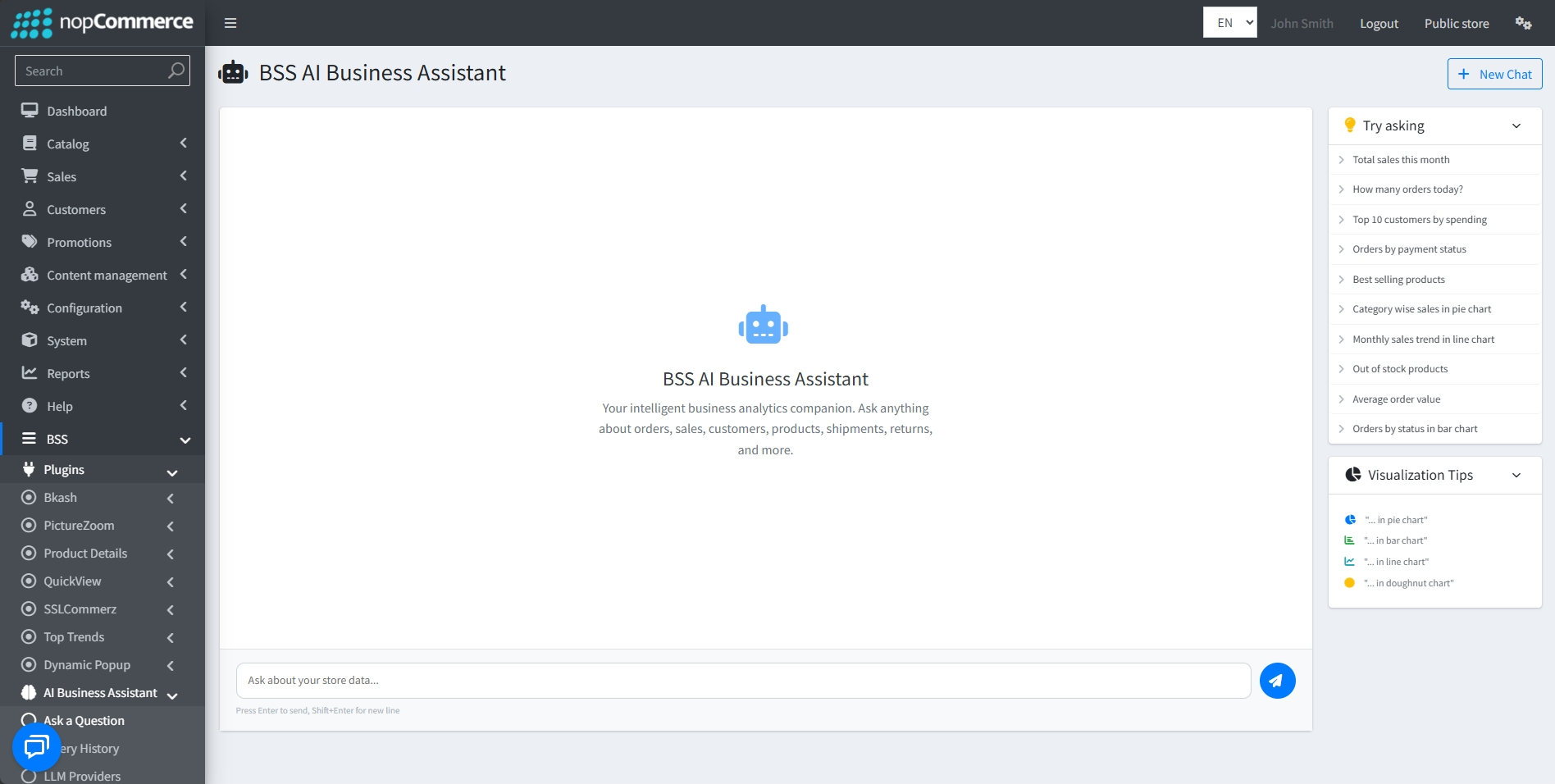
- Go to BSS → Plugins → AI Business Assistant → Ask a Question. The "Ask a Question" page is the central interface for interacting with your intelligent business analytics companion.
-
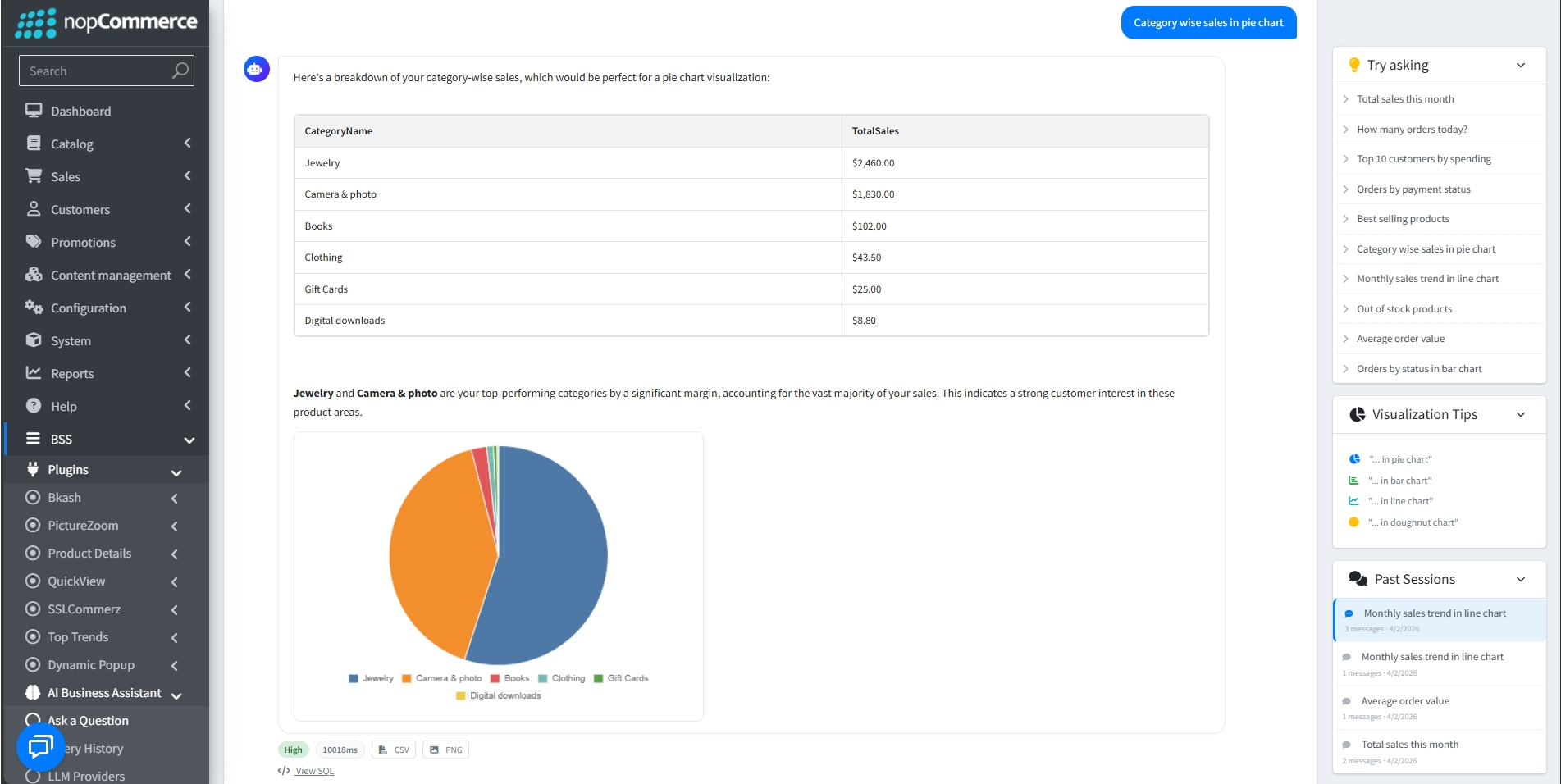
Natural Language Chat: You can ask questions about your store's orders, sales, customers, products, shipments, and returns directly in the chat box.
-
Query Shortcuts: A Try asking sidebar provides useful examples to get you started, such as “Total sales this month," “Best selling products," or “Average order value".
-
New Session: A New Chat button is available at the top right to start fresh sessions.
-
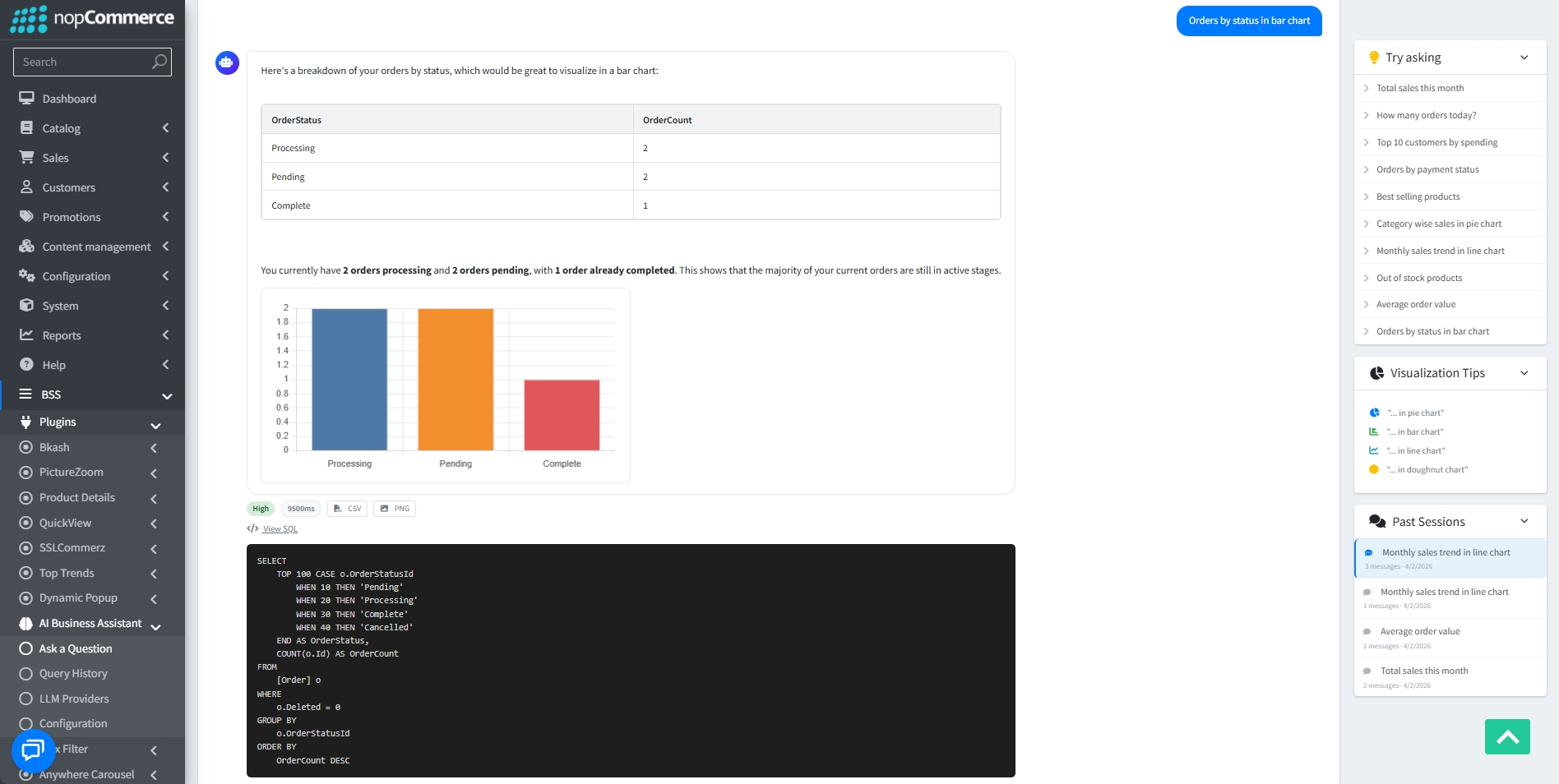
Data Visualization: The Visualization Tips section helps you generate visual reports by showing how to request specific formats like pie charts, bar charts, line charts, or doughnut charts.
-
You can view the exact SQL code the AI generated to retrieve data from your database by clicking the </> View SQL link.
-
Additionally, you can easily download your data as a CSV file or save any generated charts as PNG images for your own reports.
QUERY HISTORY
-
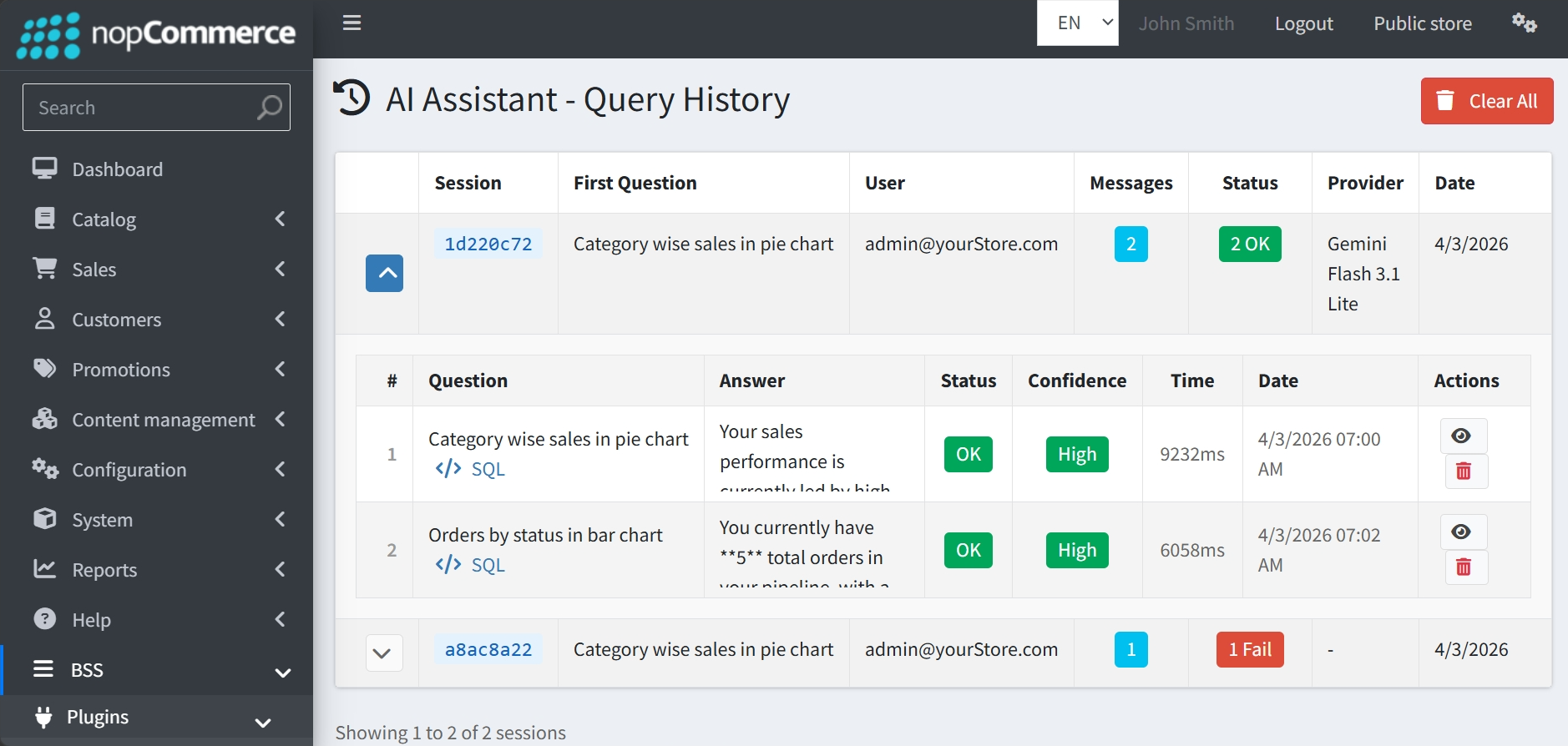
Go to BSS → Plugins → AI Business Assistant → Query History to access a centralized view of your past interactions with the AI assistant.
-
This page tracks your previous questions and AI answers, allowing you to review past analytical insights. The main history table organizes interactions by chat sessions, displaying Session ID, First Question, User, Message Count, Status, Provider and Date.
-
Expanding a session reveals a granular look at every individual exchange:
-
SQL Transparency: You can view the exact SQL code the AI generated to retrieve data from your database by clicking the </> SQL link.
-
Performance Metrics: The log tracks the Execution Time (in milliseconds) and the Confidence Level of the AI's response.
-
Execution Status: Individual indicators confirm if the data retrieval was successful.
-
Individual Review: Use the View icon to see a full record of a specific message or the Delete icon to remove individual queries.
-
- You can clear all recorded history at once by using the Clear All button located at the top right of the page.
-
Based on your Logging Settings, these logs are automatically managed and will be deleted after the specified Log Retention Days.
FEATURES
-
Multi-Provider LLM Support: Integrates with leading services like Google Gemini and OpenAI ChatGPT, allowing one active provider at a time.
-
Natural Language Analytics: Ask complex questions about your orders, sales, customers, products, shipments, and returns directly in a chat interface. The AI interprets your requests and retrieves real-time data from your database.
-
Advanced Data Visualization: Automatically generate detailed tabular reports alongside visual charts, including pie, bar, line, and doughnut formats, to better understand your business trends.
- Data Export: Conveniently download your query results as a CSV file or save any generated charts as PNG images for use in external reports or presentations
-
Interactive Sidebar Tools: Access query shortcuts and visualization tips to quickly generate business insights.
-
Query History: Monitor past sessions with granular tracking of execution time, confidence levels, and message counts.
-
Configurable LLM Parameters: Fine-tune performance by adjusting LLM temperature, token limits, and log retention periods.