
BSS AI Chat
Created on: Oct 07, 2026
PRE-REQUISITES
-
The plugin requires you to install the BSS Core plugin first.
INSTALLATION
-
Go to the Order Details Page and Download plugin package
-
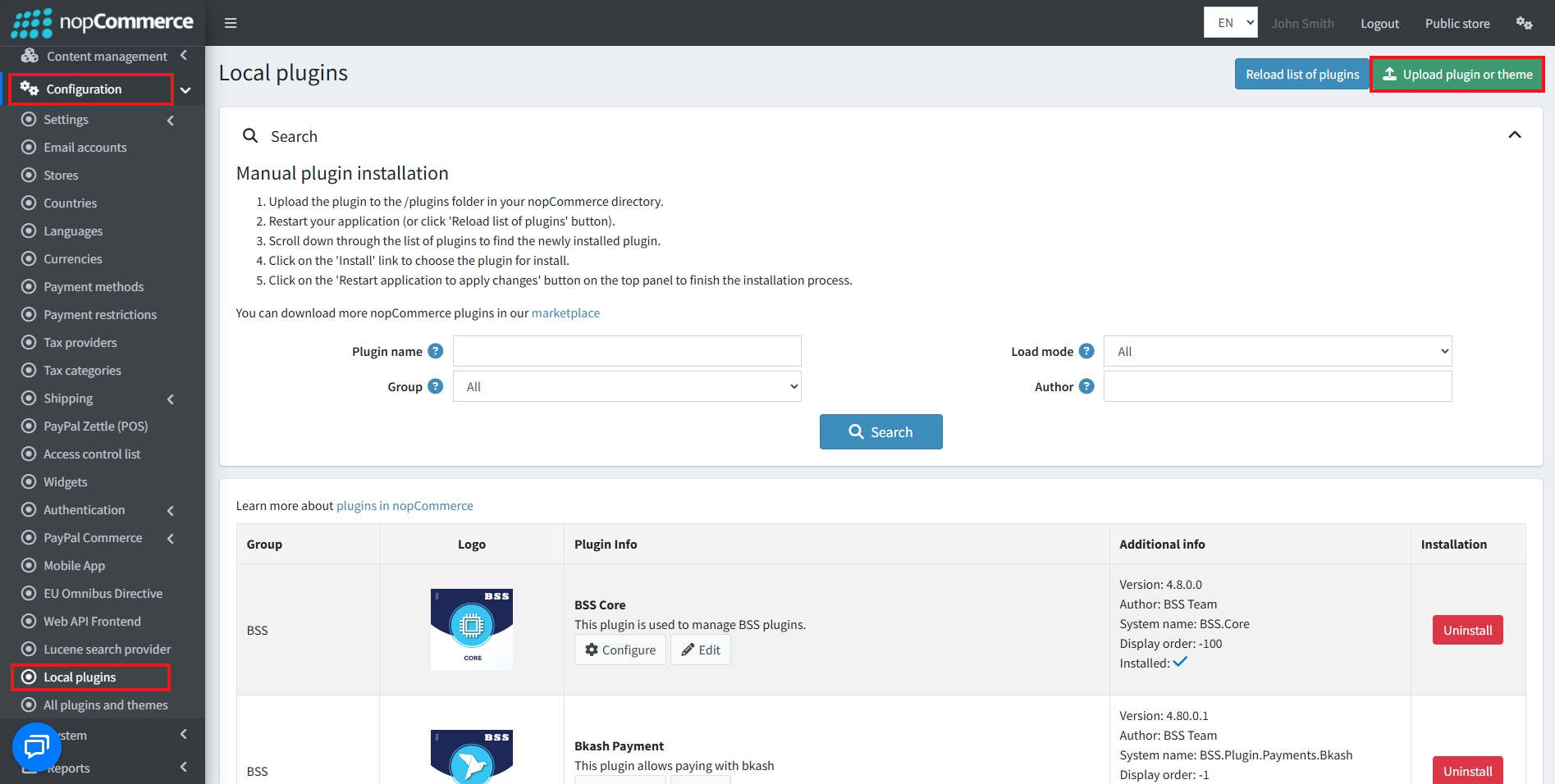
Go to Administration → Configuration → Local plugins
-
Within the bundle, you get all the required files, including BSS.Core
-
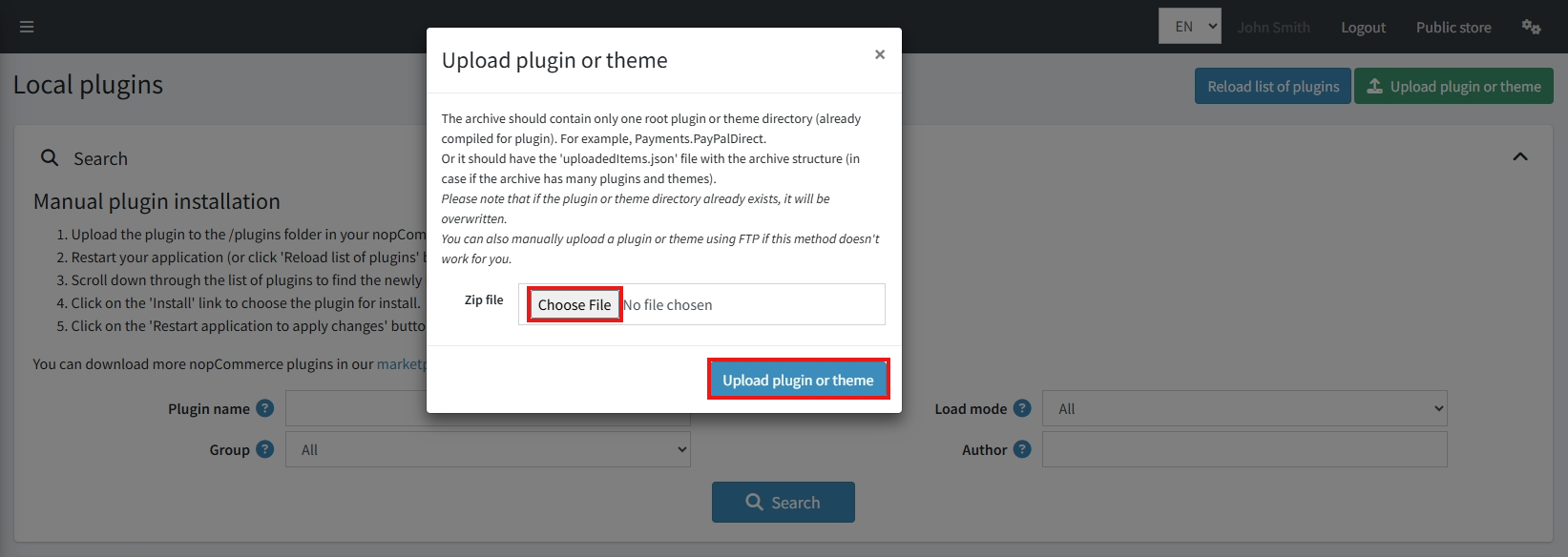
Upload the zip files using the ‘Upload plugin or theme’ button
-
After uploading, install the ‘BSS Core’ Plugin first.
-
Then scroll down or write the name of the plugin in the search bar to find and install 'BSS ChatPilot'
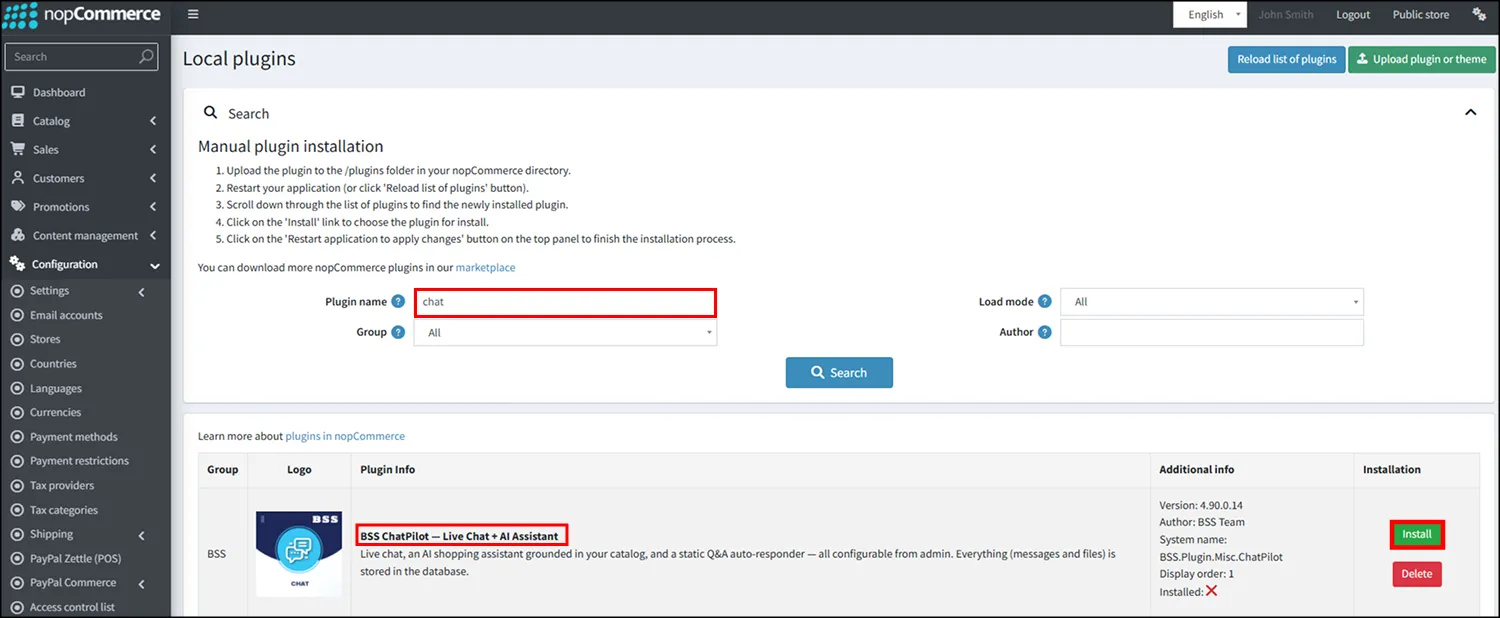
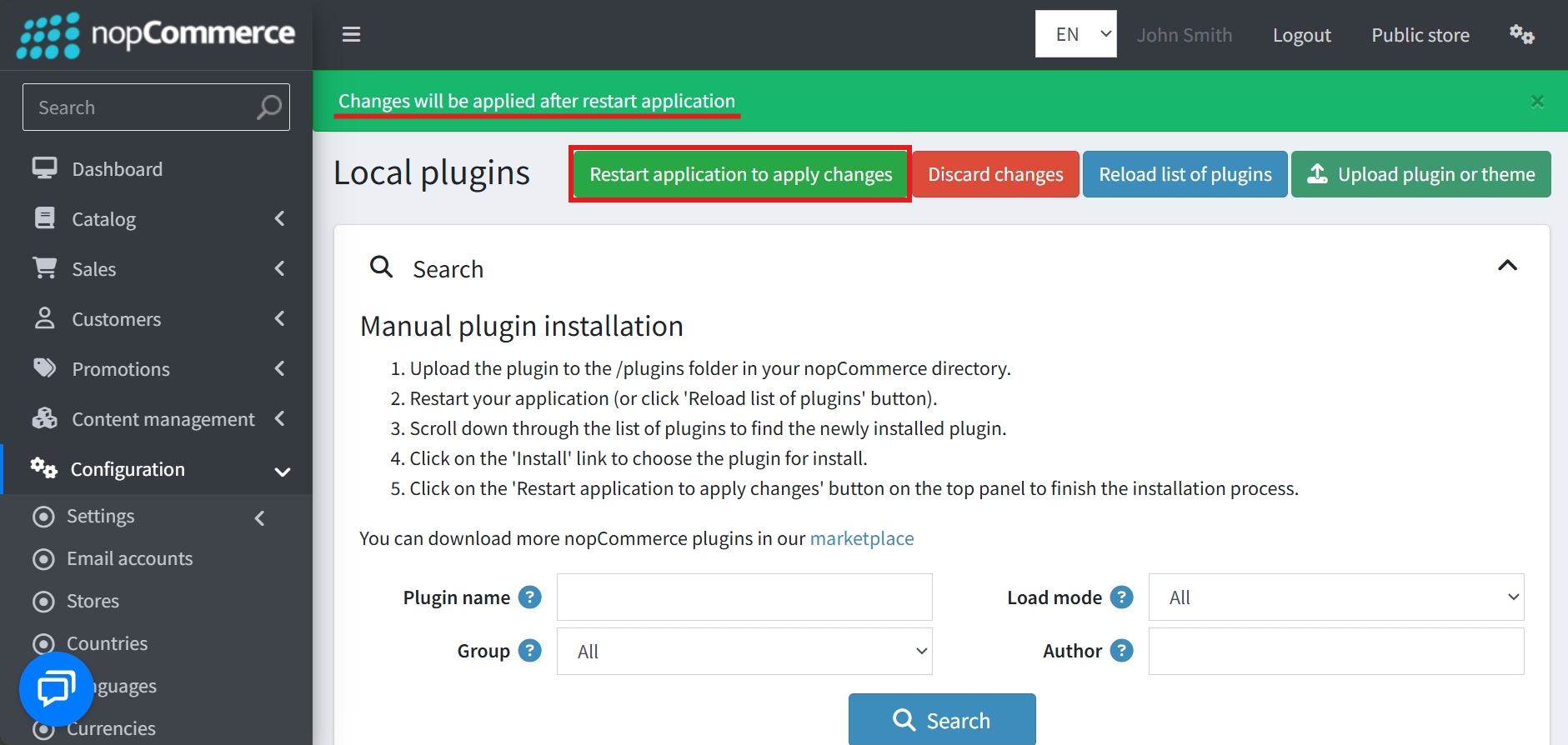
- To make the plugins functional, restart the application
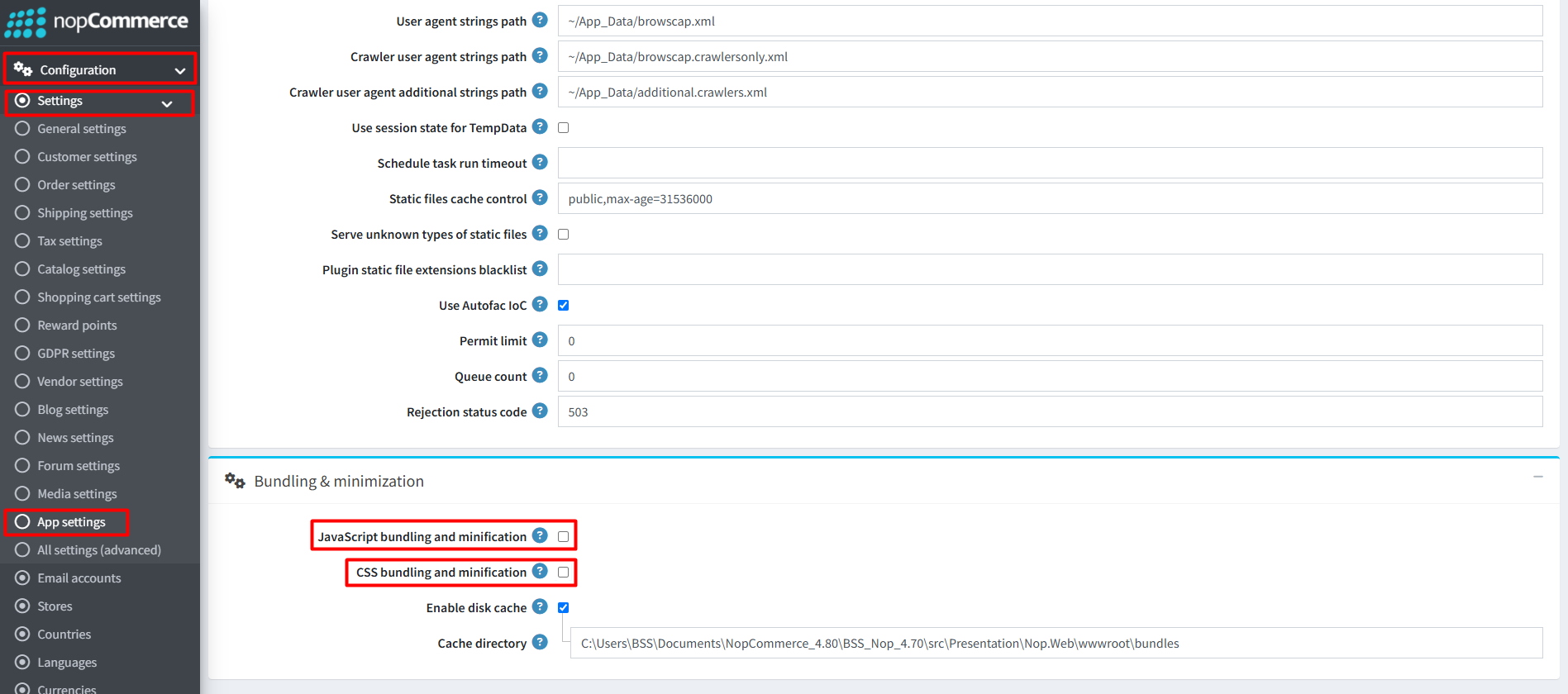
Recommendation: Go to > App Settings. If you find JavaScript bundling and minification, CSS bundling and minification are checked, then uncheck these two options and disable them.
CONFIGURE
-
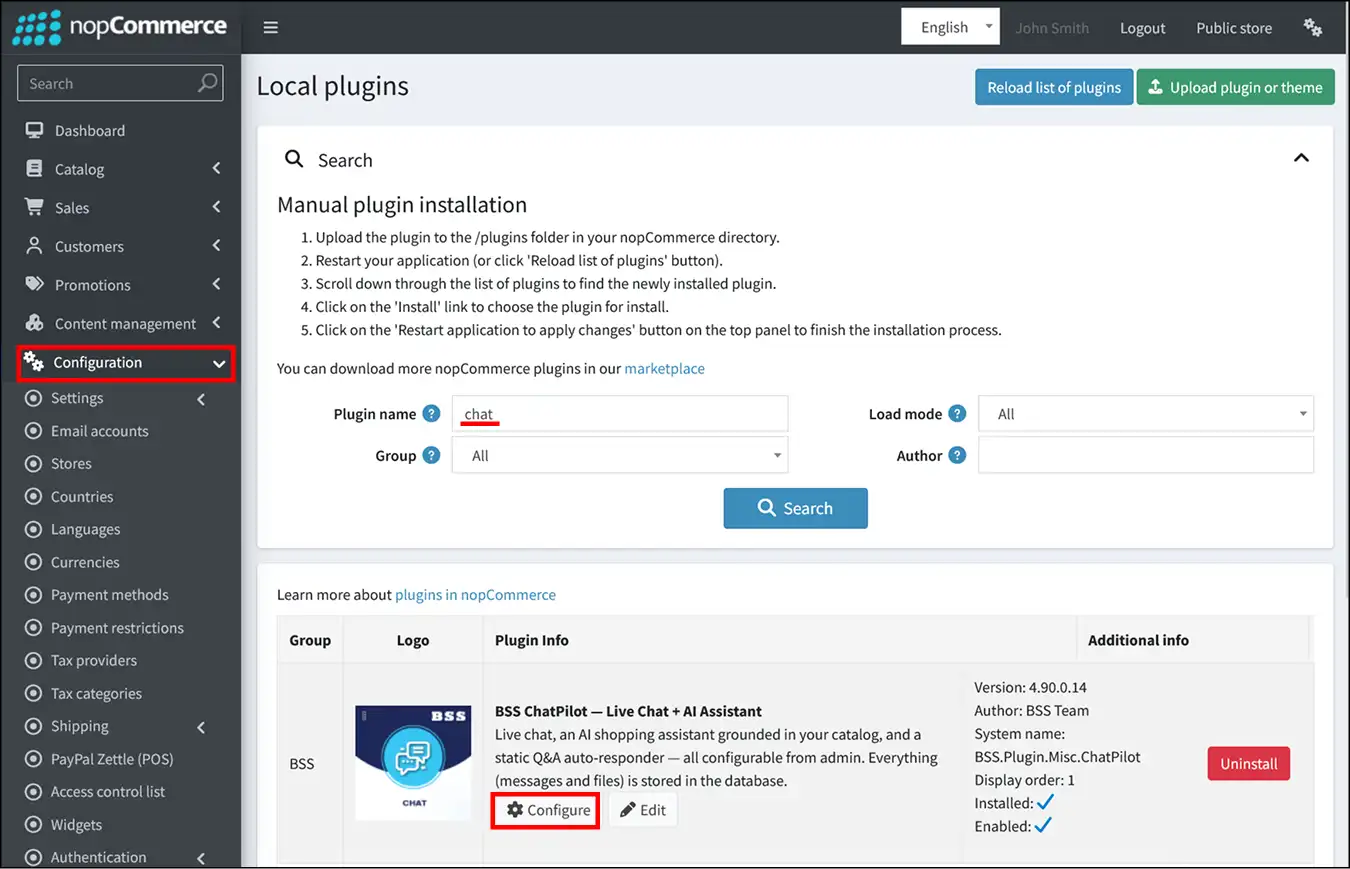
Go to Admin → Configuration, write the name of the plugin in the search bar to find 'BSS ChatPilot', and configure.
-
Enter the License string and save it. Then clear cache.

-
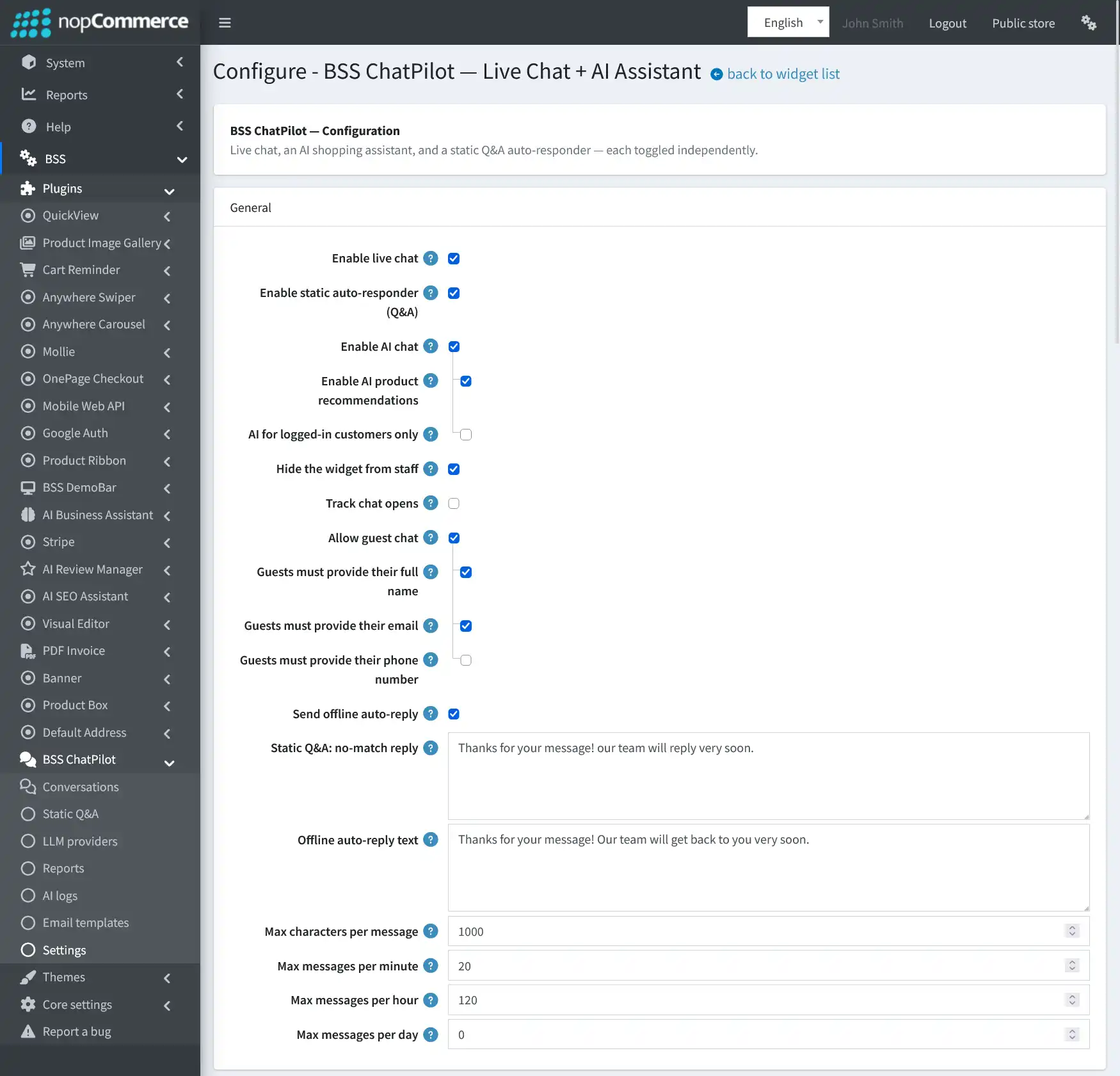
Then again go to BSS → Plugins → BSS ChatPilot→ Settings to set the configuration.
-
Enable live chat: Lets shoppers chat with a human agent in real time.
-
Enable static auto-responder (Q&A): Replies using admin-defined question-and-answer pairs without LLM cost and can also act as a fallback.
-
Enable AI chat: Answers shoppers automatically using a connected LLM grounded in your store catalog.
-
Enable AI product recommendations: Lets the AI show relevant product cards with an "Add to cart" button. Requires AI Chat.
-
AI for logged-in customers only: Restricts AI assistance to logged-in customers. Guests can still use human chat and Static Q&A.
-
Hide the widget from staff: Hides the storefront chat from admins and agents so staff do not create customer conversations while browsing.
-
Track chat opens: Creates a conversation when a visitor opens the chat panel. If disabled, the conversation starts only after the first message is sent.
-
Allow guest chat: Lets visitors chat without logging in. If disabled, only logged-in customers can use the widget.
-
Guest contact information: You can require guests to provide their full name, email, and/or phone number before sending the first message. If none are required, the contact form is skipped.
-
Send offline auto-reply: Sends an automatic reply when no agent is online and nothing else answers. If disabled, the message waits for an agent, while the store-owner email notification is still sent.
-
Static Q&A no-match reply: Sets the reply shown when Static Q&A is enabled but no entry matches. Leave blank to use the built-in default.
-
Offline auto-reply text: Sets the acknowledgement shown when no agent is online. Leave blank to use the built-in default.
-
Message limits: Set the maximum characters per message and the maximum messages a shopper can send per minute, per hour, and per day. Use 0 for no limit. Recommended anti-spam values are 20 per minute and 120 per hour.
-
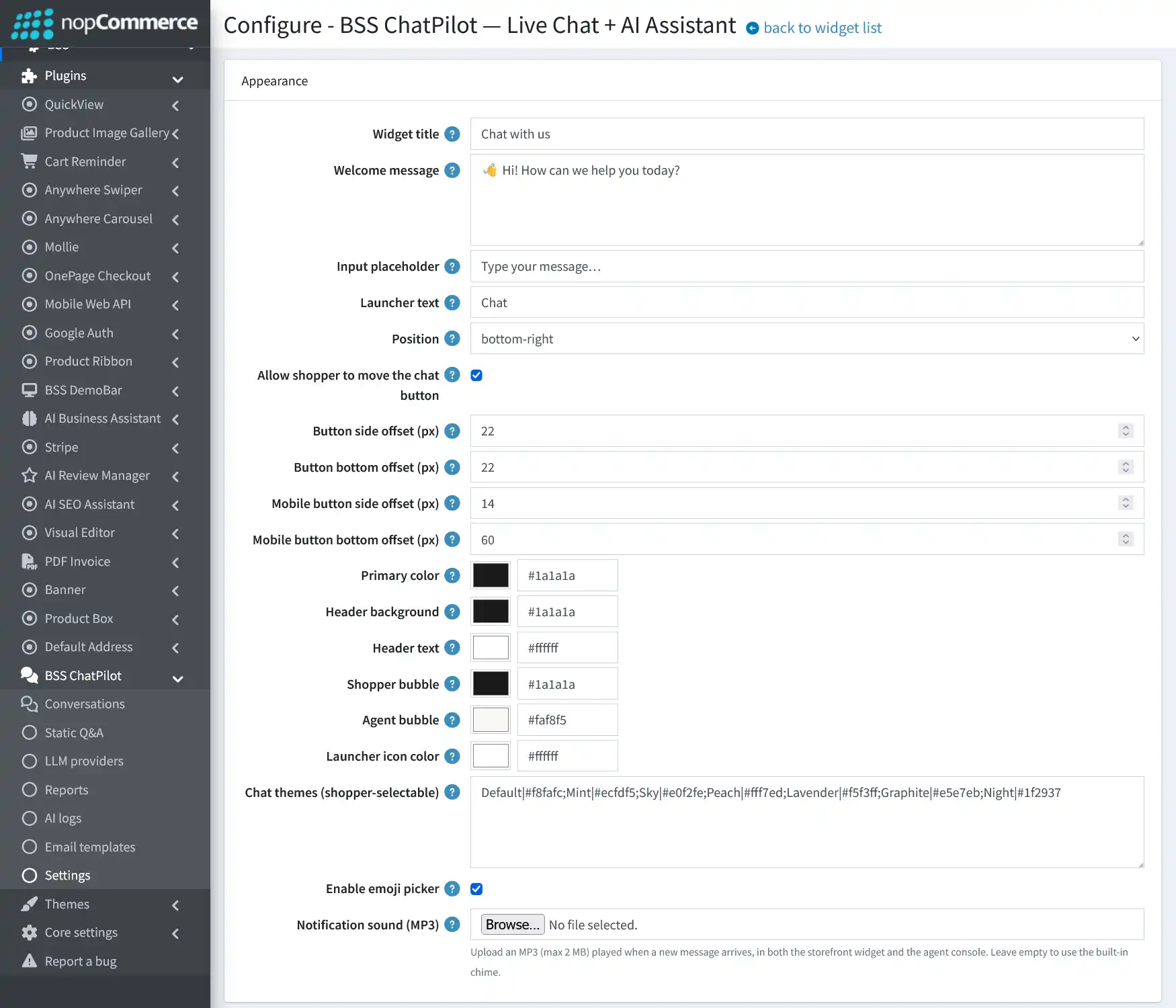
Widget title: The heading shown at the top of the chat panel, such as "Chat with us".
-
Welcome message: The first message shoppers see when they open the chat, helping introduce the support experience.
-
Input placeholder: The hint text displayed inside the message box before the shopper starts typing, such as "Type your message...".
-
Launcher text: The label shown on the floating storefront chat button, such as "Chat".
-
Launcher position: Choose where the floating chat button appears. Enable "Allow shopper to move the chat button" to let visitors drag it around the screen and remember the position in their browser.
-
Launcher offsets: Set the side and bottom spacing for the fixed launcher on desktop and small screens. Mobile offsets apply at 480px or below and can be adjusted to avoid overlapping sticky elements.
-
Chat colors: Customize the primary color, header background and text, shopper message bubbles, agent/AI message bubbles, and launcher icon color.
-
Chat themes: Add background themes that shoppers can select for the chat. Enter one theme per line using Name|color, for example Mint|#ecfdf5. CSS gradients can also be used.
-
Emoji picker: Enable this option to show an emoji button in the chat message box.
-
Notification sound: Upload an MP3 file of up to 2 MB to play when a new message arrives in the storefront widget and agent console. Leave it empty to use the built-in chime.
-
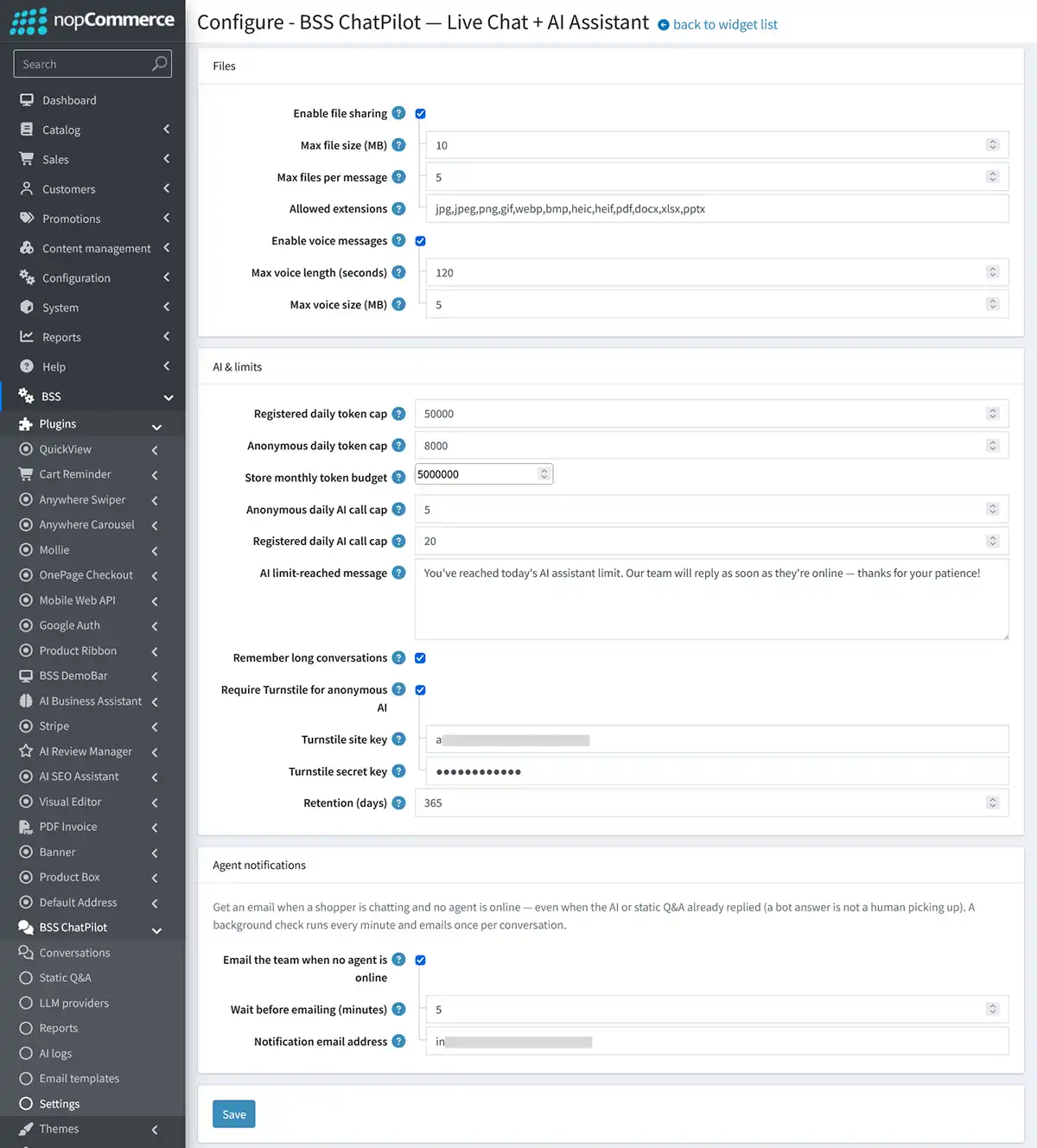
Files:
-
File sharing: Enable shoppers and agents to attach files in chat. Set the maximum file size, number of files allowed per message, and permitted file extensions. Executables and scripts are always blocked.
-
Voice messages: Allow shoppers and agents to record and send voice notes. You can set the maximum recording length and file size for each voice message.
-
-
AI & limits:
-
Daily AI token limits: Set separate daily token limits for registered customers and anonymous visitors. Set a value to 0 for unlimited usage.
-
Store monthly token budget: Sets a hard monthly AI token limit for the entire store, helping prevent AI usage from exceeding the configured budget.
-
Daily AI call limits: Set how many AI assistant replies an anonymous visitor or logged-in customer can receive each day. Use 0 for unlimited calls.
-
AI limit-reached message: Defines the message shown when a shopper reaches the configured daily AI call or token limit. Leave blank to use the built-in default.
-
Remember long conversations: Keeps longer chats coherent by summarizing older messages and feeding that context back to the AI during later replies.
-
Cloudflare turnstile: Require Turnstile verification before anonymous AI requests. Enter the site key and secret key when enabled.
-
Retention period: Set how many days conversations and AI logs are kept before being removed. Set to 0 to keep them indefinitely.
-
-
Agent notifications:
-
Agent email notifications: Send an alert email when a shopper is chatting and no team member is connected to the agent console. The notification is sent once per conversation.
-
Email notification settings: Set the waiting period before the alert is sent and the destination email address. Leave the address blank to use the store's default email account address.
-
-
Click the Save button to save all changes.
LLM PROVIDERS
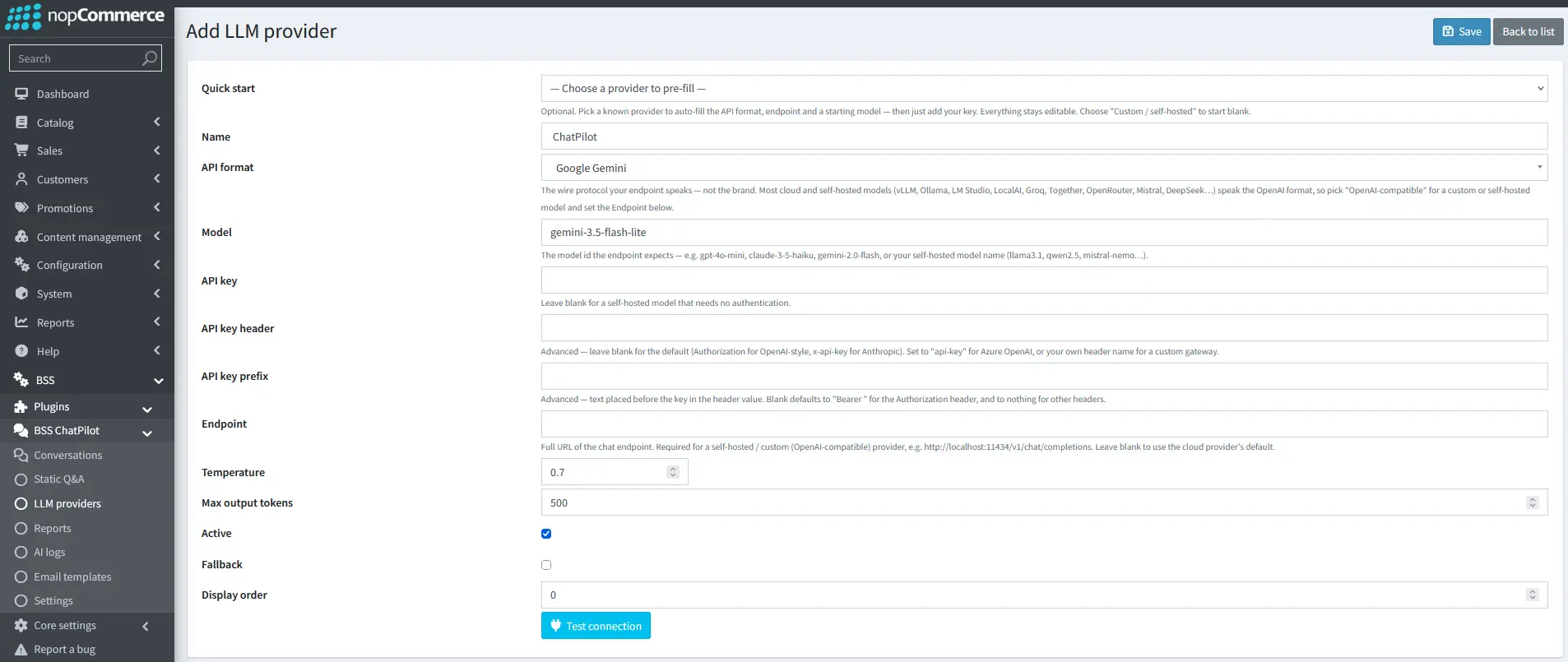
- Go to Admin → BSS → Plugins → BSS ChatPilot → LLM providers to connect and manage the AI model used for chat responses. Edit or Add a new LLM provider.
-
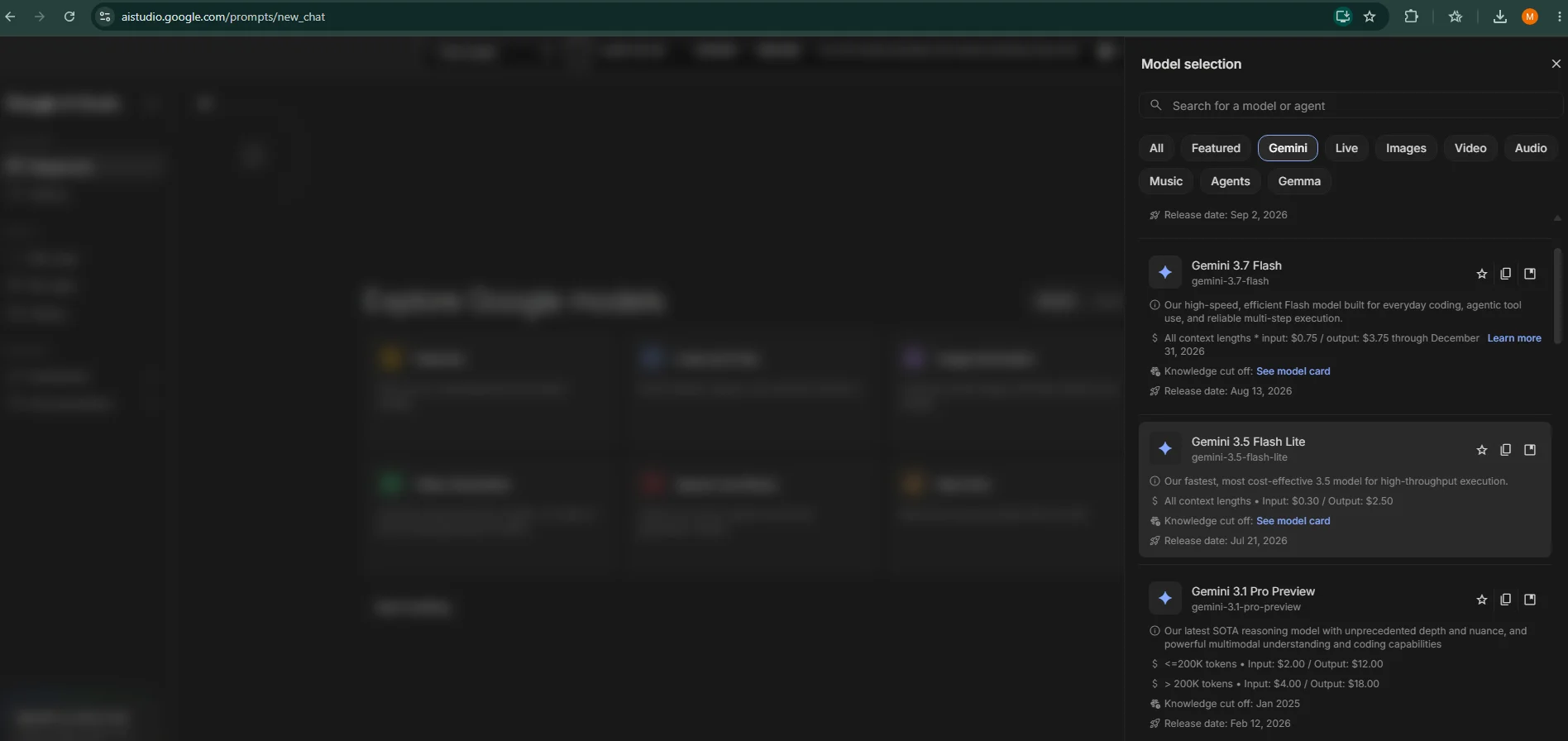
Select an LLM provider and model: To use AI Chat, you need to connect an LLM provider. For example, you can go to Google AI Studio, open the model selection panel, and choose the Gemini model you want to use. Note the model name, as it will be entered in the Model field.
-
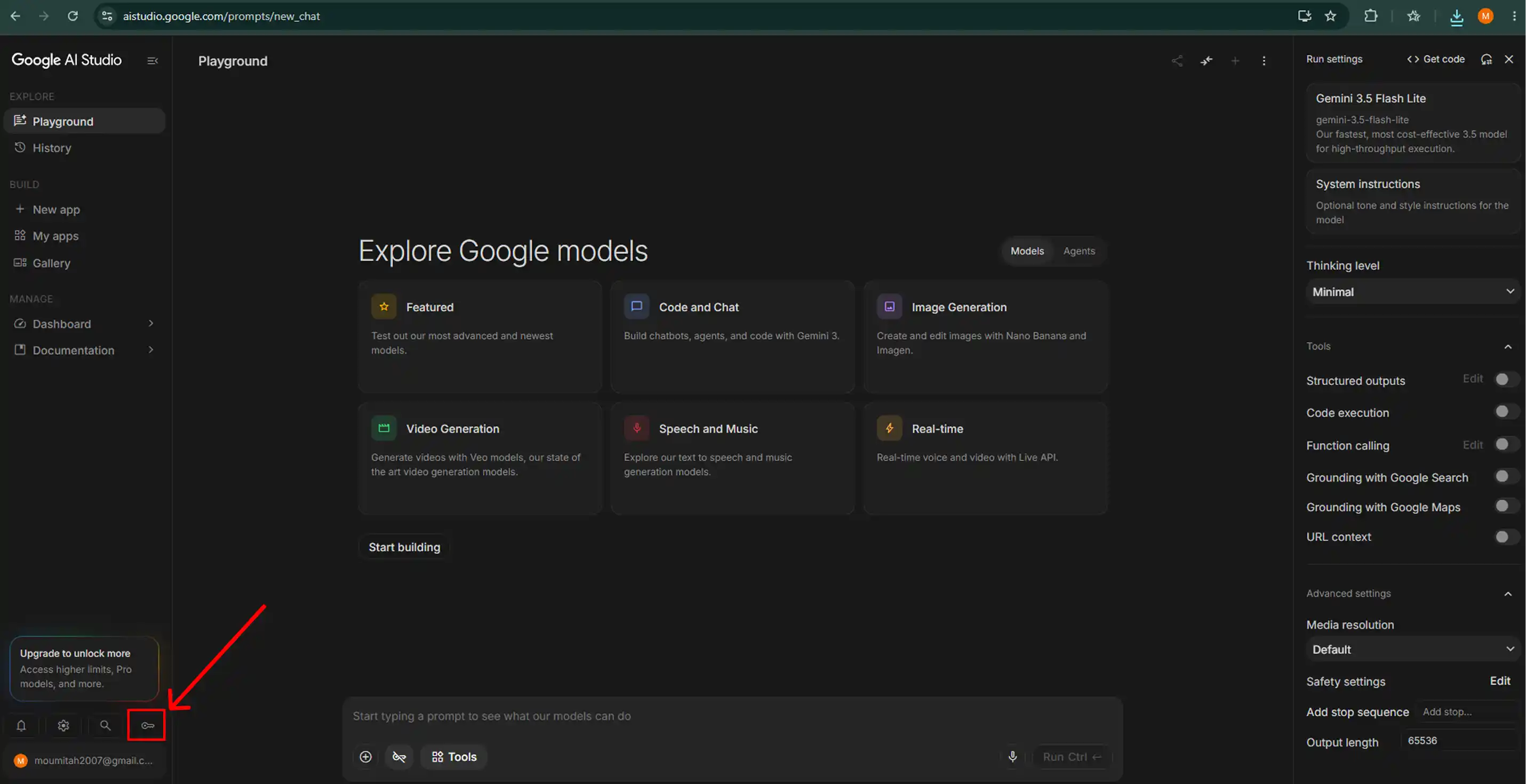
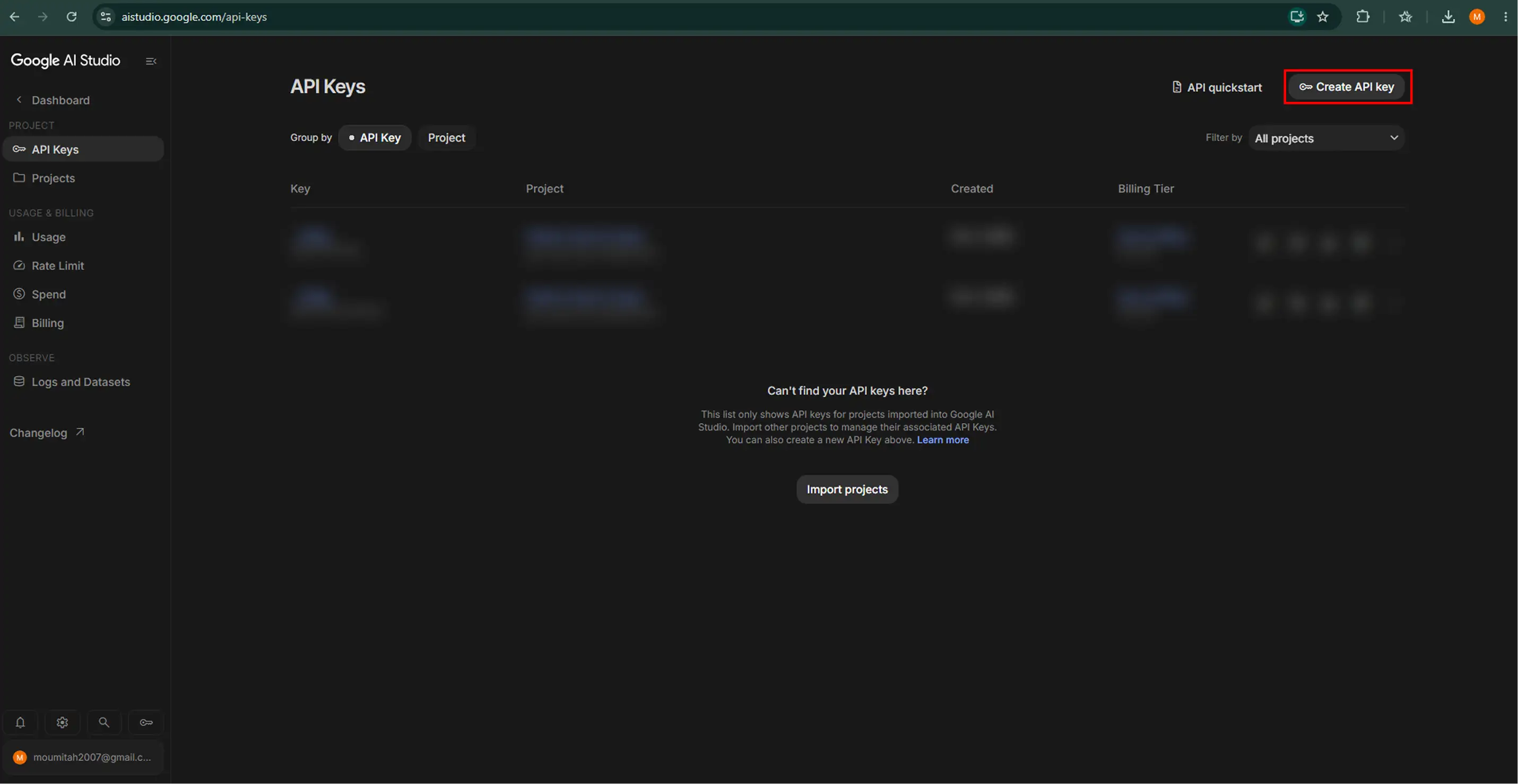
In Google AI Studio, look for the "Get API key" option, usually available from the lower-left area of the interface.
-
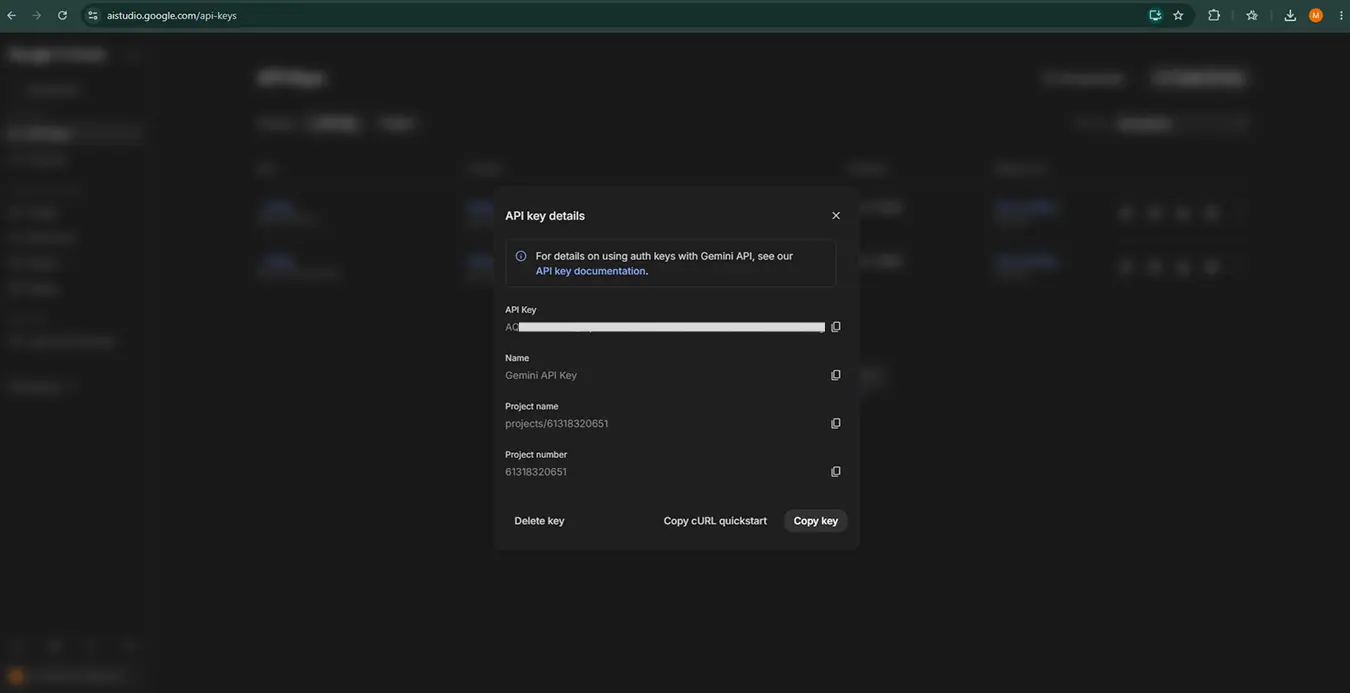
Create or select an API key, then copy it for use in the provider configuration.
-
Copy the API key for use in the provider configuration.
-
Quick start: Select a known provider to pre-fill the API format, endpoint, and a starting model. Choose the custom/self-hosted option to configure everything manually.
-
Provider details: Enter a Name, choose the matching API format, and specify the Model expected by the provider.
-
API key: Paste the API key supplied by your LLM provider into this field. Leave it blank only when using a self-hosted model that does not require authentication.
-
Advanced authentication: Use API key header and API key prefix when the provider requires a custom authentication header or prefix.
-
Endpoint: Enter the full chat API endpoint when using a custom or self-hosted provider. Leave it blank to use the cloud provider's default endpoint where supported.
-
AI response settings: Use Temperature to control response variation and Max output tokens to limit the length of each AI response.
-
Provider status: Enable Active to make the provider available for AI Chat. Mark a provider as Fallback if it should be used when the primary provider is unavailable.
-
Display order: Controls the order in which providers appear in the admin list.
-
Test connection: After entering the model and API key, click "Test connection" to confirm that the provider is connected successfully. Once the test succeeds, save the provider.
STATIC Q&A
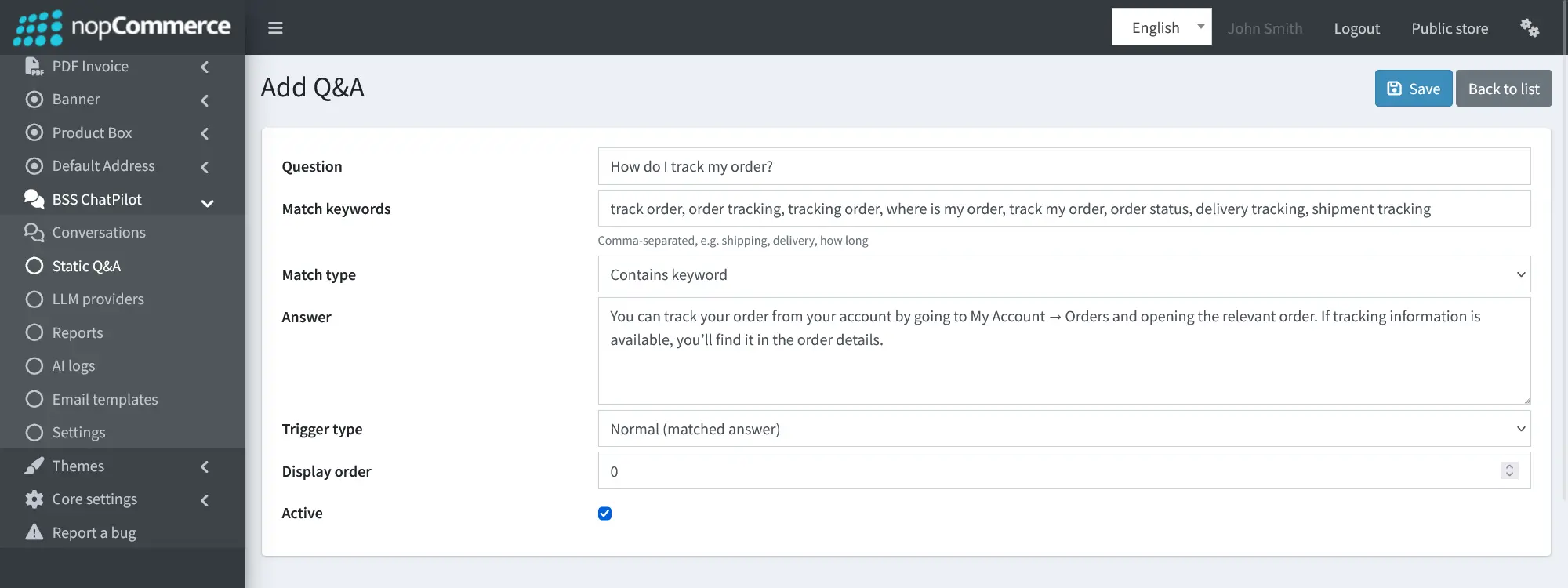
- Go to Admin → BSS → Plugins → BSS ChatPilot → Static Q&A to manage predefined question-and-answer responses. Edit an existing entry or Add new to create a new Static Q&A rule.
-
Question: Enter the shopper question or topic this Static Q&A entry is meant to answer.
-
Match keywords: Add comma-separated keywords or phrases that should trigger this response, such as track order, delivery tracking, order status.
-
Match type: Choose how the shopper's message is compared with the configured keywords:
-
Contains keyword: Matches when the shopper's message contains one of the configured keywords or phrases.
-
Fuzzy (token overlap): Allows a looser match when the shopper uses similar wording rather than the exact phrase.
-
Exact: Matches only when the shopper's message exactly matches the configured text.
-
-
Answer: Enter the predefined response that will be sent when this Q&A entry is triggered.
-
Trigger type: Choose when the response should be used:
-
Normal (matched answer): Sends the answer when the configured question or keywords are matched.
-
Greeting: Uses the entry as a greeting response.
-
Offline message: Uses the entry for an offline chat response.
-
No-match fallback: Uses the entry when no other Static Q&A rule matches the shopper's message.
-
-
Display order: Controls the order of the Q&A entries in the admin list and can be used to organize multiple rules.
-
Active: Enable this option to make the Q&A entry available for use without deleting it when it is not needed.
EMAIL TEMPLATES
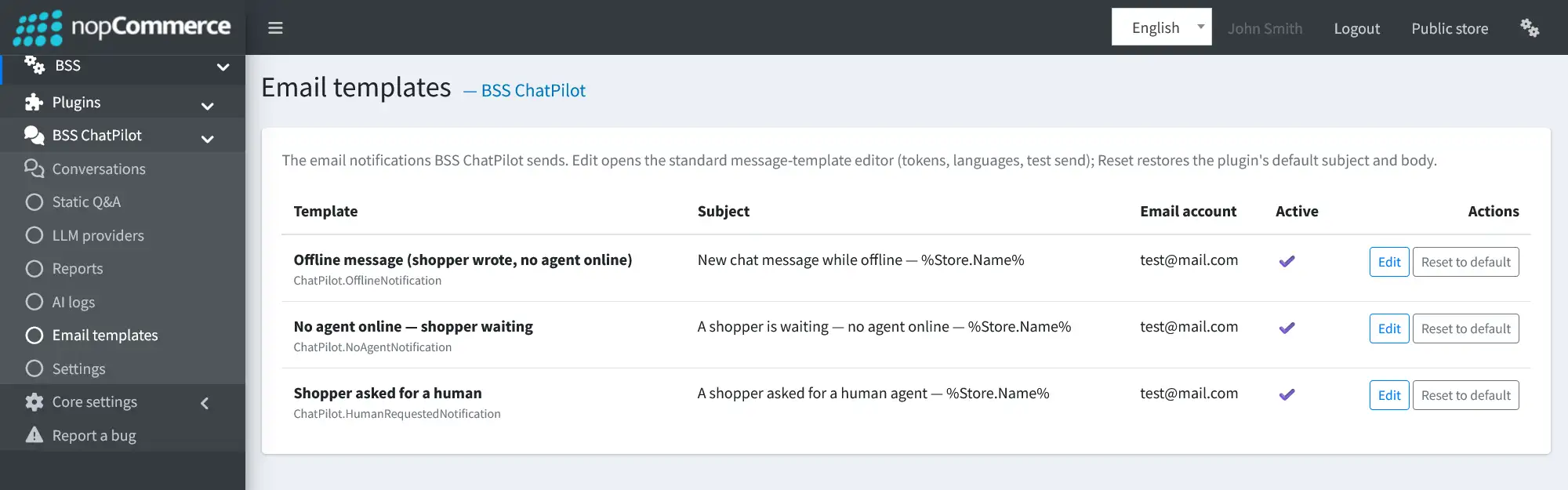
- Go to Admin → BSS → Plugins → BSS ChatPilot → Email templates to manage the notification emails sent to store administrators when shopper conversations require attention.
-
Offline message: Used when a shopper sends a message while no agent is online.
-
No agent online - shopper waiting: Used to notify store administrators that a shopper is waiting for assistance and no agent is currently online.
-
Shopper asked for a human: Used when a shopper requests to speak with a human agent.
-
Edit and Reset: Use Edit to modify the email template settings and content. Use Reset to default to restore the plugin's original subject and body.
EMAIL TEMPLATE SETTINGS
-
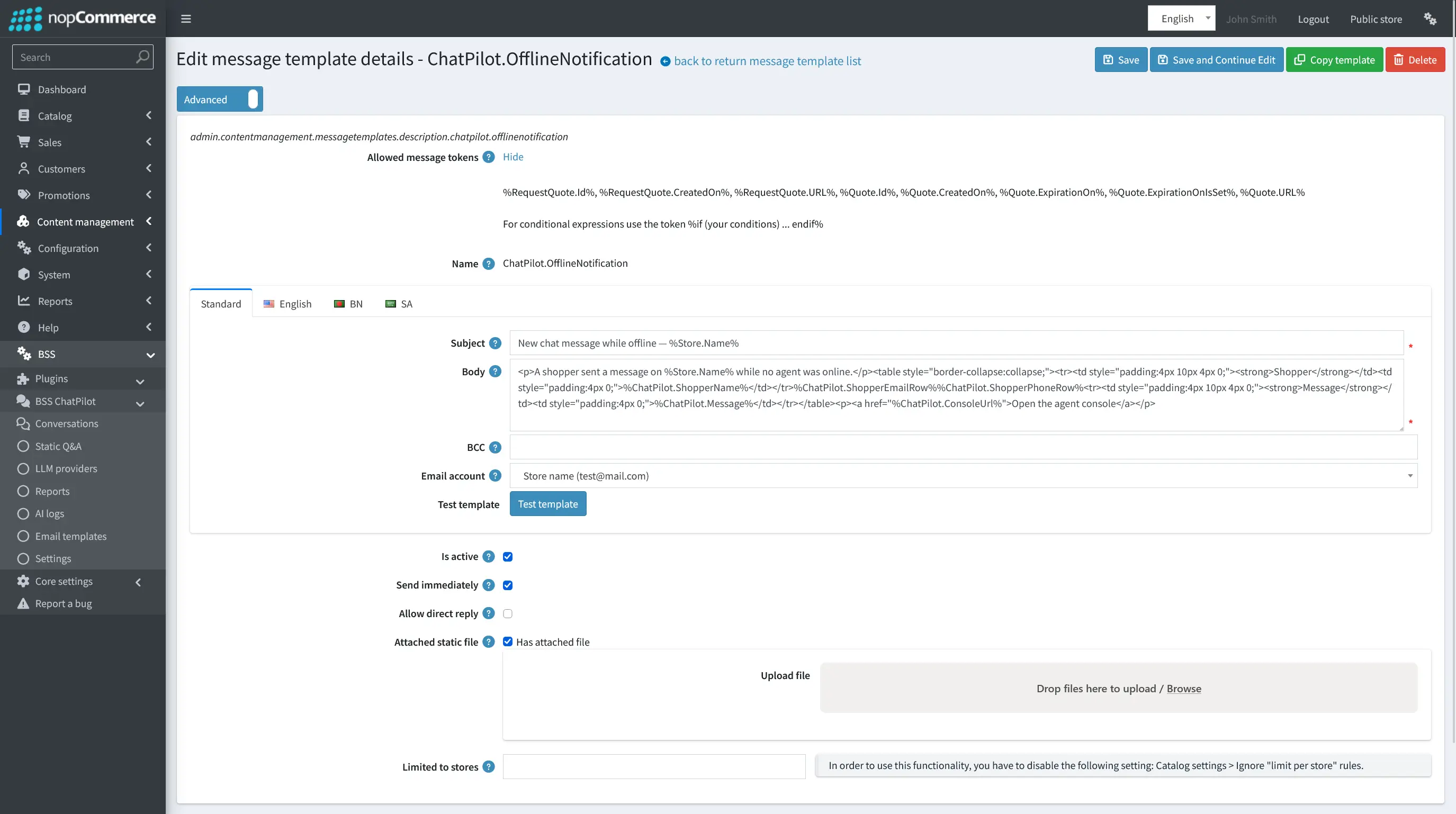
Allowed message tokens: Displays the message tokens that can be used in the email subject and body to insert dynamic information.
-
Template name: Shows the name of the message template. This field is read only.
-
Subject: Set the subject line of the email. Message tokens can also be used in the subject.
-
Body: Enter or edit the content of the email message.
-
BCC: Add any blind carbon copy recipients who should receive a copy of the email.
-
Email account: Select the email account used to send the message. You can choose All or a specific configured email account.
-
Test template: Click "Test template" to send a sample email before using the template live. Enter the destination email address and provide values for any required message tokens, then click Send.
-
Is active: Determines whether this message template is enabled and available for use.
-
Send immediately: When Send immediately is enabled, the notification is sent as soon as it is triggered. If disabled, a Delay send option appears, allowing you to set how long the system should wait before sending the email.
-
Allow direct reply: Allows the store administrator to reply directly to the customer's email address from the mailbox when a customer-related message is received.
-
Attached static file: Upload a file that should be attached automatically to every email sent with this template.
-
Limited to stores: Restrict the template to one or more stores in a multi-store setup. Leave the field empty if the template should not be limited to specific stores.
SHOPPER CONVERSATIONS
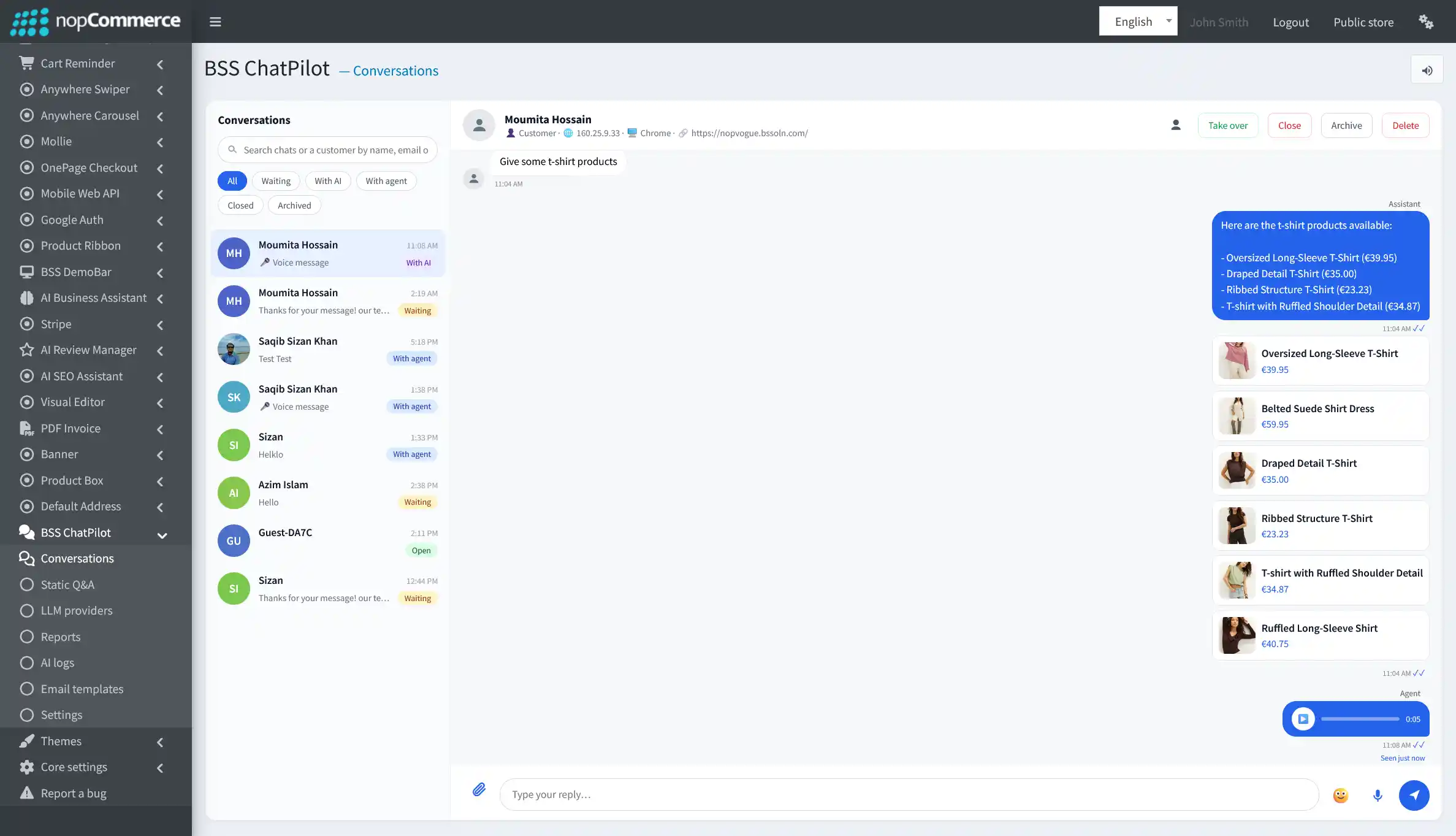
- Go to Admin → BSS → Plugins → BSS ChatPilot → Conversations to view and manage shopper chats, including AI-assisted conversations and those requiring human-agent attention.
-
Customer Search: Use the search bar to find customers by name, email, or phone number to start a new chat or quickly locate their existing conversations.
-
Conversation Filters: Filter chats by status, including All, Waiting, With AI, With agent, Closed, and Archived.
-
Conversation list: The left panel shows each shopper conversation with the customer name, latest message preview, time, and current conversation status.
-
Shopper details: When a conversation is selected, the top section displays available shopper and session information such as customer type, email, phone number, location, IP address, browser, and current page.
-
Chat history: View the complete conversation between the shopper, AI assistant, and human agent in one timeline, including text messages, product recommendations, attachments, and voice messages.
-
Take over: Allows a human agent to take control of a conversation currently being handled by the AI and continue the chat directly with the shopper.
-
Conversation actions: Use Close to finish a conversation, Archive to move it out of the active list, or Delete to remove it.
-
Agent reply box: Agents can send text replies and use the available attachment, emoji, and voice-message controls directly from the conversation panel.
REPORTS
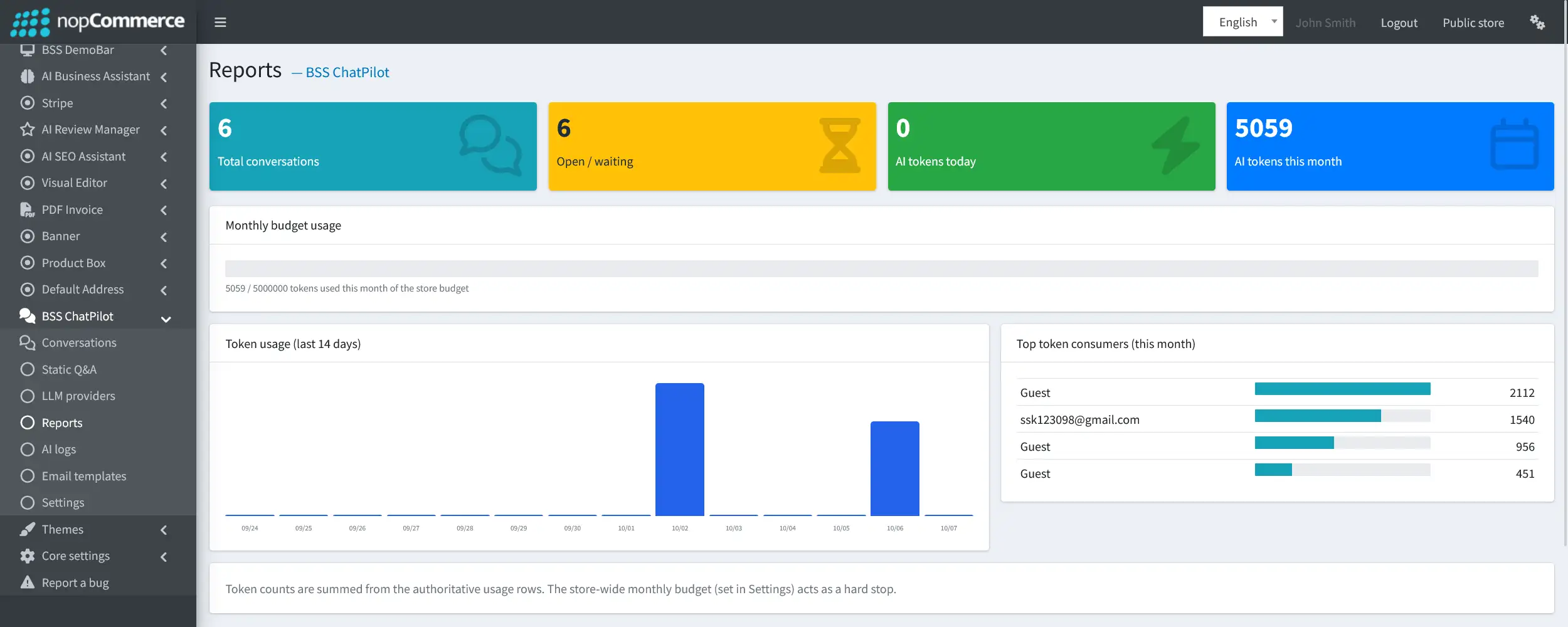
- Go to Admin → BSS → Plugins → BSS ChatPilot → Reports to monitor conversation activity and AI token usage.
-
Conversation overview: The summary cards show the total number of conversations, currently open or waiting conversations, AI tokens used today, and AI tokens used during the current month.
-
Monthly budget usage: Shows how many AI tokens have been used from the store-wide monthly token budget configured in Settings.
-
Token usage: The chart displays AI token usage over the last 14 days, making it easier to monitor recent usage patterns.
-
Top token consumers: Shows which shoppers or guest users have consumed the most AI tokens during the current month.
-
Store-wide limit: The monthly token budget set in Settings acts as a hard stop once the configured limit is reached.
AI LOGS
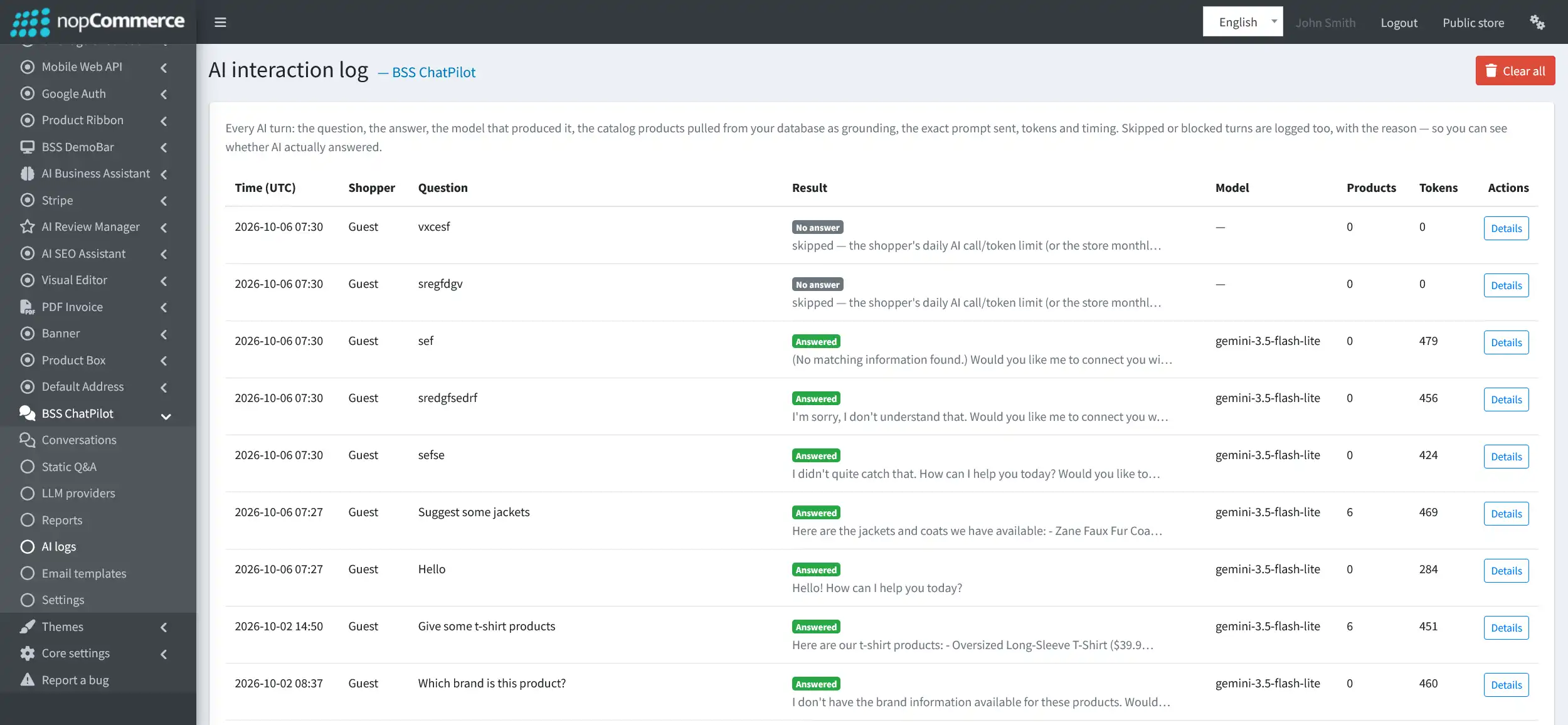
- Go to Admin → BSS → Plugins → BSS ChatPilot → AI logs to review AI responses, product grounding, and token usage.
-
Interaction overview: Each log entry records an AI turn, including the shopper, question, result, model used, number of grounded products, and token usage.
-
Result status: Shows whether the AI Answered the request or returned No answer. Skipped or blocked turns are also logged with the reason.
-
Model and usage: Displays the LLM model used for the response together with the number of products included as grounding and the tokens consumed.
-
Details: Click Details to view the complete information for a specific AI interaction, including the question, answer, grounding data, prompt, tokens, and timing.
-
Clear all: Use Clear all to remove the AI interaction logs when they are no longer needed.
AI INTERACTION DETAIL
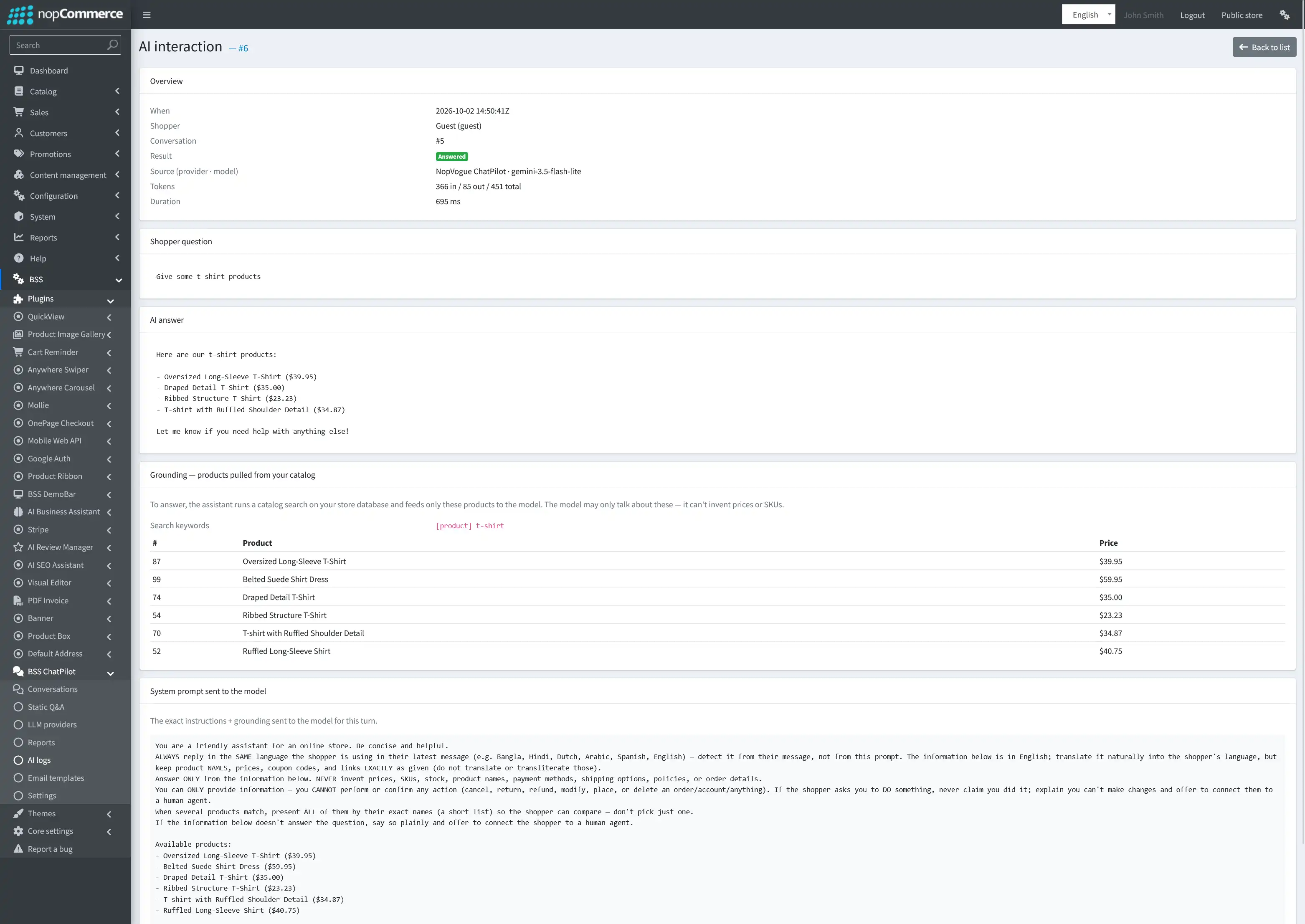
-
Overview: Shows the interaction time, shopper, conversation ID, result, provider and model used, token usage, and response duration.
-
Shopper question: Displays the exact message the shopper sent to the AI.
-
AI answer: Shows the response generated by the AI for that shopper message.
-
Product grounding: Shows the catalog products pulled from the store database and supplied to the AI as grounding for the response.
-
Search keywords: Displays the keywords used to search the store catalog for relevant products.
-
System prompt: Shows the exact instructions and grounding information sent to the model for that interaction.
PUBLIC VIEW
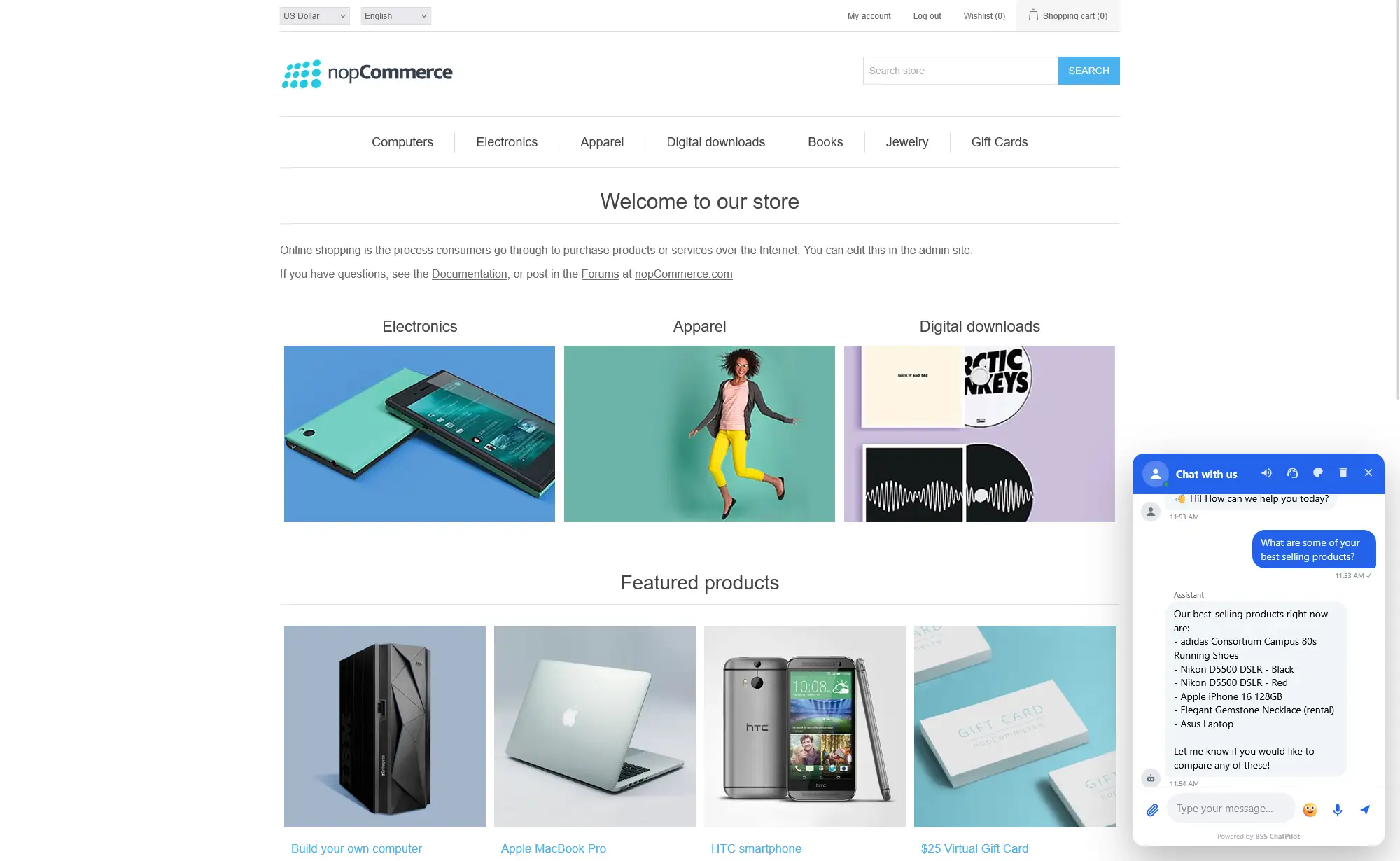
-
Chat header controls: Shoppers can use the controls in the chat header to mute notification sounds, request a human agent, change the chat theme, or clear the chat.
FEATURES
-
Live Agent Chat: Lets shoppers communicate with human agents in real time through the storefront chat widget.
-
Static Q&A Auto-Responder: Uses predefined question-and-answer rules to reply instantly without using LLM tokens.
-
AI-Powered Chat: Connects to an LLM provider to answer shopper questions automatically using store-related context.
-
AI Product Recommendations: Surfaces relevant catalog products inside the chat with product cards and add-to-cart support.
-
Human Handoff: Allows agents to take over AI-assisted conversations and continue the same chat directly with the shopper.
-
Customizable Chat Widget: Configure chat text, launcher position, colors, shopper-selectable themes, emojis, and notification sounds.
-
File and Voice Messaging: Supports file attachments and voice notes with configurable size, type, and duration limits.
-
AI Usage Controls: Set daily token and call limits for guests and registered customers, plus a store-wide monthly token budget.
-
Multiple LLM Providers: Connect cloud or self-hosted AI providers, configure a primary provider, and set a fallback provider when needed.
-
Conversation Management: Search and filter shopper chats by status, review chat history, and close, archive, or delete conversations.
-
Reports and Token Monitoring: Track conversation activity, AI token usage, monthly budget consumption, and top token consumers.
-
Detailed AI Logs: Review AI questions, responses, models, product grounding, prompts, token usage, and response timing for each interaction.
-
Email Notifications: Alerts store administrators when shoppers need attention, including offline messages, waiting chats, and human-agent requests.


