
BSS B2B Management
Created on: Jul 08, 2026

PREREQUISITES
- The plugin requires you to install the BSS Core plugin first.
INSTALLATION
- Go to the Order Details Page and Download plugin package.
- Go to Administration → Configuration → Local plugins.
- Within the bundle, you get all the required files, including BSS.Core.
- Upload the zip files using the 'Upload plugin or theme' button.
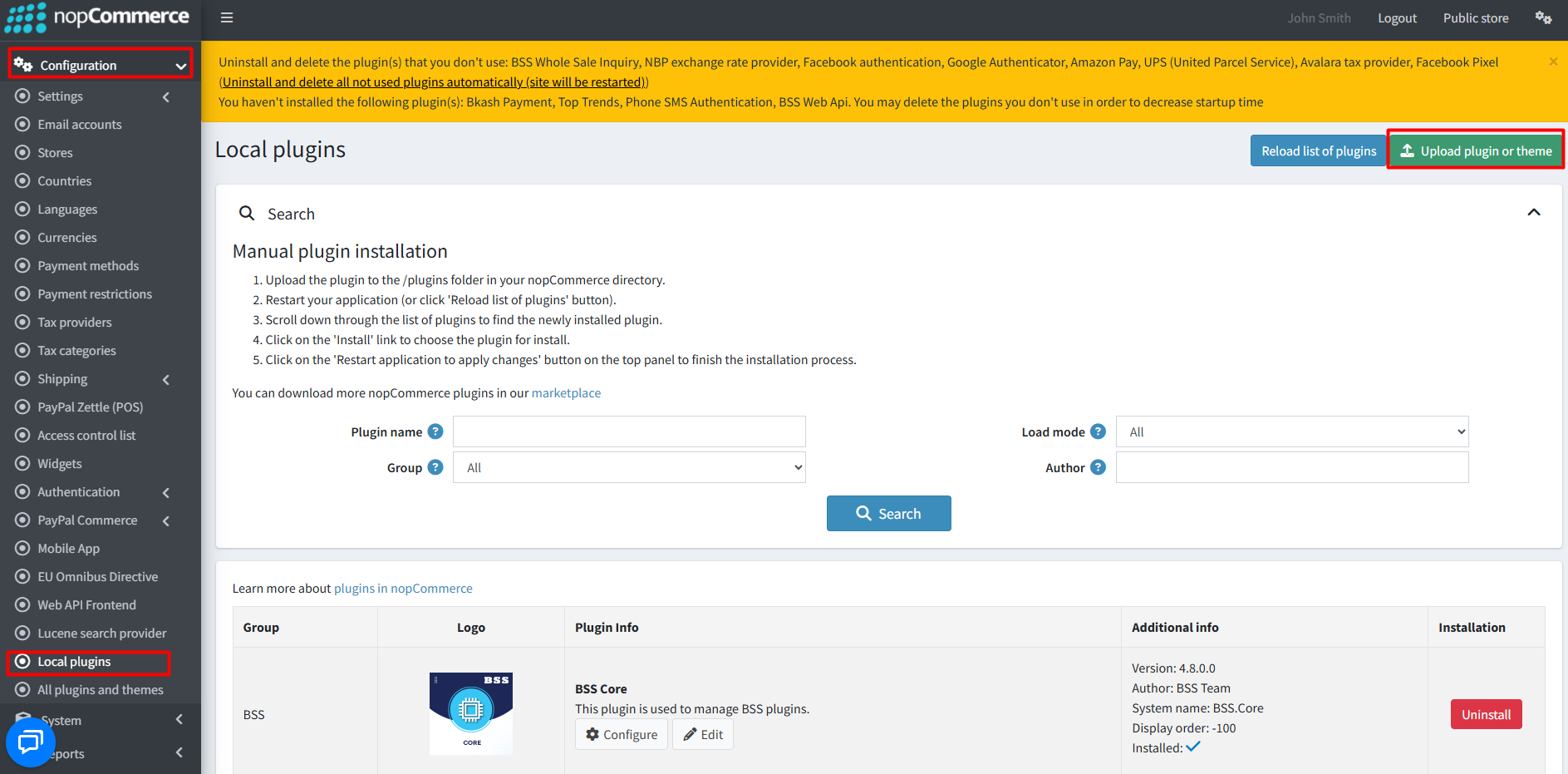
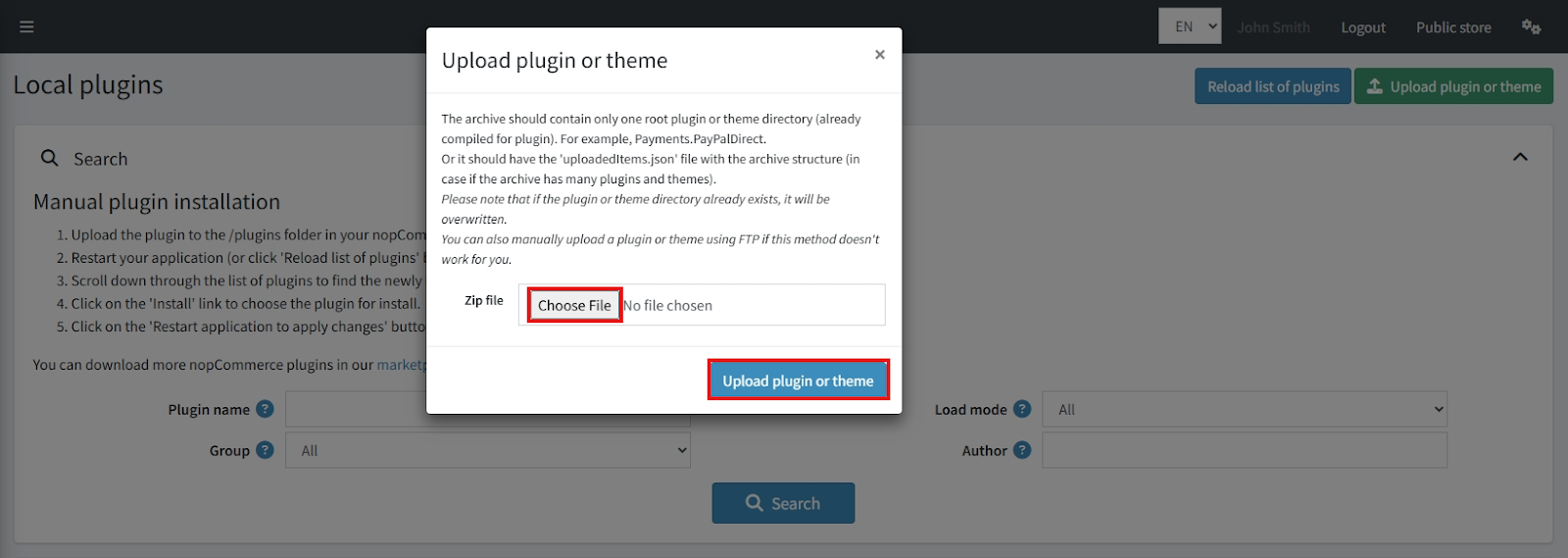
- After uploading, install the 'BSS Core' Plugin first.
- Then scroll down or write the name of the plugin in the search bar, and install 'BSS B2B Management'.

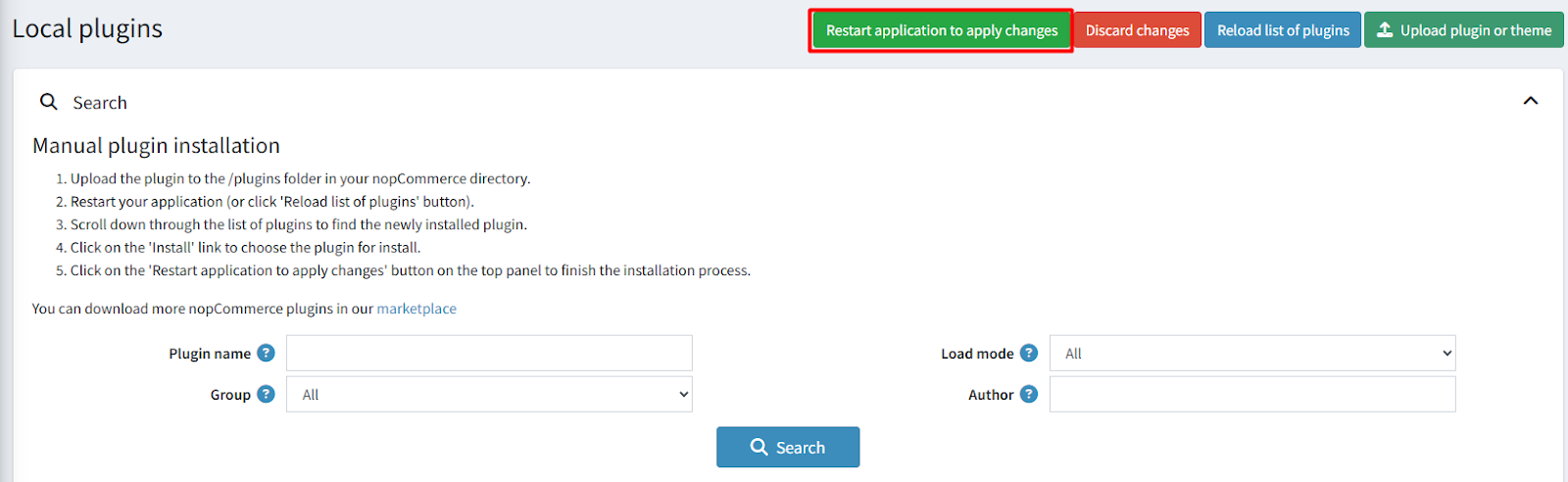
- To make the plugins functional, restart the application.
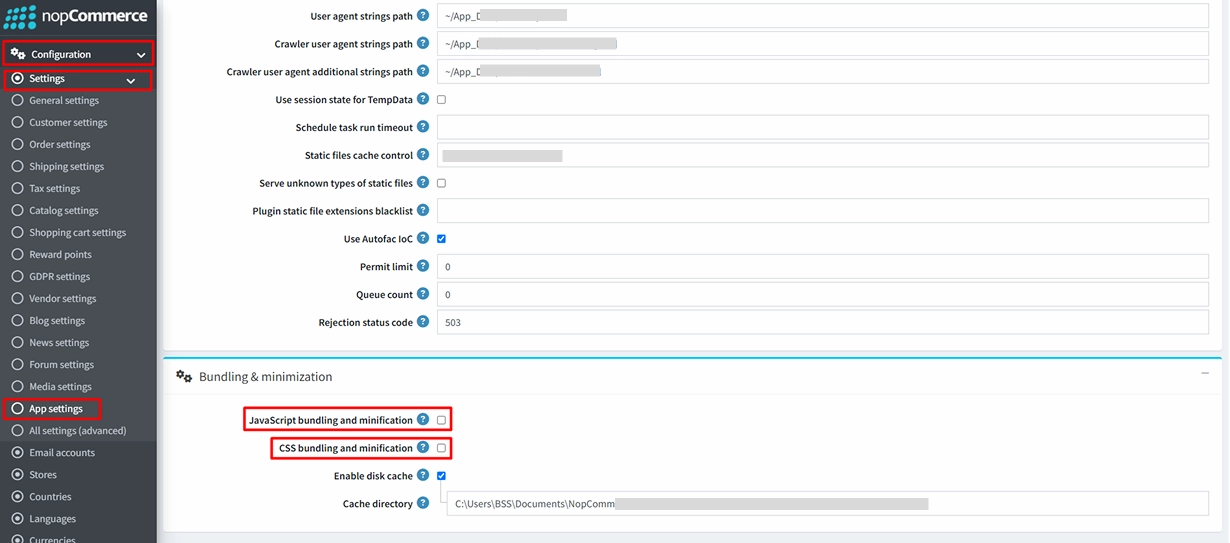
Recommendation: Go to > App Settings. If you find JavaScript bundling and minification, CSS bundling and minification are checked, then uncheck these two options and disable them.
CONFIGURATION
- Go to Admin → B2B Management → Configuration. Then enter the License string, then save it.

- Again go to B2B Management → Configuration to set the configuration.

- Enable B2B Plugin: Check the box to enable B2B features, or keep it unchecked to disable B2B features.
- Require admin approval for registration: Check the box to activate admin approval. When a new company registers as a B2B company, the admin will check company information and approve the registration. Keep this option unchecked if new company registration does not require any admin approval.
- Enable order approval workflow: When enabled, any threshold-based order rule requires admin approval before the order can proceed to the next step. If disabled, threshold approval is not applied, and the company can proceed without admin approval .
B2B Companies List

View all registered B2B companies' records at a glance.
- Quick Search: Find companies instantly by company name.
- Status Filter: Filter companies based on their current status.
- Company Overview: See company name, contact person, email, status, and creation date at a glance.
Company Details Management

- Complete Company Profile: Manage company details, Tax ID, website, industry, and expected monthly purchase volume from one place.
- Business Contact Management: Store and update contact person, email, phone number, and linked customer account information.
- Flexible Company Administration: Change company status (Pending, Active, Rejected, Suspended), add internal notes about this B2B company (visible to admin only), track creation date, and save updates instantly.
B2B Company Dashboard
After registering as a B2B Company, you can manage your company profile and all B2B orders from one place. Navigate to My Account → B2B Company.


- Company Information
- View and manage your company details, including: Company Name, Company Status (Pending, Active, Rejected, or Suspended), Contact Person, Email Address, Phone Number, Industry, Company Address.
- You can update your company information at any time by clicking Edit.

- Summary
- The dashboard displays your total number of orders for a quick overview of your purchasing activity.
- Quick Links

- Quick Order: Place a B2B order quickly by selecting products, quantities, and any product variant or other required options (such as size, color, weight, gift card recipient name, or jewelry rental date range etc). You can also save the current order as a template after adding products to the cart, allowing you to reorder the same items more easily in the future.

- View Orders: View and manage all your B2B orders in one place: order history, order status, total order amount, order source, and complete order details. Search and filter orders by status or date range.

- Order Templates: Manage your saved order templates. View all products in a template, reorder the same products with a single click, and delete templates that are no longer needed.

- Order Approvals: If your company uses an order approval workflow, this section displays all orders currently waiting for approval along with their approval status and details.
B2B PRICE LIST MANAGEMENT

- View all price list records in one place, including scope, assigned companies, status, priority, and validity period. You can also create a new price list or click the Edit button to update any existing price list information.
Create Price List

- Create and manage custom price lists by entering a price list name.
- Select the scope: Global for all distributor tiers or Company for specific companies.
- Assign a priority: Higher priority price lists override lower ones when multiple lists apply to the same product.
- Enable or disable the price list.
- The price list will be effective from the date range you select. Set a start and end date. After the end date, the price list won't be active.
Example: If there are 2 price lists named Winter Deal and Summer Offers, and you set Winter Deal's priority to 1 and Summer Offers' priority to 2, then under the Jewelry category, a product called "Flower Girl Bracelet" included in both price lists would work like this: in Summer Offers, the price is 324 after a 10% discount, while in Winter Deal, the price is 288 after a 20% discount. When a B2B Buyer adds this product to their cart, they will be charged 288, since Winter Deal has the higher priority.Price List Items Management


- After creating a price list, add products individually or in bulk by category. Configure discounts, minimum/maximum quantities, and enable or disable products as needed.

- View all added products at a glance. Edit discounts, minimum/maximum quantities, and Active/Inactive status anytime. Use category and price range filters to quickly find products.
APPROVAL RULES MANAGEMENT
You can set an approval amount for a specific company or all companies. Orders at or above that amount require owner approval.

- Get an overview of all available approval rules for the companies, threshold amount, rules current status (active/inactive), and edit rules based on requirements.

- You can add new approval rules by selecting the company name, threshold amount (orders exceeding this amount will require admin approval to proceed to the next step), and enabling/disabling to keep this rule active.
 Note: Company-specific rules override global rules, ensuring each company's approval workflow follows its own threshold when both rules are active. For example, if the global threshold is $2,000 but a company has a threshold of $1,000, any order from that company exceeding $1,000 will require store owner approval before it can be confirmed.
 Note: To activate this threshold amount approval rule, you must first enable the "Order Approval Workflow" option from the main Configuration section.
CATALOG RESTRICTIONS MANAGEMENT

- Get a quick overview of all company price list restrictions, showing exactly which companies are allowed or denied permission to view pricing for specific products, categories, or vendors.
- You can edit the restriction type, product, category, or vendor for any selected company at any time to keep your catalog fully updated.

- Category (filter): Use this to search for specific products under a specific category quickly.
- Product Select the specific product the restriction will apply to, or leave it empty to apply the rule to an entire category or vendor.
- Category Select a category to apply the restriction rule to all products within that category.
- Vendor Select a vendor to apply the restriction rule to all products belonging to that vendor.
- Restriction Type
- Allow (Whitelist): The selected company will only see the chosen product, category, or vendor.
- Deny (Blacklist): The selected product, category, or vendor (and its products) will be hidden from the selected company.

- Active — check this box to keep the restriction rule active, or uncheck it to keep it inactive.
HOW B2B ORDERING WORKS
Being registered as a B2B Company, you can place orders in two ways.
Option 1: Quick Order

- Go to My Account → B2B Company → Quick Order.
- Search products by category or choose from the product list.
- Select the required quantity and any product variant or other required options (such as size, color, weight, gift card recipient name, or jewelry rental date range etc.) and proceed to checkout.

- If your company requires order approval (based on threshold rules), the order will wait for approval before processing. Otherwise, complete checkout steps following the nopCommerce default checkout system.

- If there is no order approval rule active then after clicking the Proceed To Checkout button, you will be redirected to the Checkout page.
- Then enter billing & shipping information, choose shipping/payment methods, complete any required checkout attributes, and place the order.
- View your order status anytime from the Order Details page.
Option 2: Shop from the Store

- Browse products from the homepage, product catalog, or categories.
- Select the desired product and choose any required variants (size, color, etc.).
- If you're a B2B customer, you'll see both:
- Standard Price: Continue with the nopCommerce default shopping cart and checkout.
- B2B Price: You'll be redirected to Quick Order, where you can select quantity and other required options before checking out.
- If your company requires order approval (based on threshold rules), the order will wait for approval before processing. Otherwise, complete checkout normally.
- Track your order from the Order Details page.
Important Notes
- A product cannot exist in both carts at the same time. If an item is already in your regular cart, you cannot add the same item to the B2B Quick Order cart. This prevents pricing and quantity conflicts.

- B2B pricing is only applied during the Quick Order checkout. Purchasing through the regular shopping cart always uses the standard price, even for B2B customers.
- Products display both Standard and B2B prices (when available), allowing you to choose the pricing option that best fits your purchase.
Example: If a company views the Flower Girl Bracelet in the Jewelry category, they will see both the Standard Price and the B2B Price. They can either purchase at the Standard Price through the regular checkout, or click B2B Price to purchase through Quick Order using the B2B rate.
B2B ORDERS MANAGEMENT

- View all B2B order records, quickly filter orders by company name or order status, and click the Edit button to update order information or view complete order details.
Note: You can also see all these orders from Sales → Orders in the admin panel.APPROVAL REQUEST MANAGEMENT

- Get a quick overview of all orders awaiting admin approval. View the company, order total, status, and creation date at a glance. Easily approve or reject the order and update its approval status.

- Review complete approval request details, including company, customer, order total, order items, quantities, pricing, and notes. After verifying the information, simply click Approve or Reject to update the order's approval status.
CONTRACT PRICE MANAGEMENT
Contract Price is a company-specific pricing rule that lets you offer additional negotiated discounts beyond the assigned B2B price list. You can set a custom discount for a specific company. When the contract price is active, it overrides the standard B2B price list price for that company. A contract price is only applied if the product is also included in an active B2B price list.

- Quickly search by company to view all contract prices at a glance. You can easily review original rates, adjust discount percentages, and instantly edit or delete any contract price rule for base products or individual variants at any time.
Add New Contract Price

- Select Company & Product: This section allows you to define
exactly who and what the special pricing applies to:
- Company: Select the specific company for which you want to set this custom contract price.
- Category (filter): Use this to easily search for and find a product by filtering through store categories.
- Product: Choose the specific product you want to apply this contract price to.
- Contract Terms: This section defines the timeline and active status
of this contract price:
- Start Date: Select the exact date and time this contract price becomes effective.
- End Date: Set the expiration date; the contract price will automatically expire after this date.
- Active: Use this checkbox to quickly enable or disable the contract price rule at any time.
- Contract Price: This section deals with the negotiated value and
how it takes precedence over standard pricing:
- Contract Price: Enter the negotiated contract price, or the price will be shown here depending on the discount rate.
- Discount %: Set the discount rate you want to offer the selected company.
Note: Contract Price gets the highest priority over all other standard prices in the list. Example: if a Flower Girl Bracelet costs 324 on a standard price list (after a regular 10% discount), a client might request a deeper discount. The admin can set a custom 15% contract price (reducing the cost to 306). This special rate will be locked in exclusively for that specific company during the contract terms.- Variant Contract Price: If your selected product has multiple
variants (such as different sizes or colors), you can customize the discount structure:
- Apply to All: Set a single discount percentage and apply it universally to all available variants of the product at once to save time.

- Individual Selection: Select variants individually to assign specific, different discount amounts to each one based on your needs (e.g., Size 8 gets a 10% discount, while Size 9 / Color Red gets a 20% discount).

DISTRIBUTOR TIERS MANAGEMENT

- Assign a specific tier level to the registered company to easily categorize them.

- Easily categorize and view registered companies by their distributor level (e.g., Main Distributor, Retailer). This gives admins an instant, organized overview of each business client to easily manage custom pricing and specific wholesale privileges.
FEATURES
-
Easily manage company profiles, contact information, business details, distributor tiers, company status, and internal admin notes from a centralized dashboard.
-
Enable wholesale customers to search products by category, select quantities and product variants, and place bulk orders in just a few steps.
-
Allow B2B customers to purchase using either the standard shopping cart or the dedicated Quick Order workflow with B2B pricing.
-
Display both standard and B2B prices, ensuring wholesale pricing is only applied during the B2B Quick Order checkout process.
-
Let customers save frequently purchased products as reusable templates for faster future ordering with one-click reordering.
-
Track B2B orders with powerful search and filtering by company, status, and date, while providing detailed order information for both administrators and customers.
-
Automatically require store owner approval for orders exceeding configurable company-specific or global purchase limits.
-
Review, approve, or reject pending B2B orders while viewing complete order details, pricing, quantities, and customer information.
-
Create unlimited global or company-specific price lists with configurable priorities, active periods, and product assignments.
-
Apply discounts individually or in bulk by category while configuring quantity limits and activation status for each product.
-
Create negotiated pricing agreements for individual companies with support for fixed prices, percentage discounts, and effective date ranges.
-
Configure separate contract pricing for individual product variants such as sizes, colors, or other attribute combinations.
-
Restrict products, categories, or vendors for specific companies using flexible Allow (Whitelist) or Deny (Blacklist) rules.
-
Allow businesses to register as B2B companies with optional admin approval before activation.
-
Provide each B2B customer with a self-service portal to manage company information, monitor orders, access approvals, and place orders quickly.
-
Organize companies into distributor levels such as wholesalers, distributors, dealers, or retailers for simplified customer segmentation.
-
Fully integrated with nopCommerce products, customers, orders, checkout, and pricing systems without modifying the core platform.
-
Simple setup with intuitive administration tools that allow store owners to configure B2B functionality quickly.
-
Optimized for desktop, tablet, and mobile devices while maintaining compatibility with all major modern browsers.


