BSS PDF Invoice Designer
Created on: May 08, 2026
PRE-REQUISITES
-
The plugin requires you to install the BSS Core plugin first.
INSTALLATION
-
Go to the Order Details Page and Download plugin package
-
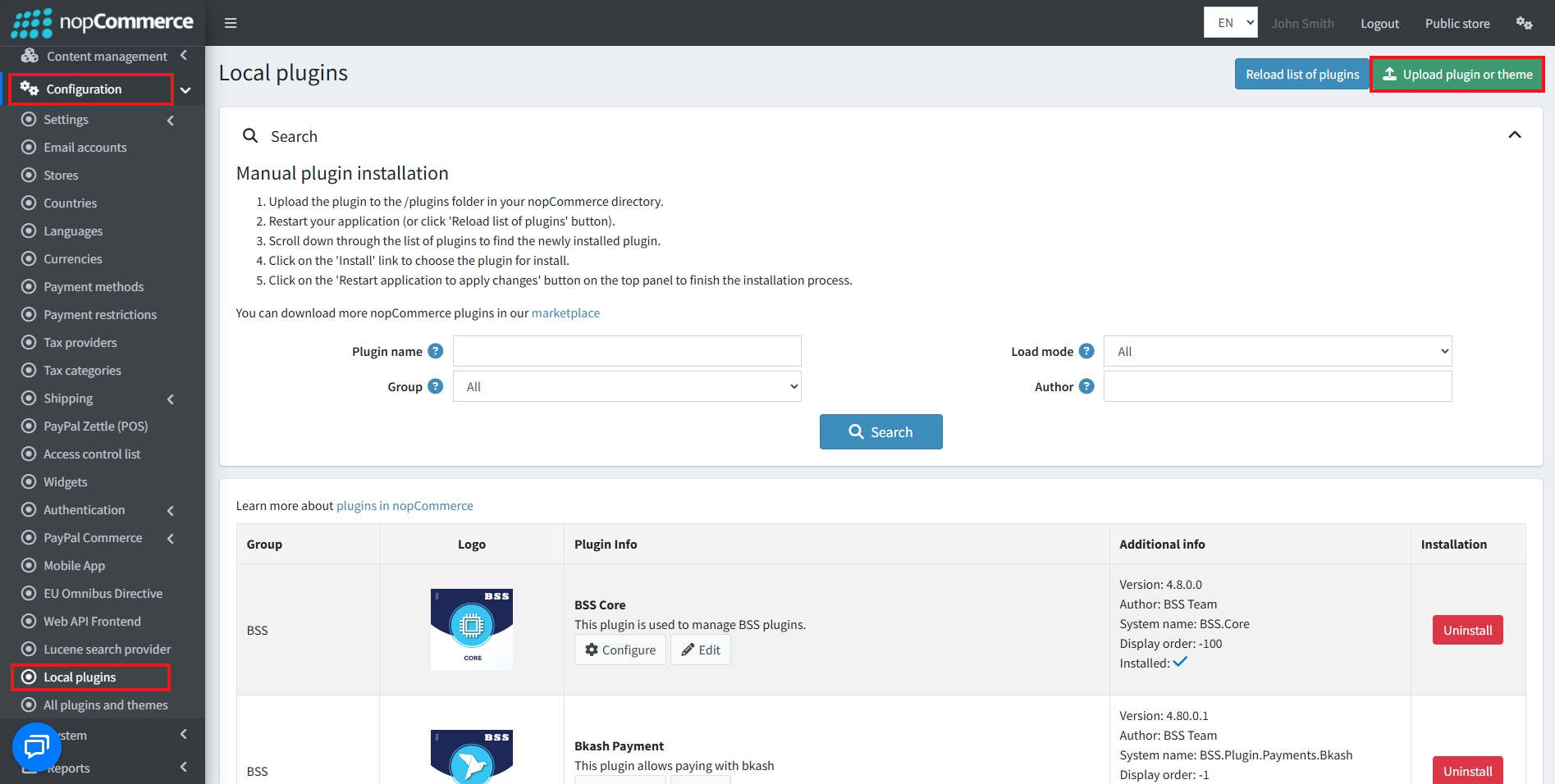
Go to Administration → Configuration → Local plugins
-
Within the bundle, you get all the required files, including BSS.Core
-
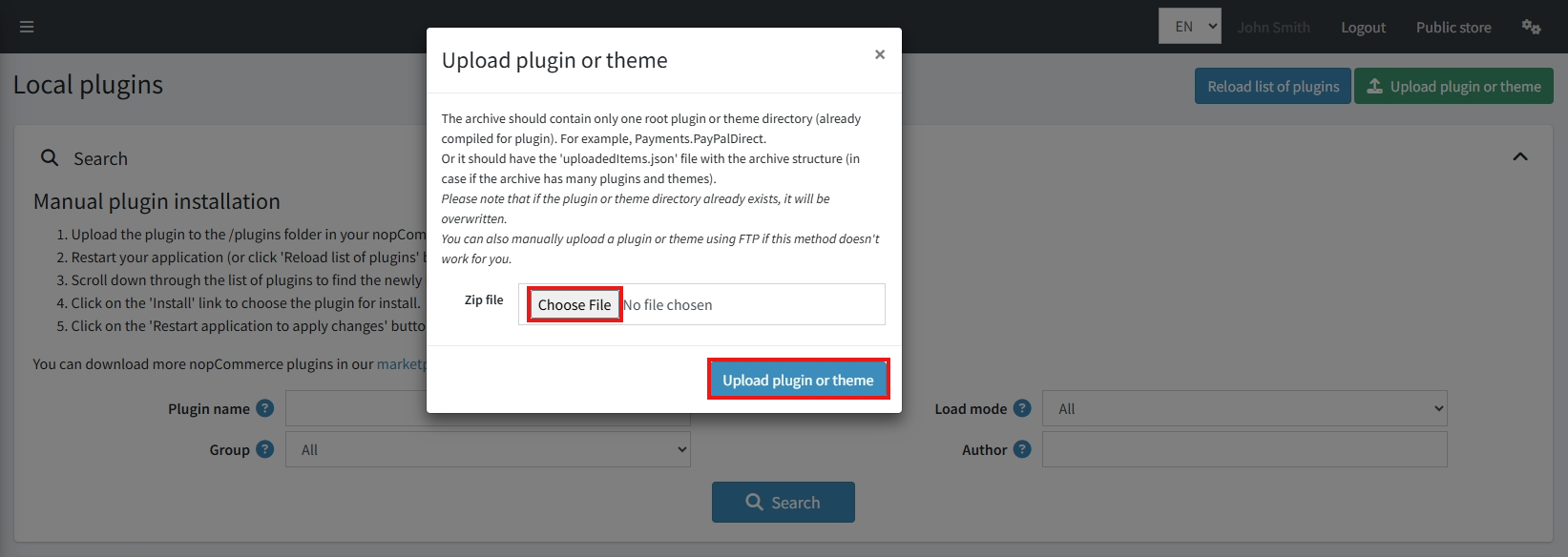
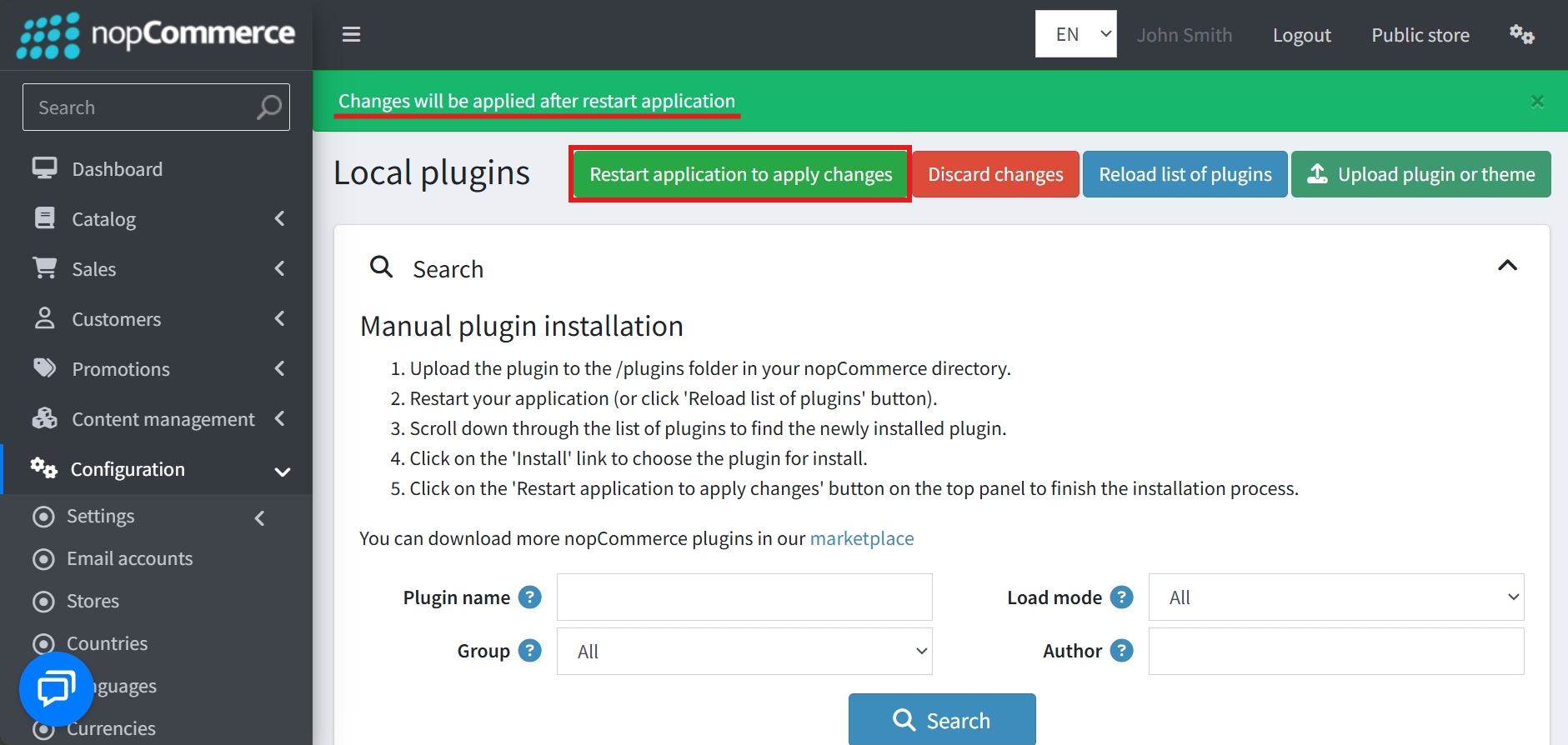
Upload the zip files using the ‘Upload plugin or theme’ button
-
After uploading, install the ‘BSS Core’ Plugin first.
-
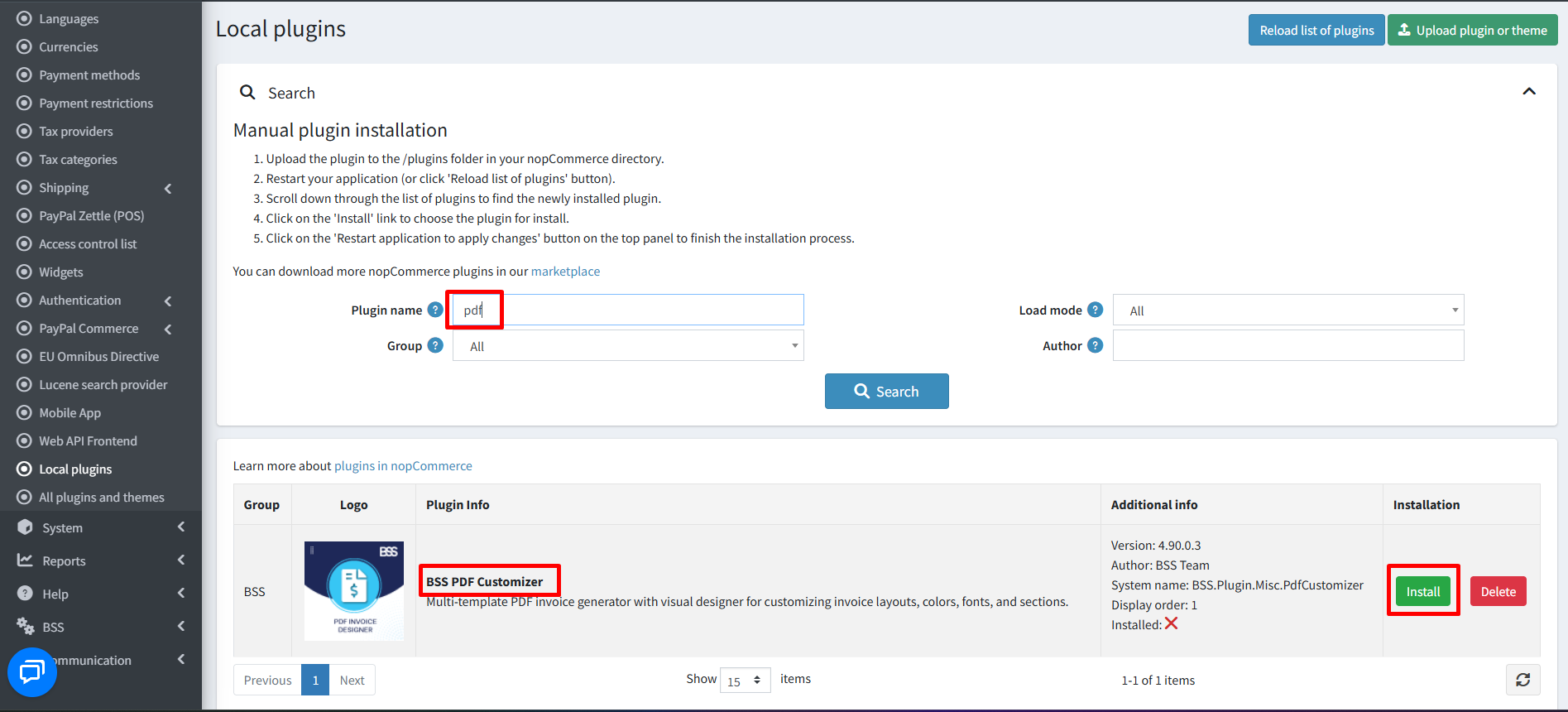
Then scroll down or write the name of the plugin in the search bar to find and install ‘BSS PDF Customizer’ (PDF Invoice Designer).
- To make the plugins functional, restart the application
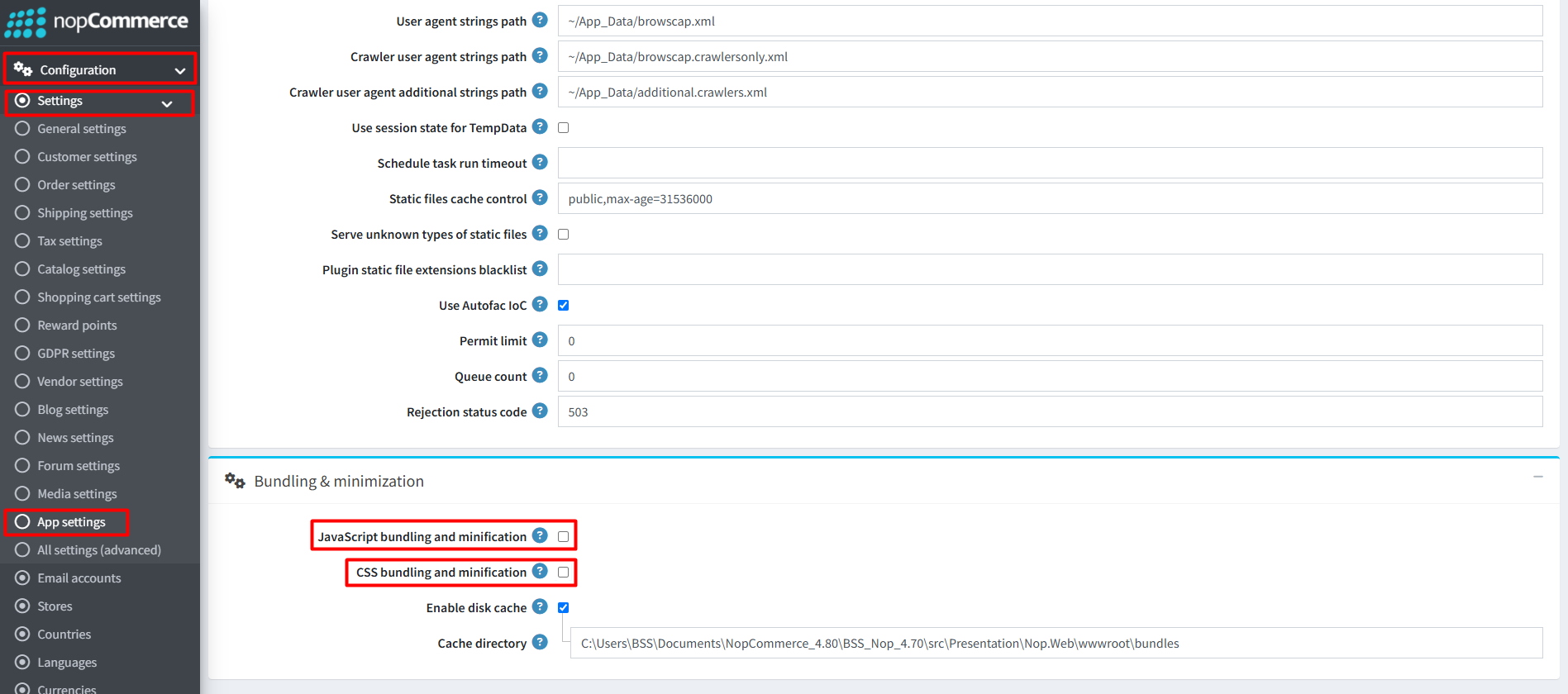
Recommendation: Go to > App Settings. If you find JavaScript bundling and minification, CSS bundling and minification are checked, then uncheck these two options and disable them.
CONFIGURE
-
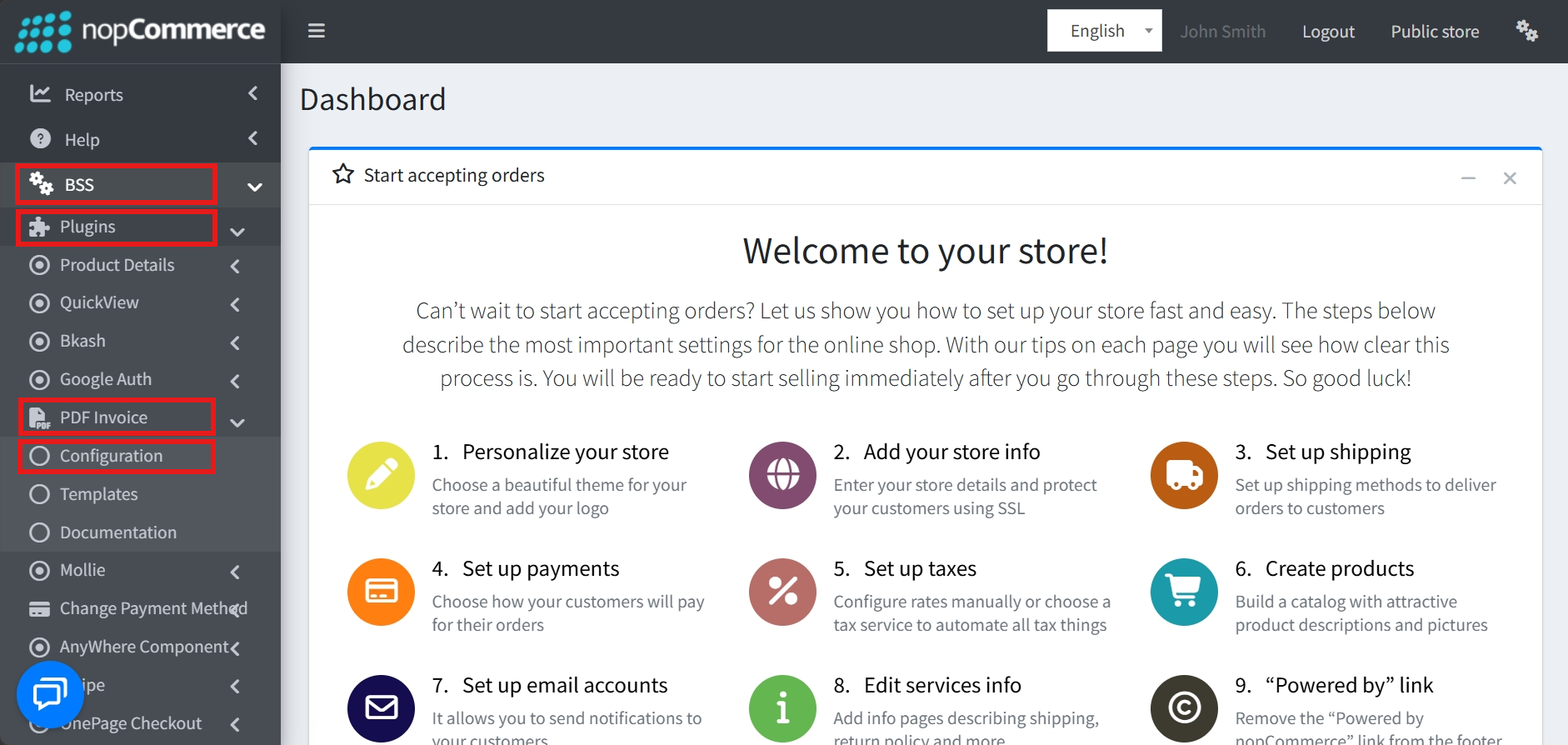
Go to Admin → BSS → Plugins → PDF Invoice → Configuration
-
Enter the License string and save it. Then clear cache.

-
Then again go to BSS → Plugins → PDF Invoice → Configuration to set the configuration.
-
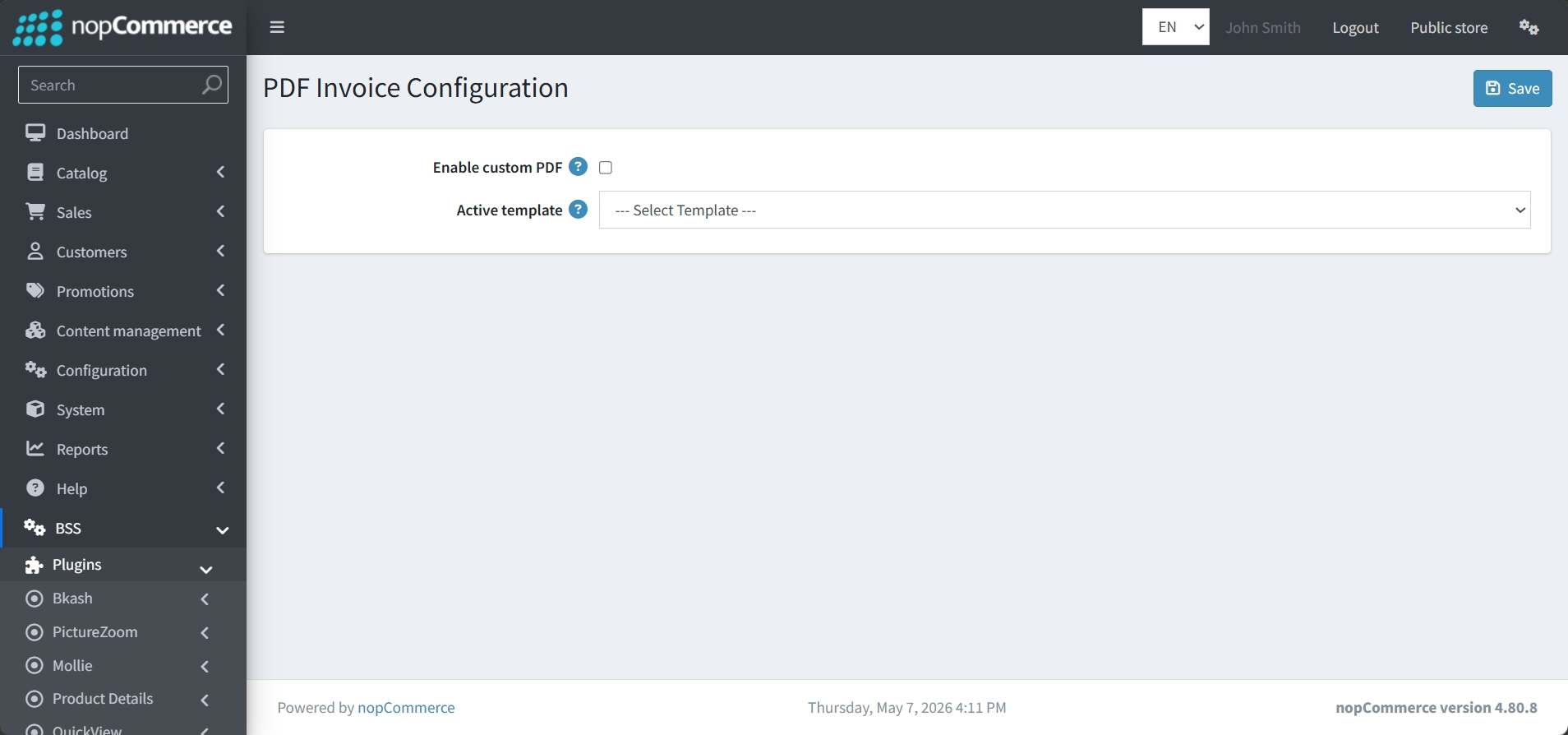
Enable Custom PDF: A master checkbox allows you to globally activate or deactivate the use of custom-designed PDFs for your store.
-
Active Template Selection: A dropdown menu allows you to choose which specific template from your library is currently active for generating invoices.
PDF INVOICE TEMPLATE
-
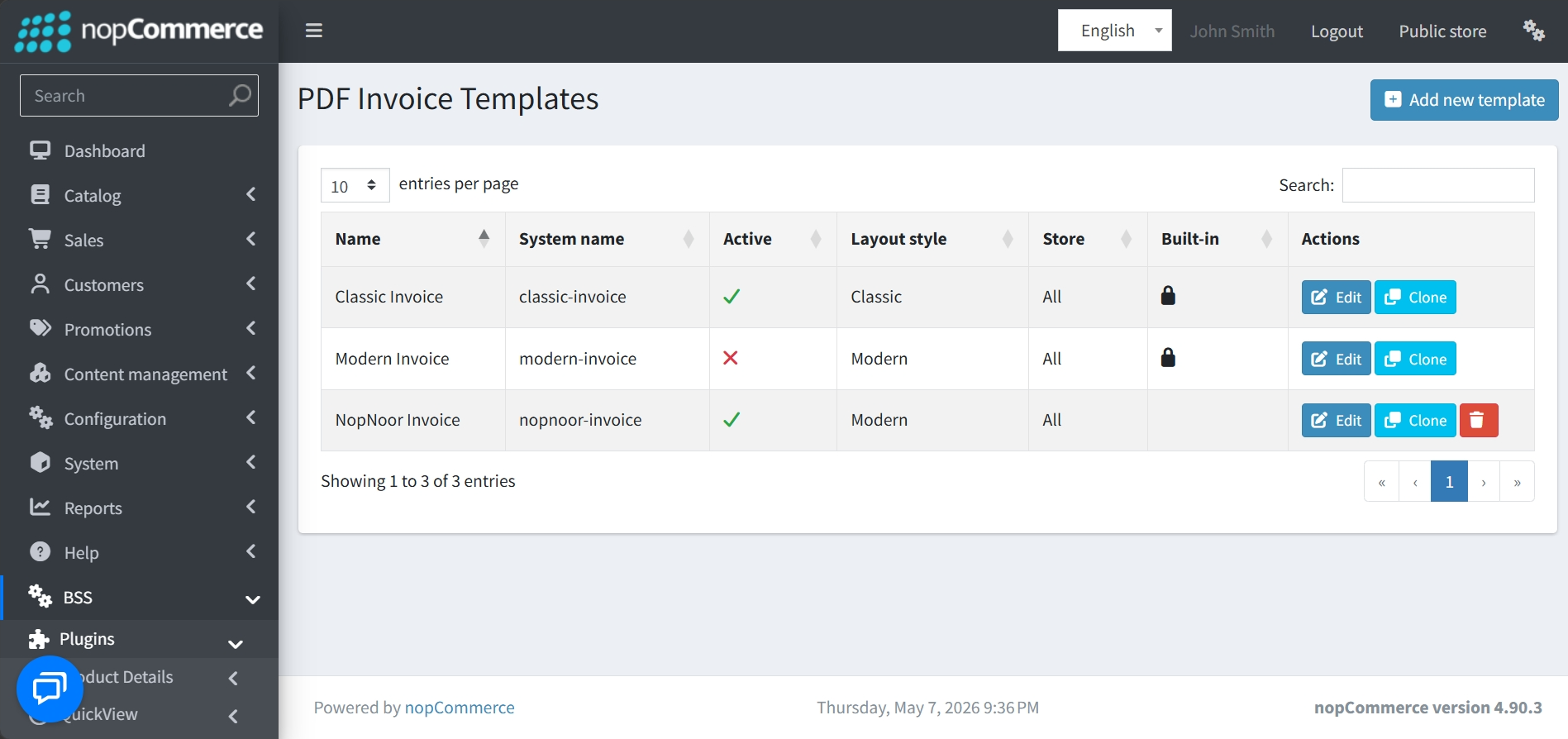
Go to BSS → Plugins → PDF Invoice → Templates to view a complete list of available templates, including their System Name, assigned Store, and Layout Style.
-
Built-in vs. Custom: The system identifies "Built-in" templates with a padlock icon. While built-in templates can be cloned or edited, they cannot be deleted like custom-created templates.
-
Status Tracking: A visual indicator quickly shows which templates are currently set as Active.
-
Search and Filter: The interface includes a search bar and pagination controls to help manage large lists of invoice designs efficiently.
-
Action Controls: For each template, admins have the ability to Edit, Clone, Delete, or Add New templates.
GENERAL SETTINGS
-
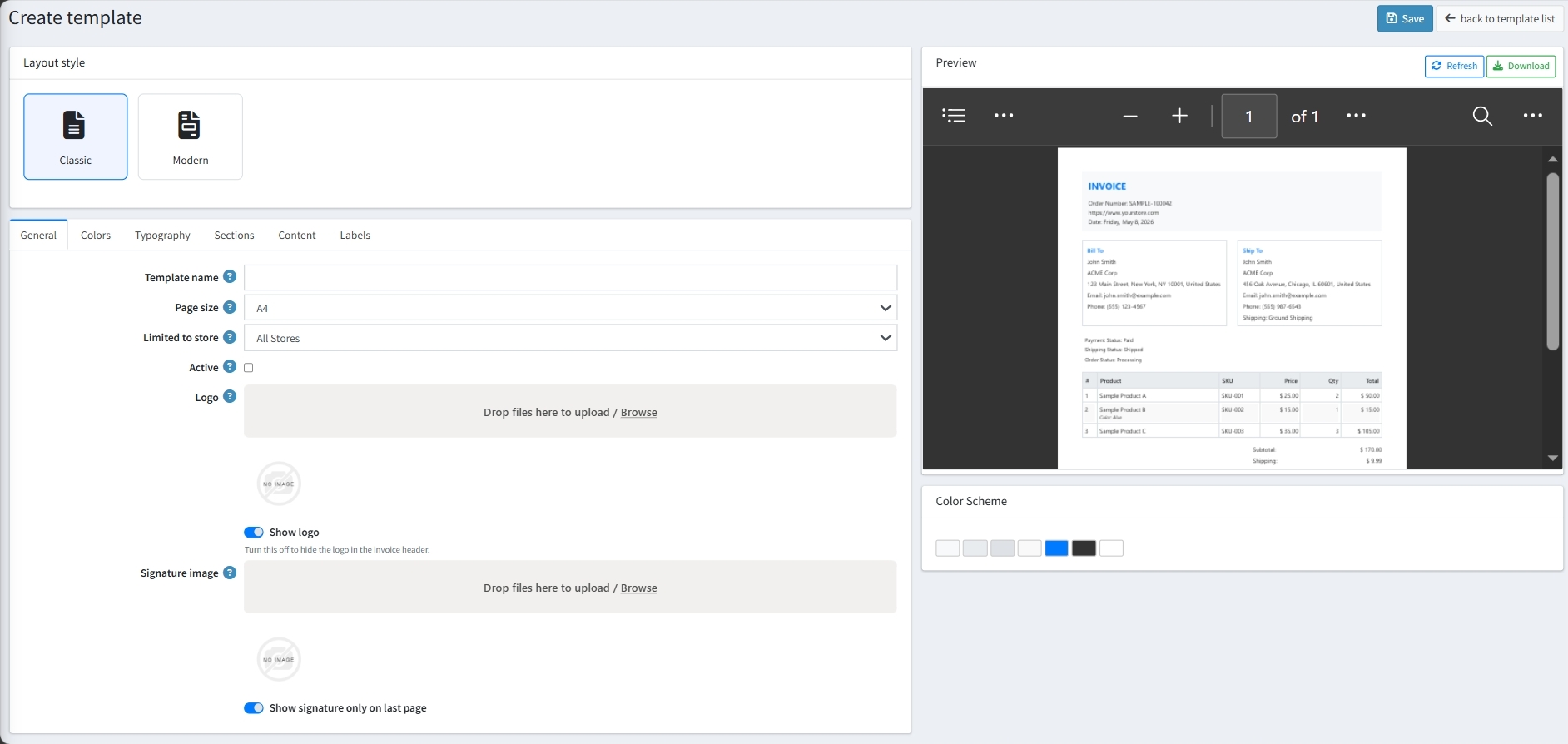
Layout Style: Easily toggle between Classic and Modern layout designs to suit your brand aesthetic.
-
Identification: Set a unique Template name, choose the Page size, and determine if the template is Limited to a specific store or active for all stores.
-
Activation: An Active checkbox allows you to set the template as the primary design for your store.
-
Logo: Upload a custom Logo via a drag-and-drop interface and use a toggle to decide whether to display it in the invoice header.
-
Signature: A dedicated upload area is available for a Signature image, with an optional setting to display the signature only on the last page of the document.
COLORS
-
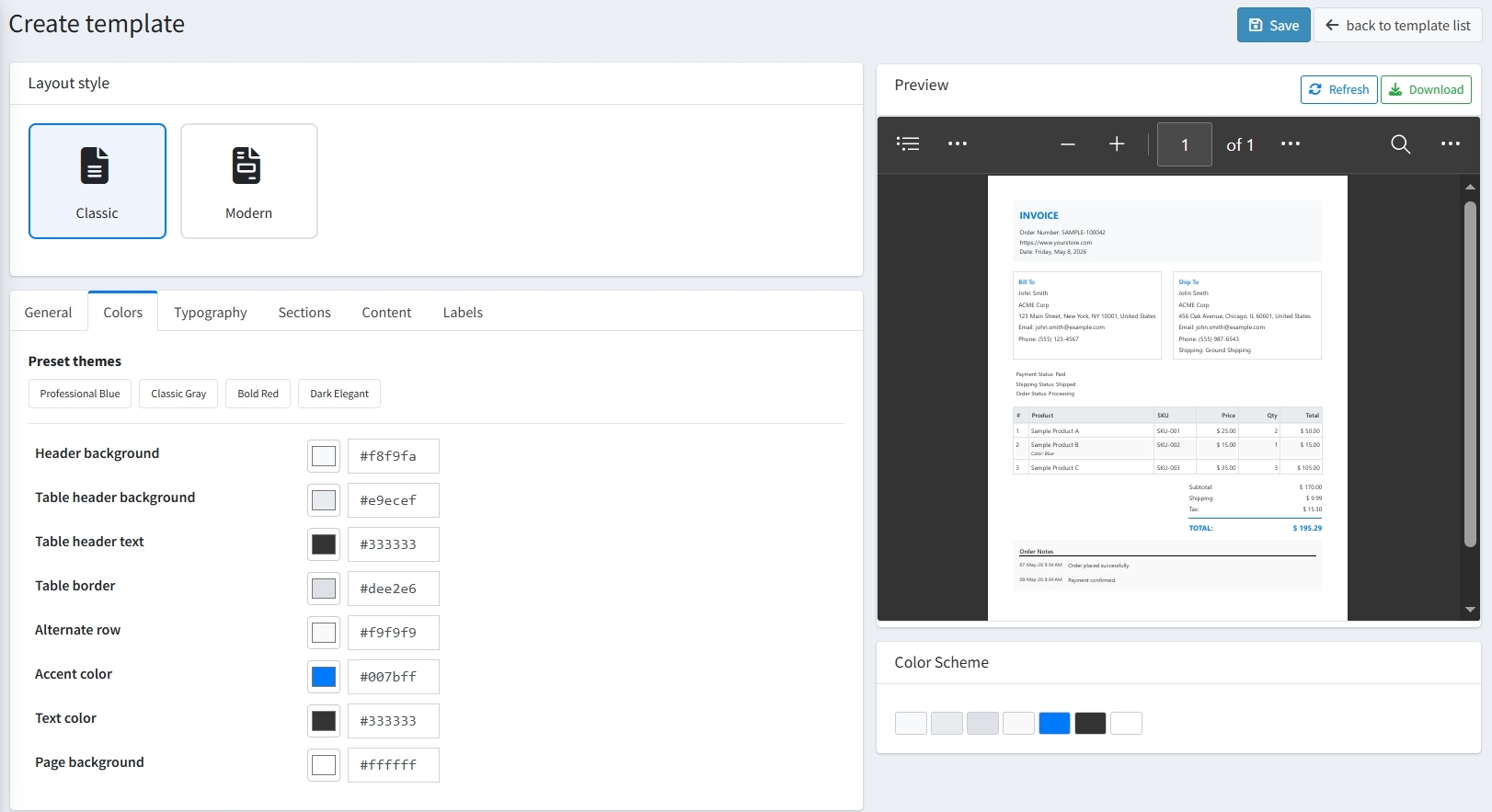
Preset Themes: For quick setup, you can choose from professionally designed themes like Professional Blue, Classic Gray, Bold Red, or Dark Elegant.
-
Granular Color Control: Define custom colors for header/page background, table headers, borders, alternating rows, text color, and accents.
TYPOGRAPHY
-
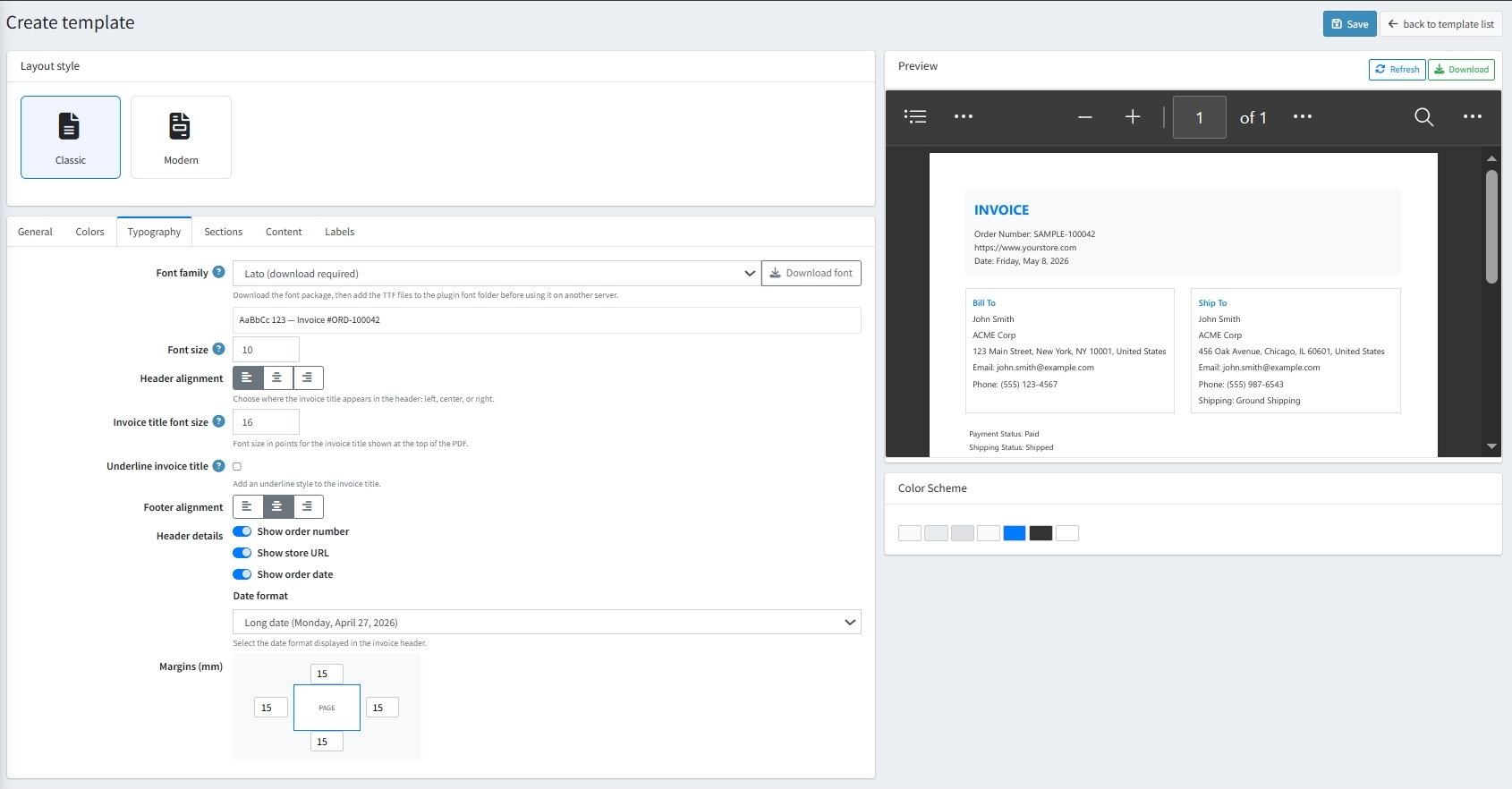
Font Family & Size: Select custom font families and configure global font sizes as well as dedicated title sizing.
-
Header & Footer Alignment: Align header and footer contents left, center, or right.
-
Document Margins: Configure exact page margins (Top, Bottom, Left, Right) in millimeters (mm).
-
Header Meta: Enable or disable order number, store URL, date, and date format styles.
SECTIONS
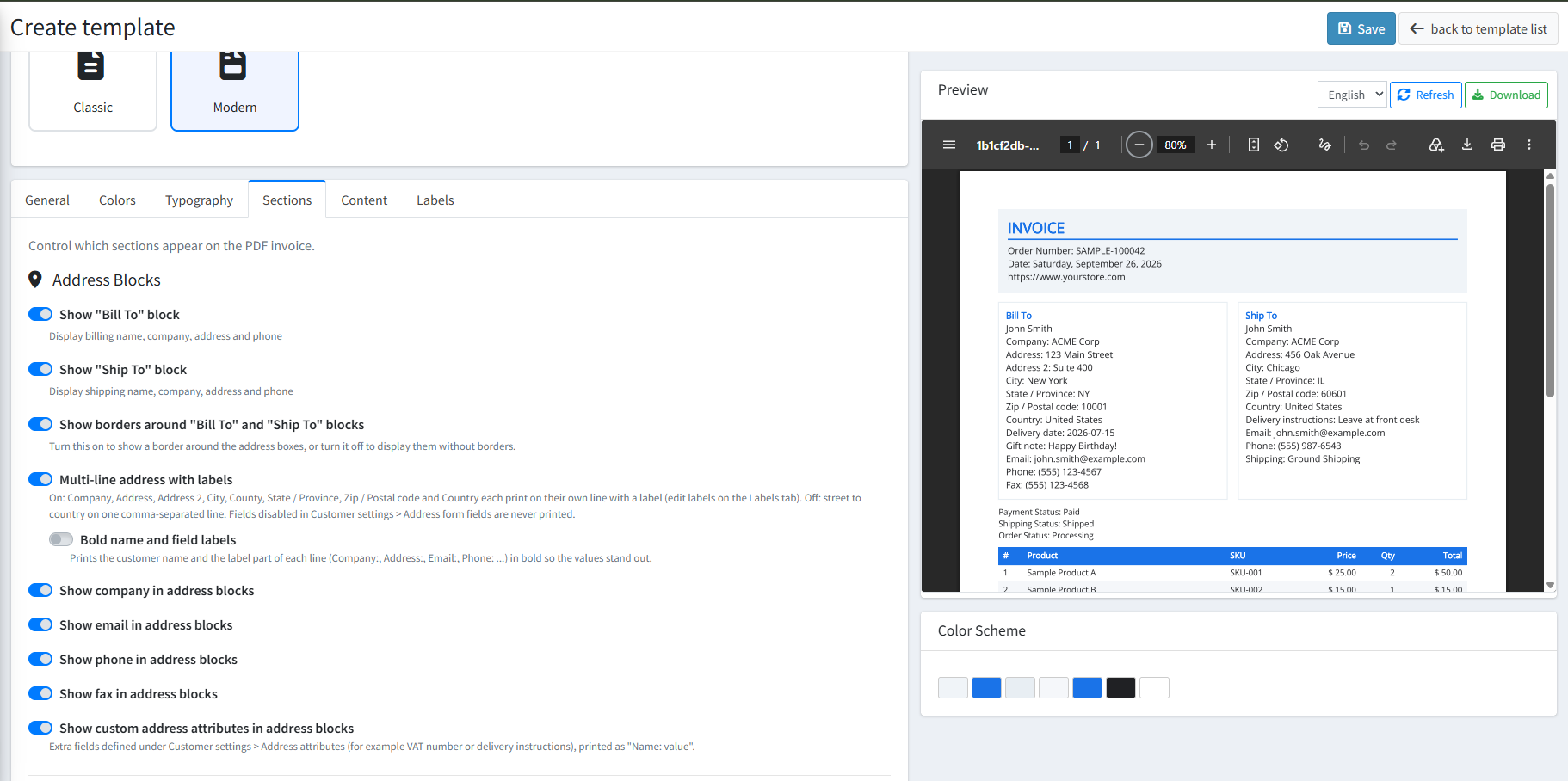
ADDRESS BLOCKS & FORMATTING
-
Address Blocks Visibility: Individually toggle the "Bill To" and "Ship To" address boxes, along with optional decorative borders around each block.
-
Multi-line address with labels: When enabled, each address component (Company, Address, City, State, Country, etc.) prints cleanly on its own separate line preceded by its respective label instead of being condensed into a single comma-separated line.
-
Bold name and field labels: Renders customer names and label descriptors in bold typography so that key customer details immediately stand out.
-
Contact & Custom Attributes: Dedicated toggles allow you to selectively show or hide the Company name, Email, Phone number, Fax, and Custom address attributes (e.g., VAT number or special delivery instructions).
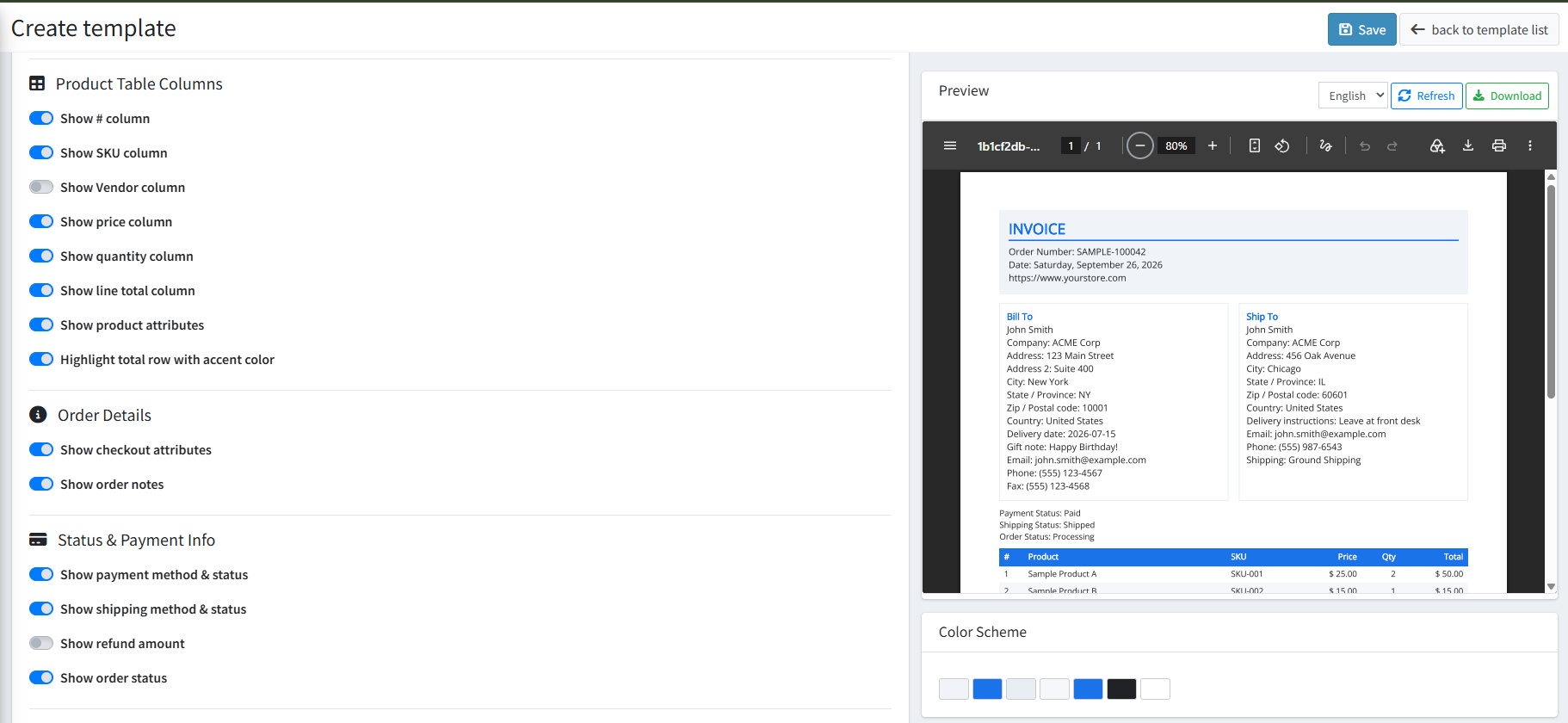
PRODUCT TABLES & ORDER DETAILS
-
Product Table Columns: Customize the product summary table with toggles for # (row number), SKU, Vendor, Price, Quantity, Line total, and Product attributes. An additional toggle allows you to highlight the total row with an accent color.
-
Order Details & Status Info: Display order-specific meta including checkout attributes, order notes, payment method & status, shipping method & status, order status, and refund amounts.
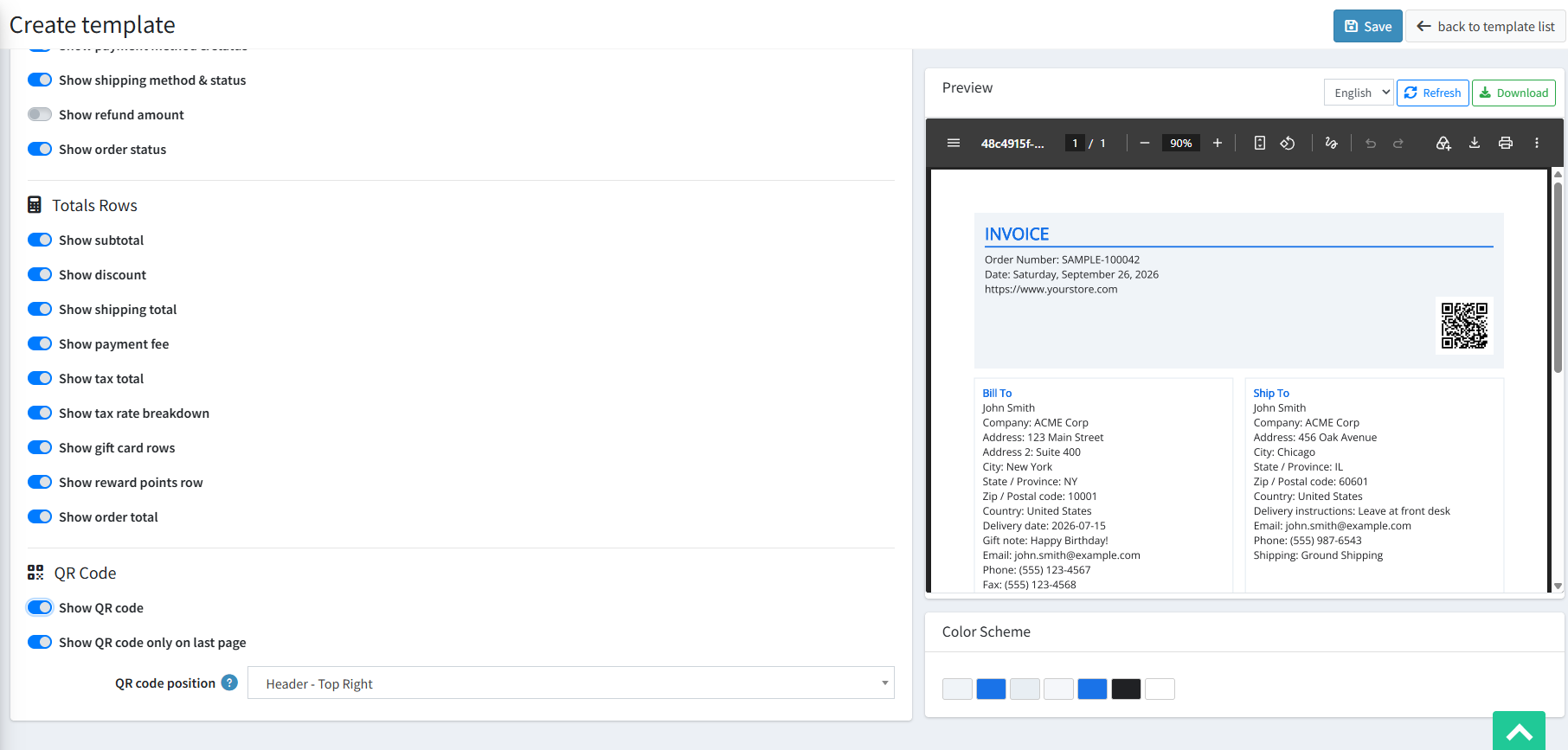
TOTALS ROWS & QR CODE CONFIGURATION
-
Totals Breakdown: Granular row toggles for Subtotal, Discount, Shipping total, Payment fee, Tax total, Tax rate breakdown, Gift card rows, Reward points row, and final Order total.
-
QR Code Integration: Enable the Show QR code toggle to print a scannable QR code on the invoice.
-
QR Code Position & Page Display: Use the QR code position dropdown to accurately position the QR code (e.g., Header - Top Right) and optionally restrict it using the Show QR code only on last page switch.
CONTENT
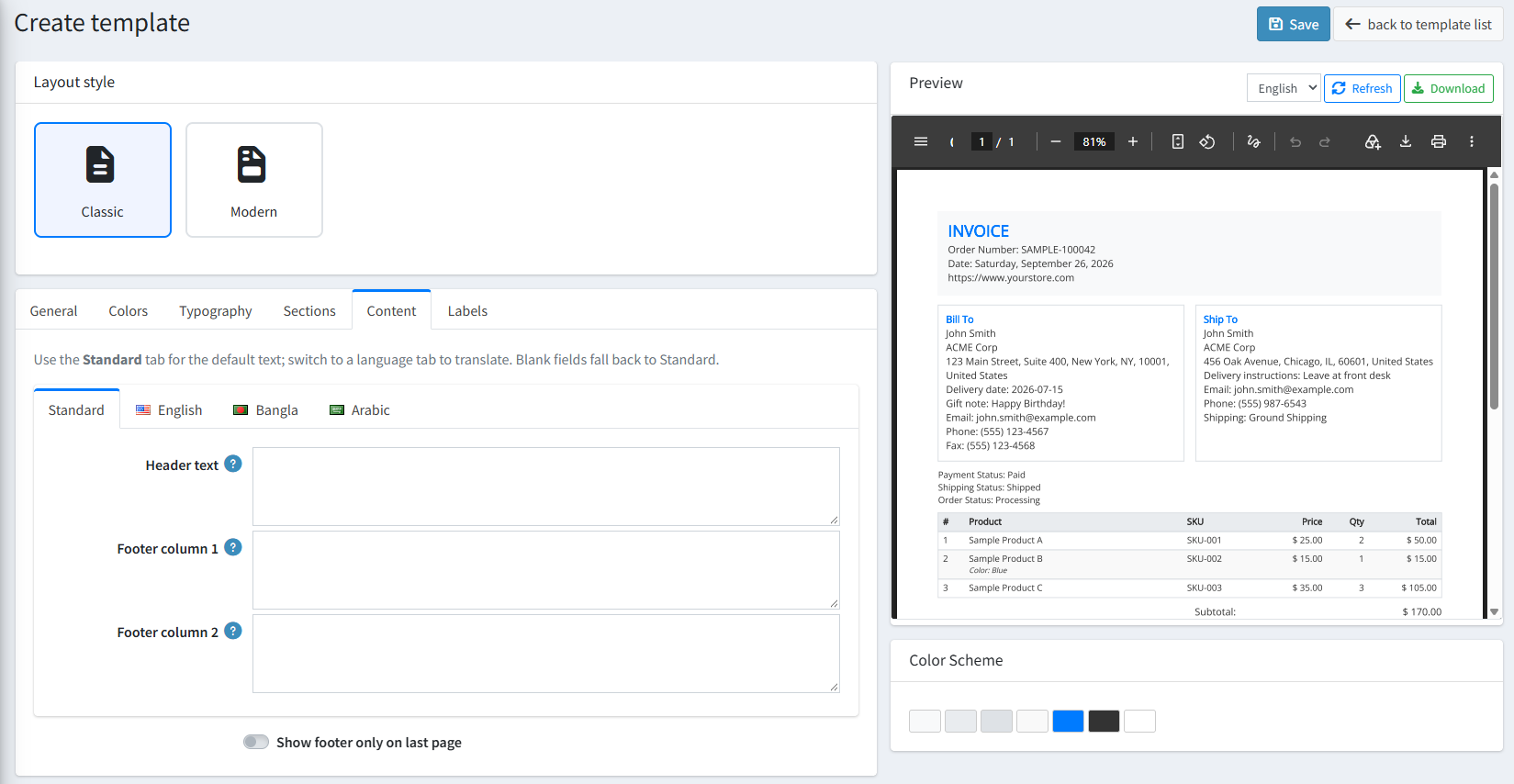
MULTI-LANGUAGE CUSTOM TEXT BLOCKS
-
Language Localization Tabs: Convenient language tabs (e.g., Standard, English, Bangla, Arabic) allow you to configure text tailored to multiple languages. The Standard tab acts as the default fallback; any fields left blank in language tabs automatically fall back to the Standard tab text.
-
Header Text: Input custom announcements, business legal text, or VAT registration info to appear in the invoice header.
-
Dual Footer Columns: Provide detailed closing notes, banking details, return policies, or greetings across two balanced columns (Footer column 1 and Footer column 2).
-
Show Footer Only on Last Page: Keeps multi-page documents clean by restricting footer columns to only the final page.
LABELS
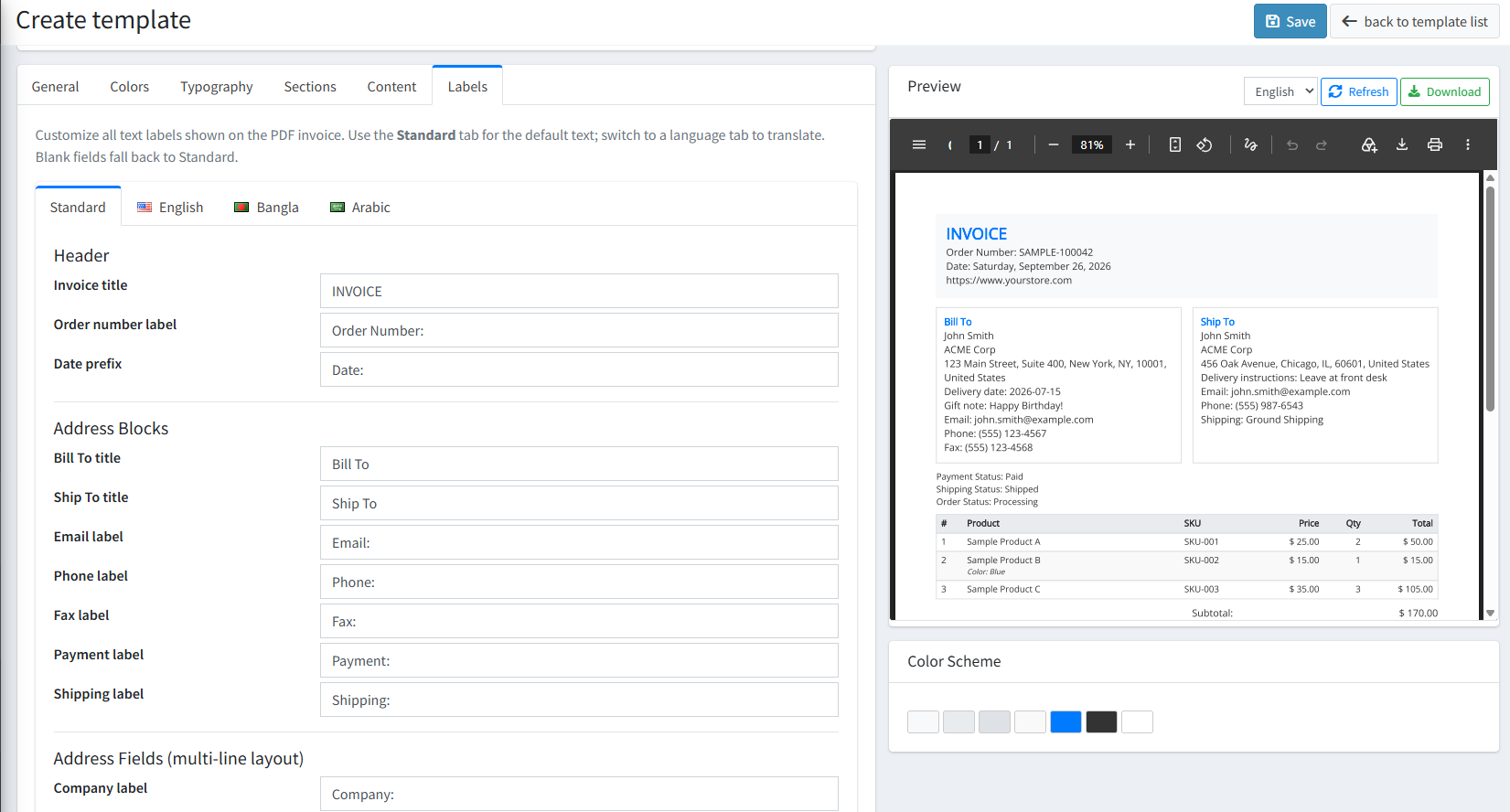
MULTI-LANGUAGE HEADER & ADDRESS LABELS
-
Multi-Language Translation: Like the Content tab, all labels support localized translation tabs (Standard, English, Bangla, Arabic) with automatic standard fallback.
-
Header Labels: Customize text for the Invoice title, Order number label, and Date prefix.
-
Address Blocks Titles: Rename primary block headers such as Bill To title, Ship To title, Email label, Phone label, Fax label, Payment label, and Shipping label.
-
Address Fields (Multi-line layout) Labels: Accurately name every individual address field label when multi-line format is active, including: Company, Address, Address 2, City, County, State / Province, Zip / Postal code, and Country.
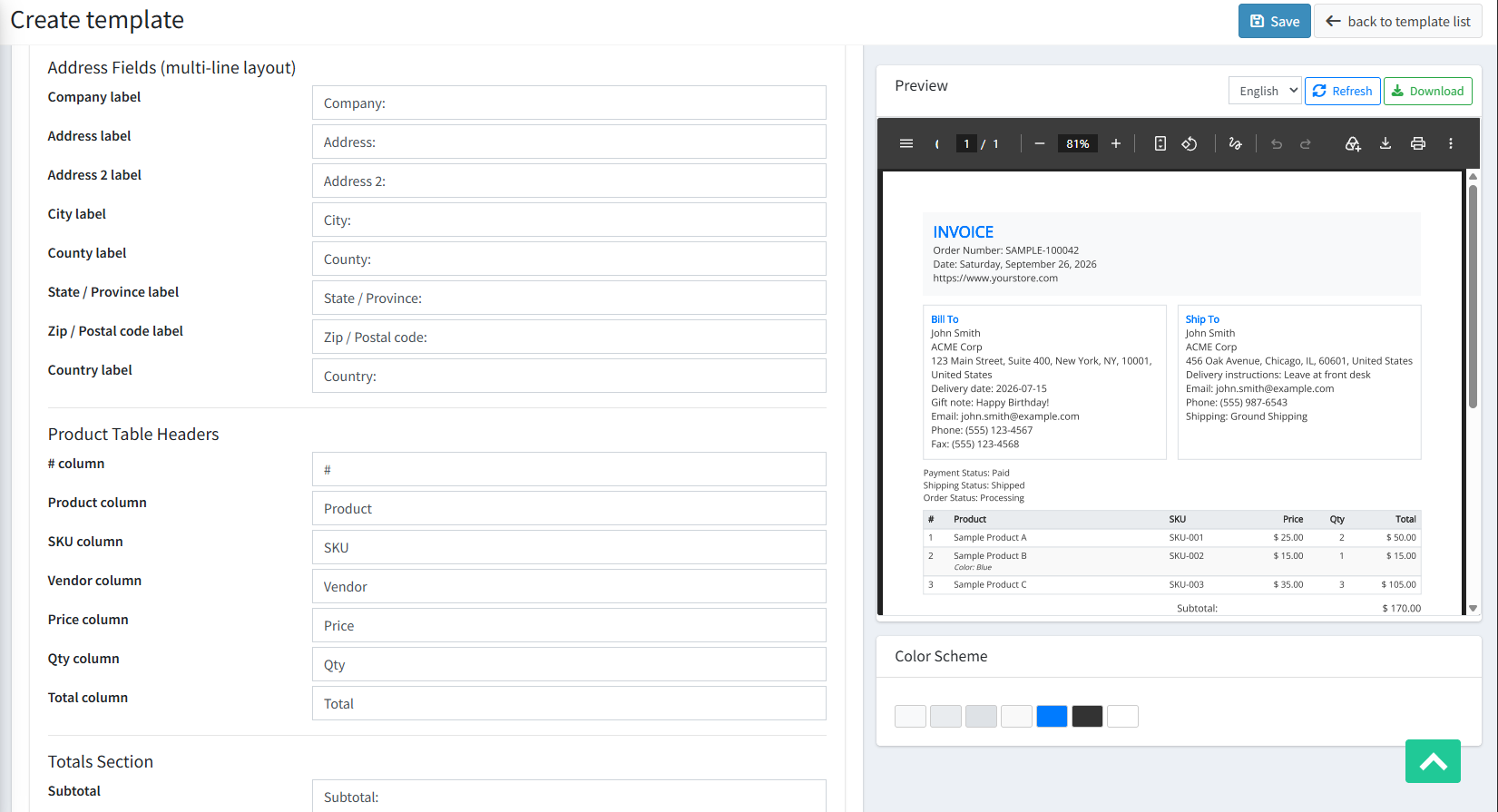
PRODUCT TABLE & TOTALS LABELS
-
Product Table Headers: Customize column headers for # column, Product column, SKU column, Vendor column, Price column, Qty column, and Total column.
-
Totals Section Labels: Translate and customize labels for Subtotal, Discount, Shipping total, Payment fee, Tax, and Order total (TOTAL).
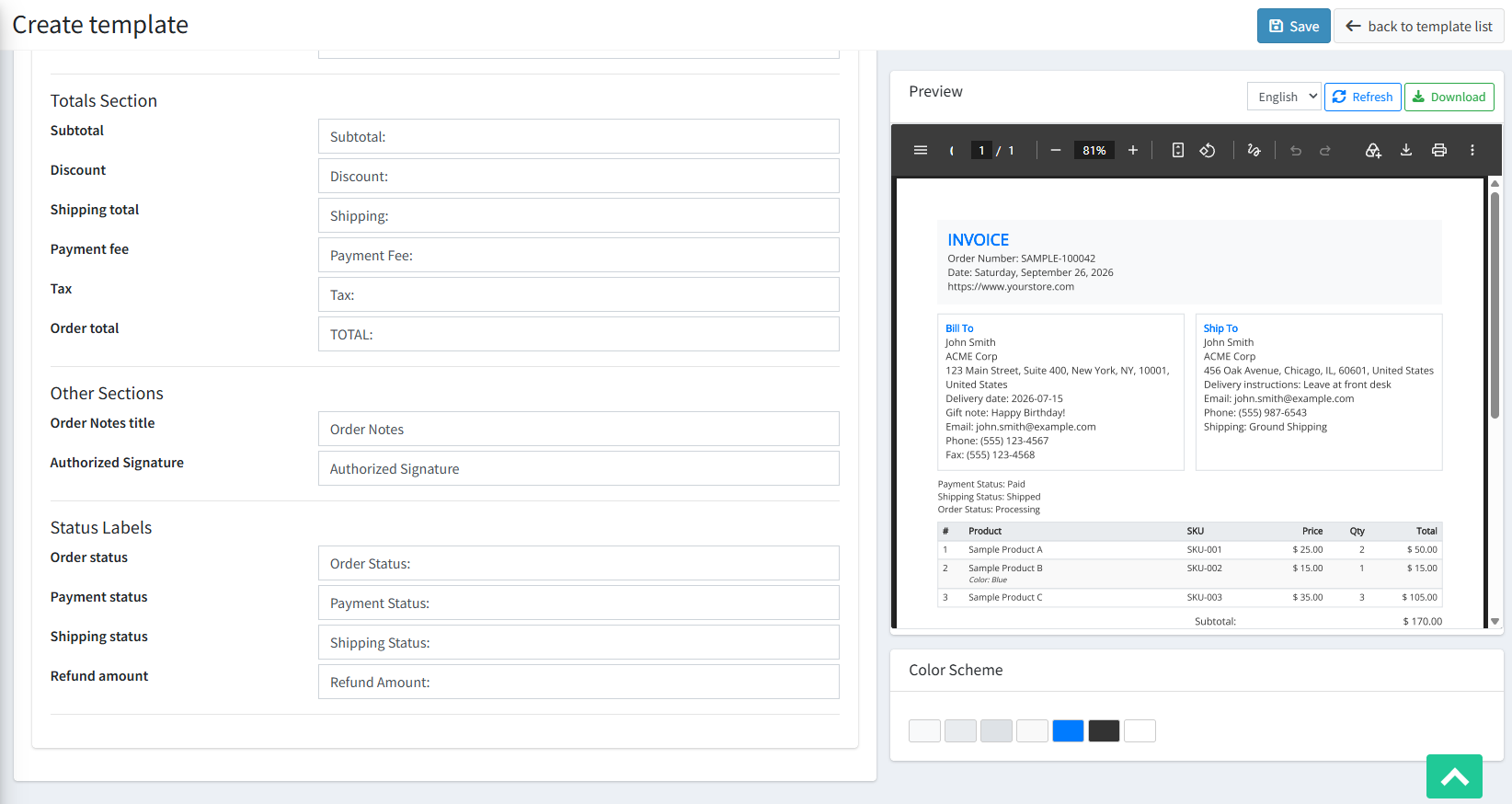
STATUS & ADDITIONAL SECTION LABELS
-
Other Sections: Define custom display headers for Order Notes title and the Authorized Signature label.
-
Status Labels: Configure labels for order lifecycle stages, including Order status, Payment status, Shipping status, and Refund amount.
PUBLIC VIEW
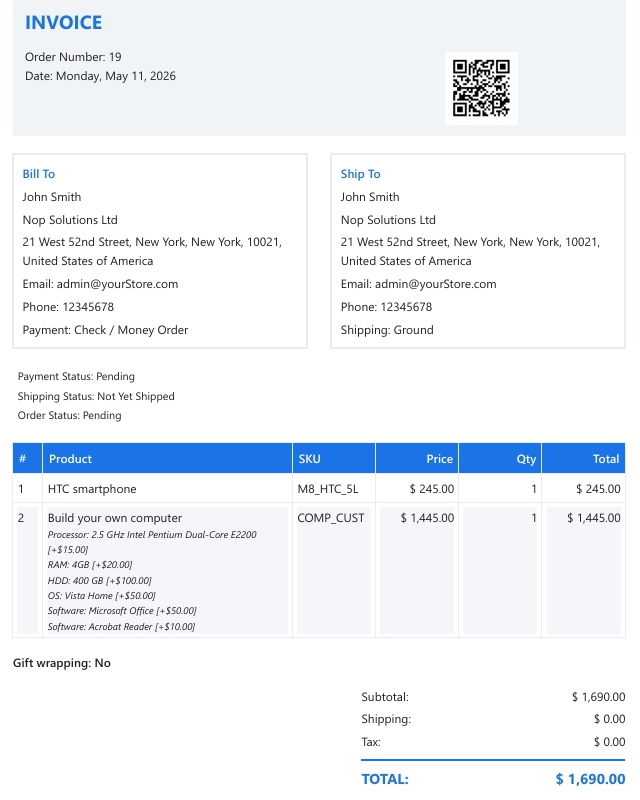
FEATURES
-
Custom Template Management: Create, edit, clone, and manage custom and built-in invoice templates with multi-store support.
-
Flexible Layouts & Themes: Choose between Classic and Modern styles and apply pre-built palettes or custom color schemes.
-
Multi-Language Localization: Seamlessly translate content, headers, and all invoice labels across multiple languages with an automated Standard fallback system.
-
Advanced Address Formatting: Switch to structured multi-line address views with individual field labels and bold typography emphasis.
-
Configurable QR Code Placement: Position dynamic QR codes in the header or specific positions with single/multi-page display controls.
-
Modular Data Control: Show or hide order details, address attributes, vendor columns, item attributes, and detailed financial tax breakdowns.
-
Live Interactive Preview: Real-time PDF previewing and direct sample PDF downloads directly from the template builder.