BSS Pathao Shipping Plugin
Created on: Mar 09, 2026
PRE-REQUISITES
-
The plugin requires you to install the BSS Core plugin first.
INSTALLATION
-
Go to the Order Details Page and Download plugin package.
-
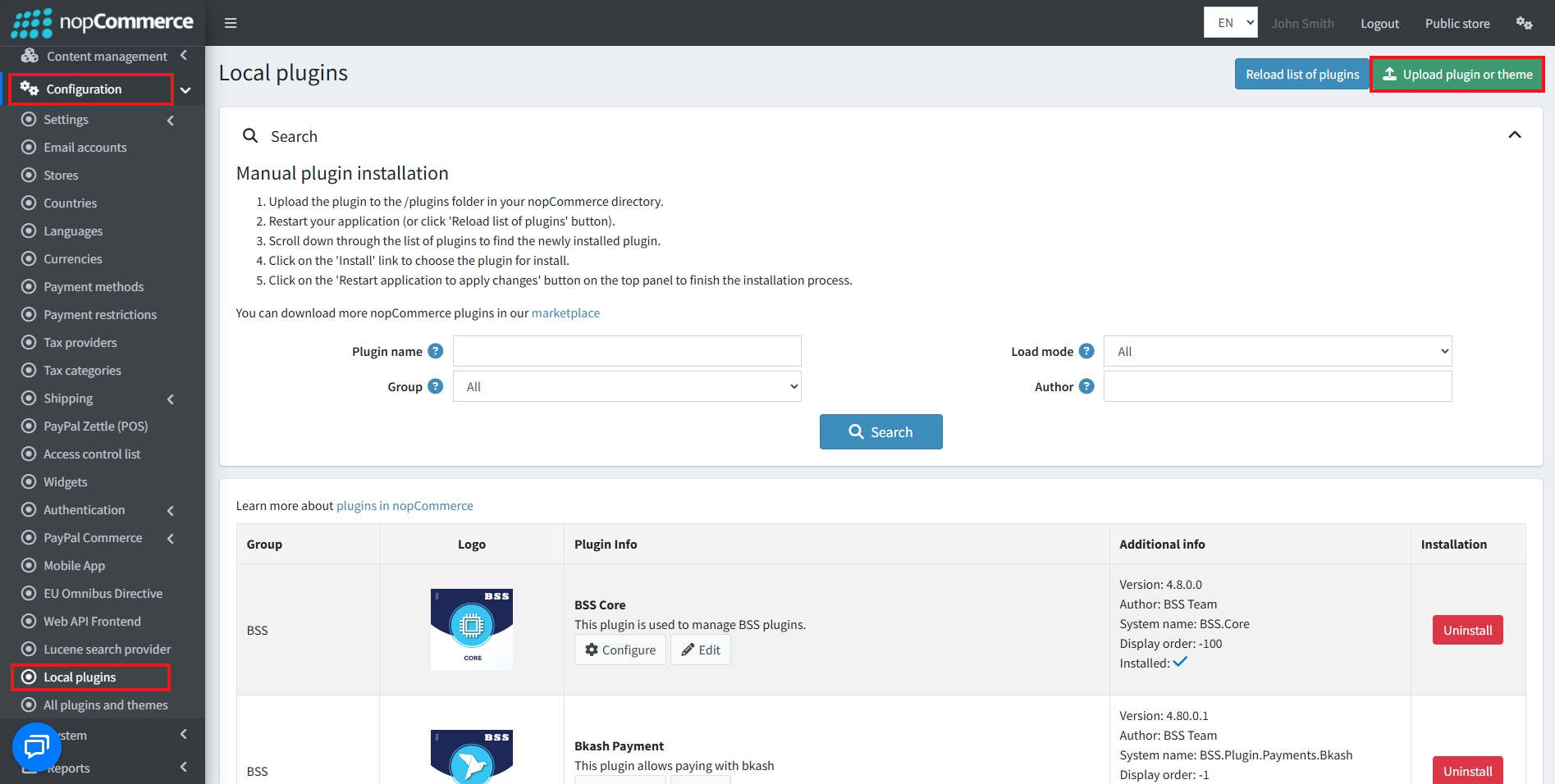
Go to Administration → Configuration → Local plugins
-
Within the bundle, you get all the required files, including BSS.Core
-
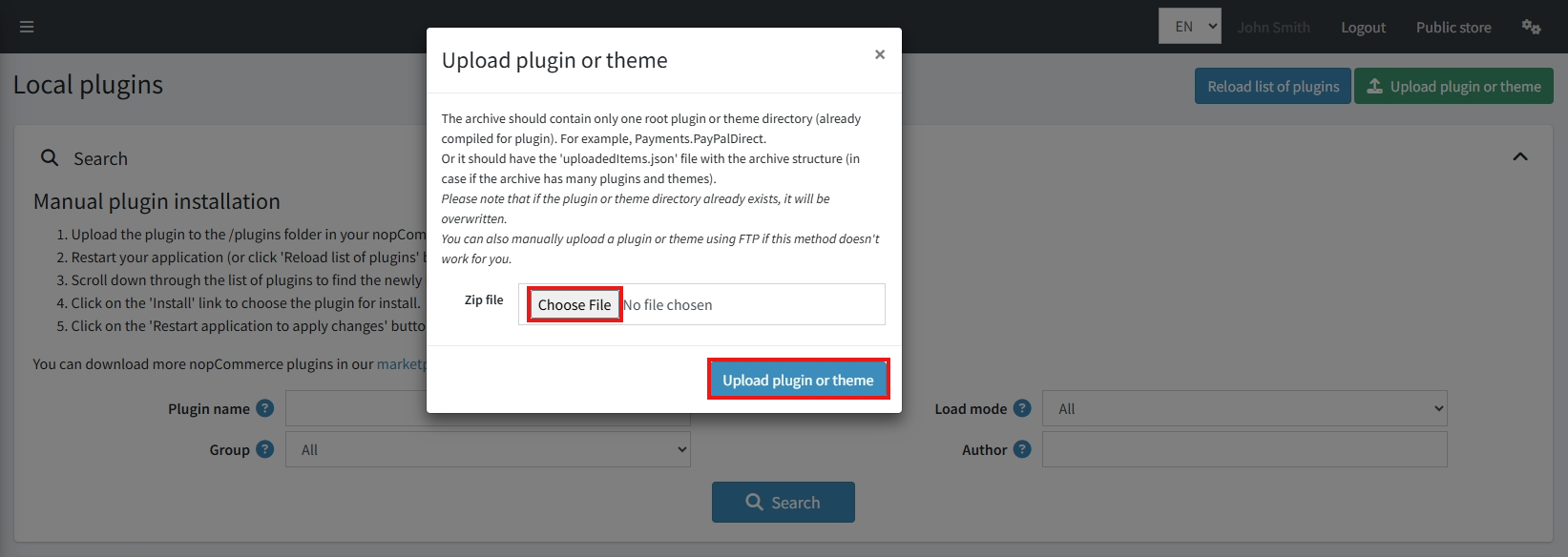
Upload the zip files using the 'Upload plugin or theme' button
-
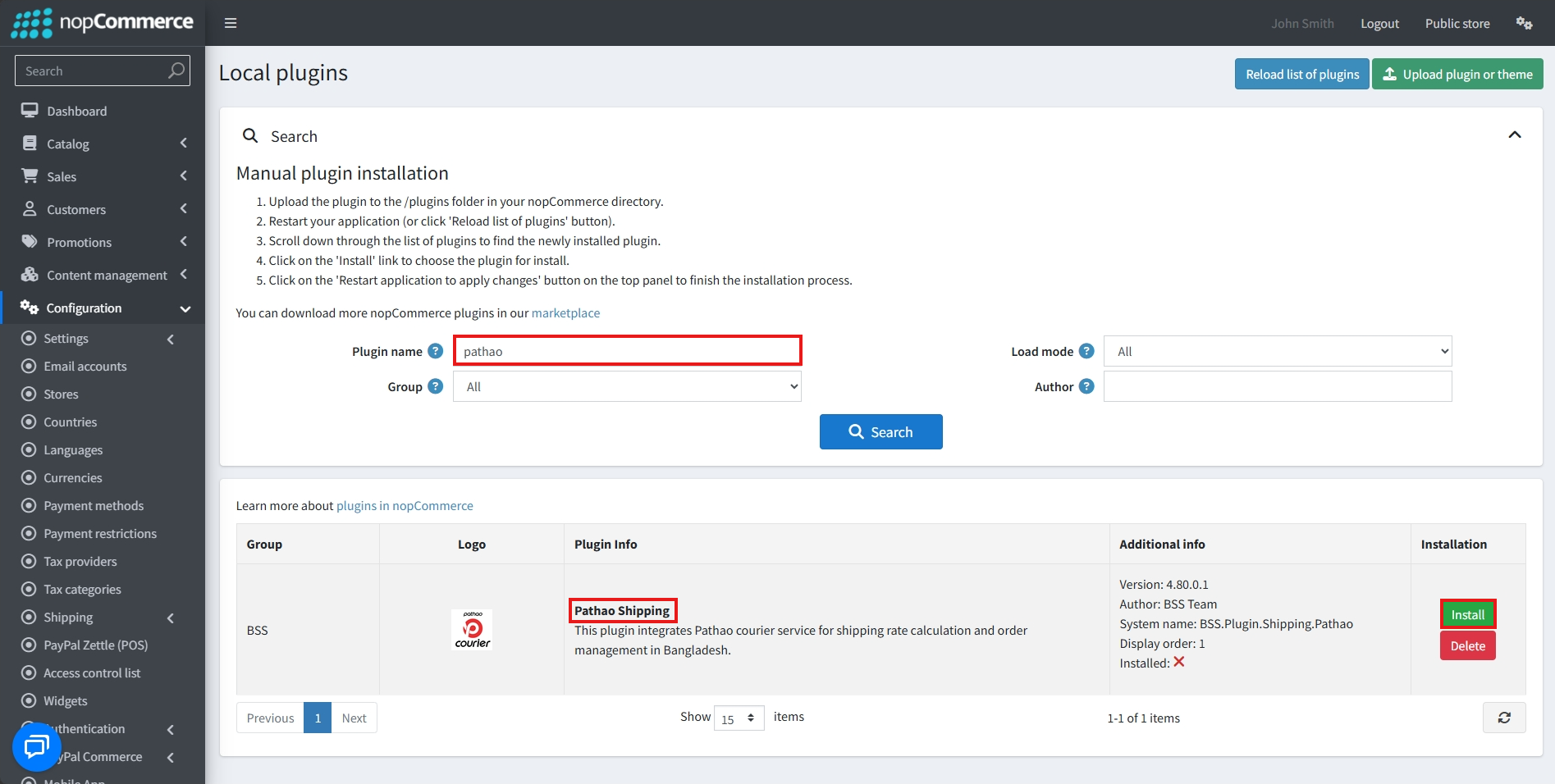
After uploading, install the 'BSS Core' Plugin first.
-
Then scroll down or use the search bar to find and install 'Pathao Shipping'
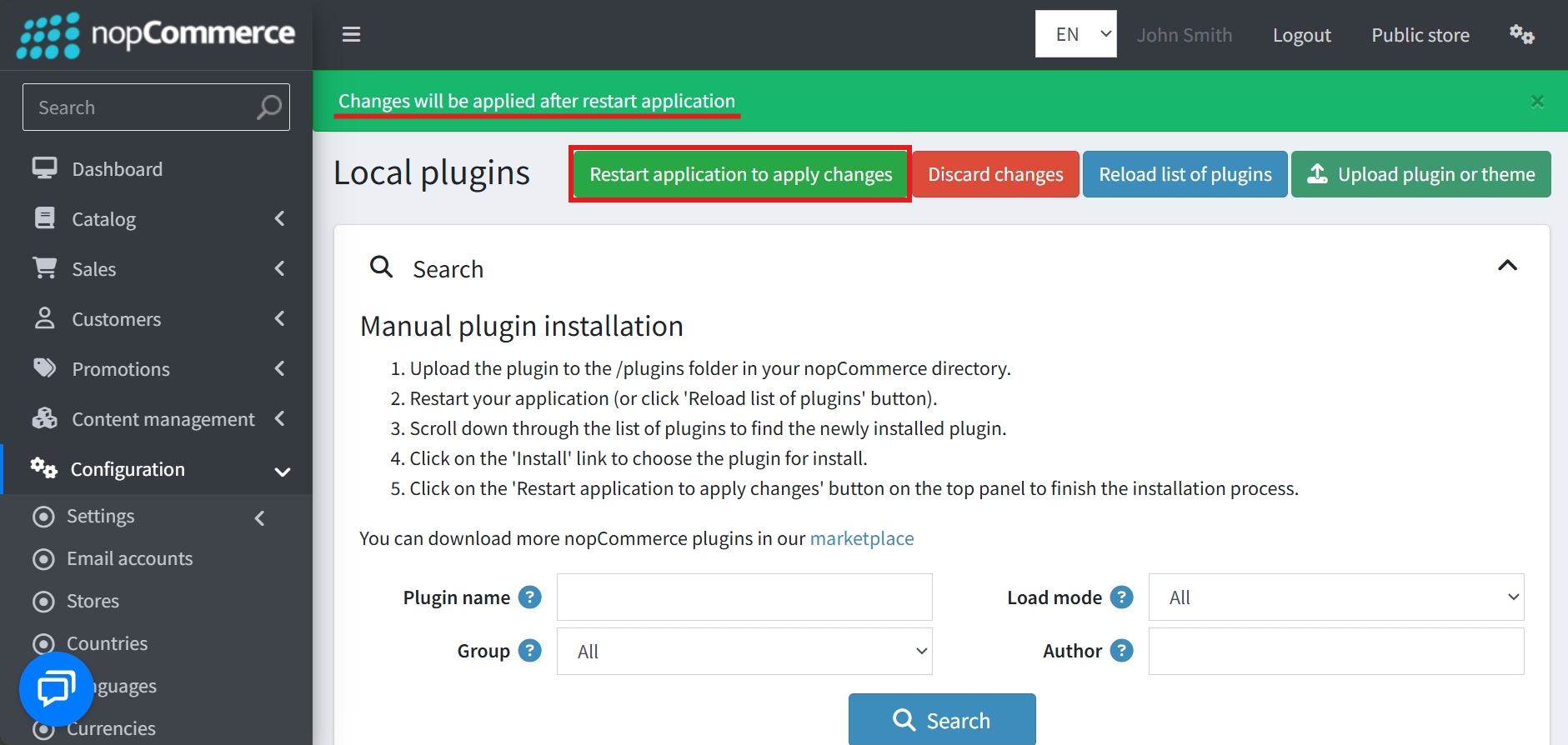
- To make the plugins functional, restart the application
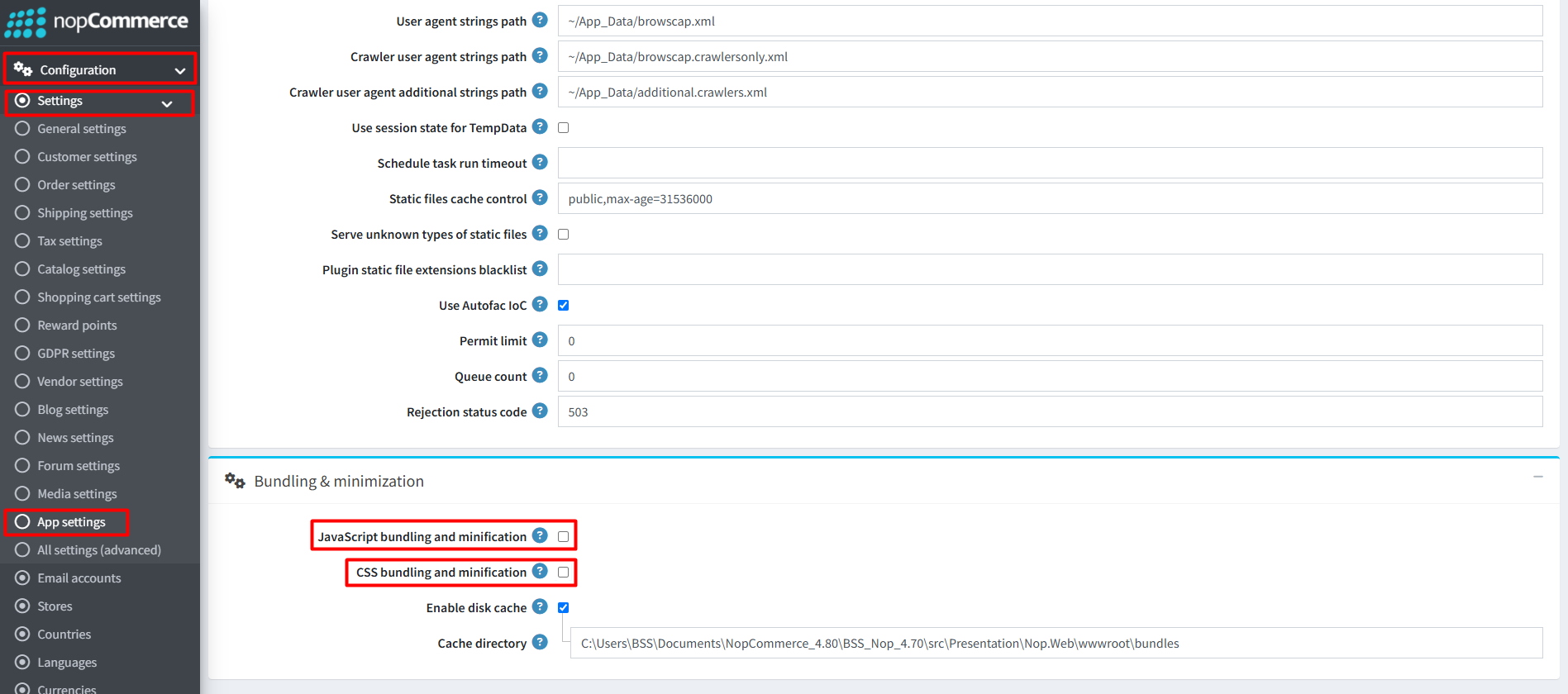
Recommendation: Go to > App Settings. If you find JavaScript bundling and minification, CSS bundling and minification are checked, then uncheck these two options and disable them.
CONFIGURE
-
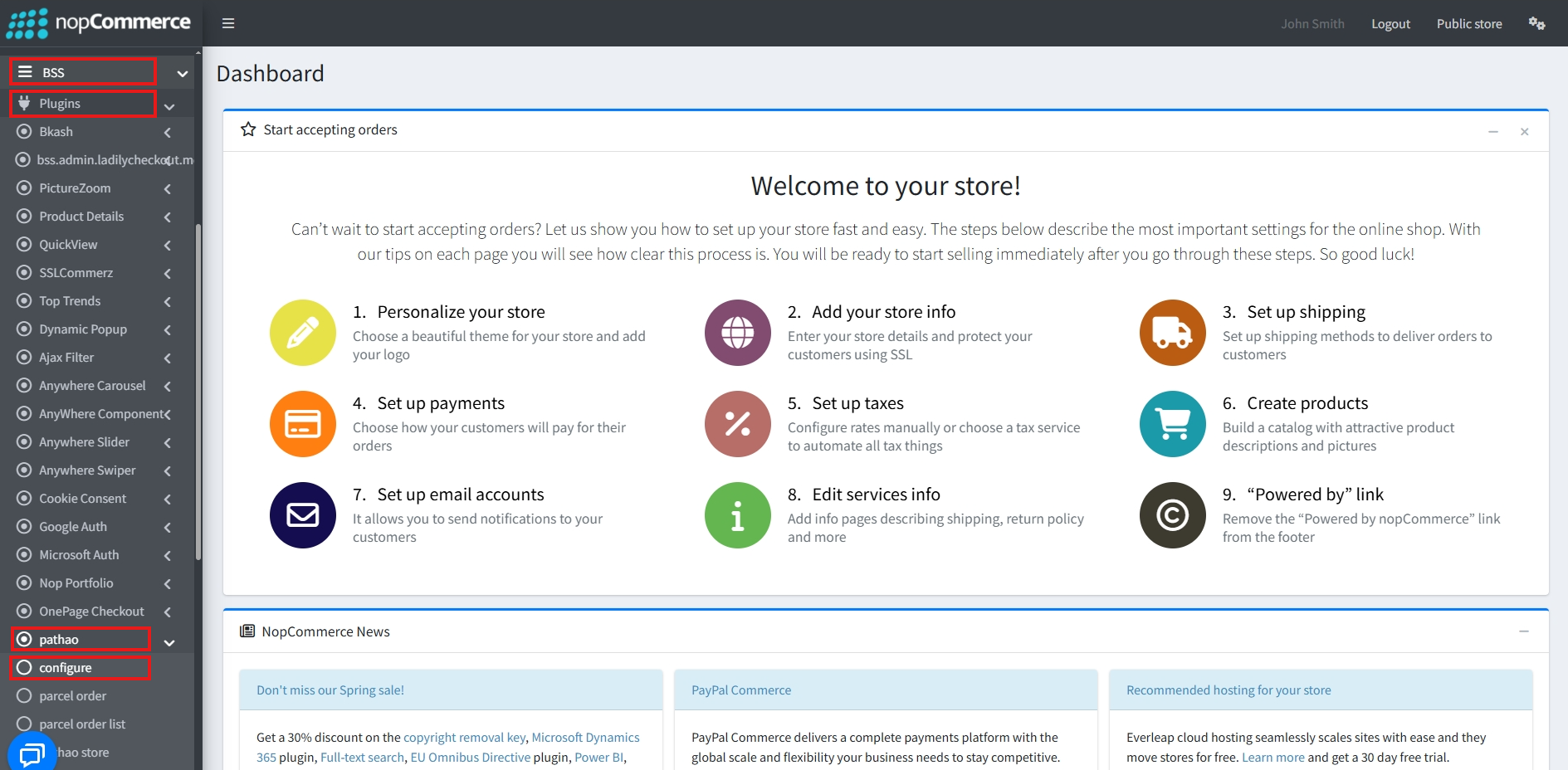
Go to Admin → BSS → Plugins → Pathao → Configuration
-
Enter the License string and save it. Then clear cache

-
Then again go to BSS → Plugins → Pathao → Configuration to set the configuration.
API Connection
-
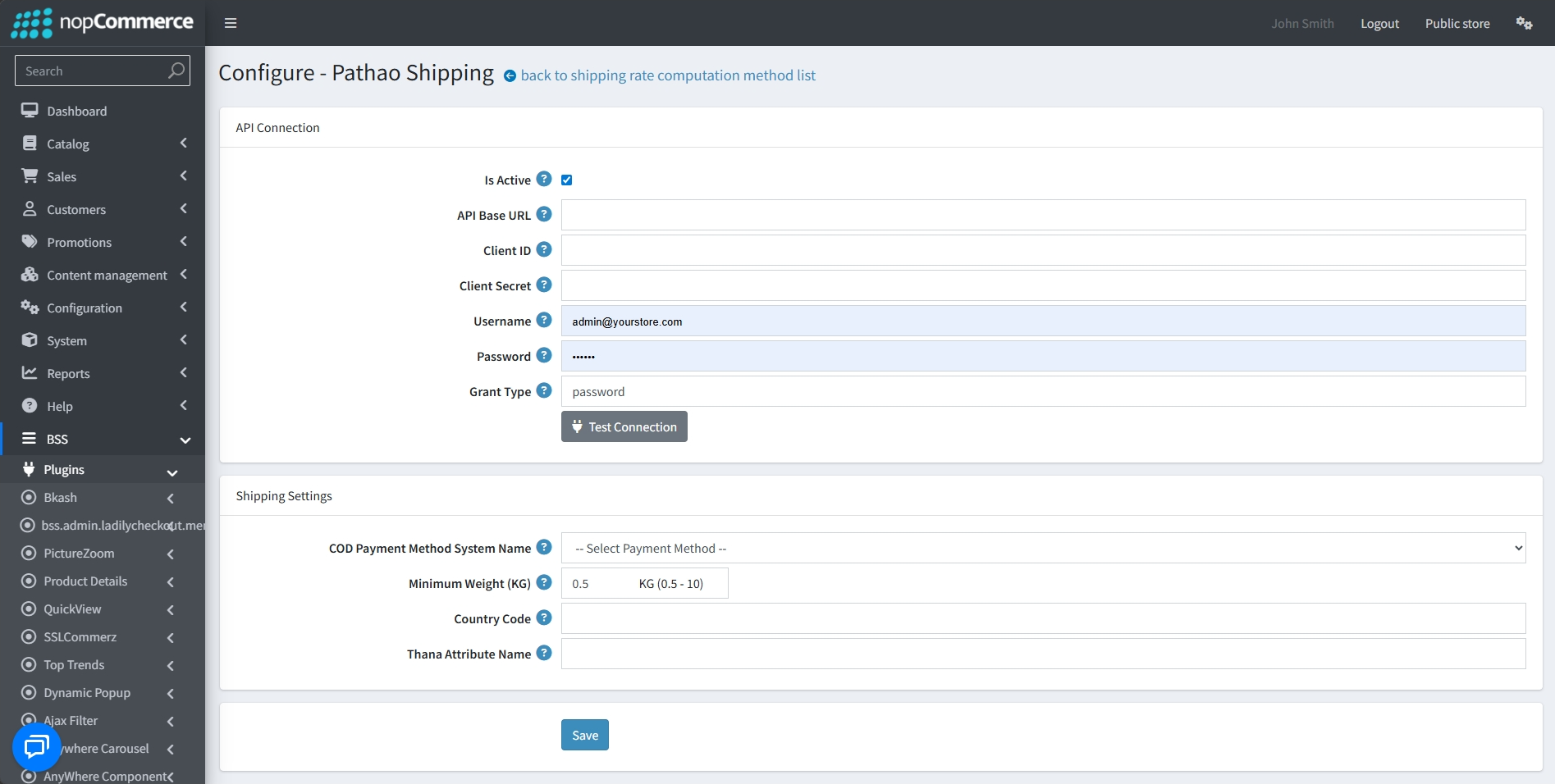
Use the Is Active checkbox to enable or disable the Pathao shipping method.
-
Enter the API Base URL, Client ID, and Client Secret provided by Pathao to authenticate your store's access.
-
Enter the Username and Password for your Pathao account.
-
Grant Type: Specify the authentication method.
-
Click the Test Connection button after entering your credentials to verify that the store can successfully communicate with Pathao's servers.
Shipping Settings
-
COD Payment Method System Name: Select your store's Cash On Delivery (COD) payment method from the dropdown menu to link it with Pathao's COD services.
-
Set the Minimum Weight (KG) requirement for a shipment.
-
Enter the specific Country Code where the shipping service will be active.
-
Define the Thana Attribute Name used to identify the "Thana" (local administrative region) to ensure accurate delivery routing.
-
Once all settings are entered, click the Save button to apply the configuration.
PATHAO STORE
-
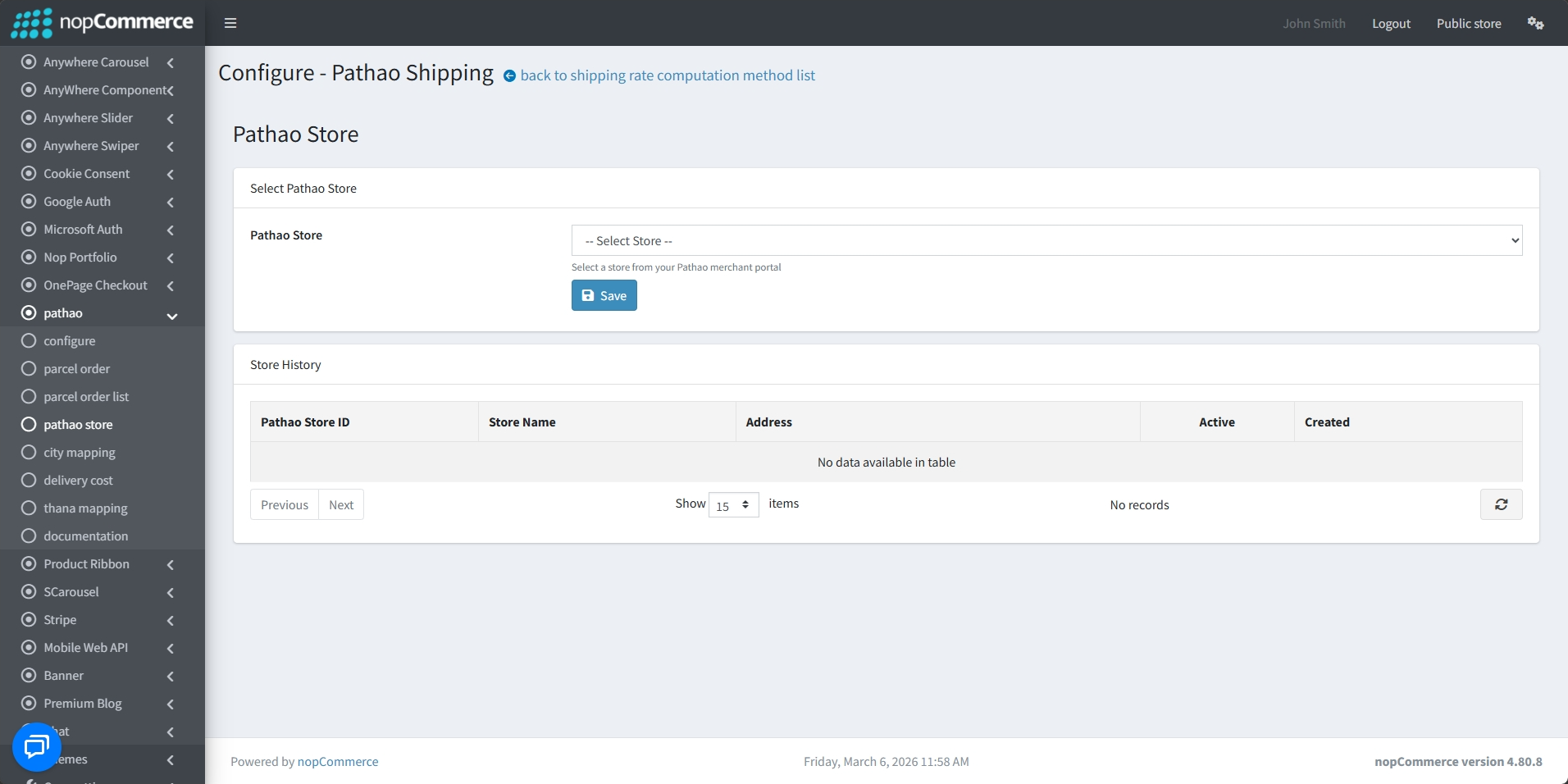
Then again go to BSS → Plugins → Pathao → Pathao Store to link your website to your storefronts managed within the Pathao merchant portal.
-
Use the Pathao Store dropdown menu to select a specific store retrieved from your Pathao merchant portal.
-
After selecting the appropriate location, click the Save button to finalize the link between your store and the shipping provider.
-
A centralized table tracks your store configurations, such as Pathao Store ID, Store Name, Address, Active Status, and Created on date.
CITY MAPPING
-
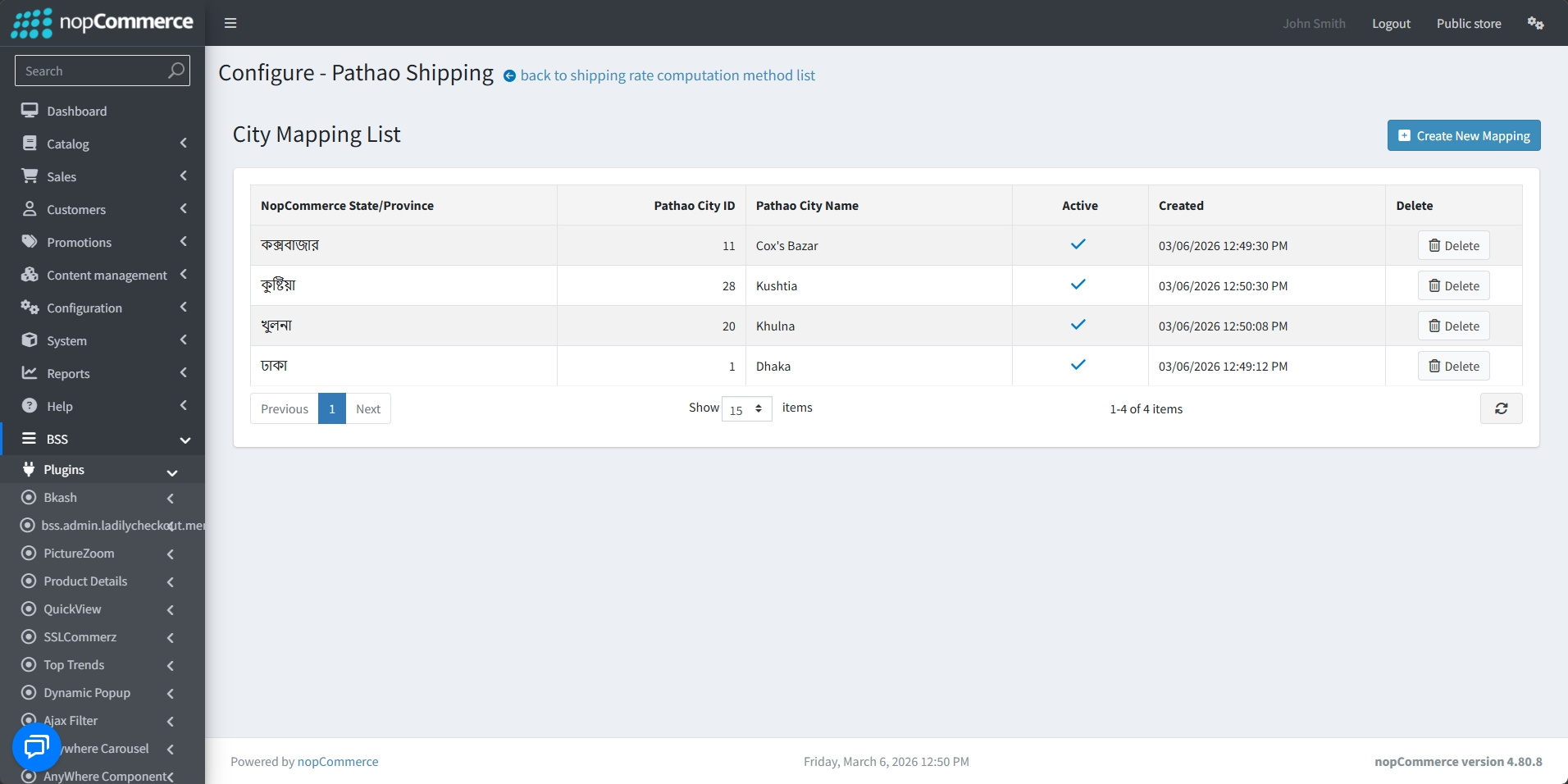
Go to BSS → Plugins → Pathao → City Mapping to link your store's predefined states or provinces to specific Pathao cities.
-
The list of existing city mappings will appear.
-
Monitor which mappings are Active and view exactly when they were Created.
-
Use the Delete button to remove outdated or incorrect regional mappings.
-
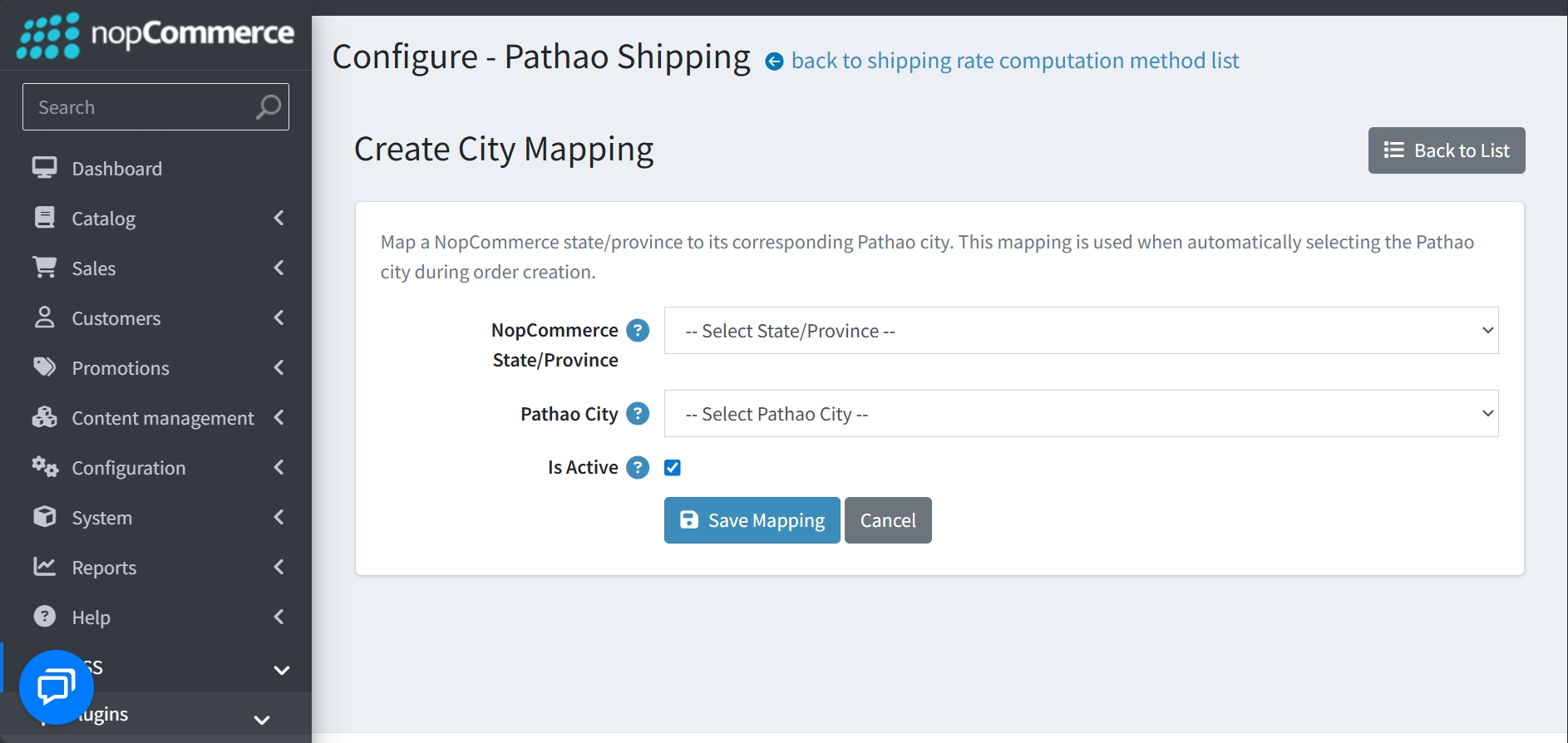
Manually add new links between your store's regions and Pathao's city list by clicking the Create New Mapping button.
-
You can map a NopCommerce State/Province to a corresponding Pathao City.
-
Check the Is Active box and click on the Save Mapping button.
THANA MAPPING
-
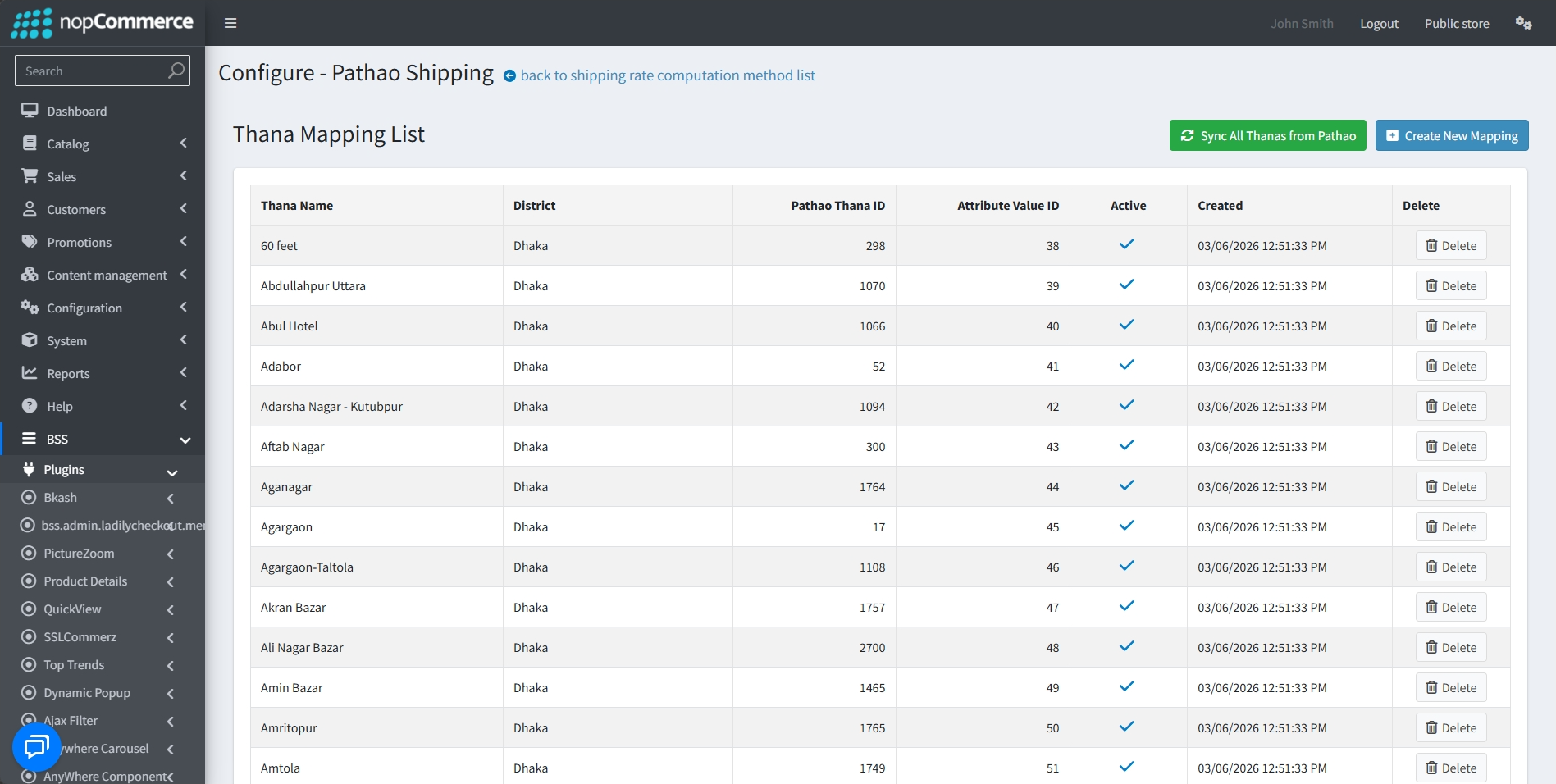
Go to BSS → Plugins → Pathao → Thana Mapping
-
Each entry maps a specific Thana Name to its parent District, a Pathao Thana ID, and a specific Attribute Value ID used by the system.
-
Click on the Sync All Thanas from Pathao button to automatically pull and update the latest local area data for the mapped cities directly from Pathao's servers.
-
Use the Create New Mapping button to manually define specific local areas if they are not automatically synchronized.
-
View the Active status and Created timestamp for every local area in the list to ensure your delivery network is up to date.
DELIVERY COST
-
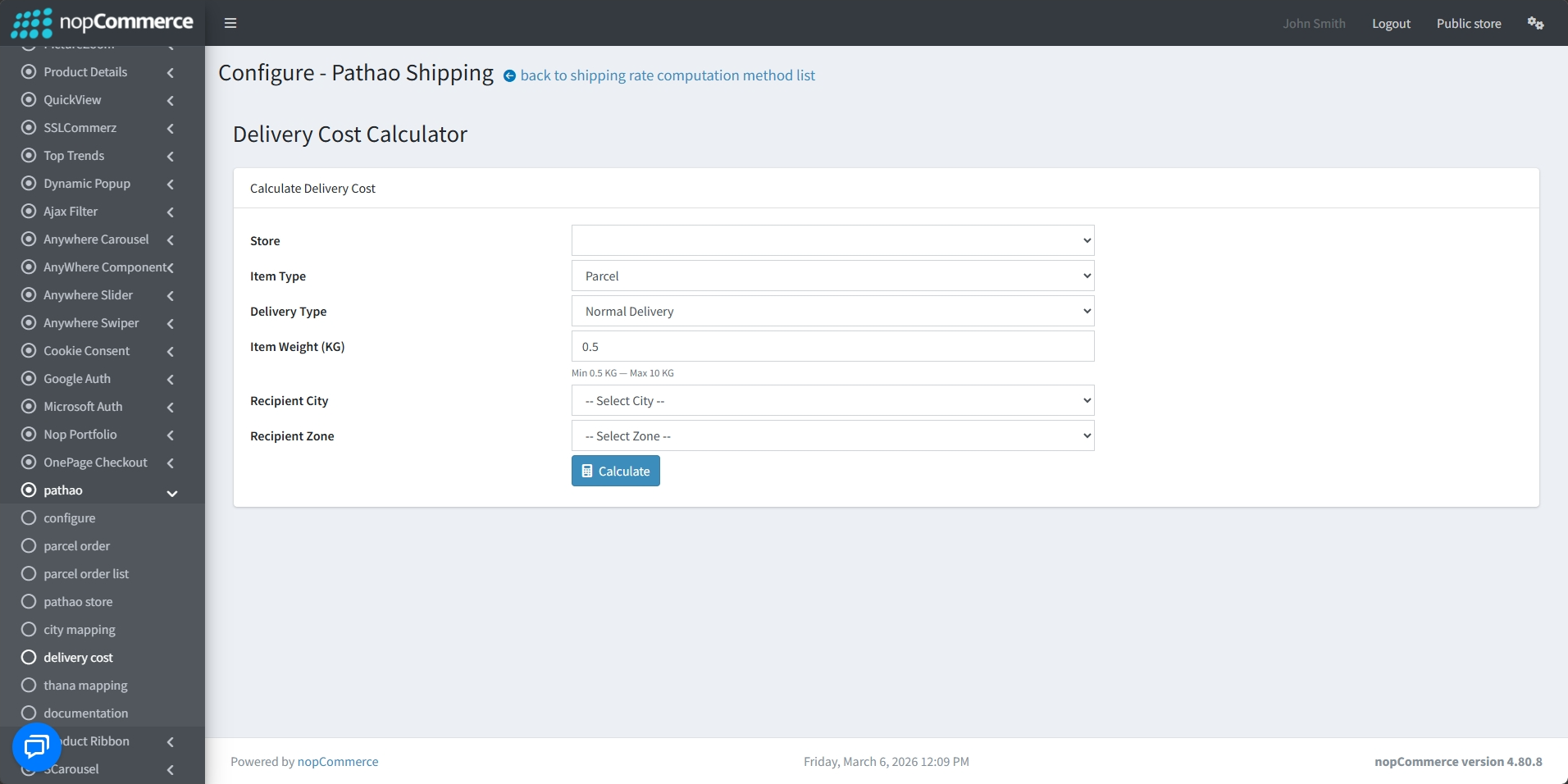
Go to BSS → Plugins → Pathao → Delivery Cost to quickly estimate shipping fees without starting a full order process.
-
To calculate a price, you must provide:
-
Store and Item Details: Select the originating Store, the Item Type, and the Delivery Type.
-
Weight: Enter the total Item Weight (between 0.5 KG and 10 KG).
-
Destination: Select the Recipient City and Recipient Zone.
-
- Click the Calculate button to retrieve the estimated delivery cost from Pathao's system.
PARCEL ORDER
-
Go to BSS → Plugins → Pathao → Parcel Order to manually place an order
.jpeg)
Parcel Order Details
-
Select the specific Store from which the item is being sent.
-
Enter a unique Merchant Order ID for tracking.
Recipient Information
-
Enter the customer's Name, Phone, and an optional Secondary Phone.
-
You must also provide a detailed Recipient Address.
-
Select the correct City, Zone, and Area from the dropdown menus to ensure accurate routing.
.jpeg)
Parcel Information
-
Define the Delivery Type (e.g., Normal Delivery) and the Item Type (e.g., Parcel).
-
Specify the Item Quantity and Item Weight (KG), which must be between 0.5 and 10 KG.
-
Include an Item Description and any Special Instructions for the delivery agent.
-
Enter the Amount to Collect for Cash on Delivery (COD) orders, or enter 0 for non-COD transactions.
-
Use the Calculate Price button to see the shipping fee based on your entries, then click Create Order to finalize the shipment with Pathao.
PARCEL ORDER LIST
-
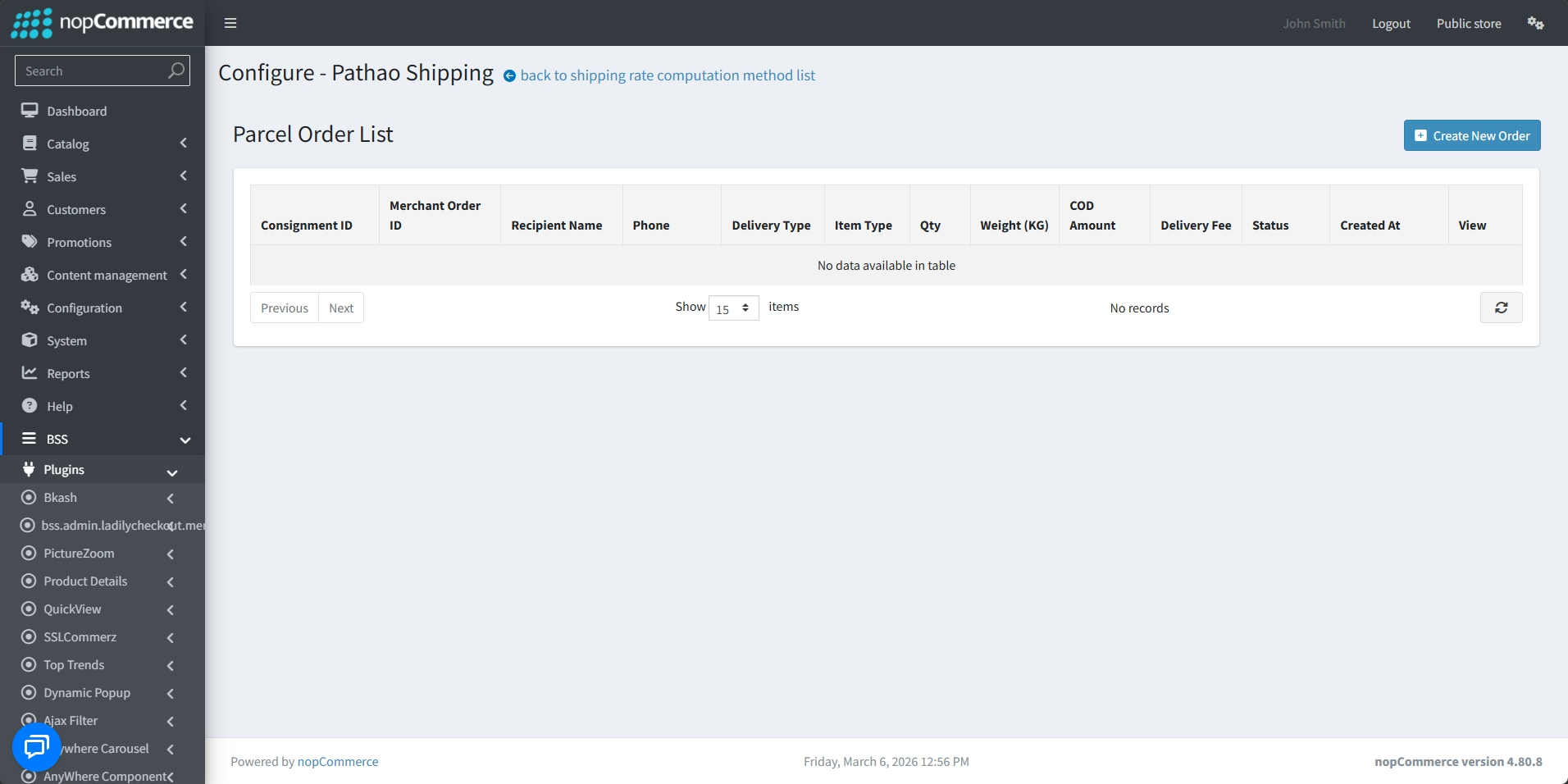
Go to BSS → Plugins → Pathao → Parcel Order List to view and manage all shipments processed through Pathao.
-
The list provides essential information for every shipment, including the Consignment ID, Merchant Order ID, and Recipient Name.
-
Monitor technical shipment details such as Delivery Type, Item Type, Quantity, and Weight (KG).
-
View the specific COD Amount to be collected upon delivery and the calculated Delivery Fee for each parcel.
-
Track the real-time Status of each order and see exactly when it was Created At.
-
Use the View button to inspect specific shipment details or click Create New Order at the top right to start a manual parcel entry.
ORDER DETAILS
-
Go to Admin → Sales → Orders to view and manage all current orders.
-
Click on the preview icon beside the order to view order details.
-
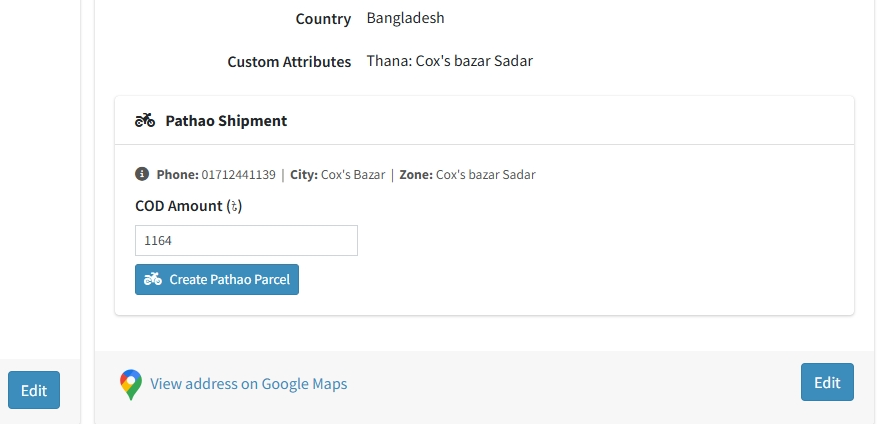
The system automatically pulls relevant data for the shipment, including the Phone Number, City, and Zone.
-
Review and adjust the COD Amount (৳) specifically for the Pathao shipment before finalizing.
-
Once the details are verified, use the Create Pathao Parcel button to generate a consignment and initiate the delivery process.
-
Includes a direct link to View address on Google Maps to ensure delivery accuracy for the recipient.
PUBLIC VIEW
FEATURES
-
Quick API Setup: Easily link your storefront to Pathao using secure credentials and a built-in connection tester.
-
Store Synchronization: Effortlessly connect and manage multiple merchant locations directly from your Pathao portal.
-
Smart Location Mapping: Bridge your store’s regional data with Pathao’s database using automated City and Thana mapping tools.
-
Instant Cost Estimates: Retrieve real-time shipping fees based on item weight and destination before finalizing orders.
-
One-Click Fulfillment: Generate Pathao parcels directly from individual order pages.
-
Centralized Tracking: Monitor all shipments, consignment IDs, and live delivery statuses from a single dashboard.
-
Manual Parcel Creation: Quickly create custom shipments with detailed recipient info and special delivery instructions.
-
Integrated COD Support: Automate collection amounts and link store payment methods to Pathao’s Cash on Delivery service.