NopFashion Theme + 15 Plugin Bundle for NopCommerce
NopBeauty Theme + 12 Plugin Bundle for NopCommerce
NopNoor Theme + 16 Plugin Bundle for NopCommerce
NopGadget Theme + 18 Plugin Bundle for NopCommerce
NopEthnic Theme + 17 Plugin Bundle for NopCommerce
NopFurniture Theme + 19 Plugin Bundle for NopCommerce
NopPharma Theme + 16 Plugin Bundle for NopCommerce
NopVogue Theme + 17 Plugin Bundle for NopCommerce
NopGadence Theme + 18 Plugin Bundle for NopCommerce
NopFashion Theme + 15 Plugin Bundle for NopCommerce
Created on: Mar 16, 2026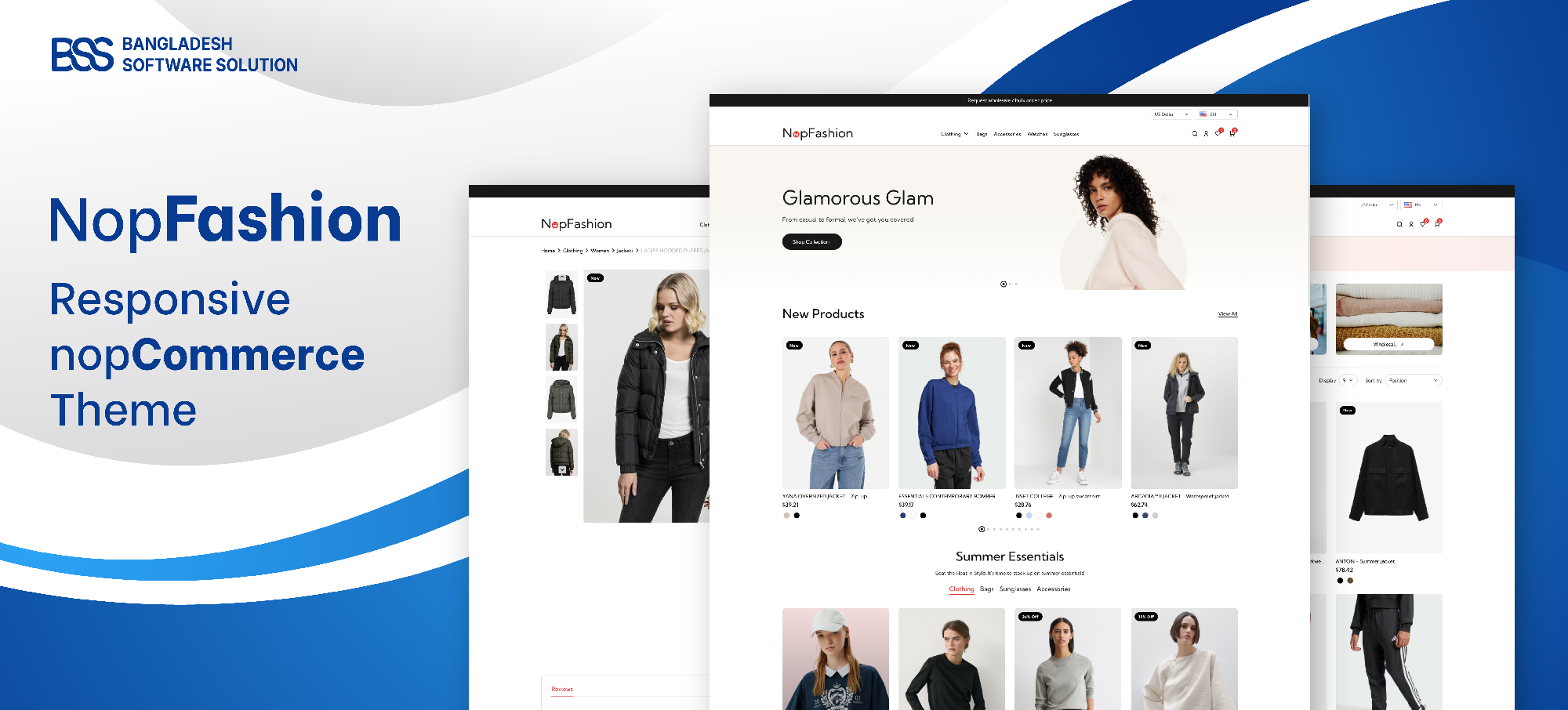
NopFashion is the perfect theme to showcase your fashion, beauty, and lifestyle products in style. With its modern design and fully responsive layout, your store will look stunning on any device—desktop, tablet, or mobile. NopFashion captivates your customers and makes shopping a pleasure, giving your brand a polished, professional look from the very first click. Turn your store into a shopping experience that your customers will love coming back.
PRE-REQUISITES
- The theme requires the installation of the BSS Core plugin first.
INSTALLATION
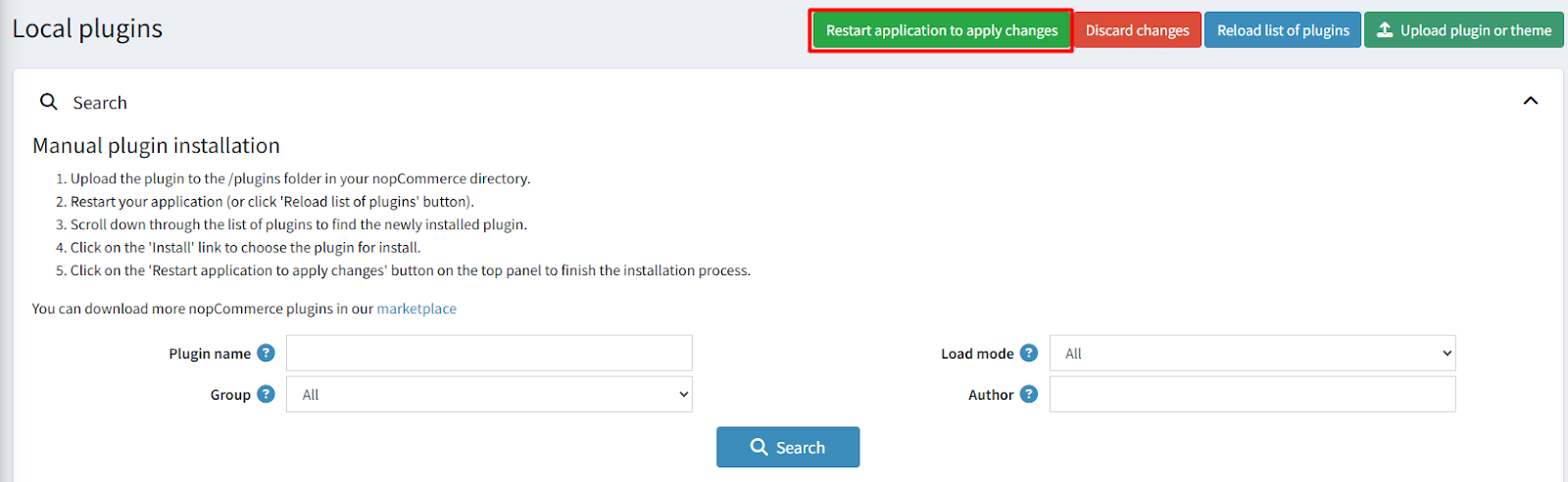
- Go to the Order Details Page and Download plugin package
- Go to Administration → Configuration → Local plugins
- Within the bundle, you get all the required files, including BSS.Core
- Upload the zip files using the ‘Upload plugin or theme’ button
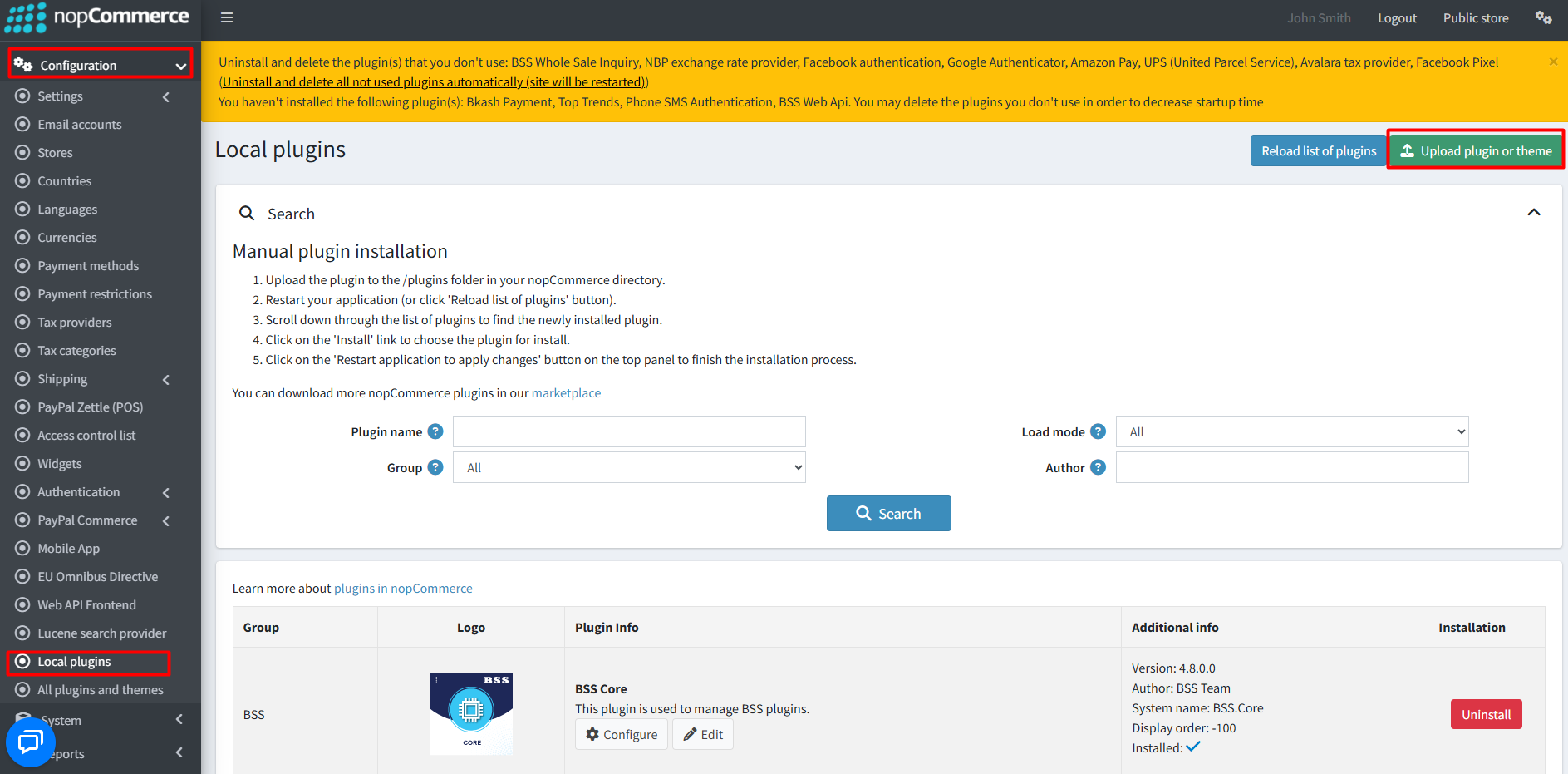
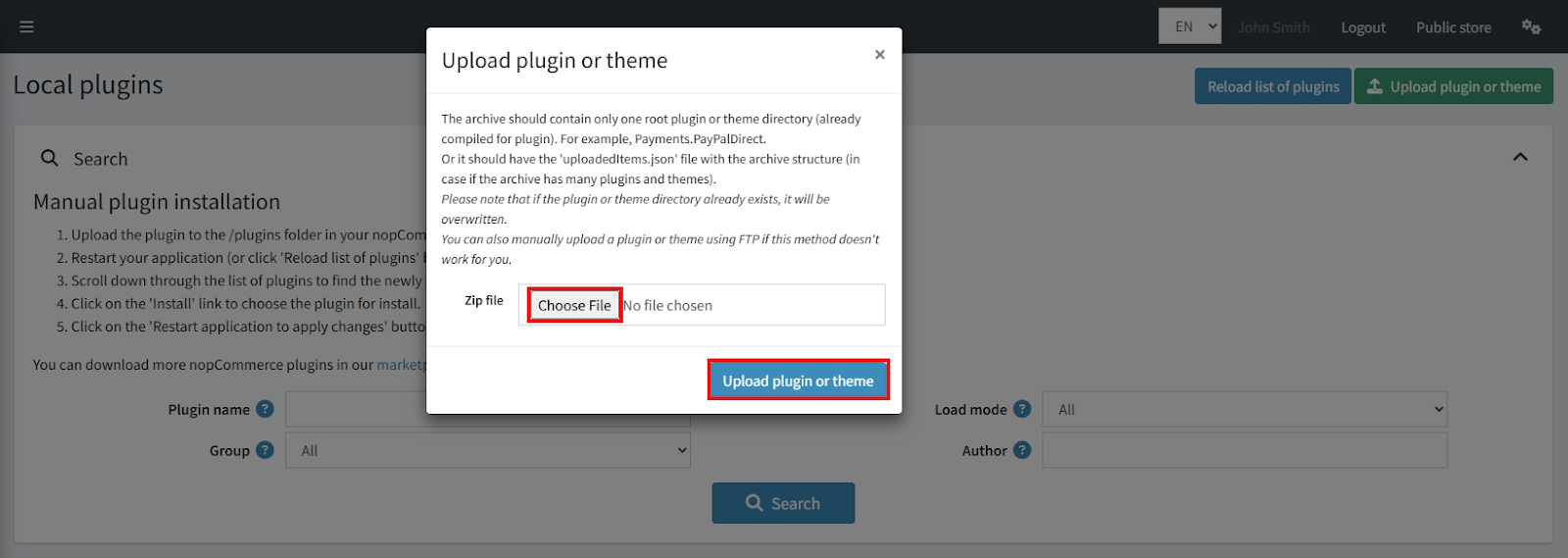
- After uploading, reload the ‘list of plugins’ and install the ‘BSS Core’ plugin first. Then scroll or search for ‘NopFashion’ and install it.
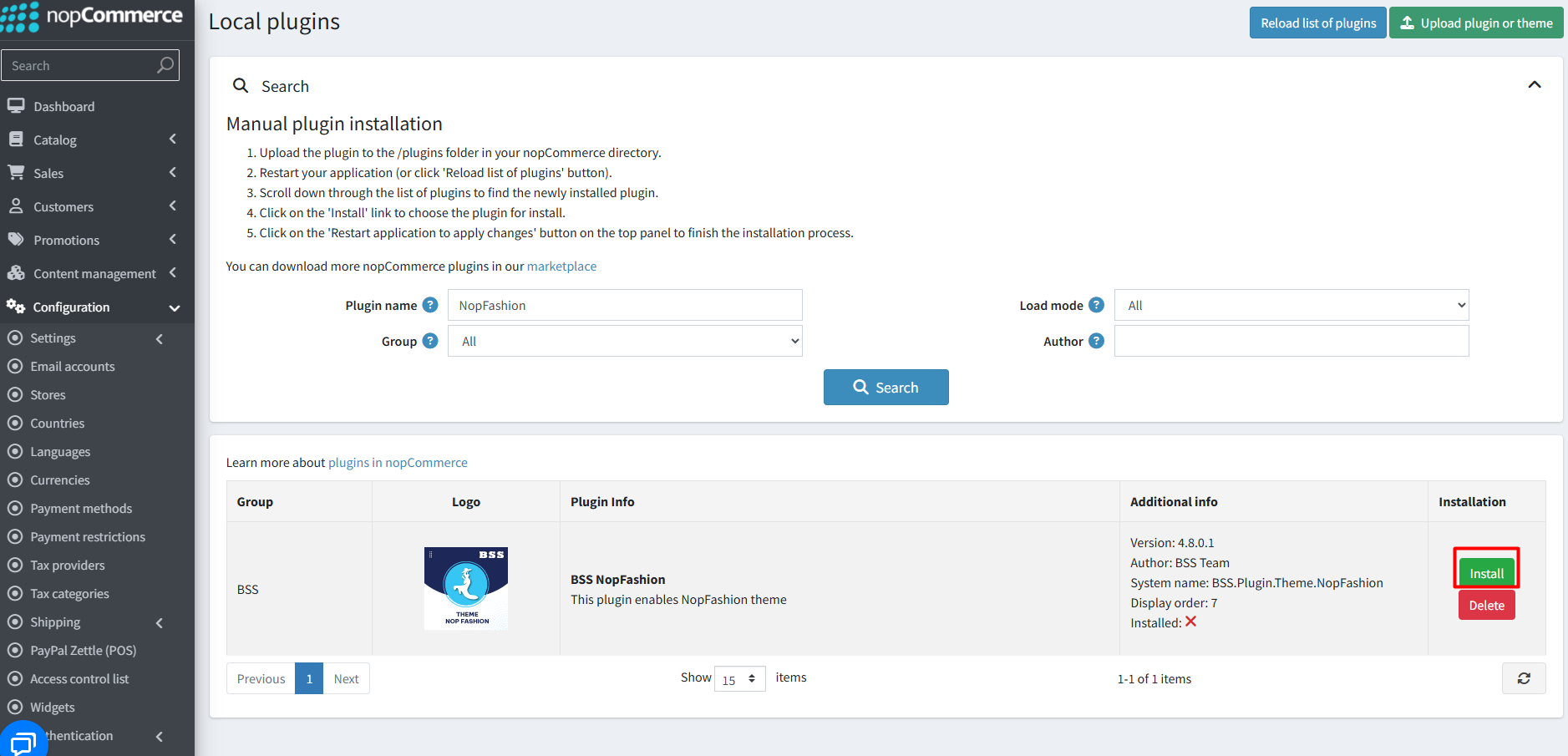
- To make the plugins functional, restart the application.
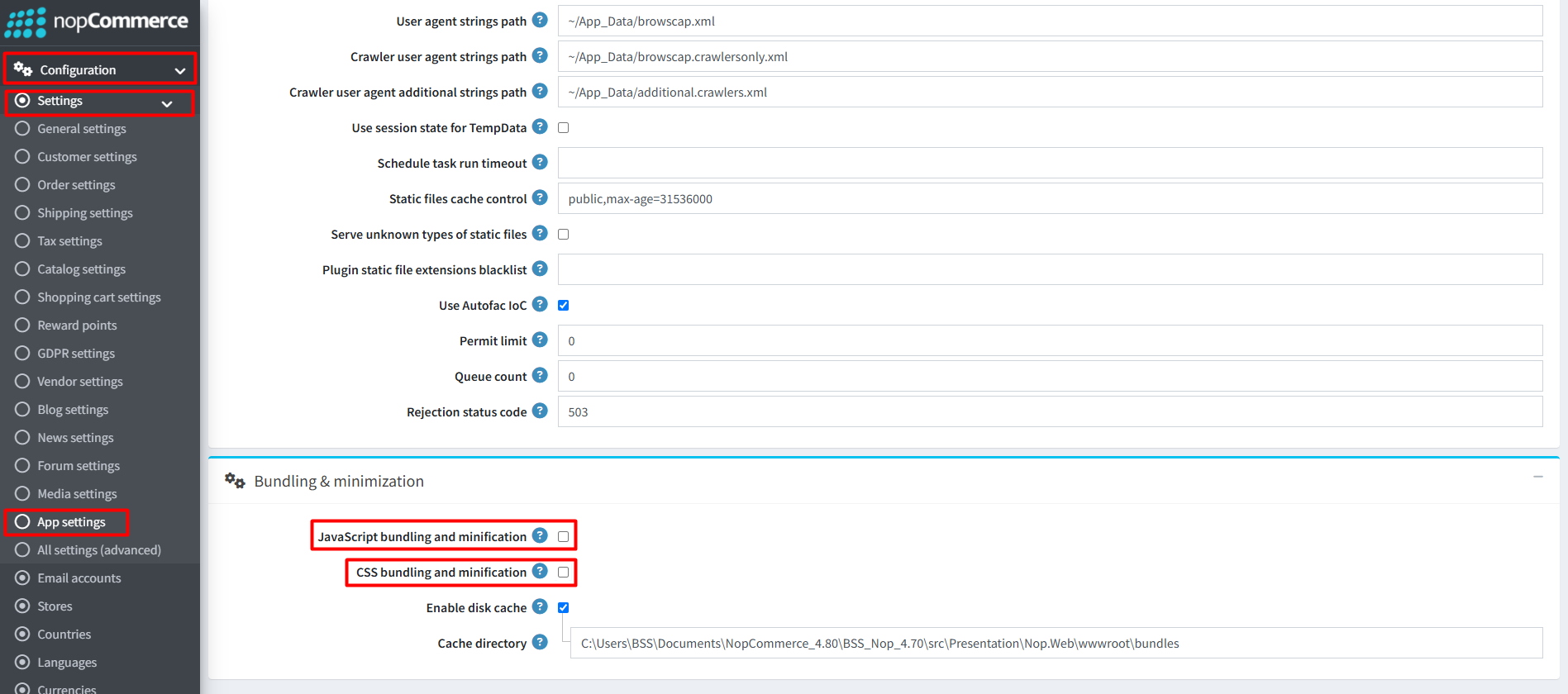
Recommendation: Go to > App Settings. If you find JavaScript bundling and minification, CSS bundling and minification are checked, then uncheck these two options and disable them.
ENABLE THE THEME
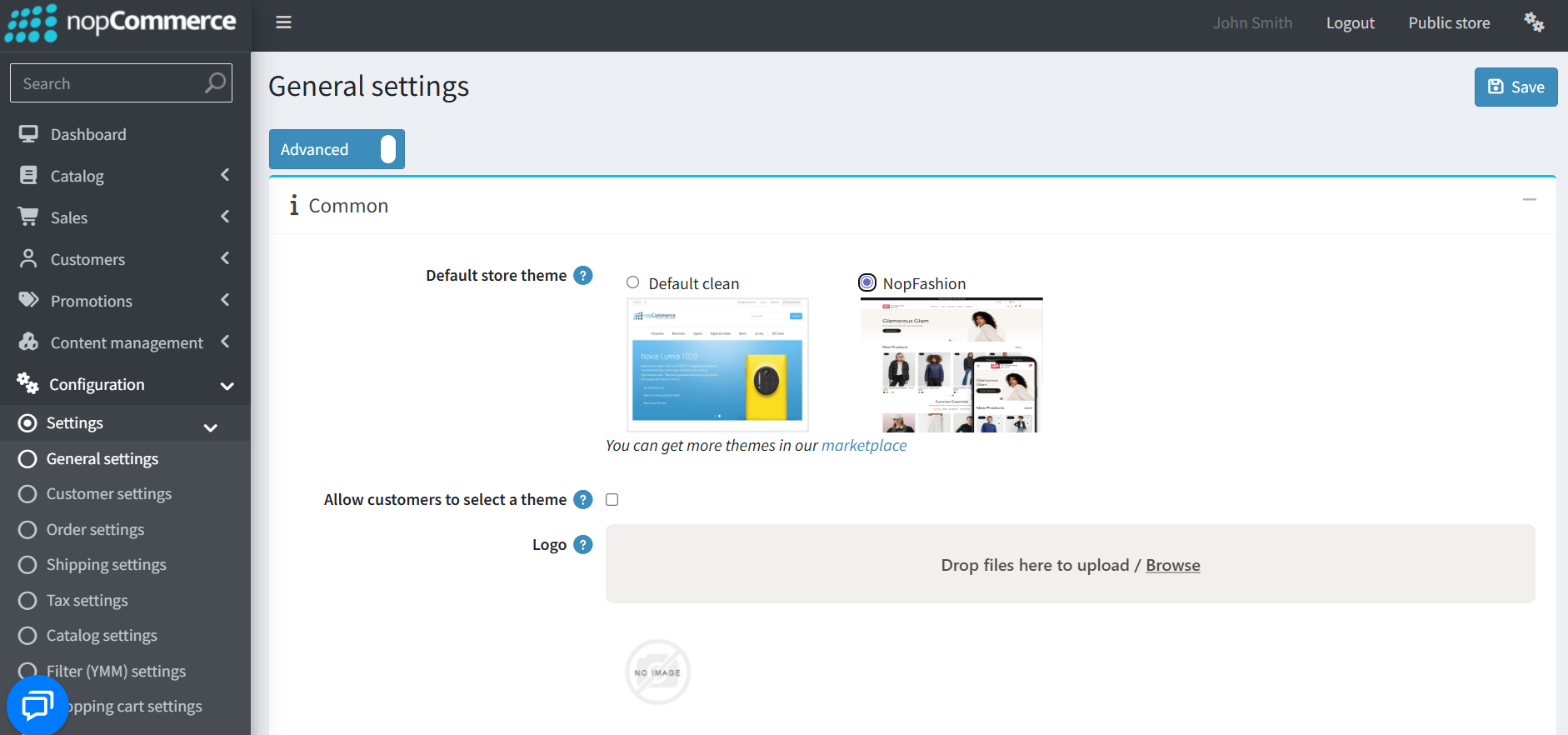
- Go to Configuration → Settings → General settings in the admin panel.
- Choose NopFashion as the Default store theme and save it.
ENABLE OTHER ASSOCIATED PLUGINS
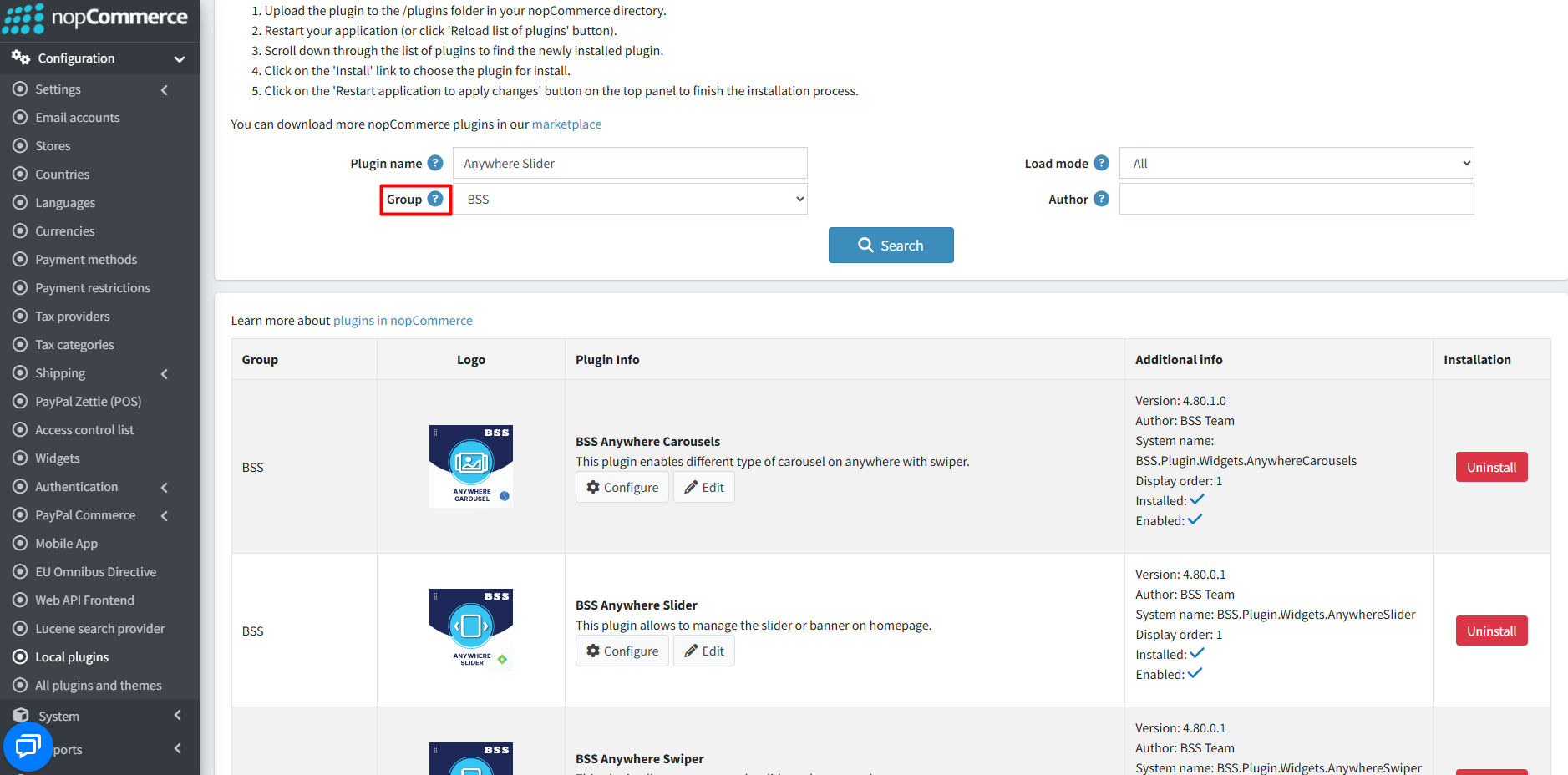
- Go to Administration → Configuration → Local plugins.
- Search the plugins associated with NopFashion theme using the Group Name ‘BSS’.
- To get the expected homepage view, install plugins by using the Group Name or Plugin Name.
LICENSE KEY
- After purchasing, contact BSS to receive the license key via email.
- First-time configuration of the theme or bundled plugins prompts entry of the License string. It can also be entered via BSS → Core settings → License.
- After entering the License string, save it and clear the cache.

CONFIGURATION
- Go to Administration → BSS → Themes → NopFashion → Configuration to set the theme configuration.
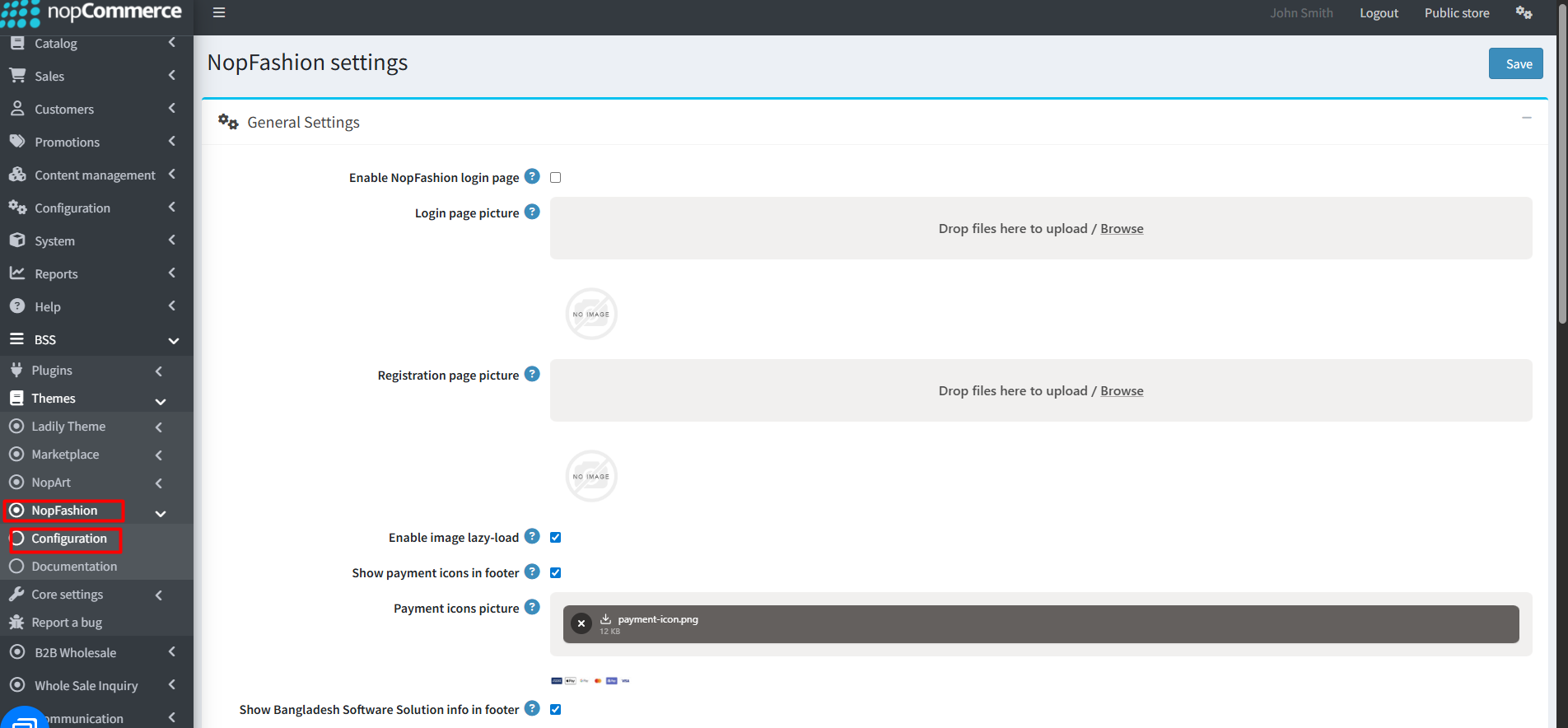
GENERAL SETTINGS
- Enable phone login: Check this box to allow login with phone.
- Payment icons picture: Upload payment icons image (recommended height: 30px).
- Login page picture: Upload an image to display on the left side of the login page. If none, a full-width centered form is used.
- Registration page picture: Upload an image to display on the left side of the registration page.
- Enable image lazy-load: Load product images only when visible on the screen while scrolling.
- Show payment icons in footer: Check to display payment icons in the footer section.
- Show Bangladesh Software Solution info in footer: Check to display BSS info in the footer.
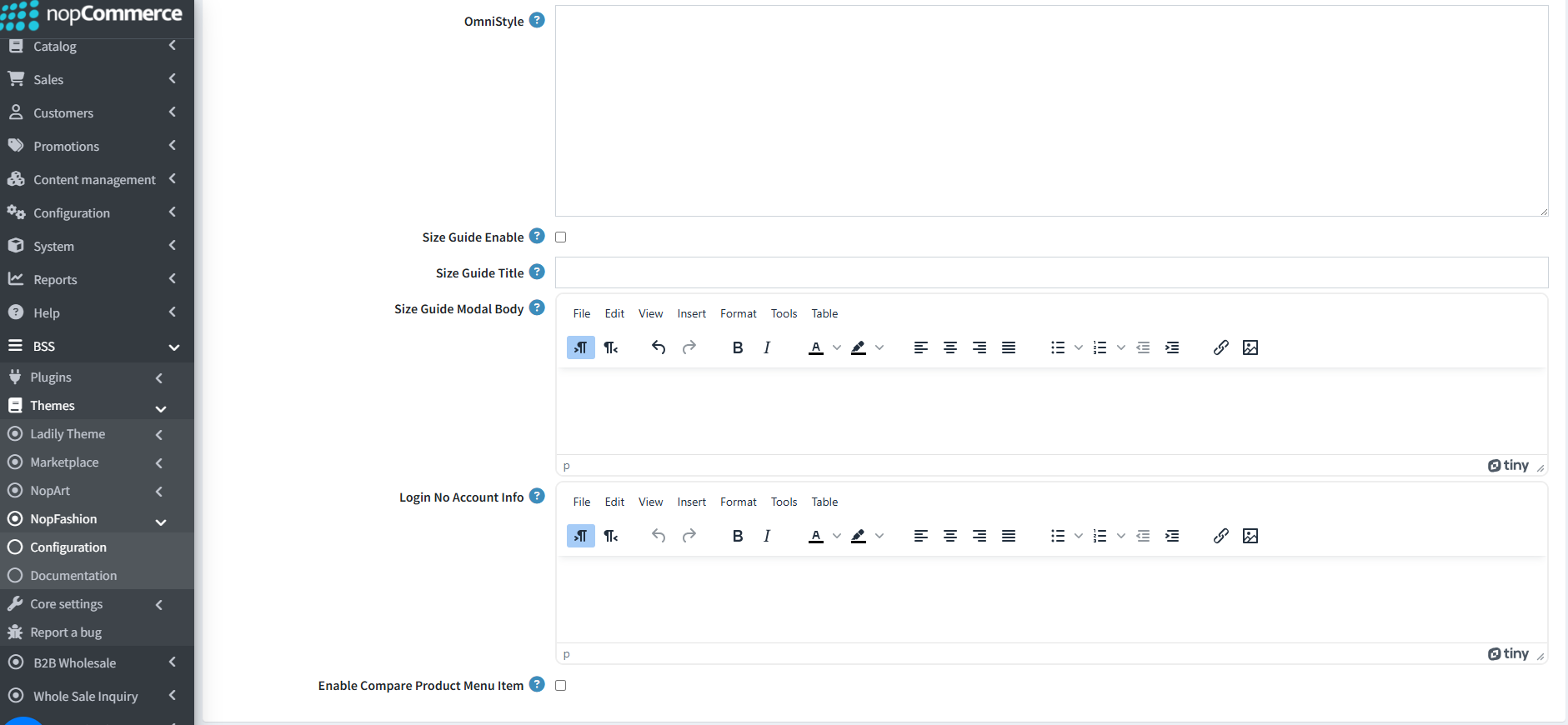
- Omni Style: Add custom OmniStyle CSS to be rendered in the head section.
- Size Guide Enable: Check to enable size guide on product detail pages.
- Size Guide Title: Set the title for the size guide popup.
- Size Guide Modal Body: Build a helpful size chart with tables, images, and formatted text for easy reading.
- Login No Account Info: Customize content for new visitors on the login page using the built-in editor.
- Enable Compare Product Menu Item: Check to enable compare product menu in header and mobile menus.
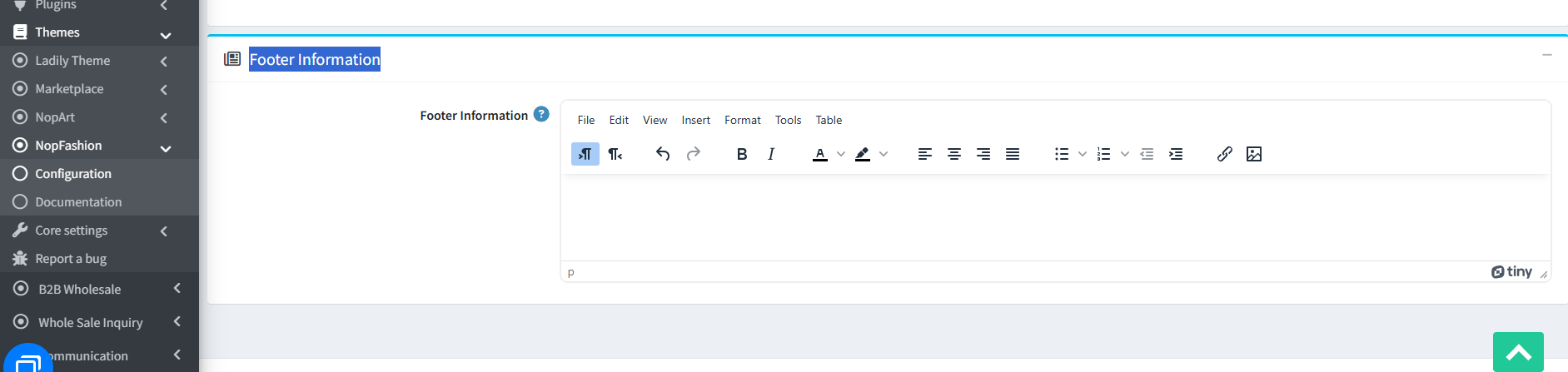
FOOTER INFORMATION
- Enter footer details to display at the bottom of the site. Format content using the built-in editor and add elements such as address, email, phone, or other details. HTML is supported.
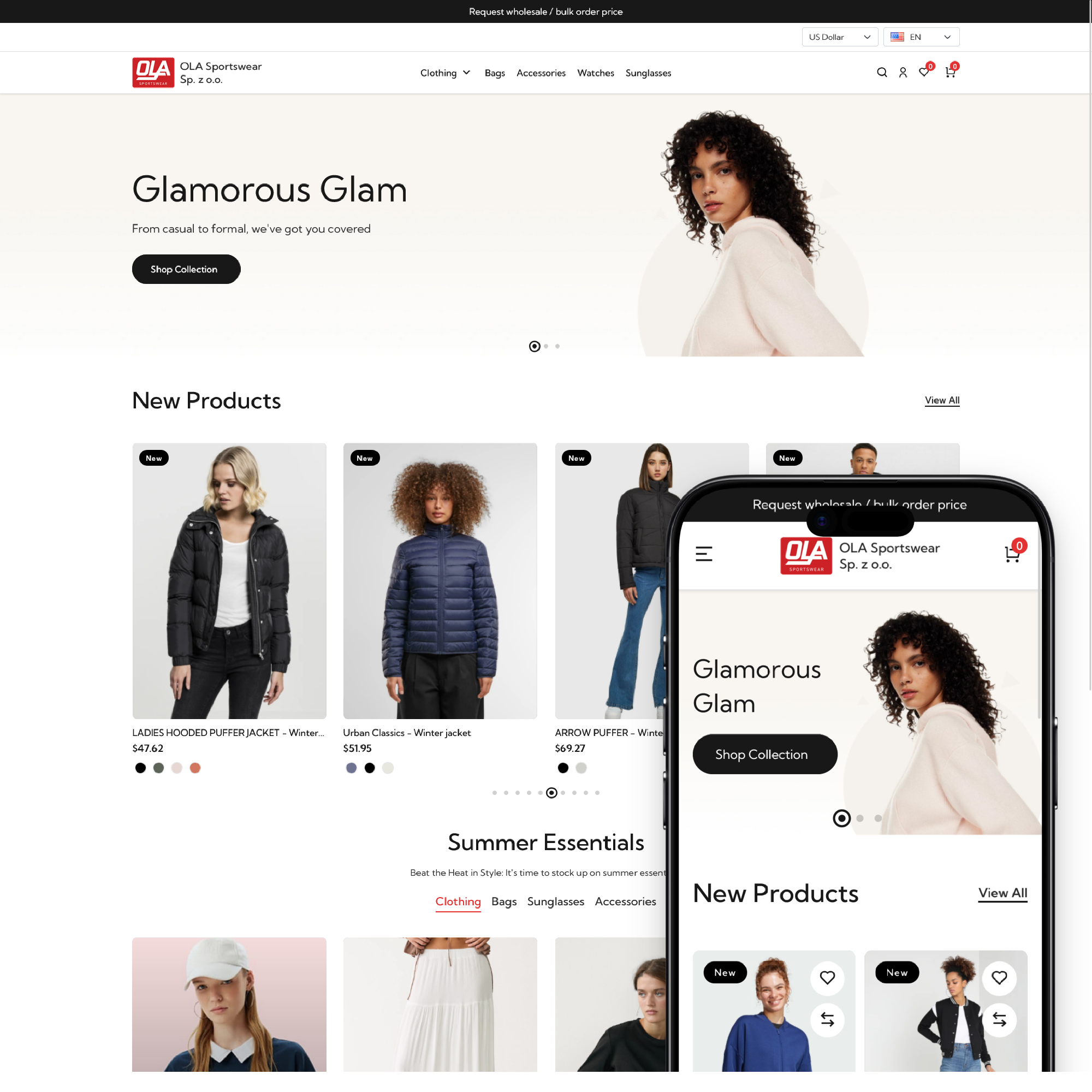
PUBLIC VIEW
PLUGIN CONFIGURATION
- BSS Product Ribbon
- BSS QuickView
- BSS Picture Zoom
- BSS Anywhere Swiper
- BSS Banner
- BSS Anywhere Carousels
- BSS Product Details
- BSS Google Authentication
- BSS Microsoft Authentication
- BSS One Page Checkout
- BSS AI SEO Assistant
- BSS EU Omnibus Directive
- BSS EU GDPR Cookie Consent
- BSS Phone SMS Authentication
Documentation Menu
NopFashion Theme + 15 Plugin Bundle for NopCommerce
NopBeauty Theme + 12 Plugin Bundle for NopCommerce
NopNoor Theme + 16 Plugin Bundle for NopCommerce
NopGadget Theme + 18 Plugin Bundle for NopCommerce
NopEthnic Theme + 17 Plugin Bundle for NopCommerce
NopFurniture Theme + 19 Plugin Bundle for NopCommerce
NopPharma Theme + 16 Plugin Bundle for NopCommerce
NopVogue Theme + 17 Plugin Bundle for NopCommerce
NopGadence Theme + 18 Plugin Bundle for NopCommerce