BSS PostNL Shipping
Created on: Nov 10, 2026
PRE-REQUISITES
-
The plugin requires you to install the BSS Core plugin first.
INSTALLATION
-
Go to the Order Details Page and Download plugin package
-
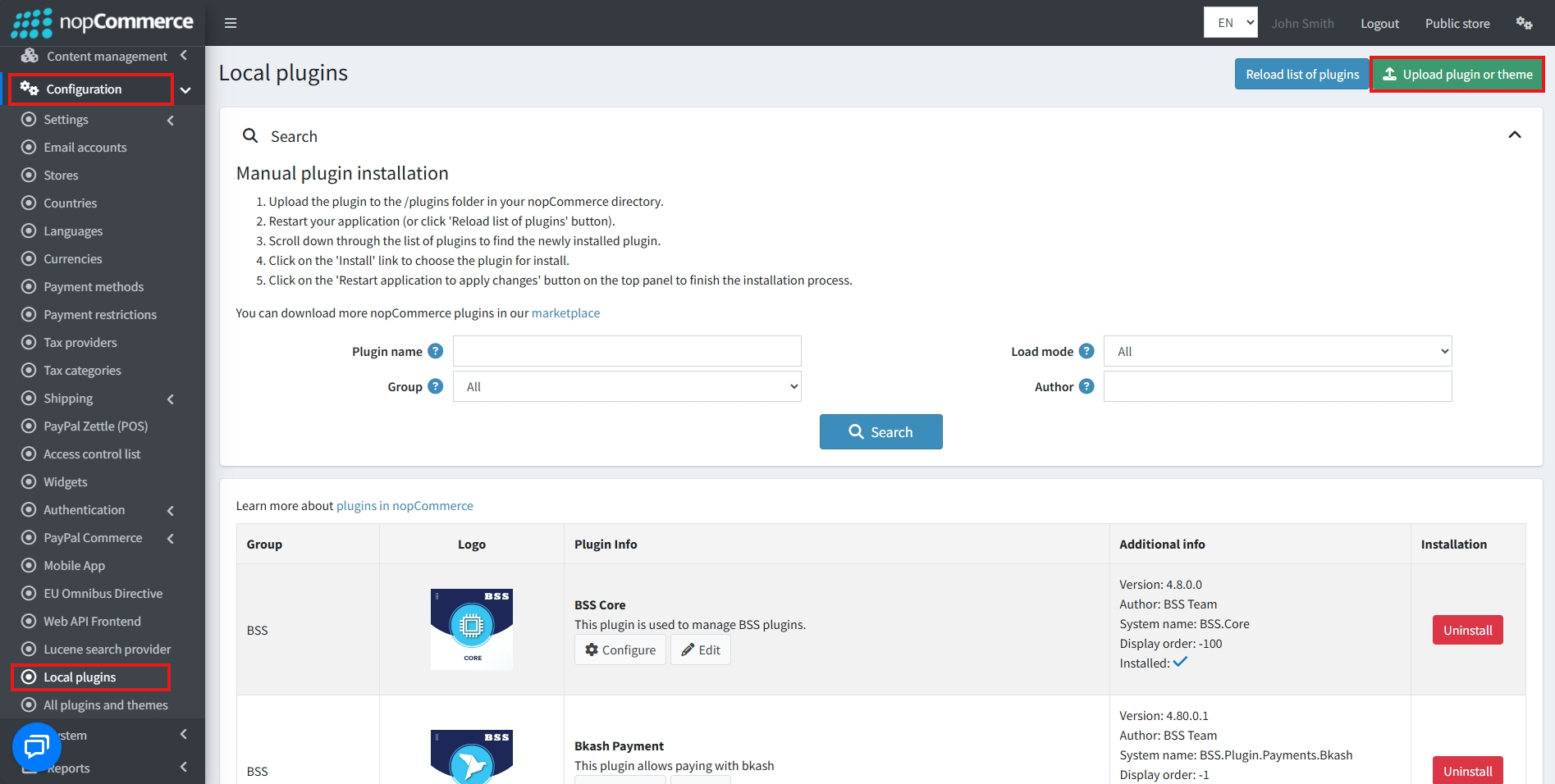
Go to Administration → Configuration → Local plugins
-
Within the bundle, you get all the required files, including BSS.Core
-
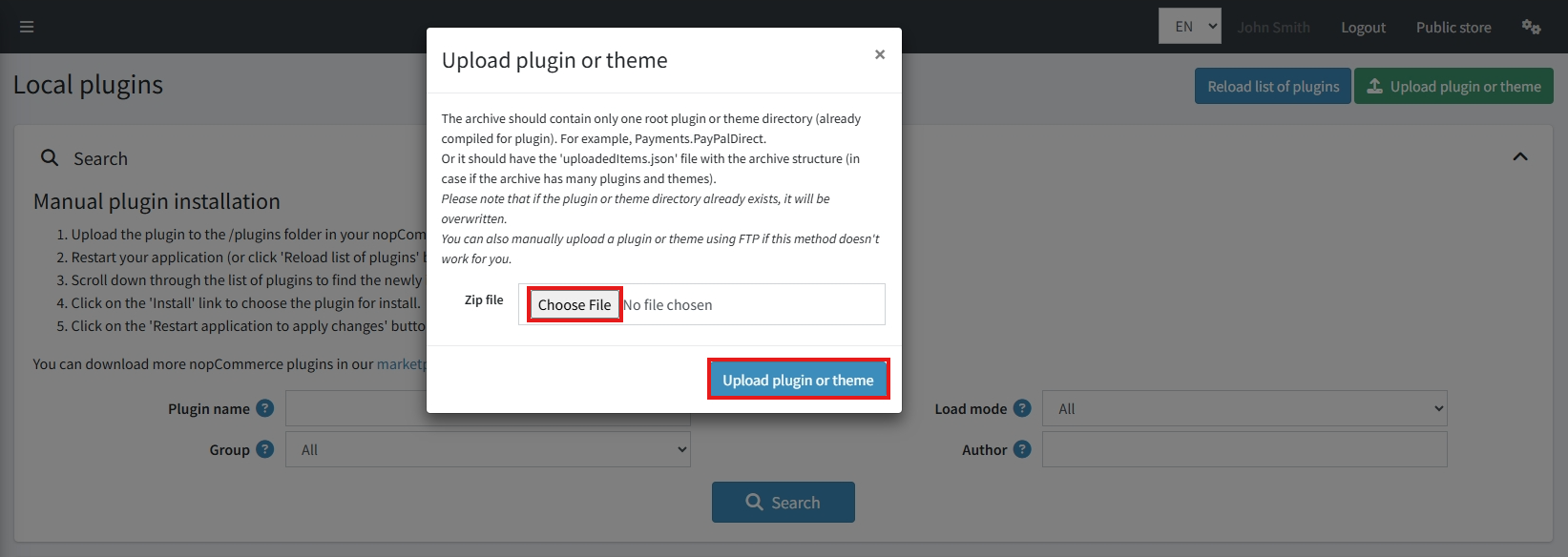
Upload the zip files using the ‘Upload plugin or theme’ button
-
After uploading, install the ‘BSS Core’ Plugin first.
-
Then scroll down or write the name of the plugin in the search bar to find and install ‘BSS PostNL’
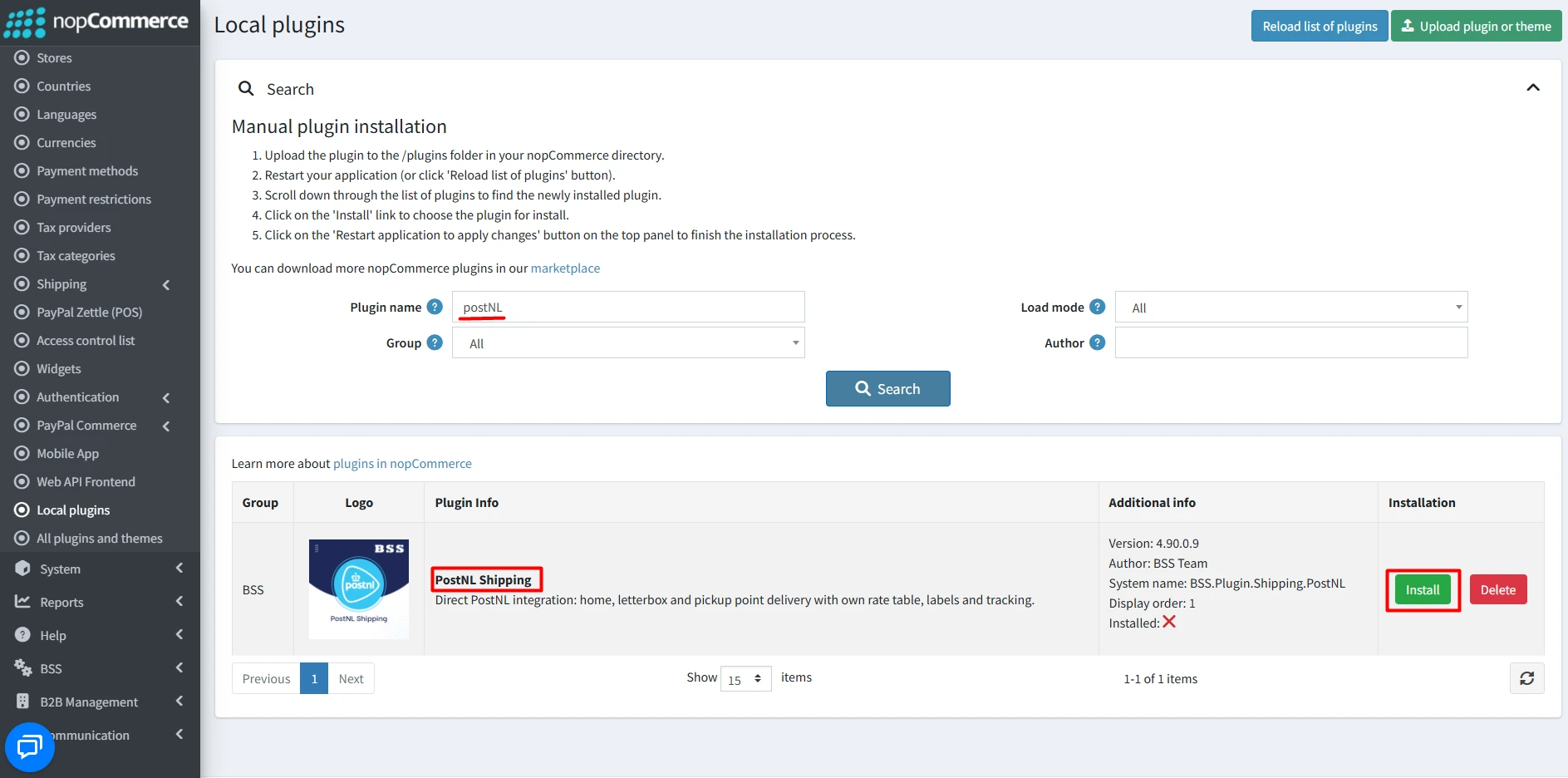
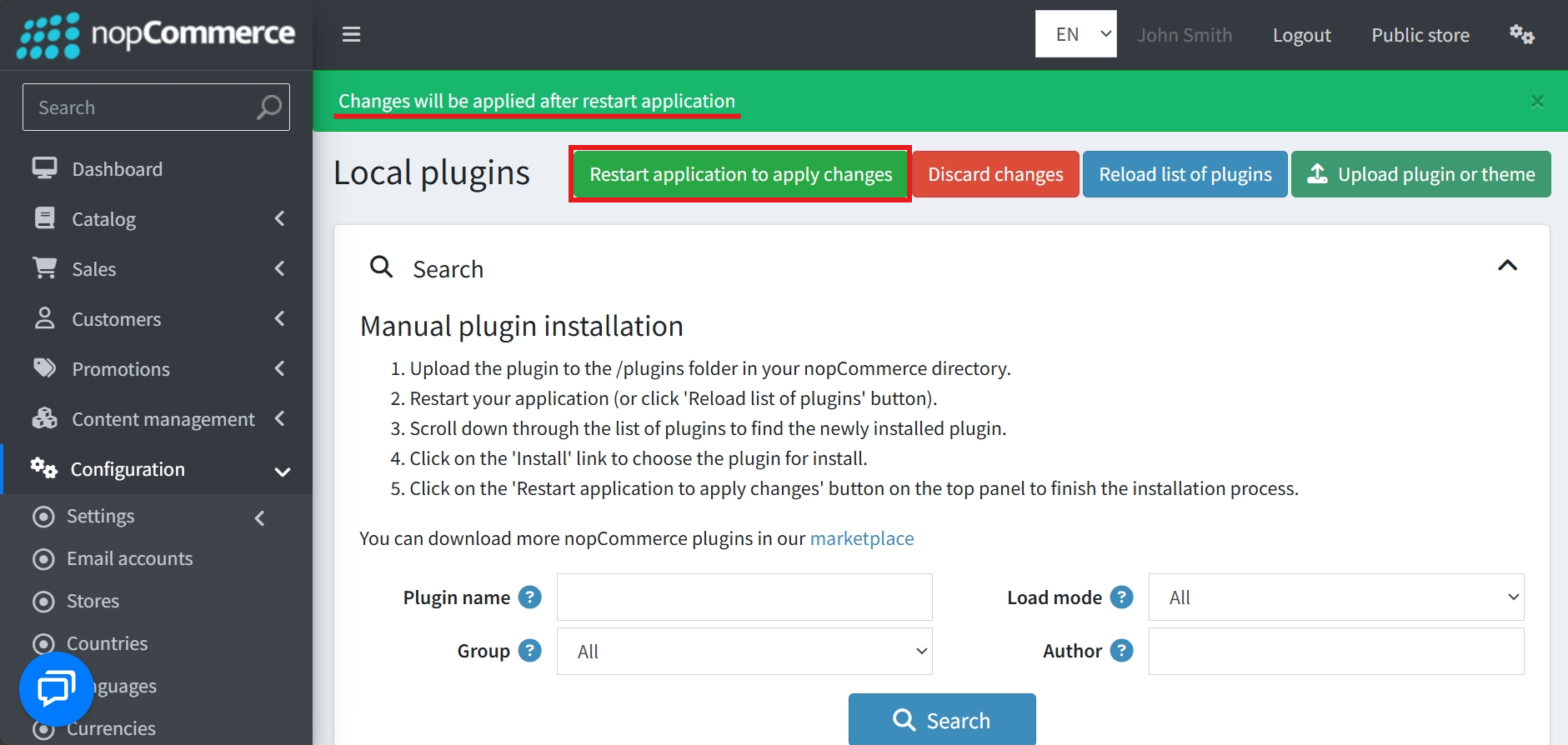
- To make the plugins functional, restart the application
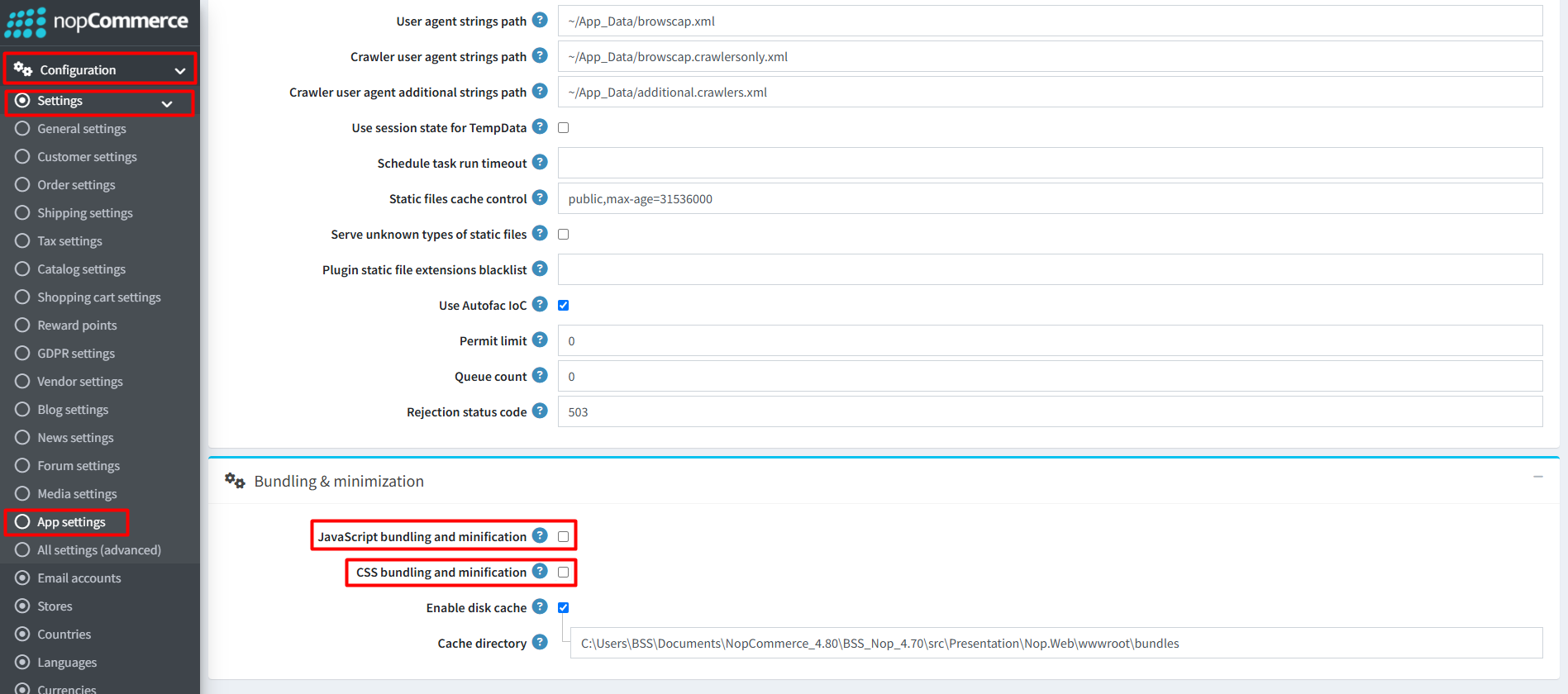
Recommendation: Go to > App Settings. If you find JavaScript bundling and minification, CSS bundling and minification are checked, then uncheck these two options and disable them.
CONFIGURE
-
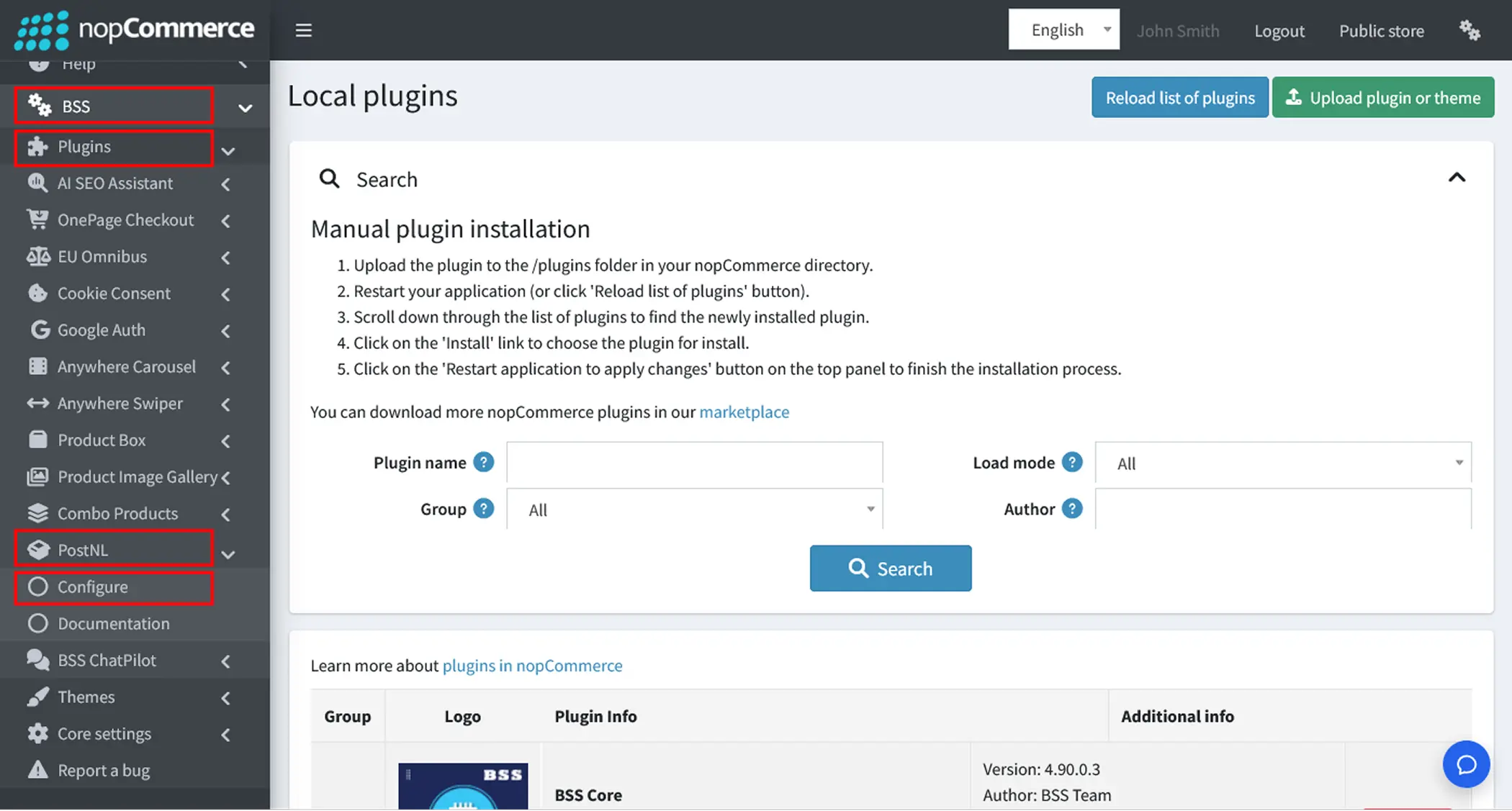
Go to Admin → BSS → Plugins → PostNL → Configure
-
Enter the License string and save it. Then clear cache.

-
Then again go to BSS → Plugins → PostNL → Configure to set the configuration.
-
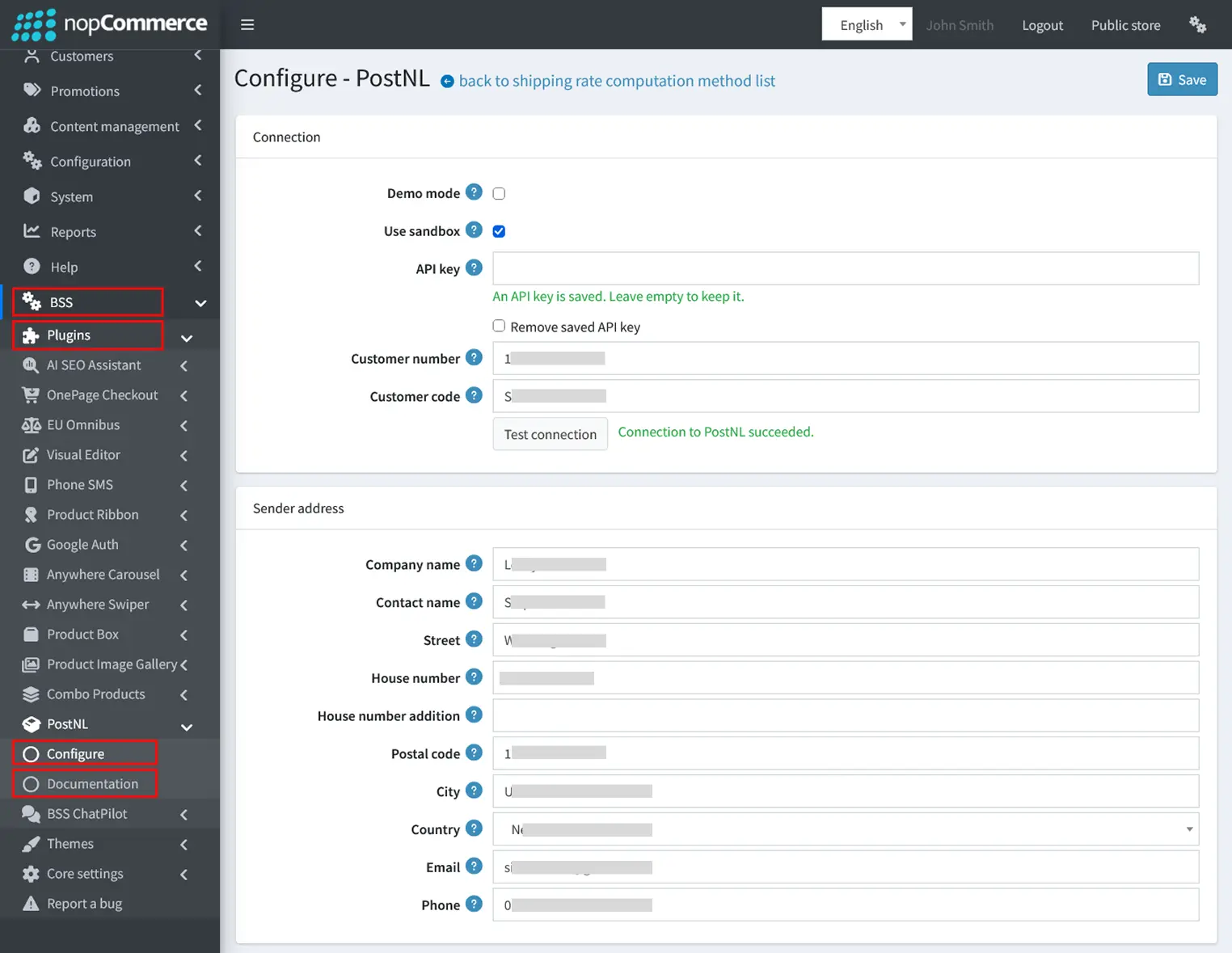
Demo Mode: Enable this option to try the plugin without a PostNL API key. Checkout uses your own rate table, and no request is sent to PostNL.
-
Use Sandbox: Send requests to the PostNL sandbox instead of the live production environment. Keep it enabled while testing and disable it when you go live.
-
API Key: Enter the API key from your PostNL account. The key is stored encrypted and is never shown again. Once a key is saved, leave the field empty to keep it, or tick "Remove saved API key" to delete it.
-
How do I get an API key? PostNL customers can request an API key through the business portal with their MijnPostNL Zakelijk account.
-
After logging in to the business portal, go to My Account → API Management, where you can manage your API keys. Before you continue, make sure the correct customer number is selected in the upper-right corner.
-
Here you can name, create and manage your own integrations. Click Create an integration and follow the steps to request your keys.
-
For every integration, a set of two keys is generated: a sandbox key and a production key. Use the sandbox key while Use sandbox is enabled, and the production key once you switch to live.
-
-
Customer Number & Customer Code: Enter your PostNL customer number and customer code (usually 4 letters). PostNL needs both on every request. You can find them in your MijnPostNL Zakelijk business portal account.
-
Test Connection: Click this button to check your credentials. If everything is correct, the message "Connection to PostNL succeeded." appears next to it.
-
Sender Address: Fill in the details that will be printed as the sender on your shipping labels: company name, contact name (if left empty, the company name is used), street, house number and optional addition, postal code, city, country, email, and phone number. PostNL requires the email address on every label.
-
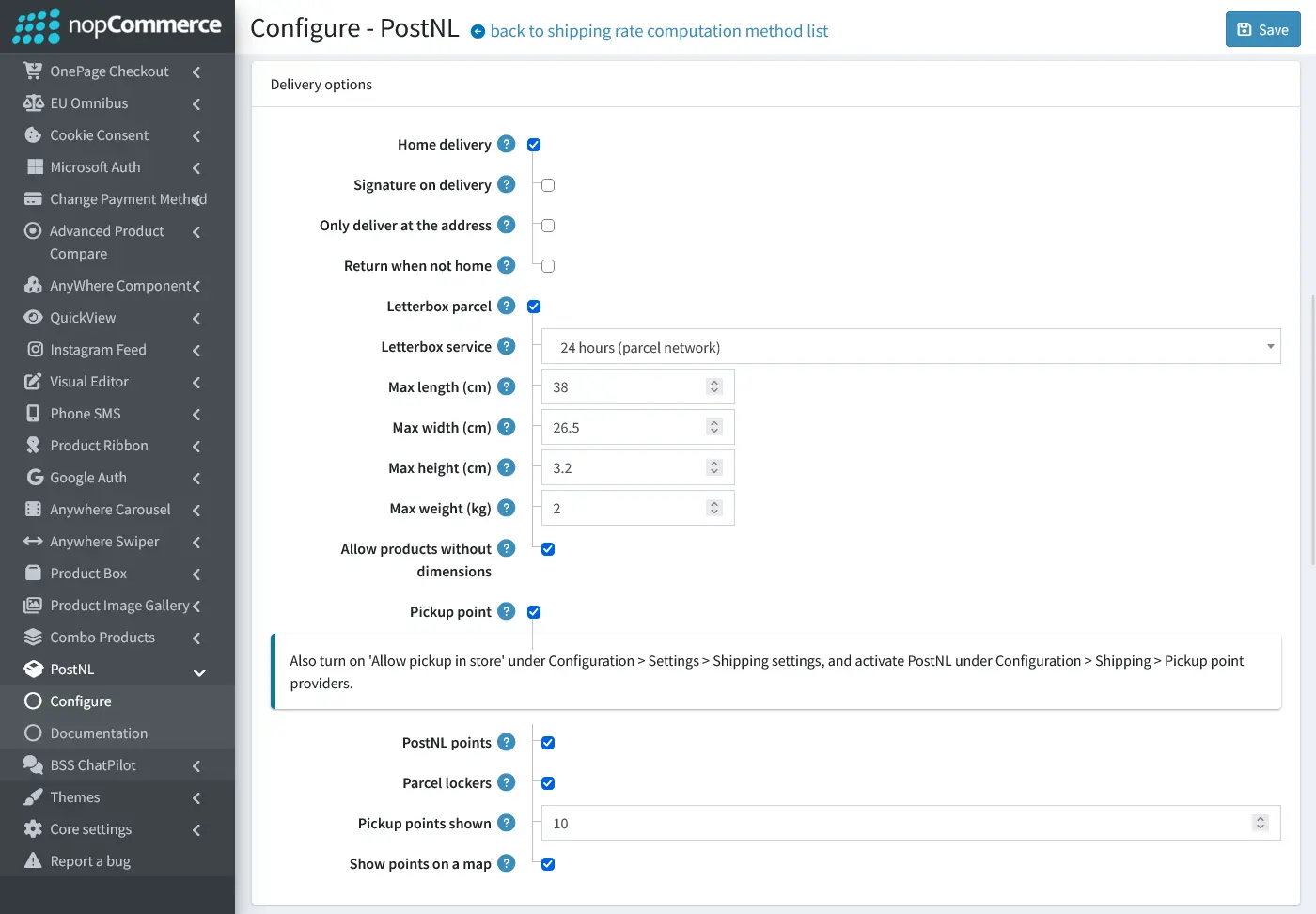
Home Delivery: Offer PostNL home delivery at checkout for customers only in the Netherlands and Belgium. Enabling it shows these extra options:
-
Signature on Delivery: The receiver must sign for the parcel.
-
Only Deliver at the Address: PostNL will not leave the parcel with the neighbours.
-
Return When Not Home: If nobody is home, the parcel is sent back to you instead of to a PostNL point.
These three options apply to home delivery labels in the Netherlands only.
-
-
Letterbox Parcel: Offer a letterbox parcel (brievenbuspakje) when the order fits. This is available in the Netherlands only. Enabling it shows these extra options:
-
Letterbox Service: Choose 24 hours (parcel network) for next-day delivery, or 48 hours (mail network) for delivery within two days. Select the one included in your PostNL contract.
-
Max Length, Width, Height & Weight: Set the largest size and weight a letterbox parcel may have. The defaults (38 cm, 26.5 cm, 3.2 cm and 2 kg) are PostNL's limits, so you can only lower them, not raise them.
-
Allow Products Without Dimensions: When a product has no length, width or height, the decision is based on weight only. Turn it off to require dimensions.
-
-
Pickup Point: Let customers collect their order from a PostNL point in the Netherlands and Belgium through the pickup option at checkout. Enabling it shows these extra options:
-
PostNL Points: Show staffed PostNL points (shops) at checkout.
-
Parcel Lockers: Show PostNL parcel lockers at checkout. The customer receives a code by email to open the locker.
-
Pickup Points Shown: Set how many nearby points the customer can choose from.
-
Show Points on a Map: Display the points on a map at checkout. No API key is needed.
-
-
Click Save at the top right to apply your changes.
Note: For pickup to work, also turn on Allow pickup in store under Configuration → Settings → Shipping settings, and activate PostNL under Configuration → Shipping → Pickup point providers.
-
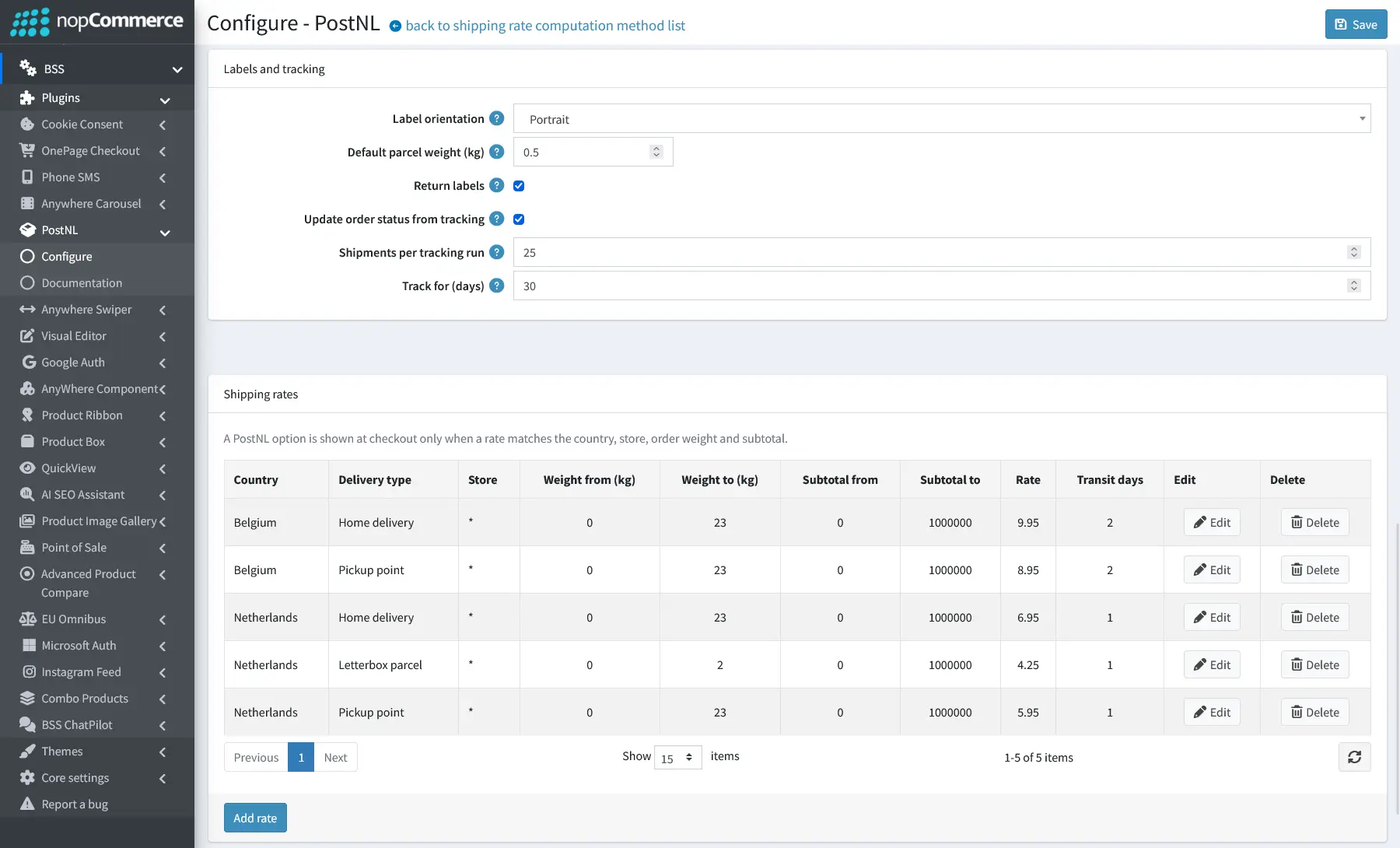
Labels and Tracking: Control how your PostNL labels are printed and how shipments are tracked, with these options:
-
Label Orientation: Choose Portrait, which suits most label printers, or Landscape if your printer prints A6 labels sideways.
-
Default Parcel Weight (kg): The weight used on a label when the order's products have no weight.
-
Return Labels: Allow return labels to be created from the order page. Customers in the Netherlands get a barcode to show at a PostNL point, where the label is printed, as PostNL requires. Customers in Belgium get a PDF label to print.
-
Update Order Status from Tracking: Automatically mark the shipment as shipped when PostNL scans it, and as delivered (or ready for pickup) when PostNL delivers it. The customer receives the normal nopCommerce email.
-
Shipments per Tracking Run: How many open shipments the scheduled task checks each time it runs (1 to 200).
-
Track for (days): Stop checking shipments that are older than this many days (1 to 90).
-
-
Shipping Rates Table: A PostNL option is shown at checkout only when a rate matches the customer's country, store, order weight and subtotal. Each row in the table is one rate, with these columns:
-
Country & Store: The destination country and the store the rate applies to. An asterisk (*) means all stores.
-
Delivery Type: The PostNL delivery option the rate is for: home delivery, letterbox parcel or pickup point.
-
Weight From & To (kg): The order weight range the rate covers.
-
Subtotal From & To: The order subtotal range the rate covers.
-
Rate: The shipping price charged to the customer.
-
Transit Days: The delivery time shown to the customer at checkout.
-
Edit & Delete: Change or remove an existing rate.
-
-
Click Add rate at the bottom to create a new rate, or click Edit on an existing rate to change it. Both open the rate details window.
-
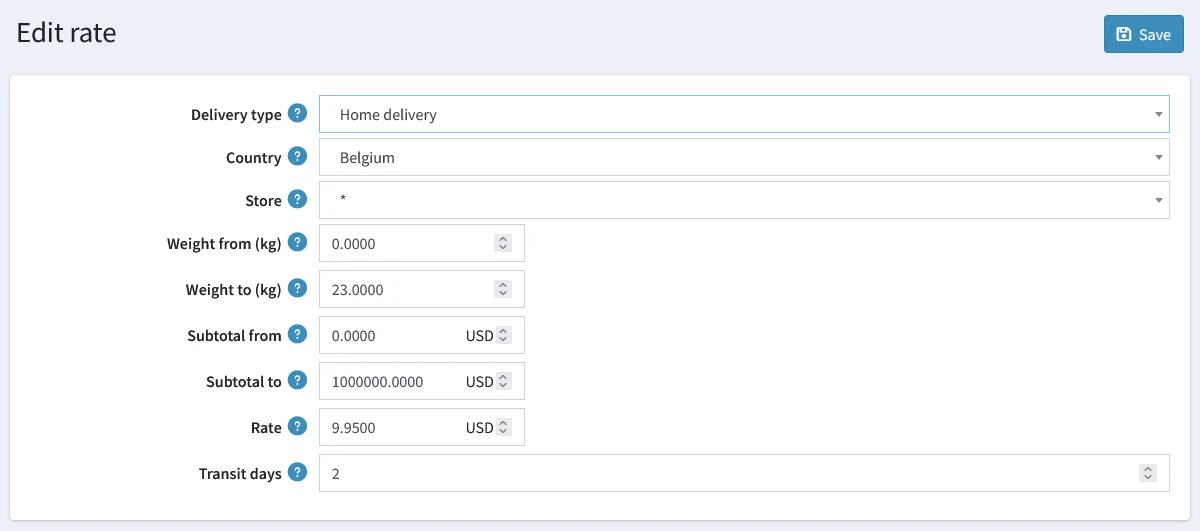
Delivery Type: Choose which PostNL delivery option this rate is for: Home delivery, Letterbox parcel or Pickup point.
-
Country: Select the destination country for this rate. Choose * to apply it to every supported country (only Netherlands and Belgium are supported).
-
Store: Select the store this rate applies to. Choose * to apply it to all stores.
-
Weight From (kg): The lowest order weight this rate covers, inclusive.
-
Weight To (kg): The highest order weight this rate covers, inclusive.
-
Subtotal From: The lowest order subtotal this rate covers, inclusive. To offer free shipping above an amount, add a rate of 0 starting from that subtotal.
-
Subtotal To: The highest order subtotal this rate covers, inclusive.
-
Rate: The shipping price charged to the customer, in your store's primary currency.
-
Transit Days: An optional delivery time, in days, shown to the customer at checkout.
-
Click Save at the top right to apply your changes.
PUBLIC VIEW
-
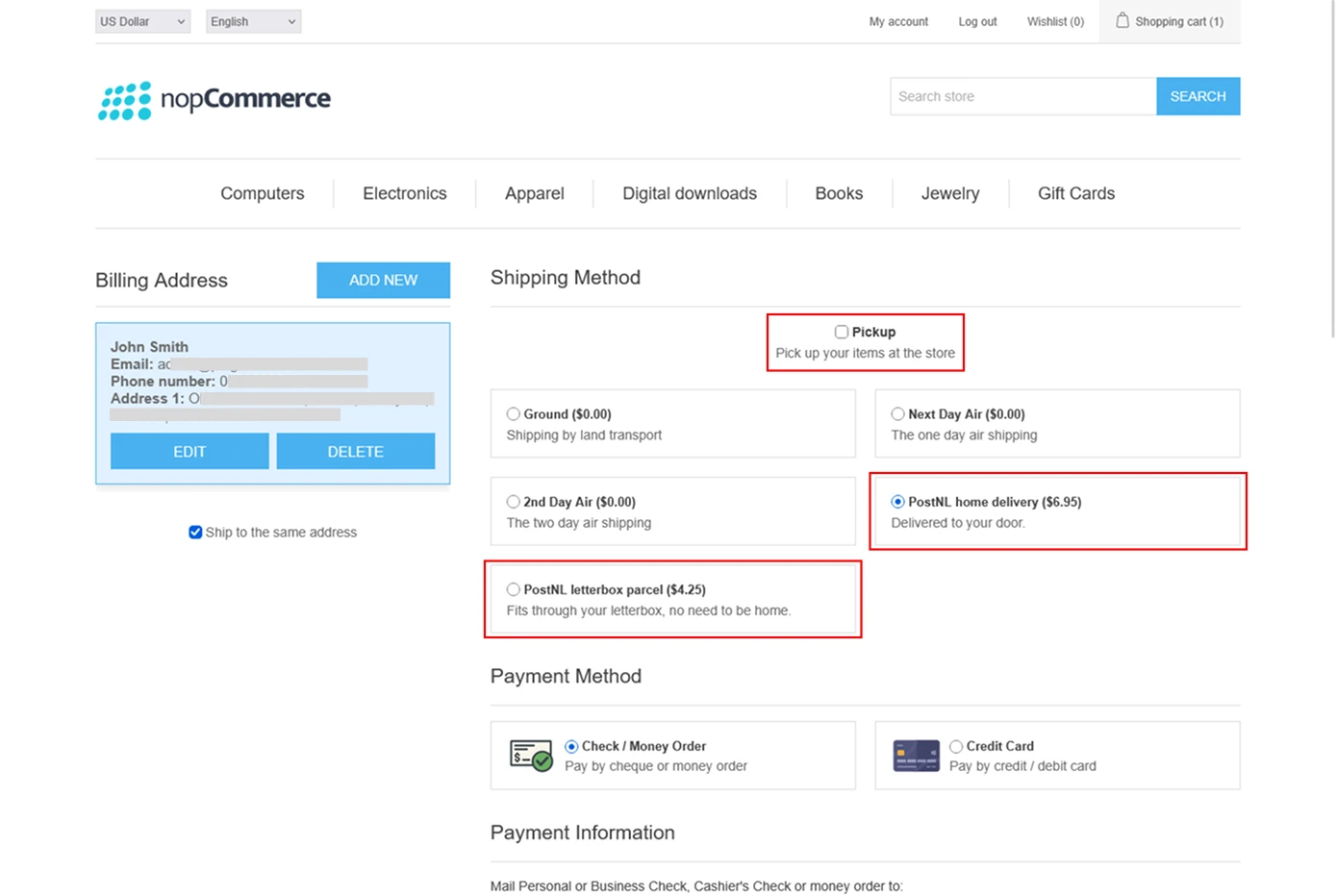
At checkout, customers can choose how they want to receive their order from the Shipping Method step:
-
PostNL Home Delivery: The parcel is delivered to the customer's door.
-
PostNL Letterbox Parcel: The parcel fits through the letterbox, so the customer does not need to be home.
-
Pickup: The customer collects the order from a PostNL point.
-
-
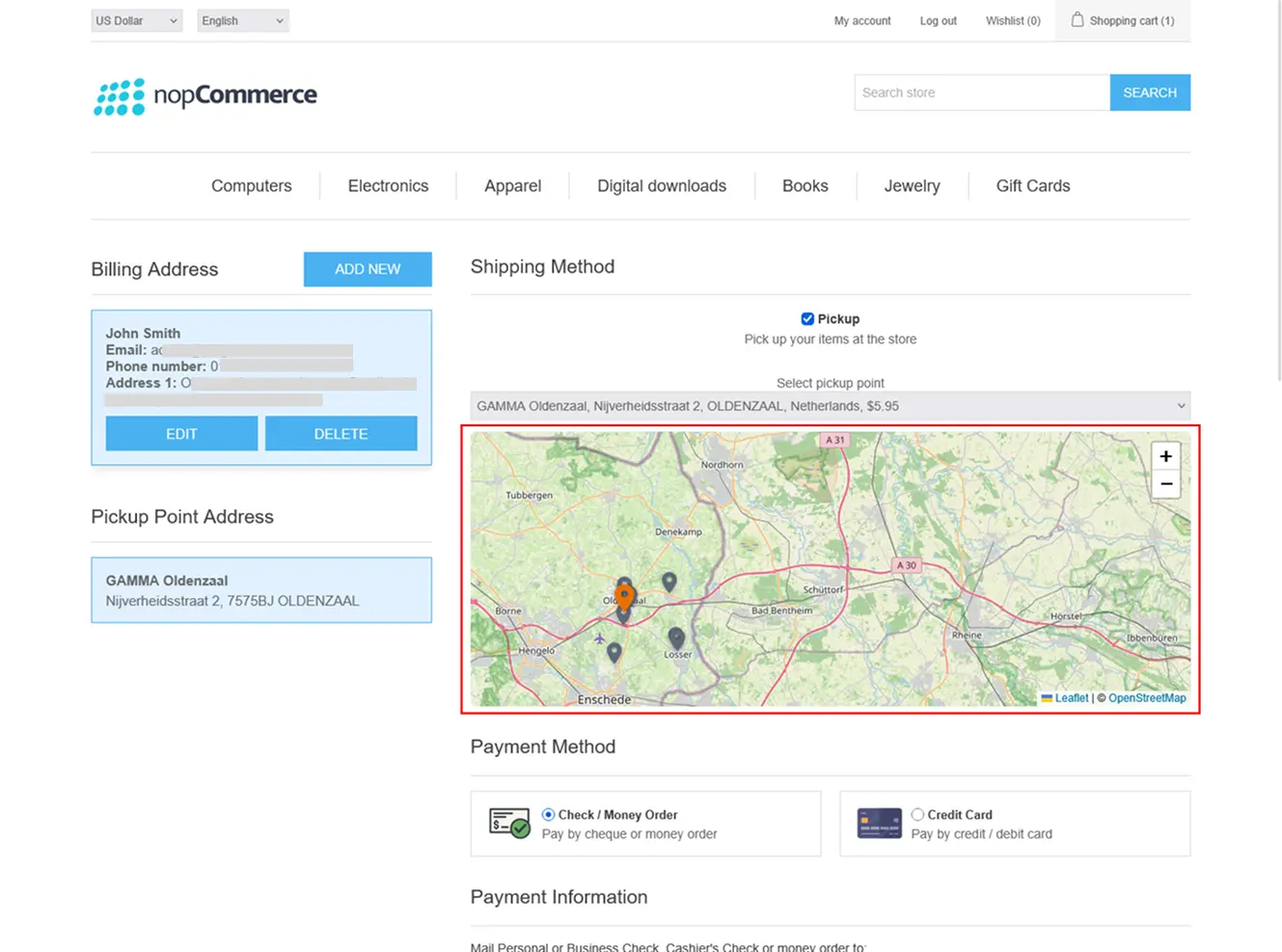
If Pickup is selected, a list of nearby PostNL points appears along with a map. The customer can pick a location from the dropdown or on the map, and the chosen address is shown under Pickup Point Address:.
FEATURES
-
PostNL Shipping for the Netherlands & Belgium: Offer PostNL home delivery, letterbox parcel and pickup point options at checkout in your nopCommerce store.
-
PostNL Home Delivery Options: Add signature on delivery, deliver only at the stated address, or return the parcel to you when nobody is home.
-
Letterbox Parcel (Brievenbuspakje): Automatically offer letterbox delivery when the order fits, with a choice of 24-hour or 48-hour service.
-
Custom Letterbox Size & Weight Limits: Set the maximum length, width, height and weight for letterbox parcels, and decide how products without dimensions are handled.
-
PostNL Pickup Points & Parcel Lockers: Let customers collect their orders from nearby PostNL shops or parcel lockers using the pickup option at checkout.
-
Interactive Pickup Point Map: Show pickup locations on a map at checkout. It uses OpenStreetMap, so no map API key is needed.
-
Flexible Shipping Rate Table: Create shipping rates by country, store, delivery type, order weight and order subtotal, with optional transit days shown at checkout. Offer free shipping above a chosen amount by adding a rate of 0.
-
Multi-Store Support: Apply shipping rates to all stores or to a specific store in your nopCommerce setup.
-
Sandbox & Demo Mode: Test your PostNL integration safely in the PostNL sandbox, or try the plugin without an API key using your own rate table.
-
Secure Setup & Connection Test: Your PostNL API key is stored encrypted, you can verify your credentials in one click, and your sender address is set once for your shipping labels.