NopFashion Theme + 15 Plugin Bundle for NopCommerce
NopBeauty Theme + 12 Plugin Bundle for NopCommerce
NopNoor Theme + 16 Plugin Bundle for NopCommerce
NopGadget Theme + 18 Plugin Bundle for NopCommerce
NopEthnic Theme + 17 Plugin Bundle for NopCommerce
NopFurniture Theme + 19 Plugin Bundle for NopCommerce
NopPharma Theme + 16 Plugin Bundle for NopCommerce
NopVogue Theme + 17 Plugin Bundle for NopCommerce
NopGadence Theme + 18 Plugin Bundle for NopCommerce
NopNoor Theme + 16 Plugin Bundle for NopCommerce
Created on: May 11, 2026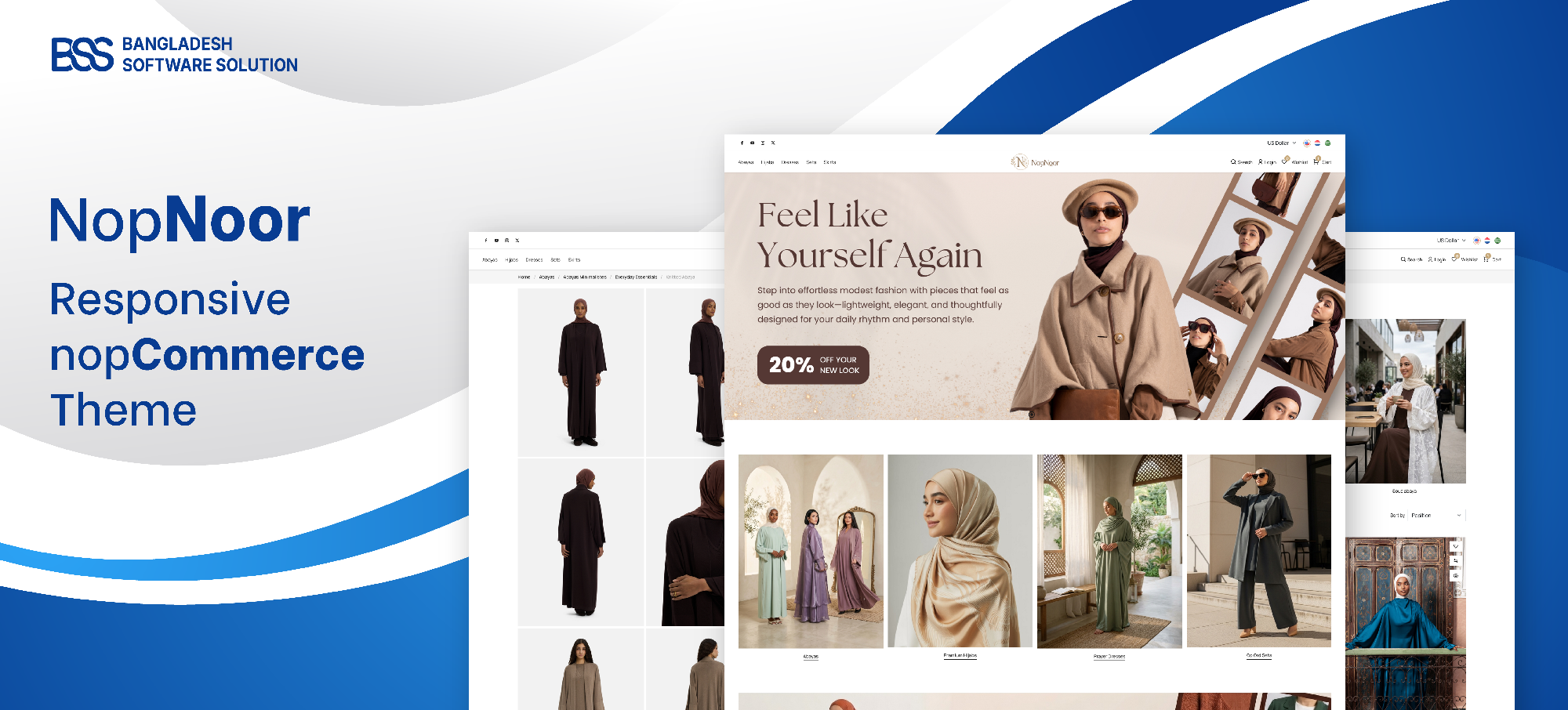
Give your nopCommerce store a refined and modern shopping experience with NopNoor — a stylish responsive theme built for beauty, fashion, clothing, jewellery, modest fashion, and lifestyle brands. Designed with both aesthetics and flexibility in mind, NopNoor empowers store owners to personalize storefront colors, typography, layouts, and UI sections directly from the live storefront using its advanced Theme Builder. From smooth infinite scrolling and lazy-loaded images to responsive product grids and modern flyout cart interactions, every feature is crafted to improve customer engagement and create a fast, elegant, and conversion-focused eCommerce experience on all devices.
PRE-REQUISITES
- The theme requires installation of the BSS Core plugin first.
INSTALLATION
- Go to the Order Details Page and Download NopNoor theme
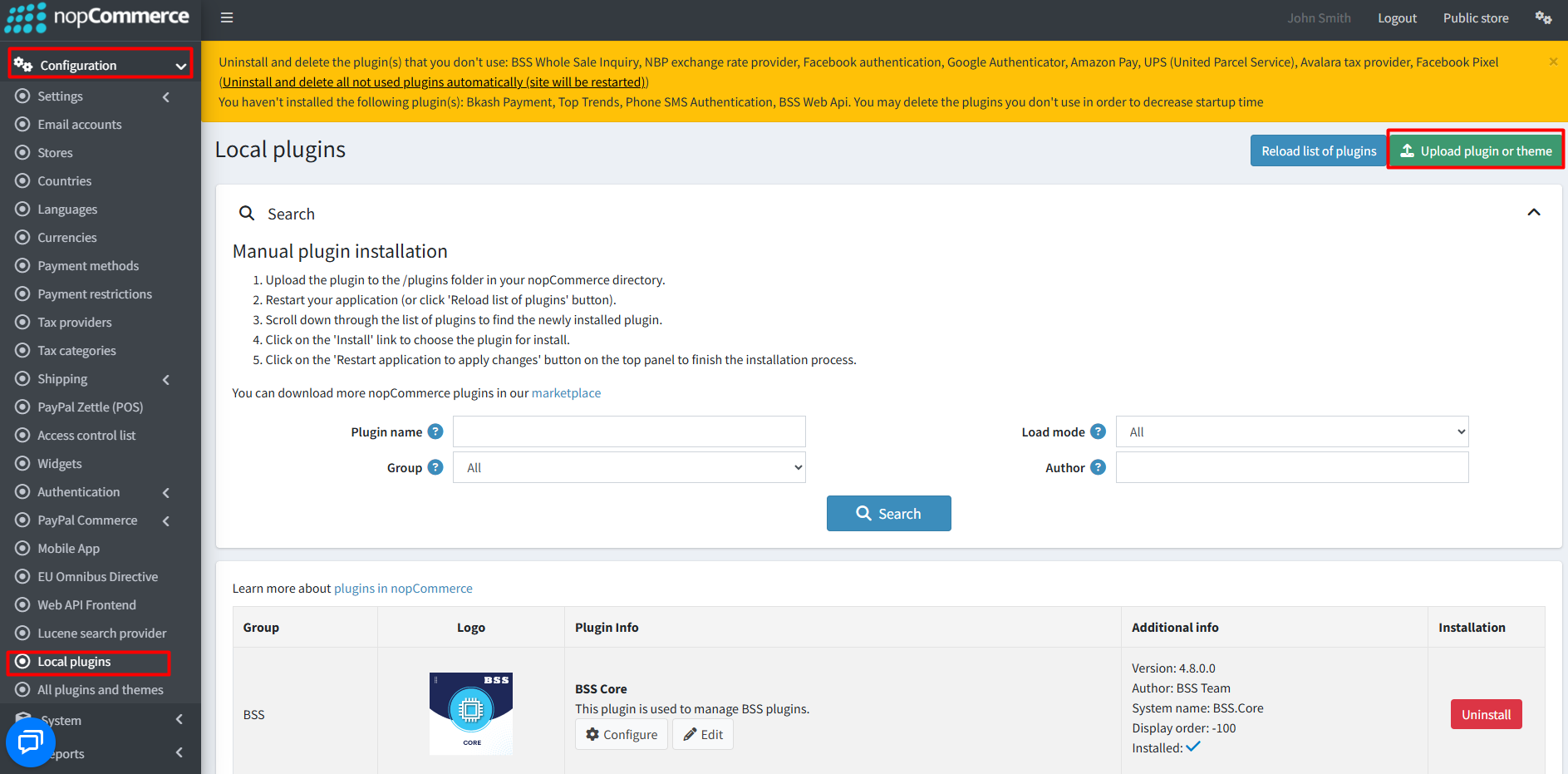
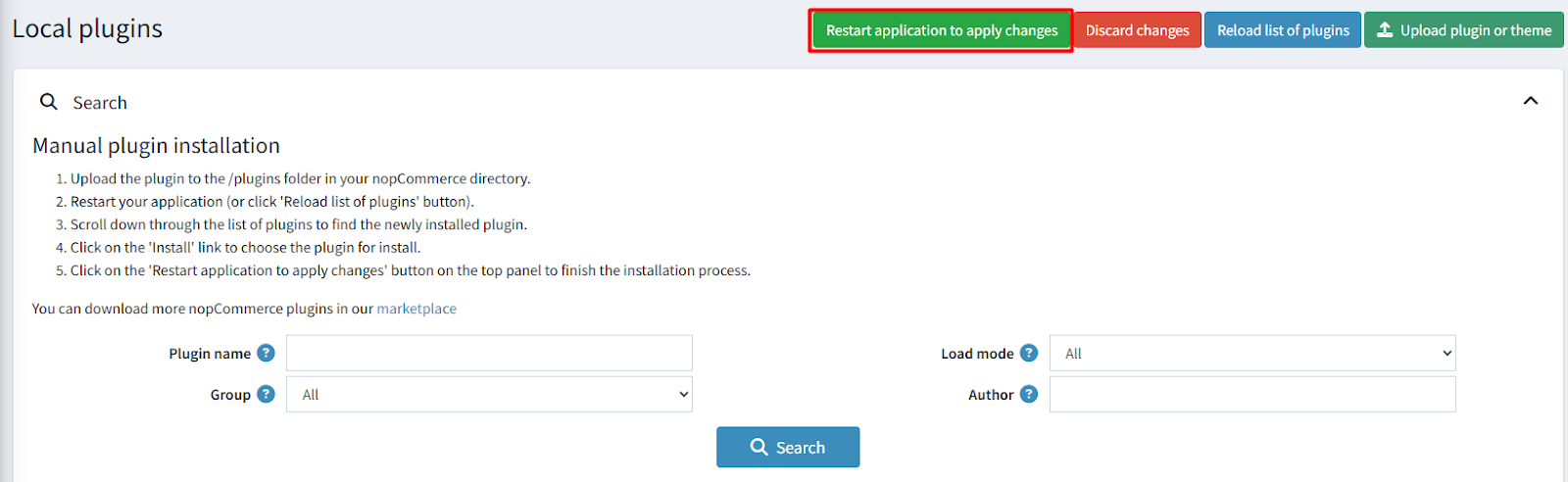
- Go to Administration → Configuration → Local plugins
- Within the bundle, you get all the required files, including BSS.Core
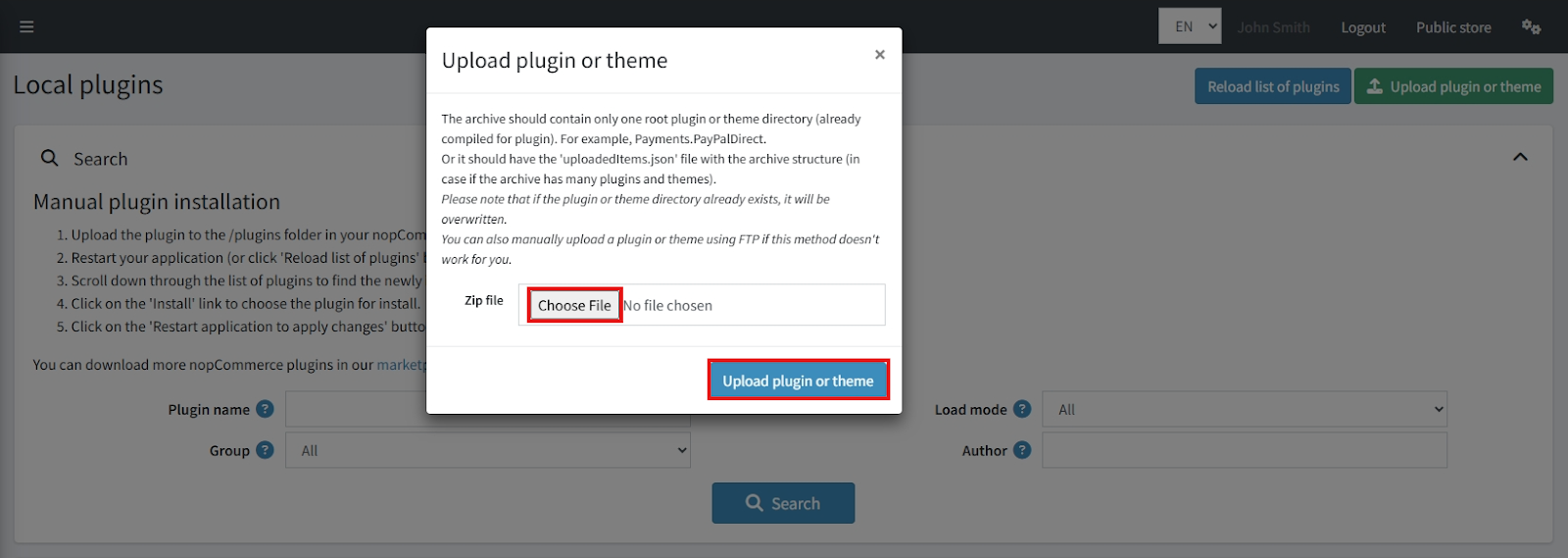
- Upload the zip files using the 'Upload plugin or theme' button
- After uploading, install the ‘BSS Core’ Plugin and ‘NopNoor Theme’.
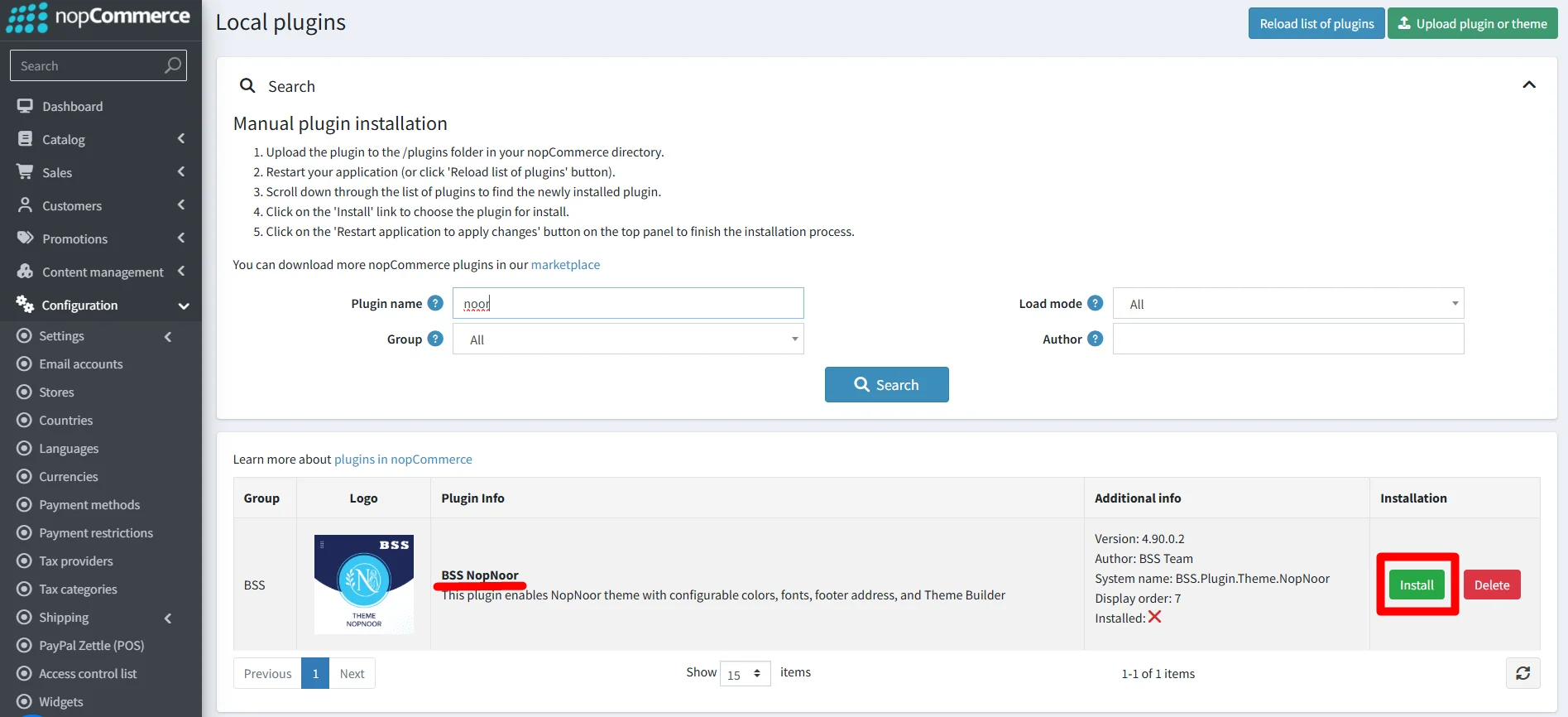
- To make the theme functional, restart the application.
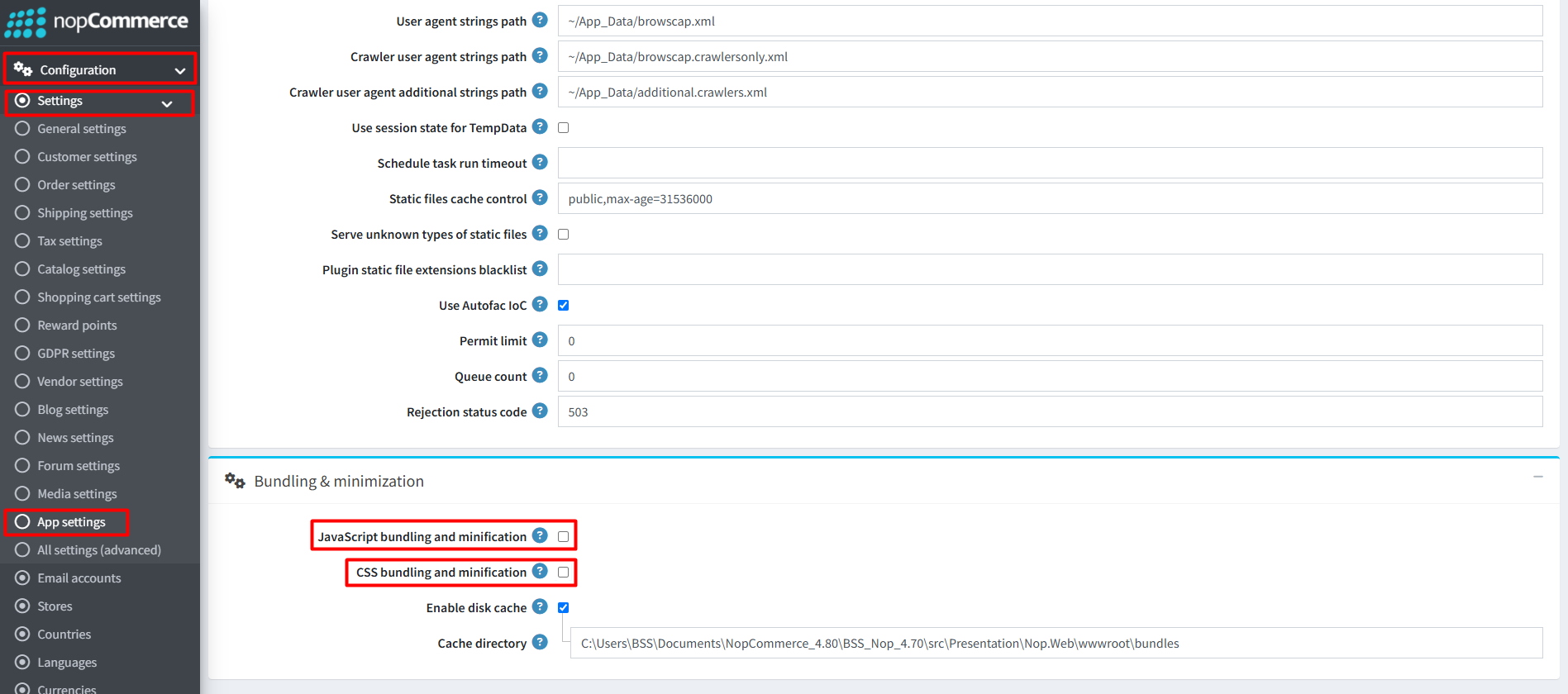
Recommendation: Go to > App Settings. If you find JavaScript bundling and minification, CSS bundling and minification are checked, then uncheck these two options and disable them.
ENABLE THE THEME
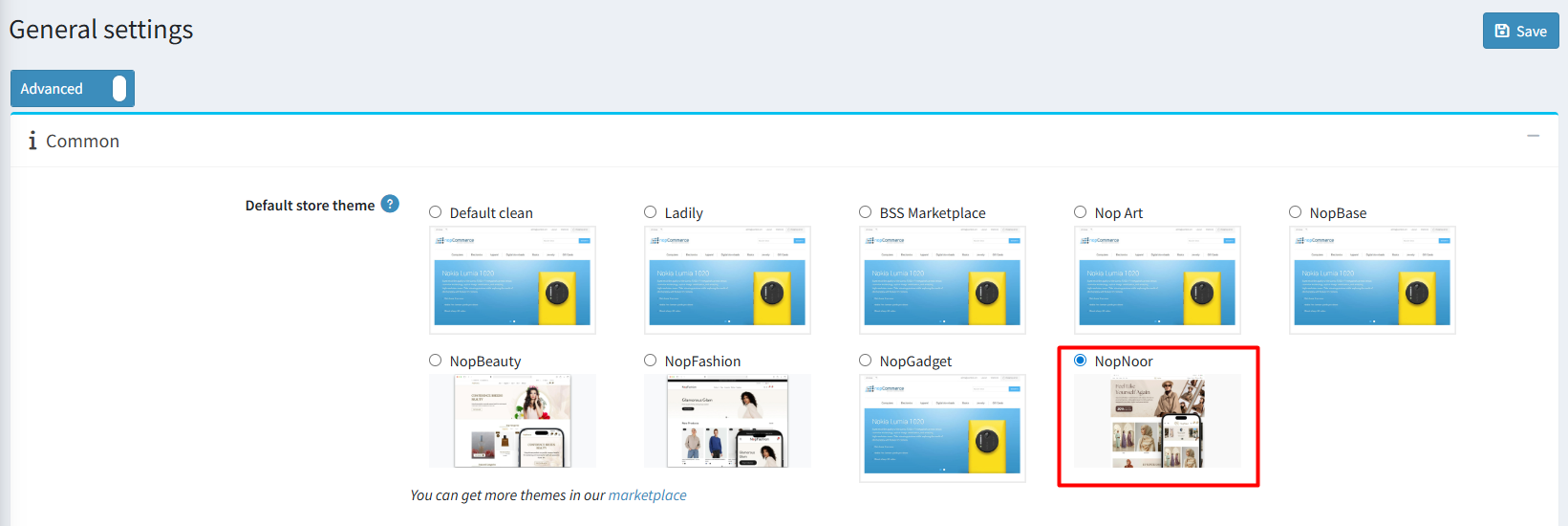
- Go to Configuration → Settings → General settings in the admin panel.
- Choose NopNoor as the Default store theme and save it.
ENABLE OTHER ASSOCIATED PLUGINS
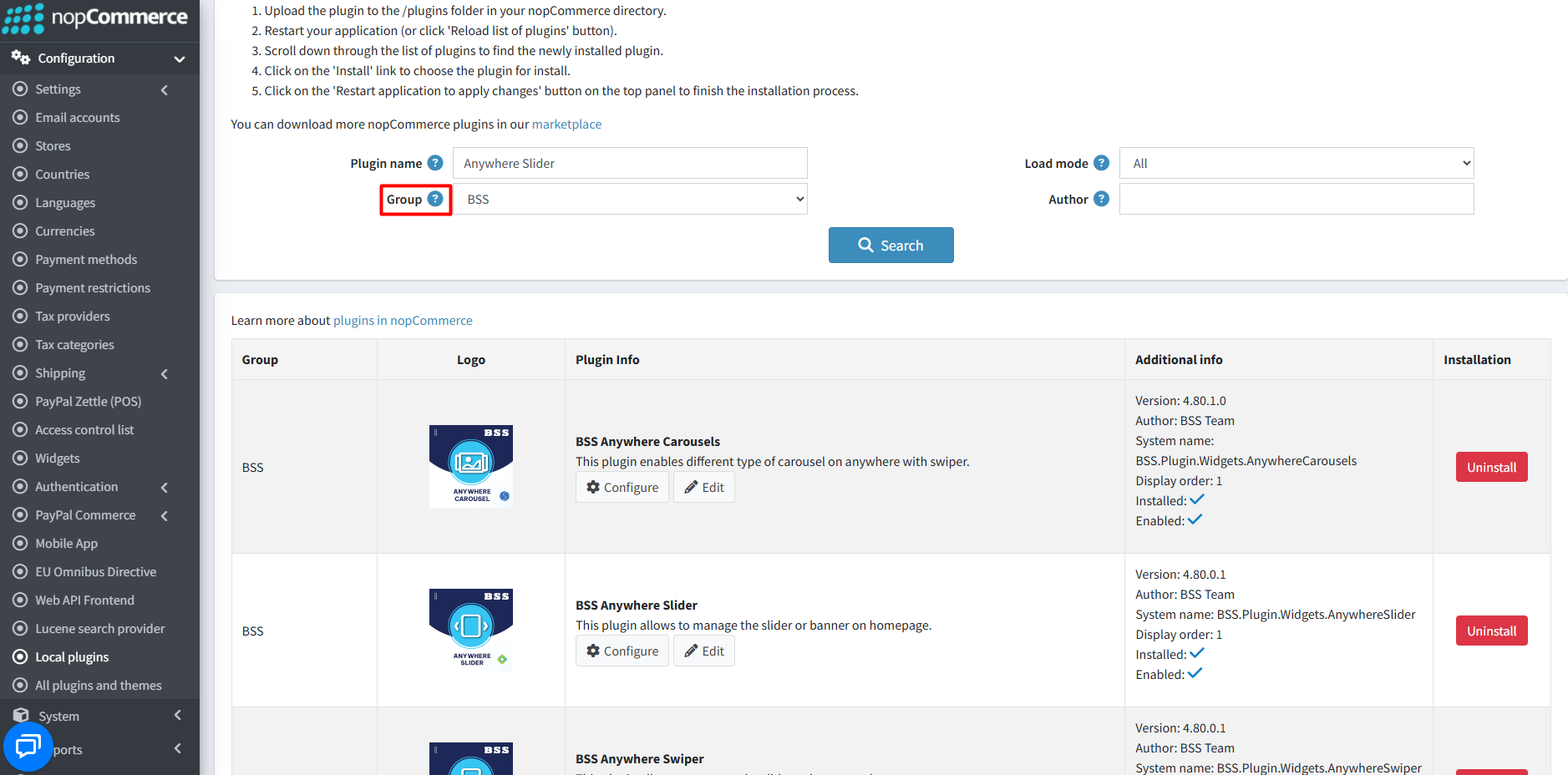
- Go to Administration → Configuration → Local plugins.
- Search the plugins associated with NopNoor theme using the Group Name ‘BSS’.
- To get the expected homepage view, install plugins by using the Group Name or Plugin Name.
LICENSE KEY
- After purchasing, contact BSS to receive the license key via email.
- First-time configuration of the theme or bundled plugins prompts entry of the License string. It can also be entered via BSS → Core settings → License.
- After entering the License string, save it and clear the cache.

CONFIGURATION
- Go to Administration → BSS → Themes → NopNoor → Configuration to set the theme configuration.
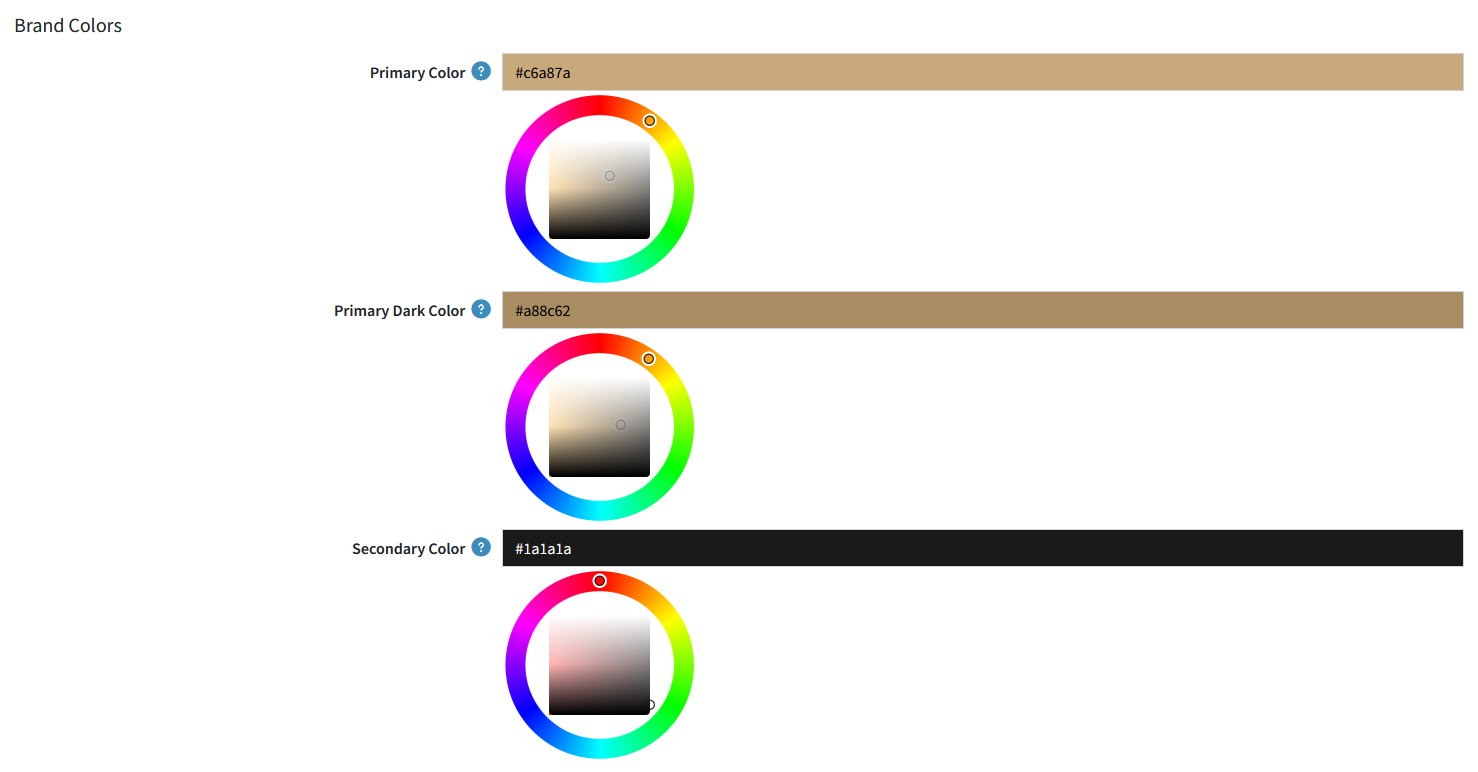
COLOR SETTINGS
- Brand Colors:Set Primary, Primary Dark, and Secondary colors for a consistent brand appearance in your store.
- Background Colors: Set primary and secondary background colors for different sections of your store.
- Text Colors: Configure text colors for default, secondary, and light text elements.
- Button Colors: Customize primary and secondary button background and hover colors.
- UI Colors & Tokens: Control border colors, element corner radius, card rounding, and overlay styling across the theme.
- Status Colors: Set status color for - Success , error and warning.
- Neutral & Gray Scale: Define white, black, and gray shade colors used throughout the theme’s UI and layout elements.
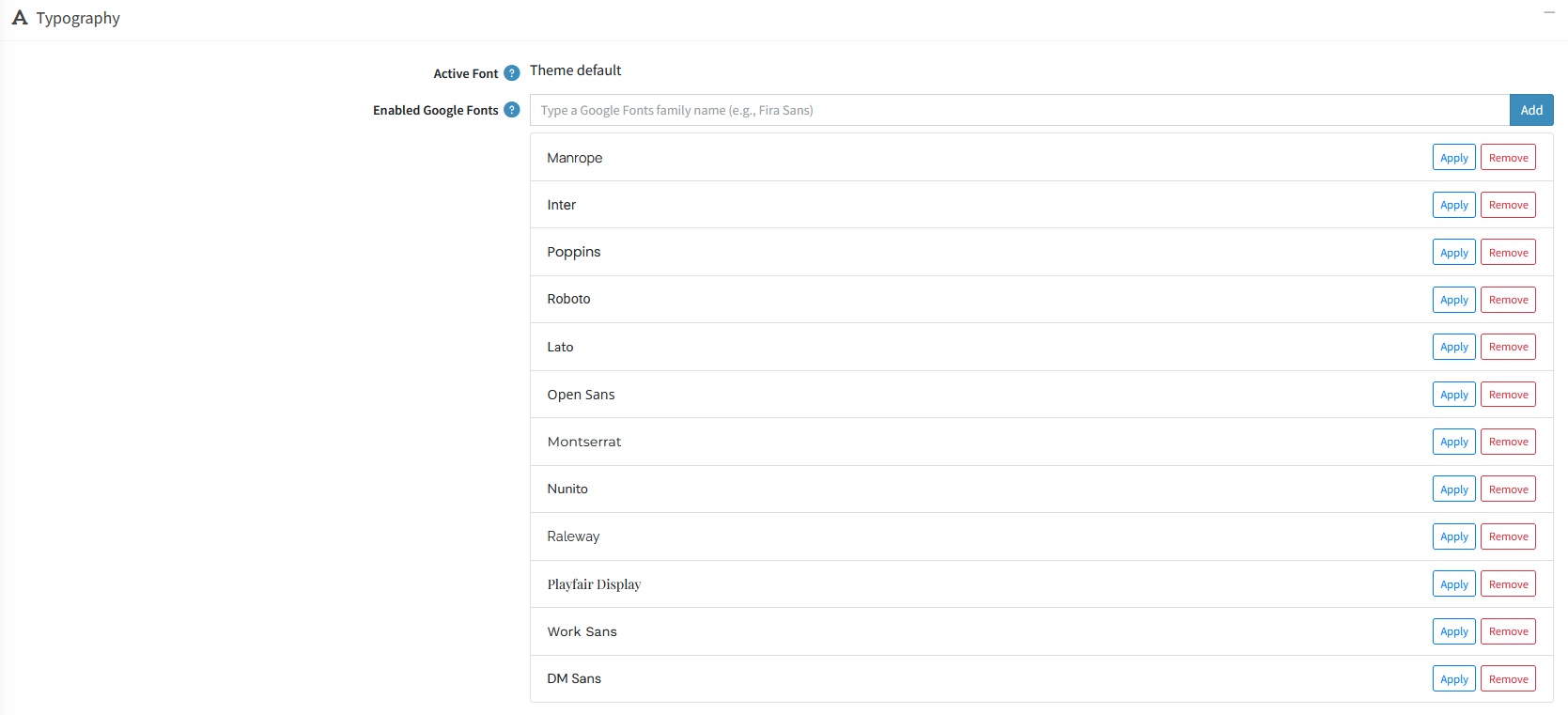
TYPOGRAPHY
- Manage the storefront font settings by selecting an enabled Google Font or adding a custom Google Font family.
FOOTER SETTINGS
- Upload custom logo for the footer and also can add footer store address and design address style in rich text

THEME BUILDER
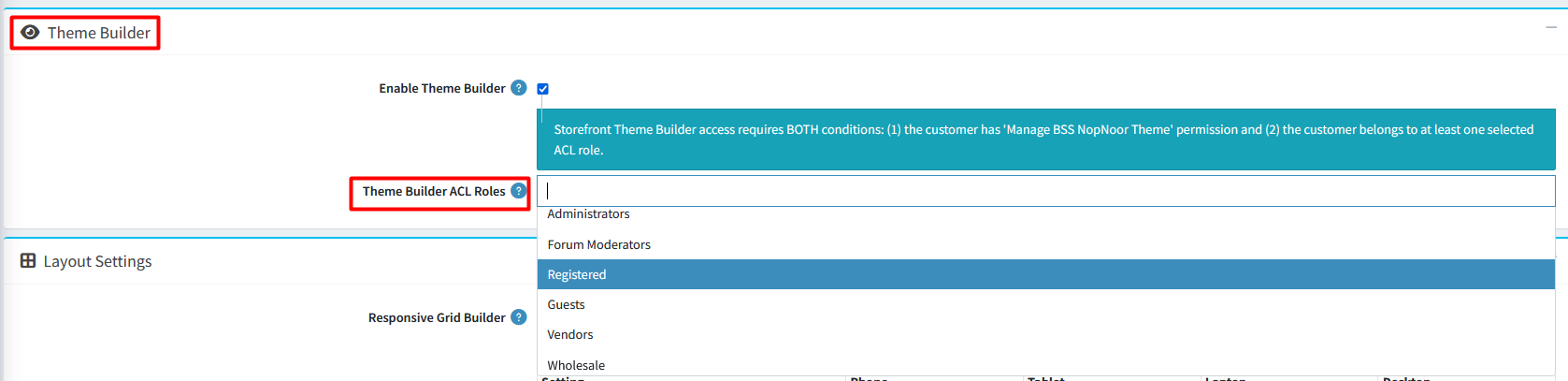
- Enable Theme Builder: Enable the floating Theme Builder panel to customize colors, fonts, and layout settings directly from the storefront.
- Theme Builder ACL Roles: Assign specific customer roles to control who can access and manage the Theme Builder from the storefront.
LAYOUT SETTINGS
- Targeted Page Specifics: Use the section dropdown to apply unique layouts, margins, and font sizes to individual pages or specific content areas like homepages, catalog lists, and vendor pages.
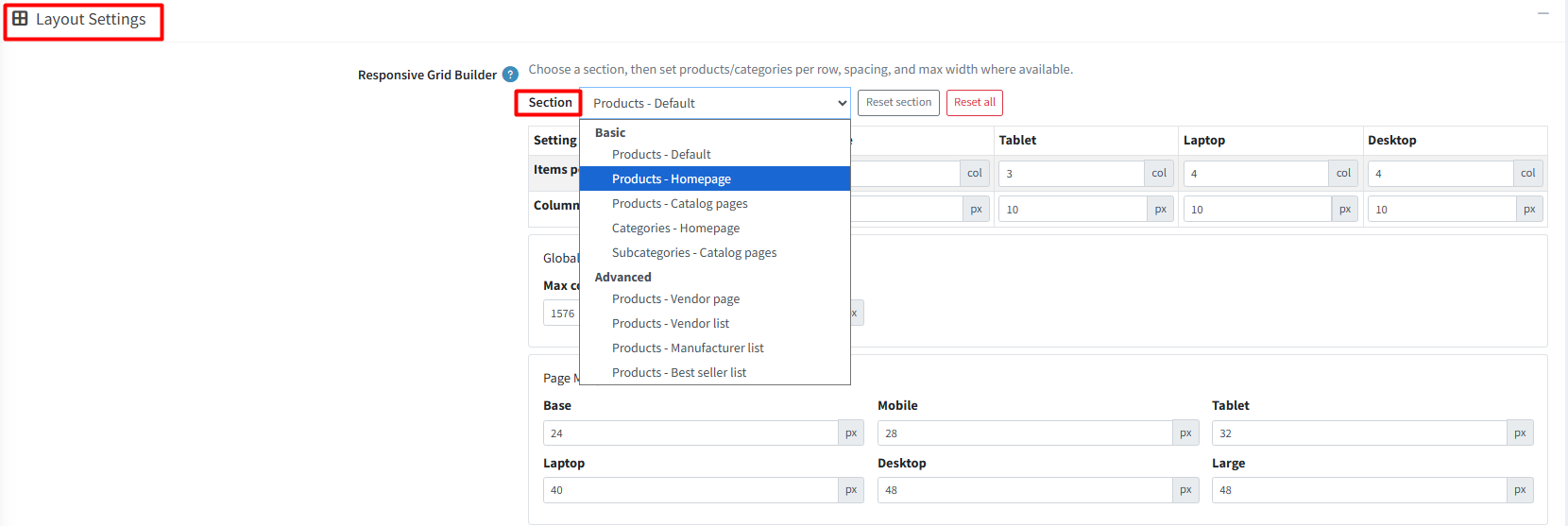
- Customizable Responsive Grids: Configure the number of items per row, spacing, and container widths across various screen sizes (Phone to Desktop), page margin, title size for precise control over your store's visual structure.
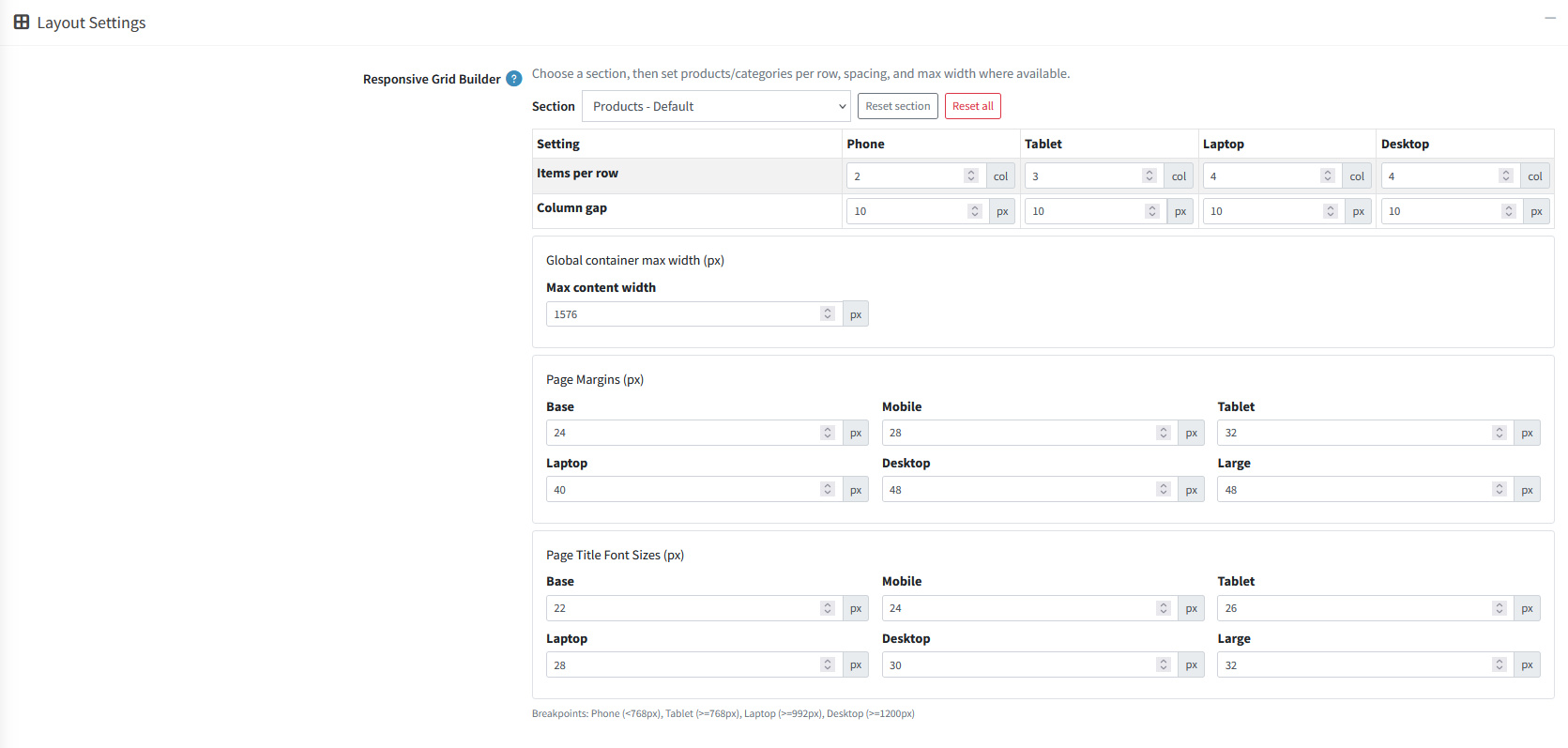
Catalog Page Layout
- Catalog filters in offcanvas: Catalog filters are shown in offcanvas style when this option is enabled.
- Infinite loading: When pagination (product per page selector) is hidden and infinite loading option is enabled products keep loading when the user scrolls on the page.
- Enable image lazy-load: Check to enable lazy-loading for product box images.

PRODUCT DETAILS
- After adding to cart: Select option to display a simple success message or automatically open the side flyout cart panel after a product is added to the cart.

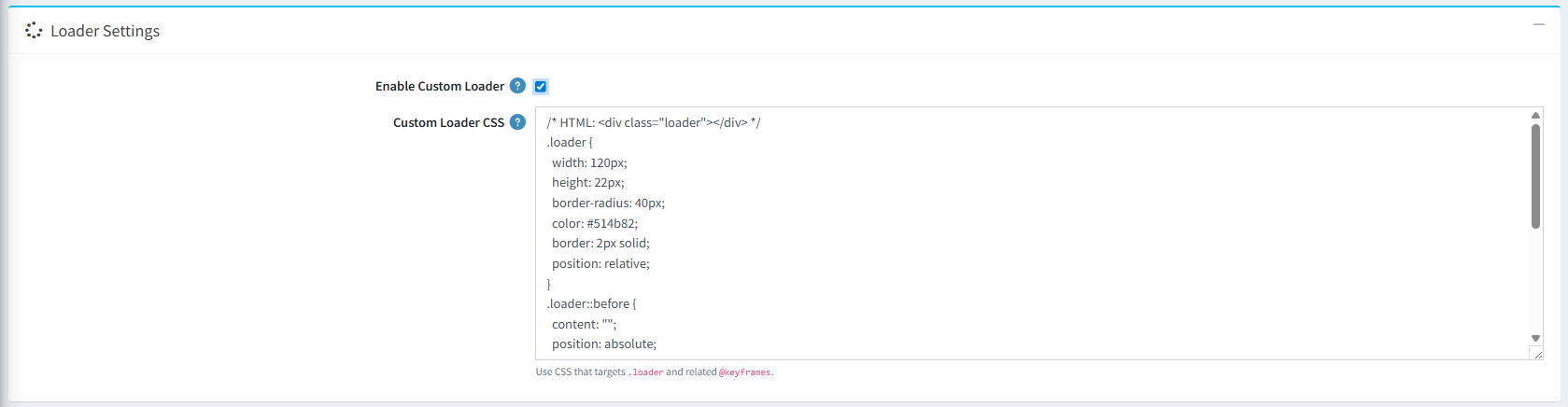
- Loader Settings: Enable loader settings and add your own custom css or use css from any loader site like: css-loaders.com to show customized loader in your site.
- Custom CSS: You can add custom css to add customize style for your site.
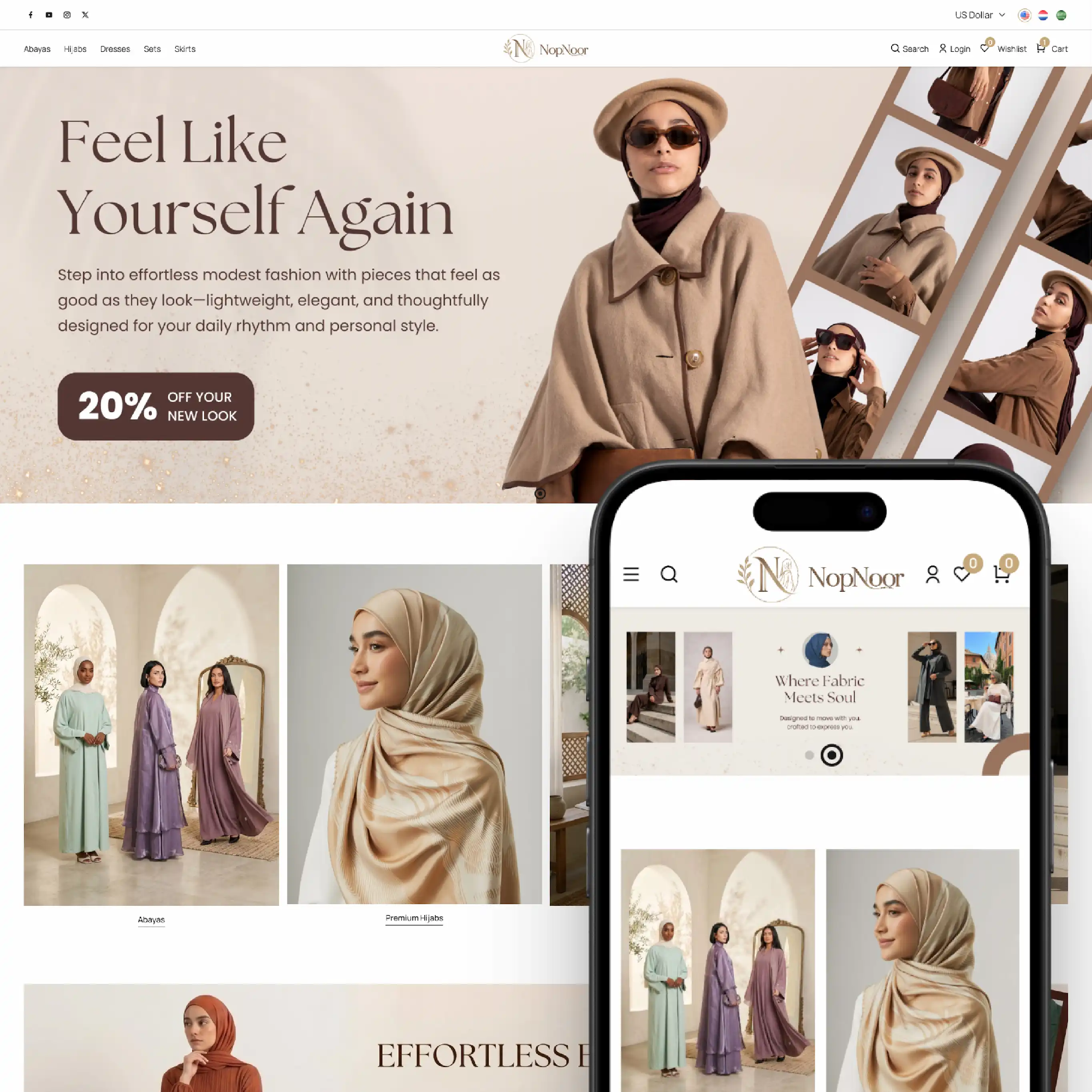
PUBLIC VIEW
PLUGIN CONFIGURATION
- BSS Product Box
- BSS Payment Change
- BSS Product Ribbon
- BSS QuickView
- BSS Picture Zoom
- BSS Anywhere Swiper
- BSS Banner
- BSS Anywhere Carousels
- BSS Google Authentication
- BSS Microsoft Authentication
- BSS One Page Checkout
- BSS AI SEO Assistant
- BSS EU Omnibus Directive
- BSS EU GDPR Cookie Consent
- BSS Phone SMS Authentication
Documentation Menu
NopFashion Theme + 15 Plugin Bundle for NopCommerce
NopBeauty Theme + 12 Plugin Bundle for NopCommerce
NopNoor Theme + 16 Plugin Bundle for NopCommerce
NopGadget Theme + 18 Plugin Bundle for NopCommerce
NopEthnic Theme + 17 Plugin Bundle for NopCommerce
NopFurniture Theme + 19 Plugin Bundle for NopCommerce
NopPharma Theme + 16 Plugin Bundle for NopCommerce
NopVogue Theme + 17 Plugin Bundle for NopCommerce
NopGadence Theme + 18 Plugin Bundle for NopCommerce