VoltFitness Theme + 18 Plugin Bundle for NopCommerce
Created on: Oct 29, 2026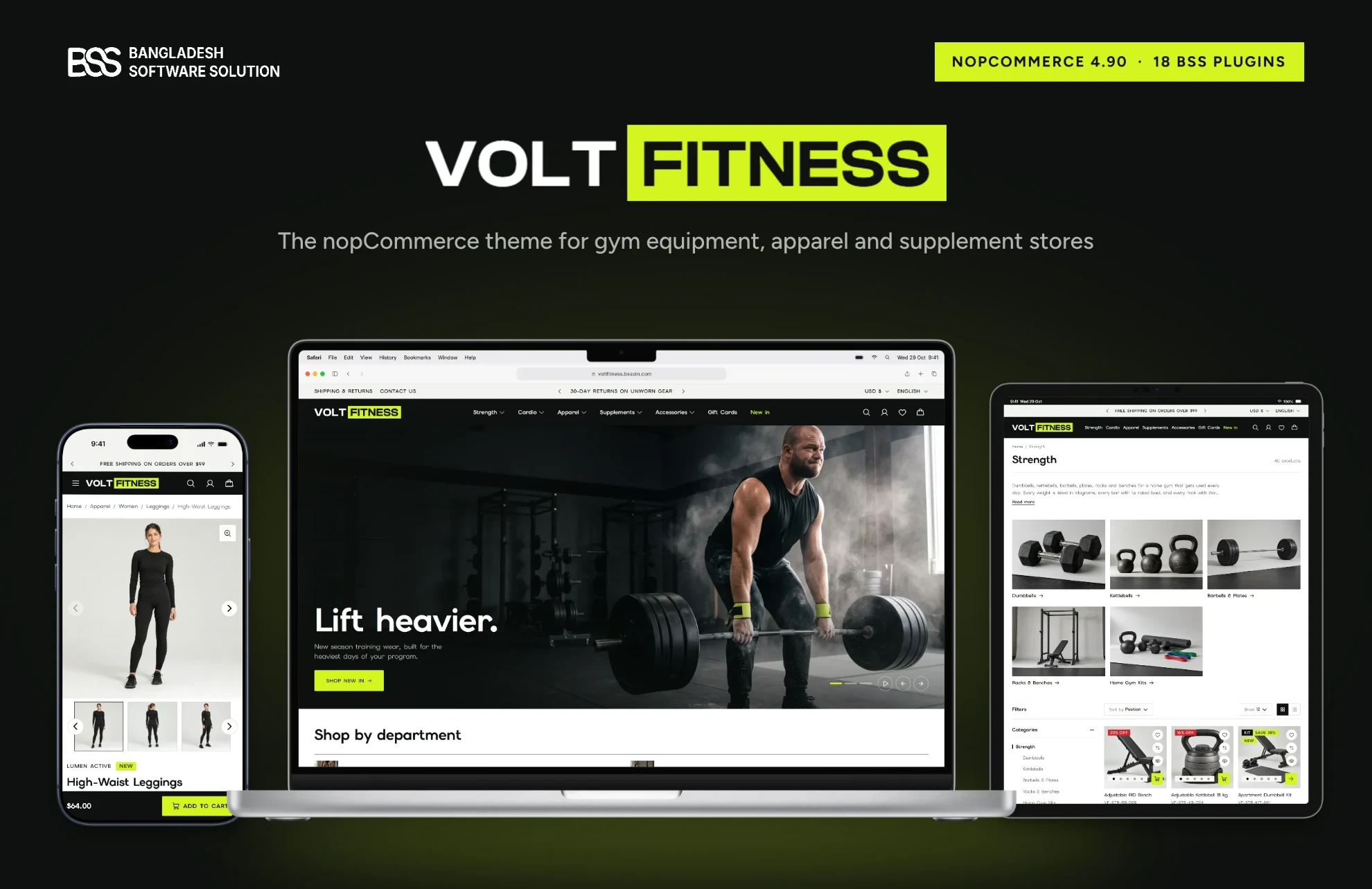
Set up VoltFitness for your store
VoltFitness is a nopCommerce theme for fitness retail: equipment, apparel, supplements and accessories in one store. This guide takes you from the download to a configured store: install the theme and BSS Core, switch the store to VoltFitness, add your licence, then work through every setting on the theme's configuration page and the 18 plugins in the bundle.
- nopCommerce
- 4.90
- .NET
- 9
- Requires
- BSS Core, included
- Bundle
- 18 BSS plugins
Rather have it set up for you?
Choose Installation support for $60 when you buy VoltFitness, and the BSS team sets it up on your store so it opens ready to sell:
- the theme, BSS Core and all 18 plugins installed, and the store restarted;
- your store switched to VoltFitness, your licence key added and every plugin checked;
- the theme and the home page blocks configured so your store starts from the demo layout.
Install the theme
VoltFitness needs a nopCommerce 4.90 store. The download from your order holds the theme, BSS Core and every bundled plugin as separate zip files.
-
Download the package from your order: My accountOrdersOrder details.
-
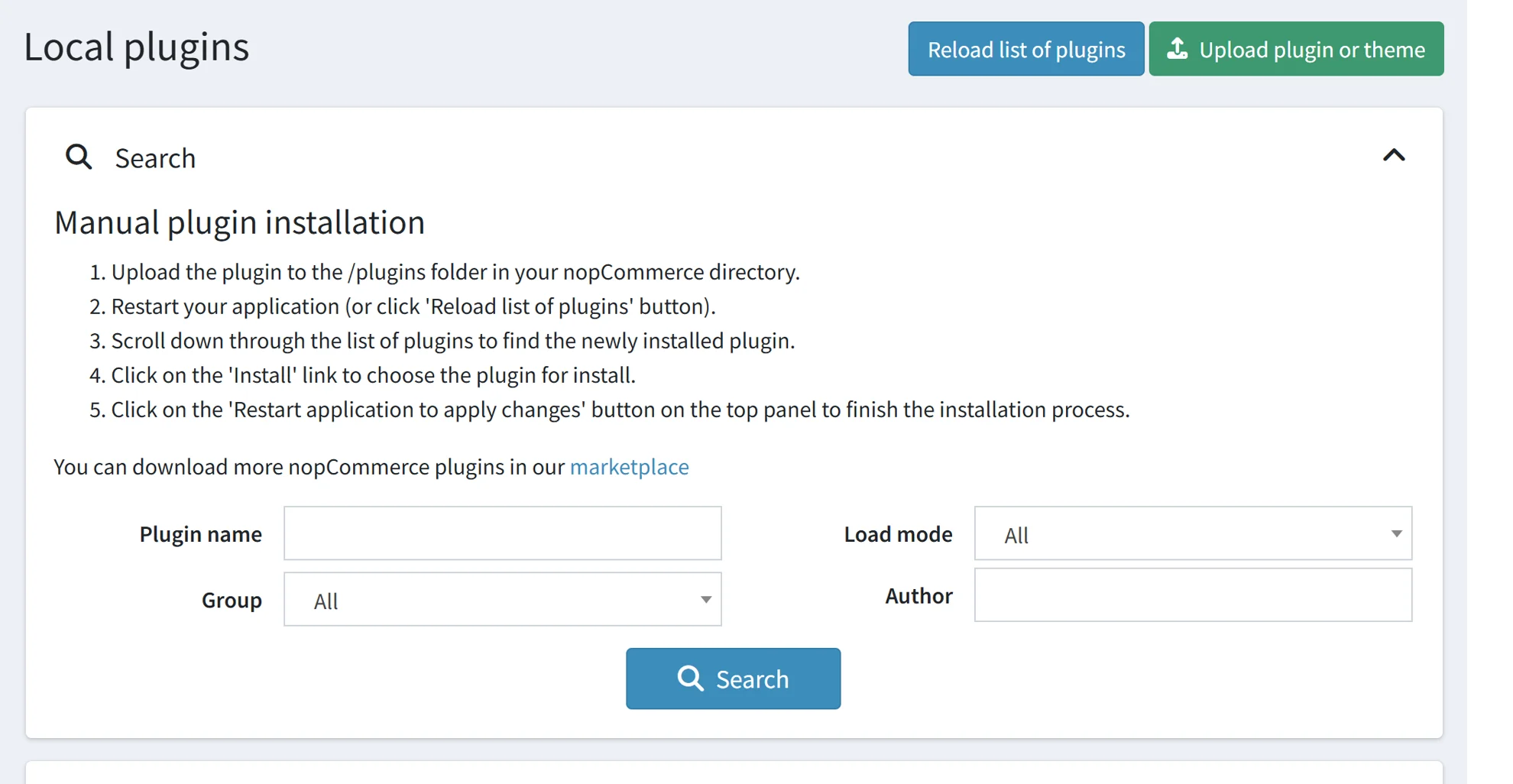
In the admin, go to ConfigurationLocal plugins and click Upload plugin or theme.
-
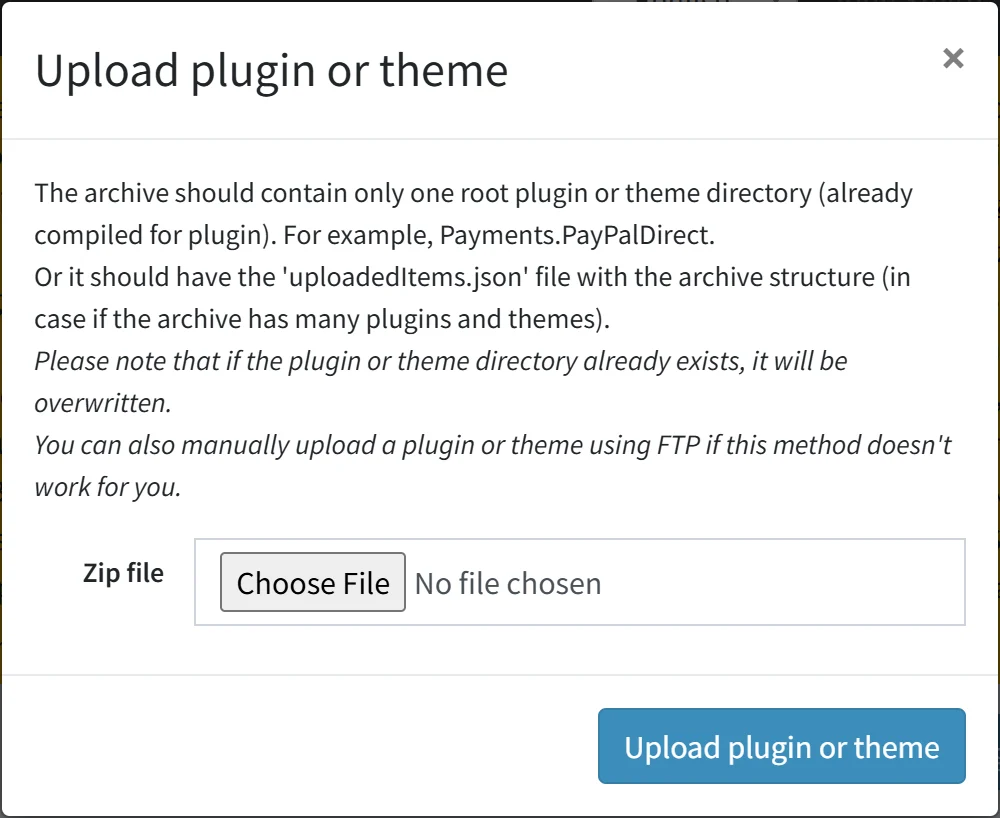
Choose a zip file and upload it. Upload BSS Core and BSS VoltFitness first; the bundled plugins can follow now or later.
-
Install BSS Core, then BSS VoltFitness. Search the list by name to find them quickly.
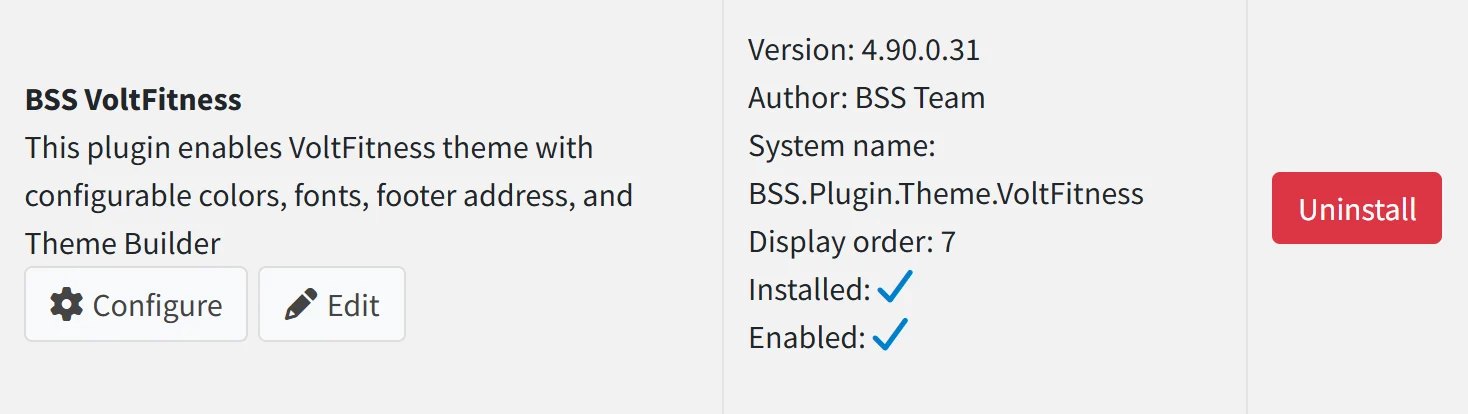
-
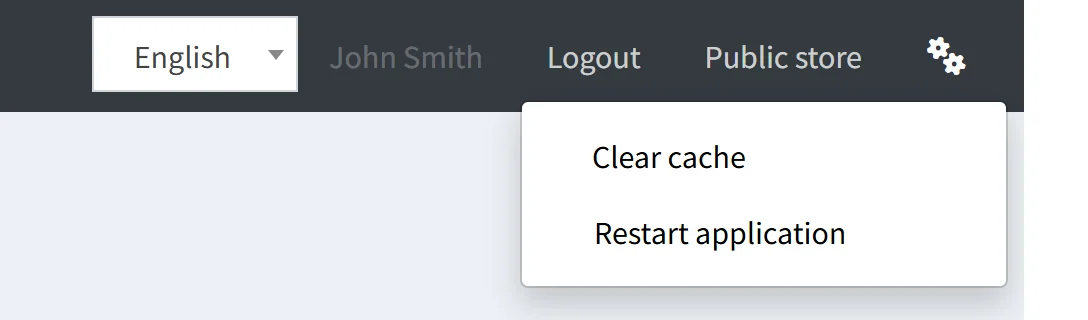
Restart the application so nopCommerce loads the theme: open the gear menu at the top right of the admin and choose Restart application.
Make VoltFitness the store theme
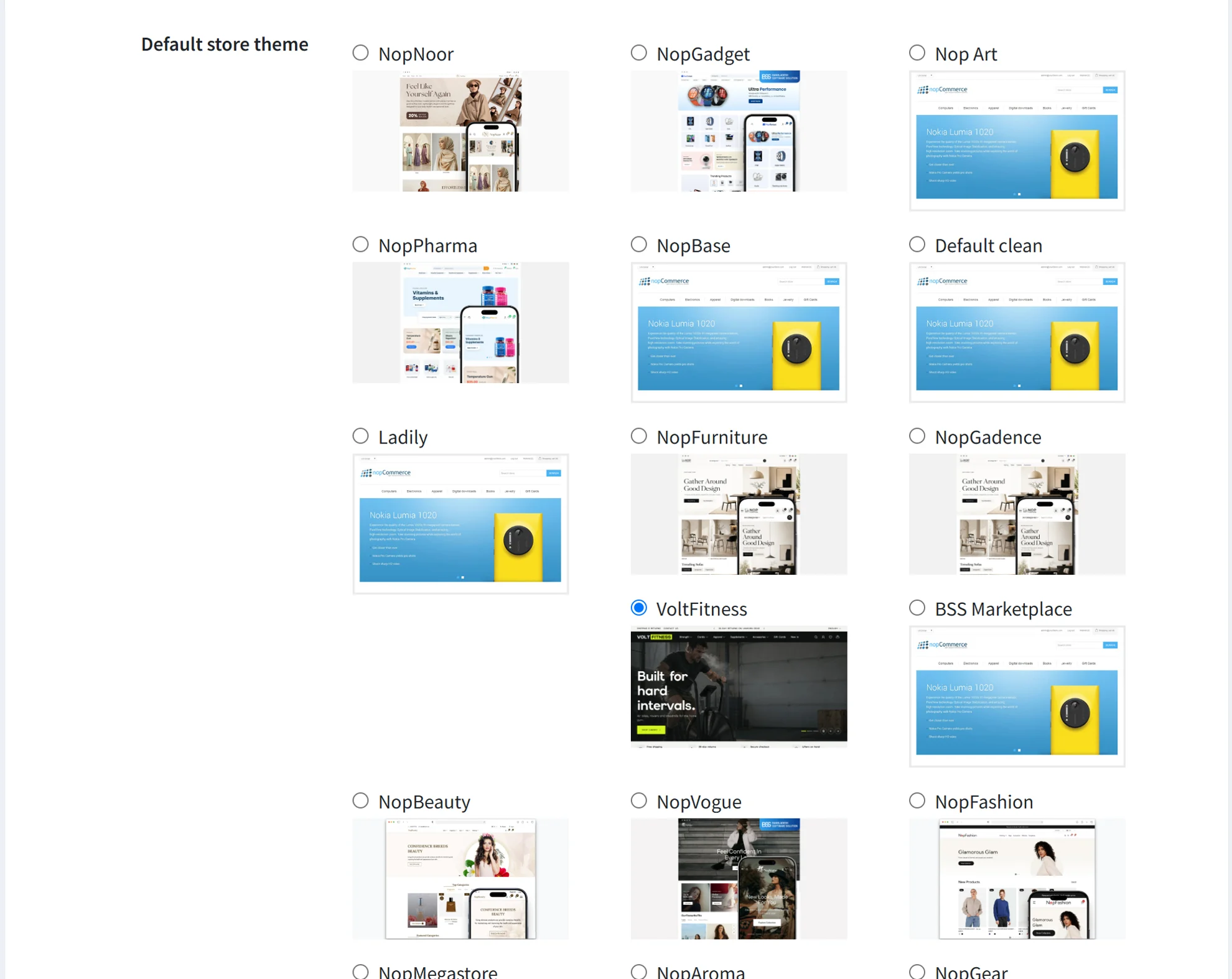
Go to ConfigurationSettingsGeneral settings.
-
Under Default store theme, select VoltFitness and click Save.
Install the bundled plugins
The home page, product cards, product page and checkout you see on the demo come from the bundled plugins, so install them to get the same store.
Upload the plugin zip files in ConfigurationLocal plugins, the same way as the theme.
-
Set Group to BSS and click Search to list only BSS plugins, then install the ones you want.
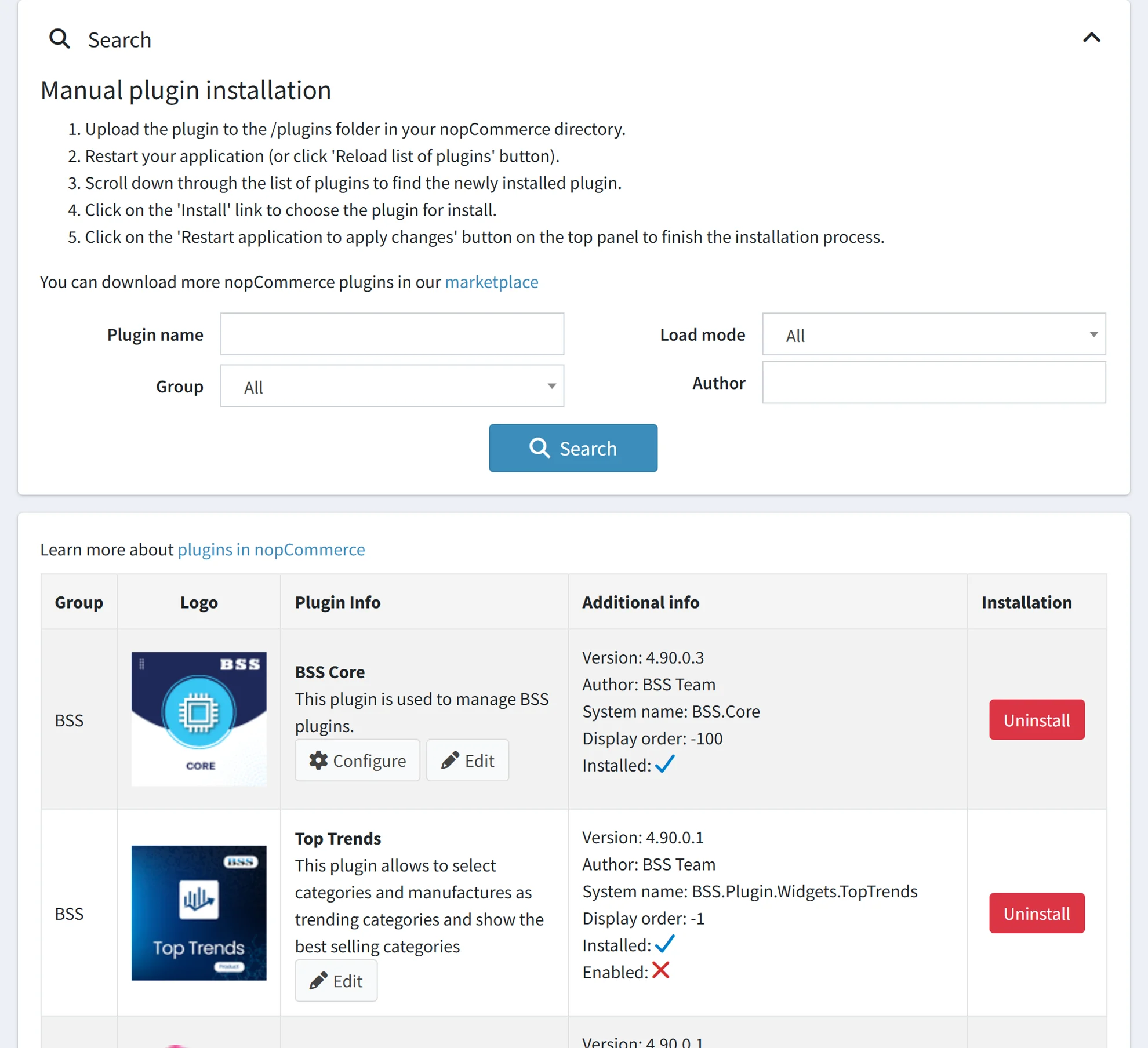
Restart the application once when you have installed them all.
Add your licence key
After you buy, BSS sends your licence key by email.
-
The first time you open the theme's configuration or a bundled plugin, nopCommerce asks for the licence. You can also enter it any time in BSSCore settingsLicense.
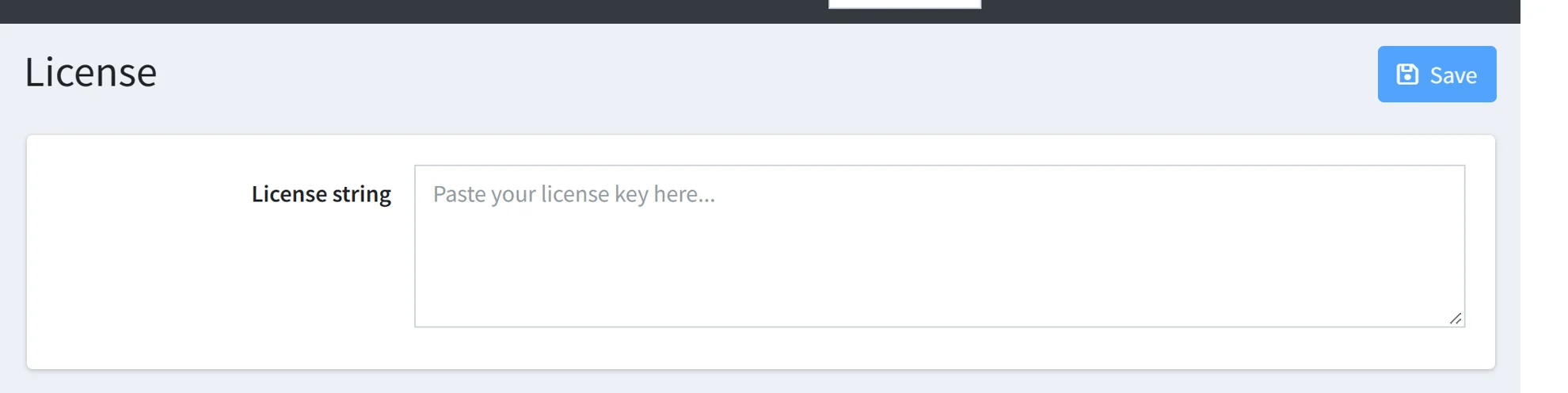
Paste the licence string, click Save, then clear the cache from the gear menu with Clear cache.
Open the theme settings
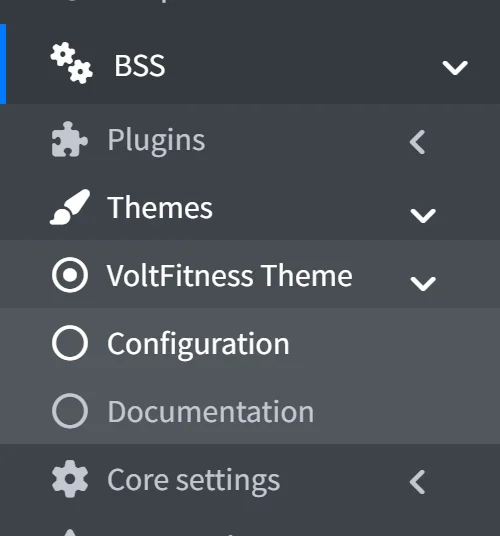
All theme settings live on one page: BSSThemesVoltFitness ThemeConfiguration.
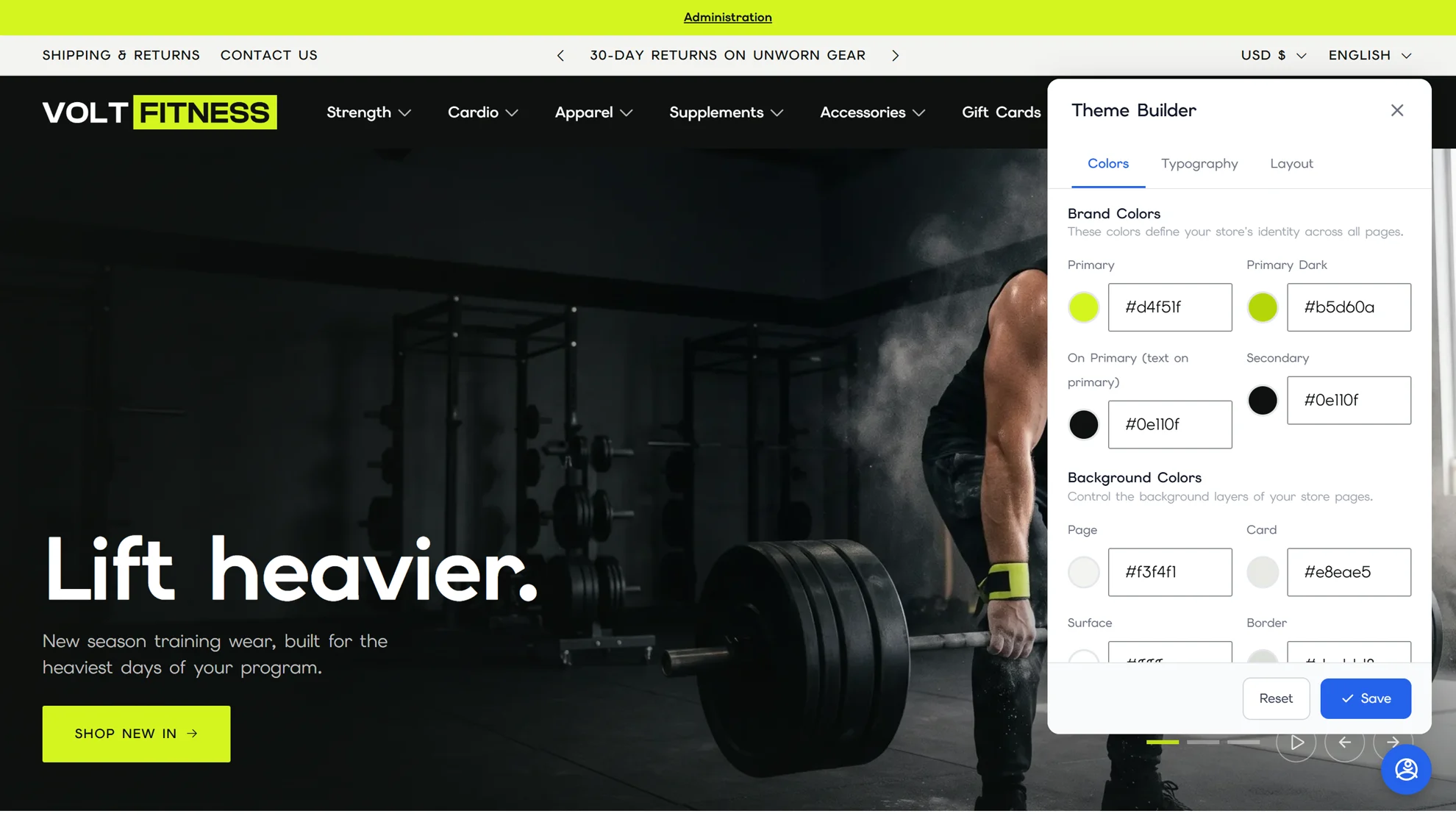
The page is split into twelve panels, described one by one below. Change what you need and click Save at the top of the page. Colours, fonts and layout grids can also be tried live on the storefront with the Theme Builder.
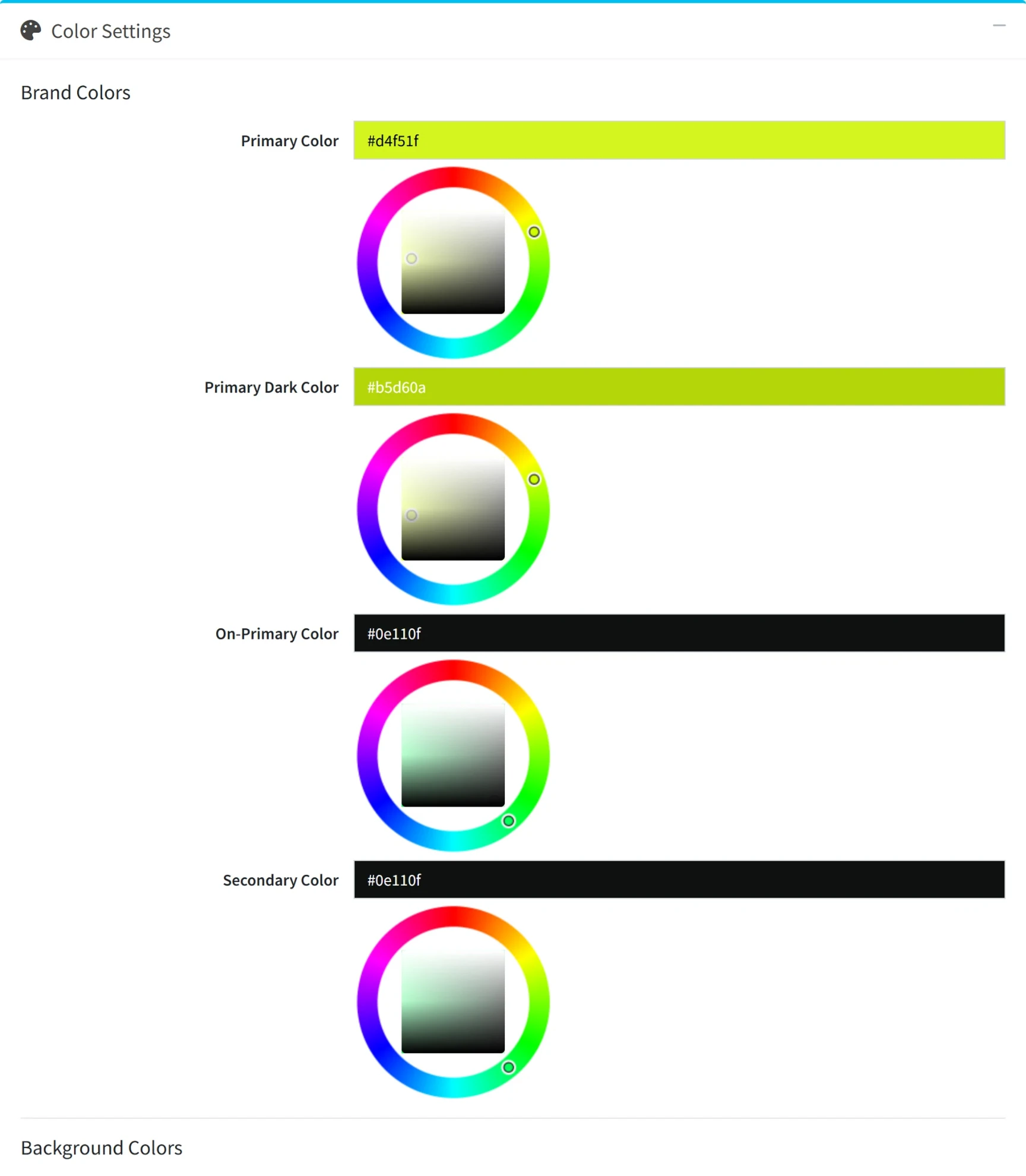
Color settings
Every colour is a hex value with a colour picker. The theme turns them into CSS variables, so one change reaches every page.
- Brand
- Primary is the brand colour on buttons, tape labels, hero bars and badges (volt by default). Primary dark is its hover and pressed shade. On-primary is the text and icon colour placed on primary fills; keep it high contrast against the primary. Secondary is the second brand colour, ink by default.
- Backgrounds
- Background primary for pages and sections, Background secondary for cards and grouped sections.
- Text
- Text for body copy, Text secondary for less important content, Text light for helper text and subtle labels.
- Buttons
- Background and hover colours for primary and secondary buttons.
- Borders and corners
- Border color for dividers and inputs. Base radius rounds inputs, buttons and pills; 0 makes them square. Card radius small, medium and large round chips, product cards and large panels such as dialogs.
- Overlay
- The mask behind dialogs and drawers. Accepts hex, rgb, rgba or transparent.
- Status
- Success, error and warning colours for messages and notifications.
- Neutrals
- White, black and the gray scale from Gray 100 to Gray 500 used across the interface.
Typography
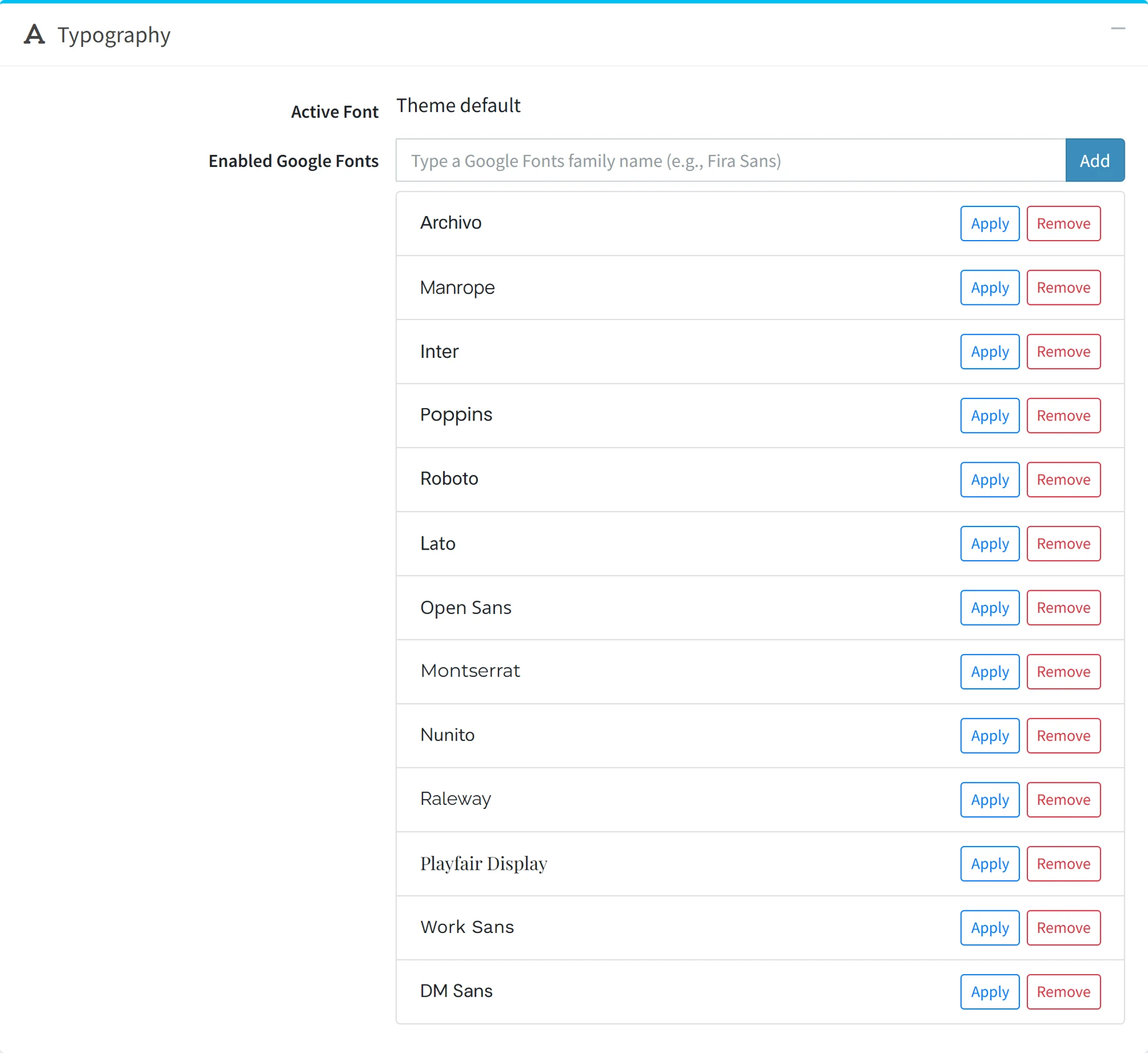
VoltFitness uses one typeface for headings and text. The default is Elms Sans, which ships with the theme.
- Active font
- The font the storefront uses now. Theme default means Elms Sans.
- Enabled Google Fonts
- Type a Google Fonts family name, such as Fira Sans, and click Add. Apply makes a font active; Remove takes it off the list. These are also the fonts the storefront Theme Builder offers.
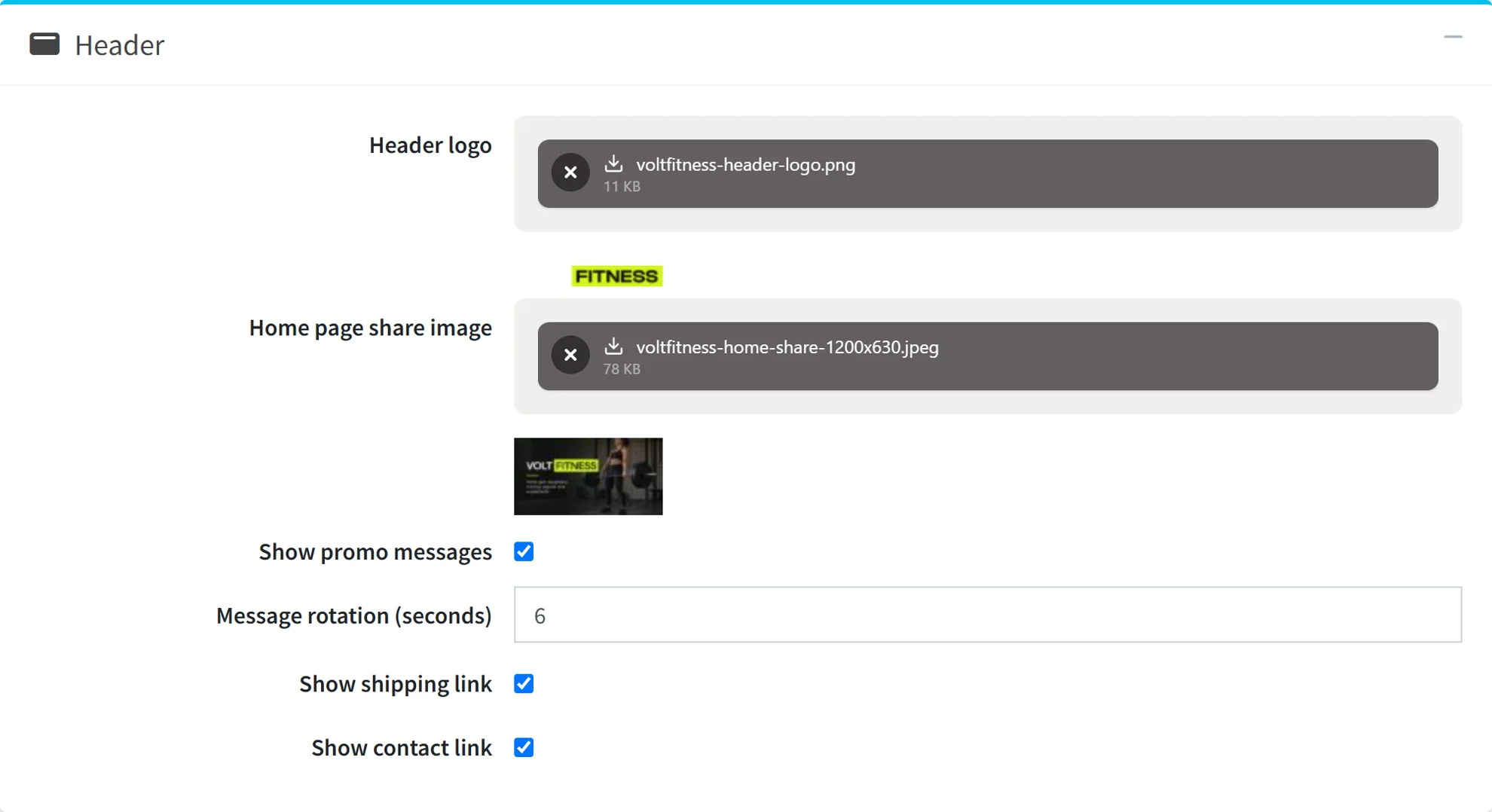
Header
- Header logo
- An optional light version of your logo for the dark header bar. If it is empty, the store logo from General settings is used.
- Home page share image
- The picture social networks and chat apps show when someone shares your home page. Use a 1200 x 630 px JPEG or PNG and keep the logo and words inside the middle 1000 x 520 px. It shows while Open Graph or Twitter meta tags are on in General settings, SEO.
- Show promo messages
- Rotates messages in the top bar. Each paragraph of the VoltFitnessPromoBar topic is one message; publish the topic to show them.
- Message rotation
- How long each message stays, from 2 to 60 seconds. Hovering or focusing the bar holds the current message.
- Show shipping link
- A link to the ShippingInfo topic at the start of the top bar.
- Show contact link
- A link to the Contact us page at the start of the top bar.

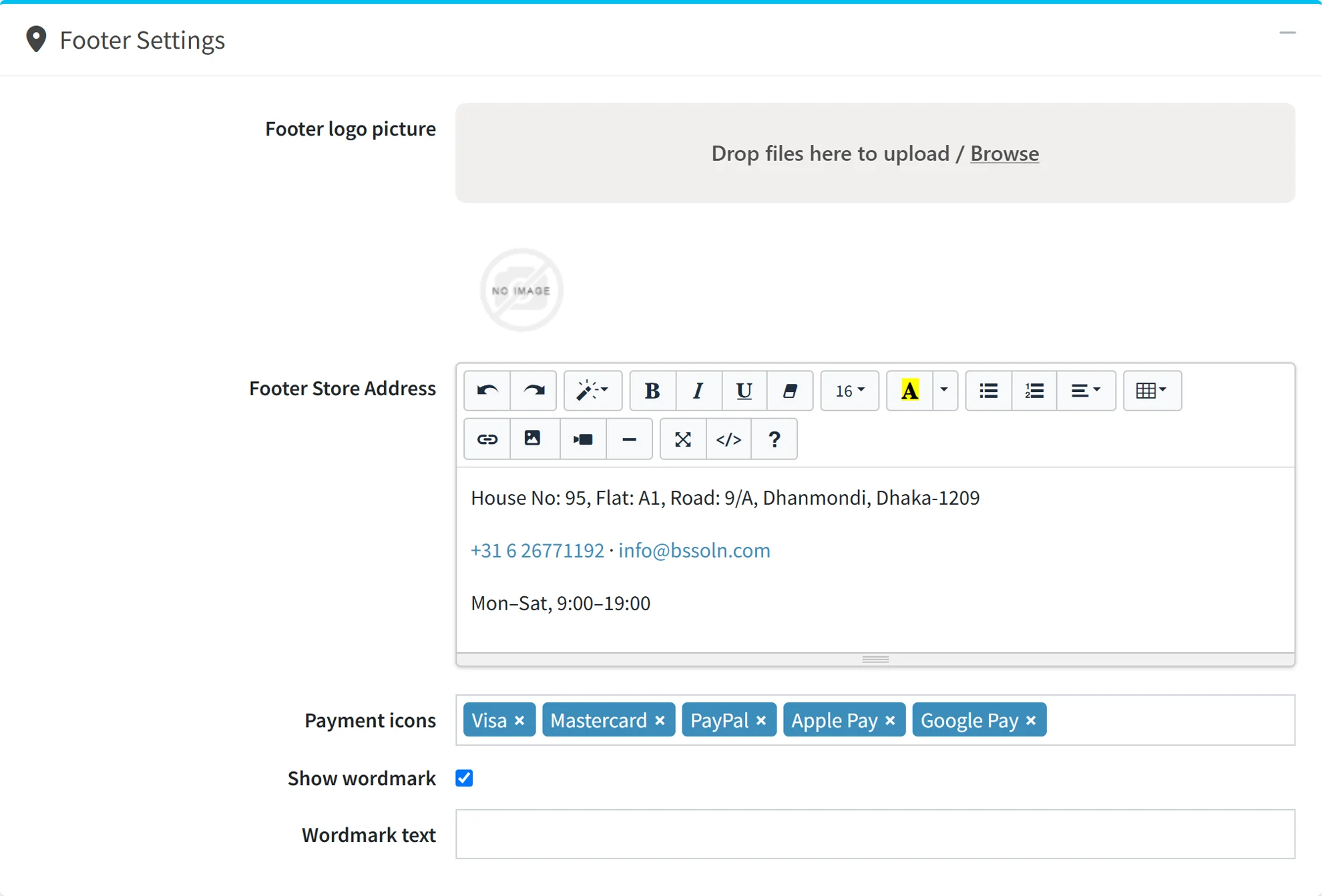
Footer settings
- Footer logo picture
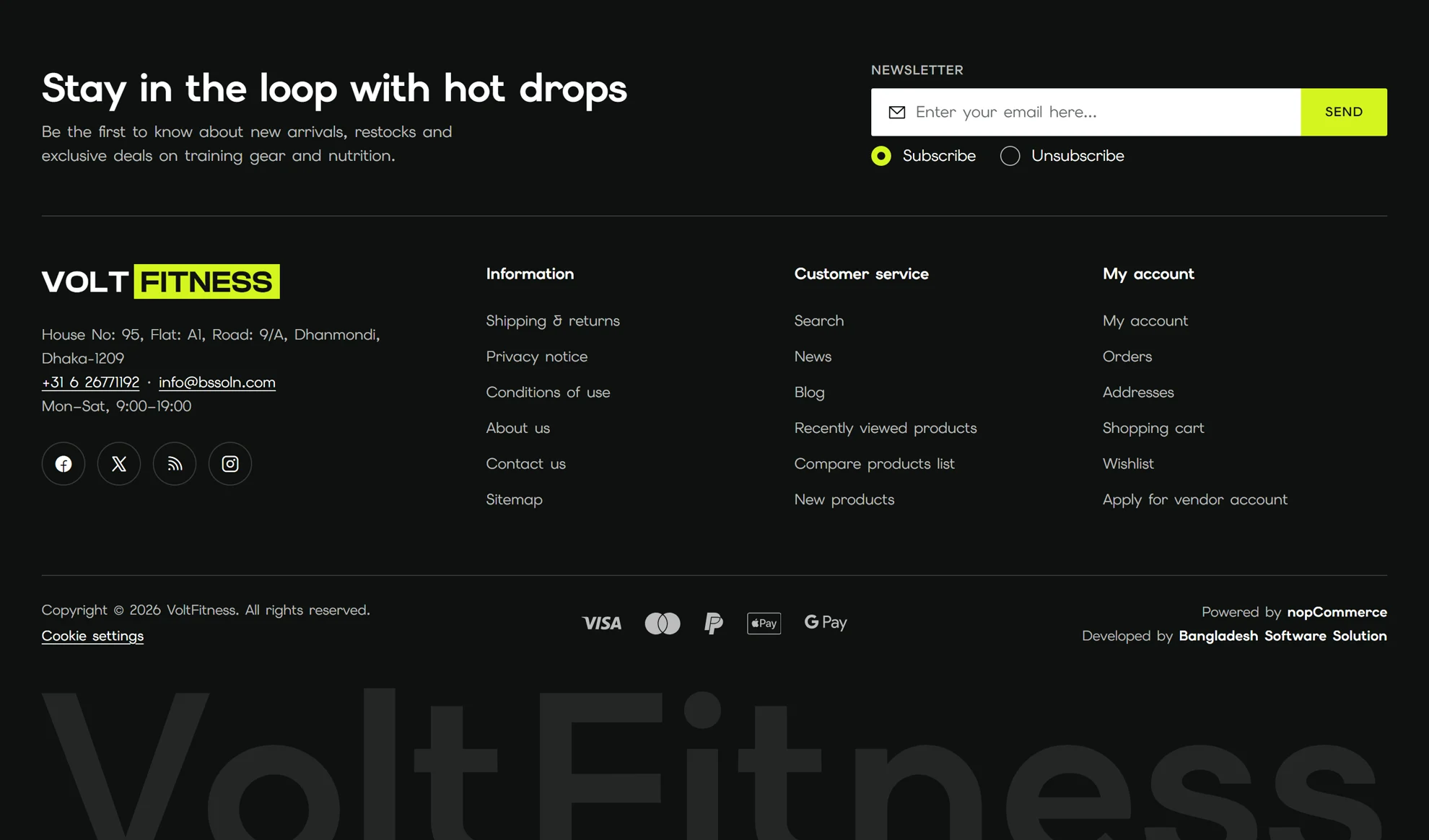
- The logo on the dark footer; use a white or two-tone version. If it is empty, the header logo is used, then the store logo.
- Footer store address
- Rich text for your address, phone, email and opening hours.
- Payment icons
- The payment methods shown as icons in the footer's bottom bar. Leave it empty to hide the row.
- Show wordmark
- Ends the footer with the store name in large type across the full width.
- Wordmark text
- The text for the wordmark. Leave it empty to use the store name.
Theme Builder
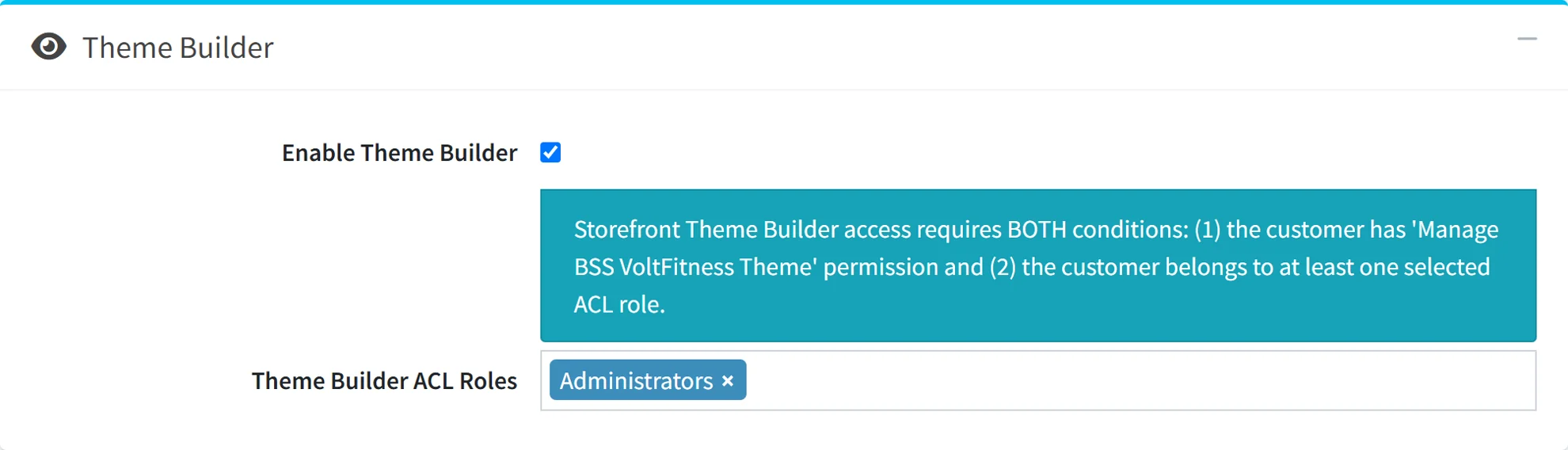
The Theme Builder is a floating panel on the storefront where you change colours, the font and the layout grids and see the result on the page you are looking at.
- Enable Theme Builder
- Shows the Theme Builder button on the storefront for the people allowed to use it.
- Theme Builder ACL roles
- The customer roles that can open it. A customer needs both: one of these roles and the Manage BSS VoltFitness Theme permission.
Layout settings
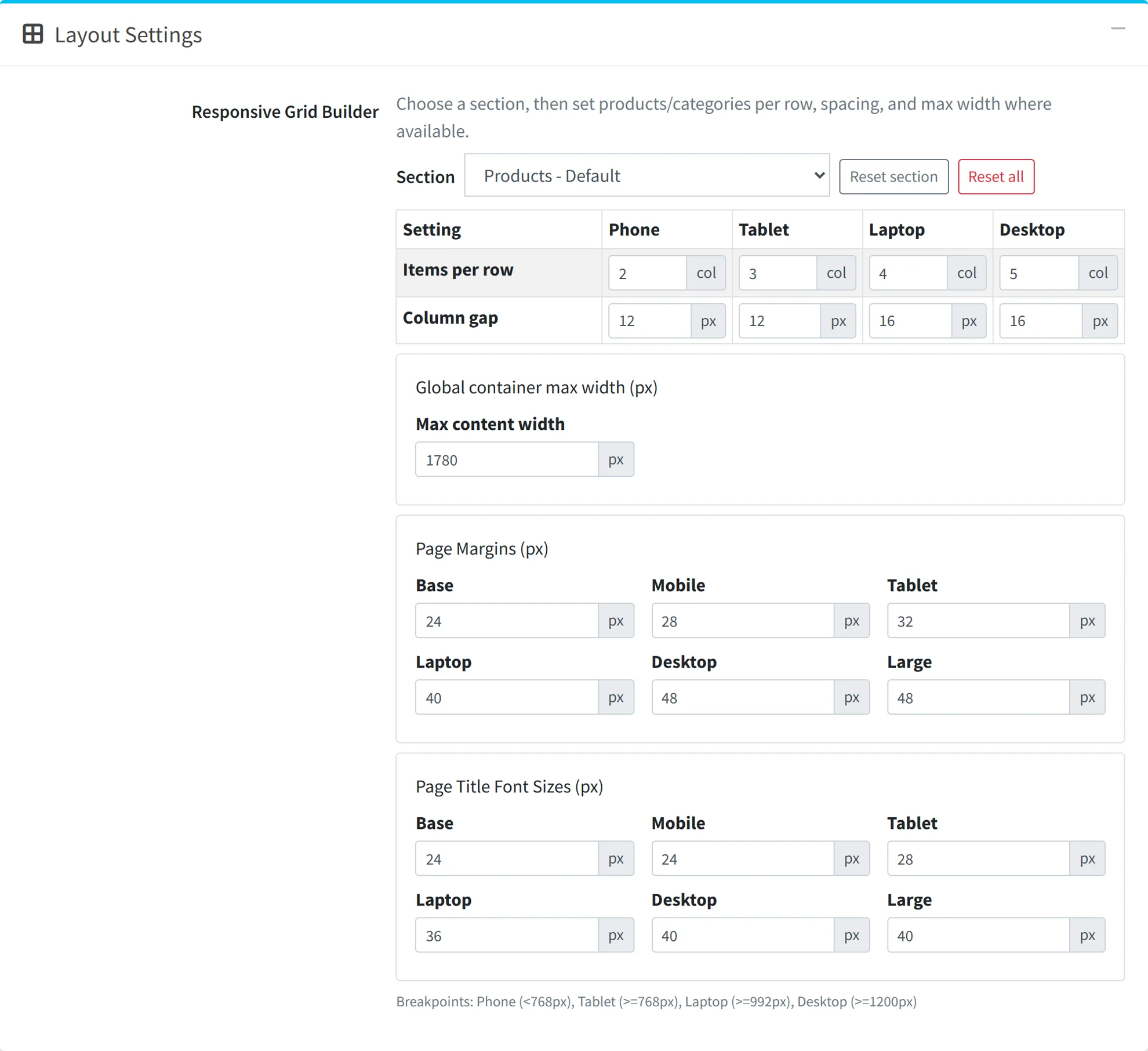
The Responsive Grid Builder sets the grids per section and per screen size. Pick a section from the list, such as Products - Default, then set its values.
- Items per row and column gap
- For phone, tablet, laptop and desktop. Phone is below 768 px, tablet from 768 px, laptop from 992 px and desktop from 1200 px.
- Max content width
- The widest the page content grows, in pixels.
- Page margins
- The space at the left and right of the page for each screen size, from base to large.
- Page title font sizes
- The size of page titles for each screen size.
- Reset section, Reset all
- Return one section, or every section, to the theme's values.
Catalog page layout
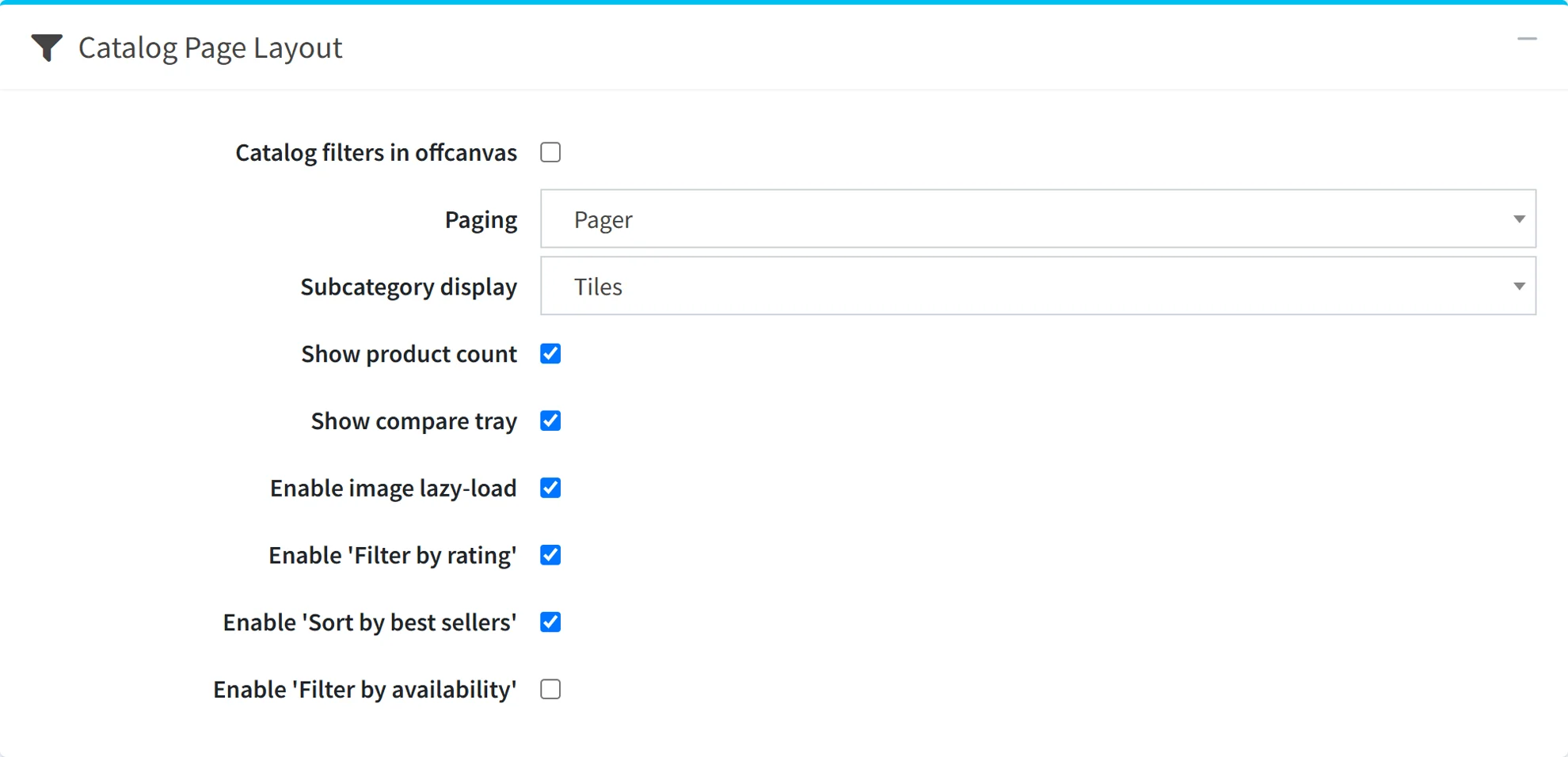
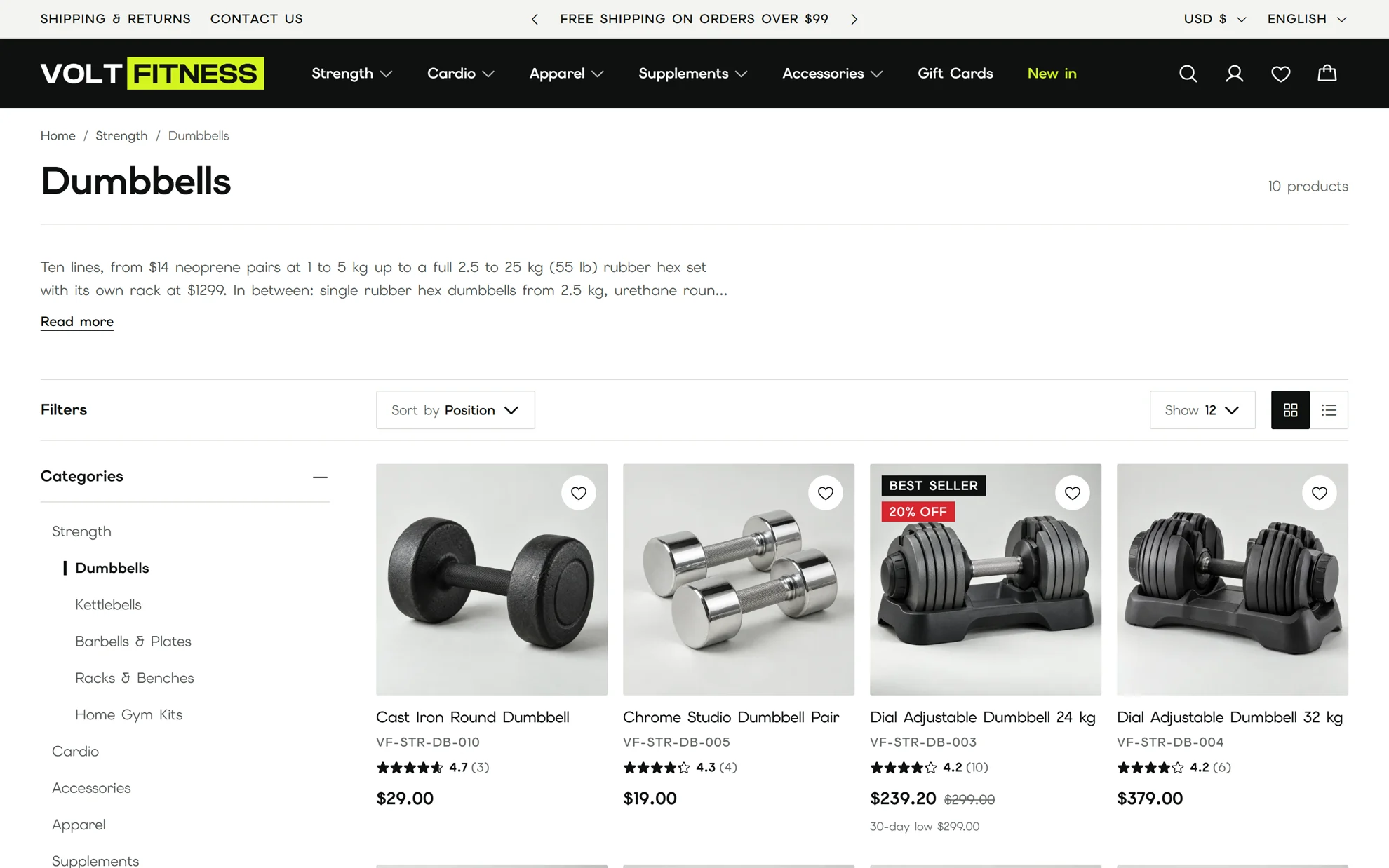
These apply to category, manufacturer, vendor, product tag, search and new products pages.
- Catalog filters in offcanvas
- Shows the filters in a drawer on every screen size instead of a sidebar.
- Paging
- Pager shows numbered pages. Load more adds a button that appends the next page. Infinite loads the next page as the shopper scrolls. The numbered pager stays in the page for search engines either way.
- Subcategory display
- Tiles shows picture tiles above the products, Chips a single row of small chips that scrolls sideways, Off hides them.
- Show product count
- The number of products beside the page title. It updates as the shopper filters.
- Show compare tray
- A bar at the bottom of the screen once a product is added to compare, with Compare now and Clear list. It shows only while product comparison is on.
- Enable image lazy-load
- Lets the browser load images below the screen later. Product page images always load straight away.
- Filter by rating
- Adds a customer rating filter, such as 4 stars and up.
- Sort by best sellers
- Adds Best sellers to the sort list, ordered by total quantity sold.
- Filter by availability
- Adds an availability filter. Choose which options it offers: In stock, Out of stock, Pre-order and Call for price.
Product details
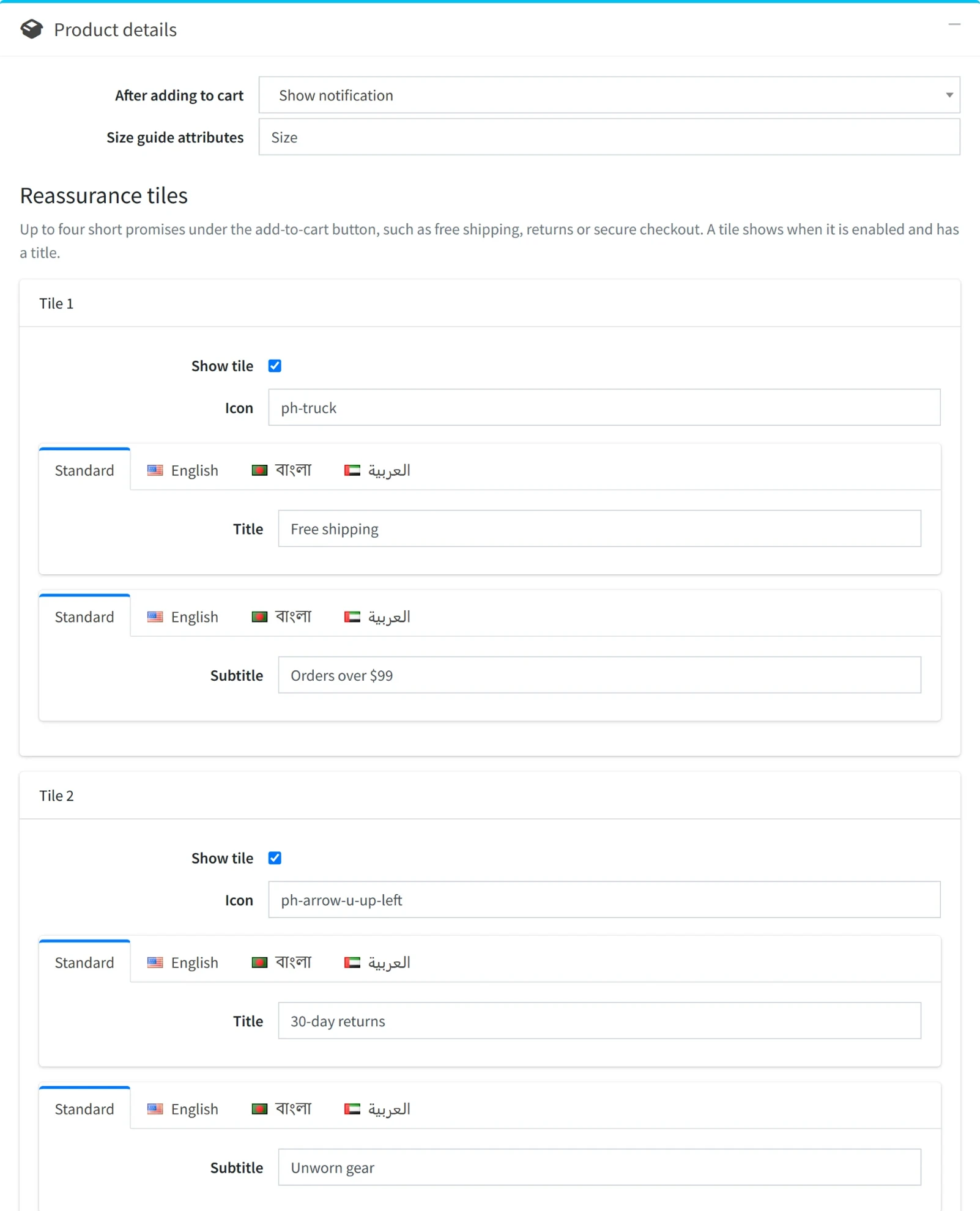
- After adding to cart
- Show notification shows the success message. Open flyout cart opens the side cart instead.
- Size guide attributes
- Product attribute names, separated by commas, that get a Size guide link, for example Size, Shoe size. See topics the theme reads for where the guide's text comes from.
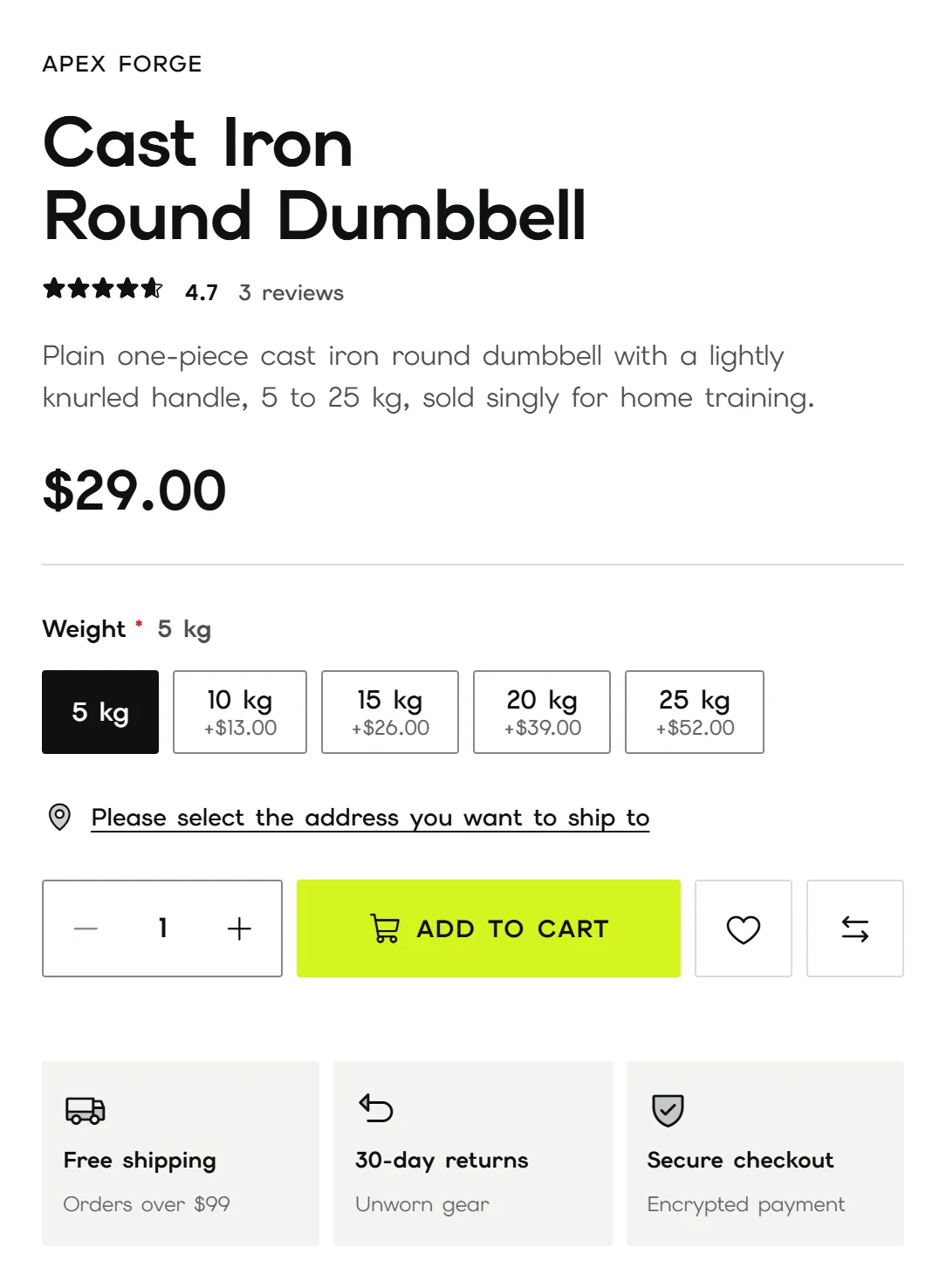
- Reassurance tiles
- Up to four short promises under the Add to cart button, such as free shipping, returns or secure checkout. Each tile has Show tile, an Icon, a Title and an optional Subtitle, and the texts can be translated per language. A tile shows when it is on and has a title.
Icons for the tiles
Type one of these names in a tile's Icon field. They are Phosphor icons, bundled with the theme and drawn in the duotone style. Leave the field empty for a tile with text only.
See each icon at phosphoricons.com.
Motion
- Animations
- Off has no scripted motion. Subtle adds home page headline and grid reveals, menu and cart feedback and button presses. Expressive also animates hero slide changes and the image that flies to the cart. Animation scripts load only after the page has loaded, and shoppers whose device asks for reduced motion never get them.
- Page transitions
- Fades between pages with the browser's View Transitions. Navigation is never slowed down, and browsers without support simply load the next page.

Notifications
VoltFitness shows messages as toasts in the corner of the screen.
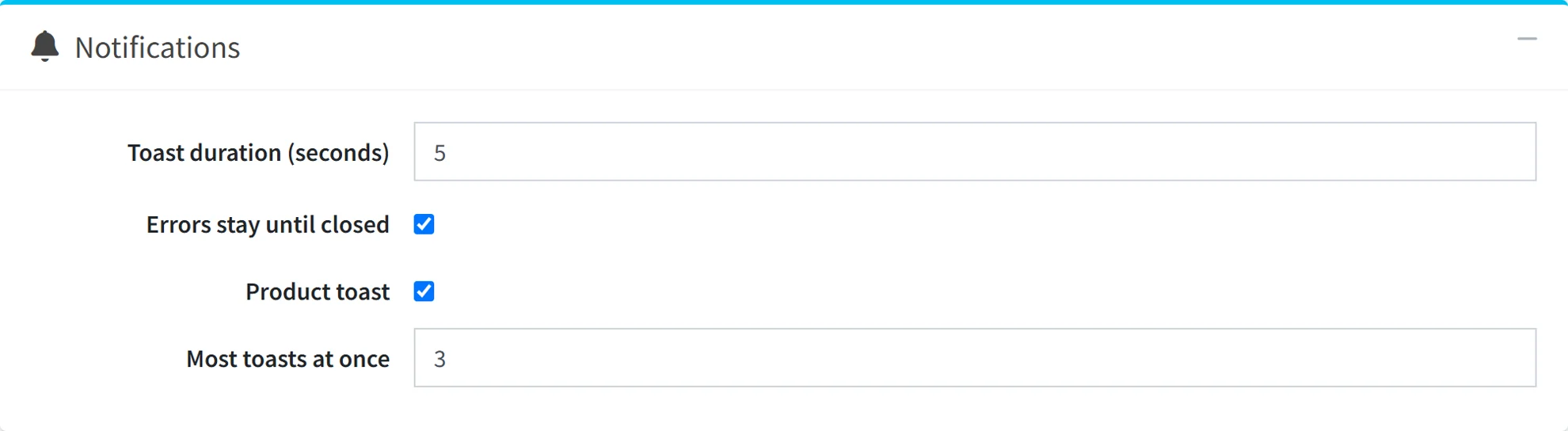
- Toast duration
- How long success, warning and info toasts stay, from 2 to 30 seconds. Hovering or focusing a toast holds it.
- Errors stay until closed
- Keeps error toasts on screen until the shopper closes them.
- Product toast
- After add to cart, wishlist or compare, shows a toast with the product and a link to the cart, wishlist or comparison. Turn it off to show the confirmation dialog instead.
- Most toasts at once
- How many toasts can stack, from 1 to 5. When another arrives, the oldest closes.
Loader and custom CSS
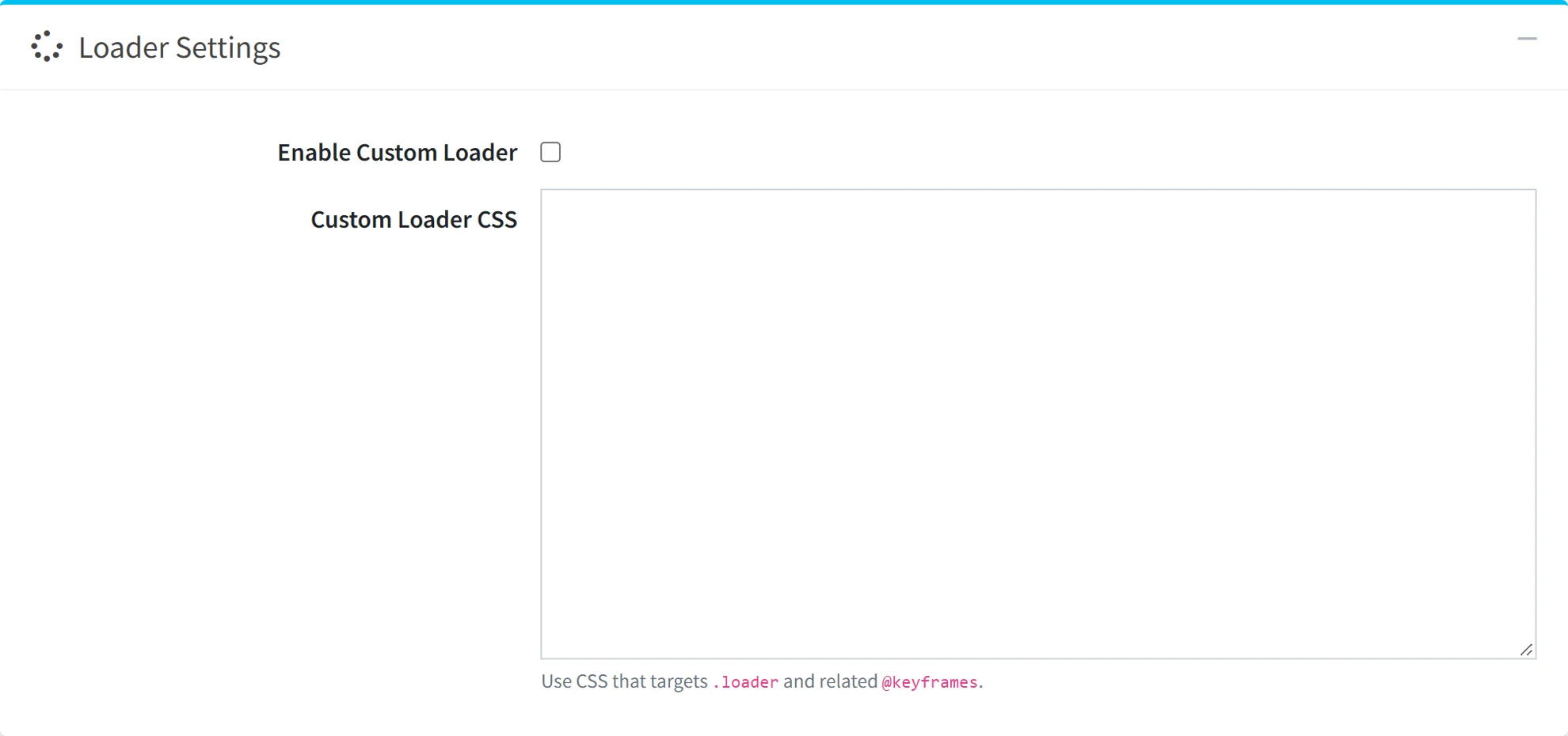
- Enable custom loader
- Replaces the theme's loading animation with your own.
- Custom loader CSS
- CSS for the
.loaderclass and any keyframes it uses. Sites such as css-loaders.com have ready-made loaders. - Custom CSS
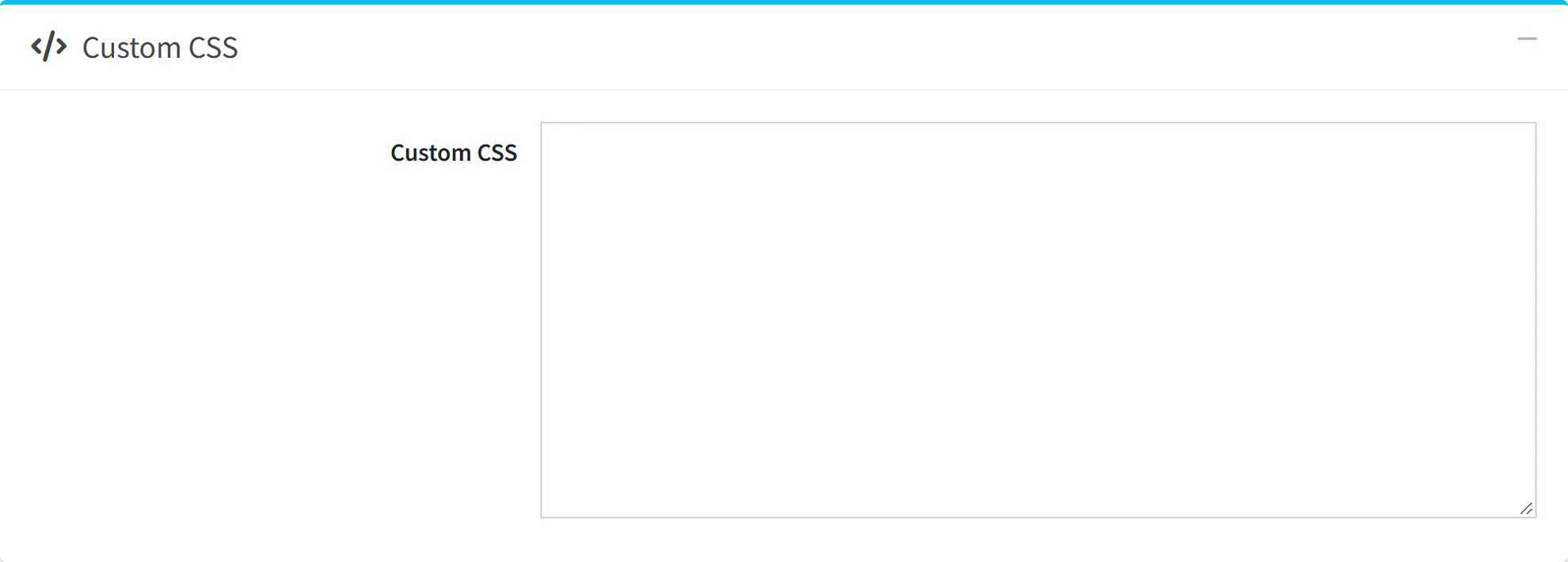
- Your own styles, added to the head of every storefront page.
Topics the theme reads
Some VoltFitness texts come from nopCommerce topics, so you edit them in Content managementTopics (pages) and translate them like any other page.
| Topic system name | What it does |
|---|---|
VoltFitnessPromoBar | The promo messages in the top bar. Each paragraph is one message. Publish the topic and turn on Show promo messages. |
ShippingInfo | The page behind the shipping link in the top bar. |
VoltFitnessSizeGuide-{category} | A size guide for one category, where {category} is the category's SEO name, for example VoltFitnessSizeGuide-leggings. A product uses its own category's guide or the nearest parent's. |
VoltFitnessSizeGuide | The store-wide size guide, used while no category guide is published. A guide shows only while its topic is published and has text. |
The 18 bundled plugins
Each plugin has its own settings in BSSPlugins and its own guide. Here is what each does in VoltFitness and where to find it.
 BSS Product BoxThe product card in every grid and rail: a photo swiper, the second photo on hover, quick add and the card buttons.BSSPluginsProduct BoxConfigureGuide for BSS Product Box
 BSS Advanced Product CompareThe compare page, with a switch that hides matching rows and a search to add products.BSSPluginsAdvanced Product CompareConfigureGuide for BSS Advanced Product Compare
 BSS Anywhere ComponentHTML blocks in any widget zone: department tiles, the home page stories and calls to action.BSSPluginsAnyWhere ComponentComponent listGuide for BSS Anywhere Component
 BSS Visual EditorA drag and drop editor for topics, product descriptions and components, with an MCP bridge for AI assistants.BSSPluginsVisual EditorConfigurationGuide for BSS Visual Editor
- BSS Combo ProductsKits: several products sold as one, with fixed items, optional add-ons and a kit price.BSSPluginsCombo ProductsCombo packagesSet up from its configuration page; no separate guide.
 BSS Payment ChangeLets shoppers retry or switch the payment method of an unpaid order.BSSPluginsChange Payment MethodConfigurationGuide for BSS Payment Change
 BSS Product RibbonSale, new, best seller and kit ribbons on cards and product pages.BSSPluginsProduct RibbonConfigurationGuide for BSS Product Ribbon
 BSS QuickViewA product pop-up from any listing, with the gallery, options and Add to cart.BSSPluginsQuickViewConfigureGuide for BSS QuickView
 BSS Product Image GalleryThe product page photo grid on desktop and swiper on phones, with zoom.BSSPluginsProduct Image GalleryConfigureGuide for BSS Product Image Gallery
 BSS Anywhere SwiperThe home page hero slider with timed bars, with separate phone images.BSSPluginsAnywhere SwiperSlider ListGuide for BSS Anywhere Swiper
 BSS Anywhere CarouselsProduct rails such as Trending, with department tabs.BSSPluginsAnywhere CarouselCarouselsGuide for BSS Anywhere Carousels
 BSS SendcloudShipping rates, labels and a pickup point picker at checkout. Needs a Sendcloud account.BSSPluginsSendcloudSetup GuideGuide for BSS Sendcloud
 BSS Google AuthenticationSign in with Google next to the email login. Needs your Google app keys.BSSPluginsGoogle AuthConfigurationGuide for BSS Google Authentication
 BSS One Page CheckoutAddress, shipping, payment and the order summary on one page.BSSPluginsOnePage CheckoutConfigureGuide for BSS One Page Checkout
 BSS AI SEO AssistantWrites meta titles and descriptions for products, categories, manufacturers, blog and news.BSSPluginsAI SEO AssistantConfigurationGuide for BSS AI SEO Assistant
 BSS EU Omnibus DirectiveShows the lowest price of the last 30 days next to every discount.BSSPluginsEU OmnibusConfigurationGuide for BSS EU Omnibus Directive
 BSS EU GDPR Cookie ConsentA consent banner with cookie categories, where Reject all weighs the same as Accept all.BSSPluginsCookie ConsentConfigurationGuide for BSS EU GDPR Cookie Consent
 BSS Phone SMS AuthenticationSign in and register with a one-time SMS code. Needs an SMS gateway.BSSPluginsPhone SMSSMS ProvidersGuide for BSS Phone SMS Authentication
Get help
Stuck on a step, or need design changes, plugin work or an integration? The team that built VoltFitness is happy to help. You can also report a bug from BSSReport a bug in your admin.